
In an attempt to stop piracy of Windows OS, the Microsoft developer team has come up with an idea to place a watermark in the corner until the users legally purchase a license and activate the Windows OS.
If you're running a pirated Windows copy in your system, you should have noticed the "Activate Windows" watermark notification in the lower bottom corner as shown in the below screenshot.

Fortunately, the Linux users will never get such notifications. Because GNU/Linux is an entirely free, open source operating system, released under the GNU General Public License (GPL).
Anyone can run, study, modify, and redistribute the Linux source code, or even sell copies of their modified code, as long as they do so under the same license.
Since Linux is open source, there is nothing you can do with Linux operating systems. There are a whole of things you can do in Linux.
Be it a fun project or an enterprise-grade application, you can build and run almost anything under Linux. Even it is possible to add the "Activate Linux" watermark as well.
Table of Contents
What is Activate Linux?
A few days ago I came across a fun project called "Activate Linux". It is very similar to "Activate Windows" notification that you see in a non-licensed Windows OS.
The developer of Activate Linux has recreated the "Activate Windows" notification watermark for Linux with Xlib and cairo in C.
This will show a watermark on your Linux desktop and notify you to go to settings to activate your Linux distribution! Cool, yeah?
Enable Activate Linux Watermark
The activate-linux project became very popular in a short period of time. It has already been packaged for popular Linux distributions such as Arch Linux and Ubuntu within a few days.
Install Activate Linux in Arch Linux
Activate-linux is available in AUR. So you can install activate-linux app in Arch Linux and its variants EndeavourOS and Manjaro Linux using Paru or Yay.
paru -S activate-linux
Or,
yay -S activate-linux
Install Activate Linux Ubuntu Using PPA
Activate-linux has a PPA for Ubuntu and its derivatives like Pop!_OS.
sudo add-apt-repository ppa:edd/misc
sudo apt update
sudo apt install activate-linux
Update: As of November 2025, this PPA is not working. I recommend the Ubuntu users to install it from source as shown below.
Install Activate Linux Install from Source in Ubuntu
Here's how you can download and compile activate‑linux version 1.1.0 from its GitHub source.
Step 1. Prerequisites
First, make sure you have installed the development tools.
sudo apt update
sudo apt install build-essential
Next, you'll need to install the required dependencies to compile and install it from source. On a Debian / Ubuntu-based system, run:
sudo apt update
sudo apt install \
  libcairo2-dev \
  libxi-dev \
  libx11-dev \
  x11proto-core-dev \
  x11proto-dev \
  libxt-dev \
  libxext-dev \
  libxfixes-dev \
  libxinerama-dev \
  libxrandr-dev \
  libwayland-dev \
  wayland-protocols \
  libconfig-dev
Step 2. Downloading the source
Option A: Use git
git clone https://github.com/MrGlockenspiel/activate-linux.git
cd activate-linux
git checkout v1.1.0
Option B: Download the tarball
wget https://github.com/MrGlockenspiel/activate-linux/archive/refs/tags/v1.1.0.tar.gz
tar -xzf v1.1.0.tar.gz
cd activate-linux-1.1.0
Step 3. Compiling
There are two build options: make (the traditional) or xmake.
Using make:
make
Install it using command:
sudo make install
Using xmake:
If you prefer or if xmake is installed:
xmake
Then install:
sudo xmake install
Step 4. Uninstall:
If you used make install, you can often do:
sudo make uninstall
And if using xmake install, use:
sudo xmake uninstall
Gentoo:
On Gentoo and its variants, run the following commands:
sudo eselect repository enable vaacus
sudo emerge --sync vaacus
sudo emerge -av activate-linux
Launch Activate Linux
Once installed, simply run it from the Terminal using command:
activate-linux
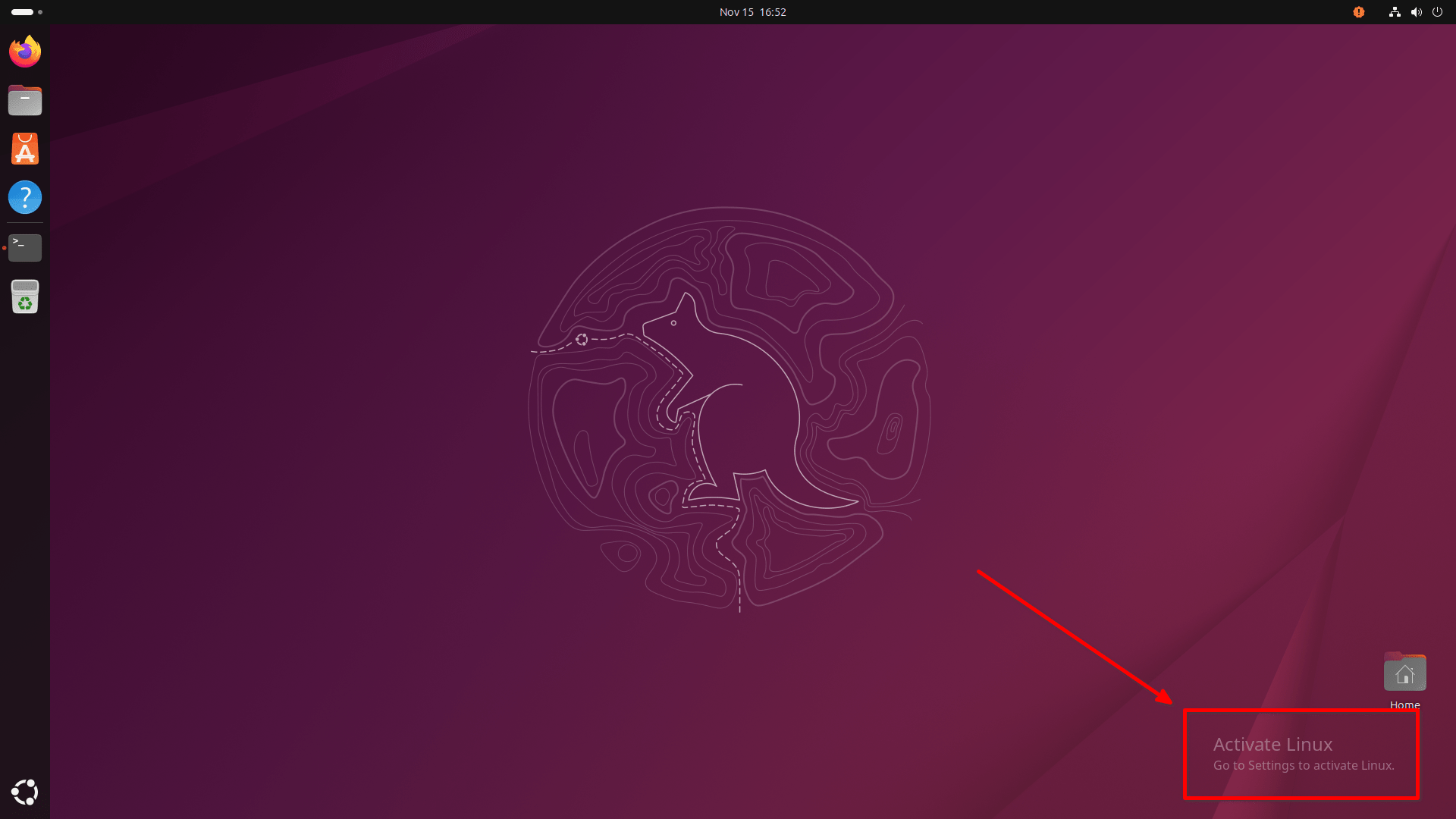
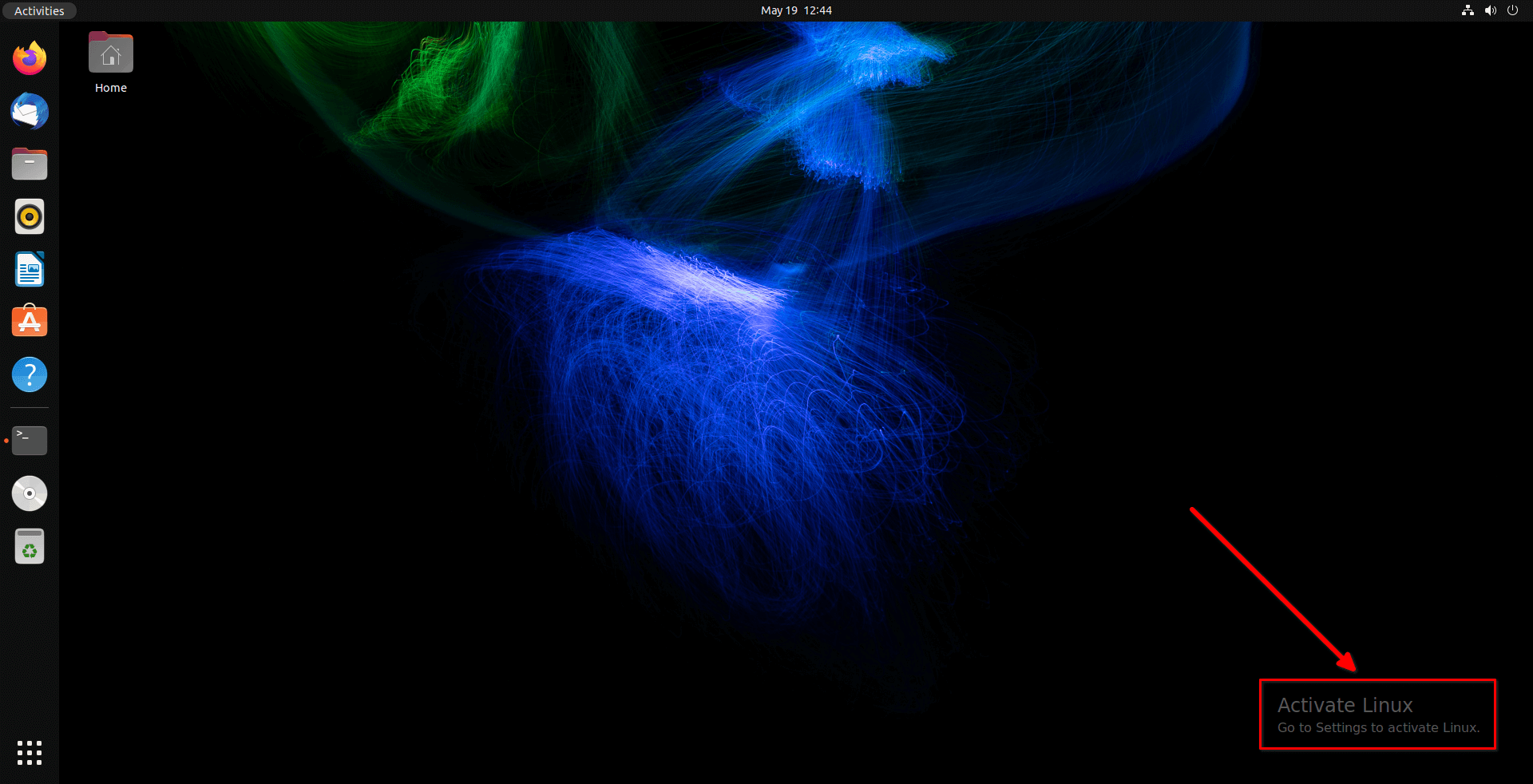
You will now see the "Activate Linux" watermark notification in the bottom right corner of the desktop just like in a non-licensed Windows copy.
Here's how activate linux notification notification looks like in my Ubuntu 25.10 GNOME edition:
Here's how it looks like in an old Ubuntu 22.04 GNOME edition:
Don't be alarmed! It is harmless. To get rid of this notification, go back to the terminal and kill the activate-linux command by pressing CTRL+C.
I tested this on Ubuntu 25.10 and 22.04 GNOME editions. It works out of the box in Wayland.
Activate Linux is a one of the fun project ever I have come across in a while. I guess it is going to make every Windows switcher feel so much more comfortable!!
Resource:

7 comments
You wrote, “Since Linux is open source, there is nothing you can do with Linux really, that you can’t do with proprietary operating systems.”
Are you sure? You’re saying that you can do anything in a proprietary system that you can do with Linux. I’m not sure that that’s always the case.
Regardless, this was a fun little experiment.
May be I should rephrase the whole sentence. It is an oversight. Thanks for pointing it out.
“as well as useless project”
A first impression yes, but if people bother to look at the code, they will learn from a simple example how to put any text they want im whatever font, style, color, and size on to the display background using the Cairo library.
In fact the code provides not just an activate “Linux” caption but the at compile time checks to see if the system is Apple, GNU/Linux, or openBSD and then when runs provides the appropriate caption.
So a fun and useless final product, but a learning opportunity in how to get there and how to apply what was learnt to more useful programs.
Agreed. I removed the “useless” word.
doesn’t work, I added the PPA, ran apt update and then ran apt install activate-linux and it says “E: Unable to locate package activate-linux”
did u fix it ????
If you use Ubuntu, you can compile and install it from source. Please check the updated guide.