
The other day, we have discussed how to install FreeBSD 10.2. Today, we'll see how to install KDE (K Desktop Environment) in FreeBSD. At the end of the tutorial, you will get perfectly working KDE desktop environment in your FreeBSD system. Let us get started!
Install KDE Desktop in FreeBSD
Log in to your FreeBSD system.
To install KDE in FreeBSD 10.2, run the following commands as root user:
pkg install xorg
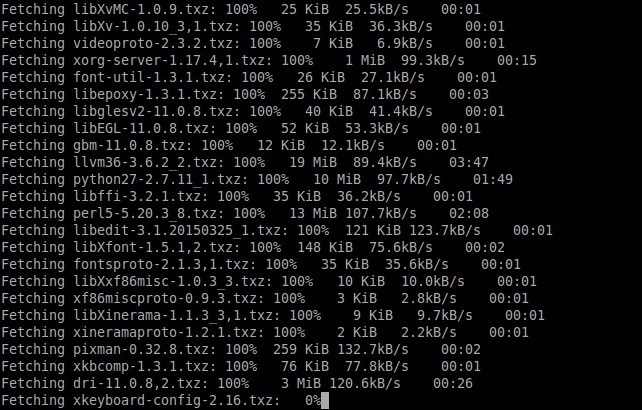
This will take while. Please be patient.
After install xorg, run the following command to install KDE:
pkg install kde
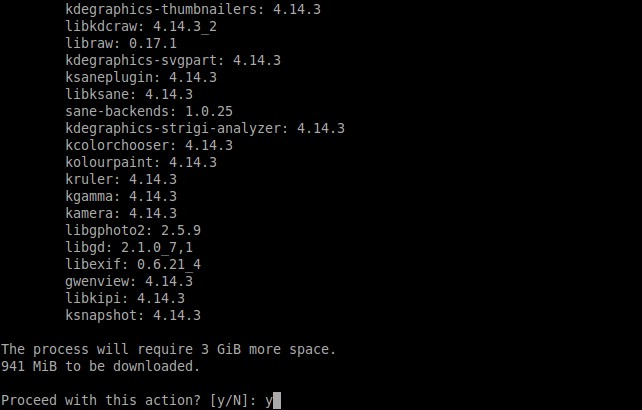
This will take a while depending upon the speed of your Internet connection. Grab a cup of coffee and sit back.
After installing KDE, you need to add some entries in your fstab file. KDE requires /proc file system to be mounted automatically during system startup.
To do so, edit file /etc/fstab:
For editing files, I prefer nano editor than vi editor. Nano editor is much friendlier to me. I could easily copy/paste the commands/lines to and from nano editor.
So, let us install nano editor using command:
pkg install nano
Then, edit /etc/fstab file,
nano /etc/fstab
Add the following line:
proc /proc procfs rw 0 0
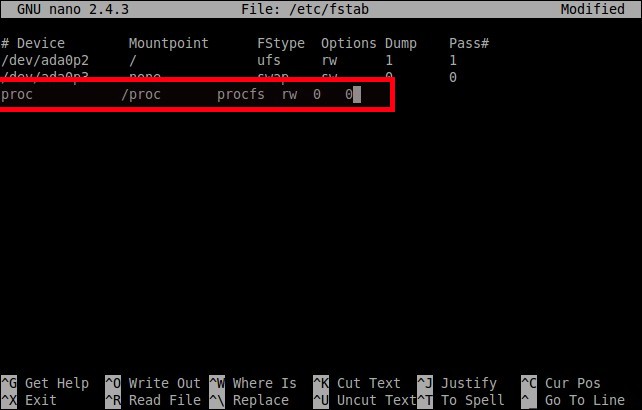
Save and close the file.
KDE uses D-Bus and HAL for a message bus and hardware abstraction. These applications are automatically installed as dependencies of KDE.
We need to Enable them in /etc/rc.conf so they will be started when the system boots. Also, we need to enable the KDE Display Manager, kdm, which is installed as part of the KDE package.
To do so, edit file /etc/rc.conf file,
nano /etc/rc.conf
Add the following lines:
hald_enable="YES"
dbus_enable="YES"
kdm4_enable="YES"
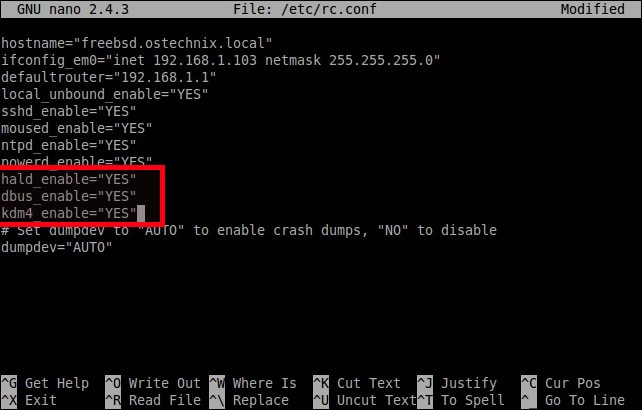
Save and close the file. Reboot your system.
reboot
Be mindful that root user is not allowed to log in to the graphical desktop. So, you must need a normal user to log in to KDE desktop. We already have shown you how to create a normal system user in the FreeBSD installation guide.
So, Log in to your FreeBSD desktop with your user name and password.
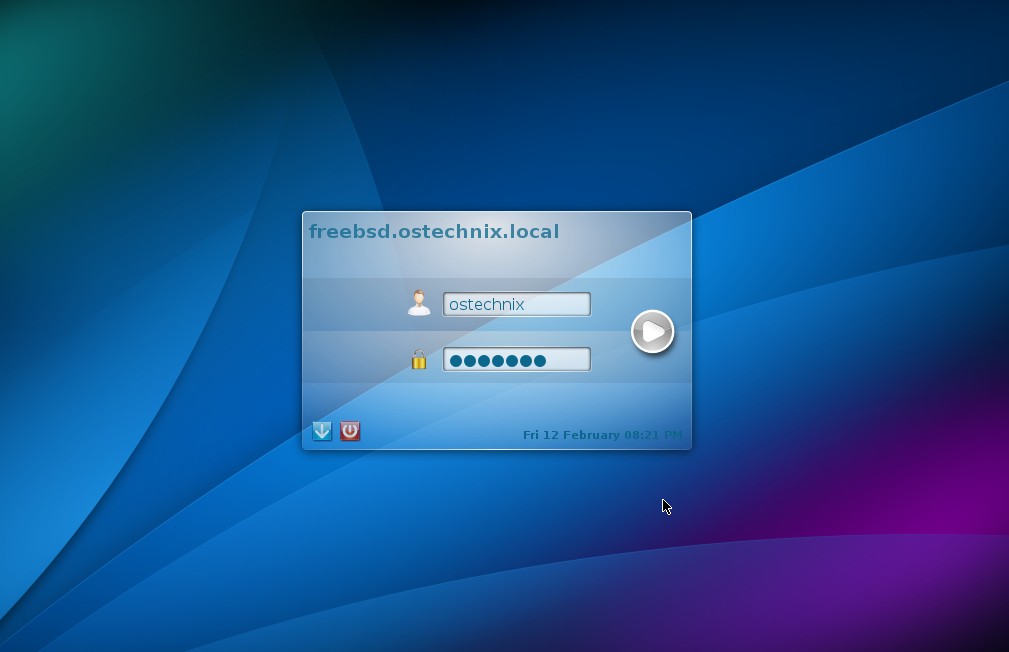
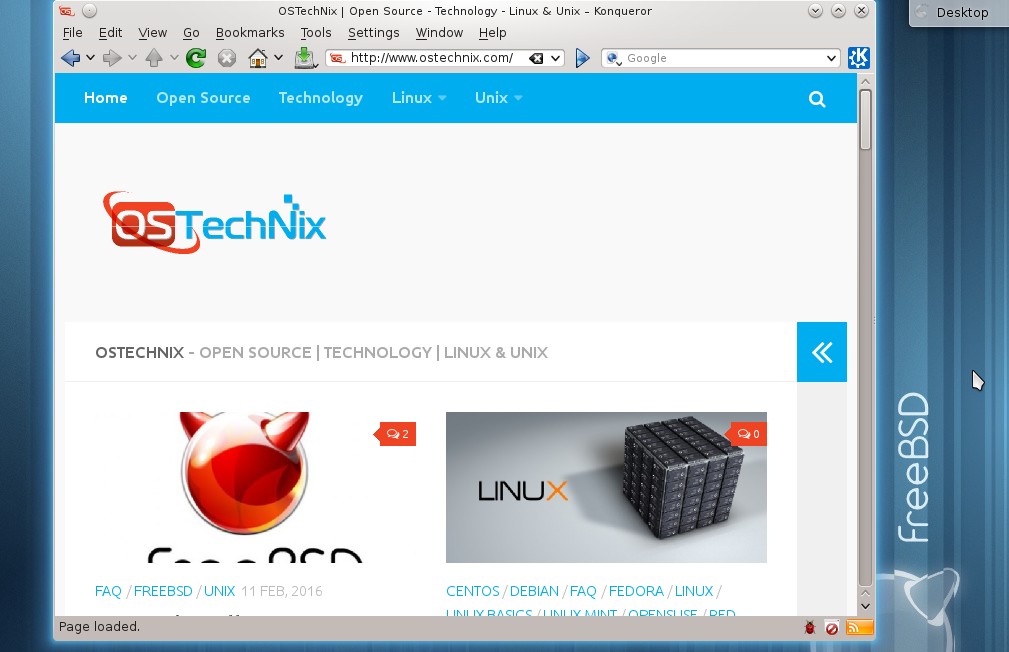
Voila! Start using the FreeBSD KDE desktop.

Hope this helps.
Reference:
