
Linux file extensions often mislead. A file named script.sh may not be a script. A file named backup.tar.gz may not be an archive. This is why Linux admins rely on the file command.
The file command reveals the true file type by reading file content, not names. In this guide, we are going to teach you the file command usage with examples. We will also provide a few real troubleshooting stories and a quick cheat sheet.
Table of Contents
What the file command does (and why it matters)
The file command inspects a file's magic bytes and structure and compares them against a system database. It works consistently on:
- Linux
- macOS
- FreeBSD and other BSD systems
- Most Unix-like systems
Because it ignores extensions, it is reliable for debugging, security checks, and automation.
The 4 file commands you will actually use
1. Identify the Real File Type
file filename
Example:
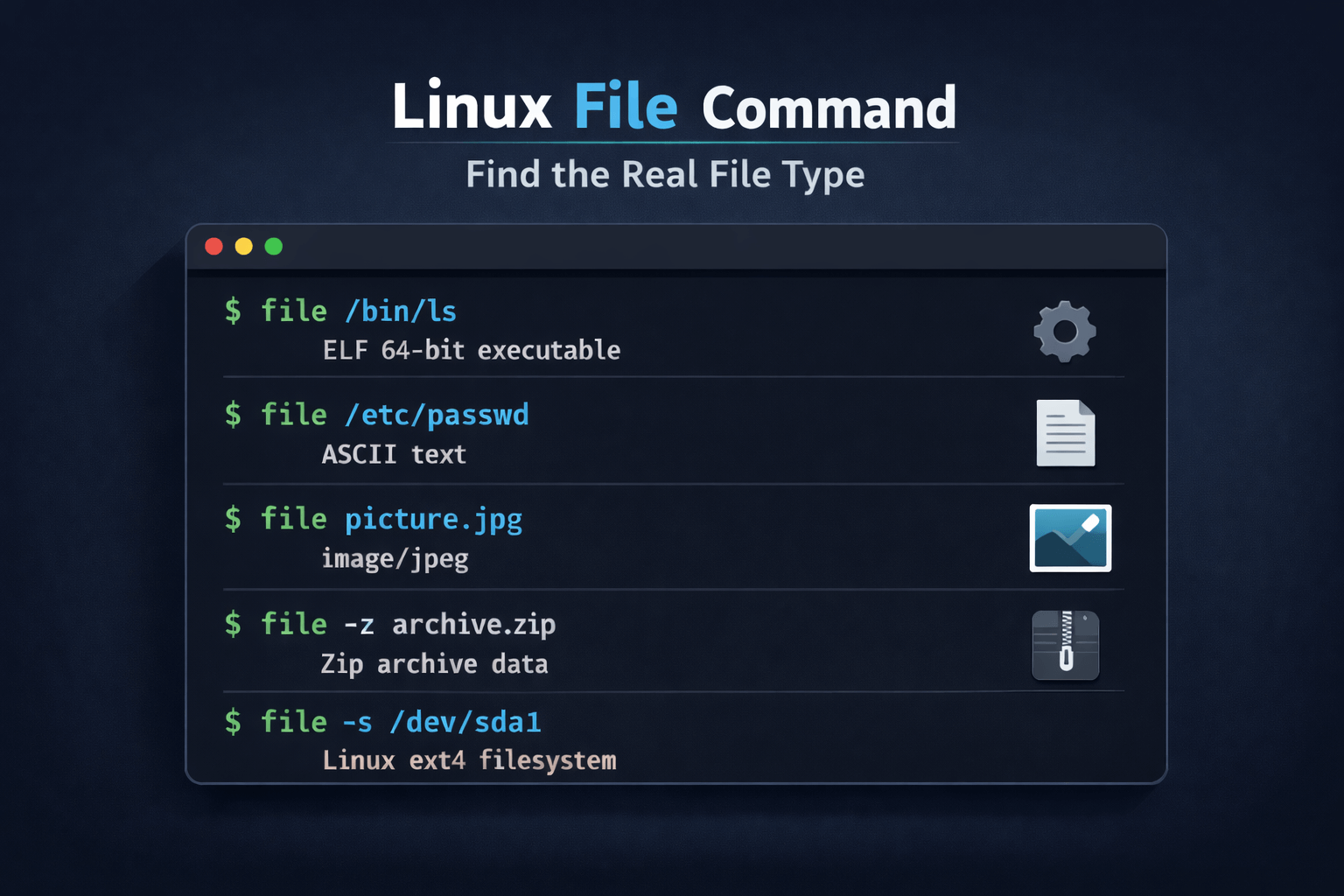
file /bin/ls
Sample Output:
/bin/ls: ELF 64-bit LSB pie executable, x86-64, version 1 (SYSV), dynamically linked, interpreter /lib64/ld-linux-x86-64.so.2, BuildID[sha1]=15dfff3239aa7c3b16a71e6b2e3b6e4009dab998, for GNU/Linux 3.2.0, stripped
Another example:
file /etc/passwd
Sample Output:
/etc/passwd: ASCII text
You can use this when,
- A script fails
- A binary will not run
- A file looks suspicious
Related Read: The Type Command Tutorial With Examples For Beginners
2. Detect MIME Type Correctly
file -i filename
Example:
file -i upload.bin
Output:
application/octet-stream; charset=binary
This is essential for:
- File uploads
- Web servers
- Security filters
- API validation
Extensions are not reliable. MIME detection is.
3. Inspect Compressed Files Safely
file -z archive.gz
Example:
file -z logs.tar.gz
This confirms:
- archive format
- compression type
Works with:
- gzip
- bzip2
- xz
- zip
- tar archives
It is a fast safety check before extraction.
Similar Read: How To View The Contents Of An Archive Or Compressed File In Linux
4. Inspect Disks and Block Devices
file -s /dev/sdX
Example:
sudo file -s /dev/sda1
Possible output:
/dev/sda1: Linux rev 1.0 ext4 filesystem data
Useful for:
- Disk recovery
- RAID verification
- LVM troubleshooting
Real Troubleshooting Stories
1. Script fails in production
A deployment script named deploy.sh suddenly fails with a permission error.
file deploy.sh
Output:
ELF 64-bit LSB executable
Root cause:
A binary replaced the script during a bad copy operation.
Fix:
Restore the script and lock down write permissions.
2. Fake PDF uploaded to a web server
A user uploads invoice.pdf. The application crashes while processing it.
file invoice.pdf
Output:
POSIX shell script
Root cause:
The file was a script disguised as a PDF.
Fix:
Block uploads based on MIME type using file -i.
3. Disk shows up but will not mount
A new disk appears as /dev/sdb1 but fails to mount.
file -s /dev/sdb1
Output:
LVM2 PV (Linux Logical Volume Manager)
Root cause:
The partition belongs to an LVM volume group.
Fix:
Activate the volume group instead of mounting directly.
4. Corrupt backup archive
A restore job fails during extraction.
file -z backup.tar.gz
Output:
gzip compressed data, truncated
Root cause:
The backup upload was interrupted.
Fix:
Recreate the backup and add integrity checks.
Common Admin Patterns Worth Using
1. Scan an entire directory
file *
Good for:
- spotting wrong files
- detecting corrupted data
- auditing uploads
2. Verify scripts before execution
file script.sh
Expected output would be:
ASCII text
Unexpected output is a warning sign.
What the file command cannot do
- It does not scan for malware
- It does not verify archive contents
- It does not guarantee file safety
Treat it as first inspection, not final validation.
file Command Cheat Sheet
# Identify real file type
file filename

# Detect MIME type
file -i filename

# Inspect compressed files
file -z archive.gz

# Inspect disks and block devices
file -s /dev/sdX

# Scan all files in a directory
file *

# Fast first check for unknown files
file -i -z suspicious_file
If you prefer image, you can print this and keep it near your desk.
Frequently Asked Questions
A: Use:file filename
This reads the file content and shows its real type.
A: Use:file -i filename
This is safer than relying on extensions.
A: Yes. Use:file -z archive.gz
This checks compressed files without extracting them.
A: Yes. It only reads file headers and does not execute content.
A: No. It identifies file type only. Use security scanners for malware detection.
Conclusion
The file command is one of the powerful command. It helps you see past misleading names and extensions and understand what a file truly is.
You do not need every option.
If you remember just these four, you already use file like a professional:
file filename
file -i filename
file -z archive
file -s /dev/sdX
In Linux troubleshooting, this command often gives the first correct answer.
