
Recording terminal commands is common for Linux blogs and documentation. For Linux and terminal tutorials, small animated GIFs help users understand faster and with less effort. However, GUI screen recorders often feel heavy. They capture windows, menus, and unnecessary noise.
Asciinema offers a better approach.
In this guide, we will see how to use Asciinema to make a terminal screencast and convert it to a GIF using agg. At the end, you will learn how to create animated GIFs from terminal sessions on Linux easily and quickly without relying on any GUI tools.
This method works well for blogs, command-line demos, documentation, READMEs, and tutorials.
Table of Contents
Why Use Asciinema to Record Terminal Screen on Linux?
Asciinema records terminal input and output, not screen pixels. Because of this, the result stays clean and small.
Key benefits:
- Sharp and readable text
- Small file size
- No background distractions
- Perfect for command-line demos
Therefore, Asciinema works best when you want to record terminal screen activity on Linux.
What You Need to Record Terminal Screencast as GIF
To create animated GIFs from terminal sessions on Linux, you need the following tools:
- Asciinema (Terminal Session Recorder) – records terminal sessions
- agg (asciinema gif generator) – converts Asciinema recordings to GIF
Both tools support most Linux distributions.
Step 1: Install Asciinema on Linux
Choose the command based on your distribution.
Debian / Ubuntu / Linux Mint / Pop!_OS:
sudo apt install asciinema
Fedora:
sudo dnf install asciinema
Arch Linux:
sudo pacman -S asciinema
Verify installation:
asciinema --version
Sample Output:
asciinema 2.2.0
Step 2: Record Terminal Screen Using Asciinema
Start recording with this command:
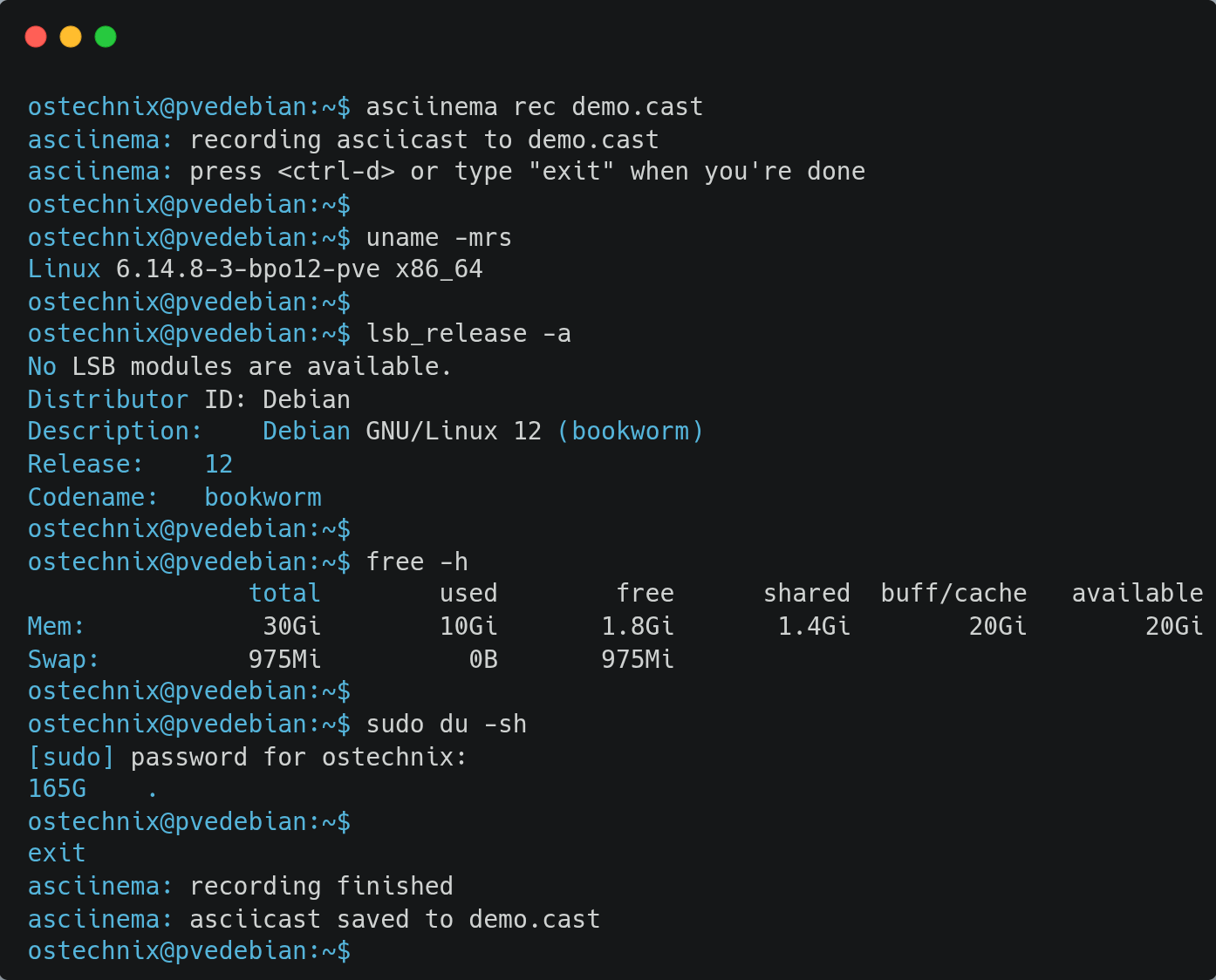
asciinema rec demo.cast
Now perform your terminal demo. Type commands exactly as you want users to see them.
When finished, press:
Ctrl + D
Asciinema saves the recording as a .cast file.
Step 3: Install agg to Convert Asciinema Recording to GIF
Asciinema does not generate GIFs directly. For that, you need agg (asciinema gif generator).
agg converts Asciinema recordings into animated GIFs. It allows control over font size, playback speed, and spacing, which makes the output suitable for documentation and READMEs.
Go to the agg github releases page and download the suitable version for your system architecture.
Install agg on x86_64 systems:
curl -LO https://github.com/asciinema/agg/releases/latest/download/agg-x86_64-unknown-linux-gnu
chmod +x agg-x86_64-unknown-linux-gnu
sudo mv agg-x86_64-unknown-linux-gnu /usr/local/bin/agg
Install agg on ARM / aarch64 systems:
curl -LO https://github.com/asciinema/agg/releases/latest/download/agg-aarch64-unknown-linux-gnu
chmod +x agg-aarch64-unknown-linux-gnu
sudo mv agg-aarch64-unknown-linux-gnu /usr/local/bin/agg
Confirm installation using command:
agg --version
Sample Output:
agg 1.7.0
Step 4: Convert Asciinema Screencast to GIF
Convert the recording using this command:
agg demo.cast demo.gif
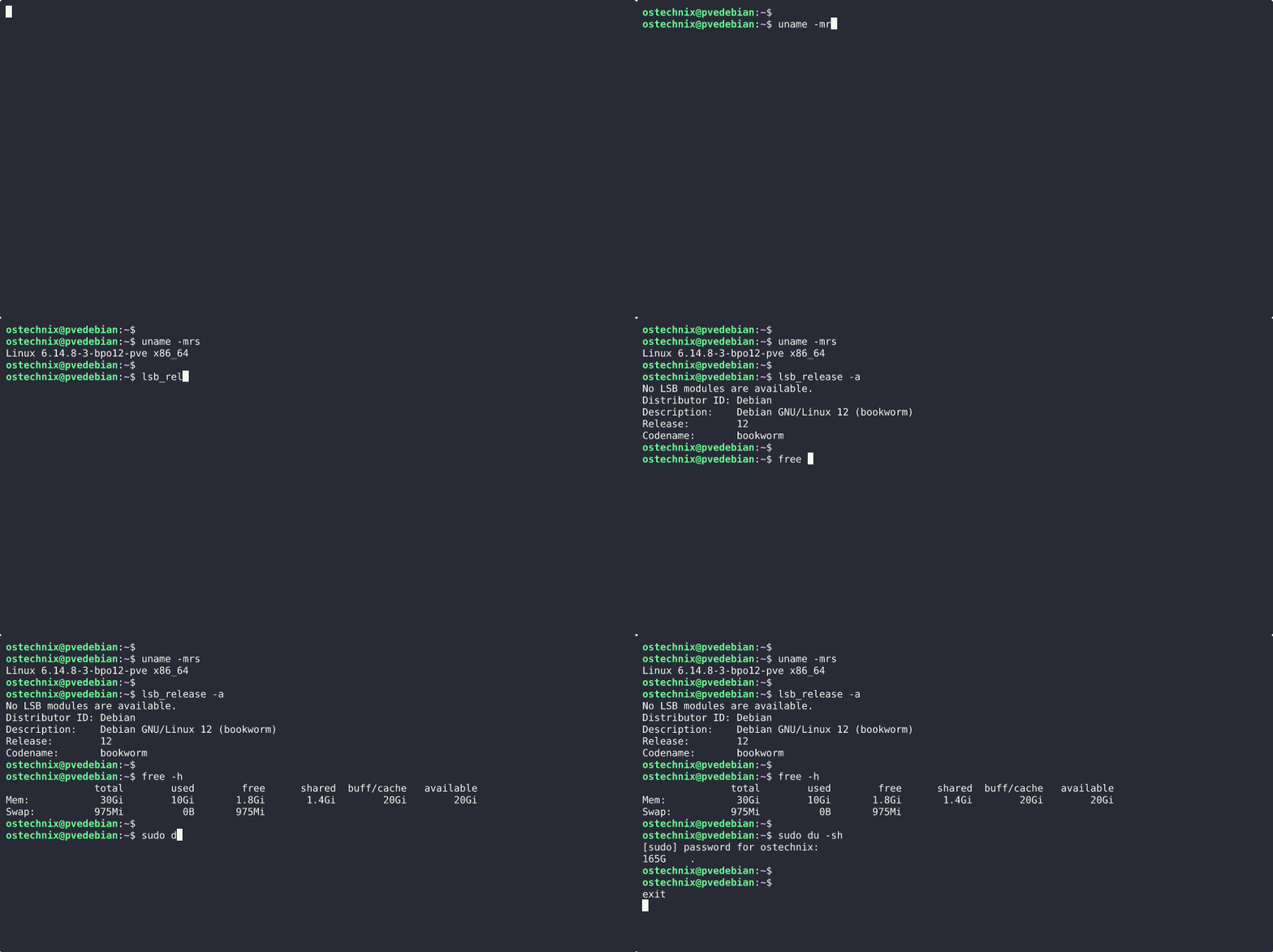
You now have a terminal GIF ready for your README or documentation.
Here's an example GIF that I created using Asciinema and agg.
Step 5: Optimize the GIF for Blogs and Documentation
You can adjust font size, speed, and spacing.
Recommended command:
agg demo.cast demo.gif \
  --font-size 14 \
  --line-height 1.2 \
  --speed 1.3
These settings improve readability and reduce eye strain.
Why Use GIF Instead of Video for Terminal Demos?
GIFs offer several advantages:
- Load instantly
- No video player required
- Easy to embed in Markdown
- Work on all platforms
As a result, terminal GIFs improve user understanding and engagement.
Best Practices for Recording Terminal GIFs
Follow these tips for clean results:
- Clear the terminal before recording
- Keep demos short
- Type commands slowly
- Avoid unnecessary output
- Use a dark terminal theme
Small changes improve clarity a lot.
Common Problems and How to Avoid Them
Avoid these mistakes:
- Very small font size
- Long pauses
- Recording unrelated commands
- Large output floods
Focus on one task per GIF.
Where to Use Asciinema GIFs
You can embed terminal GIFs in:
- Blog posts
- GitHub README files
- Documentation pages
- Tutorials and courses
They explain commands faster than text alone.
FAQ: Asciinema and Terminal GIF Recording
A: No. Asciinema only records terminal sessions.
A: Yes. However, hosting your own GIF avoids external dependency.
A: Yes. agg converts .cast files into GIF format.
A: No. They stay much smaller than screen-recorded videos.
Final Thoughts
Recording terminal sessions does not need heavy screen recording tools. For Linux tutorials and documentation, small animated GIFs often explain commands faster and more clearly.
Asciinema provides a clean way to record terminal screencasts, while agg turns those recordings into lightweight GIFs suitable for blogs and READMEs. Together, they offer a simple and reliable workflow for sharing command-line demos.
If you document Linux commands regularly, this approach keeps your content clear, focused, and easy to understand.
Similar Read:
