
If you have used Linux for a while, you probably know cron jobs. You use it to run a script every night at 2 AM, or every 5 minutes. Most modern Linux systems (Debian, Ubuntu, Fedora, Arch, RHEL) use systemd as the init system, and systemd has its own way to schedule jobs. We call these timer units.
Systemd Timers do the same job as cron, but they plug into the rest of systemd. That means you get proper logging, dependency handling, and resource control for free.
A systemd timer always comes in two parts:
- A
.timerunit. This decides when something runs. - A
.serviceunit. This decides what runs.
The timer's only job is to start the service at the right time. Once you understand this split, everything else falls into place.
Try this right now, before writing anything: run systemctl list-timers on your machine. You'll almost certainly see timers already running, things like apt-daily.timer, logrotate.timer, or man-db.timer.
$ systemctl list-timers
NEXT                                 LEFT LAST                              PASSED UNIT                           ACTIVATES
Tue 2026-08-25 11:30:00 UTC      3min 40s Tue 2026-08-25 11:20:00 UTC     6min ago sysstat-collect.timer          sysstat-collect.service
Tue 2026-08-25 12:21:48 UTC         55min -                                      - fwupd-refresh.timer            fwupd-refresh.service
Tue 2026-08-25 19:37:38 UTC            8h Tue 2026-08-25 11:06:29 UTC            - motd-news.timer                motd-news.service
Tue 2026-08-25 21:35:55 UTC           10h -                                      - apt-daily.timer                apt-daily.service
Wed 2026-08-26 00:00:00 UTC           12h -                                      - dpkg-db-backup.timer           dpkg-db-backup.service
Wed 2026-08-26 00:00:00 UTC           12h -                                      - sysstat-rotate.timer           sysstat-rotate.service
Wed 2026-08-26 00:07:00 UTC           12h -                                      - sysstat-summary.timer          sysstat-summary.service
Wed 2026-08-26 00:45:21 UTC           13h -                                      - logrotate.timer                logrotate.service
Wed 2026-08-26 06:29:14 UTC           19h -                                      - apt-daily-upgrade.timer        apt-daily-upgrade.service
Wed 2026-08-26 11:06:17 UTC           23h -                                      - man-db.timer                   man-db.service
Wed 2026-08-26 11:12:00 UTC           23h Tue 2026-08-25 11:12:00 UTC    14min ago update-notifier-download.timer update-notifier-download.service
Wed 2026-08-26 11:22:00 UTC           23h Tue 2026-08-25 11:22:00 UTC 4min 19s ago systemd-tmpfiles-clean.timer   systemd-tmpfiles-clean.service
Sun 2026-08-30 03:10:01 UTC        4 days -                                      - xfs_scrub_all.timer            xfs_scrub_all.service
Sun 2026-08-30 03:10:34 UTC        4 days -                                      - e2scrub_all.timer              e2scrub_all.service
Mon 2026-08-31 00:55:31 UTC        5 days -                                      - fstrim.timer                   fstrim.service
Sun 2026-09-06 01:25:59 UTC 1 week 4 days -                                      - update-notifier-motd.timer     update-notifier-motd.service

16 timers listed.
Pass --all to see loaded but inactive timers, too.
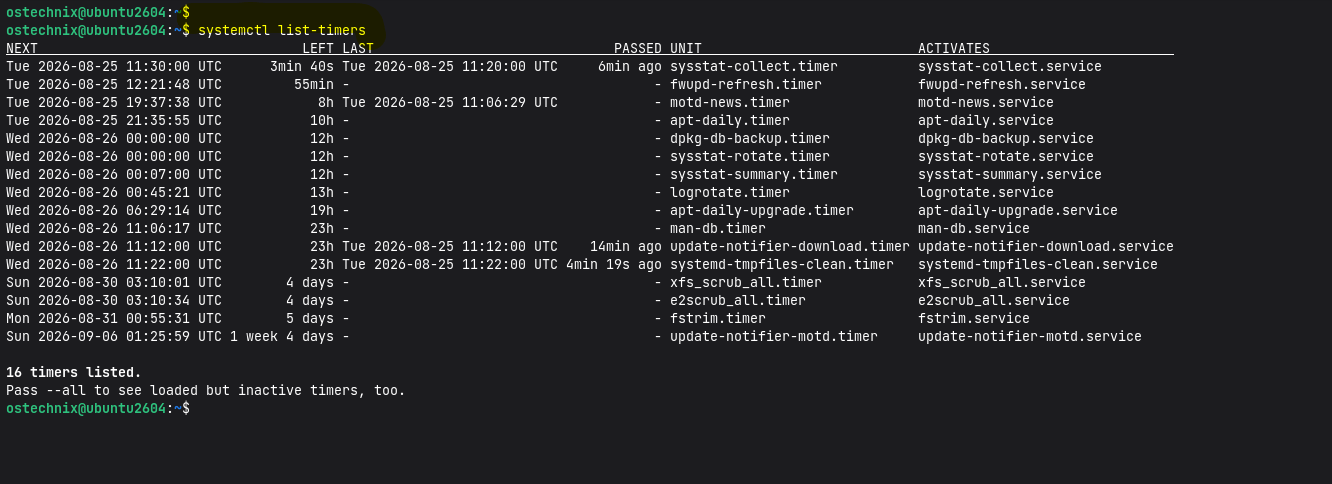
These aren't special. They're ordinary timer units, built the same way you're about to build your own. You can inspect any of them with systemctl cat man-db.timer to see exactly how a real, production timer is written.
Please note that timers depend on systemd running as PID 1.
$ ps -p 1
    PID TTY          TIME CMD
      1 ?        00:00:06 systemd
Inside most Docker containers, some minimal chroots, and certain WSL setups, systemd isn't running at all, so timers (and systemctl itself) won't work there without extra setup. If a timer you built seems to silently do nothing, check ps -p 1 first, before you start debugging the unit files.
Table of Contents
1. The Basic Setup
Let's say you want to back up a folder every day at 3:30 AM. You need two files.
- A service unit
- A timer unit
First, create the service unit:
sudo nano /etc/systemd/system/backup.service
Add the following lines in it:
[Unit]
Description=Back up home directory

[Service]
Type=oneshot
ExecStart=/usr/local/bin/backup.sh
Nice=19
IOSchedulingClass=idle
ProtectSystem=strict
ReadWritePaths=/var/backups
Next, create the timer unit:
sudo nano /etc/systemd/system/backup.timer
Add these lines:
[Unit]
Description=Run backup.service daily at 3:30 AM

[Timer]
OnCalendar=*-*-* 03:30:00
Persistent=true

[Install]
WantedBy=timers.target
A few things to notice:
- The timer and the service share the same name (
backup). systemd uses this naming match to link them. You only need to point a timer at a different service name if you setUnit=yourself. Type=oneshotfits most scheduled tasks that run to completion on their own. If your script forks a background process or daemonizes itself,Type=oneshotwon't track it correctly, and you'll wantType=forkingorRemainAfterExit=trueinstead. Most scripts you write yourself won't need this.Nice=19andIOSchedulingClass=idletell the kernel this job is low priority, so it doesn't compete with anything more urgent.ProtectSystem=strictmakes the whole filesystem read-only to this service except for the paths you explicitly allow withReadWritePaths=. None of this is required to make a timer work, but it's the kind of small, cheap hardening worth adding by default once you're past the "does this even run" stage.- You enable and start the timer, not the service. You only start the service directly when you want to test it.
sudo systemctl daemon-reload
sudo systemctl enable --now backup.timer
2. Two Ways to Schedule: Calendar Time and Relative Time
This is where most beginners get confused, so let's slow down here.
2.1 Calendar timers (OnCalendar=)
These fire at a fixed point on the clock, much like cron does. The syntax comes from systemd.time(7):
OnCalendar=*-*-* 03:30:00         # every day at 3:30:00 AM
OnCalendar=Mon,Fri *-*-* 09:00:00 # every Monday and Friday at 9 AM
OnCalendar=*-*-01 00:00:00        # the first day of every month, at midnight
OnCalendar=weekly                 # shortcut for Monday at 00:00
OnCalendar=daily                  # shortcut for every day at midnight
OnCalendar=hourly                 # shortcut for the top of every hour
OnCalendar=*:0/15                 # every 15 minutes
Here's a small trick that makes life much easier. You can test any of these expressions without waiting for it to fire:
$ systemd-analyze calendar "Mon,Fri *-*-* 09:00:00"
  Original form: Mon,Fri *-*-* 09:00:00
Normalized form: Mon,Fri *-*-* 09:00:00
    Next elapse: Mon 2026-08-17 09:00:00 IST
       (in UTC): Mon 2026-08-17 03:30:00 UTC
       From now: 1 day 18h left
Run this before you enable a new timer. It saves you from the classic mistake of writing an OnCalendar line that looks right but fires at the wrong time.
There's a second, complementary check worth running too:
systemd-analyze verify
This loads a unit file the same way systemd would and prints any syntax problems, without actually starting anything.
sudo systemd-analyze verify /etc/systemd/system/backup.timer
This is important because systemd is often forgiving about typos in unit files. A misspelled directive can get silently ignored instead of throwing a loud error, and your timer just quietly doesn't do what you expected. Get in the habit of running systemd-analyze verify command after every edit, right alongside daemon-reload.
Please note that systemd timers are not exact by default. There's a hidden AccuracySec= setting with a default of 1 minute, so systemd can nudge your job's start time by up to a minute in either direction. It does this on purpose, to bundle nearby wake-ups together and save power (this matters a lot on laptops).
If you genuinely need second-level precision, set AccuracySec=1us in the [Timer] section. For almost everything you'll build as a beginner, the default is fine and you can ignore this.
2.2 Relative timers (OnBootSec=, OnUnitActiveSec=, and friends)
These don't care about the wall clock. Instead, they fire a set amount of time after something happens. cron has no equivalent to this, so it's worth learning well.
| Directive | Fires... |
|---|---|
OnBootSec=15min | 15 minutes after the machine boots |
OnStartupSec=15min | 15 minutes after systemd itself starts |
OnUnitActiveSec=1h | 1 hour after this unit last started |
OnUnitInactiveSec=1h | 1 hour after this unit last stopped |
OnActiveSec=30s | 30 seconds after the timer unit itself was activated |
Here's a trap that catches many people. OnUnitActiveSec= and OnUnitInactiveSec= sound almost the same, but they aren't. For a short oneshot job, the difference barely matters, since the job starts and stops almost instantly anyway. But for a long-running service, the two behave very differently. OnUnitActiveSec=1h counts from when the service started. OnUnitInactiveSec=1h counts from when it stopped. Mix these up and your schedule quietly drifts off course.
A common pattern: run a cleanup script 10 minutes after boot, then again every 6 hours.
[Timer]
OnBootSec=10min
OnUnitActiveSec=6h
3. Catching Up on Missed Runs with Persistent=
Say your laptop is asleep at 3:30 AM when backup.timer should fire. Nothing happens. The job just gets skipped, unless you add this line:
[Timer]
Persistent=true
With Persistent=true, systemd remembers the last time the timer actually fired (it stores this in /var/lib/systemd/timers/). If your machine missed a scheduled run because it was off or asleep, the job fires once, shortly after the next boot, to catch up. This works a lot like the old anacron tool did. It's why you'll want Persistent=true on laptops and desktops almost by default, while servers that stay on all the time often don't need it.
4. Spreading Out the Load with RandomizedDelaySec=
Picture this: you manage fifty servers, and they all run OnCalendar=daily at midnight. All fifty hit your backup server at the exact same second. That's a thundering herd, and it can knock things over.
Fix it like this:
[Timer]
OnCalendar=daily
RandomizedDelaySec=1800
Each machine now picks its own random delay, up to 30 minutes, before it actually runs. The load spreads out naturally. If you want each machine to pick the same delay every time (instead of a fresh random one every run), add FixedRandomDelay=true as well (available from systemd 247 onward).
5. The systemd Timers Commands You'll Use Every Day
# List all active timers and when each one fires next
systemctl list-timers

# Include timers that are disabled or haven't triggered yet
systemctl list-timers --all

# Check a specific timer's status
systemctl status backup.timer

# Check how the last run of the service went
systemctl status backup.service

# Read the logs from the service the timer triggered
journalctl -u backup.service

# Trigger the service right now, without waiting for the timer
sudo systemctl start backup.service

# Enable at boot and start immediately
sudo systemctl enable --now backup.timer

# Stop and disable it
sudo systemctl disable --now backup.timer

# Run this after you edit any unit file
sudo systemctl daemon-reload
systemctl list-timers gives you a clean summary in one line:
NEXT                        LEFT     LAST                         PASSED  UNIT           ACTIVATES
Mon 2026-08-17 03:30:00 IST 12h left Sun 2026-08-16 03:30:00 IST  9h ago  backup.timer   backup.service
You immediately see when it runs next, how long is left, when it last ran, and which service it triggers. With cron, you'd normally have to trust crontab -l and hope for the best. This is a real step up.
One small caveat on logs: journalctl -u backup.service assumes the journal is actually keeping history. Some minimal or embedded distro images ship with Storage=volatile in /etc/systemd/journald.conf, which means logs live in memory only and vanish on reboot. If your logs seem to disappear, that setting is the first thing to check.
6. What Happens If a Job Is Still Running When the Timer Fires Again
Say backup.service normally finishes in 5 minutes, but tonight, for whatever reason, it's still running 6 hours later when the timer is due to fire again. What happens?
Nothing bad, but maybe not what you'd expect: systemd does not start a second, overlapping instance. Activating a unit that's already active is effectively a no-op. The timer's next scheduled run passes quietly, and the service simply keeps running until it finishes.
For most tasks, this is exactly the safety net you want, since it stops runaway pile-ups. But it also means that if a job hangs, you can lose an entire day of runs without any error appearing anywhere.
Two practical takeaways:
- If a task genuinely must never overlap and must never hang silently, pair it with
TimeoutStartSec=in[Service](see the pitfalls list below) so a stuck run gets killed instead of blocking every future run. - If you ever suspect a job is stuck,
systemctl status backup.servicewill show it asactive (running)for far longer than expected. That's your signal.
7. Quick One-Off Timers Without Writing Unit Files
Sometimes you just want to run something once, soon, without creating a .timer and .service pair. The systemd-run command does this on the fly:
# Run a command 10 minutes from now
sudo systemd-run --on-active="10min" /path/to/script.sh

# Run at a specific date and time
sudo systemd-run --on-calendar="2026-08-20 22:00:00" /path/to/script.sh

# Run 5 minutes after every boot, as your own user
systemd-run --user --on-boot="5min" /path/to/script.sh
systemd-run creates a transient timer and service in the background (you can see them with systemctl list-timers), and it removes them automatically on reboot.
This is great for testing a schedule idea, or for a task you only need once. For anything you want to survive a reboot and run forever, go back to writing proper unit files as shown earlier.
8. Running Timers Without Root
Everything so far assumed system-wide units in /etc/systemd/system/. You can also set up timers as a regular user using the --user flag. No root needed!
mkdir -p ~/.config/systemd/user
# put backup.service and backup.timer in that folder
systemctl --user daemon-reload
systemctl --user enable --now backup.timer
Please be mindful that user timers usually only run while your session is active. If you want them to keep running even after you log out, enable lingering (this needs root, even for your own account):
sudo loginctl enable-linger $USER
9. systemd Timers vs. cron: When to Use Which
The case for timers:
They give you real logging through journalctl, so you no longer need MAILTO= hacks or manual output redirection. You can also declare proper dependencies, for example After=network-online.target or Requires=postgresql.service, something cron simply can't do.
You can sandbox the service with options like ProtectSystem=strict or PrivateTmp=true. And you get built-in testing (systemd-analyze calendar) plus a clean overview (list-timers), along with catch-up behavior and jitter handled natively instead of bolted on with scripts.
The case for cron:
It runs almost everywhere, including systems without systemd, like Alpine with OpenRC, the BSDs, or a stripped-down container. A one-line crontab entry is much simpler than writing two unit files, especially for a task that has no dependencies at all.
And if your team already has years of cron-based tooling, switching everything over may not be worth the effort.
So, which should you pick?
On a systemd-based system, timers are usually the better default, especially once logging, missed-run recovery, or dependency ordering matter to you.
For a quick, portable, dependency-free script, cron still does the job just fine. Think of this less as a rule and more as a judgment call based on your environment.
9.1 Converting a crontab line to OnCalendar
If you're migrating existing cron jobs, this is the mapping you'll use over and over. cron fields go minute hour day month weekday; OnCalendar= reorders this as weekday year-month-day hour:minute:second.
| cron | Meaning | OnCalendar= |
|---|---|---|
0 3 * * * | Every day at 3:00 AM | OnCalendar=*-*-* 03:00:00 |
*/15 * * * * | Every 15 minutes | OnCalendar=*:0/15 |
0 9 * * 1-5 | Weekdays at 9:00 AM | OnCalendar=Mon..Fri 09:00:00 |
0 0 1 * * | First of every month | OnCalendar=*-*-01 00:00:00 |
0 0 * * 0 | Every Sunday at midnight | OnCalendar=Sun *-*-* 00:00:00 |
@reboot | Once at boot | OnBootSec=0 (no OnCalendar equivalent — this is a monotonic timer) |
Note the last row: @reboot has no calendar equivalent because it isn't tied to a wall-clock time at all. That's exactly the kind of thing OnBootSec= exists for, and it's a good example of systemd timers doing something cron structurally can't.
10. Getting Alerted When a Job Fails
This is the question almost everyone asks right after their first timer works: "how do I find out if it stops working?"
With cron, the honest answer was usually "you don't, until someone notices the backups are gone."
systemd has a real answer: OnFailure=.
Add it to your service, pointing at a second, small service that sends a notification:
# /etc/systemd/system/backup.service
[Unit]
Description=Back up home directory
OnFailure=alert-on-failure@%n.service

[Service]
Type=oneshot
ExecStart=/usr/local/bin/backup.sh
# /etc/systemd/system/alert-on-failure@.service
[Unit]
Description=Send a failure alert for %i

[Service]
Type=oneshot
ExecStart=/usr/local/bin/notify-failure.sh "%i"
%n expands to the name of the unit that failed, and %i in the alert service receives it. notify-failure.sh can be as simple as a curl call to a webhook, or a call to mail. The point isn't the notification mechanism, it's that OnFailure= fires automatically, only on failure, with zero polling and no extra timer needed to check on the first one.
11. A Full Example: Weekly Log Cleanup
# /etc/systemd/system/logcleanup.service
[Unit]
Description=Purge logs older than 30 days
After=network.target

[Service]
Type=oneshot
ExecStart=/usr/bin/find /var/log/myapp -name "*.log" -mtime +30 -delete
# /etc/systemd/system/logcleanup.timer
[Unit]
Description=Weekly log cleanup

[Timer]
OnCalendar=Sun *-*-* 04:00:00
Persistent=true
RandomizedDelaySec=600

[Install]
WantedBy=timers.target
Now put it to work and check that it's really scheduled:
sudo systemctl daemon-reload
sudo systemctl enable --now logcleanup.timer
systemd-analyze calendar "Sun *-*-* 04:00:00"   # confirm the schedule is right
systemctl list-timers logcleanup.timer          # confirm systemd knows about it
sudo systemctl start logcleanup.service         # test it right away
journalctl -u logcleanup.service -n 20          # check that it worked
12. Mistakes Beginners Make (and How to Avoid Them)
- Skipping
daemon-reload. After you edit a unit file, systemd still has the old version cached in memory. Always reload. - Enabling the service instead of the timer. This runs the job once, immediately, and then never again on schedule.
- Mixing up
OnUnitActiveSec=andOnUnitInactiveSec=. This mainly bites you with long-running services, as covered in section 3.2. - Leaving out
Persistent=true. On a laptop, this means your daily job quietly skips days whenever the machine is asleep at the scheduled time. - Forgetting the
[Install]section. WithoutWantedBy=timers.target, there's nothing forsystemctl enableto hook into, so the timer won't start at boot. - Not checking status after something goes wrong. A failed
oneshotjob shows up asfailed, and the timer will still fire again next cycle. But you won't notice unless you check the logs or set upOnFailure=to alert you. - Expecting
OnCalendar=to fire at the exact second. As covered in section 3.1, the defaultAccuracySec=1minmeans your job can slip by up to a minute. This is normal, not a bug. - Trusting a unit file just because
daemon-reloaddidn't complain. systemd can silently ignore a misspelled directive rather than erroring out. Runsystemd-analyze verifyafter edits to catch this. - Assuming a hung job will eventually get killed on its own. By default it won't. If a script can stall (a stale network mount, waiting on input that never comes), add
TimeoutStartSec=in[Service]so systemd kills it instead of letting it block every future run, as covered in section 7.
13. Quick Reference for Systemd Timers
| Task | Command |
|---|---|
| List all scheduled timers | systemctl list-timers --all |
| Test a calendar expression | systemd-analyze calendar "EXPR" |
| Check a unit file for syntax errors | sudo systemd-analyze verify /path/to/name.timer |
| View a unit file's active configuration | systemctl cat name.timer |
| Enable and start a timer | sudo systemctl enable --now name.timer |
| Run the service right now | sudo systemctl start name.service |
| Check service logs | journalctl -u name.service |
| Reload after editing units | sudo systemctl daemon-reload |
| Disable a timer | sudo systemctl disable --now name.timer |
| Run a one-off command soon, no unit file | systemd-run --on-active="10min" /path/to/script.sh |
For more details about systemd Timers, read the manual pages.
man systemd.timerfor the full list of directivesman systemd.timefor calendar and time-span syntaxman systemd.servicefor service options likeType=and sandboxing directives
Featured image by OpenClipart-Vectors from Pixabay.
