
Just installed Fedora 44? This detailed guide covers every essential post-install steps for Fedora Linux 44: enabling RPM Fusion multimedia codecs, installing NVIDIA or AMD GPU drivers, setting up Flatpak and Flathub, configuring power management, system snapshots, and hardening your system.
Note: This guide is written for Fedora 44 Workstation, the standard GNOME edition. If you are on an Atomic Desktop (Silverblue, Kinoite), most steps apply, but differences are called out in context wherever they arise. KDE Spin users can follow the GPU, codec, and system sections; the GNOME-specific tweaks in Section 6 do not apply.
If you're still using Fedora 43, check our step-by-step guide to upgrade to Fedora 44.
Now, let us do the essential things one by one in our newly installed Fedora 44 Linux system.
Table of Contents
1. Initial System and Firmware Updates
The first thing to do after a fresh Fedora 44 install is bring the system fully up to date before touching anything else.
Packages updated between the ISO release and your install date can include kernel patches and security fixes, and skipping this step before installing GPU drivers is a reliable way to end up with a module version mismatch.
1.1. Speed Up DNF5 First
Fedora 44 completes the migration from Python-based DNF4 to the C++-rewritten DNF5, which is already significantly faster. These settings push it further by enabling parallel downloads and local mirror detection:
echo 'max_parallel_downloads=10' | sudo tee -a /etc/dnf/dnf.conf
echo 'fastestmirror=True'        | sudo tee -a /etc/dnf/dnf.conf
echo 'defaultyes=True'           | sudo tee -a /etc/dnf/dnf.conf
echo 'keepcache=True'            | sudo tee -a /etc/dnf/dnf.conf
Note on fastestmirror: This probes available mirrors and picks the fastest for your network path. It helps on home broadband but can add latency on VPNs and corporate proxies.
If subsequent dnf operations feel slower, disable it with command:
sudo dnf config-manager unsetopt fastestmirror
1.2. System Update
Update your Fedora 44 using command:
sudo dnf upgrade --refresh -y
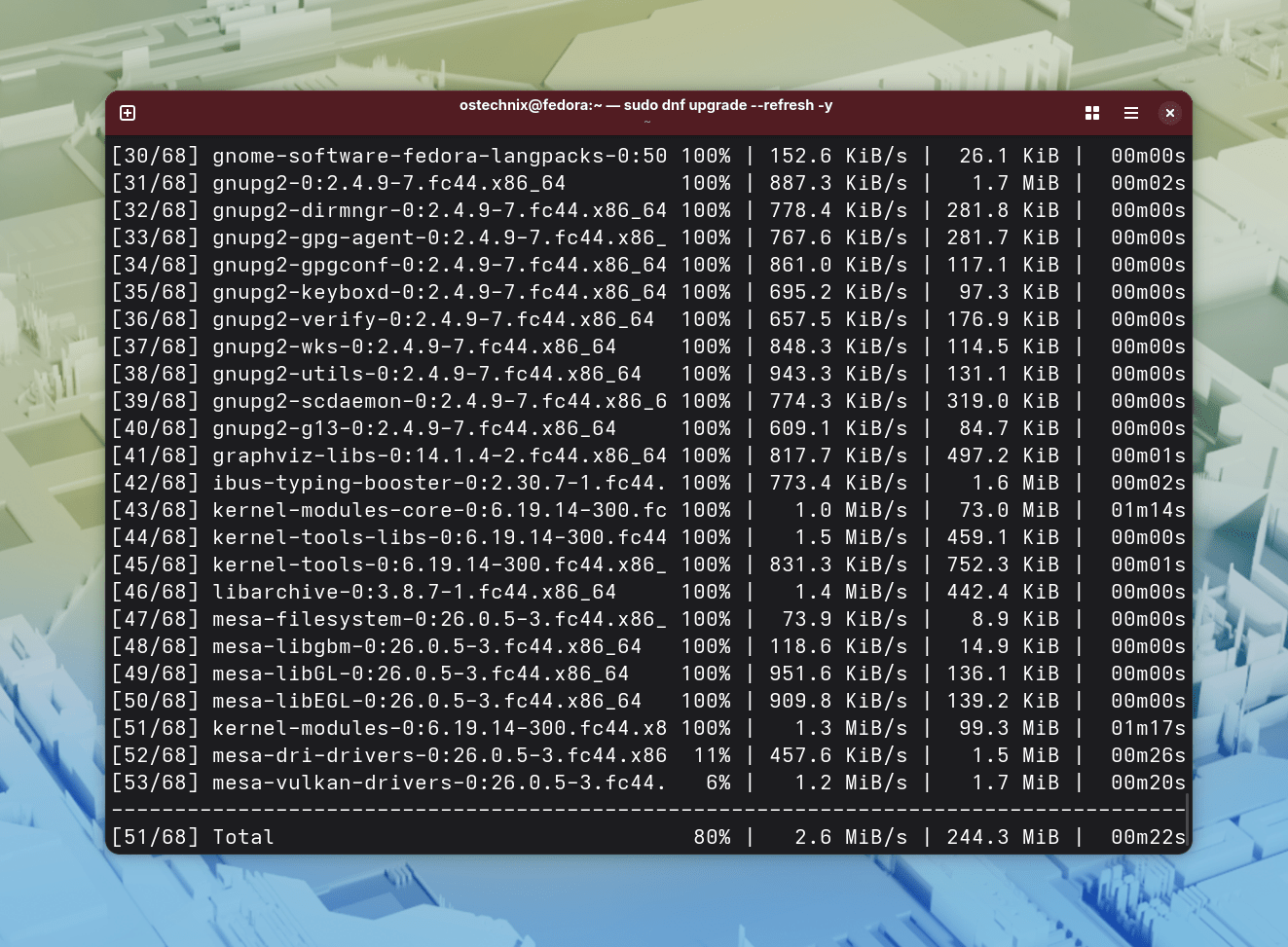
Reboot after this completes before installing anything else.
1.3. Firmware Updates (LVFS)
Fedora integrates with the Linux Vendor Firmware Service (LVFS) to deliver BIOS/UEFI, SSD, and controller firmware updates directly from the terminal, No manufacturer utility required:
fwupdmgr refresh && fwupdmgr get-updates
fwupdmgr update
Reboot if any firmware updates are applied.
1.4. Set a Hostname
A fresh Fedora install defaults to localhost. Set a meaningful name before anything else starts logging under it:
sudo hostnamectl set-hostname your-hostname
Replace your-hostname in the above command with your actual hostname.
Example:
sudo hostnamectl set-hostname fedora44
The above command sets hostname as fedora44.
Related Read:
2. Enable RPM Fusion and Multimedia Codecs
Fedora excludes many codecs due to patent and licensing restrictions. The RPM Fusion repositories fill this gap with H.264, H.265, MP3, and other formats.
This is the single most impactful thing to do after a fresh install if you plan to watch video or listen to audio.
Step 1: Enable RPM Fusion Repositories
sudo dnf install \
  https://mirrors.rpmfusion.org/free/fedora/rpmfusion-free-release-$(rpm -E %fedora).noarch.rpm \
  https://mirrors.rpmfusion.org/nonfree/fedora/rpmfusion-nonfree-release-$(rpm -E %fedora).noarch.rpm
Step 2: Switch to Full FFmpeg
Fedora ships a codec-limited build called ffmpeg-free. Swap it for the complete RPM Fusion FFmpeg build to avoid codec gaps and version conflicts with GStreamer plugins:
sudo dnf swap ffmpeg-free ffmpeg --allowerasing
Step 3: Install GStreamer Multimedia Codecs
Fedora 44 / DNF5 correction: Some users may run sudo dnf update @multimedia. This is a DNF4 group syntax that DNF5, the default in Fedora 44, does not recognise.
It will silently do nothing or produce an error. Install the equivalent packages individually instead:
sudo dnf install --setopt="install_weak_deps=False" \
  gstreamer1-plugins-good \
  gstreamer1-plugins-bad-free \
  gstreamer1-plugins-bad-freeworld \
  gstreamer1-plugins-ugly \
  gstreamer1-plugins-ugly-free \
  gstreamer1-plugin-openh264 \
  gstreamer1-plugin-libav \
  --exclude=PackageKit-gstreamer-plugin
Step 4: Enable OpenH264 for Firefox
sudo dnf config-manager setopt fedora-cisco-openh264.enabled=1
After this, open Firefox, go to Settings → Plugins, and verify that the OpenH264 plugin shows as enabled. If it does not appear immediately, restart Firefox.
Step 5: Enable DVD Playback
libdvdcss is available in the RPM Fusion free tainted repository:
sudo dnf install rpmfusion-free-release-tainted
sudo dnf install libdvdcss
Note: The rpmfusion-nonfree-release-tainted repository is for hardware firmware blobs and is not required for DVD playback. Enabling it unnecessarily for DVD support is a common mistake.
Step 6: Hardware Video Acceleration
Install VA-API and VDPAU drivers so your GPU handles video decoding instead of the CPU. The practical effect is lower CPU usage, cooler thermals, and noticeably better battery life on laptops during video playback.
Intel (Gen 8 / Coffee Lake and newer):
sudo dnf install intel-media-driver
Intel (older generations, pre-Gen 8):
sudo dnf install libva-intel-driver
AMD - the critical correction here is the swap, not install. Fedora's default mesa-va-drivers package omits H.264 and H.265 hardware decoding due to patent restrictions.
Running sudo dnf install mesa-va-drivers does nothing useful because the package is already installed. It just lacks the codec support.
The RPM Fusion freeworld swap is what actually unlocks hardware decoding:
sudo dnf swap mesa-va-drivers mesa-va-drivers-freeworld
sudo dnf swap mesa-vdpau-drivers mesa-vdpau-drivers-freeworld
NVIDIA - install the VA-API wrapper after setting up the driver (see Section 3 for more details):
sudo dnf install nvidia-vaapi-driver
Verify hardware acceleration is active after your next reboot:
vainfo
A working setup shows one or more VAProfile entries. If the output shows libva error: no supported driver or an empty profile list, see the troubleshooting note below.
Troubleshooting: vainfo Shows No Supported Driver
- AMD: Confirm the freeworld swap completed without errors by running
rpm -q mesa-va-drivers-freeworld. If not installed, retry the swap command. Some AMD iGPU + dGPU combinations require settingexport LIBVA_DRIVER_NAME=radeonsiin your shell profile. - Intel: Run
sudo dnf install libva-utilsand check thatvainfofinds/usr/lib64/dri/iHD_drv_video.so(Gen 8+) ori965_drv_video.so(older). Rebooting after installingintel-media-driveris required. - NVIDIA: Hardware acceleration via
nvidia-vaapi-driverrequires both the proprietary driver and the NVDEC-capable FFmpeg. Runffmpeg -hwaccelsand confirmcudaandnvdecappear in the list.
3. Install NVIDIA Drivers on Fedora 44
The proprietary NVIDIA driver is not in Fedora's default repositories. The RPM Fusion NVIDIA howto is the recommended installation method. It provides akmod-nvidia, which automatically rebuilds the kernel module after every kernel update with no manual intervention.
Supported GPUs: Kepler (GTX 600 series) and newer use the current driver. Older cards require akmod-nvidia-470xx (Maxwell and older) or akmod-nvidia-390xx (Fermi architecture). Check the RPM Fusion NVIDIA page to confirm which package applies to your GPU before running anything.
AMD users, please see Section 4 instead.
Step 1: Check Secure Boot
mokutil --sb-state
If Secure Boot is enabled, you must enrol the akmods signing key into MOK before the driver will load. Follow the full RPM Fusion Secure Boot enrollment guide.
Alternatively, disable Secure Boot in your BIOS/UEFI firmware settings. The driver will not load silently. If Secure Boot is enabled and the key is not enrolled, the system will fall back to Nouveau at boot with no warning.
Step 2: Install the Driver
sudo dnf install akmod-nvidia
Step 3: Install CUDA Support (Optional)
Required for Blender GPU rendering, DaVinci Resolve, PyTorch with CUDA, and similar compute workloads:
sudo dnf install xorg-x11-drv-nvidia-cuda
Step 4: Verify the Module Before Rebooting
After the package transaction completes, wait at least five minutes for the kernel module to build in the background. Do not skip this, because rebooting before the module is ready guarantees a black screen or Nouveau fallback. To trigger and monitor the build immediately:
sudo akmods --force
Then verify the module is ready:
modinfo -F version nvidia
This prints the driver version number (e.g., 570.xx.xx) if the module built successfully, or an error if not. Do not reboot until you see a version number.
Step 5: Install the NVIDIA VA-API Wrapper
sudo dnf install nvidia-vaapi-driver
NVIDIA and Wayland on Fedora 44
Fedora 44 ships GNOME 50, which is Wayland-only. There is no GNOME X11 session at the login screen. This is a deliberate upstream decision, not a bug.
For most users with modern NVIDIA GPUs (Turing / RTX 20 series and newer), this works well: GNOME 50 includes explicit sync support and frame timing fixes specifically targeting NVIDIA Wayland compatibility.
If you experience tearing or compositor crashes, verify that KMS is enabled by checking that /etc/modprobe.d/ does not contain any options nvidia modeset=0 lines left over from a previous install.
If you genuinely need an X11 session for a legacy application, a 32-bit workflow, or an older NVIDIA card that predates good Wayland support, install a desktop environment that still provides one. KDE Plasma, XFCE, MATE, and Cinnamon are all available as Fedora spins and continue to offer X11 sessions alongside Wayland.
Troubleshooting: NVIDIA Module Fails to Load After Reboot
- Run
sudo journalctl -b -1 -k | grep -i nvidiato see what happened during the previous boot. - If the log shows
module nvidia not found, the akmods build did not complete. Boot into the installed kernel (not rescue), log in to a TTY withCtrl+Alt+F3, and runsudo akmods --forceagain. Wait until it reports success, then reboot. - If Secure Boot is enabled and you see a signing error, you have not yet enrolled the MOK key. Follow the RPM Fusion Secure Boot guide linked above.
- Run
sudo dracut --forceafter any manual module fix to regenerate the initramfs with the correct module references.
4. AMD GPU Setup
The open-source amdgpu driver ships inside the Fedora kernel and works without any installation for display output and basic 3D. The steps below unlock the full picture: hardware video decoding, Vulkan, and GPU compute.
NVIDIA users, please see Section 3 instead.
Firmware
Some AMD GPUs, particularly RDNA 2 and newer, require firmware files not included in the base system. If your GPU is not initialising correctly, this is the first thing to check:
sudo dnf install linux-firmware
Reboot after installing to ensure the new firmware files are picked up by the initramfs.
Vulkan Support
sudo dnf install vulkan-tools mesa-vulkan-drivers
Verify Vulkan is working with vulkaninfo | head -30. You should see your GPU listed as a physical device.
Hardware Video Acceleration (AMD)
If you have not already completed this in Section 2, swap to the RPM Fusion freeworld Mesa packages to enable H.264 and H.265 hardware decoding:
sudo dnf swap mesa-va-drivers mesa-va-drivers-freeworld
sudo dnf swap mesa-vdpau-drivers mesa-vdpau-drivers-freeworld
ROCm: GPU Compute
The AMD equivalent of NVIDIA CUDA. Required for GPU-accelerated workloads in Blender (Cycles renderer), PyTorch (ROCm backend), OpenCL tasks, and stable diffusion inference:
sudo dnf install rocm-opencl
Verify ROCm is recognised with rocminfo | grep -A5 'Agent 2'. Your GPU should appear as a HSA Agent. Note that ROCm support is GPU-generation specific. Consult the AMD ROCm compatibility matrix if your GPU is not detected.
5. Firefox Hardware Acceleration
With VA-API drivers installed (Section 2), enable GPU-accelerated video decoding inside Firefox to reduce CPU usage during high-resolution video playback. This is especially impactful on laptops, where it can halve the CPU load during 4K video.
sudo dnf install ffmpeg-libs
Then open about:config in Firefox and set:
| Setting | Value |
|---|---|
media.ffmpeg.vaapi.enabled | true |
gfx.webrender.all | true |
To confirm it is working, play a video and open about:support. Under Media, look for AV1, H264, or VP9 listed with a hardware decoder. If only software decoders appear, check that vainfo returns profiles (Section 2 troubleshooting) before revisiting Firefox settings.
6. Essential Desktop and Application Tweaks
Flatpak and Flathub
Fedora 44 includes Flatpak but restricts the default repository to its own curated subset, a much smaller catalogue than the full Flathub. Enable the full library:
sudo flatpak remote-add --if-not-exists flathub https://flathub.org/repo/flathub.flatpakrepo
flatpak update
Install Flatseal to manage individual Flatpak application permissions through a GUI. It is useful for granting apps access to home folders, devices, or network resources that are restricted by default:
flatpak install flathub com.github.tchx84.Flatseal
Install Extension Manager to browse and install GNOME Shell extensions without visiting the GNOME extensions website:
flatpak install flathub com.mattjakeman.ExtensionManager
AppImage Support: Atomic Desktop Users Only
This step applies only to Fedora Atomic Desktop editions (Silverblue, Kinoite, and other immutable variants). Fedora 44 removed legacy FUSE 2 libraries from these editions only.
Standard Fedora Workstation users do not need this. fuse-libs remains installed by default and AppImages work out of the box.
sudo dnf install fuse-libs fuse3
GNOME 50 Tweaks
1. Fractional Scaling and VRR
Both are stable, first-class features in GNOME 50. You can enable them directly in Settings → Displays. No experimental GSettings flags or terminal commands required.
This is a meaningful improvement over Fedora 43, where both features required enabling via hidden flags.
2. Battery percentage in the top bar
gsettings set org.gnome.desktop.interface show-battery-percentage true
3. GNOME Tweaks
It unlocks font selection, window button layout, startup application management, and extension controls that the standard Settings app does not expose:
sudo dnf install gnome-tweaks
4. Nautilus Tweaks
Show the full path in the title bar instead of just the folder name (helpful when working across deeply nested directories):
gsettings set org.gnome.nautilus.preferences always-use-location-entry true
Enable the "New Document" right-click option in Nautilus. This requires a template folder to exist:
touch ~/Templates/Empty\ Document
Font Rendering
GNOME 50's default font rendering is functional but conservative on most LCD panels. Enabling subpixel antialiasing and slight hinting noticeably sharpens text on non-OLED displays:
gsettings set org.gnome.desktop.interface font-hinting    'slight'
gsettings set org.gnome.desktop.interface font-antialiasing 'rgba'
These settings write to org.gnome.desktop.interface, the correct schema for Wayland under GNOME 50.
The legacy org.gnome.settings-daemon.plugins.xsettings schema has no effect on GNOME 50 running under Wayland.
Fonts
Microsoft Core Fonts for document and website compatibility with Office formats and Windows-authored web content:
sudo dnf install mscore-fonts-all
Google Noto for broad Unicode coverage including emoji, non-Latin scripts, and mathematical symbols:
sudo dnf install google-noto-fonts google-noto-sans-fonts google-noto-serif-fonts
Bluetooth Audio: aptX and LDAC
Fedora's default PipeWire configuration supports standard A2DP audio profiles but not the higher-quality aptX or LDAC codecs without additional libraries:
sudo dnf install libfreeaptx libldac fdk-aac
After installing, restart PipeWire with systemctl --user restart pipewire and re-pair your headphones. The available codec will be negotiated automatically by WirePlumber. You can confirm it in pavucontrol under the Configuration tab.
Troubleshooting: gsettings Changes Not Taking Effect
If a gsettings set command returns no output but the setting does not apply:
- Run
gsettings get <schema> <key>to confirm the value was written. - Some GNOME settings require logging out and back in, notably font-related changes and Nautilus preferences.
- On Atomic Desktops, some schemas may be overlaid differently. Try prefixing the command with
GSETTINGS_BACKEND=dconfif a setting appears to be ignored.
7. Printer and Scanner Support
Printer detection in Fedora 44 generally works automatically for network printers via Avahi/mDNS, but the packages below ensure the full driver stack is available:
# HP printers (including InkJet and LaserJet, network and USB)
sudo dnf install hplip hplip-gui

# Generic printers via CUPS (also required for HP setup to complete)
sudo dnf install cups system-config-printer
sudo systemctl enable cups --now

# Scanners via SANE with network scanner discovery and a simple scan GUI
sudo dnf install sane-airscan simple-scan
After installing, run hp-setup (for HP) or open Settings → Printers to add your device. For network scanners, sane-airscan handles automatic discovery via WSD and mDNS.
Most modern Brother, Canon, and Epson network scanners are detected without additional drivers.
8. Gaming Support
Steam
# Controller and peripheral udev rules (gamepads, Steam Deck accessories)
sudo dnf install steam-devices

# Steam via Flathub — better sandboxing and more consistent library support
flatpak install flathub com.valvesoftware.Steam
NTSYNC: Already Active in Fedora 44
Fedora 44 ships latest kernel with the NTSYNC kernel module, which improves Windows application compatibility by providing a kernel-level implementation of Windows NT synchronisation primitives.
For gaming, this means measurably better frame rates in CPU-bound Windows titles running through Proton. No manual configuration is required. The module loads automatically when Wine or Proton-based packages are installed.
To confirm NTSYNC is active after launching a game through Steam/Proton, run:
sudo dmesg | grep -i ntsync
You should see an activation message from the first time a Proton session loaded.
9. System Snapshots
Fedora 44 uses Btrfs as its default filesystem, which supports native snapshots at the subvolume level. Setting up a snapshot tool before making major changes, particularly before GPU driver installation, gives you an instant rollback path if something goes wrong.
Snapper (Recommended for Btrfs)
Snapper integrates directly with Btrfs subvolumes and creates pre/post snapshots automatically around dnf transactions when configured:
sudo dnf install snapper snapper-plugins
sudo snapper -c root create-config /
After setup, snapper list shows all available snapshots. To restore from a snapshot, boot from the Fedora live USB, mount the Btrfs root, and use btrfs subvolume set-default to roll back.
Install the Btrfs Assistant GUI from Flathub for a visual snapshot manager that handles rollbacks without the command line:
flatpak install flathub io.github.Btrfs_Assistant.BtrfsAssistant
Timeshift (Simpler Alternative)
Timeshift offers a more familiar interface if you are coming from Ubuntu or Linux Mint. It works on Fedora's Btrfs layout but provides less granular subvolume control than Snapper:
sudo dnf install timeshift
10. Virtualization with KVM/QEMU
KVM is built directly into the Linux kernel and delivers near-native VM performance. it is significantly faster than VirtualBox for CPU-intensive workloads, because it runs guests in hardware-virtualised mode rather than emulation.
sudo dnf install @virtualization
sudo systemctl enable libvirtd --now
sudo usermod -aG libvirt $(whoami)
Log out and back in after the usermod command. The libvirt group membership is required for Virt-Manager to manage VMs without root.
Use Virt-Manager (virt-manager) for a full-featured GUI with network, storage, and snapshot management, or GNOME Boxes for a simpler interface suited to basic desktop VMs.
To verify KVM is working correctly after setup:
virt-host-validate
Any line marked FAIL (as opposed to WARN) indicates a configuration problem that will prevent VMs from starting.
11. Distrobox
Distrobox creates OCI containers for any Linux distribution and integrates them seamlessly into your Fedora desktop. The container apps appear in your application launcher, share your home directory, and use your GPU and audio stack.
It is the cleanest solution for running software that is not packaged for Fedora, testing on other distributions, or maintaining isolated development environments without a full VM.
sudo dnf install distrobox
Create an Ubuntu 26.04 container:
distrobox create --name ubuntu --image ubuntu:26.04
distrobox enter ubuntu
Create an Arch Linux container (for access to the AUR ecosystem):
distrobox create --name arch --image archlinux:latest
distrobox enter arch
Inside the container, install packages as you normally would with that distribution's package manager. To export a container application to your host launcher:
distrobox-export --app <app-name>
Exported apps run inside their container transparently. They appear in your GNOME application grid and behave like native apps.
12. Power Management
Choosing Between TLP and power-profiles-daemon
Fedora 44 ships power-profiles-daemon as the default power management backend, fully integrated with GNOME's Settings → Power battery mode selector (Performance, Balanced, Power Saver).
For most laptop users on modern hardware, this is sufficient and the right choice. It responds to user intent via the desktop and adjusts automatically.
TLP is worth considering if you need deeper idle tuning, specifically, if your laptop's idle power draw remains high even in Power Saver mode, or if you want per-device control over USB autosuspend, PCIe ASPM, and radio power states.
Please note htta the two tools conflict and cannot run simultaneously. If you install TLP, you must stop and mask power-profiles-daemon:
sudo dnf install tlp tlp-rdw
sudo systemctl enable tlp --now
sudo systemctl stop power-profiles-daemon
sudo systemctl mask power-profiles-daemon
To revert to the default at any time:
sudo systemctl disable --now tlp
sudo systemctl unmask power-profiles-daemon
sudo systemctl enable --now power-profiles-daemon
Thermal Management
thermald prevents sustained thermal throttling on Intel platforms by proactively adjusting power limits before the CPU hits its thermal ceiling. It runs alongside both TLP and power-profiles-daemon without conflict:
sudo dnf install thermald
sudo systemctl enable --now thermald
13. Firewall Configuration
firewalld is enabled by default on Fedora 44 and uses public as the default zone for most network interfaces. The default rules are conservative, only DHCPv6 client and SSH are allowed inbound.
Add service exceptions as your workflow requires. The two most commonly needed immediately after install are:
# Allow inbound SSH connections (if you plan to access this machine remotely)
sudo firewall-cmd --add-service=ssh --permanent

# Allow Samba client traffic (for accessing Windows shares on the local network)
sudo firewall-cmd --add-service=samba-client --permanent

sudo firewall-cmd --reload
If you use KDE Connect or GSConnect to link your phone to your desktop, add the kdeconnect service to avoid discovery failures:
sudo firewall-cmd --add-service=kdeconnect --permanent
sudo firewall-cmd --reload
To review what is currently permitted on any interface:
sudo firewall-cmd --list-all
To check which zone an interface is assigned to:
sudo firewall-cmd --get-active-zones
14. SELinux: Keep It Enabled
SELinux (Security-Enhanced Linux) is a mandatory access control framework built into the Fedora kernel. It confines processes to only the system resources they legitimately need, limiting the blast radius of a compromised application or misconfigured service. Fedora ships it in Enforcing mode by default.
Verify it is active:
sestatus
The output should read SELinux status: enabled and Current mode: enforcing.
Do not disable SELinux when an application misbehaves. This is a common but counterproductive response. Disabling it removes a significant security layer for every process on the system just to work around one application's policy gap.
Instead, diagnose the specific denial:
# View the most recent SELinux denials
sudo ausearch -m avc -ts recent

# Generate a human-readable explanation of what is being blocked
sudo sealert -a /var/log/audit/audit.log
For permissive troubleshooting without fully disabling enforcement, you can put a single process type into permissive mode while leaving the rest of the system enforcing:
sudo semanage permissive -a <type_t>
Most application-level SELinux denials encountered on a fresh Fedora install are resolved by installing the correct policy package (e.g., sudo dnf install selinux-policy-targeted) or by running restorecon -Rv /path/to/affected/dir to restore correct file contexts.
15. SSD Trim
Periodic TRIM commands tell the SSD's firmware which blocks are no longer in use, allowing it to perform internal garbage collection. Without TRIM, write performance degrades over time as the drive fills previously-written blocks.
Fedora enables a fstrim.timer that runs weekly by default. Verify it is active:
systemctl status fstrim.timer
If it is not enabled:
sudo systemctl enable fstrim.timer --now
To run TRIM immediately across all mounted filesystems (useful after a large deletion):
sudo fstrim -av
Note: If your storage is behind a hardware RAID controller, TRIM pass-through support varies by controller. Check your controller's documentation before assuming TRIM is being applied.
16. ZRAM
ZRAM creates a compressed in-RAM swap device, giving the kernel a fast swap target that avoids hitting a physical SSD or HDD.
On systems with 8 GB or less of RAM, ZRAM measurably reduces application stalling under memory pressure. Fedora 33 and later configure ZRAM automatically; Fedora 44 continues this.
Verify it is active:
swapon --show
A healthy output shows a device of type partition with a path like /dev/zram0 and a non-zero size. If no ZRAM device appears:
sudo dnf install zram-generator-defaults
Then reboot. The default configuration allocates half of physical RAM to ZRAM, with a compression ratio that typically yields an effective capacity of 1.5–2× the raw allocation.
17. Automatic Security Updates
For always-on machines, home servers, or users who prefer a hands-off maintenance model, dnf-automatic downloads and optionally applies updates in the background on a configurable schedule.
sudo dnf install dnf-automatic
sudo systemctl enable --now dnf-automatic.timer
By default, dnf-automatic only downloads updates. It does not apply them. To also apply them automatically, edit the configuration file:
sudo nano /etc/dnf/automatic.conf
Change the following line:
apply_updates = yes
Recommended configuration for automatic application:
- Set
upgrade_type = securityif you want only security updates applied automatically while leaving feature updates for manual review. - Set
upgrade_type = defaultto apply all updates automatically. - The timer runs daily by default. Check its schedule with
systemctl cat dnf-automatic.timer.
After enabling automatic updates, periodically check sudo dnf history to review what was applied automatically.
Reboots are not triggered automatically. Kernel and firmware updates that require a reboot will accumulate until you manually reboot at a convenient time.
18. Developer Essentials
# Core build toolchain — gcc, g++, make, binutils, gdb, autoconf, automake
sudo dnf install @development-tools

# Essential CLI utilities
sudo dnf install git curl wget unzip p7zip p7zip-plugins htop btop neovim fastfetch

# Flatpak SDK (for building and testing Flatpak application packages)
sudo dnf install flatpak-builder
If you work with Python, Node.js, Rust, or Go, install the relevant SDK via DNF rather than a version manager where possible.
Fedora keeps these relatively current:
# Python development
sudo dnf install python3-devel python3-pip

# Node.js (current Fedora-packaged version)
sudo dnf install nodejs npm

# Rust (via rustup for version flexibility)
curl --proto '=https' --tlsv1.2 -sSf https://sh.rustup.rs | sh
19. System Maintenance
Identifying Boot Performance Issues
If boot time feels slow after a fresh install, systemd-analyze identifies which services are responsible:
# Total boot time breakdown
systemd-analyze

# Ranked list of services by startup time
systemd-analyze blame

# Visual critical path (outputs a URL to open in a browser)
systemd-analyze plot > /tmp/boot.svg && xdg-open /tmp/boot.svg
Services consistently appearing at the top of blame output after a fresh install include akmods (expected on first boot after NVIDIA driver install) and NetworkManager-wait-online.service (can be disabled safely on desktop systems that do not depend on network availability at boot: sudo systemctl disable NetworkManager-wait-online.service).
Removing Orphaned Packages
As packages are installed and removed, dependency packages accumulate that are no longer needed by anything. Clean these up periodically:
sudo dnf autoremove
Review the list before confirming. dnf autoremove occasionally proposes removing packages that appear unused but are needed by something not tracked through DNF (such as a manually compiled tool's runtime dependency).
Checking System Health
# Review failed systemd units
systemctl --failed

# Check journal for errors since last boot
sudo journalctl -b -p err
20. Automate Your Setup
Once your configuration is stable, converting it into a repeatable script means a future reinstall takes 15 minutes instead of a full afternoon.
Option A: Bash Script
A simple shell script that runs your commands sequentially. Add set -e at the top so it stops on any error rather than continuing past a failure:
#!/usr/bin/env bash
set -euo pipefail

# Run as regular user with sudo available
echo "Starting Fedora 44 post-install setup..."

sudo dnf upgrade --refresh -y
sudo dnf install https://mirrors.rpmfusion.org/free/...
# ... rest of your preferred commands goes here

echo "Done. Please reboot."
Store the script in a private Git repository or a password-protected cloud drive alongside your dotfiles.
Option B: Ansible Playbook (Recommended for Multiple Machines)
Ansible is idempotent. Running the same playbook twice produces the same result without duplicating work. This makes it safe to run after any reinstall or on a new machine without auditing what has already been done:
# fedora_setup.yml
---
- name: Fedora 44 post-install
  hosts: localhost
  become: true
  tasks:
    - name: Enable RPM Fusion free
      dnf:
        name: "https://mirrors.rpmfusion.org/free/fedora/rpmfusion-free-release-{{ ansible_distribution_major_version }}.noarch.rpm"
        state: present
        disable_gpg_check: true

    - name: Install multimedia packages
      dnf:
        name:
          - ffmpeg
          - gstreamer1-plugins-good
          - gstreamer1-plugins-bad-freeworld
        state: present
Run with:
ansible-playbook fedora_setup.yml --ask-become-pass
The Ansible approach scales from one personal machine to a fleet. The same playbook works unchanged regardless of how many machines you are configuring.
21. Ready-to-Run Setup Script
This script consolidates the most commonly needed post-install steps into a single file. You should read and edit before running this script. Also, uncomment the GPU section that matches your hardware and comment out the one that does not.
After making all required changes, run it as your regular user (not root); it uses sudo internally where required.
Here's the complete Fedora post-install script:
#!/usr/bin/env bash
# Fedora 44 post-install setup script
# Last verified: April 28, 2026
# Usage: bash fedora44-setup.sh
# Edit GPU section below to match your hardware before running.

set -euo pipefail

echo "──────────────────────────────────────────"
echo " Fedora 44 Post-Install Setup"
echo "──────────────────────────────────────────"

## ── DNF5 OPTIMISATION ──────────────────────────────────────────────────────
echo "[1/10] Configuring DNF5..."
grep -q 'max_parallel_downloads' /etc/dnf/dnf.conf || {
  echo 'max_parallel_downloads=10' | sudo tee -a /etc/dnf/dnf.conf
  echo 'fastestmirror=True'        | sudo tee -a /etc/dnf/dnf.conf
  echo 'defaultyes=True'           | sudo tee -a /etc/dnf/dnf.conf
  echo 'keepcache=True'            | sudo tee -a /etc/dnf/dnf.conf
}

## ── SYSTEM UPDATE ──────────────────────────────────────────────────────────
echo "[2/10] Updating system..."
sudo dnf upgrade --refresh -y

## ── RPM FUSION ─────────────────────────────────────────────────────────────
echo "[3/10] Enabling RPM Fusion..."
sudo dnf install -y \
  https://mirrors.rpmfusion.org/free/fedora/rpmfusion-free-release-$(rpm -E %fedora).noarch.rpm \
  https://mirrors.rpmfusion.org/nonfree/fedora/rpmfusion-nonfree-release-$(rpm -E %fedora).noarch.rpm

## ── MULTIMEDIA CODECS ──────────────────────────────────────────────────────
echo "[4/10] Installing multimedia codecs..."
sudo dnf swap -y ffmpeg-free ffmpeg --allowerasing

sudo dnf install -y --setopt="install_weak_deps=False" \
  gstreamer1-plugins-good \
  gstreamer1-plugins-bad-free \
  gstreamer1-plugins-bad-freeworld \
  gstreamer1-plugins-ugly \
  gstreamer1-plugins-ugly-free \
  gstreamer1-plugin-openh264 \
  gstreamer1-plugin-libav \
  ffmpeg-libs \
  --exclude=PackageKit-gstreamer-plugin

sudo dnf config-manager setopt fedora-cisco-openh264.enabled=1

# DVD playback (remove if not needed)
sudo dnf install -y rpmfusion-free-release-tainted libdvdcss

## ── GPU DRIVERS — UNCOMMENT YOUR GPU TYPE ─────────────────────────────────
echo "[5/10] GPU drivers..."

# ── INTEL ──
# sudo dnf install -y intel-media-driver        # Gen 8 (Coffee Lake) and newer
# sudo dnf install -y libva-intel-driver        # Pre-Gen 8 Intel only

# ── AMD ──
# sudo dnf swap -y mesa-va-drivers mesa-va-drivers-freeworld
# sudo dnf swap -y mesa-vdpau-drivers mesa-vdpau-drivers-freeworld
# sudo dnf install -y vulkan-tools mesa-vulkan-drivers rocm-opencl

# ── NVIDIA ──
# NOTE: Check Secure Boot status first: mokutil --sb-state
# sudo dnf install -y akmod-nvidia
# sudo dnf install -y xorg-x11-drv-nvidia-cuda   # optional: CUDA support
# sudo dnf install -y nvidia-vaapi-driver
# echo "Waiting 5 min for NVIDIA kernel module to build..."
# sleep 300
# sudo akmods --force
# modinfo -F version nvidia && echo "NVIDIA module ready." || echo "WARNING: Module not ready — do not reboot yet."

## ── FLATHUB ────────────────────────────────────────────────────────────────
echo "[6/10] Setting up Flathub..."
sudo flatpak remote-add --if-not-exists flathub https://flathub.org/repo/flathub.flatpakrepo
flatpak update -y
flatpak install -y flathub com.github.tchx84.Flatseal
flatpak install -y flathub com.mattjakeman.ExtensionManager

## ── GNOME TWEAKS ───────────────────────────────────────────────────────────
echo "[7/10] Applying GNOME settings..."
sudo dnf install -y gnome-tweaks
gsettings set org.gnome.desktop.interface   show-battery-percentage true
gsettings set org.gnome.desktop.interface   font-hinting            'slight'
gsettings set org.gnome.desktop.interface   font-antialiasing       'rgba'
gsettings set org.gnome.nautilus.preferences always-use-location-entry true
touch ~/Templates/Empty\ Document

## ── FONTS ──────────────────────────────────────────────────────────────────
echo "[8/10] Installing fonts..."
sudo dnf install -y \
  mscore-fonts-all \
  google-noto-fonts \
  google-noto-sans-fonts \
  google-noto-serif-fonts

## ── SYSTEM SERVICES ────────────────────────────────────────────────────────
echo "[9/10] Configuring system services..."
sudo systemctl enable fstrim.timer --now
sudo systemctl enable cups --now

# Bluetooth audio codecs
sudo dnf install -y libfreeaptx libldac fdk-aac

# Printing and scanning
sudo dnf install -y hplip cups system-config-printer sane-airscan simple-scan

## ── DEVELOPER TOOLS ────────────────────────────────────────────────────────
echo "[10/10] Installing developer tools..."
sudo dnf install -y @development-tools
sudo dnf install -y git curl wget unzip p7zip p7zip-plugins htop btop neovim fastfetch

## ── CLEANUP ────────────────────────────────────────────────────────────────
sudo dnf autoremove -y

echo ""
echo "──────────────────────────────────────────"
echo " Setup complete."
echo " If you installed NVIDIA drivers, verify"
echo " the module with: modinfo -F version nvidia"
echo " before rebooting."
echo "──────────────────────────────────────────"
22. Reboot Checklist
| When | Action | Why |
|---|---|---|
After sudo dnf upgrade --refresh | Reboot | Loads the updated kernel before installing drivers or modules |
After fwupdmgr update (if updates were applied) | Reboot | Firmware changes are not active until after a cold boot |
After akmod-nvidia install | Wait ≥5 min → confirm with modinfo -F version nvidia → reboot | Module must finish building before reboot or the system falls back to Nouveau |
After joining the libvirt group | Log out / log in | Group membership is required for Virt-Manager to run without root |
After sudo dnf install linux-firmware (AMD) | Reboot | New firmware files must be included in the initramfs |
23. Frequently Asked Questions
sudo dnf update @multimedia work on Fedora 44?A: Fedora 44 uses DNF5 as its default package manager. The @multimedia group is defined in DNF4's comps data and is not recognised by DNF5. The command either fails silently or errors out. Install the equivalent GStreamer packages individually as shown in Section 2, Step 3. This is one of the most common mistakes in other Fedora 44 post-install guides.
A: Install akmod-nvidia from RPM Fusion after enabling the non-free repository. Wait at least five minutes for the kernel module to build, verify success with modinfo -F version nvidia, then reboot. Full steps with troubleshooting are in Section 3.
A: Not with GNOME. Fedora 44 ships GNOME 50, which has removed the GNOME X11 session entirely. This is upstream policy, not a Fedora decision. If you specifically need X11, install a desktop environment that still provides it. KDE Plasma, XFCE, MATE, and Cinnamon all offer X11 sessions and are available as official Fedora spins.
A: For GNOME Workstation, yes, GNOME 50 ships with no X11 fallback. Other desktops available in Fedora 44 spins (KDE Plasma 6.6, XFCE, MATE, Cinnamon) continue to offer X11 sessions alongside Wayland at the login screen.
fuse-libs for AppImages on Fedora 44 Workstation?A: No. The FUSE 2 removal applies only to Fedora Atomic Desktop editions (Silverblue, Kinoite, and other immutable variants). Standard Fedora Workstation still ships fuse-libs by default. AppImages that use the type-1 runtime (older AppImages) work on Workstation without installing anything.
A: The correct approach is a swap, not an install. After enabling RPM Fusion:sudo dnf swap mesa-va-drivers mesa-va-drivers-freeworld
sudo dnf swap mesa-vdpau-drivers mesa-vdpau-drivers-freeworld
Running sudo dnf install mesa-va-drivers has no effect because the package is already installed. It simply lacks codec support. Fedora's official build omits H.264 and H.265 due to patent restrictions. The RPM Fusion freeworld swap is required to unlock them.
A: power-profiles-daemon is the right choice for most users. It is already running, integrates with GNOME's Settings → Power battery mode selector, and handles modern hardware well.
Consider TLP only if you have measured that idle power draw remains high in Power Saver mode and you need per-device control over USB autosuspend, PCIe ASPM, or radio power states.
The two tools conflict and cannot run simultaneously. See Section 12 for switching instructions.
A: Yes. akmod-nvidia from RPM Fusion automatically signs the kernel module with a machine-generated key. You must enrol this key into your firmware's MOK (Machine Owner Key) database before the driver will load under Secure Boot.
Follow the RPM Fusion Secure Boot guide for the full step-by-step process, including the mokutil --import command and the MOK enrollment screen that appears on the next boot.
A: GNOME 50 delivers stable Variable Refresh Rate (VRR) and fractional scaling, a Vulkan-based desktop compositor for lower CPU overhead and smoother animations, improved NVIDIA Wayland compatibility via explicit sync, and hardware-accelerated remote desktop. It also removes the X11 session for GNOME entirely.
A: Snapper integrates directly with Btrfs subvolumes at the filesystem level and creates pre/post snapshot pairs automatically around dnf transactions via its DNF plugin. Meaning - every package operation is automatically bracketed by snapshots.
Timeshift operates at a higher level and is more familiar to users coming from Ubuntu, but its Btrfs support is less granular and it does not integrate with dnf. For Fedora's default Btrfs layout, Snapper provides more comprehensive coverage.
Conclusion
In this comprehensive guide, we covered the essential steps to take after installing a Fedora 44 Linux desktop system. You don't have to follow everything mentioned here. Simply pick the steps that suit your needs and workflow, and apply only those.
Although this guide was written specifically for Fedora 44, most of these tips can also be applied to older Fedora versions and other RPM-based Linux distributions.
Did we miss anything important? If you think a useful tip was left out, feel free to share it in the comments section below. We regularly review your feedback and update the guide accordingly.
Similar Read:

5 comments
very good article, thanks for the effort
Glad you liked it. Happy to help.
thank you
fantastic, thank you!
Glad it helped you. You’re welcome.