
This brief guide describes what is Virt-rescue, and how to rescue virtual machines with Virt-rescue command line utility in Linux operating systems.
Table of Contents
What is Virt-rescue?
Virt-rescue is like a rescue CD, but for virtual machines only. It provides a simple rescue shell and some recovery tools to inspect and correct problems in a virtual machine or disk images.
Please note that Virt-rescue is different from guestfish. Guestfish is an interactive shell for editing and making changes in virtual machines and disk images.
In contrast, Virt-rescue is particularly suited to rescuing a virtual machine that has failed to start. If a VM doesn't boot, you can simply launch a rescue shell on the VM or disk image using virt-rescue and try to fix it using the standard Linux commands.
You can use virt-rescue on any disk image file or device, not just a virtual machine. For example, it can be used on USB drives, SD cards and hard disks. It doesn't require root permission unless you need root to open the disk image.
Virt-rescue is part of libguestfs which provides a lot of command line utilities to access and modify virtual machine disk images.
Rescue Virtual Machines With Virt-rescue
Make sure you have installed libguestfs on your Linux machine as described in the link below.
Now you have installed libguestfs. Let us go ahead and rescue Virtual machines!
First of all, turn off the virtual machines. You SHOULD NOT run rescue shell on any live virtual machines or disk images.
To run a rescue shell on the problematic virtual machine, do:
$ virt-rescue -d centos8-uefi -i
Replace "centos8-uefi" with your virtual machine's name. You can find the list of available VMs using "virsh list --all" command.
You can also run a rescue shell directly on any disk image(s) like below:
$ virt-rescue -a CentOS_8_Server.img -i
Here, -i (--inspector) flag is used to automatically mount the filesystems of the virtual machine. If you don't use it, you will have to manually mount your virtual machine's filesystems in an empty directory called /sysroot.
Now, you will be landed in an interactive bash shell where you can use many ordinary Linux commands to rescue the virtual machines.
[...]
Welcome to virt-rescue, the libguestfs rescue shell.

Note: The contents of / (root) are the rescue appliance.
Use 'cd /sysroot' or 'chroot /sysroot' to see guest filesystems.

groups: cannot find name for group ID 0
><rescue>
The virt-rescue escape key is ‘^]’.  Type ‘^] h’ for help.
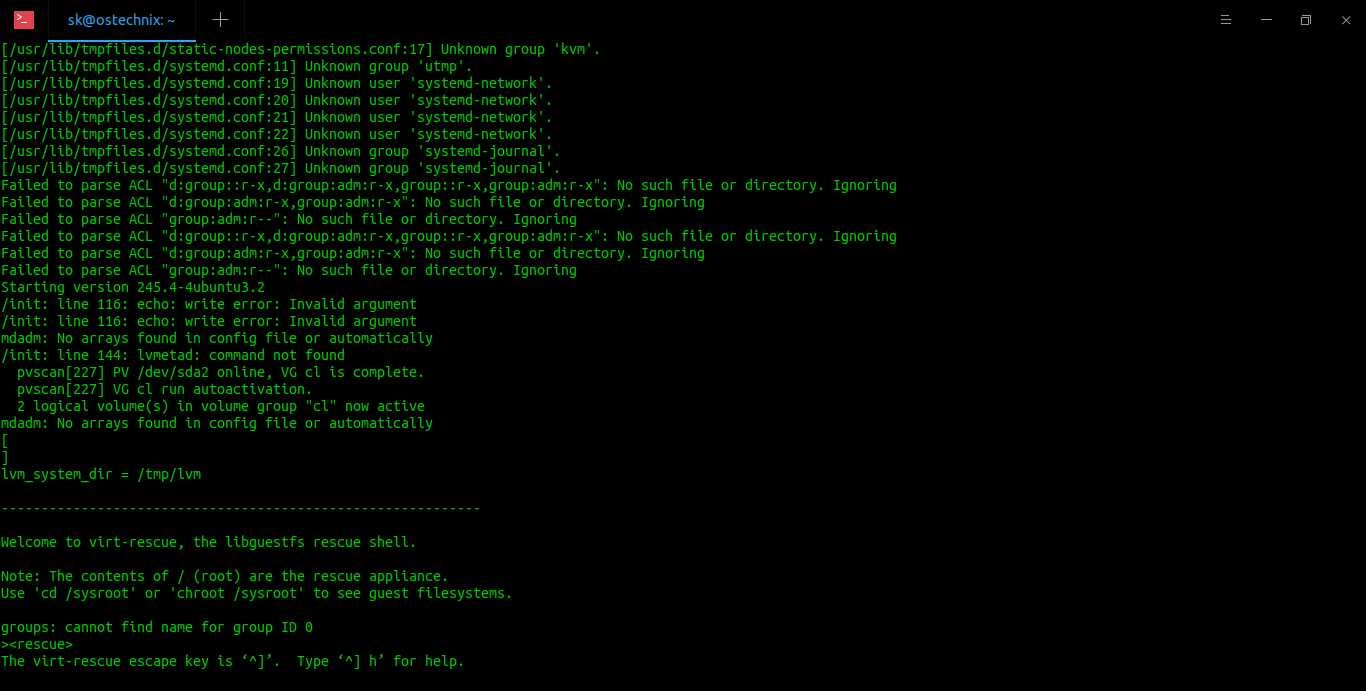
From the rescue shell, you can start using the traditional Linux commands to fix the VM.
As stated above, the guest machine's filesystems are mounted in /sysroot directory.
You can verify it with "ls" command:
><rescue> ls /sysroot/
bin   dev  home  lib64  mnt  proc  run   srv  tmp  var
boot  etc  lib   media  opt  root  sbin  sys  usr
To chroot into the /sysroot directory first:
><rescue> chroot /sysroot
To exit from rescue shell, type exit and hit enter or press Ctrl+d.
Launch VMs In Read-only Mode
As stated earlier, you should not run rescue shell on any live VMs. But if you still wanted to do it for any reason, use --ro option to use "virt-rescue" safely on a live disk image or VM.
$ virt-rescue -d centos8-uefi -i --ro
Or,
$ virt-rescue -a CentOS_8_Server.img -i --ro
The --ro option will launch the VM or disk image in read-only mode. It is ideal for experimenting VMs or disk images. No changes will be actually saved. Once you exit from the shell, all changes will be lost!
Enable Network Access For VMs
If you want to download file or package into the virtual machine, you can use --network option while running virt-rescue command:
$ virt-rescue -d centos8-uefi -i --network
Or,
$ virt-rescue -a CentOS_8_Server.img -i --network
This option enables network access inside the rescue shell, so you can download stuffs from internet.
Virt-rescue has many options. For more details, refer man pages:
$ man virt-rescue
Featured image by Miguel Á. Padriñán from Pexels.

24 comments
? Worked!
Thank you so much, I was so hopeless but this saved me.
thanks , you saved my life
Thank you.
Thank you very much SK. This solved my problem.
You’re welcome. Happy to help!
It worked! Thanks
Works like a charm. You’re good, very good
Thanks a lot man, you saved my day!
Worked like a dream! Thank you!!!!!
Thank you very much.
It worked, thank you very much
Thank you so much, it worked for me. Ahhh, I was so panicked. you saved my day
Thanks, it worked for me.
I bookmarked this page. I have forgotten how many times this has happened and I’ve repaired the system.
thanks so much worked well!!!
Thank you very much. It worked.
It worked for me , thank you very much!!
??I am very thankful to you bro I installed Linux first time on my laptop and after 3 days I got this error and by your helping I solved the error and I am very happy now❤️❤️
Fixed!
Thank you very much.
Thanks, we had some short, repeated black-out and I insanely reboot until I ended on initramfs. After this fix I had to manually reboot a 2nd time but now i am safely and happily on Ubu 22.04.2!
Awesome! It works well thank you so mvuh
Hoped someone would know what to do. You did and it worked brilliantly = although all the data flashing on my monitor was daunting I knew enough to leave it be and go make a cup of tea. 02.30 in the morning and so to bed !!!
Hey that worked! Thank you for the detailed procedure.