
When you install a program in Linux, its executable file is usually added to the PATH environment variable. This lets you run the program from anywhere in the terminal without typing its full path. However, sometimes you may need to add the program’s location to the $PATH manually. In this brief tutorial, we will see how to add a directory to PATH in Linux operating systems.
Table of Contents
Why Should We Add a Directory to the $PATH?
The other day I was testing a program named Macchina, which is written in Rust programming language. I had installed Rust using the Conda package manager in my Ubuntu system, and then installed Macchina using Rust's cargo package manager.
When I tried to launch the Macchina program, the output said that the program is not installed. I tried installing it again and got the following message:
    Updating crates.io index
     Ignored package `macchina v0.5.9` is already installed, use --force to override
warning: be sure to add `/home/sk/.cargo/bin` to your PATH to be able to run the installed binaries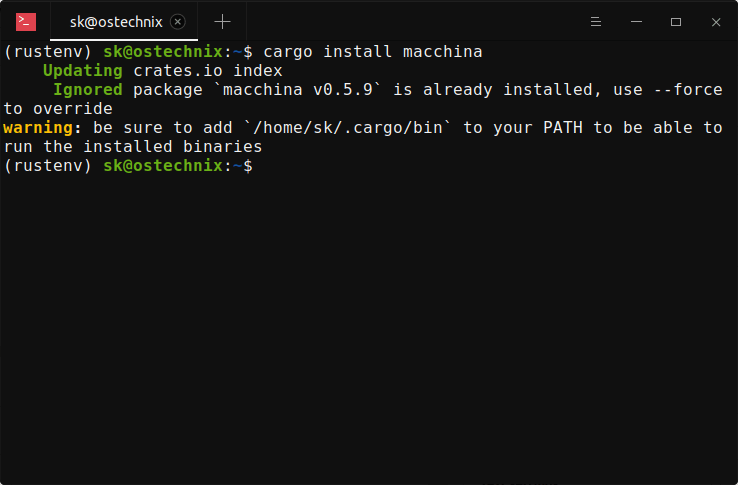
As you might already know, when we install a program that is written in Rust, the executable binary files will be saved under Cargo's bin directory (i.e. ~/.cargo/bin).
ls ~/.cargo/bin/
macchina
As shown above, the Macchina binary file was saved in the Cargo bin directory. After installing Rust, I should have added this directory to my $PATH, but I forgot. That’s why I couldn’t run the program directly from the terminal.
If I had installed Rust using the rustup installer script, this problem wouldn’t have occurred. Because the rustup script will automatically add Cargo's bin directory to the $PATH environment variable by modifying the profile file located at ~/.profile.
But, in my case, I installed Rust inside a Conda environment. Since Conda doesn't automatically add ~/.cargo/bin to the $PATH, I had to do it manually.
List Environment Variables in $PATH
Let us list all Environment variables in our $PATH using echo command.
echo $PATH
Sample output:
/home/sk/anaconda3/envs/rustenv/bin:/home/sk/anaconda3/condabin:/home/sk/.nvm/versions/node/v15.0.1/bin:/usr/local/sbin:/usr/local/bin:/usr/sbin:/usr/bin:/sbin:/bin:/usr/games:/usr/local/games:/snap/bin
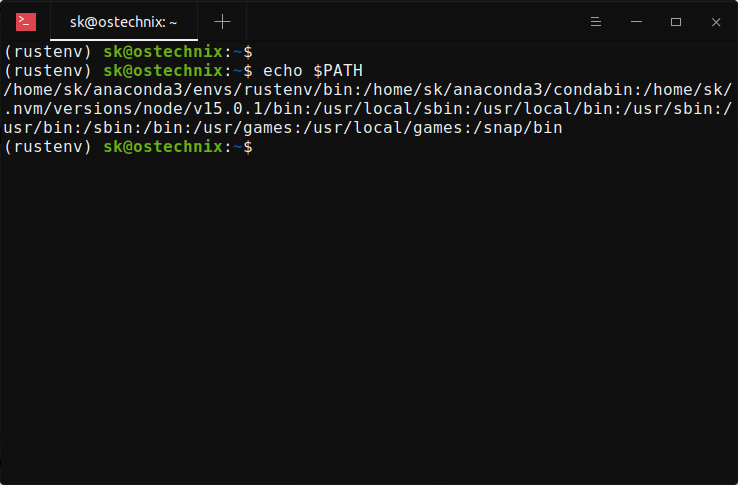
As you can see in the above output, the directory ~/.cargo/bin/ is not available in the $PATH, hence the program Macchina can not be launched using its name. I can, however, launch the program by typing its full path, like this:
~/.cargo/bin/macchina
To run a program from any location using just its name, you need to add the directory that contains the program to your $PATH. In the next section, I'll show how to do that.
Add a Directory to PATH in Linux
To add a directory, for example /home/sk/.cargo/bin/, in the $PATH, run:
export PATH=/home/sk/.cargo/bin:$PATH
Please mind the colon (:) at the end of the directory's path.
Now list again the environment variables using echo command:
echo $PATH
Sample output:
/home/sk/.cargo/bin:/home/sk/anaconda3/envs/rustenv/bin:/home/sk/anaconda3/condabin:/home/sk/.nvm/versions/node/v15.0.1/bin:/usr/local/sbin:/usr/local/bin:/usr/sbin:/usr/bin:/sbin:/bin:/usr/games:/usr/local/games:/snap/bin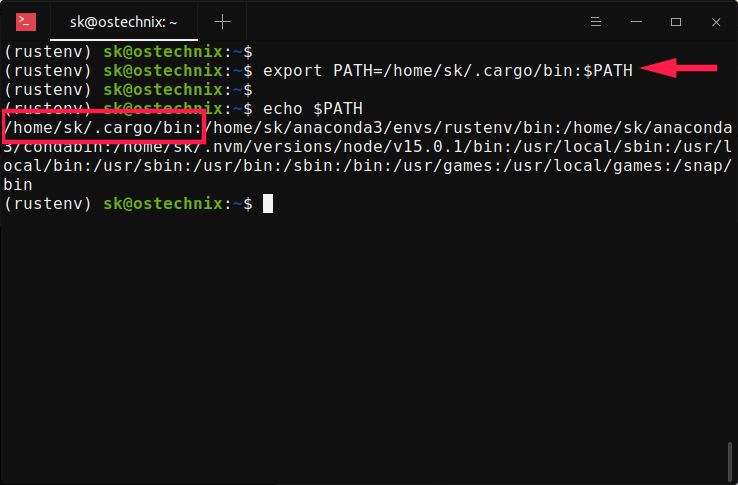
See? The ~/.cargo/bin directory has been added to the $PATH. From now on, I can launch any program installed in this directory by simply calling program's name. No need to type the full path!
Please note that this is temporary. Once you exit from the current session, the environment variable will be gone.
To make the changes permanent, edit ~/.bashrc file:
nano ~/.bashrc
Add the following line at the end:
export PATH=/home/sk/.cargo/bin:$PATH
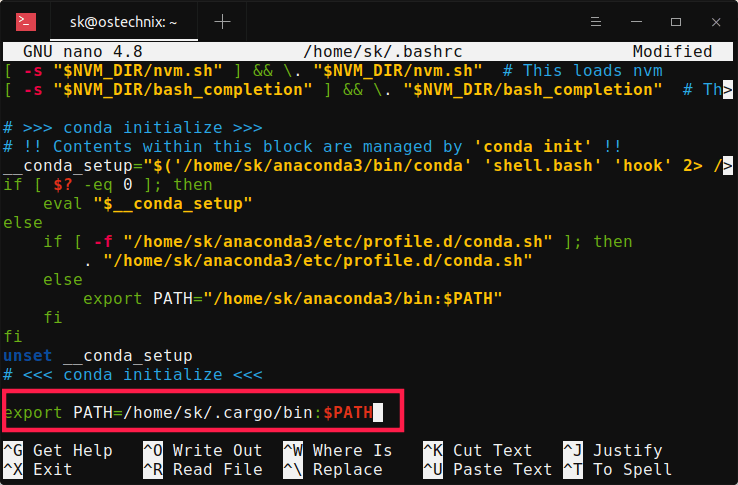
Press CTRL+O followed by CTRL+X to save the file and exit.
Run the following command to take the changes into effect immediately:
source ~/.bashrc
If you want to do it system-wide, add the same line to /etc/profile file.
Verify if the directory is added to your PATH using command:
echo $PATH
If you have trouble reading the directories in the $PATH variable, you can use the printf and tr commands to display the entries in a new line:
printf '%s\n' "$PATH" | tr ':' '\n'
You can also use the following alternatives to display the PATH variable entries in new line without tr command:
# Bash/Ksh/Zsh: using parameter expansion with printf
printf '%s\n' ${PATH//:/$'\n'}

# Or simpler with printf and xargs (on some systems)
printf '%s' "$PATH" | xargs -d: -I{} printf '%s\n' {}
Cheatsheet
Here's the cheatsheet for adding a directory to your $PATH. Print and keep it near your desk for quick reference.
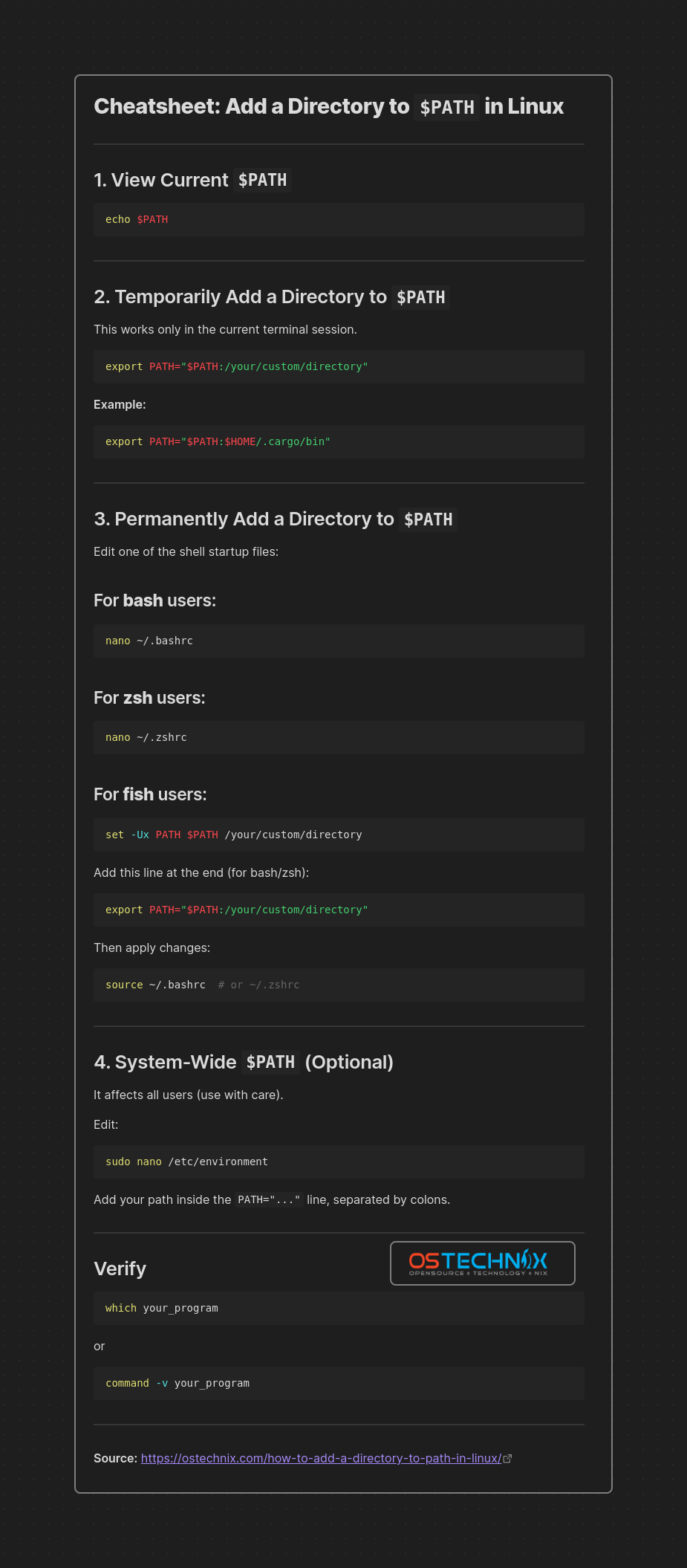
Hope this helps.

3 comments
Thx very much. It was a good reminder.
this was very elaborate. thank you
Really clearcut and helpful. Thank you!