
As you may already know, Anaconda distribution ships with a command line package and virtual environment manager called Conda. Even though it is mainly developed for Python, it is actually language-agnostic and not tied to any specific programming language. Using Conda, we can install many programming languages in multiple different environments. We already have shown you how to create NodeJS environment using Conda. Today, we will see how to create Rust virtual environments using Conda in Linux.
Table of Contents
1. What is Rust?
Rust or rust-lang is a cross-platform, fast, modern, and open source systems programming language.
It is bundled with many features such as zero-cost abstractions, move semantics, guaranteed memory safety, threads without data races, trait-based generics, pattern matching, type inference, minimal runtime, and efficient C bindings etc.
Popular software tech companies and organizations like Canonical, Dropbox, and Mozilla etc., are actively involved in Rust development.
2. Create Rust Virtual Environments Using Conda In Linux
The Rust toolchain installer named rustup is the officially recommended script to install Rust in Linux. However, it is not the only way. We can use Conda package manger to install and manage Rust programming language as well.
To create a new Rust environment using conda and install necessary software for that environment, run:
$ conda create -c conda-forge -n rustenv rust
The above command will create a new virtual environment named "rustenv" and install all necessary packages for that environment from conda-forge channel.
Sample output:
Collecting package metadata (current_repodata.json): done
Solving environment: done

## Package Plan ##

  environment location: /home/sk/anaconda3/envs/rustenv

  added / updated specs:
    - rust


The following packages will be downloaded:

    package                    |            build
    ---------------------------|-----------------
    _libgcc_mutex-0.1          |      conda_forge           3 KB  conda-forge
    _openmp_mutex-4.5          |            1_gnu          22 KB  conda-forge
    binutils_impl_linux-64-2.35.1|       h193b22a_2         9.3 MB  conda-forge
    gcc_impl_linux-64-9.3.0    |      h70c0ae5_18        43.1 MB  conda-forge
    kernel-headers_linux-64-2.6.32|      h77966d4_13         707 KB  conda-forge
    libgcc-devel_linux-64-9.3.0|      h7864c58_18         4.0 MB  conda-forge
    rust-1.50.0                |       h3bf0571_0       169.4 MB  conda-forge
    rust-std-x86_64-unknown-linux-gnu-1.50.0|       hc1431ca_0        37.8 MB  conda-forge
    sysroot_linux-64-2.12      |      h77966d4_13        30.2 MB  conda-forge
    ------------------------------------------------------------
                                           Total:       294.6 MB

The following NEW packages will be INSTALLED:

  _libgcc_mutex      conda-forge/linux-64::_libgcc_mutex-0.1-conda_forge
  _openmp_mutex      conda-forge/linux-64::_openmp_mutex-4.5-1_gnu
  binutils_impl_lin~ conda-forge/linux-64::binutils_impl_linux-64-2.35.1-h193b22a_2
  gcc_impl_linux-64  conda-forge/linux-64::gcc_impl_linux-64-9.3.0-h70c0ae5_18
  kernel-headers_li~ conda-forge/noarch::kernel-headers_linux-64-2.6.32-h77966d4_13
  ld_impl_linux-64   conda-forge/linux-64::ld_impl_linux-64-2.35.1-hea4e1c9_2
  libgcc-devel_linu~ conda-forge/linux-64::libgcc-devel_linux-64-9.3.0-h7864c58_18
  libgcc-ng          conda-forge/linux-64::libgcc-ng-9.3.0-h2828fa1_18
  libgomp            conda-forge/linux-64::libgomp-9.3.0-h2828fa1_18
  libstdcxx-ng       conda-forge/linux-64::libstdcxx-ng-9.3.0-h6de172a_18
  rust               conda-forge/linux-64::rust-1.50.0-h3bf0571_0
  rust-std-x86_64-u~ conda-forge/noarch::rust-std-x86_64-unknown-linux-gnu-1.50.0-hc1431ca_0
  sysroot_linux-64   conda-forge/noarch::sysroot_linux-64-2.12-h77966d4_13

Proceed ([y]/n)? y

Downloading and Extracting Packages
libgcc-devel_linux-6 | 4.0 MB    | ############################## | 100%
rust-1.50.0          | 169.4 MB  | ############################## | 100%
rust-std-x86_64-unkn | 37.8 MB   | ############################################################################################# | 100%
gcc_impl_linux-64-9. | 43.1 MB   | ############################################################################################# | 100%
_openmp_mutex-4.5    | 22 KB     | ############################################################################################# | 100%
binutils_impl_linux- | 9.3 MB    | ############################################################################################# | 100%
_libgcc_mutex-0.1    | 3 KB      | ############################################################################################# | 100%
kernel-headers_linux | 707 KB    | ############################################################################################# | 100%
sysroot_linux-64-2.1 | 30.2 MB   | ############################################################################################# | 100%
Preparing transaction: done
Verifying transaction: done
Executing transaction: done
#
# To activate this environment, use
#
#     $ conda activate rustenv
#
# To deactivate an active environment, use
#
#     $ conda deactivate
Please note that you can also install Rust packages from the official defaults channel. However, Conda-forge channel provides most up-to-date packages than the defaults channel.
After creating the Rust environment, make sure it exists by listing the available environments:
$ conda info --envs
Sample output:
# conda environments:
#
base                  *  /home/sk/anaconda3
rustenv                  /home/sk/anaconda3/envs/rustenv
Yes, a new Rust environment named rustenv is created!
Let us activate this environment using command:
$ conda activate rustenv
Verify the installed Rust version:
$ rustc --version
rustc 1.50.0 (cb75ad5db 2021-02-10)
Check the Cargo package manager version:
$ cargo --version
cargo 1.50.0 (f04e7fab7 2021-02-04)

Everything seems OK. Start using this environment to run, debug and test your Rust programs.
2.1. Add Cargo to your $PATH
If you have installed Rust with rustup, everything is automated.
The rustup installer script downloads and installs the official compiler for the Rust programming language, and its package manager named Cargo, and it adds the cargo, rustc, rustup and other commands to Cargo's bin directory, located at ~/.cargo/bin. And finally, it adds the Cargo's bin directory to your PATH environment variable by modifying the profile file located at ~/.profile.
But in this case, you have to add the Cargo's bin directory to your $PATH by yourself. To do so, edit the profile file located at ~/.bashrc or ~/.profile or whatever you use:
$ nano ~/.bashrc
Add the following line at the end:
export PATH=/home/sk/.cargo/bin:$PATH
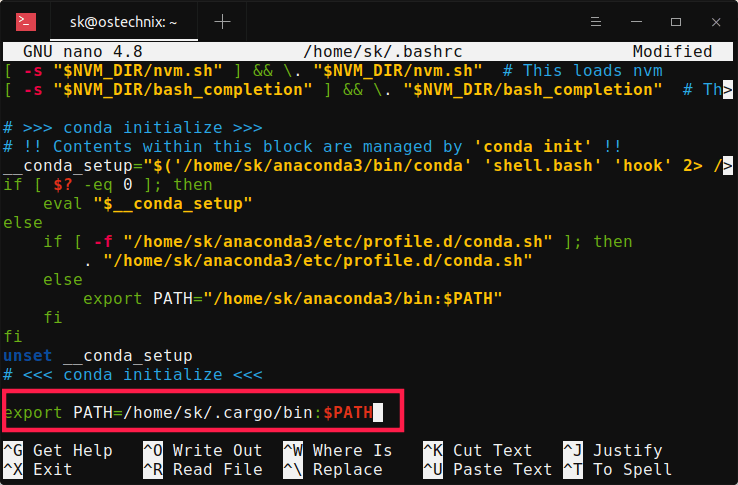
Press CTRL+O followed by CTRL+X to save the file and exit.
Run the following command for the changes to take effect immediately:
$ source ~/.bashrc
Replace ~/.bashrc with your actual profile file.
2.2. Deactivate Rust virtual environment
Once you are done, deactivate the Rust virtual environment using command:
$ conda deactivate
To activate the Rust virtual environment again, run:
$ conda activate
2.3. Delete Rust virtual environment
Make sure you've deactivated the environment:
$ conda deactivate
Then, delete the rust environment with command:
$ conda env remove -n rustenv
If you don't know the exact name of the environment, simply list all available environments using conda info --envs command which will give you the details of all environments and then delete the correct environment.
3. Conclusion
In this guide, we discussed how to create Rust virtual environments using Conda in Linux, how to activate and deactivate Rust virtual environment and finally how to delete the Rust environment.
