
In Debian, managing user privileges and administrative access is very important for maintaining a secure and efficient system. By granting users the ability to execute administrative tasks without relying on the root account, you can enhance security, control access to sensitive operations, and maintain an audit trail of user activity. This detailed guide walks you through the steps to add, delete, and grant sudo privileges to users in Debian 13 trixie, Debian 12 Bookworm and older versions.
Whether you're setting up a new Debian system or need to manage user accounts on an existing installation, this step-by-step tutorial is designed to provide clear instructions and explanations that even beginners can follow.
By the end of this guide, you'll have a solid understanding of how to create new user accounts, grant them sudo access, and remove users when necessary.
Before getting into the topic of adding, deleting, and granting sudo privileges to users in Debian, it's essential to understand what sudo is and the advantages it offers.
Table of Contents
1. What is Sudo?
The sudo (Superuser Do) command in Linux and Unix-like systems allows authorized users to execute commands with the privileges of the superuser or another user. It enables users to perform administrative tasks without logging in as the root user permanently.
The primary purpose of sudo is to provide a safer and more controlled approach to system administration. Instead of granting full root access to users, sudo enables privilege separation, limiting the scope of elevated privileges to specific commands or operations.
In Debian minimal installation, sudo is not installed by default. You need to install sudo as root user in Debian minimal systems using command:
apt install sudo
2. Advantages of Sudo Users
Here are some key aspects regarding sudo and the advantages of having a sudo user:
2.1. Privilege Separation
By default, Linux systems have a root user account with full administrative privileges. However, logging in as the root user can be risky because any command executed has unrestricted access to the entire system.
Sudo provides a way to separate regular user accounts from privileged tasks, allowing users to perform administrative actions only when needed.
2.2. Limited Privilege Escalation
Sudo allows specific users or groups to execute specific commands with elevated privileges. This provides a controlled and auditable way to grant temporary administrative access to trusted users.
Users can execute individual commands or a series of commands with sudo by authenticating themselves with their own password, rather than the root password.
2.3. Auditing and Accountability
Sudo logs all executed commands, providing an audit trail for system administrators. This audit trail helps track who executed which commands and when, enhancing system security and accountability.
The logs generated by sudo can be analyzed to investigate security incidents, troubleshoot issues, and monitor user activity.
2.4. Fine-Grained Access Control
With sudo, system administrators can define granular access control policies for different users or groups. This allows them to specify precisely which commands or operations each user can perform with elevated privileges.
Access control can be customized based on factors such as user roles, specific systems or services, and even specific command options.
2.5. Reduced Risk of Accidental Damage
Using sudo helps mitigate the risk of accidental damage caused by executing privileged commands. With sudo, users need to deliberately prefix a command with sudo to run it with elevated privileges, reducing the likelihood of unintentional system modifications or deletions.
It provides an extra layer of safety by prompting users for authentication before executing privileged operations, ensuring they are aware of the consequences of their actions.
2.6. Collaboration and Delegation
Sudo facilitates collaboration among system administrators by allowing them to delegate specific administrative tasks to other users without sharing the root password.
By assigning sudo privileges to trusted users, the workload can be distributed, and routine administrative tasks can be performed by designated individuals without requiring full root access.
In summary, having a sudo user provides a more secure and controlled approach to system administration. It enhances security, accountability, and flexibility by enabling limited privilege escalation, fine-grained access control, auditing, and delegation of administrative tasks.
3. Add a New User in Debian
To create a new sudo user in Debian 13, 12 and older versions, you need to have either an existing sudo user or root access to the system. This requirement ensures that only authorized users can grant sudo privileges to others.
In order to add a new user, follow these steps:
Log in to your Debian system using an existing sudo user account or as the root user. Open a terminal or connect to your Debian system via SSH.
If you have an existing sudo user:
Run the following command to create a new user:
sudo adduser senthil
Replace "senthil" with the desired username for the new sudo user.
Enter a strong password for the new user when prompted. And also provide any additional information requested during the user creation process.
If you have root access:
If the currently logged-in user does not have sudo rights, you will need to switch to the root account in order to create new sudo users.
Use any one of the following commands to switch to root user.
su -l
Or
su -
By using su -l or su -, the root shell is initialized with an environment similar to a normal 'login' shell. This means that the root user's $PATH variable is correctly initialized, ensuring that system directories such as /sbin are included.
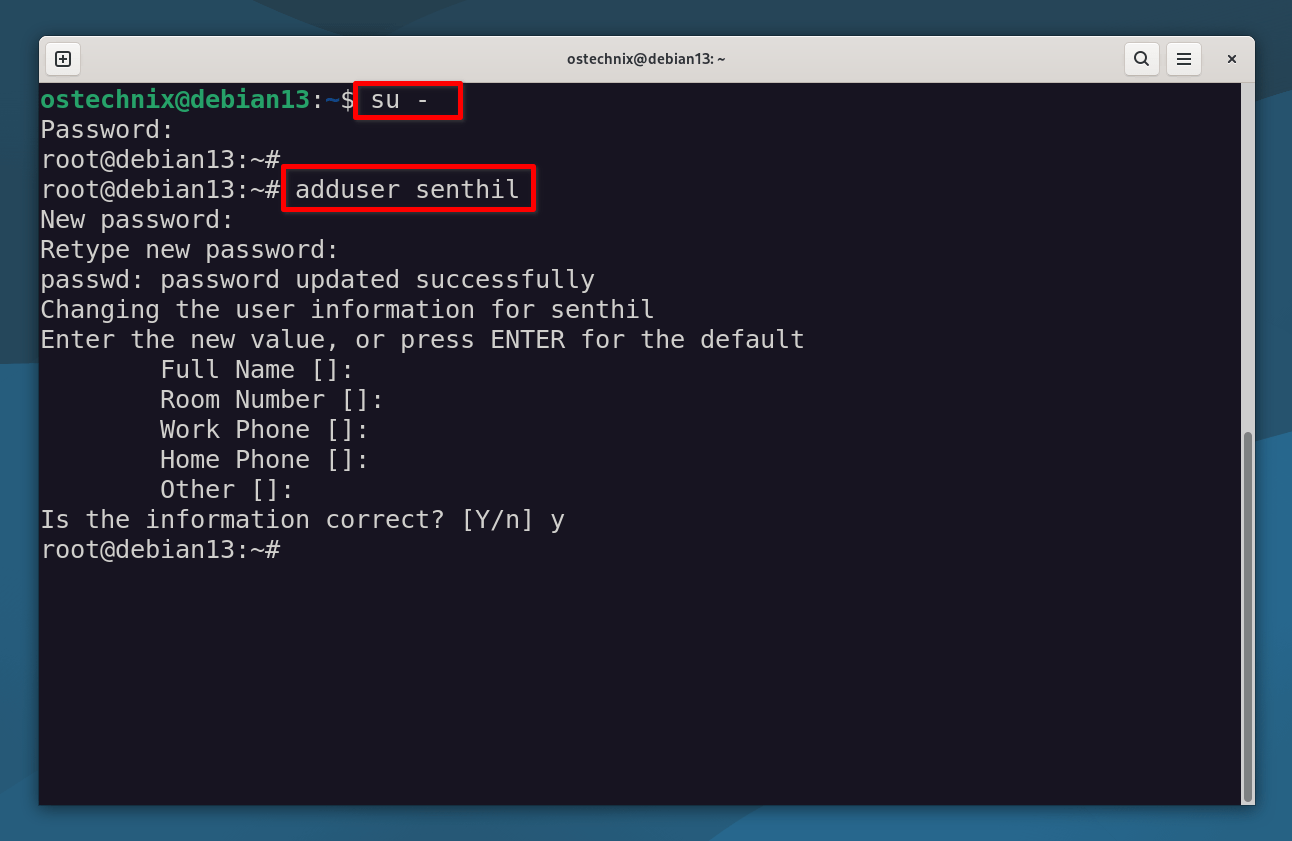
Next, run the following command to create a new user:
adduser senthil
Again, replace "senthil" with your own username.
You will be prompted to set a password for the new user. Enter a strong password and confirm it.
Additional information about the new user, such as their full name, phone number, etc., may be requested. You can enter the information or leave it blank by pressing Enter.
New password:
Retype new password:
passwd: password updated successfully
Changing the user information for senthil
Enter the new value, or press ENTER for the default
	Full Name []:
	Room Number []:
	Work Phone []:
	Home Phone []:
	Other []:
Is the information correct? [Y/n] y
3.1. Check Sudo Privileges for a Specific User
After creating a new user named "senthil", it's important to note that this user does not have sudo access by default. Without sudo privileges, the user won't be able to perform administrative tasks.
To verify whether a user has sudo access or not, you can use the following command:
sudo -l -U senthil
Replace "senthil" with the actual username you want to check.
Sample output:
User senthil is not allowed to run sudo on debian13.
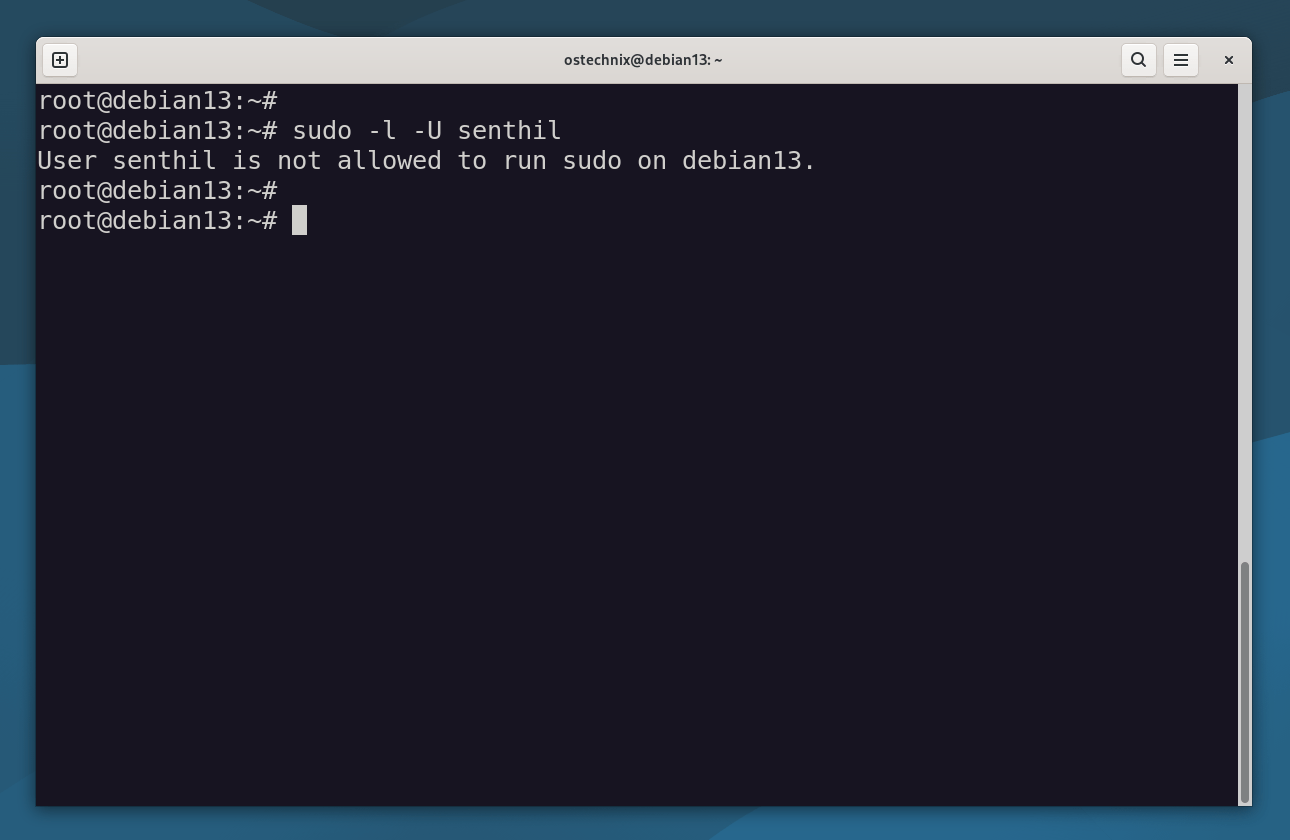
As you can see, the user "senthil" has not been granted sudo privileges yet. If the user "senthil" has sudo access, the output will show the allowed commands and their associated restrictions, if any.
In the next steps, we will cover how to grant sudo privileges to the user "senthil" so they can perform administrative tasks.
4. Grant Sudo Privileges to Users in Debian
Add the newly created user to sudo group using the following command:
If you have an existing sudo user:
sudo adduser senthil sudo
If you have root access:
adduser senthil sudo
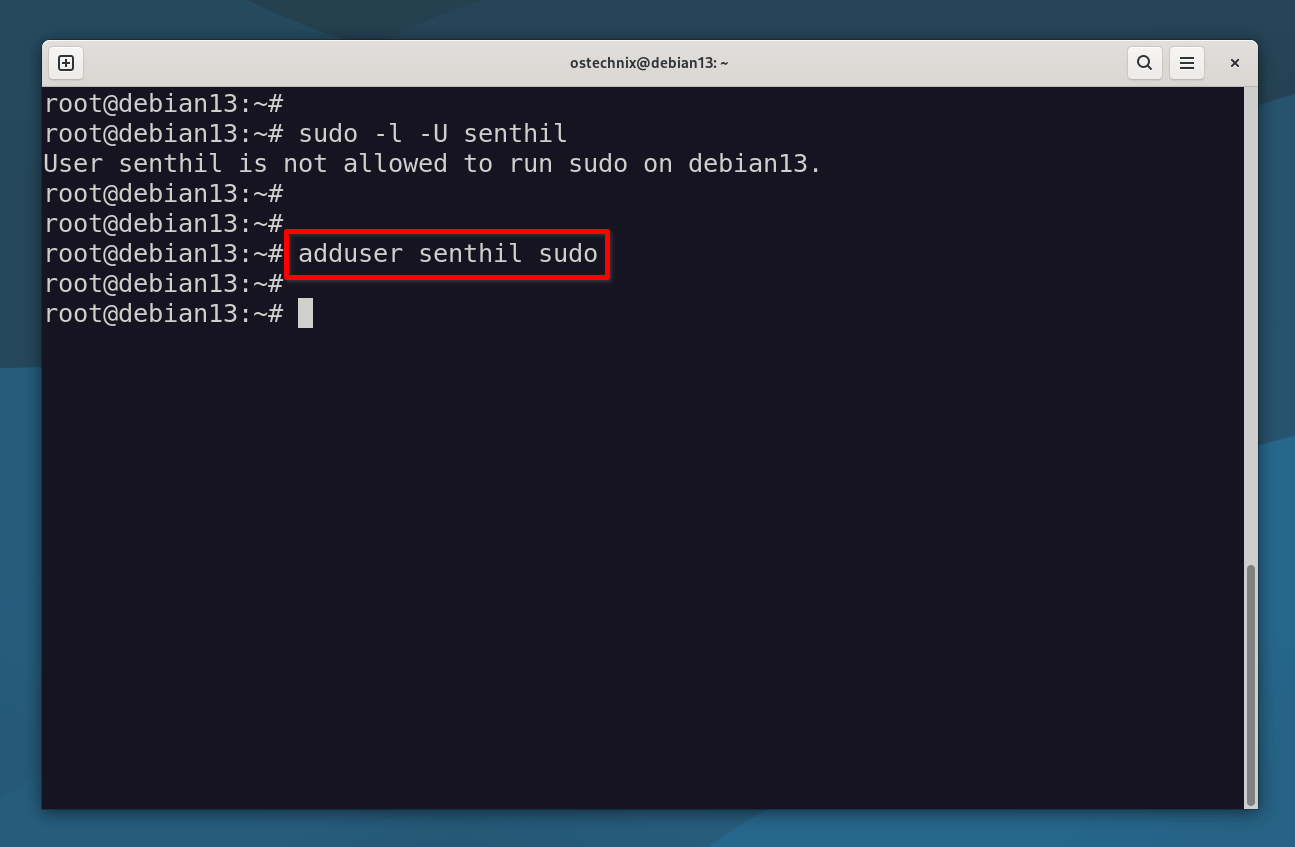
We just granted sudo permission to the user "senthil".
You can also use the usermod command to add a user to sudo group.
sudo usermod -aG sudo senthil
Now verify if the user is added in the sudo group, using command
sudo -l -U senthil
Sample output:
Matching Defaults entries for senthil on debian12:
    env_reset, mail_badpass,
    secure_path=/usr/local/sbin\:/usr/local/bin\:/usr/sbin\:/usr/bin\:/sbin\:/bin,
    use_pty

User senthil may run the following commands on debian12:
    (ALL : ALL) ALL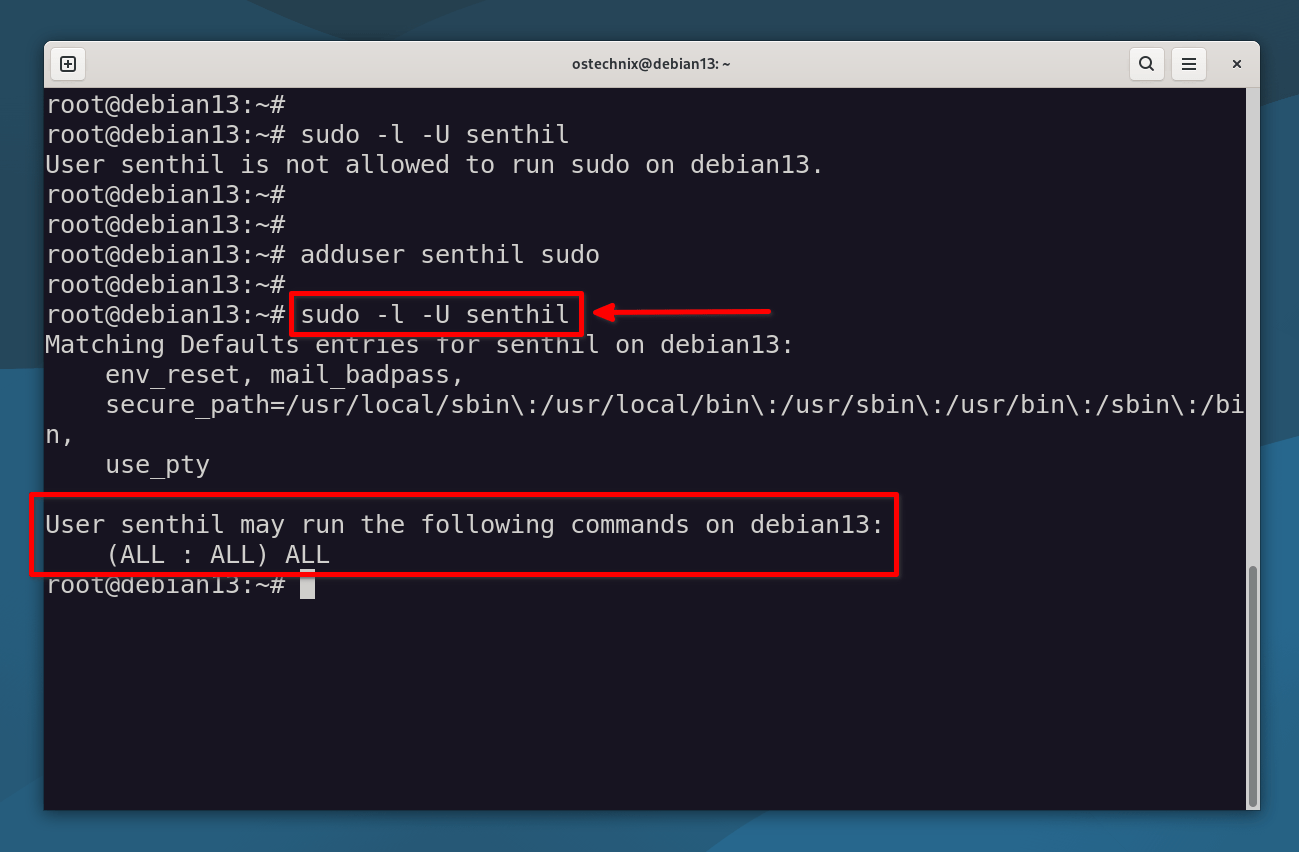
Here, the line (ALL : ALL) ALL in the above output indicates that the user "senthil" can run any command (ALL) as any user (ALL) with all available privileges.
The output confirms that the user "senthil" has been granted unrestricted sudo privileges on the Debian 12 system, allowing him to run any command as any user with full administrative capabilities.
If you view the contents of the sudoers file;
sudo cat /etc/sudoers
You would see some lines like below.
# User privilege specification
root	ALL=(ALL:ALL) ALL

# Members of the admin group may gain root privileges
%admin ALL=(ALL) ALL

# Allow members of group sudo to execute any command
%sudo	ALL=(ALL:ALL) ALL

# See sudoers(5) for more information on "@include" directives:

@includedir /etc/sudoers.d
The directive %sudo ALL=(ALL:ALL) ALL in the /etc/sudoers file is a rule that specifies the sudo privileges for members of the "sudo" group. Let's break down what each part of the directive means:
%sudo: This signifies that the rule applies to all users who are members of the "sudo" group. The%character denotes a group name.ALL=(ALL:ALL): This portion defines the scope of the sudo rule. It indicates that the rule applies to any host (ALL) and allows users in the "sudo" group to run commands as any user and any group.- The first "ALL" represents the hosts or machines on which the sudo rule is applicable. In this case, "ALL" means the rule applies to any host. It allows members of the "sudo" group to execute commands with sudo privileges from any machine.
- The second "ALL" represents the users or accounts as whom the commands can be executed. "ALL" means the members of the "sudo" group can run commands as any user on the system.
- The third "ALL" represents the groups that the sudo commands can be executed as. Again, "ALL" means that the members of the "sudo" group can execute commands as any group on the system.
ALL: This specifies that the members of the "sudo" group can run any command.
In summary, the directive %sudo ALL=(ALL:ALL) ALL allows any user who is a member of the "sudo" group to execute any command with full administrative privileges. It grants broad sudo access to the users in the "sudo" group, enabling them to perform a wide range of administrative tasks on the system.
Since the user "senthil" is a member of "sudo" group, he can now run any command on any host. To put this in other word, he is now one of the administrator.
5. How to Find All Sudo Users on the System
As I stated already, the sudo privileges are granted through the sudo group. To list all users in this group, run:
getent group sudo
The output will look something like:
sudo:x:27:senthil,ostechnix
Here, senthil and ostechnix are the users with sudo access.
Tip: You can also check /etc/group directly:
grep '^sudo:' /etc/group
This is useful when you want to quickly review who can run administrative commands on your system. For more details, check the following link:
6. Verify Sudo Privilege of Users
To verify if a user has the ability to perform administrative tasks with sudo, Log out from the current user session. On the login screen, select the new user you created. Enter the password for the new user and log in.
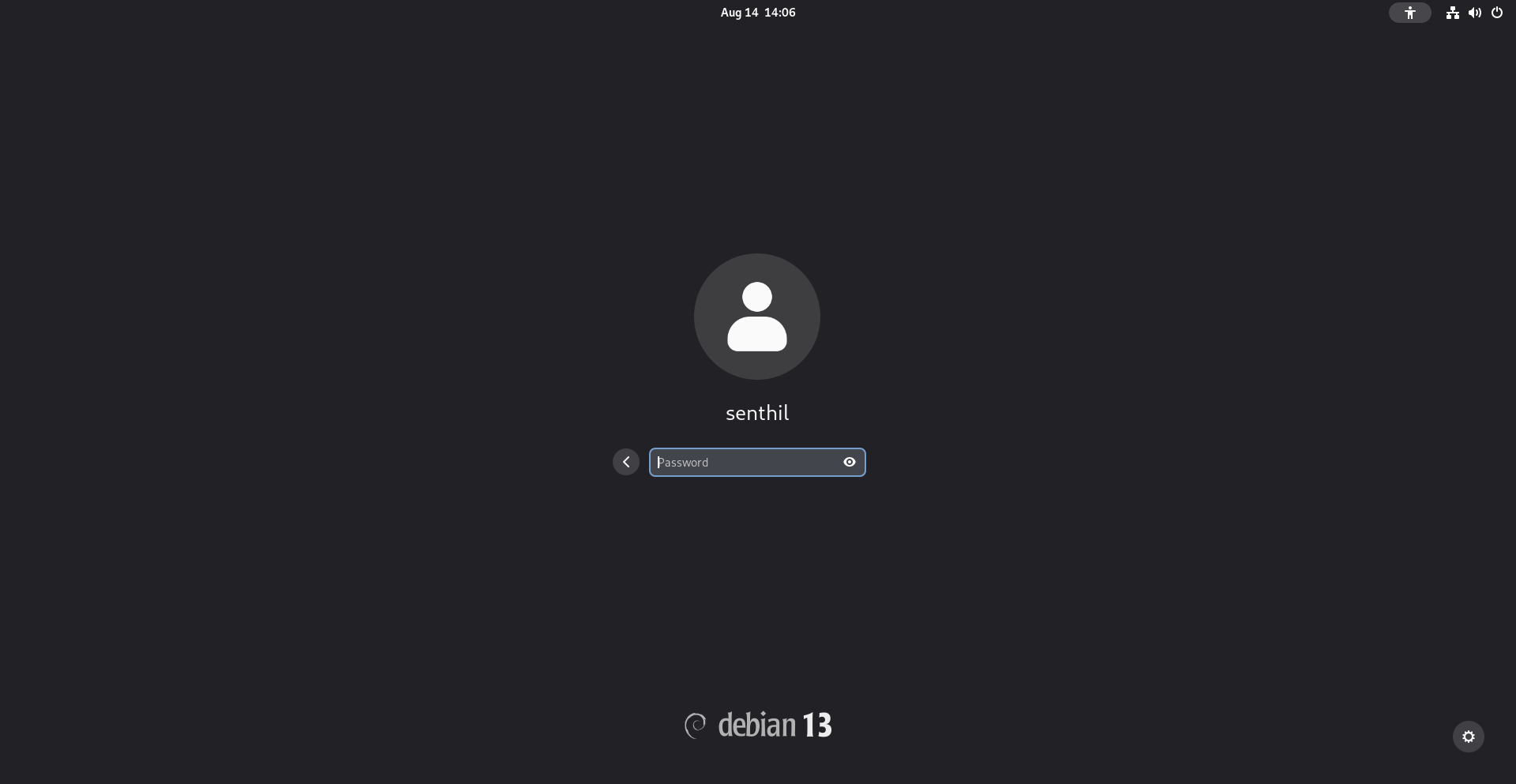
Alternatively, you can quickly switch to the new user using the following command:
sudo -i -u senthil
This command will instantly switch you to the specified user, in this case, "senthil".
Once you are switched or logged in to the user, run any commands with the sudo prefix to perform administrative tasks. For example:
sudo apt update
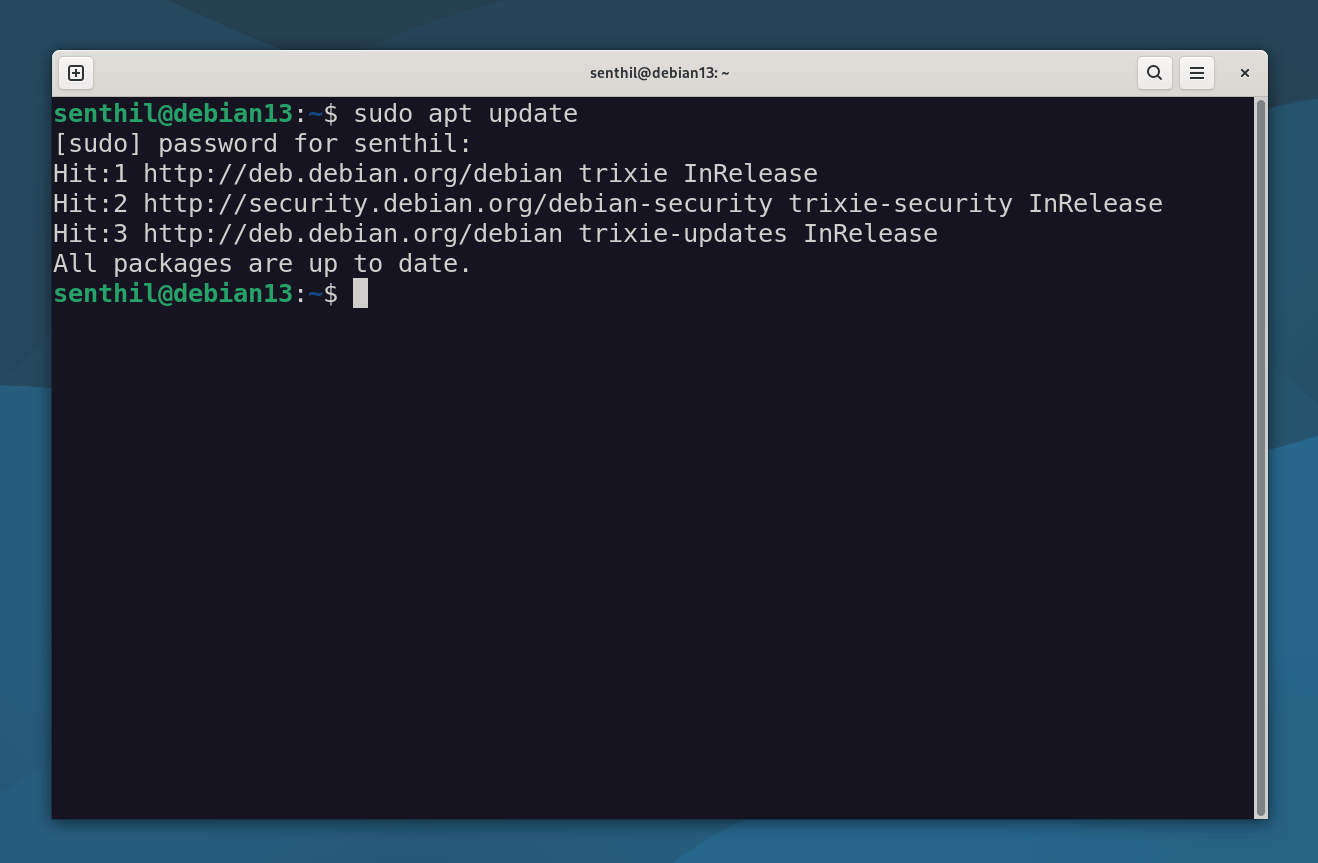
As you witnessed in the above output, the user "senthil" has the ability to run administrative tasks with sudo privilege.
7. Remove Sudo Access from Users
Removing sudo access from a user in Debian systems is a delicate process that requires caution. It's important to ensure that you do not remove the real administrator from the "sudo" group, as there should always be at least one sudo user in the system.
To revoke sudo permissions from a user, follow these steps:
Make sure you are logged out from the user's session ("senthil") and logged in as another user with sudo privileges.
To remove the user "senthil" from the "sudo" group, use the following command:
sudo deluser senthil sudo
This command will revoke the user's sudo permissions by removing them from the "sudo" group. Note that this action does not permanently delete the user from the system.
Alternatively, you can use the following command to revoke sudo permissions:
sudo gpasswd -d senthil sudo
Running this command will have the same effect of removing the user "senthil" from the "sudo" group.
After executing either of these commands, the user "senthil" will no longer have sudo access and will be considered a regular user without administrative privileges.
To verify if the user has indeed been removed from the "sudo" group, you can run the following command:
sudo -l -U senthil
This command will display the user's sudo privileges. If the user is no longer listed as having sudo access, it confirms that the sudo permissions have been successfully revoked.
User senthil is not allowed to run sudo on debian13.

The user "senthil" is now removed from sudoer list.
8. Remove Users Permanently
Please exercise caution when permanently deleting users from the system, as this action is not reversible. Double-check that you are removing the correct user, and ensure that you have taken appropriate backups or precautions to prevent any unintended data loss.
To permanently delete users from a Linux system, including their home directory and mail spool, follow these steps:
Ensure that you are logged in as the root user or a user with sudo privileges.
To delete a user, use the following command:
sudo deluser senthil
Replace "senthil" with the actual username of the user you want to remove.
This command will remove the specified user from the system, including their user account details. However, their home directory and mail spool will remain intact.
If you want to remove the user's home directory and mail spool along with their account, use the --remove-home option:
sudo deluser --remove-home senthil
This command ensures that not only the user account but also their home directory and mail spool are deleted.
9. Frequently Asked Questions (FAQ)
Here are some common questions and answers (FAQ) about managing users and sudo privileges in Debian 13 and 12.
A: sudo stands for “superuser do.” It lets a regular user run commands with administrative (root) privileges after entering their password.
sudo and root?A: root is the superuser account with unrestricted access. sudo allows a regular user to run specific commands as root after entering their password.
A: To create a new user in Debian, use the following command: sudo adduser username. Replace username with the desired name. You’ll be prompted to set a password and fill in optional details.
A: Add the user to the sudo group using command: sudo usermod -aG sudo username. The change takes effect after the user logs out and back in.
A: To verify if a user has sudo access, you can use: sudo -lU username. You can also use this command as well: groups username. If sudo appears in the list, the user has sudo privileges.
A: No. Only grant sudo access to trusted users, as it gives them the ability to make system-wide changes.
A: Remove the user from the sudo group with command: sudo deluser username sudo.
A: Yes. By default, new users are not in the sudo group, so they won’t have admin rights unless explicitly added.
A: Check /etc/passwd file: cut -d: -f1 /etc/passwd
A: To find all sudo or super users in Linux, use getent command: getent group sudo
A: To remove a user from your system, run: sudo deluser username. To also remove the user’s home directory and mail, use: sudo deluser --remove-home username.
Conclusion
Managing user privileges and granting sudo access in Debian systems is an essential aspect of maintaining system security and controlling administrative tasks.
By following the step-by-step instructions provided, even beginners can successfully add, grant sudo access, and manage users in Debian 13 trixie, Debian 12 Bookworm and other older versions.
Remember to exercise caution when using sudo, grant privileges only to trusted users, and regularly review sudo logs to monitor user activity and identify any potential security issues.
Similar Read:
- Add, Delete And Grant Sudo Privileges To Users In Alpine Linux
- Add, Delete And Grant Sudo Privileges To Users In Arch Linux
- Add, Delete And Grant Sudo Privileges To Users In CentOS
- Add, Delete, And Grant Sudo Privileges To Users In RHEL, AlmaLinux And Rocky Linux
- Add, Delete And Grant Sudo Privileges To Users In Fedora
- Add, Delete And Grant Sudo Privileges To Users In Ubuntu
- How To Allow Or Deny Sudo Access To A Group In Linux
