
The functions command in Fish shell is used for managing and interacting with Fish functions. It allows you to list, edit, erase, and even save functions. In this tutorial, we will learn how to manage functions in fish shell with examples on Linux.
Table of Contents
What is the functions Command?
In Fish shell, functions are blocks of reusable code that you can define and call by name. The functions command is a built-in utility that helps you manage these functions. You can use it to:
- List all functions.
- Display the code of a specific function.
- Edit a function.
- Erase (delete) a function.
- Save functions to a file.
When and Why Use the functions Command?
- Efficiency: Quickly manage and modify functions without manually editing configuration files.
- Debugging: Inspect and troubleshoot functions easily.
- Portability: Save and share functions across systems.
- Flexibility: Override or extend built-in commands with custom behavior.
Manage Functions in Fish Shell
1. Define (Create) a New Function
There are two ways to define a new function. You can either directly define it inside the fish configuration file (~/.config/fish/config.fish) or define it in a separate file inside a custom directory (e.g. ~/.config/fish/functions/).
The key difference between defining a function in ~/.config/fish/config.fish and saving it in ~/.config/fish/functions/ lies in how Fish handles function loading and execution.
1.1. Defining a Function in config.fish
When you add a function directly inside ~/.config/fish/config.fish, it runs every time a new Fish shell starts.
Example:
function cdls
    # Change to the specified directory
    builtin cd $argv[1]
    and begin
        # List directory contents with a timeout of 1 second
        echo "Changed to directory: $PWD"
        timeout 1s ls -l
    end
end
Pros:
- Runs when Fish starts.
- Good for small functions or quick customizations.
Cons:
- If you have many functions in
config.fish, it can become cluttered. - Functions are only loaded when a new shell starts, meaning changes require restarting Fish (
exec fishor reopening the terminal). - Slower startup if
config.fishcontains many functions.
1.2. Saving a Function in a Custom Directory
When you use funcsave function_name or manually create a file in ~/.config/fish/functions/, Fish automatically loads the function when needed.
First, create the function in your current Fish session:
function cdls
    # Change to the specified directory
    builtin cd $argv[1]
    and begin
        # List directory contents with a timeout of 1 second
        echo "Changed to directory: $PWD"
        timeout 1s ls -l
    end
end
At this point, the function will work in your session, but it will disappear when you restart Fish.
To save a defined function permanently, we can use the funcsave command.
funcsave cdls
This saves cdls to ~/.config/fish/functions/cdls.fish, containing:
function cdls
    # Change to the specified directory
    builtin cd $argv[1]
    and begin
        # List directory contents with a timeout of 1 second
        echo "Changed to directory: $PWD"
        timeout 1s ls -l
    end
end
Pros:
- Fish loads the function only when used, keeping startup fast.
- Functions are stored separately, making them easier to manage.
- You can delete a function permanently by removing its
.fishfile without editingconfig.fish.
Cons:
- Requires an extra step to save (
funcsave function_nameor manually creating a.fishfile). - Might not be obvious to new users where the function is stored.
Best Practice?
- If the function is small and essential (e.g., an alias-like function), adding it to
config.fishis fine. - If the function is used occasionally or complex, storing it in
~/.config/fish/functions/is better for organization and performance.
2. List All Functions
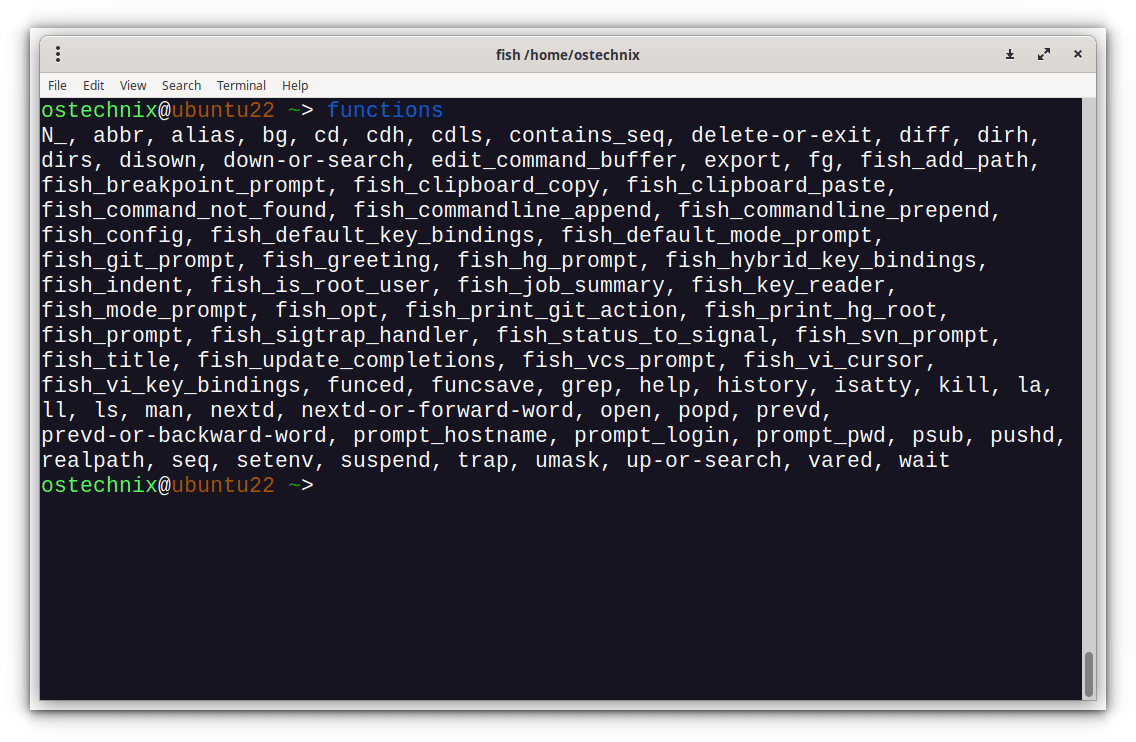
To see a list of all currently defined functions in your Fish shell, use:
functions
This will display the names of all functions, including built-in ones and custom ones you’ve created.
Sample Output:
N_, abbr, alias, bg, cd, cdh, cdls, contains_seq, delete-or-exit, diff, dirh,
dirs, disown, down-or-search, edit_command_buffer, export, fg, fish_add_path,
fish_breakpoint_prompt, fish_clipboard_copy, fish_clipboard_paste,
fish_command_not_found, fish_commandline_append, fish_commandline_prepend,
fish_config, fish_default_key_bindings, fish_default_mode_prompt,
fish_git_prompt, fish_greeting, fish_hg_prompt, fish_hybrid_key_bindings,
fish_indent, fish_is_root_user, fish_job_summary, fish_key_reader,
fish_mode_prompt, fish_opt, fish_print_git_action, fish_print_hg_root,
fish_prompt, fish_sigtrap_handler, fish_status_to_signal, fish_svn_prompt,
fish_title, fish_update_completions, fish_vcs_prompt, fish_vi_cursor,
fish_vi_key_bindings, funced, funcsave, grep, help, history, isatty, kill, la,
ll, ls, man, nextd, nextd-or-forward-word, open, popd, prevd,
prevd-or-backward-word, prompt_hostname, prompt_login, prompt_pwd, psub, pushd,
realpath, seq, setenv, suspend, trap, umask, up-or-search, vared, wait
3. View the Definition of a Function
To view the code of a specific function, use:
functions <function_name>
For example, to see the code for the cdls function:
functions cdls
This will print the entire definition of the cd function.
function cdls
    # Change to the specified directory
    builtin cd $argv[1]
    and begin
        # List directory contents with a timeout of 1 second
        echo "Changed to directory: $PWD"
        timeout 1s ls -l
    end
end
4. Edit a Function
You can edit a function directly in your default text editor using:
funced <function_name>
For example, to edit the cd function:
funced cdls
This will open the function in your editor (e.g., nano or vim), allowing you to modify it. Once you save and exit, the changes will take effect immediately.
5. Save a Function to a File
This is SAME as creating new functions with funcsave command.
First, define the function in the current session.
If you want to save a function’s definition to a file, use:
functions <function_name> > filename.fish
For example, to save the cdls function to a file:
functions cdls > ~/.config/fish/functions/cdls.fish
This is useful for backing up or sharing functions.
6. Copy a Function
You can copy an existing function to a new name using -c or --copy flag:
functions --copy <old_function_name> <new_function_name>
For example, to copy the cd function to a new function called mycd:
functions --copy cd mycd
Now you can modify mycd without affecting the original cd function.
7. Erase (Delete) a Function
To delete a function from the current session, use -e or --erase flag:
functions --erase <function_name>
For example, to remove a custom cdls function:
functions --erase cdls
This removes cdls but does not affect permanent functions stored in config.fish or in ~/.config/fish/functions/ directory.
To permanently remove a function, open the fish configuration file and comment out or delete the entire function.
After removing the function, reload fish to apply changes:
exec fish
Or restart your Terminal.
If you saved the function using funcsave or created it manually, Fish stores it in ~/.config/fish/functions/.
To remove it permanently, simply delete the function file:
rm ~/.config/fish/functions/function_name.fish
Example:
rm ~/.config/fish/functions/cdls.fish
And then reload the fish or restart the terminal.
Summary of functions Command Options
| Command | Description |
|---|---|
functions | List all functions. |
functions <function_name> | Display the code of a specific function. |
funced <function_name> | Edit a function in your default text editor. |
functions --erase <function_name> | Delete a function. |
functions --copy <old> <new> | Copy a function to a new name. |
functions <name> > file.fish | Save a function’s definition to a file. |
Conclusion
The functions command is a must-know tool for Fish shell users. It gives you full control over your shell environment and makes working with functions a breeze. For more details, refer to the functions section in the fish shell official documentation.
Related Read:
