
RAID array is an arrangement of individual physical drives configured together to act as a single logical storage unit. Users use the RAID arrays primarily to enhance the data storage capacity and mitigate data loss in case of drive failure.
RAID can also be configured as network attached storage to get the benefits of both the worlds. There are several brands, like QNAP, ASUSTOR, and Synology, that offers NAS devices that can be configured as RAID arrays.
Like any other storage device, RAID is also prone to data loss or failure due to several internal or external factors.
There are various RAID arrays but in this post we will focus on RAID 6-based NAS of QNAP brand and see how to recover data from such an RAID array in case of data loss or failure.
Table of Contents
What is RAID 6?
RAID 6 uses block-level striping to store data across the member drives along with double parity, which is distributed across drives. This type of RAID array requires a minimum of four physical drives to configure.
RAID 6 supports parallel read operations. This improves data availability and read operation speed. The double-distributed parity stored on each data strip helps sustain two drives failure.
The presence of dual parity is beneficial in scenarios where two data drives have failed. However, RAID 6 has an overhead for calculating the second parity, which impacts write speeds.
Furthermore, the introduction of the second parity in the system increases complexity and the time required to rebuild the array.
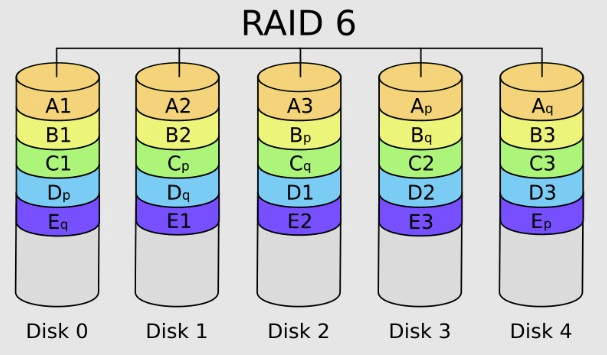
Reasons Behind Data Loss or Failure in NAS-based RAID 6
RAID array failure makes the data inaccessible and disrupts critical operations. There are several reasons behind a failed RAID array and subsequent data loss:
- Member drives failure due to excessive wear and tear or external factors, like high temperature, adverse storage conditions, etc.
- Faulty hardware, like RAID controller, SATA connectors, NAS box, etc., can make the RAID configuration inaccessible.
- DDoS attack on the server.
- Interruptions, like power cuts, URE errors, and more, while rebuilding the RAID 6 array.
- Power surge/loss while writing data can result in corrupted RAID configuration.
- Buggy firmware updates installed.
When RAID-6 fails, the entire array becomes inaccessible. Rebuilding is possible, but interruptions during rebuild can make recovery much harder.
Recovering Data from QNAP NAS with a Failed RAID 6 Configuration Using Stellar Toolkit
RAID 6 configuration can sustain two drive failure. If there is one or two disk failure, the array remains functional, and the NAS manager changes the disk's status and marks the array as Degraded.
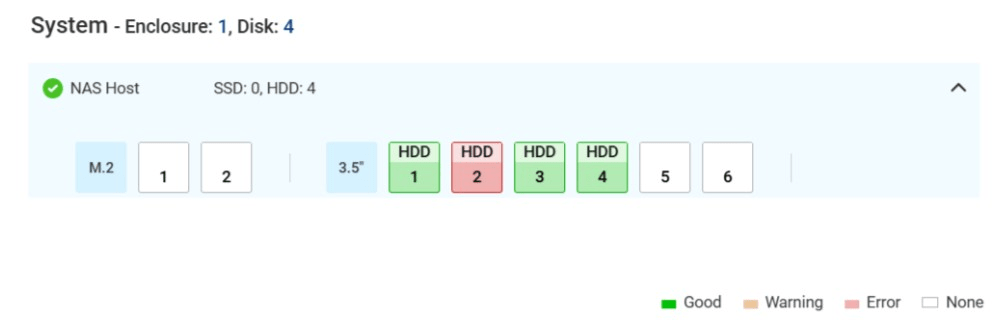
If the drive failure is within the permissible limits, it is possible to recover data by rebuilding the array. However, the process can take a lot of time because of the complex checksums recalculating the lost data.
Any interruption, like power outage, controller failure, etc., during the RAID rebuild process can be fatal as it can corrupt the RAID configuration and cause permanent loss of data.
To safely perform NAS-based RAID recovery, it is better to rely on a specialized NAS data recovery software, like Stellar Toolkit for Data Recovery.
Stellar Toolkit for Data Recovery is an advanced data recovery software that is specifically developed to recover data from inaccessible network-attached storage devices and failed RAID arrays.
You can use this powerful tool to recover data lost from RAID-based NAS devices in different scenarios, like file deletion, partition/volume loss, member drive failure, inaccessible NAS server, and more.
The software can help you recover data from almost all types of storage media, such as optical media (CD/DVD), flash drives, SD cards, HDDs, SSDs, and more.
Additionally, it can recover data from virtual image files, like VMDK, VHD, VDI,
VHDX, etc.
Steps to Recover Data from RAID 6 QNAP NAS
To recover data from NAS-based RAID 6 array, download Stellar Toolkit for Data Recovery on your Windows PC and then follow the below steps:
1. First, disconnect the member drives carefully from the NAS box and label them in the given order.
2. Next, connect the drives in the same order to your Windows PC via RAID controller interface card and SATA cables connected to it.
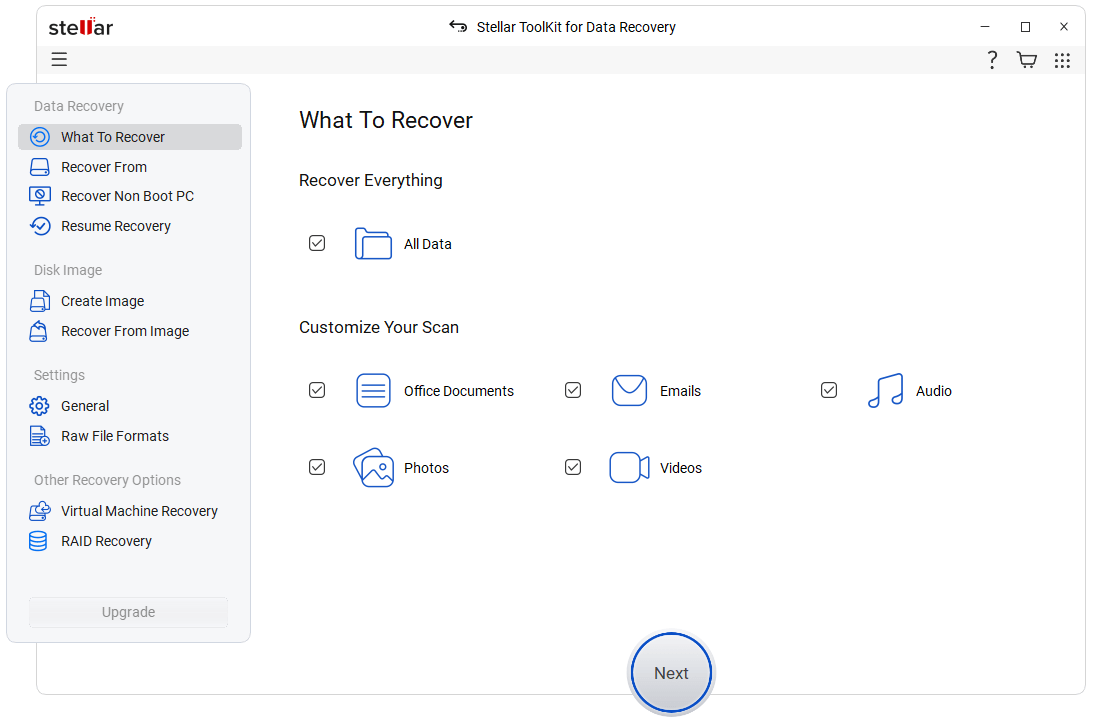
3. Launch Stellar Toolkit for Data Recovery software. The Select What to Recover screen will appear. Select the type of data to recover. By default, All Data is selected. Click Next.
4. Next, you will see the Recover From screen. The software automatically detects the connected drives and displays the NAS with its brand name under the Connected Drives section. Click Scan to proceed.
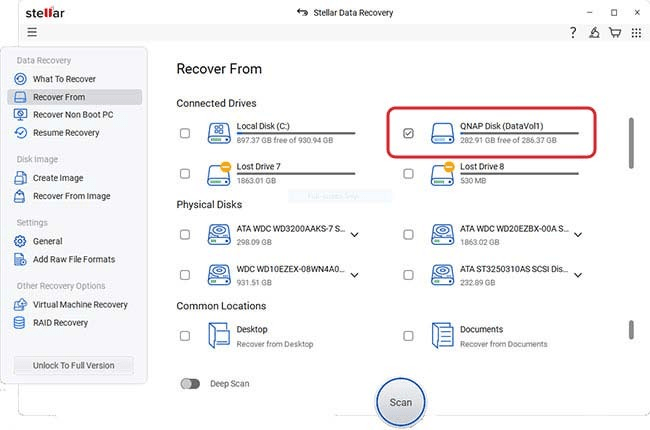
The software will scan the connected NAS drives and show the recoverable data.
5. After previewing the files, choose the files that you want to recover. Click Recover.
6. Next, click on Browse to select the location to save the selected data. After selecting the destination, click on Start Saving.
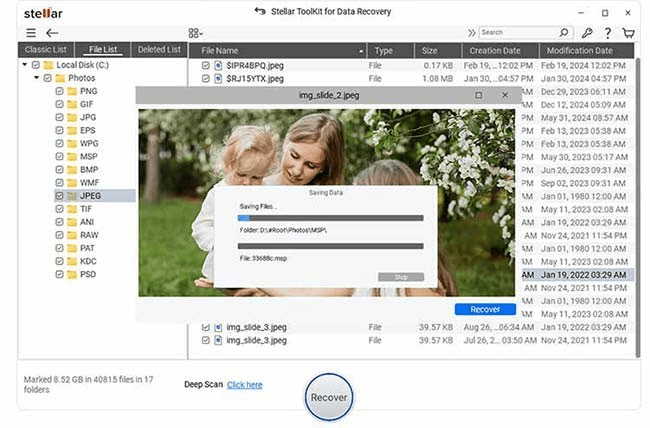
The software will start saving the data at the selected location. When finished, it will show the data saved successfully prompt.
Tips to Avoid Data Loss from NAS-based RAID 6
Here are some tips you can follow to avoid data loss from your NAS-based RAID:
- Regularly monitor the health of member drives using S.M.A.R.T. monitoring tools.
- Avoid interruptions while writing data or rebuilding the RAID array.
- Avoid using RAID after a disk failure. It becomes prone to subsequent disk failures.
- Use UPS and surge protectors to avoid frequent power cuts and surges.
- Implement a robust backup strategy, like the 3-2-1 backup strategy.
- Keep a professional NAS/RAID data recovery software.
Quick Recovery Checklist (TL;DR)
- Stop using the NAS immediately after failure.
- Remove and label drives in order.
- Connect drives to a PC using SATA.
- Run NAS/RAID recovery software (E.g. Stellar Toolkit for Data Recovery).
- Preview and select recoverable files.
- Save recovered files to a safe location (not the same NAS).
Frequently Asked Questions (FAQ)
A: Yes. Even if the QNAP RAID-6 array is inaccessible, recovery tools can often rebuild the virtual structure and extract files, provided drives are intact.
A: Common causes include power loss, firmware corruption, and additional drive failures during rebuild.
A: Yes. RAID-6 tolerates two simultaneous drive failures, while RAID-5 can only handle one. However, RAID-6 rebuilds take longer.
A: DIY recovery is possible with trusted software, but professional services are safer if the data is critical and drives show physical damage.
A: Yes. Stellar Toolkit for Data Recovery is designed to handle RAID-6 arrays, including QNAP NAS. It can rebuild the array virtually, preview recoverable files, and restore them safely without altering the original data
A: The software supports recovery of documents, images, videos, emails, databases, and even virtual machine files (VMDK, VHD, VDI, VHDX).
A: No. The tool is user-friendly with step-by-step guidance, making it suitable for IT staff and even non-technical users.
A: If drives are physically damaged, software alone may not help. In such cases, professional cleanroom recovery services are required before using Stellar Toolkit.
Conclusion
RAID 6 offers faster data reading and double distributed parity which help it to sustain failure of two disks. Rebuilding the failed RAID 6 array in case of two-disk failure is possible. But it is a challenging and risky process as any unexpected interruption could end up corrupting the RAID configuration and resulting in permanent data loss.
A specialized NAS data recovery software, like Stellar Toolkit for Data Recovery, can help recover data from a failed RAID-based NAS. This tool can safely recover all the data without impacting its integrity.
Most importantly, prevention through monitoring, backups, and safe recovery practices ensures that when failure happens, your data stays protected.
Related Read:
