
As a database administrator, you may encounter the MySQL server error:
Plugin 'InnoDB' registration as a STORAGE ENGINE failed
This error indicates that MySQL is unable to load the InnoDB storage engine during startup. It can occur for several reasons, including corrupted InnoDB system files, damaged tablespaces, incomplete upgrades, or other issues that prevent InnoDB from initializing correctly. The exact cause can usually be identified by reviewing the MySQL error log.
When this happens, the impact can range from MySQL Server failing to start completely to partial availability where tools such as MySQL Workbench can connect but queries against InnoDB tables fail. Since InnoDB is the default storage engine for most MySQL installations, this type of failure can make a large portion of a database inaccessible.
This article covers hands-on experience dealing with this situation. We will start with the standard MySQL recovery approaches that should always be attempted first, then explore how Stellar Repair for MySQL performed when those methods were not sufficient.
Table of Contents
Causes of MySQL Error: InnoDB Registration as a STORAGE ENGINE Failed
MySQL Server may fail to load the InnoDB storage engine for several reasons. The first step is to check the MySQL error log, as it usually provides important clues about what prevented InnoDB from starting.
Common causes include:
- Insufficient free disk space
- Corrupted or mismatched InnoDB redo log files (
ib_logfile0,ib_logfile1) - Incorrect or conflicting settings in
my.iniormy.cnf - Corruption in the InnoDB system tablespace (
ibdata1) - Corruption in individual InnoDB tablespace files (
.ibd) - Unexpected server shutdowns, storage failures, or interrupted upgrades
The exact cause matters because the recovery approach depends on what has been damaged. A configuration issue may only require a settings change, while corrupted InnoDB files may require a more advanced recovery process.
Checking the MySQL Error Log on Linux
On Linux systems, the location of the error log depends on the MySQL distribution and configuration. Common locations include:
/var/log/mysql/error.log
or:
/var/log/mysqld.log
You can also check the configured location from the MySQL configuration files:
grep -r "log_error" /etc/mysql /etc/my.cnf 2>/dev/null
For systems using systemd, startup errors can also be checked with:
sudo journalctl -u mysql -n 100
or:
sudo journalctl -u mysqld -n 100
Checking the MySQL Error Log on Windows
On Windows installations, the MySQL error log is usually located in the MySQL data directory:
C:\ProgramData\MySQL\MySQL Server X.Y\data\hostname.err
Open the .err file with a text editor and review the messages generated during MySQL startup.
If MySQL Workbench is still partially accessible, you can also open the log from inside Workbench:
Help → Show Log File
The error log is the first place to look before attempting any recovery operation, as it helps determine whether the issue is a simple configuration problem or actual database corruption.
Quick Native Fixes to Try First
Before considering a database recovery tool, it is worth trying a few native troubleshooting methods. The correct approach depends on what the MySQL error log reveals.
Method 1: Check and Free Up Disk Space
A lack of available disk space can prevent InnoDB from initializing correctly, especially when MySQL cannot create or extend required files during startup.
First, check the disk where the MySQL data directory is stored and make sure sufficient free space is available.
On Linux:
Check disk usage from the command line:
df -h
On Windows:
Right-click the drive containing the MySQL data directory, check the available space, and remove unnecessary files if required. You can also use Windows Disk Cleanup or other storage management tools.
If the filesystem containing the MySQL data directory is full, remove unnecessary files such as old logs, temporary files, or unused backups.
After freeing space, restart the MySQL service and test the connection.
Method 2: Check and Fix Configuration Settings
Incorrect configuration paths can prevent MySQL from locating important InnoDB files.
On Linux:
MySQL configuration files are commonly located in:
/etc/mysql/my.cnf
or:
/etc/my.cnf
Check the InnoDB-related settings:
innodb_data_home_dir
innodb_log_group_home_dir
You can also search the configuration files with:
grep -r "innodb" /etc/mysql /etc/my.cnf 2>/dev/null
On Windows:
Open the MySQL configuration file:
C:\Program Files\MySQL\MySQL Server X.Y\my.ini
Check settings such as:
innodb_data_home_dir
innodb_log_group_home_dir
Confirm that the paths exist and match the actual MySQL data location.
Make sure the configured paths match the actual MySQL data directory.
After making any changes, restart MySQL and test the connection again.
If these basic checks do not resolve the problem, especially when the error log indicates corruption in ibdata1, InnoDB tablespace files (.ibd), or other database files, the issue is likely beyond a simple configuration problem and requires a deeper recovery approach.
When Native Methods Don’t Work: Using Stellar Repair for MySQL
InnoDB tablespace corruption is the situation where the usual troubleshooting methods may no longer be enough.
The innodb_force_recovery option can sometimes help bring a damaged database into a state where data can be extracted. However, higher recovery levels disable important InnoDB operations and should only be used as a last resort for recovering data.
In our case, the MySQL server failure occurred after an abrupt power interruption while the database was performing operations. When we attempted to start the server again, the InnoDB storage engine failed to register successfully. The error log pointed to corruption involving the InnoDB system files, and the usual checks (i.e. disk space verification and configuration review) did not identify a fixable issue.
We also tried InnoDB force recovery, but the server could not reach a usable state for data extraction. At that point, the problem had moved beyond normal configuration troubleshooting and into database recovery territory.
That's when we turned to Stellar Repair for MySQL.
What is Stellar Repair for MySQL
Stellar Repair for MySQL is a graphical database recovery tool designed to repair corrupted MySQL and MariaDB databases when built-in recovery methods are insufficient.
Instead of relying on a running MySQL server, it reads the underlying database files directly and attempts to reconstruct tables, indexes, views, triggers, and other database objects.
What problem does it solve?
Database corruption can happen because of:
- Unexpected power failures
- Disk or storage failures
- Operating system crashes
- Incomplete MySQL upgrades
- Corrupted InnoDB tablespaces
- MyISAM index corruption
- Accidental server shutdowns
- Filesystem errors
Normally, an experienced DBA first tries:
- Restore from backup
CHECK TABLEREPAIR TABLE(MyISAM only)innodb_force_recovery- Binary log recovery
- MySQL Enterprise Backup or Percona tools
If those fail or no recent backup exists, software like Stellar Repair becomes a last-resort recovery option.
How It works
Unlike normal MySQL utilities, Stellar does not require the database server to be running.
Instead it scans raw database files such as:
.ibdibdata1.frm.MYD.MYI
It attempts to reconstruct:
- Tables
- Records
- Primary keys
- Foreign keys
- Indexes
- Views
- Triggers
- Partition information
Recovered objects can then be exported into SQL scripts or restored into another MySQL/MariaDB server.
Install Stellar Repair for MySQL on Windows
Go to the Stellar Repair for MySQL download page, get the latest version and install it. The install process is not so difficult. Click Next, next and next and click Finish. it is that simple!
Running Stellar Repair for MySQL (Windows) on Linux via Wine
Stellar now also offers a native Linux edition of Stellar Repair for MySQL, in addition to the Windows version.
Their download page provides installation packages for:
- CentOS / Red Hat Enterprise Linux (64-bit RPM)
- Ubuntu (32-bit and 64-bit DEB packages on the download page, though the newer product page primarily describes 64-bit support)
Please note that Stellar's own Linux .deb/.rpm packages only officially support older distros (Ubuntu 16.04–19.10, CentOS/RHEL 7) and are not guaranteed to work on latest Linux editions.
If you want a latest version, you need to download Stellar Repair for MySQL windows executable and install it using Wine.
Setup Steps (native Wine on Debian 13)
1. Enable 32-bit architecture support
sudo dpkg --add-architecture i386
sudo apt update
2. Add the WineHQ repository (Trixie-specific build)
sudo apt install -y wget gnupg2
sudo mkdir -pm755 /etc/apt/keyrings
sudo wget -O /etc/apt/keyrings/winehq-archive.key https://dl.winehq.org/wine-builds/winehq.key
sudo wget -NP /etc/apt/sources.list.d/ https://dl.winehq.org/wine-builds/debian/dists/trixie/winehq-trixie.sources
The Trixie-specific WineHQ source worked directly (no need for the Bookworm fallback).
3. Install Wine stable
sudo apt update
sudo apt install --install-recommends winehq-stable
4. Verify
wine --version
Expected result would be: Wine 11.0.
5. Install Winetricks (manual install required)
Winetricks was not available via apt on Debian 13 at time of setup (apt-cache search winetricks only returned q4wine, an unrelated GUI tool). Installed the script directly instead:
cd ~/Downloads
wget https://raw.githubusercontent.com/Winetricks/winetricks/master/src/winetricks
chmod +x winetricks
sudo mv winetricks /usr/local/bin/
winetricks --version
6. Create an isolated Wine prefix for this app
export WINEPREFIX=~/.wine-stellar
export WINEARCH=win64
wineboot --init
Using a dedicated prefix keeps this app's Windows environment separate from any other Wine apps.
7. Install runtime dependencies
WINEPREFIX=~/.wine-stellar winetricks corefonts vcrun2019
Accept defaults on any installer dialogs that appear (fonts, Visual C++ 2019 runtime).
8. Download and run the Stellar installer
cd ~/Downloads
wget https://cloud.stellarinfo.com/StellarRepairforMySQL.exe
WINEPREFIX=~/.wine-stellar wine StellarRepairforMySQL.exe
If all goes well, Stellar Repair for MySQL will run without any issues under Wine 11.0 on Debian 13 desktop.
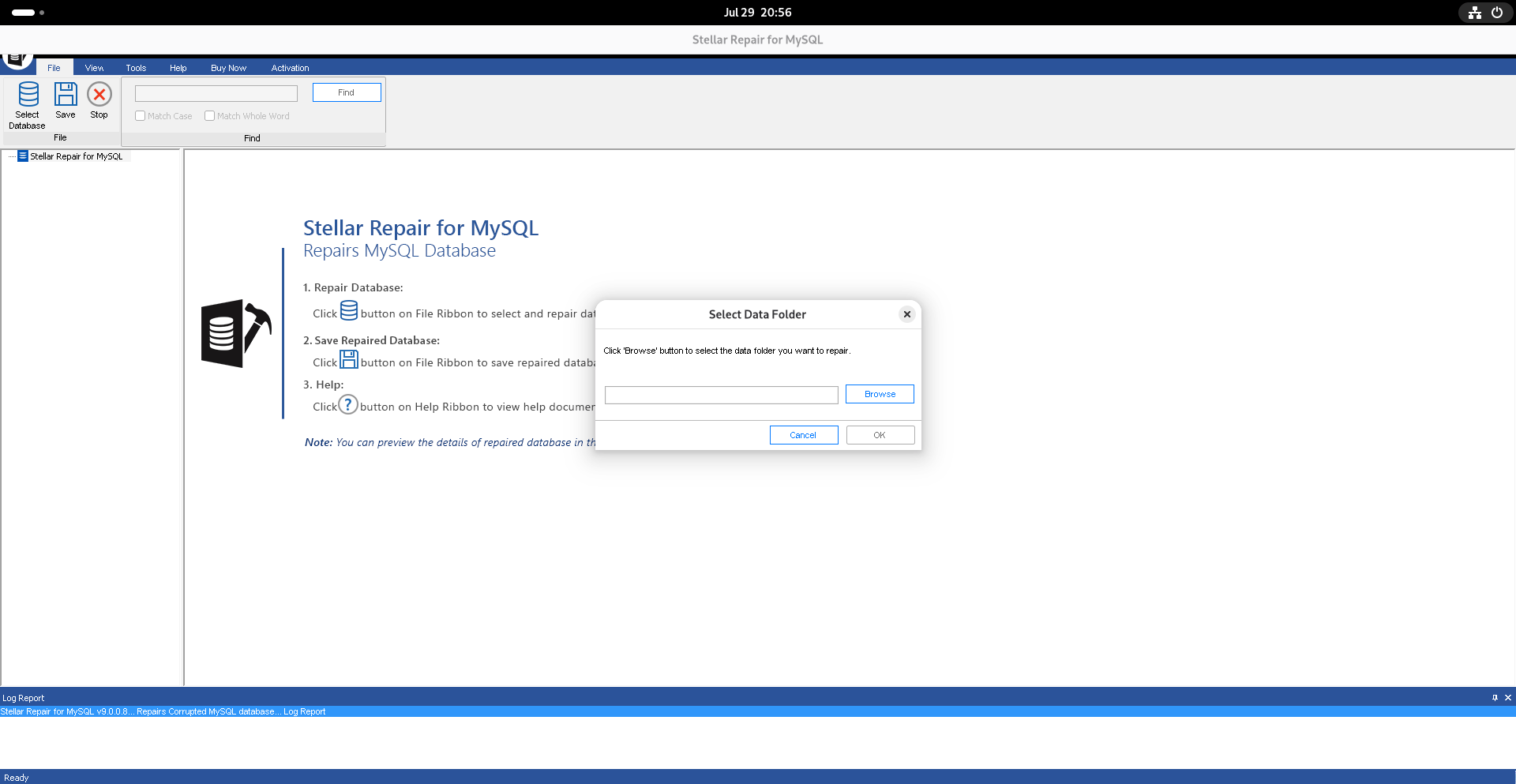
The free trial version typically lets you:
- Scan databases
- Preview recoverable objects
To save or export recovered data, you'll generally need to enter your license key via Buy now option.
Recommended Database Workflow
Before using any database recovery software, the safest approach is to work on a copy of the damaged database files rather than the original data directory.
- Stop MySQL
- Make a complete copy of the database directory
- Open Stellar Repair
- Select the corrupted data folder
- Scan the files
- Preview recovered tables
- Export to:
- SQL script
- New MySQL server
- MariaDB
- CSV
- HTML
- XLS (depending on edition)
The original files remain unchanged during analysis.
Following this workflow, I tested Stellar Repair for MySQL on the copied database files.
Step-by-Step MySQL Database Recovery using Stellar Repair for MySQL
Note: For our test, we used a copy of a MySQL data directory rather than a live production database in Debian Linux and Windows. The original files were preserved, and all experiments were performed on duplicate copies.
Step 1: Stop MySQL and Browse to the Data Folder
Stop the MySQL Server service before opening the tool if MySQL is still running, it
will lock the data files and the tool will throw a file-in-use error.
On Linux, you can do it from commandline:
sudo systemctl stop mysql
Once stopped, open Stellar Repair for MySQL and use the Browse button on the home screen to navigate to your MySQL data directory.
Never perform recovery on your only copy of the database. Make sure you have back up of the Data folder somewhere safe.
On Windows this folder is inside ProgramData, which is hidden by default, so enable hidden folder visibility in Explorer first if needed.
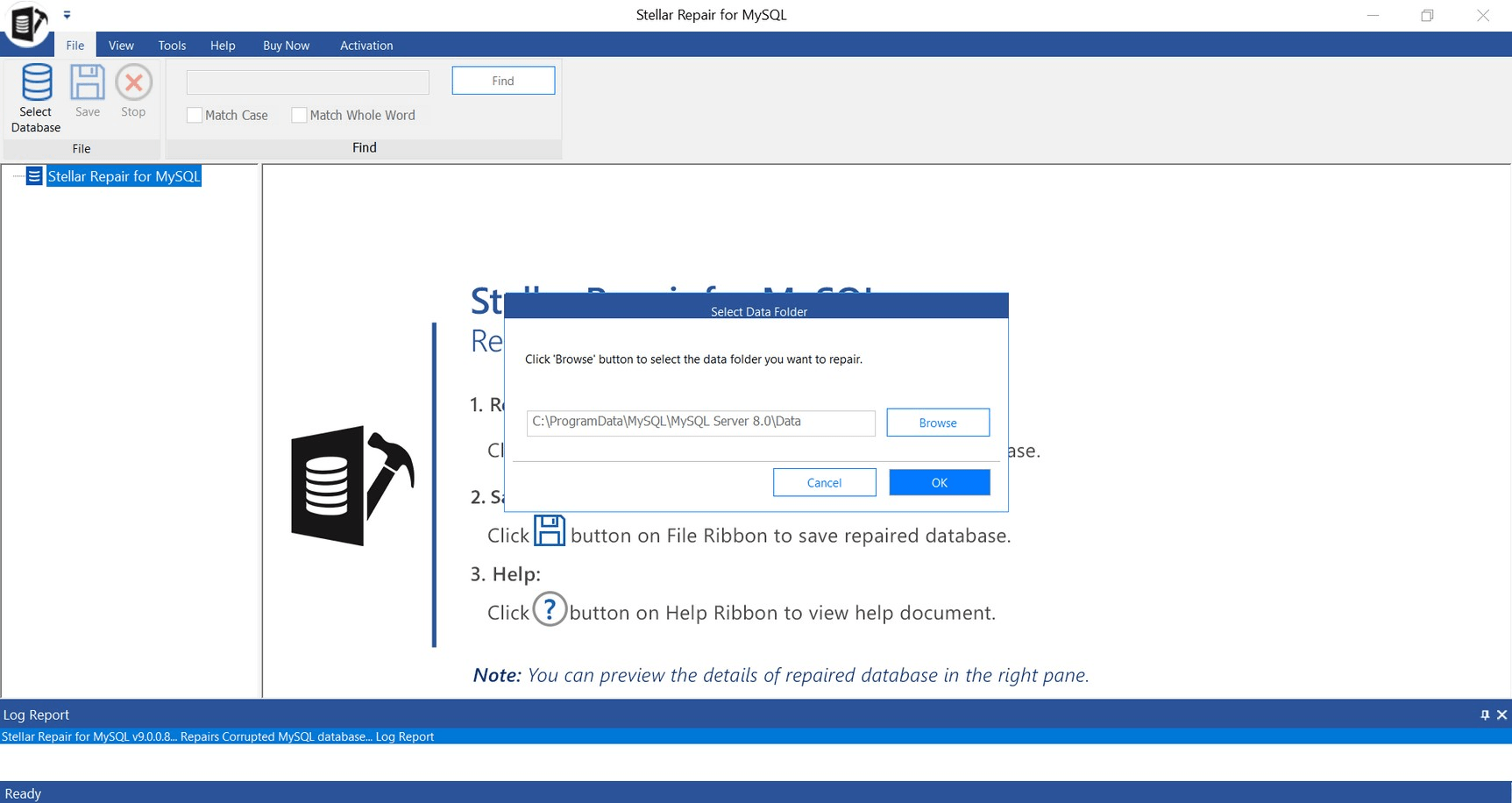
In Linux, the default MySQL data folder will be /var/lib/mysql. Create a backup of the data directory:
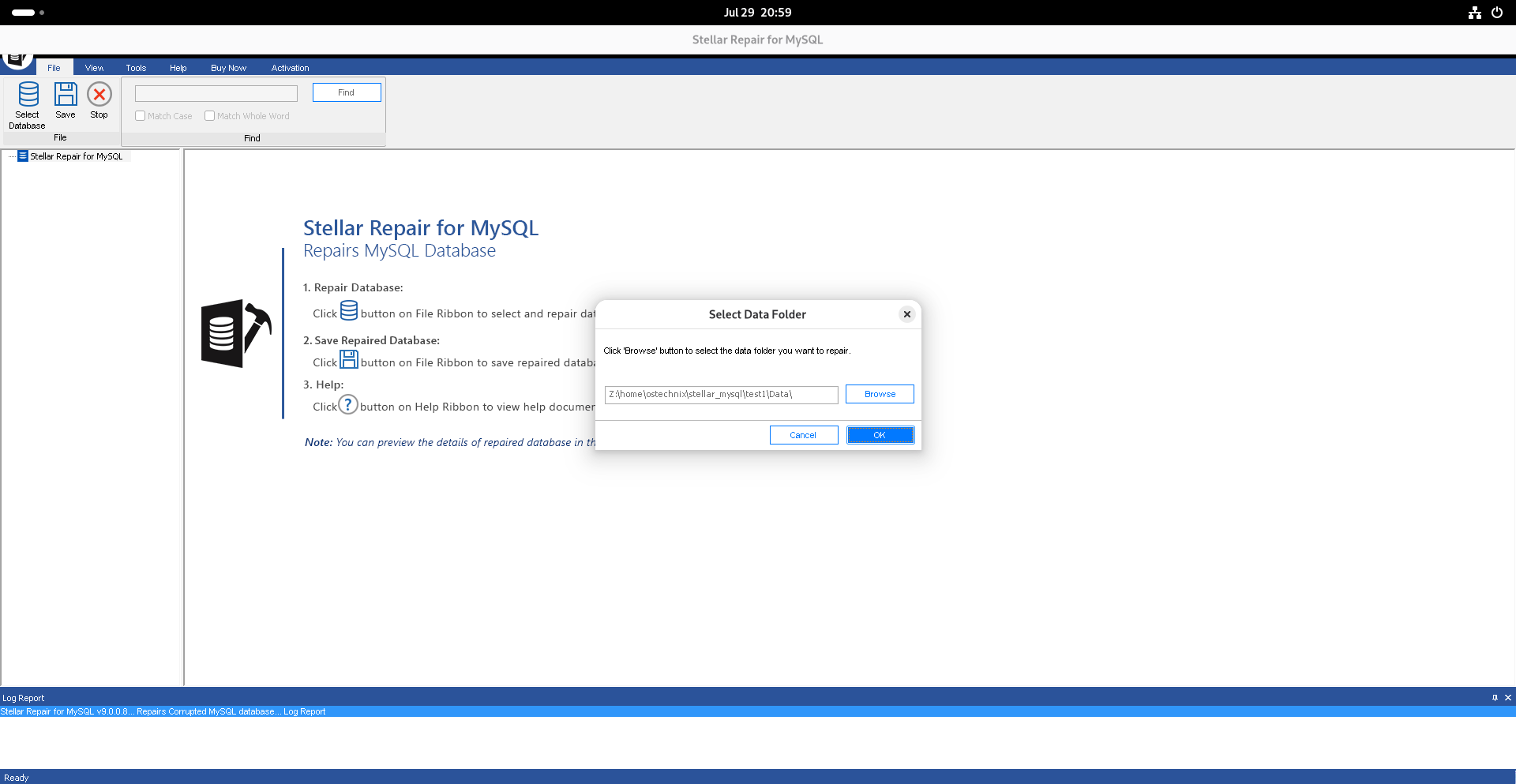
sudo cp -a /var/lib/mysql ~/stellar_mysql/test1/Data
Then choose the Data folder path:
Step 2: Select the Corrupted Database
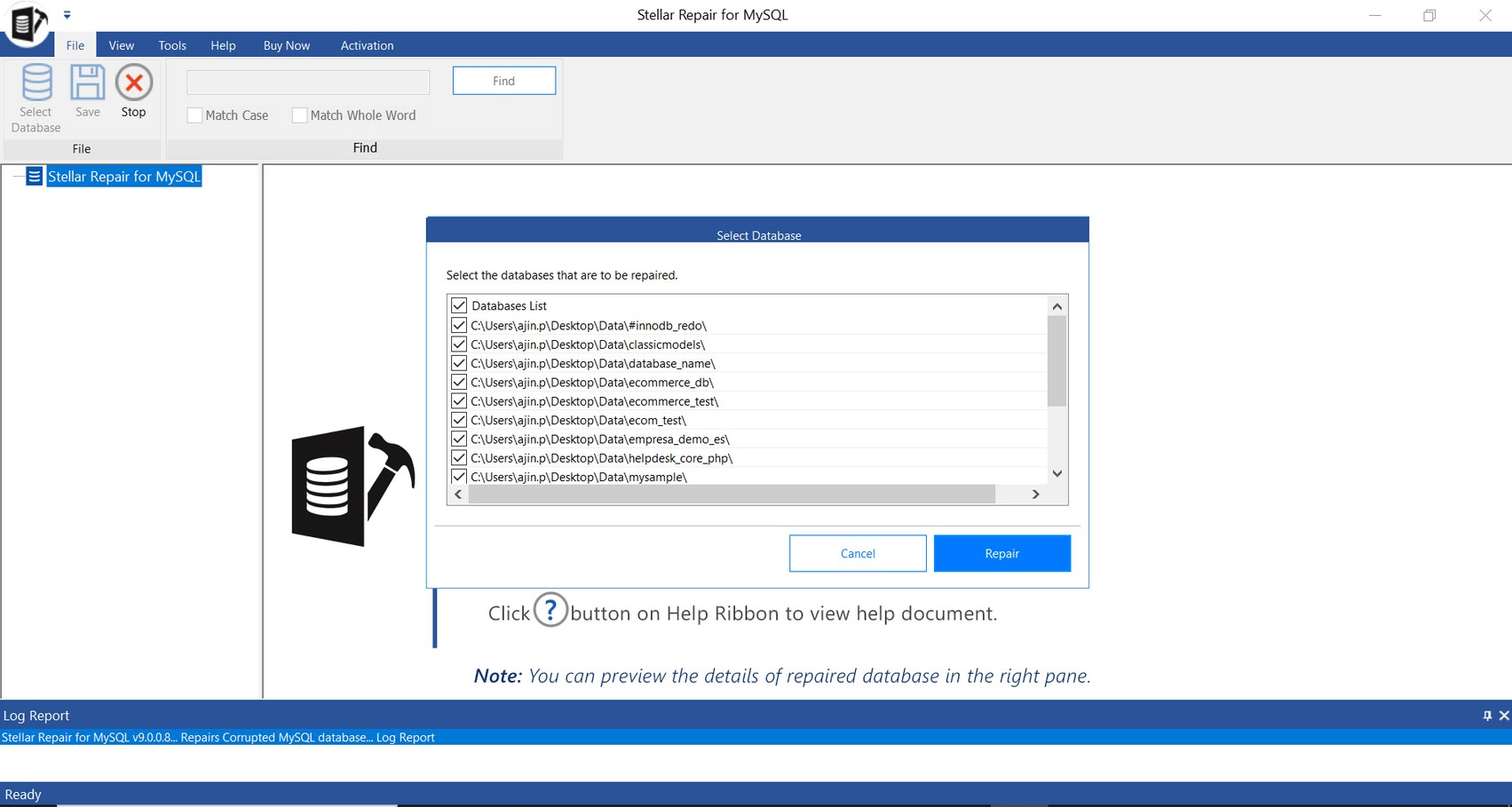
The tool scans the data directory and lists every database it finds. Select the corrupted database or multiple databases if the damage isn’t isolated to one.
Batch selection means you don't have to run separate repair sessions for each affected database.
Step 3: Run the Repair Scan
Clicking Repair starts the scan. A progress bar tracks the current stage, and a notification confirms when it’s finished. No configuration needed during the scan it runs without user input and completes quickly even on moderately sized databases.
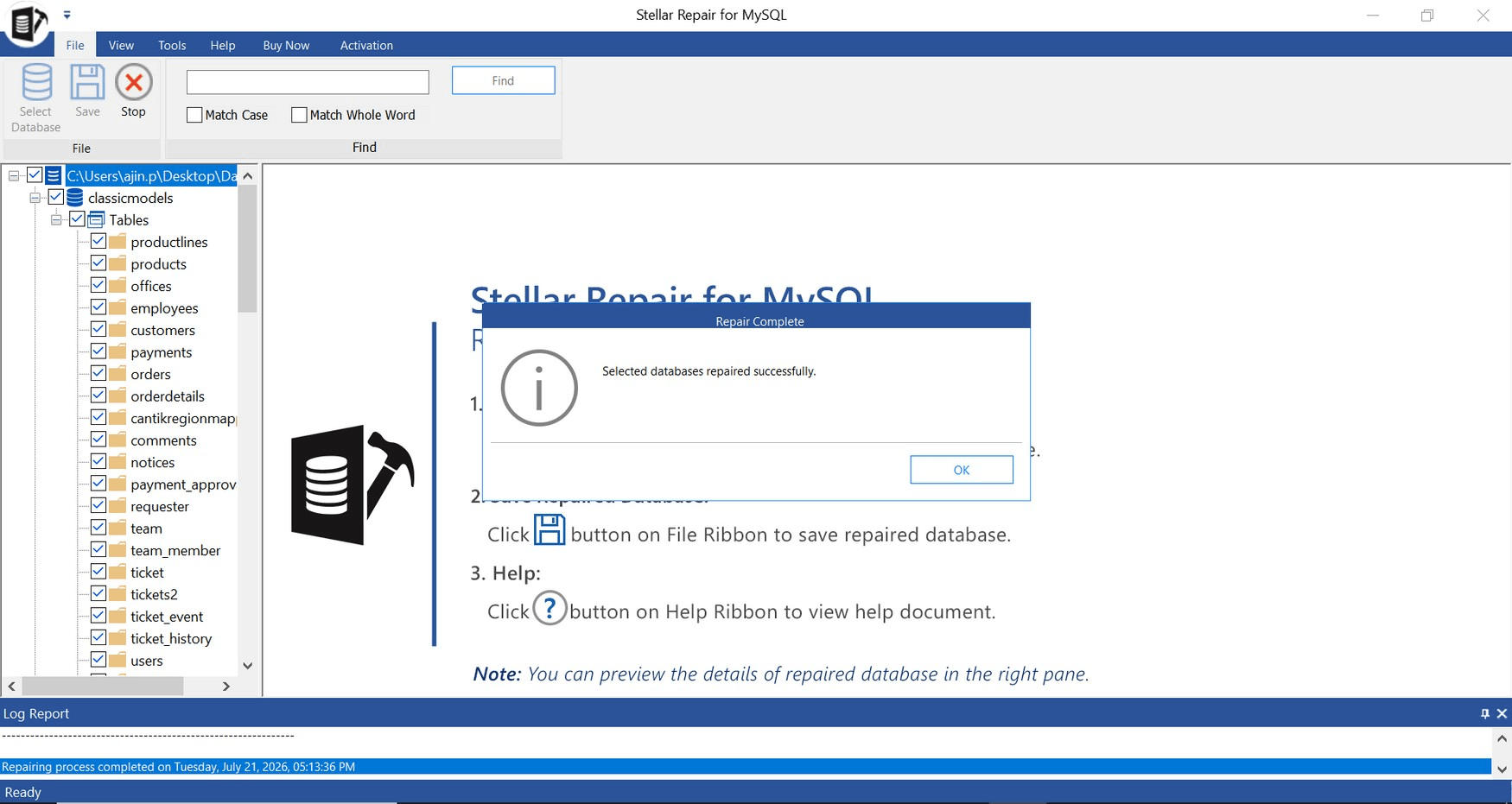
Step 4: Preview the Recovered Objects
The free version shows a full tree view of everything recovered: tables, indexes, triggers, views, stored procedures.
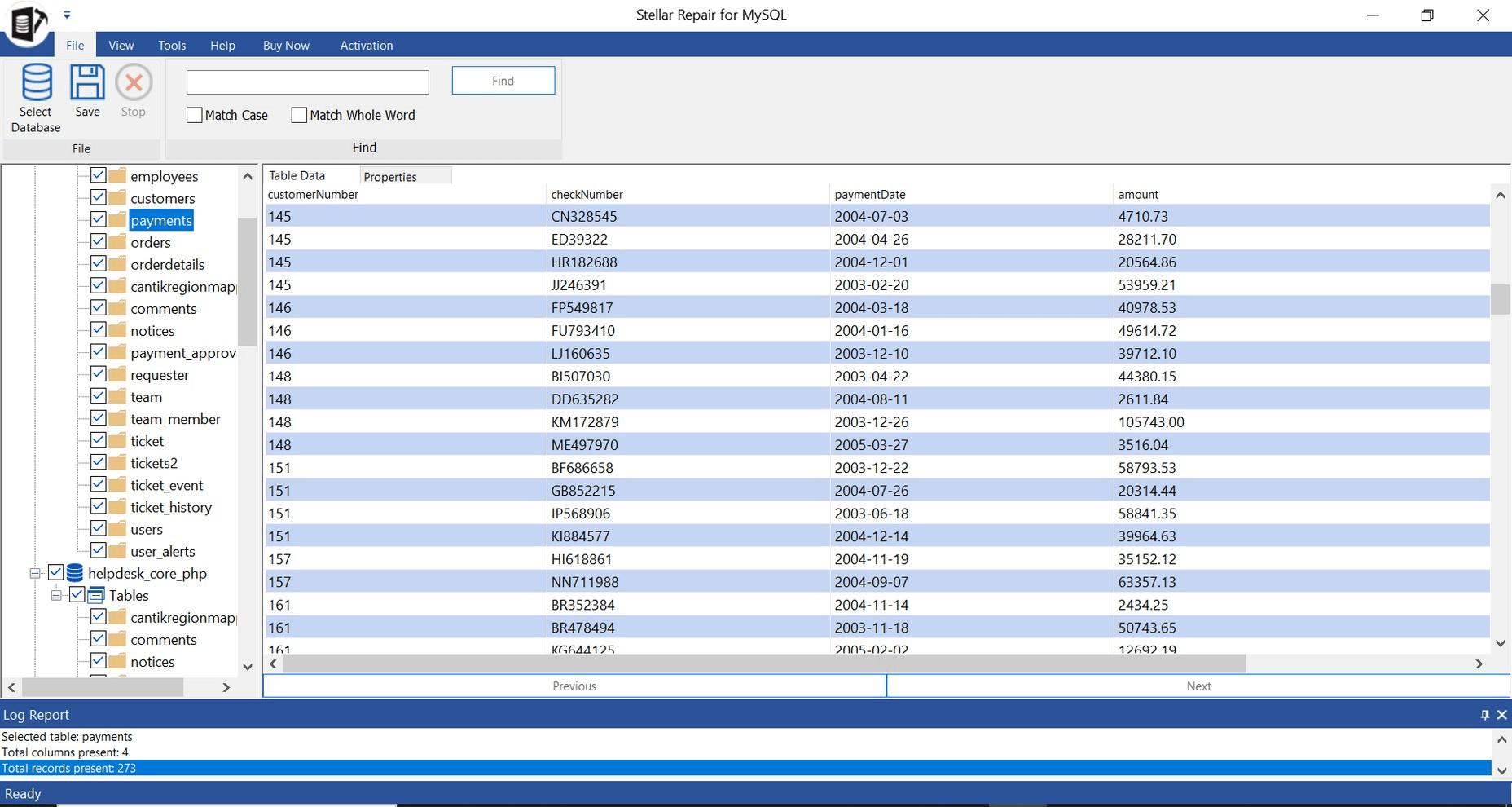
You can click into individual tables and see the actual data rows. The corrupted InnoDB tables showed up with their records intact in the preview which meant we could confirm the recovery would work before committing to a license.
If you're happy with the result, you can go ahead and purchase a license.
Step 5: Save the Repaired Data
With a license activated, you get five export options: directly into a running MySQL or MariaDB server, as an SQL script, or as CSV, HTML, or XLS.
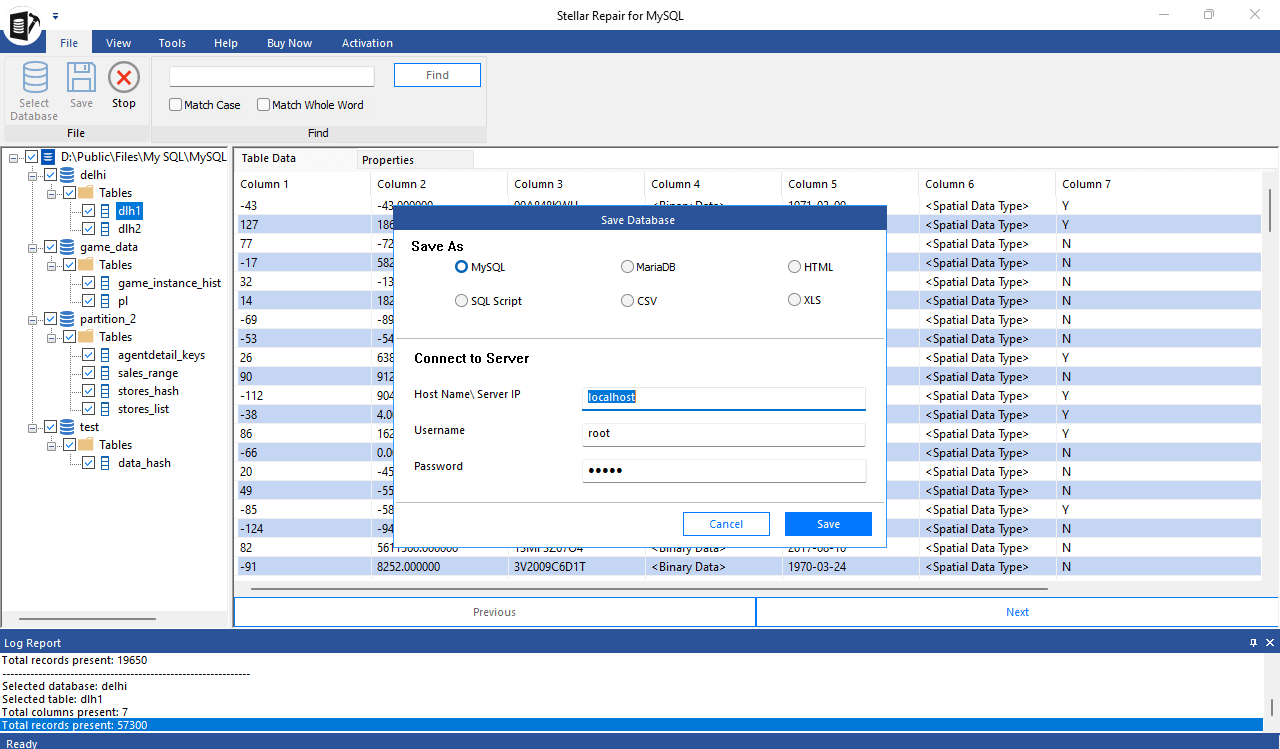
I used the SQL script option to review the output before running it on a live server. After importing, test queries returned the original data with nothing missing.
Give it a few minutes to complete the recovery process. After successful restoration, check everything thoroughly.
Features
Stellar Repair for MySQL can:
- Repair both InnoDB and MyISAM tables covers both storage engines in any real MySQL or MariaDB environment.
- Supports MySQL 5.0 through 9.5 and MariaDB up to version 11.8.3, one of the widest version ranges in this category.
- Batch repair: multiple corrupted databases in a single session.
- Recovers partitioned tables (range, linear, and list partitioning) alongside standard tables.
- Restores stored procedures, user-defined functions, triggers, views, and indexes, not just raw table data.
- Exports to MySQL, MariaDB, SQL script, CSV, HTML, and XLS.
- Runs natively on both Windows and Linux, but most competing tools are Windows-only.
Advantages
Some strengths include:
- Graphical interface (no command line required)
- Reads corrupted files directly
- Handles severe corruption that built-in utilities may not
- Supports both Windows and Linux-originated databases
- Lets you preview recovered data before saving
- Can export to SQL for migration
Disadvantages
- Version support can lag slightly behind MySQL's own release schedule verify your exact version is in the supported range before purchasing.
- Linux users get less contextual guidance inside the tool compared to the Windows workflow.
- Purely reactive no monitoring feature to catch early corruption signs before a table fails entirely.
- It is a commercial software. You can preview the recovered without license. If you want to save the recovered objects, you should purchase a license.
When should you use it?
It's a good fit when:
innodb_force_recoverydoes not work.- You have no usable backup.
- MySQL will not start because of corruption.
- Individual tablespaces are damaged.
- MyISAM tables are marked as crashed and standard repair utilities fail.
- You need to salvage data from raw database files.
Desktop vs. Online repair
Stellar also offers an online repair service:
- Online service: Upload a supported database file for cloud-based repair (with file size limits depending on the plan).
- Desktop software: Runs locally, with no practical file size limit and suitable for repeated or enterprise use.
Limitations of Database Recovery Tools
No repair tool can guarantee complete recovery.
Limitations include:
- Physically overwritten data cannot usually be recovered.
- Severe hardware damage may require disk imaging before any database repair.
- Recovery quality depends on the extent of corruption.
- A successful scan does not always mean every record can be restored.
Frequently Asked Questions (FAQ)
A: It means MySQL’s InnoDB storage engine couldn’t load at startup. This can be caused by insufficient disk space, corrupt log files, misconfigured my.ini settings, or damage to ibdata1 or .ibd tablespace files. The MySQL error log usually identifies the specific cause.
A: Yes, in most cases. The disk space and configuration fixes carry no data loss risk. innodb_force_recovery is generally safe at values 1–4 but increases risk at 5 and 6. For severe corruption, Stellar Repair for MySQL recovers data without touching the original files.
A: Yes. It operates directly on the physical database files the .frm, .ibd, and ibdata1 files on disk. No dump file or working MySQL instance is required.
A: Yes. The free version scans and shows a full preview of all recoverable tables, objects, and rows before you pay. You only need a license to save or export the recovered data.
A: No. Even the best repair software should be considered a recovery tool of last resort. A sound backup strategy—such as regular logical dumps (mysqldump), physical backups, binary logs, or enterprise backup solutions—remains the primary protection against data loss. Repair software is most valuable when those safeguards are unavailable or unsuccessful.
Conclusion
The "InnoDB registration as a STORAGE ENGINE failed" error can have multiple causes, and the correct solution depends on what the MySQL error log reveals. Issues such as insufficient disk space or incorrect configuration settings are usually straightforward to resolve and should always be checked first.
However, when the underlying problem is corruption in InnoDB system files or tablespaces, the recovery process becomes much more challenging. Native recovery options such as innodb_force_recovery can sometimes help, but they are not always enough to bring a severely damaged database back into a usable state.
In our testing, Stellar Repair for MySQL was able to analyse the damaged database files and recover data that was no longer accessible through normal MySQL startup methods. The ability to preview recovered objects before export was quite useful to verify the results before proceeding with recovery.
At the same time, it is important to remember that no recovery method can replace a proper backup strategy. Recovery success depends heavily on the type and severity of corruption, and results may vary between databases.
Recommended Read:
