
The Linux Magic SysRq key is a kernel-level feature that lets you send emergency commands directly to a frozen Linux system by pressing Alt + SysRq + a command letter.
In this detailed guide, we will discuss what exactly the Magic SysRq key is, when to use it (and when not to), and finally how to use the Magic SysRq key to safely recover a frozen Linux system.
Table of Contents
Quick Summary
The Magic SysRq key is a Linux kernel feature that lets you send direct commands to your system even when it's frozen or unresponsive. Think of it as a hardwired emergency control panel that bypasses normal processes.
It can save data, reboot a crashed system safely, or help diagnose serious problems. But it can also expose security risks if misused.
What the Magic SysRq Key Actually Is
The Magic SysRq key is built into the Linux kernel itself. According to the official Linux kernel documentation, it is described as a "magical key combo you can hit which the kernel will respond to regardless of whatever else it is doing, unless it is completely locked up."
It responds to special keyboard combinations that talk directly to the kernel, skipping all user programs and services. The functionality is implemented in the kernel source file drivers/tty/sysrq.c.
The name comes from the SysRq (System Request) key found on some keyboards. On most modern keyboards, this key shares space with the Print Screen button.
When you press the right combination, the kernel executes low-level commands immediately. No waiting for processes to respond. No asking permission from crashed software.
What it is not
Magic SysRq Key is not a regular keyboard shortcut. It's not a program you install and not a service that can crash. It's kernel code that runs when triggered.
Why This Feature Exists
System crashes happen. Software locks up. Sometimes your entire desktop freezes and nothing responds.
In these situations, you have three choices:
- Hold the power button and force a hard shutdown (risky for data)
- Wait indefinitely for the system to recover (usually futile)
- Use Magic SysRq to shut down gracefully (can save your data)
The feature was added to Linux for emergency recovery and kernel debugging. System administrators use it to debug kernel problems, kill runaway processes, or force a clean reboot on remote servers.
How to Trigger Magic SysRq Commands
The basic pattern is simple: hold down specific keys, then press a command letter.
On most x86 systems:
- Hold
Alt+SysRq(orPrint Screen) - While holding these, press a command letter
On some laptops:
- Hold
Alt+Fn+SysRq - Then press the command letter
Example: To immediately reboot, hold Alt + SysRq and press b.
The kernel documentation notes that some keyboards cannot handle many keys pressed simultaneously. If that happens, try: press Alt, press SysRq, release SysRq, press the command key, then release everything.
Important Note: Command keys are case-sensitive. The kernel documentation explicitly states this. Lowercase r and uppercase R are two completely different commands. All SysRq commands are lowercase. This matters especially when using /proc/sysrq-trigger directly.
The Most Useful SysRq Commands
There are many commands listed in the official kernel documentation. The most commonly used commands are given below. All are lowercase:
1. r - Turns off keyboard raw mode, sets it to XLATE (unraw)
X and Wayland put the keyboard in raw mode for exclusive input control. This command restores normal kernel input processing.
2. e - Sends SIGTERM to all processes (except init/PID 1)
Asks programs to shut down gracefully.
3. i - Sends SIGKILL to all processes (except init/PID 1)
Forces processes to close immediately.
4. s - Syncs all mounted filesystems
Writes cached data to disk. The kernel docs note: wait until you see "OK" and "Done" on screen before proceeding.
5. u - Remounts filesystems as read-only
Protects data from writes during shutdown. Again, wait for "OK" and "Done."
6. b - Reboots immediately
No syncing or unmounting. This is equivalent to pressing the reset button.
7. o - Powers off the system (if your hardware and kernel support it)
8. f - Calls the OOM killer
Kills the memory hog process. Will not panic the kernel if nothing can be killed.
9. h - Shows help in kernel logs
Lists all available SysRq commands.
The REISUB Sequence: Safe Shutdown When Everything Freezes
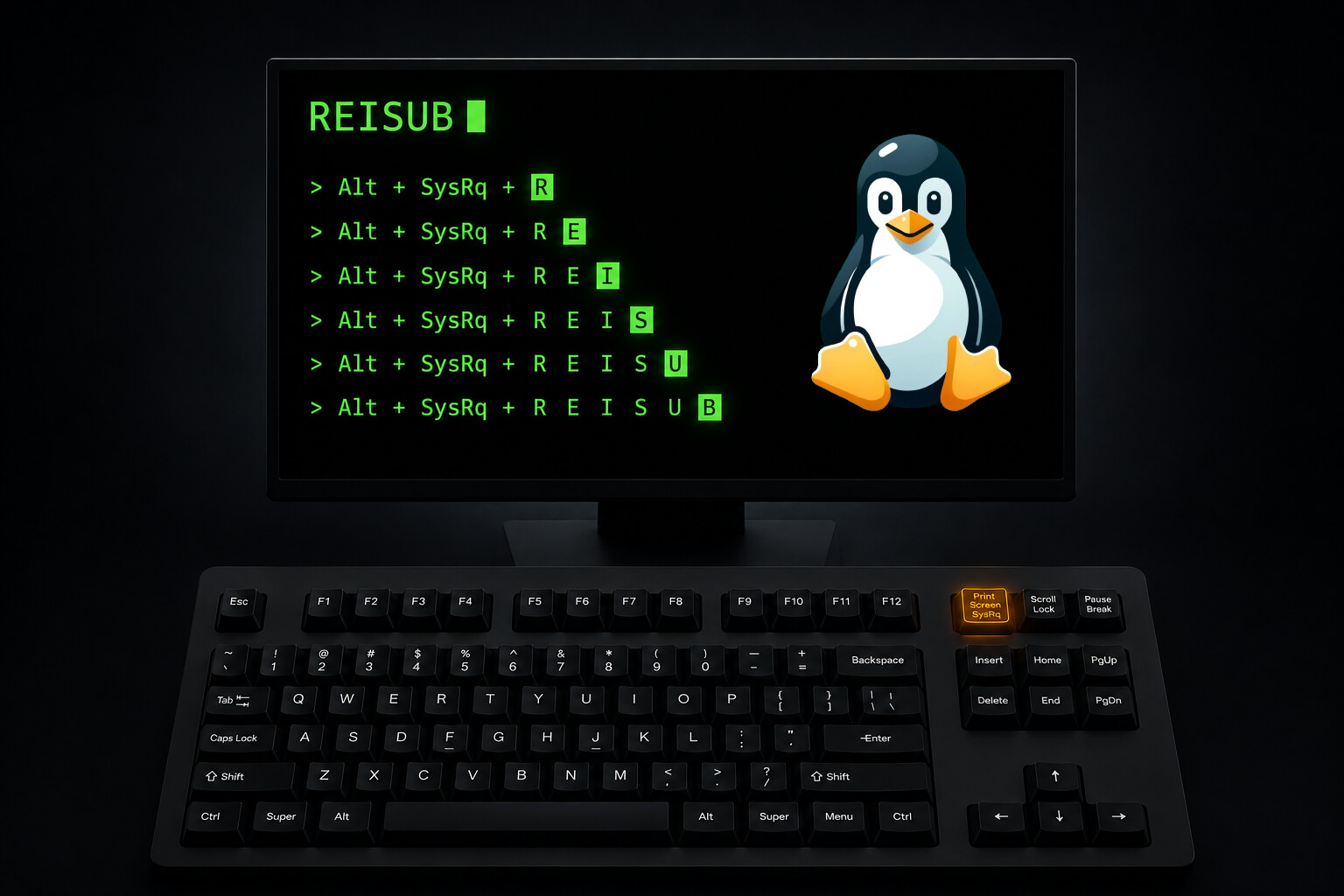
When your system is completely frozen, use this sequence to shut down safely. Each lowercase letter sends one command:
r- Turn off raw keyboard mode (unraw) and lets the kernel process the next keyse- Terminate all processes gracefully (SIGTERM)i- Kill any remaining processes (SIGKILL)s- Sync data to disk and wait for disk activity to settleu- Remount filesystems read-onlyb- Reboot
Hold Alt + SysRq throughout. Press each letter separately with a 1–2 second pause between them. Give each step time to complete before pressing the next.
Two mnemonics to help you remember REISUB:
- "Reboot Even If System Utterly Broken"
- "Raising Elephants Is So Utterly Boring"
Both map to the same letter sequence. Use whichever sticks.
A note on modern filesystems:
Before journaled filesystems were standard, REISUB was essential for preventing filesystem corruption on a hard reset. With modern journaled filesystems (ext4, btrfs, xfs), the s and u steps still help flush unwritten data to disk, but they are no longer necessary to prevent corruption on reboot.
In rare cases, particularly when the kernel itself is in a corrupted state, the sync and remount steps could theoretically increase corruption risk rather than reduce it. In practice, running s and u before b remains good habit for most situations.
Checking If SysRq Is Enabled
Magic SysRq must be compiled into the kernel with CONFIG_MAGIC_SYSRQ enabled, which is the case in all major distributions. The default value for CONFIG_MAGIC_SYSRQ_DEFAULT_ENABLE in the kernel source is 1.
Here's how to check what's currently active on your system:
cat /proc/sys/kernel/sysrq
The number you see controls what's enabled. According to the kernel documentation:
- 0 = Disabled completely
- 1 = All commands enabled
- >1 = Bitmask of allowed functions
The bitmask values are:
| Value | Hex | Function |
|---|---|---|
| 2 | 0x2 | Control console logging level |
| 4 | 0x4 | Control keyboard (SAK, unraw) |
| 8 | 0x8 | Enable debugging dumps |
| 16 | 0x10 | Enable sync command |
| 32 | 0x20 | Enable remount read-only |
| 64 | 0x40 | Signal processes (term, kill, oom-kill) |
| 128 | 0x80 | Allow reboot/poweroff |
| 256 | 0x100 | Allow nicing of all RT tasks |
Common distribution defaults:
- Ubuntu: 176 (16+32+128 — sync, remount, reboot) — widely reported but the exact value may differ; check
/etc/sysctl.d/10-magic-sysrq.confon your own system - Debian: 438 (2+4+16+32+128+256)
A note for systemd users:
On some distributions where systemd manages this value (notably Arch Linux and derivatives), systemd sets the bitmask to 0x10 (decimal 16) by default, which enables only the sync command and disables process signalling and rebooting. If you are on a systemd-based system and REISUB does not fully work, this is likely the reason.
To enable all commands temporarily:
echo 1 | sudo tee /proc/sys/kernel/sysrq
To make this permanent, create a drop-in config file:
# /etc/sysctl.d/99-sysrq.conf
kernel.sysrq = 1
Then reload:
sudo sysctl --system
Suggested Read:
When to Actually Use The REISUB Feature
Use Magic SysRq when:
- Your desktop freezes completely and nothing responds
- SSH connection is dead but the server might still be alive
- A process has locked up the entire system
- You need to reboot but the normal shutdown hangs
- You're debugging kernel panics or crashes
Don't use it when:
- Normal shutdown commands still work
- You're just impatient with a slow system
- Applications are responding, even if slowly
- You haven't tried
Ctrl+Alt+F2to switch to a text console first - The problem is a single frozen program (kill it instead)
Try the gentler solutions first. Use SysRq as a last resort before the power button.
Security Implications and Risks
Anyone with physical keyboard access to your machine can use Magic SysRq. With full access enabled, they can:
- Reboot the machine instantly
- Kill all running processes
- Access memory contents through debugging commands
- Trigger a crash
The Linux Documentation Project specifically notes that "for computers that are not used for kernel software development the magic SysRq key makes an ideal denial of service device."
On multi-user or production servers: Consider restricting to bitmask value 176 (sync + remount + reboot only). This disables debugging commands that could expose memory contents.
On personal laptops: Full access (value 1) is usually acceptable. Physical keyboard access to a personal machine is already a significant security boundary.
Warning: Enabling all SysRq commands on public-facing servers or shared systems is a security risk. An attacker with console access can crash your system, kill processes, or read memory contents through debugging commands. Use a restrictive bitmask on production systems.
One important technical detail: The value in /proc/sys/kernel/sysrq governs only keyboard-triggered commands. Invocation via /proc/sysrq-trigger is always permitted for users with admin (root) privileges, regardless of the bitmask setting. If you rely on /proc/sysrq-trigger for remote administration, be aware that restricting the sysrq value does not restrict trigger-based access.
Limitations You Should Know
Magic SysRq is powerful, but it can't fix everything. It works "unless the system is completely locked up."
It won't help if:
- The kernel itself has crashed or panicked with no recovery
- Hardware has physically failed
- The CPU is locked in a hardware fault
- The keyboard driver itself has crashed
- Your keyboard isn't properly connected
It might not work if:
- Your kernel was compiled without
CONFIG_MAGIC_SYSRQ - You're using a virtual machine and the key combo is not passed through
- Your desktop environment is intercepting the key combination
- systemd has set the bitmask to a value that disables the commands you need
It's not magic: Despite the name, it's a kernel feature. If the kernel can't run, SysRq can't run.
Using SysRq Over a Network
The /proc/sysrq-trigger interface, available since Linux 2.4.21, lets you trigger commands remotely. Its key advantage is it works regardless of the keyboard bitmask, as long as you have root access.
Via SSH (if the connection is still alive):
echo s | sudo tee /proc/sysrq-trigger  # Sync filesystems
echo u | sudo tee /proc/sysrq-trigger  # Remount read-only
echo b | sudo tee /proc/sysrq-trigger  # Reboot
Full REISUB sequence in one command (using underscore prefix, supported in current kernels):
echo _reisub | sudo tee /proc/sysrq-trigger
Via serial console: Send a BREAK signal, then within 5 seconds, send the command key. The method of sending BREAK depends on your terminal program.
Verification: Testing SysRq Works
Before you need it in an emergency, test it:
- Check it's enabled:
cat /proc/sys/kernel/sysrqshould show a non-zero value - Try a safe command:
Alt+SysRq+h(shows help in kernel logs) - Confirm it worked:
sudo dmesg | tail -20should show SysRq output
Don't test b unless you're ready to reboot immediately.
Don't test f unless you want a random process killed by the OOM killer.
Start with h. If help text appears in dmesg, everything else will work.
Common Mistakes to Avoid
Mistake 1: Rushing through the REISUB sequence
Each step needs 1 to 2 seconds. If you press b before s has finished syncing, you defeat the purpose.
Mistake 2: Using b alone to reboot
The b command reboots immediately with no syncing and no unmounting. Use the full REISUB sequence instead.
Mistake 3: Forgetting the Fn key on laptops
Many laptops need Fn + SysRq. Try both combinations if one doesn't respond.
Mistake 4: Testing dangerous commands in production
Commands e, i, and b cause immediate system-wide effects. Test on a spare machine.
Mistake 5: Assuming it works everywhere
Virtual machines, cloud instances, and custom kernels may not pass through SysRq combos. Verify before you need it.
Mistake 6: Enabling full SysRq on shared servers
Any user with console or serial access can crash the system. Use a restrictive bitmask.
Mistake 7: Using uppercase command letters in /proc/sysrq-trigger
Commands are case-sensitive. For example, echo B > /proc/sysrq-trigger will not reboot your system. echo b will.
Linux Magic SysRq Key Cheatsheet
Conclusion
Magic SysRq is an emergency tool. As stated earlier, It's your last resort before the power button.
When everything freezes and nothing responds, REISUB can save your data. It shuts down gracefully even when normal shutdown is impossible.
Enable REISUB on personal machines. Restrict it on servers. Test it before you need it. More importantly, remember the key commands are all lowercase.
Magic SysRq will not a fix any underlying problems. Think of it as an emergency escape hatch. Use it when you must. Ignore it when you don't.
And when your system freezes at 3 AM with unsaved work, you'll be glad you tested it beforehand.
One final tip: Write the REISUB sequence somewhere physical place. For example, you can stick it on your monitor, or inside your server rack.
Recommended Read:
- How To Fix Broken Ubuntu OS Without Reinstalling It
- How To Restore Broken Arch Linux To Previous Working State
References and Further Reading:
- Linux Kernel Documentation - Magic SysRq Key (Official)
- Linux Kernel Source - SysRq Implementation
- Wikipedia - Magic SysRq Key
- The Linux Documentation Project - Remote Serial Console HOWTO
- Linux Manual Page - proc_sysrq-trigger(5)
- Securing Debian Manual - Restricting the Use of the Magic SysRq Key
- Arch Linux Wiki - Keyboard Shortcuts (SysRq section)
- Gentoo Wiki - Magic SysRq
