
Linux has plenty of window managers and desktop environments, but Juan Cruz Linsalata, an independent developer from Argentina, wanted to explore a different approach: a desktop that looks modern, feels familiar, and keeps its background resource usage under control. That vision led him to start FlameWM, a free and open-source project written in Rust.
Before working on FlameWM, much of Juan's work focused on server software and tools for Minecraft communities. Building a desktop environment has presented a different kind of challenge.
His personal motivation is simple: people close to him still use older computers, and he wants Linux to offer them an enjoyable experience without making them feel that they need to purchase new hardware. This is a design goal rather than a claim that FlameWM has already outperformed established desktop environments in benchmarks.
FlameWM has its own X11 window manager, desktop shell, application launcher, terminal, file explorer, settings, and other utilities. There is also a separate Wayland compositor under active development. The X11 session is currently the recommended way to try the project.
Table of Contents
A First look at the desktop
The shell has a bottom taskbar, workspace indicator, application launcher, system controls, and optional desktop widgets. The screenshots below show the project in a controlled graphical test session, with sample files. They are genuine captures of the native desktop, not images from the browser-based design demo.
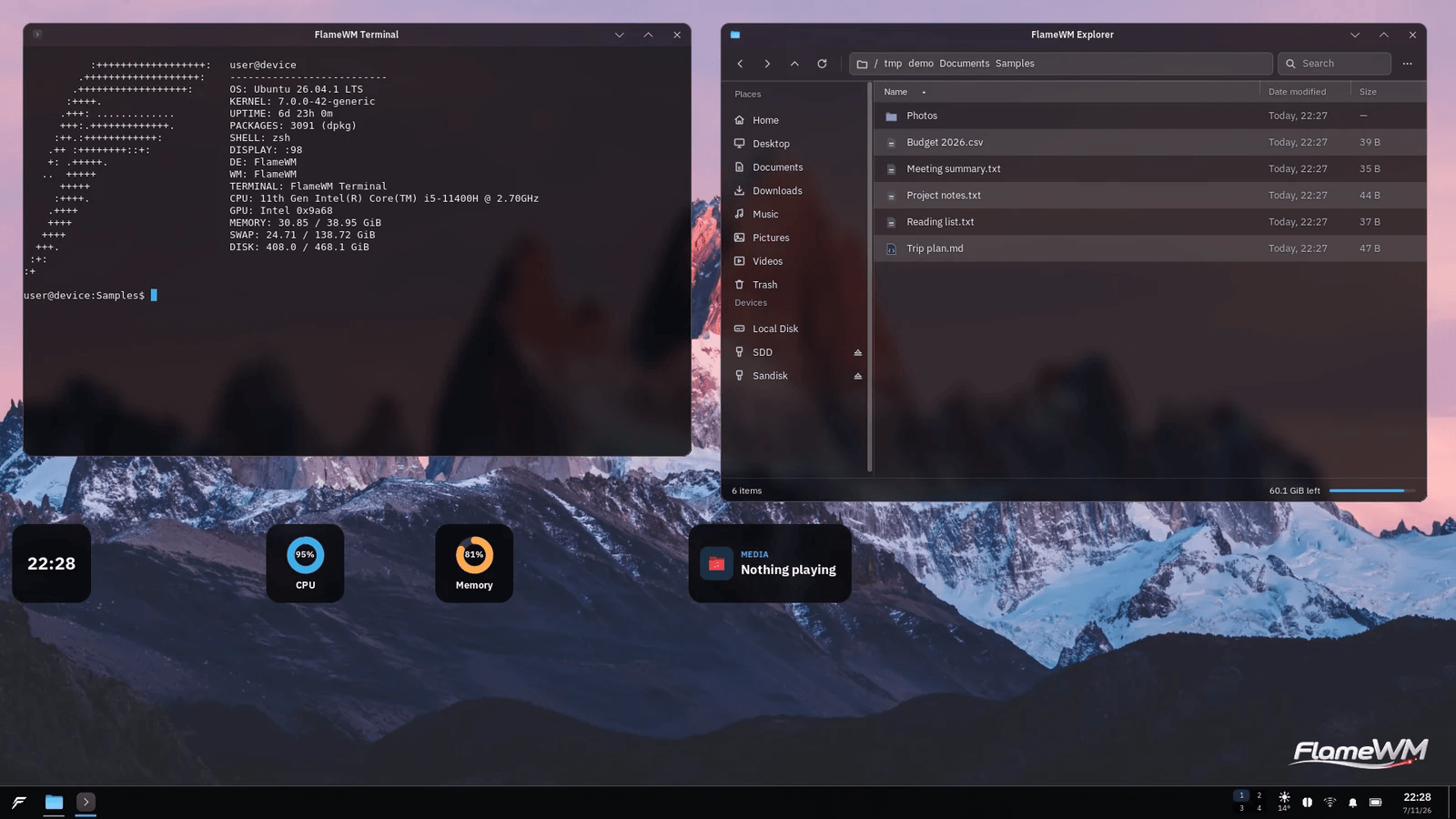
The interface uses translucent surfaces against the wallpaper, but the important part for the developer is that basic actions are easy to find.
The Explorer has a conventional navigation sidebar, a path bar, search, and a list view with file names, modification dates and sizes. FlameWM Terminal includes an optional system information display called flamefetch, which is shown in the screenshots below.
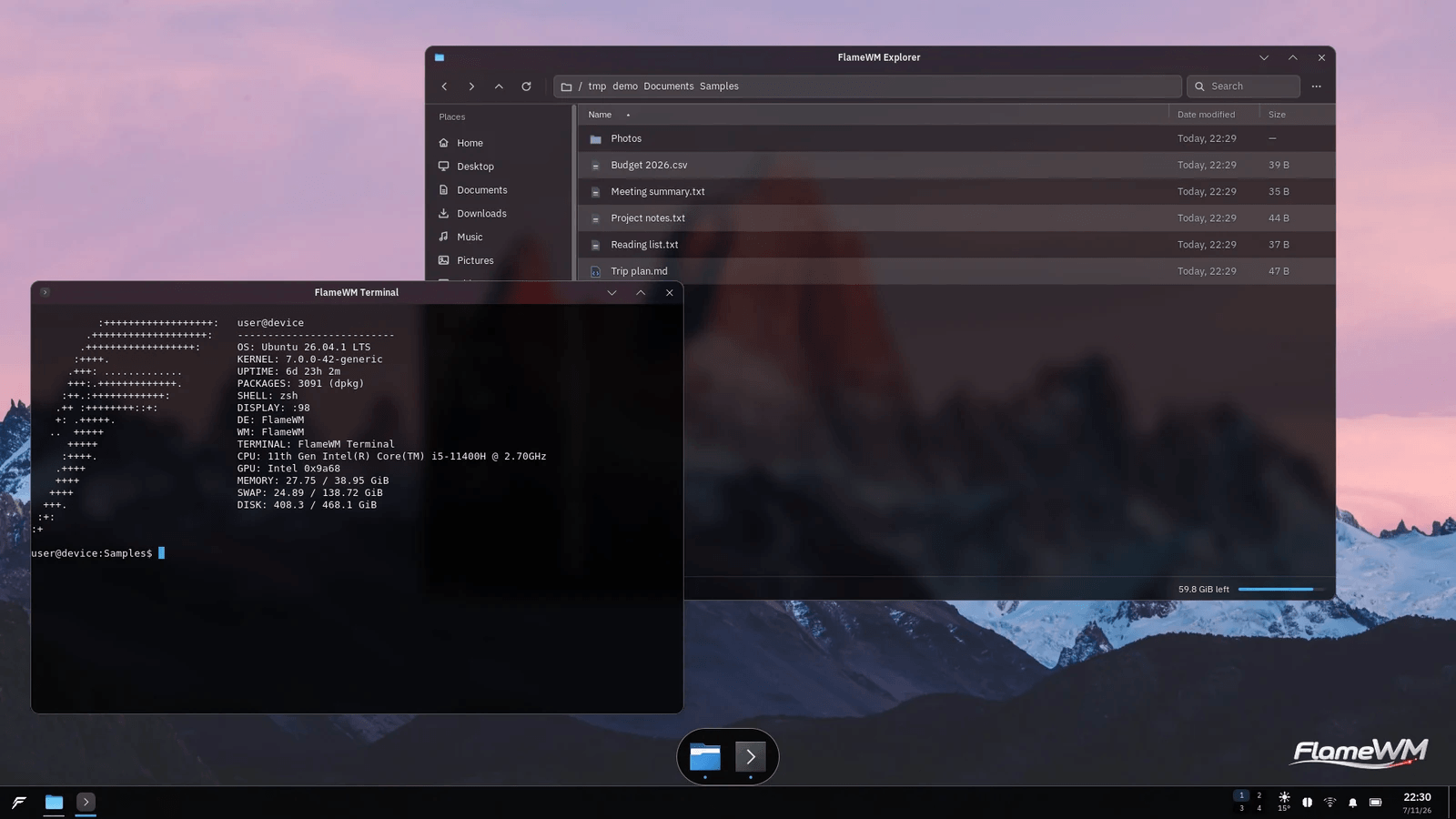
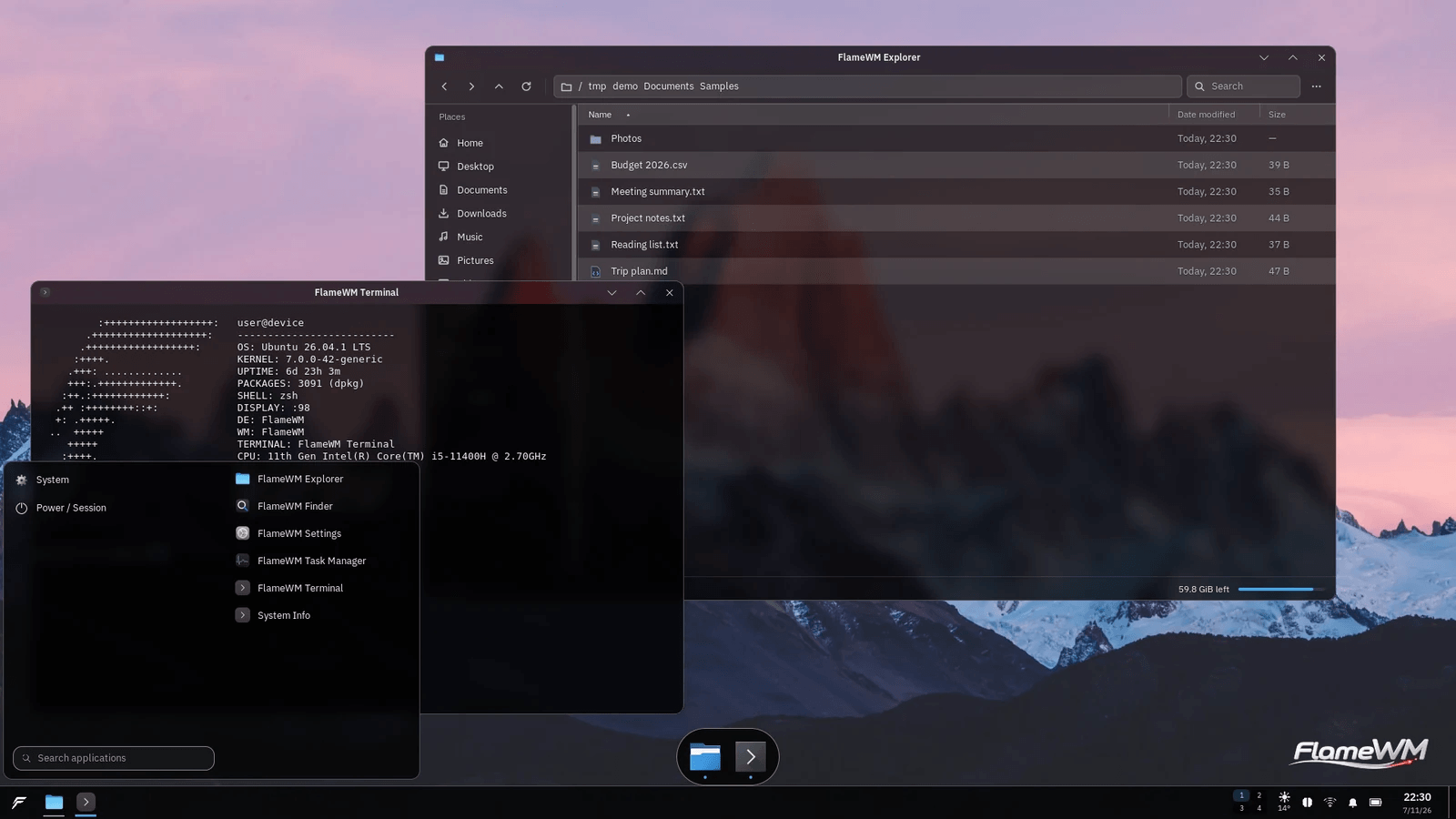
Pressing the Super key opens the application launcher. The project includes shortcuts to its own Explorer, Finder, Settings, Task Manager and Terminal, with the usual session actions available separately.
What is different about the rendering?
One of FlameWM's unusual decisions is the way its interface is developed.
The layouts and styles are described in HTML and CSS, but FlameWM does not start Chromium, Electron or a WebView to display its desktop. The project compiles its UI assets into native rendering data during the build. At runtime, Rust components handle drawing and input. The idea is to keep the flexibility of styling a web-like interface without running a browser engine to keep the desktop on screen.
This is not the same as saying the whole system is one process or that every pixel is accelerated by the GPU. FlameWM uses several focused components, and rendering behavior depends on the backend. The important architectural distinction is that the desktop interface is compiled ahead of time rather than interpreted by an embedded web browser while the session runs.
The X11 window manager is responsible for managing application windows, including focus, moving, resizing, minimizing, maximizing, full-screen mode and workspaces. The Wayland session is a different compositor built using Smithay, not a compatibility switch inside the X11 manager. For now, much of FlameWM's own shell and settings UI runs as XWayland clients in that session.
Built-in applications and everyday features
Rather than shipping only a window manager, FlameWM includes the surrounding pieces needed for a recognizable desktop.
The file explorer handles directory navigation and file lists. Terminal opens a shell and can display flamefetch at startup without changing the user's shell configuration.
The project also includes a Finder utility, Task Manager, lock screen and a screenshot tool. On X11, the screenshot tool supports full-screen, window, monitor and selected-region captures, with optional annotation and clipboard copying.
You can work across virtual desktops, use window snapping, open the Start menu, and access taskbar controls without a separate desktop shell.
There are optional features as well. A weather popover can use Open-Meteo when enabled, and an ARK AI assistant window can be enabled from Settings. The assistant is off by default. None of these features is necessary to use the normal desktop.
Customizing FlameWM in Settings
FlameWM has its own Settings application instead of expecting users to edit configuration files for everything. The current source includes pages for theme and accent colors, icon and cursor themes, window surfaces and transparency, animations, wallpaper and desktop behavior, taskbar layout, fonts, keyboard shortcuts, lock screen, startup applications, default applications and accessibility.
Some controls are grouped behind a custom-settings switch so users can keep the defaults until they actually want to change an area. You can also choose whether to show certain taskbar items, such as the clock, workspace indicator and system status controls.
For users who prefer configuration files, settings are stored under the XDG configuration directory. The normal path is:
~/.config/flamewm/settings.toml
FlameWM is still an actively developed desktop. Not every advanced control is at feature parity with mature desktop environments, and some backend-specific settings remain works in progress.
How to install FlameWM on Ubuntu or Debian
The easiest installation method for a supported 64-bit x86 Debian or Ubuntu system is the project's .deb package. The packaging baseline is Debian 12, although a particular release should still be checked against the distribution and dependencies you are running.
1. Download the package.
Go to the FlameWM GitHub Releases page and download the amd64 .deb file from an available release. Keep your current desktop environment installed, so you have a working session to return to.
2. Install it with APT.
Open a terminal in the folder containing the downloaded package. Assuming you have just one FlameWM .deb there, run:
sudo apt install ./flamewm_*_amd64.deb
APT will install the local package and resolve dependencies from your configured repositories. Use the exact filename instead of the wildcard if you have several downloaded FlameWM versions in the same directory.
3. Log out and select the session.
At the SDDM login screen, open the session selector and choose FlameWM for the X11 session. Sign in normally. The package also registers FlameWM (Wayland), but that is a development option rather than the recommended first login.
FlameWM does not replace SDDM or your existing desktop. LightDM and GDM can also read its session entries.
4. Check the session entries if needed.
On Debian-based systems the package registers:
/usr/share/xsessions/flamewm.desktop
/usr/share/wayland-sessions/flamewm-wayland.desktop
These paths tell the display manager which session commands to launch. If you cannot see the new choices, check that the package installed correctly and that your display manager is reading those directories.
5. Remove it if needed.
You can return to your existing desktop from the session chooser. To remove the package:
sudo apt remove flamewm
The package removal does not automatically delete the personal FlameWM files under your home directory.
Developers who prefer building from source can use ./scripts/build-deb in a complete checkout and read the installation documentation. A source build requires the Rust toolchain and the project's development dependencies.
Keyboard shortcuts worth trying
FlameWM's default shortcuts include:
| Action | Shortcut |
|---|---|
| Open the Start menu | Tap Super |
| Move between workspaces | Ctrl+Super+Arrow |
| Close the active window | Alt+F4 |
| Lock the X11 session | Super+L |
| Full-screen screenshot | Print |
| Select and annotate a screenshot region | Shift+Print |
| Screenshot of the active window | Ctrl+Print |
Bindings can be edited from Settings. The assistant shortcut, Super+C, is active only when the assistant has been enabled.
X11, Wayland and current limitations
FlameWM includes both session entries, but they are not at the same level of readiness.
The X11 session is FlameWM's default and the recommended way for users interested in trying out the project. The Wayland compositor can handle native Wayland applications and XWayland clients, but the source currently describes it as experimental.
In particular, the project's documentation does not record a successfully verified native DRM/KMS login on physical hardware. Session locking, capture portals, and some display-management features are also incomplete on Wayland.
You can select the Wayland session from SDDM for testing, but do not assume it will work on every GPU or setup. Keep the X11 option available. Diagnostic commands are documented in the repository, including:
flamewm-wayland --capabilities
flamewm-wayland --probe
tail -n 200 ~/.cache/flamewm/wayland-session.log
As a young project, FlameWM may still lack certain features and is not intended to be a replacement for every established desktop environment.
Is it really lightweight?
Reducing overhead is one of FlameWM's design goals, particularly for people who want to keep using older PCs. The rendering pipeline avoids an embedded browser, and the project tries to avoid continuous work while the desktop is idle.
The repository reports 23.8 MiB proportional set size (PSS) for a specific idle configuration of FlameWM-owned processes, measured in a nested 1280×800 Xephyr session without applications open. That number excluded the X server, some companion services, and other whole-session memory consumption. It is not the RAM usage of a full installed desktop and cannot be compared directly with figures for complete GNOME, Xfce or Plasma sessions.
A proper comparison on older hardware would need the same machine, display resolution, applications, workloads and measurement methodology. That is a goal for the project, not a result the developer wants readers to assume has already been established. The measurement scope is documented in docs/PERFORMANCE.md.
Open development and what comes next
FlameWM is free software released under LGPL-2.0-only, and its source code, tests, packaging files, and development documentation are publicly available.
The developer also makes substantial use of AI tools to assist with development and speed up iteration. This is part of the project's development process, not something he intends to conceal. However, responsibility for maintaining, testing, and fixing the published code remains with him.
He continues to work on compatibility, settings, window management, the Wayland backend, and performance. His commitment to the project comes from the people he hopes it will help, rather than the number of lines of code involved.
For those interested in trying new desktop software, the best place to start is the X11 session. Users can explore the available tools and settings and report any problems they encounter. Testing on a noncritical machine or with a reliable fallback session is recommended. The GitHub repository contains the source code, ongoing development work, and issue tracker.
FlameWM Project Details:
- Website: https://wm.arkflame.com
- GitHub Repository: https://github.com/ArkFlame/FlameWM
- Downloads: https://github.com/ArkFlame/FlameWM/releases
- License: LGPL-2.0-only
