
When a SQL Server database gets corrupt, it often goes into the SUSPECT state, preventing you from accessing the data. The easiest way to recover the database in such a situation is to restore the .bak file. You can restore the file via the SQL Server Management Studio (SSMS) by using the graphical user interface (GUI) or T-SQL queries.
In this article, we will provide the step-by-step process to restore the .bak file via the SSMS in SQL Server. We will also list the challenges you may face while restoring a backup and how to resolve them.
Finally, we discuss what to do if the standard restore using SSMS does not work, including repair options for corrupted backups.
First things first. Let us start with the prerequisites for restoring a database.
Table of Contents
Things to Consider before Restoring .bak File in SSMS
Before you start restoring the SQL Server backup file, first ensure the following:
- Confirm the target server instance and database name. Check that the target server version is compatible. A backup from a newer SQL Server version cannot be restored directly to an older version.
- Close all active connections in the SQL Server.
- Check that the system’s disk has free space equal to the original database size to avoid SQL Server Allocation Errors. You can run the
RESTORE FILELISTONLYcommand to check the exact space requirements for each file within the backup set. - Your SQL account should have the required permissions on the target instance.
- Run the
RESTORE VERIFYONLYcommand on the backup file to confirm the file is complete and free from corruption. - Make sure the name of the database you create using your backup is distinct. This helps to avoid conflicts.
- Make sure you’ve access to the SQL Server instance.
How to Restore Database from .Bak File in SQL Server Management Studio (SSMS)?
SQL Server Management Studio (SSMS) is a graphical Windows application used to manage and query Microsoft SQL Server databases.
You can use SSMS to work with SQL Server databases.
What you can do with SSMS:
- Connect to a SQL Server database.
- Write and run SQL queries.
- Create and change tables, views, and other objects.
- Manage users and permissions.
- See performance information (like execution plans).
- Import and export data.
Please note that SQL Server is the database engine. It stores and processes data. And SSMS is the client tool. It is the screen you use to talk to the engine.
Important points to keep in mind:
- SSMS is only a tool. It does not store data itself.
- It runs on Windows.
- It is separate from SQL Server. You install it separately.
- It can connect to SQL Server on your machine, on a server, or in Azure SQL.
Now, let us see how to restore backup file in SQL Server Management Studio (SSMS):
1. Use RESTORE DATABASE Query
In SSMS, you can run the following query to restore the backup:
-- Restore database zuliaDep from a backup file
-- WITH REPLACE overwrites the existing database
RESTORE DATABASE zuliaDep
FROM DISK = 'D:\BackupSQL\StellarDB.bak'
WITH REPLACE;
GO
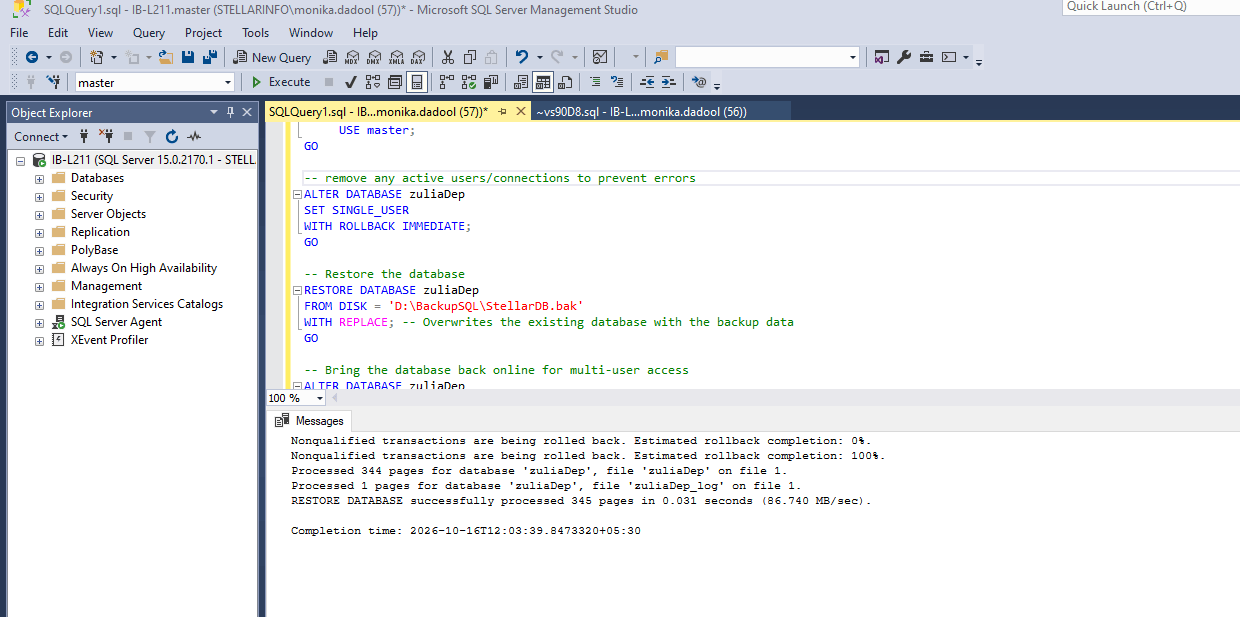
If other users are connected to zuliaDep and the restore is blocked, use this version instead. It forces the database into single-user mode first, then restores it, then returns it to multi-user mode:
-- Force single-user mode to close active connections
ALTER DATABASE zuliaDep SET SINGLE_USER WITH ROLLBACK IMMEDIATE;
GO

-- Restore database zuliaDep from a backup file
RESTORE DATABASE zuliaDep
FROM DISK = 'D:\BackupSQL\StellarDB.bak'
WITH REPLACE;
GO

-- Return the database to multi-user mode
ALTER DATABASE zuliaDep SET MULTI_USER;
GO
Reminder: The path D:\BackupSQL\StellarDB.bak must exist on the SQL Server machine, not on your local computer.
2. Use Graphical User Interface
You can also restore the database backup by using the graphical user interface in SSMS. Follow these steps:
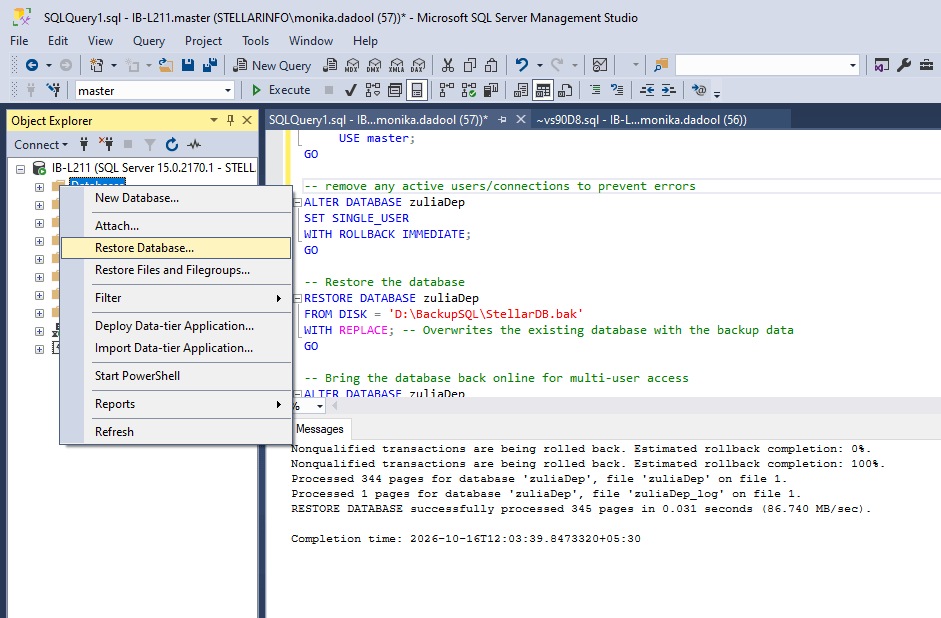
In SSMS, connect to the appropriate server instance. Right-click on databases. Select Restore Database.
In Restore window, select the database that you want to restore. In our case, the database is “zuliaDep”.
Select the source database and destination database.
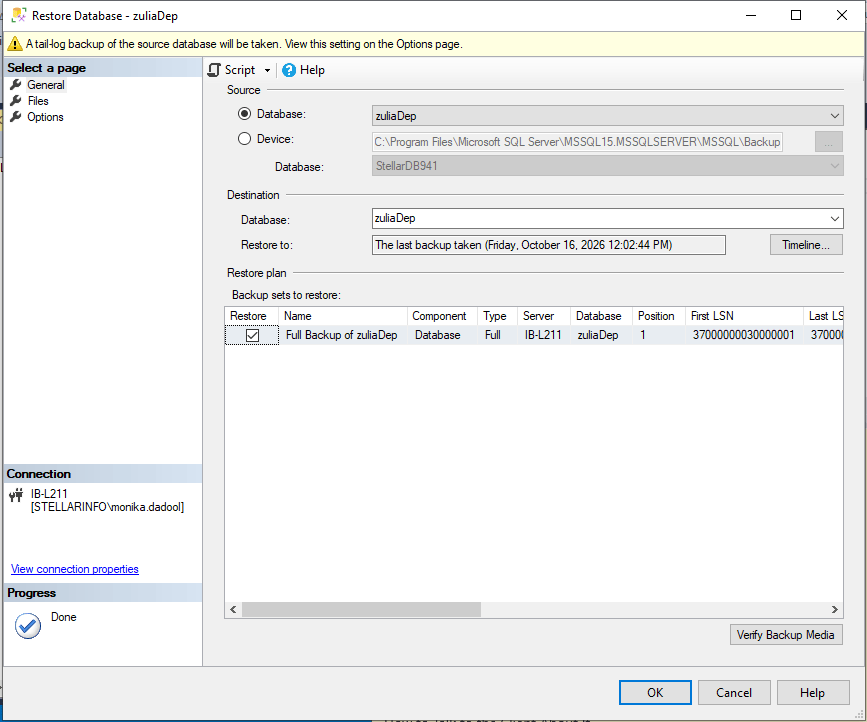
Once you select the database, all information related to it will appear automatically. For example, restore to the location and backup sets in it. However, you can click on the Timeline option to modify it (if required). Click OK to continue.
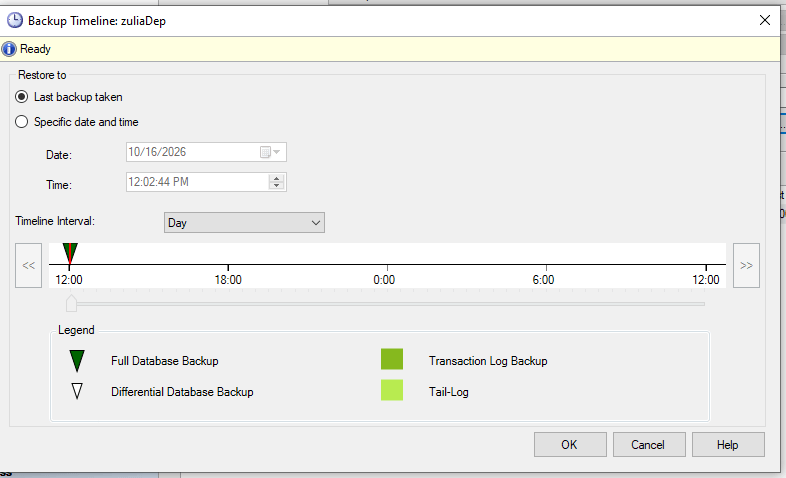
It starts restoring your database. Once completed, click OK on the “Database’ZuliaDep’ restored successfully message”.
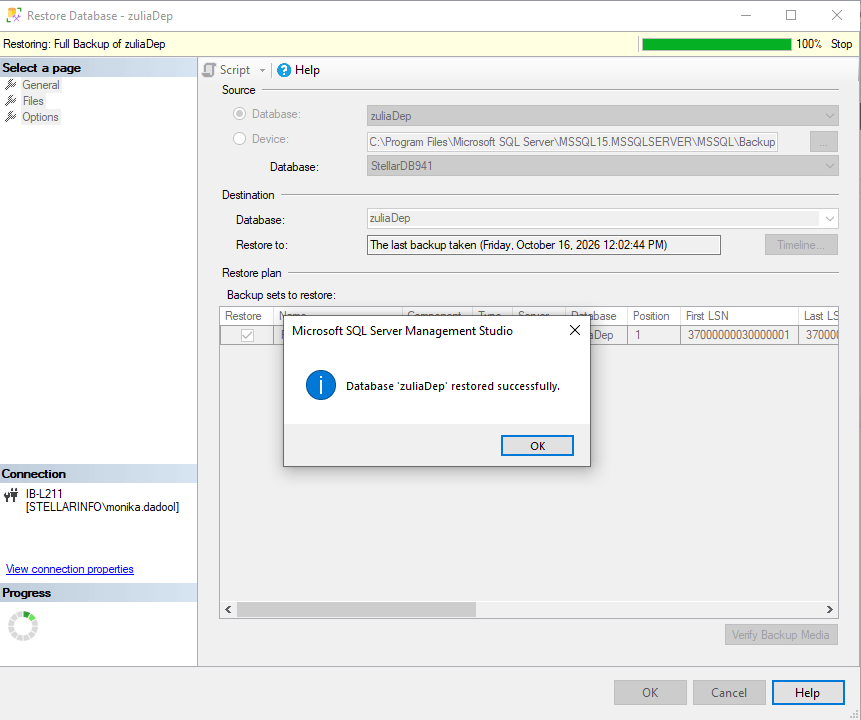
Congratulations! Your database is successfully restored.
Challenges while Restoring SQL Server Backup and How to Resolve Them
Restoring a database from backup is one of the highest-pressure tasks a database administrator (DBA) faces. A simple configuration mistake, version mismatch, or active user connection can stop the restore from working and create errors.
To prevent backup restore failures, you should understand why these errors occur and how to fix them quickly.
Here are some most common reasons why backup restore fails and how to resolve them.
1. Active Connections ("Database in Use" Error)
If any service or user has an open connection to the target database, SQL Server will block the restore process to prevent data corruption. This can result in the "Database in Use" error.
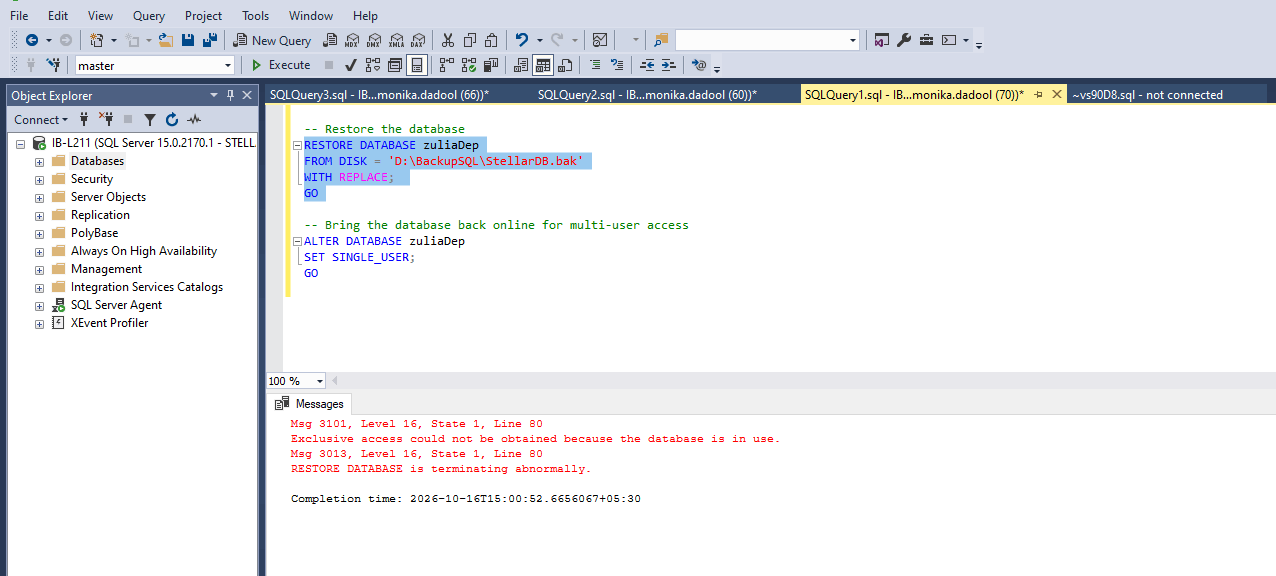
Solutions:
- You must disconnect all active users before running the restore process. In SSMS, check the option to "Close existing connections to destination database" in the Restore window.
- Alternatively, you can take the database offline or set it to SINGLE_USER mode via a T-SQL script before executing the restore.
2. Backup Restore Errors due to Version Incompatibility
SQL Server allows you to restore an older version backup to a newer server version. But trying to restore a backup from a newer version of SQL Server onto an older version (e.g., SQL Server 2022 to SQL Server 2019) can result in error.
Solutions:
You cannot directly restore the database backup to an older version. Make sure the SQL Server version is equal to or newer than the source.
Instead of restoring the database, you can migrate data using the following:
- General Scripts
- Export/Import data
- SSIS or BACPAC files
3. Database Stuck in "Restoring" State
When restoring multiple sequential backups (like a full backup followed by differential and transaction log backups), the database will get stuck in Restoring state if you forget to add the WITH RECOVERY option in the RESTORE command.
Solutions:
- Use the
WITH NORECOVERYoption for all initial files to allow subsequent logs to be applied. On the last log file in the sequence, add theWITH RECOVERYoption.
4. Corruption in the Backup File
Corruption in the backup file is also one of the major reasons for the restore operation failure. In this case, you can face errors, such as:
- The Database Cannot Be Recovered Because the Log Was Not Restored
- SQL server error 3156: Database cannot be restored
- SQL Error 3201: Cannot Open Backup Device
Solutions:
- Before proceeding, always test your backups using the
RESTORE VERIFYONLYcommand. - If a backup file is already corrupted, there is no native method available in SQL Server to repair it. The only option is to take the help of a reliable SQL recovery tool to restore data from the backup file.
5. File Path or File-Creation Conflicts
SQL Server backup and restore may fail if the drive or folder paths used by the source database do not exist on the destination server. Conflicts also occur if the destination disk runs out of storage space or if the name of the file is not unique. If this happens, you can face errors like:
Msg 3013, Level 16, State 1, Line 4
RESTORE DATABASE is terminating abnormally.
RESTORE DATABASE is terminating abnormally Error.png
Solutions:
- You can use
RESTORE FILELISTONLYto identify the logical file names in the backup and then add theWITH MOVEoption in your T-SQL restore script. - Always verify that the target drive has enough available space before starting the restore process.
- Make sure that destination folders exist, and ensure that the SQL Server service account has the necessary filesystem permissions.
What to Do If the Standard Restore Using SSMS Does Not Work
In some cases, the restore itself fails. For example, when the .bak file is corrupted or the database files (MDF/NDF) are damaged.
If the standard restore does not work, you can try a third-party recovery tool such as Stellar Repair for MS SQL. It can repair corrupted MDF/NDF files and extract data from corrupted .bak backups.
Stellar Repair for MS SQL
Stellar Repair for MS SQL is a commercial database recovery tool from Stellar. It is designed to repair corrupt SQL Server database files and extract data from corrupted backups.
The tool works in three main steps: Select the file, repair it, and preview or save the data. A free trial version can scan and preview recoverable items. Saving the repaired data requires a paid license.
Supported Versions
The available features depend on the edition.
Supported SQL Server versions: 2025, 2022, 2019, 2017, 2016, 2014, 2012, 2008 R2, 2008, and earlier versions.
Available Editions and Features
1. Corporate Edition
The Corporate edition focuses on repairing corrupted SQL Server database files.
Listed features:
- Repairs corrupted MDF and NDF files and recovers database components.
- Recovers tables, deleted table records, and other database objects.
- Supports recovery of compressed data.
- Previews recoverable database objects before saving.
- Supports parallel processing for faster recovery.
- Allows saving recovered data to:
- A new database
- A live database
- Formats such as CSV, HTML, and XLS
- Includes SQL Server administrator and user password-reset functionality (as listed in Stellar's current product feature comparison).
2. Technician Edition
The Technician edition includes the Corporate features and adds recovery from corrupted SQL Server backup (.BAK) files.
Additional capabilities:
- Extracts database objects from a corrupted .BAK file.
- Supports SQL Server backup types:
- Full
- Differential
- Transaction-log backups
- Supports recovery from backup files for major SQL Server versions.
- Resets SQL Server SA and user passwords.
- Provides a list of database users for selection.
- Provides preview and saving options for recovered data:
- A new or live database
- Formats such as CSV, HTML, and XLS
3. Toolkit Edition
The Toolkit edition includes the Corporate and Technician features, plus additional tools for SQL log analysis and database-format conversion.
It includes:
- A forensic tool to analyze SQL Server transaction-log (LDF) data.
- A preview of log-table data and transactions before saving.
- Options to save analyzed log-table data and transactions in multiple formats.
- A database conversion tool that converts between supported database file formats, including:
- MS SQL
- MySQL
- MS Access
- SQLite
- SQL Anywhere
- Options to:
- Work with a database in Live or Offline state
- Convert an individual table or a complete database
- Preview convertible tables
Edition Selection Note
- Corporate is suitable for repairing damaged MDF/NDF database files.
- If the restore failure is caused by a corrupted .BAK file, choose Technician or Toolkit.
- .BAK extraction is not included in Corporate.
Online SQL Database Repair
Stellar also offers an online SQL repair tool for corrupted MDF files.
Key points:
- It runs in a browser.
- It does not require a local SQL Server installation.
- Users can:
- Upload an MDF file
- Inspect recoverable data
- Download the repaired result
- The online service is for MDF repair only.
- It is not a replacement for the desktop Technician or Toolkit editions when data must be extracted from a corrupted .BAK backup.
If you need to repair an MDF file for free, you can try Stellar's online SQL database repair tool.
It lets you:
- Upload a supported MDF file through your browser.
- Scan and preview recoverable data.
- Check the repair results before deciding on the next step.
Note: Availability of free repair, preview, and download options may depend on the tool's current limits and terms.
Conclusion
If your database gets corrupted or accidentally deleted, then you can restore the backup file. Follow the process described above to restore database from backup via the SSMS.
If it fails or you encounter restore fail errors, then take the help of third-party SQL recovery tools such as Stellar Repair for MS SQL Technician. The tool can easily and quickly repair damaged MDF/NDF file and recover the data. It also helps you repair and recover corrupt backup file with complete precision.
