
Kudu is a free, open-source system maintenance app for Linux, macOS, and Windows. It helps you clean up files, monitor performance, update software, and check for security issues.
It comes as two editions. The desktop app is free and does not require an account. Kudu Cloud is a separate paid service for remote monitoring.
This guide shows you how to install Kudu on Debian or Ubuntu Linux, run your first cleanup safely, and use the other maintenance tools.
Table of Contents
What Kudu Can Do
Kudu includes more than 25 tools. The main ones are:
| Tool | What It Does |
|---|---|
| System Cleaner | Finds temporary files, logs, caches, and leftover files you can remove. |
| Privacy Traces | Clears selected activity records, such as recent files and shell history. This is separate from normal cache cleaning. |
| Privacy Shield | Reviews privacy-related settings on your system. |
| Program Uninstaller | Helps remove applications and their leftover files. |
| Network Cleanup | Clears selected network-related data. |
| Performance Monitor | Shows live CPU, memory, disk, and network usage. |
| Startup Manager | Shows programs that start when you log in. |
| Services Manager | Shows system services and their status. |
| Malware Scanner | Scans for suspicious files using YARA rules and heuristics. |
| Software Updater | Checks for updates to supported applications. |
| Disk Analyzer | Shows which folders use the most disk space. |
| Scheduler | Runs maintenance tasks automatically on a schedule. |
| Cleanup Receipts | Records what a cleanup found, selected, removed, skipped, or failed to remove. |
| Recovery Centre | Restores supported settings changed by Kudu. |
| Storage History | Tracks how disk space changes over time. |
Some tools are only available on certain operating systems. For example, Registry Cleaner and Windows Repair are only on Windows.
Install Kudu on Debian or Ubuntu
Step 1: Download Kudu
Go to the official Kudu download page. Under Linux, choose the package for your computer:
- x64 (most Intel and AMD processors)
- ARM64 (newer ARM processors)
You can download either:
- A
.debpackage (installs withapt) - An AppImage (runs without installing)
Step 2: Install Kudu
If you have downloaded the .deb file, go to the location where you downloaded the file and install Kudu using the following commands.
cd ~/Downloads
sudo apt install ./Kudu-3.13.0-amd64.deb
Replace the filename with the exact file you downloaded.
On an ARM64 computer, use the ARM64 filename instead.
If you downloaded the .AppImage file, make it executable:
chmod +x Kudu-x86_64.AppImage
Once installed, launch Kudu from terminal using command:
./Kudu-x86_64.AppImage
If you have installed the .deb file, you can launch it from your Application menu or Dash.
This is how Kudu default interface looks like:
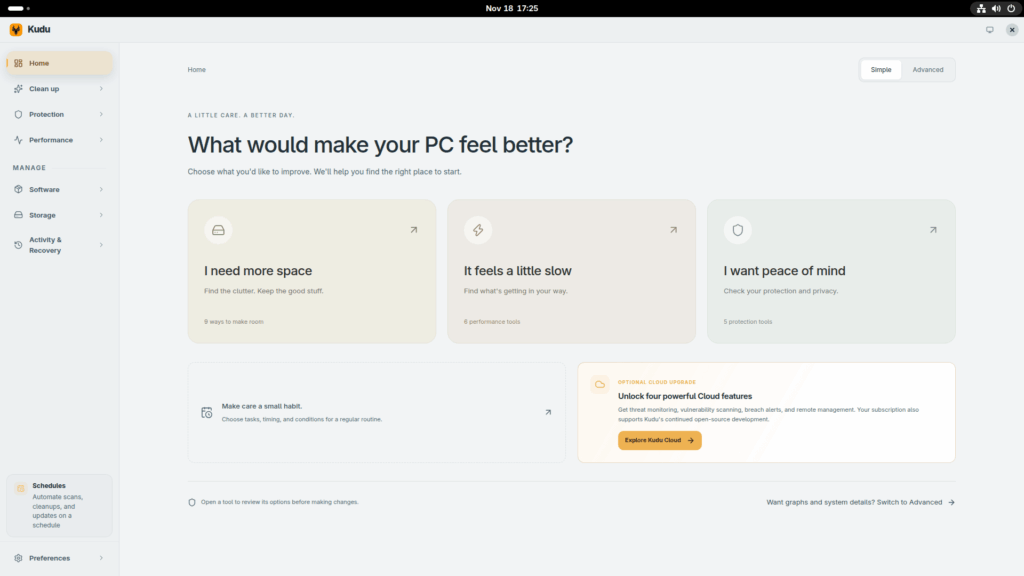
By default it shows the simple interface. To switch to advanced view, click the Advanced button.
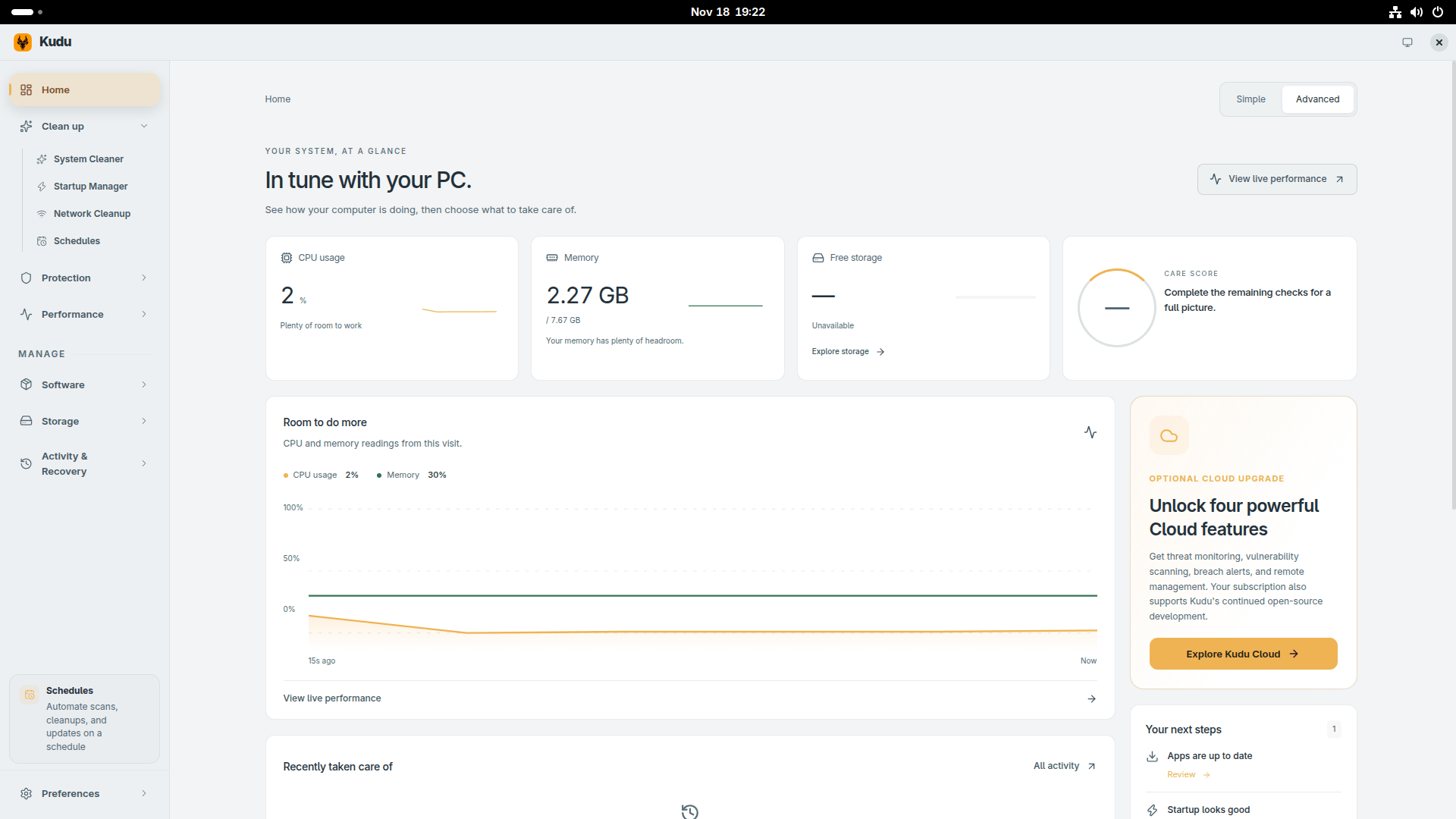
If you want check if you're running the latest version, go to Preferences → About.
Before You Run the First Scan
A cleanup tool can delete important files if you are not careful. So, before you scan, you must do the following:
- Save your work and close any open applications.
- Wait for updates to finish. Do not run Kudu while the operating system or other apps are installing updates.
- Back up your important files. A restore point is not a backup of your personal documents.
- Get permission first if you are cleaning someone else's computer.
- Do not run as administrator unless needed. Running with extra permissions shows more system files, but that does not mean they are safe to delete.
Run a System Cleaner Scan
Step 1: Start the Scan
Open Kudu app. Go to Clean up → System Cleaner and click Scan.
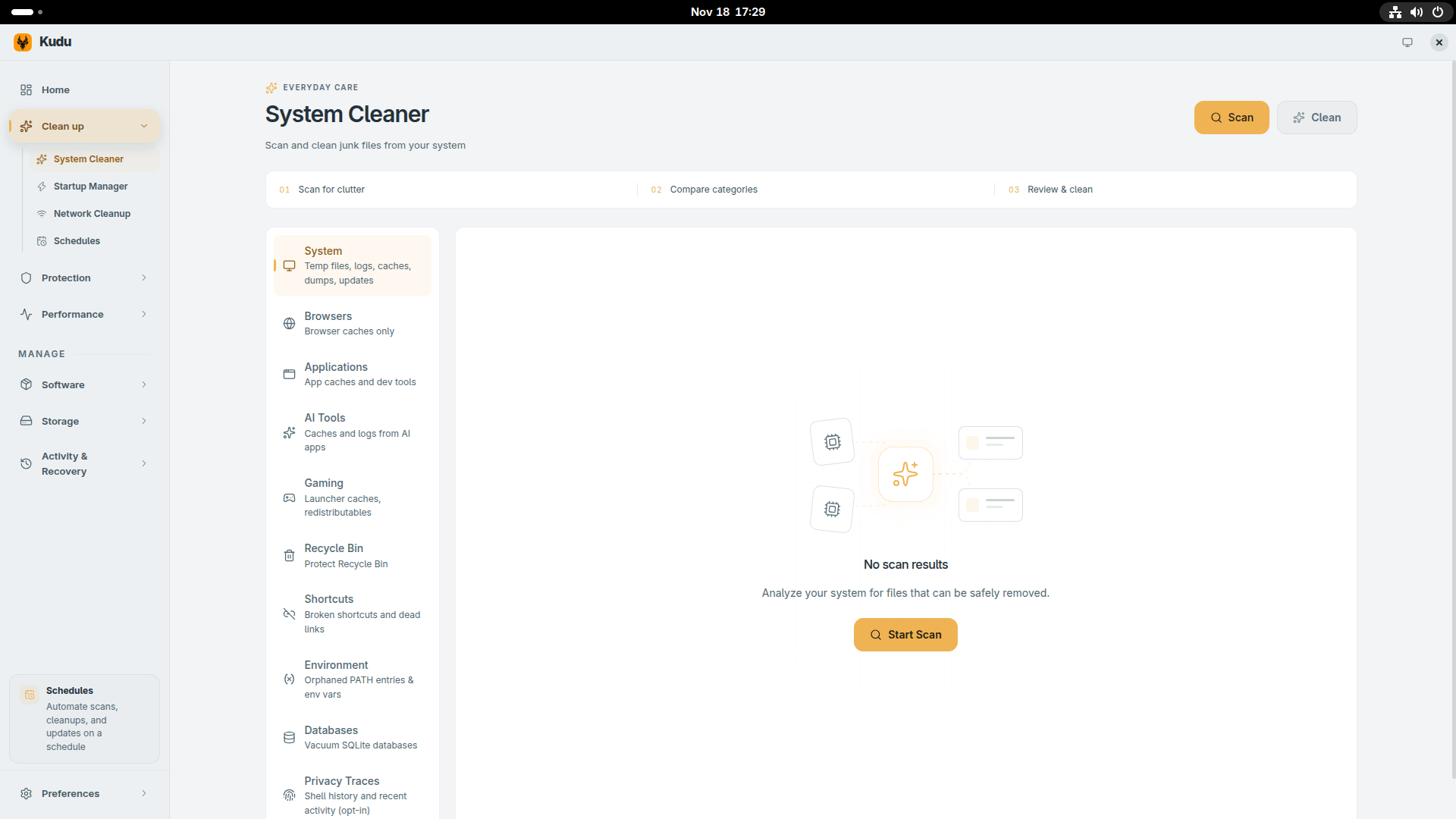
Step 2: Review the Results
After the scan finishes:
- Expand each category to see the files Kudu found.
- Check the file paths. Make sure nothing important is selected.
- Add exclusions for any folders or files you want to keep.
- Keep Skip recent files enabled. This protects files you have used recently.
- Check the total amount selected before you click Clean.
A scan is only an estimate. It shows files that could be removed. You decide what actually gets deleted.
What Each Category Means
| Category | What It Covers | Be Careful With |
|---|---|---|
| System | Temporary files, logs, error reports, crash dumps, and OS caches | Keep logs and crash dumps if you are trying to fix a crash or error. |
| Browsers | Browser cache and temporary files | Normal browser cleaning keeps cookies, history, bookmarks, saved passwords, and sessions. |
| Applications | Cache, logs, and temporary files from supported apps | This does not delete the app itself, your settings, or your documents. |
| AI Apps | Caches and logs from AI Tools | Careful which AI tool's cache you remove. It may delete your AI agents work. |
| Gaming | Game launcher caches and GPU/game caches | This does not delete game installations, saved games, mods, or settings. |
| Databases | Compacts SQLite databases using VACUUM | Close the app that owns the database first. Locked databases may be skipped. |
| Recycle Bin / Trash | Files you already put in the trash | Emptying the trash permanently deletes those files. Check the contents first. |
| Shortcuts | Broken shortcuts that no longer work | Make sure the target is really missing or unwanted. |
| Environment | Environment variables and path entries | Check if any developer tools or scripts need those paths. |
| Privacy Traces | Activity records like recent files and shell history | This is a separate opt-in category. It is not part of normal cache cleaning. |
Optional Cache Resets
Kudu can also reset some performance-related caches, such as:
- Prefetch cache (Windows)
- Compiled shader cache
These are not selected by default. Only reset them if you are trying to fix a specific problem. After a reset, the next launch of an app or game may be slower while the cache rebuilds.
Optional Native Maintenance
Some cleanup actions use the operating system's own tools:
- Windows Component Cleanup: Removes old Windows update files safely. Never delete the
WinSxSfolder manually. - Delivery Optimization cache: Clears Windows update delivery files.
- Linux journals: Removes old system log archives. Active logs are kept.
- Docker build cache: Removes old Docker build cache. This does not delete containers, volumes, or images.
These are optional. Read the description in Kudu before you select them.
Be Extra Careful With These Targets
Do not treat these as routine junk:
- Downloads folder — May contain important files.
- Duplicate files — One of the copies might be the only backup.
- Recycle Bin / Trash — Review contents before emptying.
- Logs and crash dumps — Keep these if you are diagnosing a problem.
- Windows.old — Removing it removes the option to go back to a previous Windows installation.
- Windows Installer data and WinSxS — Do not delete these manually.
- Uninstall leftovers and drivers — Use Kudu's dedicated tools for these. Do not delete them in bulk.
- Privacy Traces — Review exactly what is selected. These are different from browser cache.
Step 3: Confirm and Run the Cleanup
When you are satisfied with the selection, click Clean. Read the confirmation dialog carefully. Only proceed if the categories, paths, and total size match what you expect.

If Kudu asks for administrator permission, think about why it needs it. Do not grant extra permissions just to clean more files.
After the cleanup:
- Reopen any apps you closed.
- Check that they work normally.
- Check your free disk space.
- Test whether the original problem is fixed.
Cleaning can free up disk space, but it does not always make your computer faster.
Read a Cleanup Receipt
After a cleanup, go to Activity & Recovery → Activity → Cleanup receipts. A receipt shows:
- Items found during the scan
- Items selected for cleanup
- Deletion attempts
- Successful removals
- Skipped items
- Failures
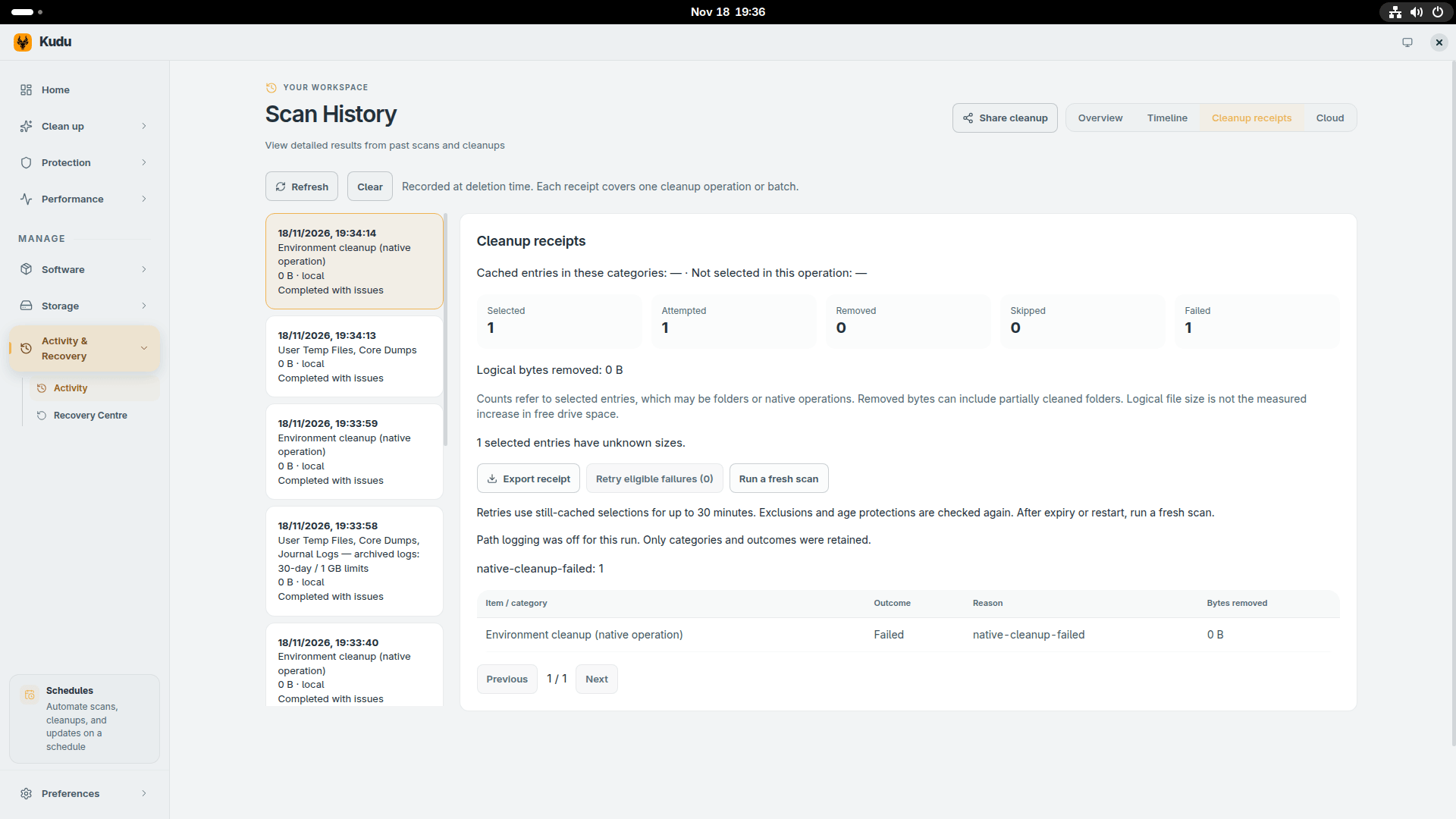
Click a receipt to see category totals and, if path logging was enabled, the actual file paths.
Important: Two Different Numbers
- Removed file size: The total size of files Kudu successfully deleted.
- Change in free disk space: How much more free space appeared on the drive.
These numbers can differ. Other programs may create or delete files while Kudu is running. Also, the way filesystems count space is not always the same as adding up file sizes.
Locked File Retries
If a file was locked during cleanup, Kudu can retry for up to 30 minutes in the same session. After that, or after a restart, run a fresh scan.
Receipts Are Not Backups
A receipt is a record of what happened. It cannot restore deleted files.
If Disk Space Is Still Low
If cleaning did not free enough space, go to Storage → Disk Analyzer. Select the drive you want to check and run the analysis.
Look at the largest folders and find what is using the space. Large folders may contain virtual machines, development environments, media files, backups, or other important data. Always check what a folder contains before deleting it.
You can also use Storage History to see how disk usage has changed over time.
If Your Computer Is Slow
Deleting caches is not always the right fix for a slow computer. Instead:
- Open Performance Monitor.
- Watch CPU, memory, disk, and network usage.
- Look for processes that use a lot of resources when the slowdown happens.
- Check the drive health indicators for extra context.
Use Startup Manager to review programs that start when you log in. Only disable items you recognize and do not need. Write down what you change so you can undo it if needed.
Use the same caution with Services Manager. A service may support hardware, security, networking, or other apps even if its name is unfamiliar. Do not disable services you do not understand as a generic speed-up method.
Keep Software Updated
Kudu's Software Updater checks for updates to supported applications. It works with package managers such as:
apt(Debian, Ubuntu)dnf(Fedora)pacman(Arch)Homebrew(macOS)winget(Windows)
Review the proposed updates before you apply them.
Note: Kudu may not find updates for software installed through Flatpak, Snap, AppImages, vendor installers, language-specific package managers, or manual installation. Keep your operating system's normal update process running too.
Privacy, Network Use, and Kudu Cloud
Local-First Design
Kudu's core cleanup operations run on your computer. They do not require a Cloud account, and scan data is not uploaded unless you choose to use Cloud features.
Network Connections
"Local-first" does not mean Kudu never uses the internet. Depending on the feature, Kudu may connect to external services for:
- Update checks
- Security data downloads
- Software updates
- Online features
Kudu Cloud
Kudu Cloud is an optional paid service. If you link a device to Cloud:
- The device sends operational data to Kudu Cloud.
- The device can receive remote commands.
- Performance recordings sent for AI analysis are part of the Cloud Pro plan and require your consent.
Review the data shown before you submit anything. Read Kudu's privacy policy for full details.
Kudu Pricing
| Plan | Price | What You Get |
|---|---|---|
| Desktop | Free | All local cleanup and maintenance tools. No account required. |
| Cloud Basic | $5 per device per month | Live dashboard, email alerts, remote cleanups, 30 days of history. |
| Cloud Pro | $9 per device per month | Everything in Basic, plus CVE alerts, network threat monitoring, AI diagnostics, 90 days of history. |
Prices are in USD. Cloud is not required for local cleanup.
Security
Malware Scanner
Kudu's malware scanner is an extra inspection tool to check your system for malware, adware, crypto, and any suspicious files.
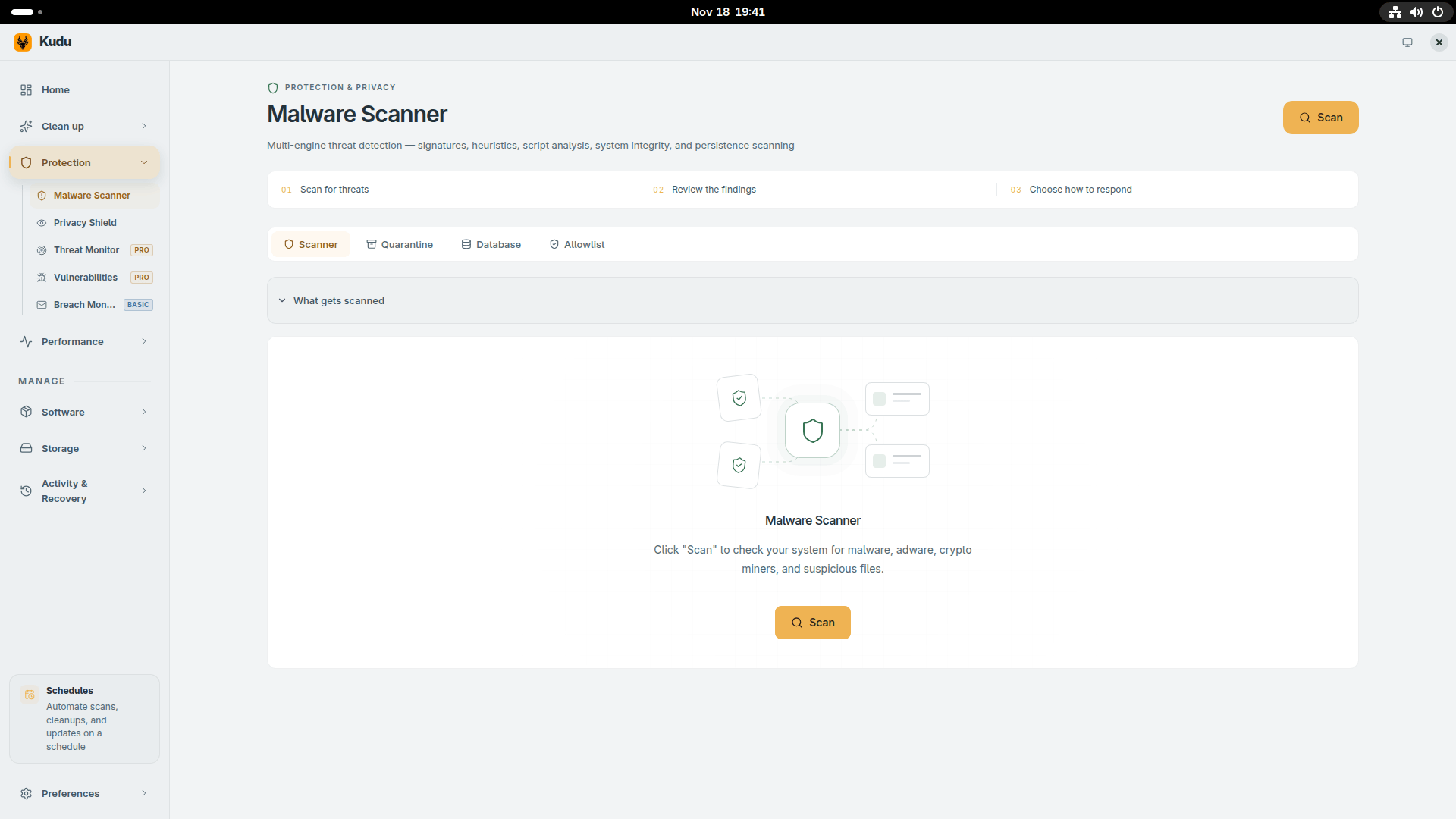
Please note that it is not a replacement for your operating system's security software or professional security services. Keep your existing antivirus and security tools enabled.
Privacy Shield
Privacy Shield another built-in security feature to control telemetry, ads, tracking, and data collection across your system.
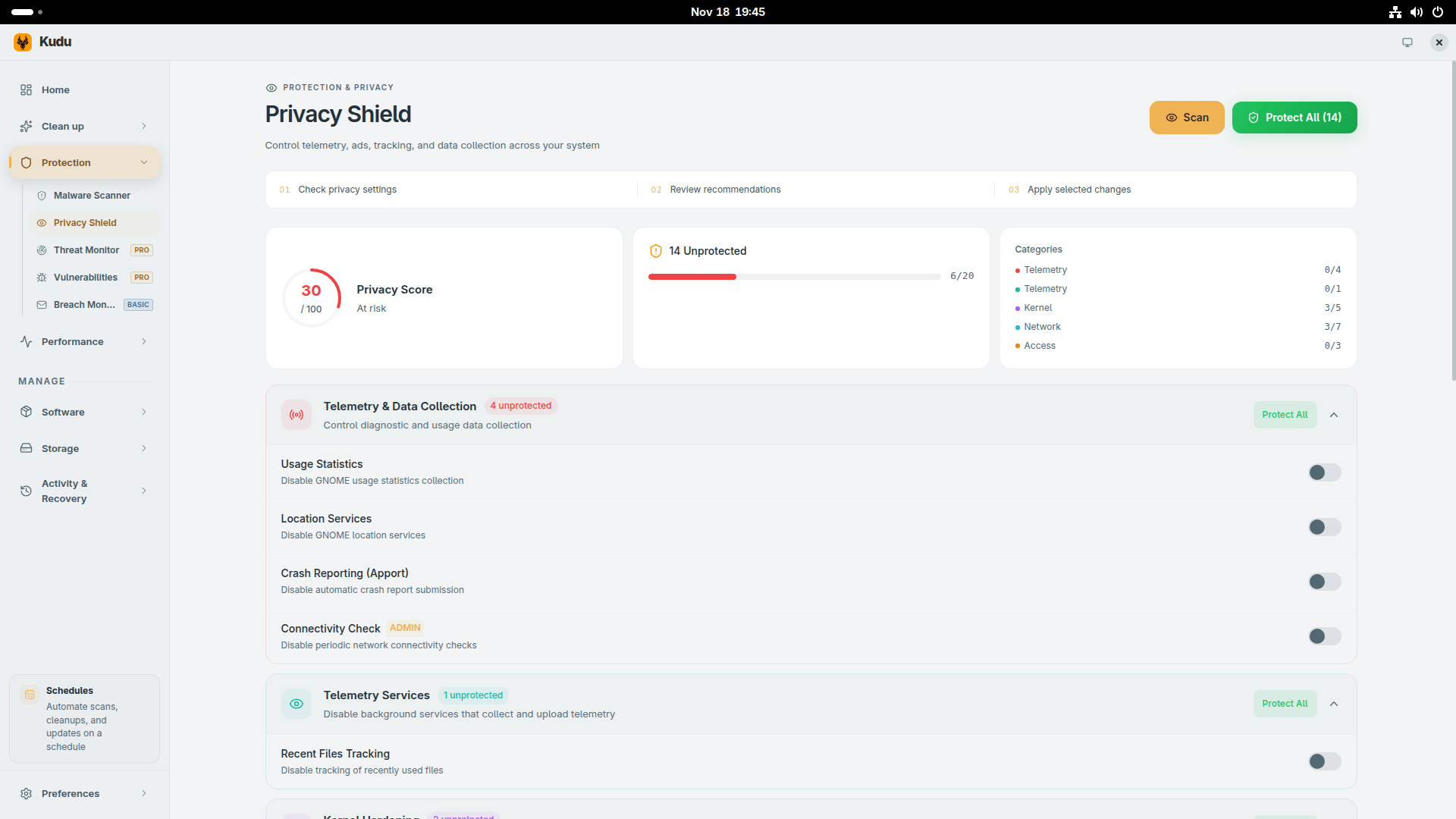
There are also some pro features such as Threat monitor, and Vulnerabilities. You may need to pay for using these services.
My Verdict
The Good
Kudu is a useful program. It puts many system tools in one place. You can clean files, check disk space, manage startup programs, update software, and scan for problems. This is convenient.
It is also free and open source. This means anyone can check the code. The program does not show ads. You do not need to create an account. These are good things.
Kudu also shows you what it will delete before it deletes anything. This is better than many other cleaner programs.
The Bad
Kudu can be dangerous if you are not careful.
The program can delete important files, clear system logs, change startup items, and modify system services. If you delete the wrong thing, your computer may not work the same way afterward.
For example:
- A log file might look like junk, but it could help fix a future problem.
- A shortcut might look broken, but it could connect to a network drive that was just offline.
- A service might have a strange name, but it might be needed for your sound, printer, or security.
On Windows, some tools are especially risky. Cleaning the registry, removing "bloat," and changing context menus can cause problems later. Your computer might work fine today, but a Windows update might fail next month because something important was removed.
Open Source Does Not Mean Safe
Many people think open source means "completely safe." This is not true.
Open source means the code is public. This is good for transparency. But most users will never read the code. A cleaning rule can still delete your important files even if the rule is public. Being open source stops hidden viruses. It does not stop honest mistakes.
The Optional Cloud Feature
Kudu Cloud is optional. You do not need it. This is good.
But if you connect your computer to the cloud, your device can send data to Kudu and receive remote commands. For home users, this is usually fine. For business use, this can create privacy questions.
Summary
Kudu is a tool for people who understand computers. It is not a magic "speed up my PC" button.
If you read carefully, check what will be deleted, and understand what each tool does, Kudu is very helpful.
If you just click "Clean" because the numbers look big, Kudu is dangerous. It will let you delete things that you should not delete.
Think of Kudu like a power saw. In the hands of a skilled person, it is very useful. But in the hands of someone who does not understand it, it can cause damage.
In conclusion, Kudu is useful, but it can be dangerous if you are not careful.
Resources:
Recommended Read:
