
Six years after its initial launch, auto-cpufreq version 3.0.0 is now available. For those wondering, auto-cpufreq is an automatic CPU speed and power optimiser designed specifically for Linux laptops. It actively monitors your battery state, CPU usage, and system temperature to improve battery life without sacrificing performance.
Think of auto-cpufreq as a smart thermostat for your laptop's processor; it keeps things cool and saves energy when you are just browsing, but turns up the power automatically when you start a heavy task.
The project has grown significantly since its debut, now boasting over 7,100 GitHub stars and contributions from 114 developers.
Table of Contents
What is New in auto-cpufreq v3.0.0?
auto-cpufreq v3.0.0 release introduces several requested features that give users more control over their hardware:
- Turbo Boost Overrides: You can now manually override CPU turbo settings through both the Command Line Interface (CLI) and the Graphical User Interface (GUI).
- ASUS Support: The update adds battery charging thresholds for ASUS laptops, including specific fixes for ExpertBook models.
- Custom Battery Selection: Users can now specify a specific battery device in the configuration file, which helps on systems with non-standard hardware paths.
- Improved Detection: The tool now uses
scaling_max_freqfor more accurate CPU clock detection and features improved battery path detection.
For users on NixOS, the release also includes an example configuration to make integration easier.
Why Use auto-cpufreq?
On many Linux distributions, CPUs often run in unoptimised modes, such as staying in "performance" mode even when the laptop is unplugged. While tools like TLP exist, they sometimes require manual adjustments or can lead to a loss of turbo boost.
auto-cpufreq aims to be a "set and forget" solution. It handles CPU frequency scaling and governor management automatically while letting the Linux kernel do the heavy lifting.
The auto-cpufreq tool is available as both a Command Line Interface (CLI) and a Graphical User Interface (GUI).
auto-cpufreq CLI in action:
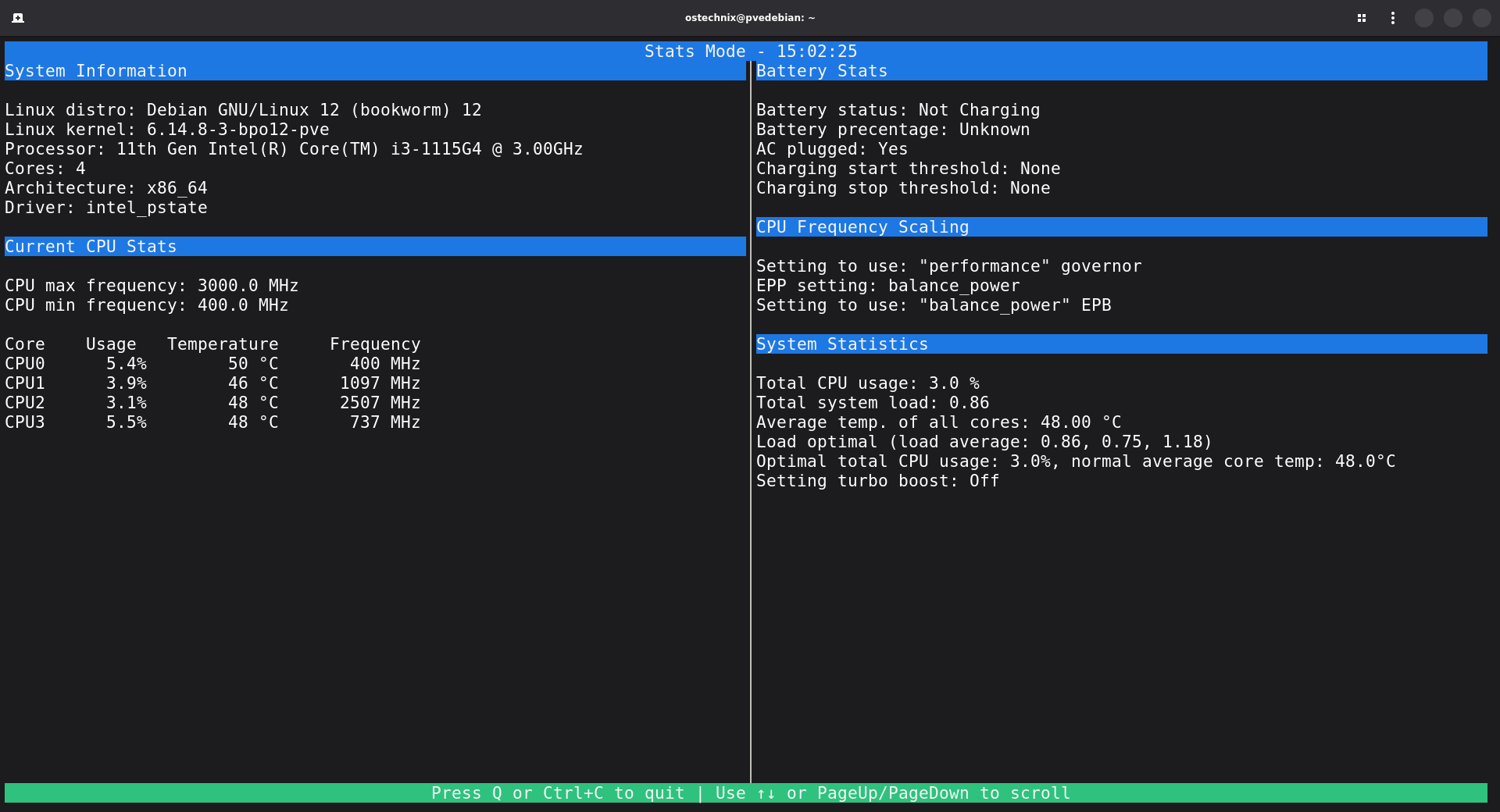
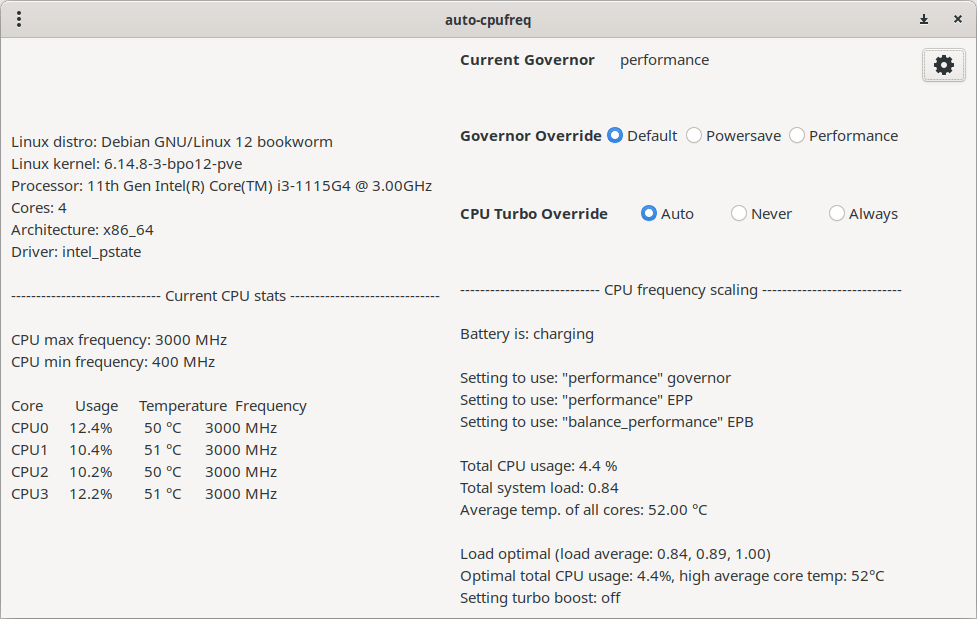
While the tool was originally a CLI-based utility, the GUI was introduced with the release of version 2.0.0 to provide a more visual way to manage the daemon.
auto-cpufreq GUI in action:
Important Limitations and Conflicts
To maintain a stable system, users should be aware of how this tool interacts with other software:
- Remove TLP: It is recommended to remove TLP before installing auto-cpufreq. Using both at the same time to manage CPU frequencies can cause issues like overheating.
- GNOME Power Profiles: The installer automatically disables the GNOME Power Profiles daemon because the two services conflict.
- Snap Package GUI: While the tool is available on the Snap Store, the GUI is not included in the Snap version due to package confinement. If you want the GUI, you should use the
auto-cpufreq-installer.
How to Get Started with auto-cpufreq
The most reliable way to install the latest auto-cpufreq version is by cloning the GitHub repository and running the installer script.
git clone https://github.com/AdnanHodzic/auto-cpufreq.git
cd auto-cpufreq
sudo ./auto-cpufreq-installer
You can run the tool in "monitor" mode to see suggested optimisations without making any changes, or "live" mode to test improvements temporarily before committing to a permanent installation.
For more details on auto-cpufreq usage, please check the following guide:
Related Read:
- CPU Power Manager – Control And Manage CPU Frequency In Linux
- How To Check Laptop Battery Status And Level In Terminal In Linux
- Monitor Battery Level And Get Notifications On Linux Using battmon
- UnixBench – A Benchmark Suite For Unix-like Systems
- NetData : A Real-time performance monitoring tool for Linux
- How To Display CPU Usage From Commandline
