
Network latency is the time it takes for data to travel between your computer and a remote server. High latency can cause slow web browsing, lag in games, and delays in cloud services. If you're using Linux, you already have useful tools at your fingertips to measure and monitor network latency in real time or over long periods.
In this guide, we will explain how to:
- Run a simple latency test using
ping - Trace network paths and detect problem nodes with
mtr - Graph latency over time using
smokeping
All tools are free and available on most Linux distributions.
Table of Contents
What is Network Latency?
Latency is usually measured in milliseconds (ms). It represents the round-trip time it takes for a small data packet to leave your computer, reach a target server, and return.
Common latency values:
- <30 ms: Excellent (LAN or fiber)
- 30–70 ms: Good (normal broadband)
- 70–150 ms: Acceptable (some lag)
- >150 ms: High latency (may impact performance)
Test Network Latency Using ping Command
The simplest way to test latency is with the ping command. The ping command sends ICMP Echo Request packets to a target (like a website or server) and measures the Round-Trip Time (RTT)—the time taken for a response.
The ping command is a powerful tool for measuring network latency in Linux. By analyzing min/avg/max latency, packet loss, and jitter, you can diagnose connectivity issues.
Basic Example:
ping google.com
This sends packets to google.com repeatedly.
You'll see output like:
PING google.com(maa03s36-in-x0e.1e100.net (2404:6800:4007:814::200e)) 56 data bytes
64 bytes from maa03s36-in-x0e.1e100.net (2404:6800:4007:814::200e): icmp_seq=1 ttl=59 time=16.1 ms
64 bytes from maa03s36-in-x0e.1e100.net (2404:6800:4007:814::200e): icmp_seq=2 ttl=59 time=17.3 ms
The above command will keep running until you manually stop it by pressing CTRL+C.
Here,
time=16.1 ms: This is the latency (in milliseconds) for that packet.- Lower is better. A value below 100 ms is typical for most internet connections.
Send Only 5 Pings:
ping -c 5 google.com
This sends 5 echo requests to google.com and stops. The output shows the latency for each reply.
PING google.com(maa03s36-in-x0e.1e100.net (2404:6800:4007:814::200e)) 56 data bytes
64 bytes from maa03s36-in-x0e.1e100.net (2404:6800:4007:814::200e): icmp_seq=1 ttl=59 time=15.4 ms
64 bytes from maa03s36-in-x0e.1e100.net (2404:6800:4007:814::200e): icmp_seq=2 ttl=59 time=16.3 ms
64 bytes from maa03s36-in-x0e.1e100.net (2404:6800:4007:814::200e): icmp_seq=3 ttl=59 time=17.2 ms
64 bytes from maa03s36-in-x0e.1e100.net (2404:6800:4007:814::200e): icmp_seq=4 ttl=59 time=18.2 ms
64 bytes from maa03s36-in-x0e.1e100.net (2404:6800:4007:814::200e): icmp_seq=5 ttl=59 time=69.2 ms

--- google.com ping statistics ---
5 packets transmitted, 5 received, 0% packet loss, time 4005ms
rtt min/avg/max/mdev = 15.362/27.250/69.246/21.019 ms
Here,
time=15.4 msis the latency for each packet.- At the end, you get min/avg/max/mdev (minimum, average, maximum, and standard deviation).
Summary statistics of ping command
--- google.com ping statistics ---
5 packets transmitted, 5 received, 0% packet loss, time 4005ms
rtt min/avg/max/mdev = 15.362/27.250/69.246/21.019 ms
Packet Transmission Stats:
5 packets transmitted: 5 ICMP Echo Request packets were sent.5 received: All 5 packets got a response (ICMP Echo Reply).0% packet loss: No packets were lost (ideal network conditions).time 4005ms: Total time taken for the test (~4 seconds).
Round-Trip Time (RTT) Statistics:
This shows the latency (delay) in milliseconds (ms):
min(15.362 ms): Fastest response time.avg(27.250 ms): Average response time (most important for general latency).max(69.246 ms): Slowest response time.mdev(21.019 ms): Mean Deviation (measures jitter—variation in latency).
As per the above statistics, we can interpret the following:
- Your connection to Google is working.
- Latency is mostly low, but there's some jitter (variation).
- No packet loss — no dropped packets.
- This is acceptable for web browsing and even video calls.
- If you see frequent high
mdevorpacket loss, it's a sign of instability.
Advanced Ping Commands for Network Testing
A. Limit Number of Pings (-c)
ping -c 5 google.com # Sends only 5 packets
B. Change Packet Size (-s)
ping -s 1000 google.com # Sends 1000-byte packets
C. Faster Pings (-i)
ping -i 0.2 google.com # Sends a ping every 0.2 seconds
D. Timestamp Logging (-D)
ping -D google.com >> ping_log.txt # Logs with timestamps
E. Continuous Ping for Monitoring
ping google.com # Runs until manually stopped (Ctrl+C)
Analyze Network Latency with mtr (Ping + Traceroute)
mtr shows how packets travel through the network. It combines the functionality of ping and traceroute. For those unaware, mtr stands for My traceroute.
You can use mtr, when;
- Diagnosing slow connections,
- Finding the point of network failure,
- Spotting intermittent loss across hops.
Install the mtr tool on your Linux system using command:
sudo apt install mtr         # Debian/Ubuntu
sudo dnf install mtr         # Fedora
Now analyze the network latency using command:
mtr google.com
This displays a live table of hops, latency, and packet loss.
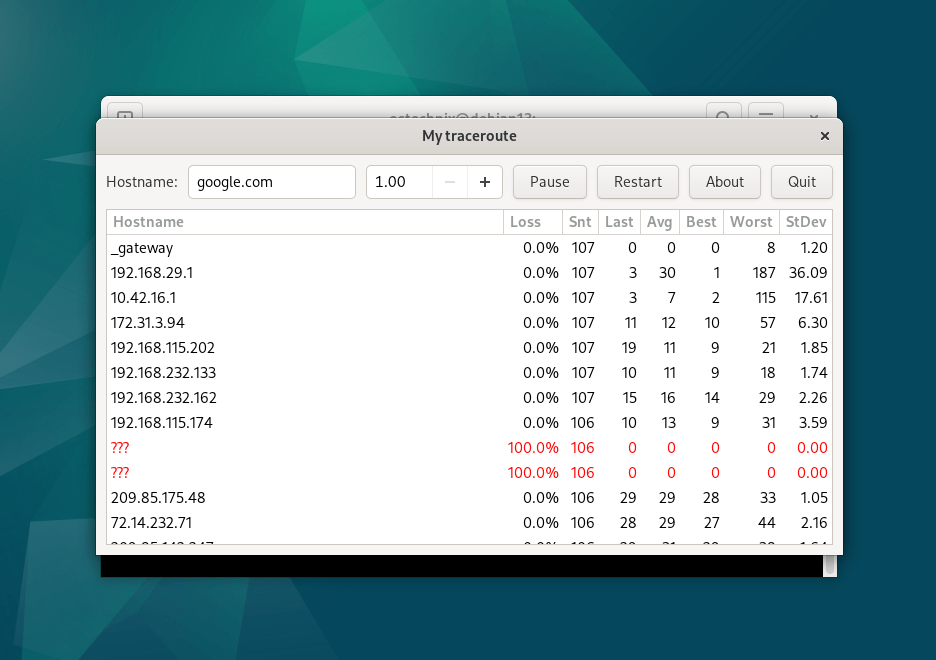
You can also generate a report:
mtr -c 100 -r google.com > report.txt
Other useful options:
-T: use TCP instead of ICMP-u: use UDP-c: number of packets to send
Monitor Network Latency Over Time with smokeping
For historical latency tracking, use smokeping. It runs in the background and stores graphs you can view in a browser. Please note that this tool requires a web server like Apache or Nginx to view the graphs.
Smokeping is useful for,
- Long-term monitoring,
- Spotting patterns (e.g., evening slowdowns),
- Multiple server monitoring.
To install smokeping on Debian-based systems, use the following command:
sudo apt install smokeping apache2
Once installed, edit the Targets file:
sudo nano /etc/smokeping/config.d/Targets
Add a section like:
+ Google
menu = Google DNS
title = Google Ping
host = 8.8.8.8
Restart the smokeping service:
sudo systemctl restart smokeping
Then, open your web browser and navigate to http://localhost/smokeping.
You’ll see graphs for latency and packet loss.

Click on the each link in the left pane to view the respective graph.
Troubleshooting High Latency & Packet Loss
If your ping results show high latency or packet loss, try these fixes:
1. Check Your Internet Connection
- Restart your router/modem.
- Test with a wired connection (Wi-Fi can introduce latency).
2. Compare Different Targets
ping google.com
ping facebook.com
If only one site has high latency, the issue is likely on their end.
3. Use Traceroute to Find Network Hops
traceroute google.com # Shows each hop’s latency
High latency at a specific hop? That’s the bottleneck.
4. Check for ISP Issues
Contact your ISP if multiple sites have high latency.
Conclusion
Measuring network latency on Linux is straightforward once you know which tools to use. Start with ping for quick tests. Use mtr to troubleshoot specific paths. Deploy smokeping if you want visual reports over time.
With these tools, you can:
- Detect slow or failing network links,
- Prove the issue lies with your ISP,
- Monitor latency patterns over time.
And, that's all for now. What tools do you use for measuring and monitoring network latency? Please share via the comment section below.
Related Read:
- How Network Time Protocol (NTP) Works: Clock Synchronization Explained
- How To Effortlessly Monitor Your Internet Traffic Using Sniffnet in Linux
- Print Timestamp With Ping Command Output In Linux
- Display Ping Command Output In Graph Format Using Gping
- Prettyping – Make The Output Of Ping Command Prettier And Easier To Read
- How To Ping Multiple Hosts At Once In Linux
- Ping Multiple Servers And Show The Output In Top-like Text UI
Featured image by Pixabay.
