
Table of Contents
Quick Summary
Bash turns 38 today. Born on January 10, 1988, Bash remains the default shell on most Linux systems. This guide covers 38 built-in Bash shell features and tips, such as keyboard shortcuts, history tricks, variable expansion, and scripting techniques that boost your command-line productivity. Learn the shell capabilities that work everywhere Bash is installed, no extra packages needed.
Important Note:
Many features in this guide work in other shells too. History expansion comes from csh. Keyboard shortcuts come from the readline library. Parameter expansion follows POSIX standards. Some features like [[ ]] and process substitution work in zsh as well.
What makes Bash special is not inventing these features, but combining them into one reliable, widely-available package. When we say "Bash feature," we mean "available in Bash" rather than "exclusive to Bash."
Happy Birthday, Bash
On January 10, 1988, a small note was added to a source file:
Birthdate: Sunday, January 10th, 1988.
Initial author: Brian Fox
That note still exists today.
Bash, the Bourne Again SHell, is older than Linux itself. Yet it remains the default shell on most Linux systems, appears in recovery environments, and runs scripts on servers, laptops, containers, and embedded devices.
Bash's Birthdate Lives in the Source Code
Bash does not advertise its age on startup. There is no banner or version flag that tells you when it was born.
Instead, the date lives quietly in the source.
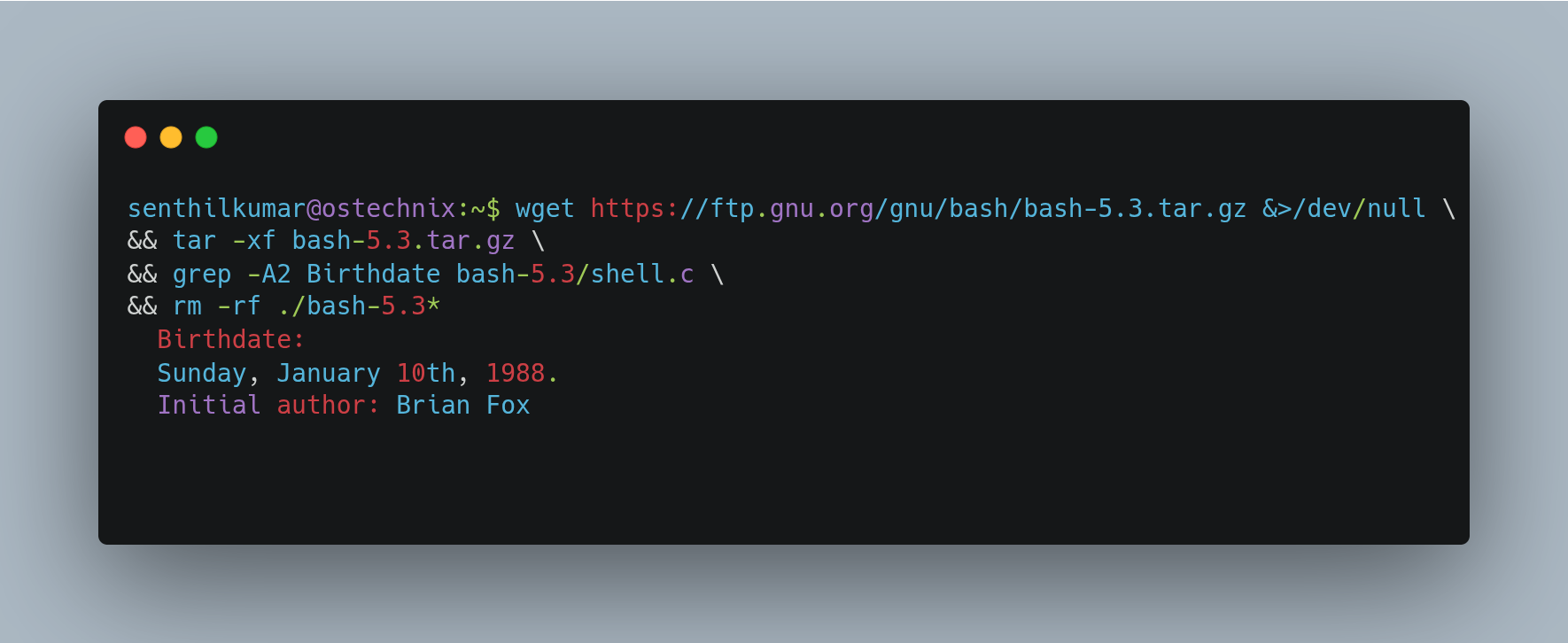
You can find Bash's birthdate with a short command pipeline:
wget https://ftp.gnu.org/gnu/bash/bash-5.3.tar.gz &>/dev/null \
&& tar -xf bash-5.3.tar.gz \
&& grep -A2 Birthdate bash-5.3/shell.c \
&& rm -rf ./bash-5.3*
The output shows:
Birthdate:
Sunday, January 10th, 1988.
Initial author: Brian Fox
Why Bash is still Everywhere
Bash survives for one main reason: it is predictable.
System software values stability more than novelty. Bash delivers that in several ways.
1. It ships by default
Most Linux distributions install Bash automatically. Administrators expect it to exist. Scripts rely on it. Documentation assumes it.
When a system boots into single-user mode or a rescue shell, Bash is often there.
2. It is compatible
Bash supports POSIX shell behavior while extending it carefully. Old scripts still run. New scripts can target decades of systems.
This matters in:
- Init scripts
- Backup jobs
- CI pipelines
- Cloud images
- Minimal containers
3. It works without dependencies
Bash does not need a runtime, a package manager, or a framework. If the system can start, Bash can usually run.
That makes it valuable when things go wrong.
Bash is not fancy and that is the point
Bash has rough edges. The syntax can surprise new users. Error handling takes discipline. Quoting rules can bite.
These are real problems.
But Bash does not aim to be elegant. It aims to be boring and reliable.
A system shell should:
- Change slowly
- Fail in known ways
- Behave the same across machines
Newer shells explore better syntax and user experience, and that is good. Bash does not compete with them. It fills a different role.
Bash follows this rule. New features arrive carefully. Old behavior stays.
Older than Linux, still relevant
Linux appeared in 1991. Bash arrived three years earlier as part of the GNU Project.
When Linux gained users, Bash was already mature. That early pairing shaped today's systems. Even now, a Linux machine without Bash feels incomplete.
This long history explains why Bash remains a baseline skill. Learning it gives you access to almost every Unix-like system you will touch.
It keeps starting shells, running scripts, and holding systems together. Most days, it goes unnoticed, which is exactly what good system software should do.
Happy 38th birthday, Bash!
Why Learn Bash Shell Features
Bash is more than a command launcher. It's a complete programming environment with built-in syntax, variables, functions, and control structures.
These features work everywhere Bash is installed. No additional packages needed. No dependencies to install. No external tools required.
Learning what Bash provides natively makes you effective on any Linux system, from Raspberry Pi to cloud servers.
Verify You Are Using Bash
Check your default shell:
echo $SHELL
Check your Bash version:
echo $BASH_VERSION
Test features in a safe environment:
bash --norc --noprofile
This starts Bash without loading your configuration files.
Read Bash's manual:
man bash
Or use Bash's built-in help:
help
help set
help [[ ]]
Now that you’re using Bash, let's learn some bash features.
Note: While this guide focuses on Bash, many shortcuts and features also work in other shells like zsh and ksh. Some are POSIX-standard, others are Bash-specific. Always test if portability matters.
Keyboard Shortcuts: Built Into Bash
1. Reverse Search History with Ctrl+R
Press Ctrl+R and start typing. Bash searches your command history backward. Press Ctrl+R again to find older matches.
This uses Bash's readline library, built directly into the shell.
2. Move to Line Start and End
Ctrl+A jumps to the beginning of your command line. Ctrl+E jumps to the end.
These are Bash readline bindings, not external programs.
3. Delete from Cursor to Line Start with Ctrl+U
Ctrl+U deletes everything from the cursor back to the start of the line.
The deleted text goes into a kill ring. You can paste it back with Ctrl+Y.
This is faster than holding backspace or repeatedly pressing it.
4. Delete from Cursor to Line End
Ctrl+K deletes everything from the cursor to the end of the line.
Also saves to the kill ring.
5. Paste from Kill Ring
Ctrl+Y pastes the last deleted text back into your command line.
This is Bash's internal clipboard, separate from your system clipboard.
6. Clear the Screen
Ctrl+L clears your terminal display without interrupting your current command.
Bash sends the clear sequence directly.
7. Move Between Words
Alt+F moves forward one word. Alt+B moves backward one word.
Bash defines words by shell syntax rules.
8. Delete Words
Alt+D deletes the word after the cursor. Alt+Backspace deletes the word before the cursor.
Bash (via the readline library) defines "words" using configurable word delimiters (such as spaces and punctuation), not full shell syntax rules.
9. Undo Command Line Changes
Ctrl+_ undoes your last edit to the command line.
Press it multiple times to undo further back.
10. Insert Last Argument
Alt+. inserts the last word from your previous command.
Press it repeatedly to cycle through previous commands' last arguments. This is Bash's yank-last-arg function.
History: Bash's Memory
11. Rerun Last Command with !!
Type !! and press Enter. Bash expands this to your previous command before running it.
You see what runs because Bash performs history expansion first.
Common use: sudo !! runs your last command with elevated privileges.
12. Rerun Specific History Number
!123
Runs command number 123 from your history. Check numbers with the history builtin.
13. Rerun Last Command Starting With Text
!ssh
Bash finds the most recent command starting with "ssh" and runs it.
Be careful with this one. Verify with :p first.
14. Print Without Running
!ssh:p
The :p modifier makes Bash print the command without executing it.
Good for verifying before you run.
15. Substitute in Previous Command
^old^new
Replaces "old" with "new" in your last command and runs it.
Quick fix for typos.
Tab Completion: Bash Intelligence
16. Complete Commands and Files
Press Tab to trigger Bash’s readline completion. Bash completes command names from your PATH and file names from the filesystem.
For many commands, Bash uses programmable completion scripts to provide smarter, context-aware results.
17. Show All Completions
Press Tab twice to see all possible completions when there's ambiguity.
Bash lists everything that matches your partial input.
18. Complete Variables
Type $ and press Tab. Bash shows all defined variables.
echo $HO[Tab] # Completes to $HOME
19. Complete Hostnames
After ssh or scp, Tab completion is provided by Bash’s programmable completion scripts, which read ~/.ssh/config and ~/.ssh/known_hosts (and sometimes /etc/hosts) to suggest hostnames.
Variable Expansion: Bash's Text Processing
20. Use Default Values
echo ${username:-guest}If username is unset or empty, Bash uses "guest" instead.
The variable itself remains unchanged.
21. Assign Default Values
: ${username:=guest}If username is unset or empty, Bash sets it to "guest" and then uses it.
The : command does nothing but triggers the assignment.
22. Get String Length
text="Hello World"
echo ${#text}  # Outputs: 11
Bash counts the characters without calling any external program.
23. Extract Substrings
text="Hello World"
echo ${text:0:5}  # Outputs: Hello
echo ${text:6}    # Outputs: World
The syntax is ${variable:offset:length}.
24. Remove from End
filename="document.pdf"
echo ${filename%.pdf}  # Outputs: document
The % removes the shortest match from the end. Use %% for the longest match.
25. Remove from Start
path="/usr/local/bin/program"
echo ${path#*/}      # Outputs: usr/local/bin/program
echo ${path##*/}     # Outputs: program
The # removes from the start. One # for shortest match, two for longest.
26. Replace Text
text="foo bar foo"
echo ${text/foo/baz}   # Outputs: baz bar foo
echo ${text//foo/baz}  # Outputs: baz bar baz
Single / replaces once. Double // replaces all occurrences.
27. Change Case
text="Hello World"
echo ${text^^}  # Outputs: HELLO WORLD
echo ${text,,}  # Outputs: hello world
echo ${text^}   # Outputs: Hello World (Captilizes first letter)
Bash 4.0 and later have built-in case conversion.
Arrays: Bash's Data Structures
28. Create and Use Arrays
colors=(red green blue)
echo ${colors[0]}      # Outputs: red
echo ${colors[@]}      # Outputs: red green blue
echo ${#colors[@]}     # Outputs: 3
Bash has indexed arrays built in.
29. Append to Arrays
colors+=(yellow)
The += operator adds elements without creating a new array.
30. Associative Arrays
declare -A capitals
capitals[India]="New Delhi"
capitals[Tamilnadu]="Chennai"
echo ${capitals[India]}  # Outputs: New Delhi
Bash 4.0 added associative arrays (key-value pairs).
31. Loop Over Arrays Safely
for color in "${colors[@]}"; do
    echo "$color"
done
Always quote "${array[@]}" to preserve elements with spaces.
Control Flow: Bash Logic
32. Conditional Execution
[ -f file.txt ] && echo "File exists"
[ -d /tmp ] || mkdir /tmp
Bash uses && for "and" and || for "or" logic. These are shell operators, not separate commands.
33. Test Multiple Conditions
if [[ -f file.txt && -r file.txt ]]; then
    echo "File exists and is readable"
fi
The [[ ]] is Bash's improved test command with native support for && and ||.
34. Pattern Matching in Conditionals
if [[ $filename == *.txt ]]; then
    echo "Text file"
fi
Bash's [[ ]] supports glob patterns natively.
35. Regular Expressions
if [[ $email =~ ^[a-zA-Z0-9._%+-]+@[a-zA-Z0-9.-]+\.[a-zA-Z]{2,}$ ]]; then
    echo "Valid email format"
fi
The =~ operator in [[ ]] uses Bash’s built-in extended regular expression (ERE) engine, not PCRE.
Process Management: Bash Control
36. Job Control
command &          # Run in background
jobs               # List background jobs
fg %1              # Bring job 1 to foreground
bg %1              # Resume job 1 in background
These are Bash job-control features. The jobs, fg, and bg commands are builtins, while & is shell job-control syntax.
37. Subshells with Parentheses
(cd /tmp && ls)
pwd  # Still in original directory
Parentheses create a subshell. Changes inside don't affect the parent shell.
38. Command Grouping with Braces
{ echo "Line 1"; echo "Line 2"; } > file.txtBraces group commands but run them in the current shell. Notice the semicolons and spaces - they're required syntax.
Common Mistakes to Avoid
1. Not quoting variable expansions:
Always use "$variable" unless you specifically want word splitting.
2. Confusing [ ] with [[ ]]:
The [ ] is an external command (though Bash provides it as a builtin). The [[ ]] is Bash syntax with more features and safer behavior.
3. Forgetting array syntax:
Use "${array[@]}" to expand all elements, not "${array[*]}" or $array.
4. Mixing array indices:
Bash arrays start at index 0, not 1.
5. Using = in [[ ]] for numeric comparison:
Use -eq, -lt, -gt for numbers. Use = or == for strings.
Script Safety: Built-In Protections
Add these Bash options at the start of scripts:
set -e          # Exit on command failure
set -u          # Exit on undefined variable
set -o pipefail # Pipeline fails if any command fails
Combine them:
set -euo pipefail
These are Bash shell options that change how your script behaves.
Debug with shell options:
set -x  # Print commands before execution
set -v  # Print lines as read
Turn them off:
set +x
set +v
Shell Options: Customize Bash Behavior
Use shopt to enable extended Bash features:
shopt -s nullglob    # Globs that match nothing expand to empty
shopt -s dotglob     # Include hidden files in globs
shopt -s extglob     # Extended pattern matching
shopt -s globstar    # ** matches directories recursively
Check current options:
shopt
These modify how Bash interprets your commands.
Limitations and Warnings
1. Shell compatibility varies:
Many features here also work in zsh, ksh, or other modern shells. Some come from POSIX standards. Others are truly Bash-specific. If portability to strict POSIX sh matters, test each feature. Dash and other minimal shells support far fewer features.
2. Version matters:
Associative arrays require Bash 4.0+. Case conversion requires Bash 4.0+. Some systems still ship Bash 3.2, especially macOS. Check with echo $BASH_VERSION.
3. Bash arrays have limits:
For thousands of elements, performance degrades. Consider external tools.
4. Complex regex needs external tools:
Bash regex works for validation. For extraction and complex manipulation, use grep, sed, or awk.
5. Bash is not secure by default:
Never use eval on untrusted input. Be careful with variable expansion in security-sensitive contexts.
When to Use Bash Shell Features
Use Bash when you need to:
- Write portable shell scripts for Linux and Unix systems
- Automate command sequences interactively at the terminal
- Process text and filenames with built-in string manipulation
- Control job execution and background process management
- Write automation that runs anywhere Bash is installed
- Chain commands together using pipes and redirects
Don't use Bash when you need to:
- Process structured data formats like JSON, XML, or CSV
- Perform complex mathematics or floating-point calculations
- Build applications with comprehensive error handling and logging
- Work with network protocols, REST APIs, or web services
- Handle multithreading, parallel processing, or async operations
- Process large datasets efficiently (use awk, Python, or specialized tools)
Bash Shell Scripting Tutorial For Beginners
We have compiled 28 topics to learn Bash scripting for beginners. If you are taking the first step in learning Bash scripting, these topics will help to understand the core concepts of Bash shell scripting.
Closing Thoughts
Bash turned 38 today. It has outlasted countless "modern" replacements.
The reason is simple. Bash just works. It's installed everywhere. It handles common tasks well. It chains operations efficiently.
Good tools age slowly. Bash proves this every day. The commands you learn today will work in a decade.
Happy birthday, Bash! Here's to 38 more years!!
Related Read:
References:
