
Anaconda distribution ships with a package and environment management system called Conda. It is used to manage and deploy applications, environments and packages. Conda is written in Python and it was initially created for Python programs only, but it can be used for any languages, for example R, Nodejs etc. In this guide, we will see how to create Nodejs virtual environments using conda in Linux.
Table of Contents
Create NodeJS Virtual Environments Using Conda Package Manager
Run the following command to create new virtual environment called "nodeenv" for NodeJS:
$ conda create -n nodeenv nodejsSample output:
Collecting package metadata (current_repodata.json): done
 Solving environment: done
 Package Plan
 environment location: /home/sk/anaconda3/envs/nodeenv
 added / updated specs:
     - nodejs
 The following packages will be downloaded:
 package                    |            build ---------------------------|----------------- _libgcc_mutex-0.1          |             main           3 KB libgcc-ng-9.1.0            |       hdf63c60_0         5.1 MB libstdcxx-ng-9.1.0         |       hdf63c60_0         3.1 MB nodejs-10.13.0             |       he6710b0_0        13.0 MB ------------------------------------------------------------                                        Total:        21.1 MB
 The following NEW packages will be INSTALLED:
 _libgcc_mutex      pkgs/main/linux-64::_libgcc_mutex-0.1-main
   libgcc-ng          pkgs/main/linux-64::libgcc-ng-9.1.0-hdf63c60_0
   libstdcxx-ng       pkgs/main/linux-64::libstdcxx-ng-9.1.0-hdf63c60_0
   nodejs             pkgs/main/linux-64::nodejs-10.13.0-he6710b0_0
 Proceed ([y]/n)? y
 Downloading and Extracting Packages
 libgcc-ng-9.1.0      | 5.1 MB    | ############################################################################################# | 100%
 _libgcc_mutex-0.1    | 3 KB      | ############################################################################################# | 100%
 libstdcxx-ng-9.1.0   | 3.1 MB    | ############################################################################################# | 100%
 nodejs-10.13.0       | 13.0 MB   | ############################################################################################# | 100%
 Preparing transaction: done
 Verifying transaction: done
 Executing transaction: done
 #
 To activate this environment, use
 #
 $ conda activate nodeenv
 #
 To deactivate an active environment, use
 #
 $ conda deactivate
Check if the environment is created by listing the available conda environments:
$ conda info --envsOr,
$ conda env listSample output:
# conda environments:
#
base                  *  /home/sk/anaconda3
nodeenv                  /home/sk/anaconda3/envs/nodeenv
Yes, the nodejs environment named nodeenv is created.
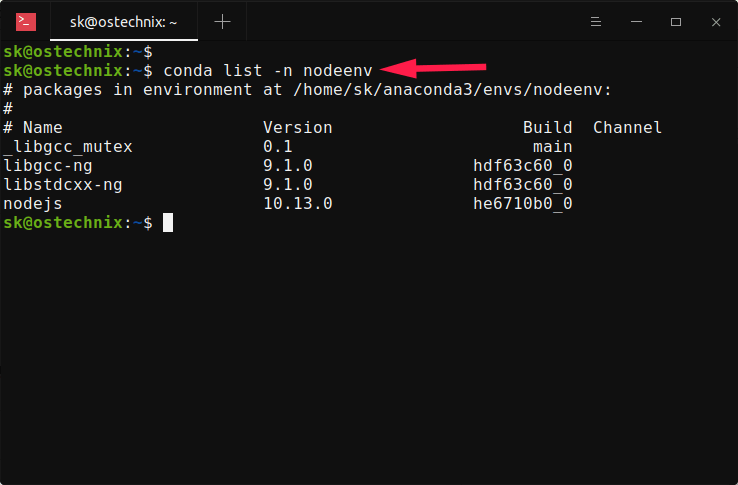
List all packages and versions in the nodeenv environment:
$ conda list -n nodeenvSample output:
packages in environment at /home/sk/anaconda3/envs/nodeenv:
 #
 Name                    Version                   Build  Channel
 _libgcc_mutex             0.1                        main
 libgcc-ng                 9.1.0                hdf63c60_0
 libstdcxx-ng              9.1.0                hdf63c60_0
 nodejs                    10.13.0              he6710b0_0
Now activate the environment using command:
$ conda activate nodeenvYou will now see the prefix (nodeenv) in front of your shell prompt. It means that the nodeenv environment is activated.
(nodeenv) sk@ostechnix:~$ Check the node and npm versions:
$ node --version
v10.13.0
$ npm --version
6.4.1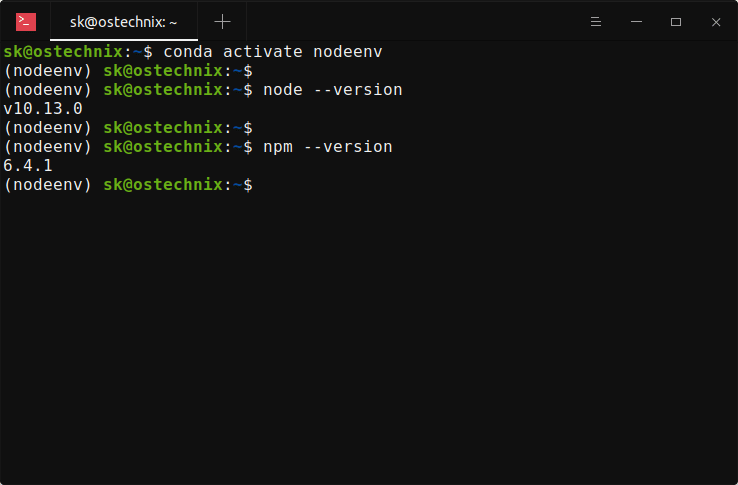
That's it. The new nodejs virtual environment is ready for your app development!
Remove conda environments
Once you are done, deactivate the environment using command:
$ conda deactivateIf you don't want the nodejs environment anymore, simply delete it:
$ conda env remove -n nodeenvThis command will remove the nodeenv environment including all associated packages to it. You can verify if the environment is really deleted or not by listing the conda environments:
$ conda info --envs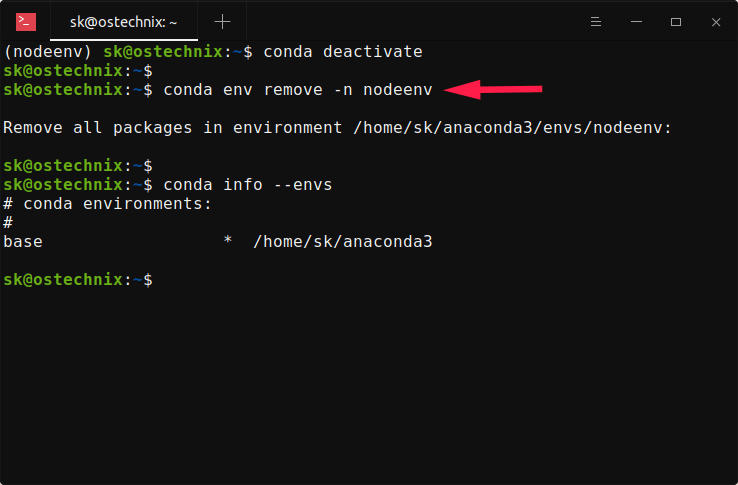
Install Nodejs latest version from Conda-forge
By default, conda will install nodejs, npm and other required packages from the default channel. The packages in the default channel are maintained by the conda team from Anaconda, Inc. They are stable, well-tested, but mostly out-dated. If you want newer version of packages, install them from Conda-forge channel. The conda-forge channel is a community maintained repository that provides conda packages for a wide range of software.
As you may noticed, the version of node installed from default channel is 10.13.0. The Conda-forge channel has recent version of node, so we can install latest nodejs version from this channel.
First, delete the old environments as shown in the Remove conda environments section.
Then, run the following command to create a new environment called "nodeenv" and install latest nodejs version from conda-forge channel:
$ conda create -c conda-forge -n nodeenv nodejsActivate the nodeenv environment:
$ conda activate nodeenvCheck the node version:
$ node --version
v15.3.0
Please note that npm version may not be always up-to-date. To update it, simply run:
$ npm install -g npm@latestCheck npm version:
$ npm --version
7.5.4
That's it. In this guide, you learned how to create virtual environments for Nodejs programs using conda package manager. You also learned how to install latest Nodejs version from Conda-forge repository. If you are a developer, you can make use of Anaconda to create multiple virtual environments for testing your JavaScript applications.
Related read:
