
Enabling timestamp in history command output helps us to find when a certain command is executed in Linux. We already have seen how to enable timestamp in Bash history. Today let us see how to enable timestamp for history command in Zsh shell in Linux.
Enable Timestamp For History Command In Zsh Shell
You can show the date and time stamps in Bash history output in Linux by using the HISTTIMEFORMAT environment variable. However, you don't need to set any env variable in Zsh. Zsh, by default, has a few built-in flags to show the date and time in history command output.
First, let us view the list of previously executed commands in the zsh session using history command:
% historySample output:
    1  lsb_release -a
    2  uname -r
    3  hostname
    4  ls -l
    5  touch ostechnix.txt
    6  clear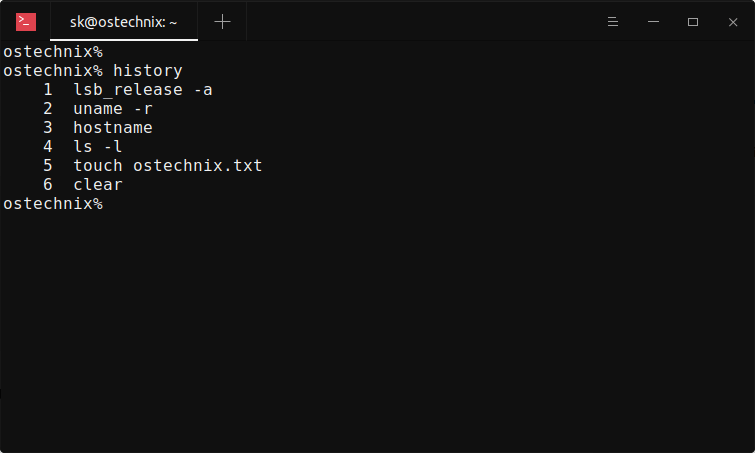
As you can see, the history command doesn't display the timestamp. It only displays the prefix number of each command.
To enable timestamp for history command i.e. show date and time in all commands in zsh shell, use -f flag with history command:
% history -fNow you will see the date and time in history command output in zsh shell:
    1  11/28/2020 17:00  lsb_release -a
    2  11/28/2020 17:00  uname -r
    3  11/28/2020 17:00  hostname
    4  11/28/2020 17:00  ls -l
    5  11/28/2020 17:00  touch ostechnix.txt
    6  11/28/2020 17:00  clear
    7  11/28/2020 17:01  history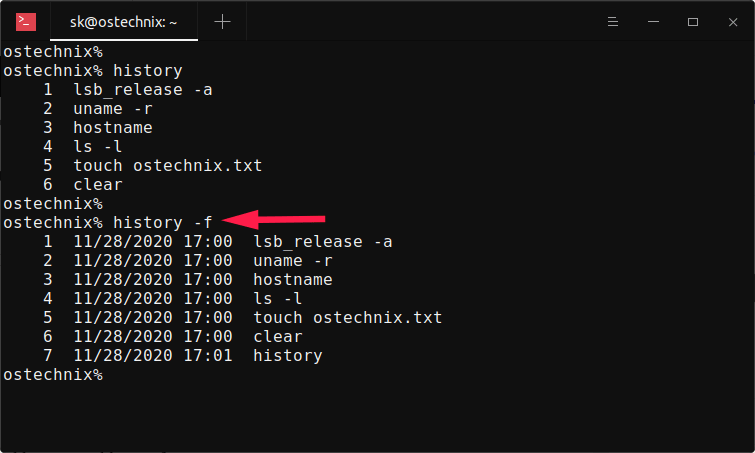
Here, the -f flag is used to print full date and time stamps in the 'US MM/DD/YY hh:mm' format
If you want to print full date-time stamps in the 'European dd.mm.yyyy hh:mm' format, use -E flag.
% history -ESample output:
    1  28.11.2020 17:00  lsb_release -a
    2  28.11.2020 17:00  uname -r
    3  28.11.2020 17:00  hostname
    4  28.11.2020 17:00  ls -l
    5  28.11.2020 17:00  touch ostechnix.txt
    6  28.11.2020 17:00  clear
    7  28.11.2020 17:01  history
    8  28.11.2020 17:06  history -f
Similarly, to print the date and time stamps in 'ISO8601 yyyy-mm-dd hh:mm' format, use -i flag:
% history -iSample output:
    1  2020-11-28 17:00  lsb_release -a
    2  2020-11-28 17:00  uname -r
    3  2020-11-28 17:00  hostname
    4  2020-11-28 17:00  ls -l
    5  2020-11-28 17:00  touch ostechnix.txt
    6  2020-11-28 17:00  clear
    7  2020-11-28 17:01  history
    8  2020-11-28 17:06  history -f
    9  2020-11-28 17:18  history -E
If you want to print only the time, use -d flag.
% history -dSample output:
    1  17:00  lsb_release -a
    2  17:00  uname -r
    3  17:00  hostname
    4  17:00  ls -l
    5  17:00  touch ostechnix.txt
    6  17:00  clear
    7  17:01  history
    8  17:06  history -f
    9  17:18  history -E
   10  17:18  history -i
Display date and time stamps in history output using fc command
The another way to enable timestamps in history output in zsh shell is to use fc command. The fc command, short for fix commands, is a shell built-in command used to list, edit and re-execute the most recently entered commands in to an interactive shell.
To display full timestamp in history output using fc command, simply run:
% fc -lfSample output:
    1  11/28/2020 17:00  lsb_release -a
    2  11/28/2020 17:00  uname -r
    3  11/28/2020 17:00  hostname
    4  11/28/2020 17:00  ls -l
    5  11/28/2020 17:00  touch ostechnix.txt
    6  11/28/2020 17:00  clear
    7  11/28/2020 17:01  history
    8  11/28/2020 17:06  history -f
    9  11/28/2020 17:18  history -E
   10  11/28/2020 17:18  history -i
   11  11/28/2020 17:19  history -d
As mentioned earlier, the -f flag prints full time-date stamps in the US format i.e. 'MM/DD/YY hh:mm'.
If you want to display the timestamps in history output in European format which is dd.mm.yyyy hh:mm, use -E flag:
% fc -lESample output:
    1  28.11.2020 17:00  lsb_release -a
    2  28.11.2020 17:00  uname -r
    3  28.11.2020 17:00  hostname
    4  28.11.2020 17:00  ls -l
    5  28.11.2020 17:00  touch ostechnix.txt
    6  28.11.2020 17:00  clear
    7  28.11.2020 17:01  history
    8  28.11.2020 17:06  history -f
    9  28.11.2020 17:18  history -E
   10  28.11.2020 17:18  history -i
   11  28.11.2020 17:19  history -d
   12  28.11.2020 17:43  fc -lf
To display timestamps in in ISO8601 format (i.e. yyyy-mm-dd hh:mm), use -i flag:
% fc -liSample output:
    1  2020-11-28 17:00  lsb_release -a
    2  2020-11-28 17:00  uname -r
    3  2020-11-28 17:00  hostname
    4  2020-11-28 17:00  ls -l
    5  2020-11-28 17:00  touch ostechnix.txt
    6  2020-11-28 17:00  clear
    7  2020-11-28 17:01  history
    8  2020-11-28 17:06  history -f
    9  2020-11-28 17:18  history -E
   10  2020-11-28 17:18  history -i
   11  2020-11-28 17:19  history -d
   12  2020-11-28 17:43  fc -lf
   13  2020-11-28 18:01  fc -lE
If you want to show only the time, use -d flag:
% fc -ldSample output:
    1  17:00  lsb_release -a
    2  17:00  uname -r
    3  17:00  hostname
    4  17:00  ls -l
    5  17:00  touch ostechnix.txt
    6  17:00  clear
    7  17:01  history
    8  17:06  history -f
    9  17:18  history -E
   10  17:18  history -i
   11  17:19  history -d
   12  17:43  fc -lf
   13  18:01  fc -lE
   14  18:02  fc -li
You can also display the history output with timestamps starting from a specific entry in the history. For instance, to list the history output starting from the 5th command with timestamps in zsh, run:
% fc -li 5Sample output:
    5  2020-11-28 17:00  touch ostechnix.txt
    6  2020-11-28 17:00  clear
    7  2020-11-28 17:01  history
    8  2020-11-28 17:06  history -f
    9  2020-11-28 17:18  history -E
   10  2020-11-28 17:18  history -i
   11  2020-11-28 17:19  history -d
   12  2020-11-28 17:43  fc -lf
   13  2020-11-28 18:01  fc -lE
   14  2020-11-28 18:02  fc -li
   15  2020-11-28 18:05  fc -ld
For more details, refer man page:
% man zsh% man fcAre you using Fish shell? Check the following guide to enable timestamp in Fish shell:

1 comment
Hi,
Thanks a lot