
If your EPUB file stays stuck on "Processing" in Google Play Books, don't worry, it's a common issue. The cause is usually missing metadata or the newer EPUB 3 format, which Play Books doesn't always support. The fix is simple: clean up the file and convert it to EPUB 2 using Calibre, a free, open-source ebook manager that works on Linux, macOS, and Windows.
Table of Contents
Why Some EPUB Files Fail to Upload
Google Play Books converts every uploaded EPUB into its own internal format. If the book includes HTML5 tags, JavaScript, or embedded media, the conversion can break.
Books from Project Gutenberg often upload perfectly because they follow the older EPUB 2 standard. Files from Internet Archive, on the other hand, may fail because they're usually EPUB 3 and contain rich formatting or custom fonts that Play Books doesn't support.
How to Check If an EPUB File Is Version 2 or 3
Play Books prefers EPUB 2 files. Here's how to see which version your file uses.
Option 1: Check Inside the File
- Rename your
.epubto.zip. - Unzip it and open the folder.
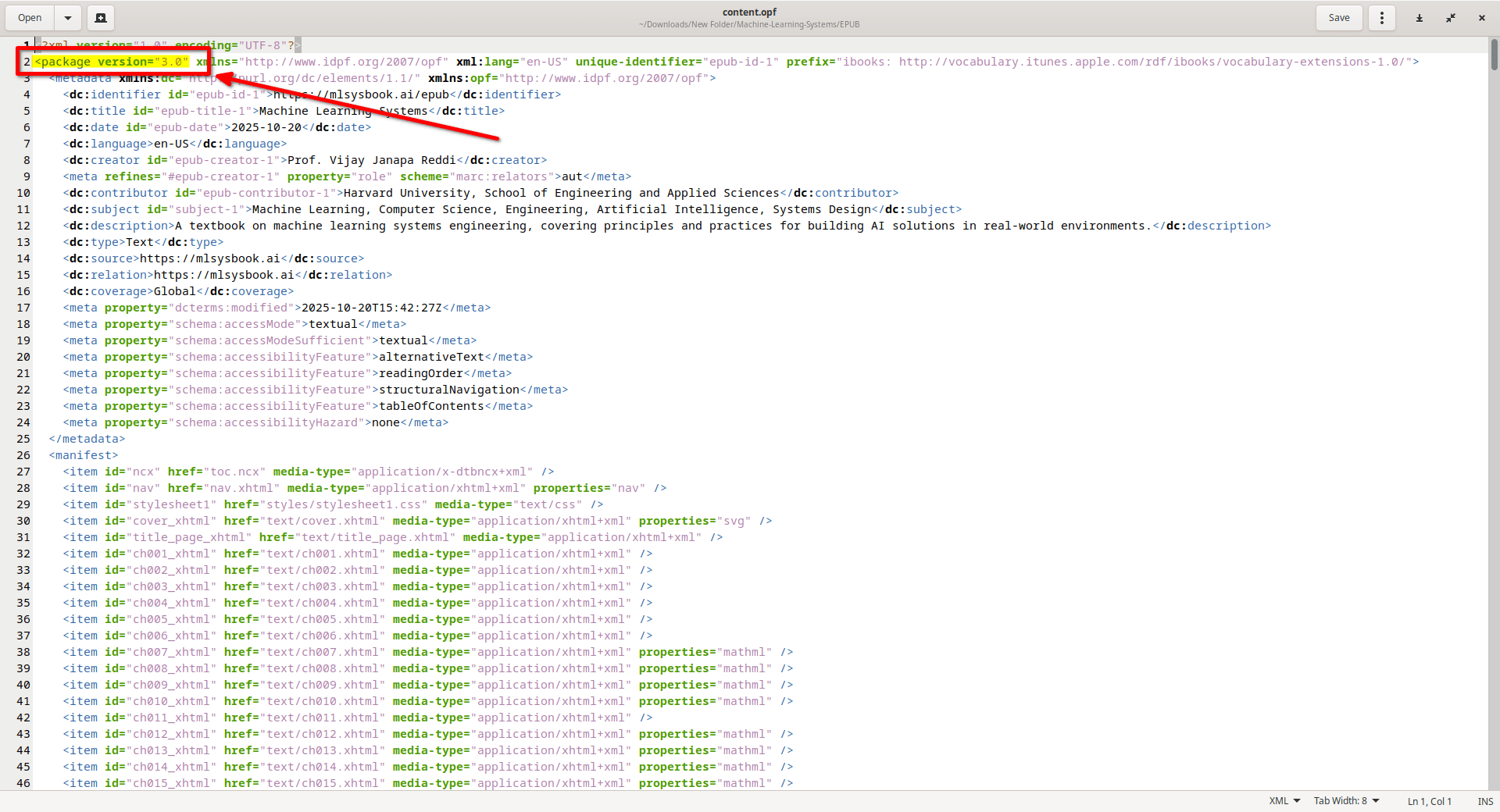
- Find content.opf (or package.opf). In my case, It is found under the EPUB folder.
- Open it in a text editor.
- Look at the first line:
<package version="2.0" xmlns="http://www.idpf.org/2007/opf">→ EPUB 2<package version="3.0" xmlns="http://www.idpf.org/2007/opf">→ EPUB 3
Option 2: Use Calibre
- Add the EPUB to Calibre.
- Right-click the book → Edit Book.
- Go to Tools → Check Book.
- The report shows the EPUB version and any problems.
You can also open content.opf directly inside Calibre's editor.
If your EPUB file's version is 3, you may not upload it to Play books. I tried to upload a few EPUB 3 books to my Play Books app, but none of them work.
I did a quick web search and found that EPUB 3 adds HTML5 and multimedia support, but Google Play Books often rejects it. Converting the file to EPUB 2 usually fixes the upload problem.
Fix EPUB Upload Issues using Calibre Step by Step
It is very easy to fix a broken EPUB using Calibre on Linux. I had a book from the Internet Archive that refused to upload to Play Books. It sat on "Processing" forever.
Here's how to fix EPUB upload issue using Calibre.
1. Install Calibre from calibre-ebook.com. Calibre is also available in the default repositories of most Linux distributions, so you can install it using your default package manager.
2. Next open the EPUB book in Calibre. Right-click the book → Edit Metadata → Download metadata and covers.
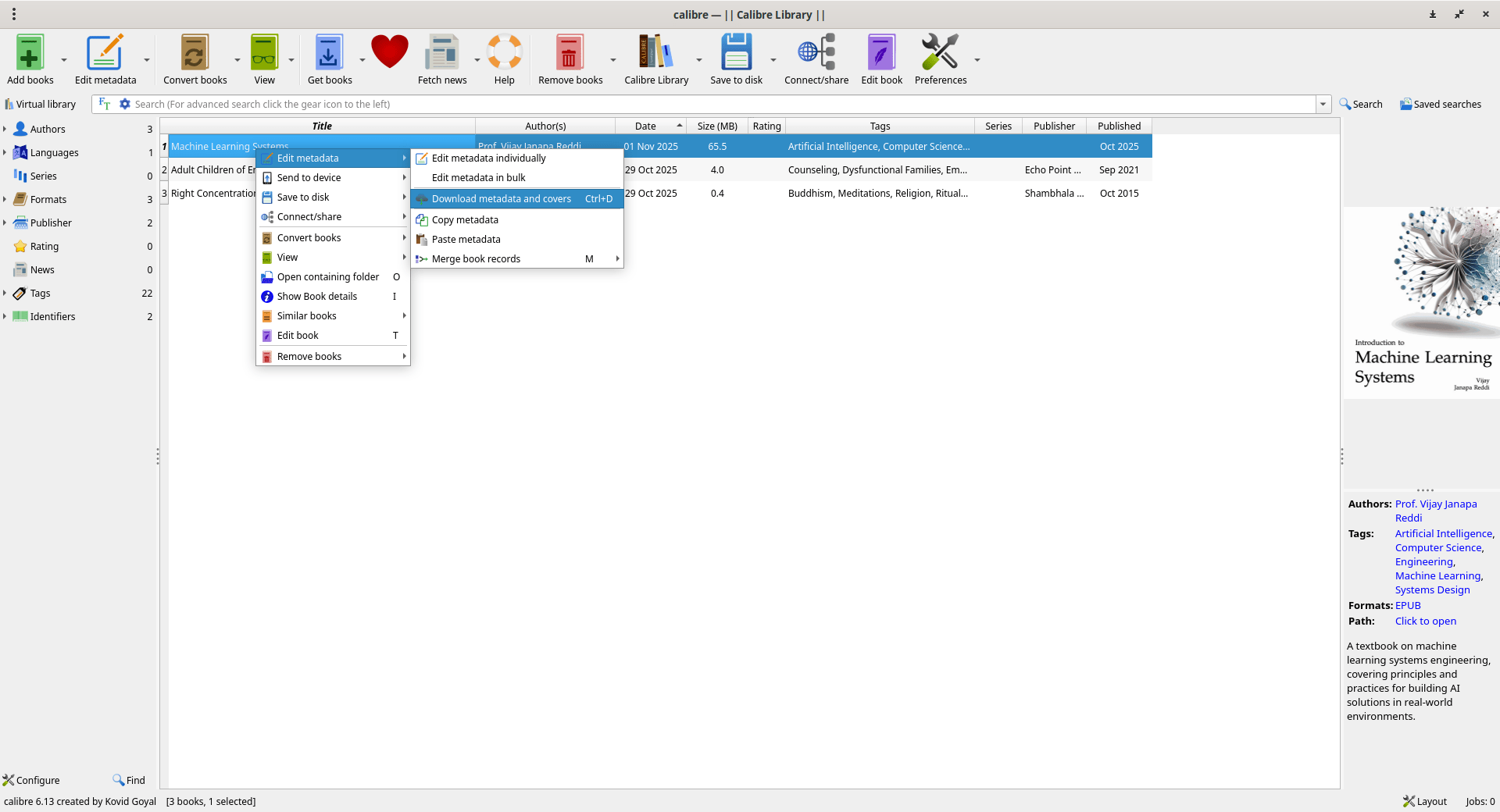
Calibre will instantly fetch the correct title, author, and a new cover image.
3. Next choose Convert Books. Select output format as EPUB. Under the EPUB output section, make sure the EPUB version is set to 2.
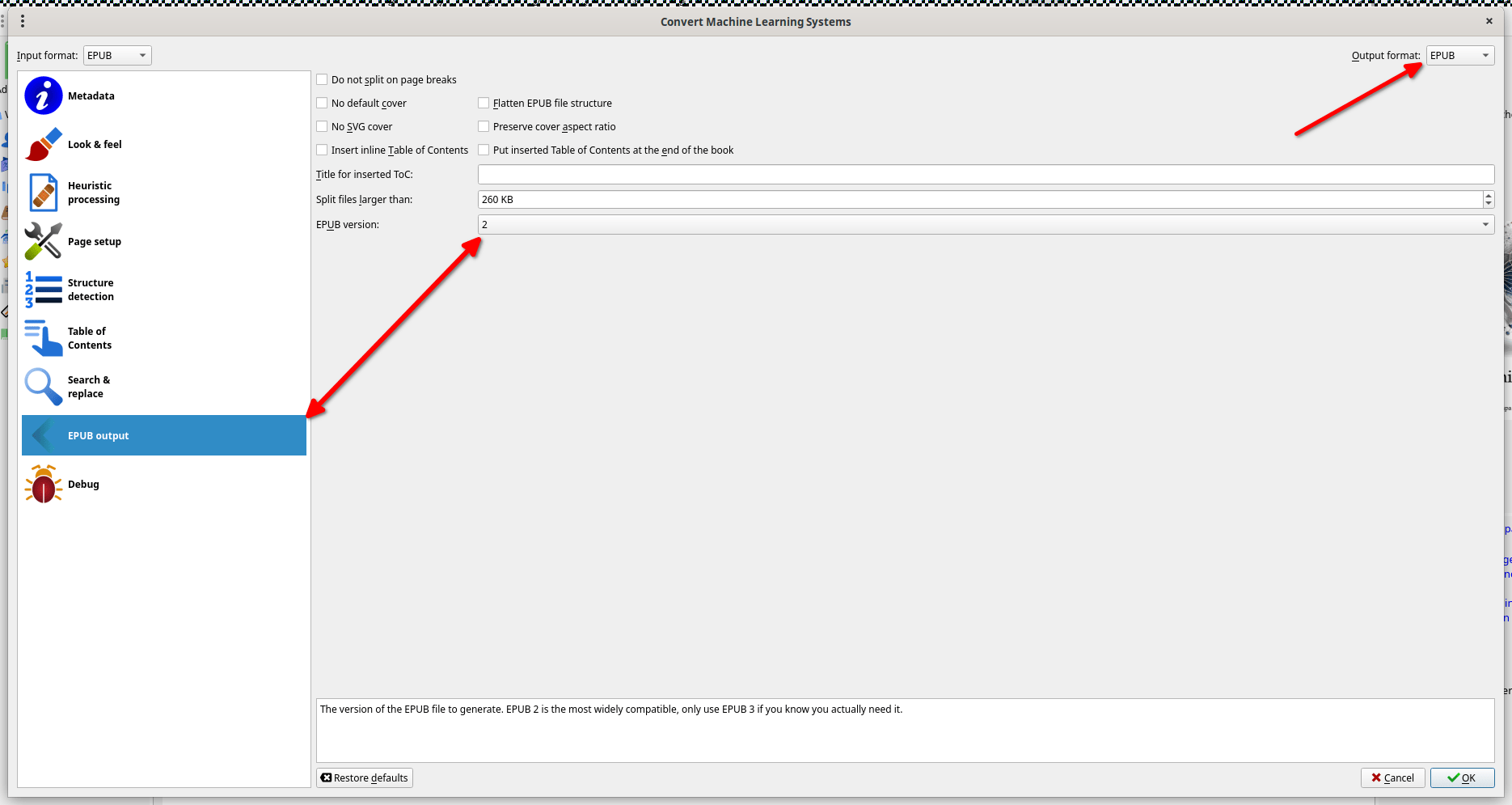
Click OK to start the conversion.
4. Save and upload the new file to Play Books. Your book should appear in your library within a minute.
I tried this method on multiple EPUBs. It worked immediately. The book appeared in my library with the right title, author, and cover art. I can now read it on my Android devices without any issues.
Summary
- Keep filenames short and avoid special characters.
- Always include a title, author, and cover before uploading.
- Convert any EPUB 3 files from the Internet Archive to EPUB 2.
- Use Calibre's "Check Book" tool to detect errors early.
- Sync books across Android devices via the Play Books cloud.
Hope this helps.
