
If you often take screenshots and then wish you could just grab the text from them, you'll like what spectacle-ocr can do. It makes the process quick, local, and private. Using spectacle-ocr, you can go from image → text in one step.
Not just screenshots, you can almost extract text from any images using this method. OCR (Optical Character Recognition) doesn’t care whether the text comes from a screenshot, photo, or scanned document. What matters is how clear and legible the text appears in the image.
Table of Contents
What is spectacle-ocr?
spectacle-ocr is a small utility that adds text extraction (OCR) directly to screenshots you take with the Spectacle screenshot tool on Linux (KDE environments).
spectacle-ocr utility connects two things:
- The screenshot tool Spectacle (for KDE systems)
- The OCR engine Tesseract
When you take a screenshot with Spectacle, you can choose "Extract Text" (or right-click an image → Extract Text). The script then:
- Runs Tesseract OCR to detect text in the image.
- Copies the recognized text straight to your clipboard.
- Shows a desktop notification confirming success or reporting an error.
This means you can quickly grab text from screenshots, for example, from an error dialog, PDF viewer, or web image, without needing to manually type or upload the image to an online OCR tool.
How It Works
Under the hood, here's how spectacle-ocr tool works::
- It uses Tesseract OCR (supports multiple languages; defaults to English).
- Uses ImageMagick to auto-resize or pre-process the image for better OCR accuracy.
- Detects whether you're using Wayland or X11:
- Uses
wl-copyon Wayland. - Uses
xclipon X11.
- Uses
- Sends desktop notifications using
notify-send. - Cleans up any temporary files after running.
Why use Spectacle-OCR?
- Fast workflow: You capture, you extract. No need to manually open a tool, import image, wait.
- Privacy-friendly: All processing happens locally. You don't upload your screenshot to some cloud service.
- Supports multiple languages: Tesseract supports many languages and the script allows for "lang=eng+…" combinations.
- Useful for blog authors or devs: If you capture error dialogs, code snippets, or documentation screenshots, you can extract the text and paste it into your editor instead of retyping.
- Minimal overhead: The script uses existing tools (ImageMagick, Tesseract, clipboard/notify utilities) so you don't install a heavy GUI if you don't want one.
Install spectacle-ocr in Linux
Method 1: Using the Installer Script
You can install it easily via the setup script:
git clone https://github.com/kbkozlev/spectacle-ocr
cd spectacle-ocr
bash setup.sh
The script:
- Installs dependencies (
tesseract-ocr,imagemagick,wl-clipboardorxclip,libnotify-bin,desktop-file-utils). - Adds a launcher called "Extract Text" for PNG files.
- Updates your desktop database.
After that, Spectacle will show an Extract Text option in its Export menu.
Please note that you must install Spectacle separately. This script will not install it automatically.
Method 2: Manual Install
If you hesitate to use random scripts, here is a safe manual install path you can follow.
Open your terminal and install the required dependencies. For example, on Debian, Ubuntu and its derivatives, run:
sudo apt update sudo apt install tesseract-ocr imagemagick wl-clipboard xclip libnotify-bin desktop-file-utils
(Use wl-clipboard for Wayland, xclip for X11.)
Download the spectacle-ocr files:
git clone https://github.com/kbkozlev/spectacle-ocr.git
cd spectacle-ocr
Copy the ocr.sh script to a location in your PATH (for example ~/.local/bin) and make it executable:
install -Dm755 ocr.sh ~/.local/bin/ocr.sh
Create a desktop entry for the "Extract Text" option:
mkdir -p ~/.local/share/applications
cat > ~/.local/share/applications/spectacle-ocr.desktop <<'EOF'
[Desktop Entry]
Name=Extract Text
Exec=sh -c "nohup ~/.local/bin/ocr.sh %f >/dev/null 2>&1 &"
MimeType=image/png;
Icon=scanner
Terminal=false
Type=Application
Categories=Utility;
StartupNotify=false
EOF
update-desktop-database ~/.local/share/applications || true
Now, when you have a PNG screenshot, you can right-click it and under "Open With" → "Extract Text" you will trigger the script. Or in Spectacle's Export menu you may get the option. The recognized text should land in your clipboard and you'll get a notification.
If at any point you want to uninstall:
rm -f ~/.local/share/applications/spectacle-ocr.desktop
update-desktop-database ~/.local/share/applications || true
rm -f ~/.local/bin/ocr.sh
Configuration
You can edit the ocr.sh script and change LANG="eng" to support multiple OCR languages, e.g.:
LANG="eng+deu"
Extend supported file types beyond PNG by modifying the .desktop file's MIME types.
Extract Text from Screenshots using spectacle-ocr
- Take a screenshot with Spectacle.
- Choose Export → Extract Text.
- The recognized text appears in your clipboard, and a desktop notification confirms success.
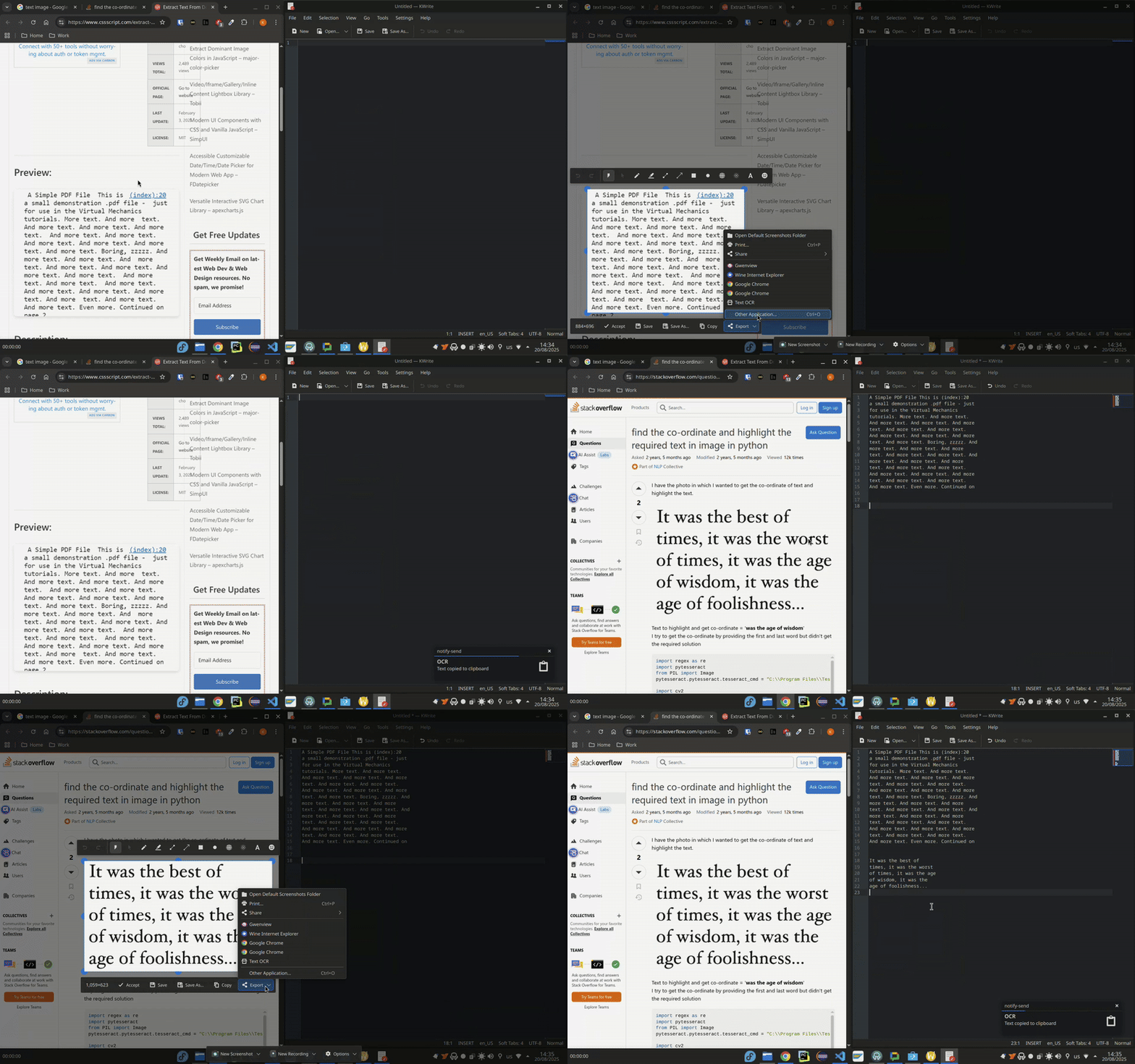
Extract Text from Images
Since this script use Tesseract OCR engine under the hood, you can use it directly to extract text from any image. In fact, You don't have to use any screenshot tool specifically. The script works for any image, regardless of how it was created (Spectacle, Ksnip, Flameshot, or even a camera photo).
To do so, simply pass an image path as an argument, and the script does the rest automatically.
ocr.sh ~/Pictures/screenshot.png
ocr.sh ~/Downloads/photo-of-book.jpg
ocr.sh ~/Desktop/error_dialog.png
Just make sure the images are clear and the text are readable!
Tips for Best OCR Results
- Make sure your screenshot has clear text (high contrast, readable font). OCR quality drops if text is blurry or low-resolution.
- If your screenshot tool saves a small image, you might enlarge it.
- If you use multiple languages (for example English + Hindi), install the Tesseract language packs (e.g.,
tesseract-ocr-hin) and edit theLANG="eng+hin"line inocr.shaccordingly. - If you run into errors like "policy.xml" issues with ImageMagick (some distros restrict certain operations), check
/etc/ImageMagick-*/policy.xml. - If you rarely use Spectacle and instead use another tool, you could still adapt the script path or use another screenshot tool plus the same OCR script, with minor edits. A quick web search or using AI can help.
When Spectacle-OCR Might Not Be Ideal
While spectacle-ocr works well, there are a few situations where you might want a different path:
- If you use a non-KDE desktop environment (GNOME, XFCE) and you don't want to install Spectacle or Qt/KDE dependencies. In that case a different screenshot + OCR workflow might feel more native.
- If you need heavy annotation/editing of screenshots (arrows, blur, stickers) plus text extraction, you might prefer a tool that combines capture → annotate → OCR in one.
- If your screenshot tool saves in a format other than PNG (e.g., JPEG) you should modify the
.desktopMimeTypeto includeimage/jpeg;. The default isimage/png;.
Related Read: KDE Spectacle Adds OCR Support To Copy Text Directly From Screenshots
Summary
spectacle-ocr acts as a local, privacy-friendly OCR bridge between Spectacle and Tesseract, letting you extract text from screenshots in one click. It's lightweight, integrates seamlessly with KDE, and avoids cloud dependencies.
It lets you go from image to clipboard text in a click. It uses trusted free, open-source components (Tesseract, ImageMagick).
If you want a fast and easy way to extract text from screenshots on Linux, spectacle-ocr might be a good choice.
For more details, please check the spectacle-ocr repository on GitHub.
Recommended Read:
