
Table of Contents
Quick Summary
- Google Chrome is silently downloading a 4 GB AI model (Gemini Nano) onto users' hard drives without explicit notification or consent.
- The file, typically named weights.bin, is intended to power on-device features like "Help me write" and scam detection.
- Its "stealth" installation has sparked a major controversy involving storage bloat, legal violations of GDPR and the ePrivacy Directive, and a massive environmental footprint estimated to be as high as 60,000 tonnes of CO2 emissions globally.
There is a 4GB AI File in Your Chrome Folder
If you have noticed your Desktop system's hard drive filling up lately, you are not alone. Many people are finding a massive 4GB file sitting quietly in their Google Chrome system folders.
This file, named weights.bin, has sparked a heated debate about privacy, our environment, and whether big tech should ask for permission before using your storage.
Please note that this is not a virus. But, it is a major change to your browser that Google did not clearly explain.
In the following sections, we explain what the weights.bin file is and why it has sparked controversy. We also show you how to locate and remove this AI model from your PC. Along the way, you will learn about the legal and environmental implications of this Chrome update.
What is the 4GB 'weights.bin' File?
The weights.bin file is a large binary, approximately 4.0 GB in size, that contains the trained parameters (weights) for Gemini Nano.
For those unaware, Gemini Nano is Google's "lightweight" Large Language Model (LLM) designed to run locally on a user's hardware rather than in the cloud.
The purpose of Gemini Nano is to power on-device AI features such as "Help me write", text summarization, smart paste, and on-device scam or phishing detection without sending your personal data to a remote server.
While running AI on your own PC can be better for privacy, it comes with a high storage cost. Even a small AI model like Gemini Nano requires billions of settings. On your disk, this looks like a 4GB file hidden inside a folder called OptGuideOnDeviceModel.
Why the Controversy?
The biggest problem is not the AI itself, but how Google put it there.
Most users never saw a "Yes" or "No" pop-up. Instead, Chrome checks your hardware to see if your PC is strong enough to handle the model.
If you have enough RAM and a good CPU/GPU, Chrome "silently" downloads the file while your computer is idle.
How does Chrome determine eligibility and execute the installation?
Chrome performs background hardware profiling to determine if a machine is capable of running the model before initiating the download.
- Eligibility Criteria: Chrome checks for a "performance class" based on CPU, GPU, system RAM, and available VRAM (typically requiring 16 GB of RAM or better).
- Installation Mechanic: Once eligible, the browser uses the
OnDeviceModelComponentInstallerto fetch the multi-gigabyte weights directly from Google's servers when your system is idle. The process can take approximately 14 minutes to unpack and move the file into theOptGuideOnDeviceModeldirectory without any human input or notification.
Deceptive Design
There is also a major transparency issue. Research shows a "deceptive design" in how this works. Chrome recently added an "AI Mode" button in the address bar. However, that button often sends your data to Google’s cloud servers anyway.
This means you are paying the storage price for a local model that your browser might not even use for its main features. So what’s the point of downloading such a massive file in the first place?
The Hidden Climate and Data Cost
The environmental cost of this update is shocking when you look at the global scale.
According to the experts from "That Privacy Guy", pushing a 4GB file to an estimated 1 billion Chrome users creates between 6,000 and 60,000 tonnes of CO2 emissions.
To put that in perspective:
- At the high end, this one update creates as much pollution as 13,000 cars driving for a whole year.
- The energy used for the download (about 240 GWh) could power over 70,000 homes for a year.
- For users with capped or expensive mobile data, this "silent" 4GB download can wipe out a month's worth of data in minutes.
Is This Legal?
Privacy experts argue that this silent install may break the law. In Europe and the UK, rules like the ePrivacy Directive forbid companies from storing files on your device without your clear, informed consent.
Because Google puts this 4GB file on your disk before you even know it exists, many believe they are violating these privacy rights.
How to Find the Gemini Nano AI Model in Google Chrome
You can find the file in your Chrome user folders. Look for a directory named OptGuideOnDeviceModel.
You can find this folder here depending upon the OS type:
- Windows:
%LOCALAPPDATA%\Google\Chrome\User Data\Default\OptGuideOnDeviceModel - Mac:
~/Library/Application Support/Google/Chrome/Default/OptGuideOnDeviceModel - Linux:
~/.config/google-chrome/Default/OptGuideOnDeviceModel
I used QDirStat disk analyser tool in my Debian Linux system to verify this. Take a look at the following screenshot.
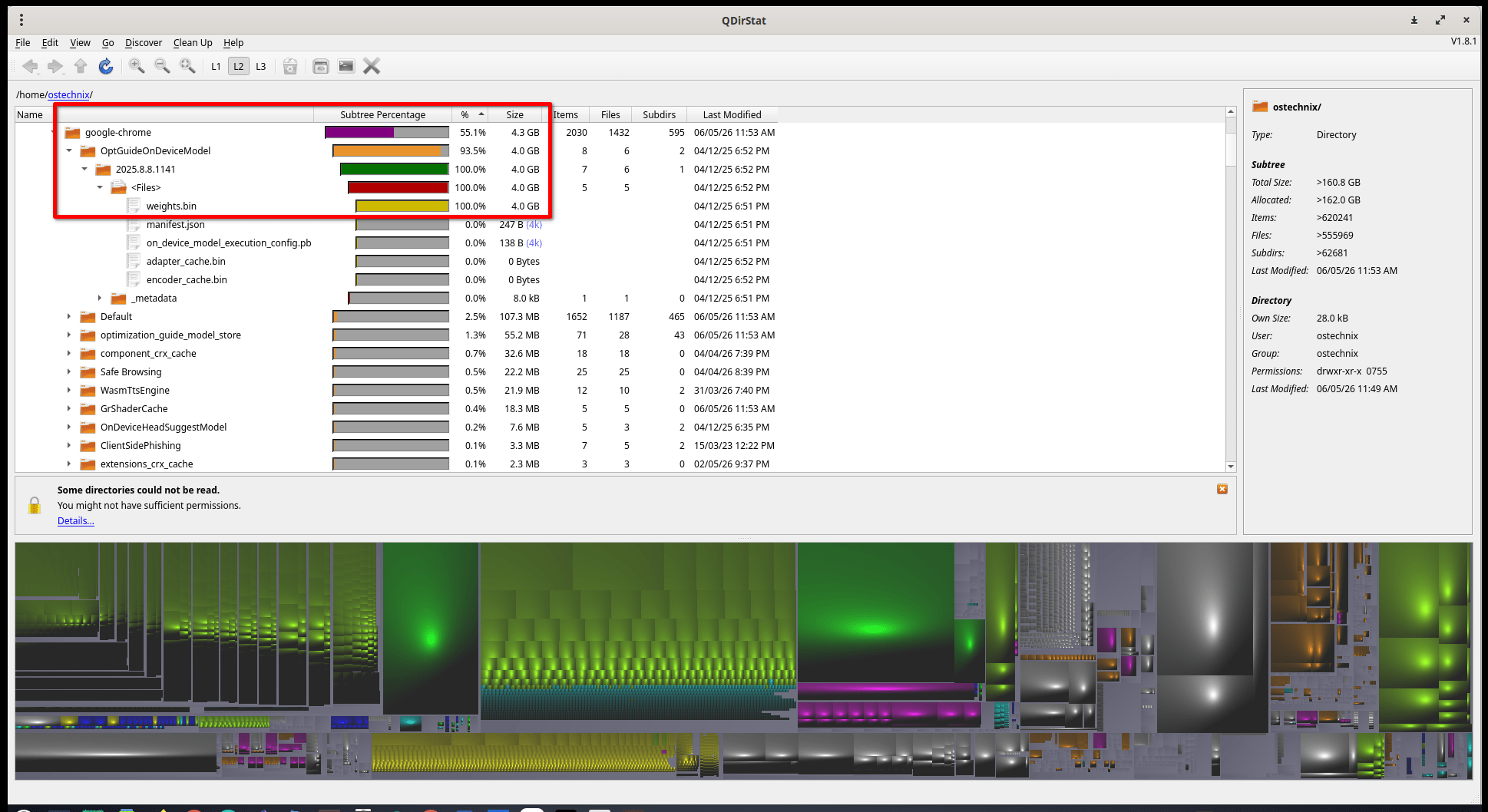
The above QDirStat image confirms the 4.0 GB size claim for the AI model. Specifically, the visual report shows that within the google-chrome directory, the OptGuideOnDeviceModel folder occupies 4.0 GB, which accounts for approximately 93.5% of the total subtree size for Chrome on my Debian system.
Inside that folder, the file named weights.bin is explicitly listed as being 4.0 GB in size.
How to Delete the AI Model in Google Chrome
If you want to reclaim your 4GB of space, do the following:
The Easy "One-Click" Uninstall
The fastest way to remove the model is through Chrome's own internal tool. Type chrome://on-device-internals/ into your address bar.
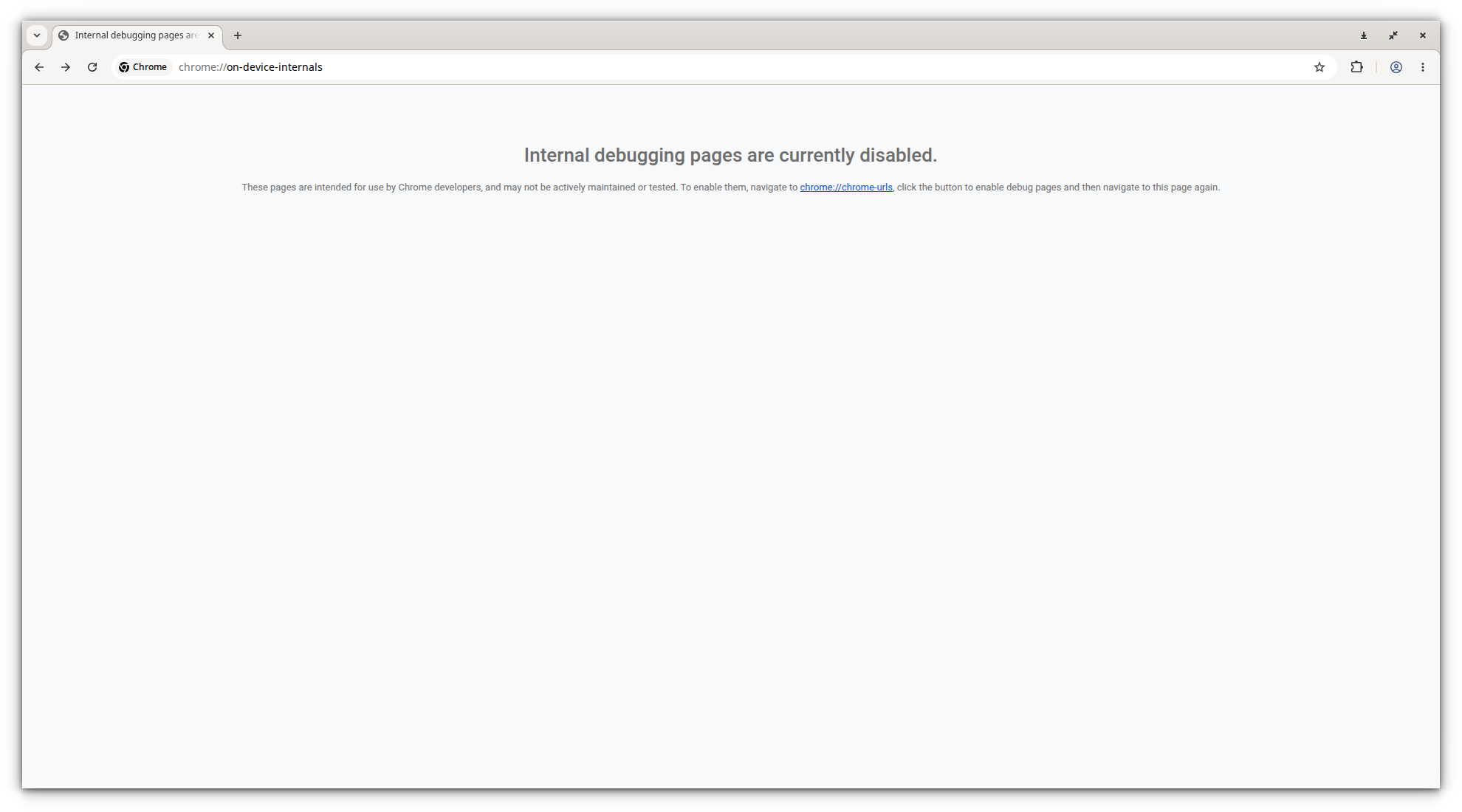
You will see window like below if you haven't enabled the "Internal debugging pages" yet.
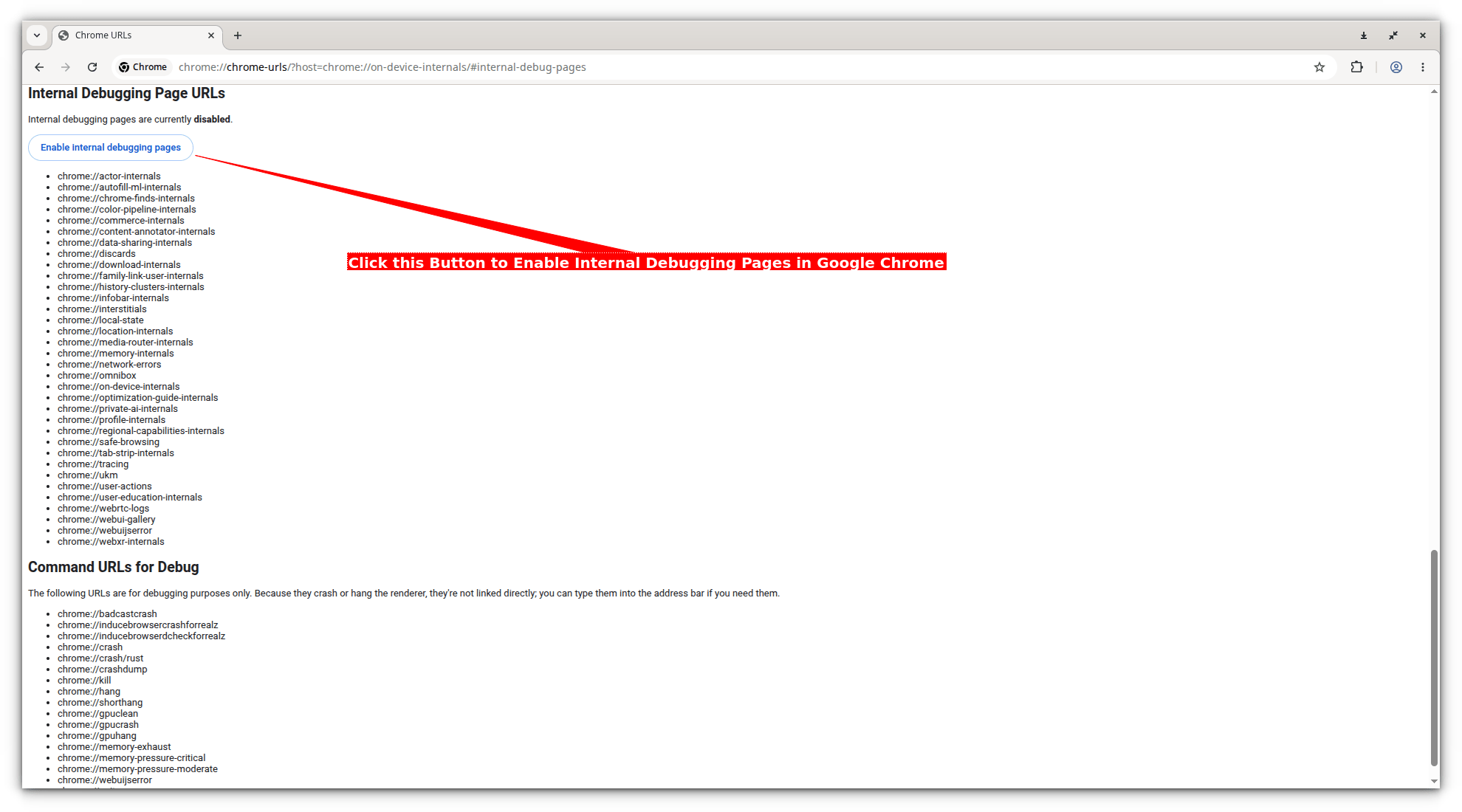
To enable them, navigate to chrome://chrome-urls, click the button to enable debug pages and then navigate to this page again.
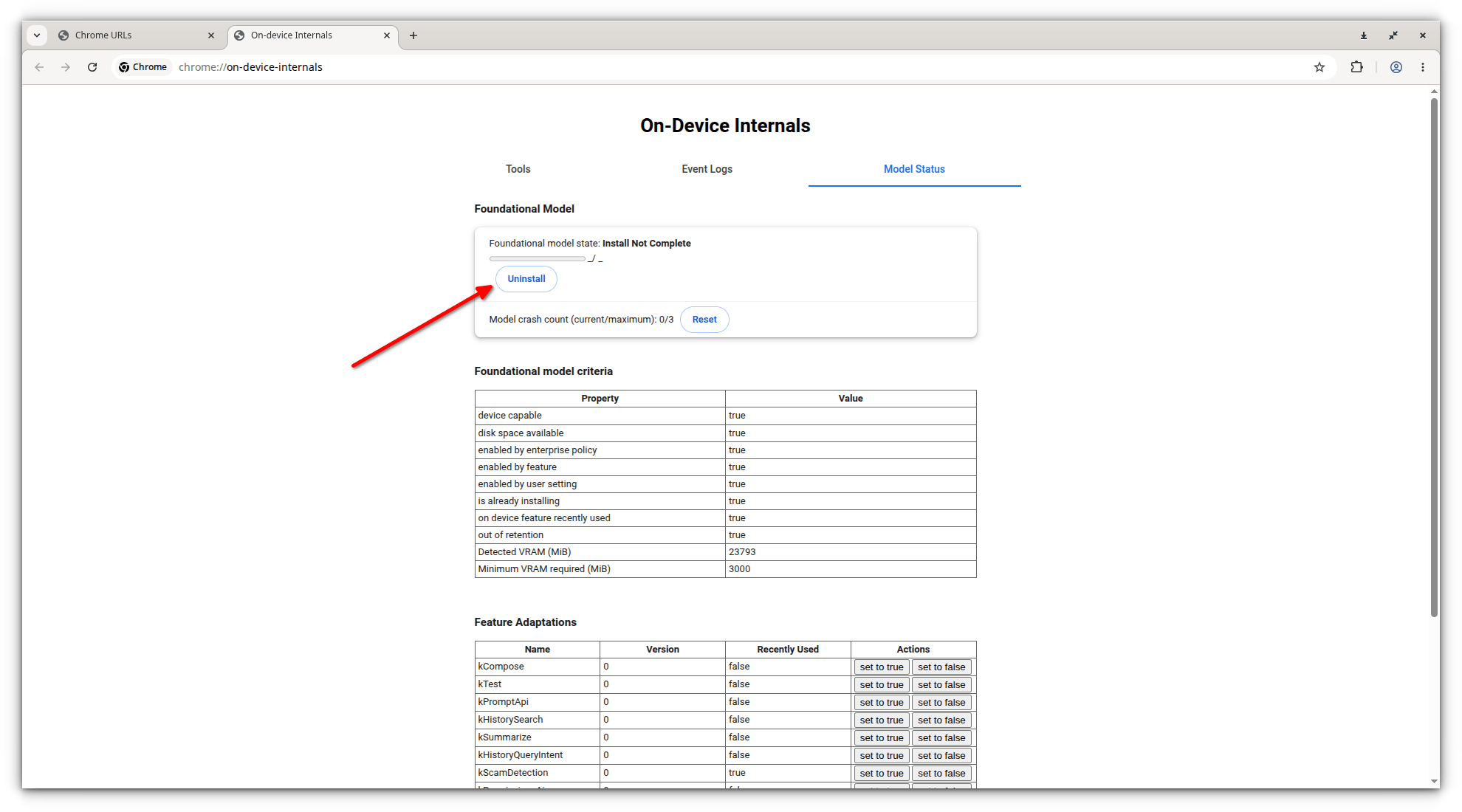
Look for the "model status" section and click the uninstall button.
How to Stop the Re-Download the AI Model
If you just delete the file, Chrome will usually automatically download it again the next time you are not using your computer. To stop this, you must turn off the experimental "flags" that control the AI:
Open Chrome and type chrome://flags in the address bar and hit ENTER key.
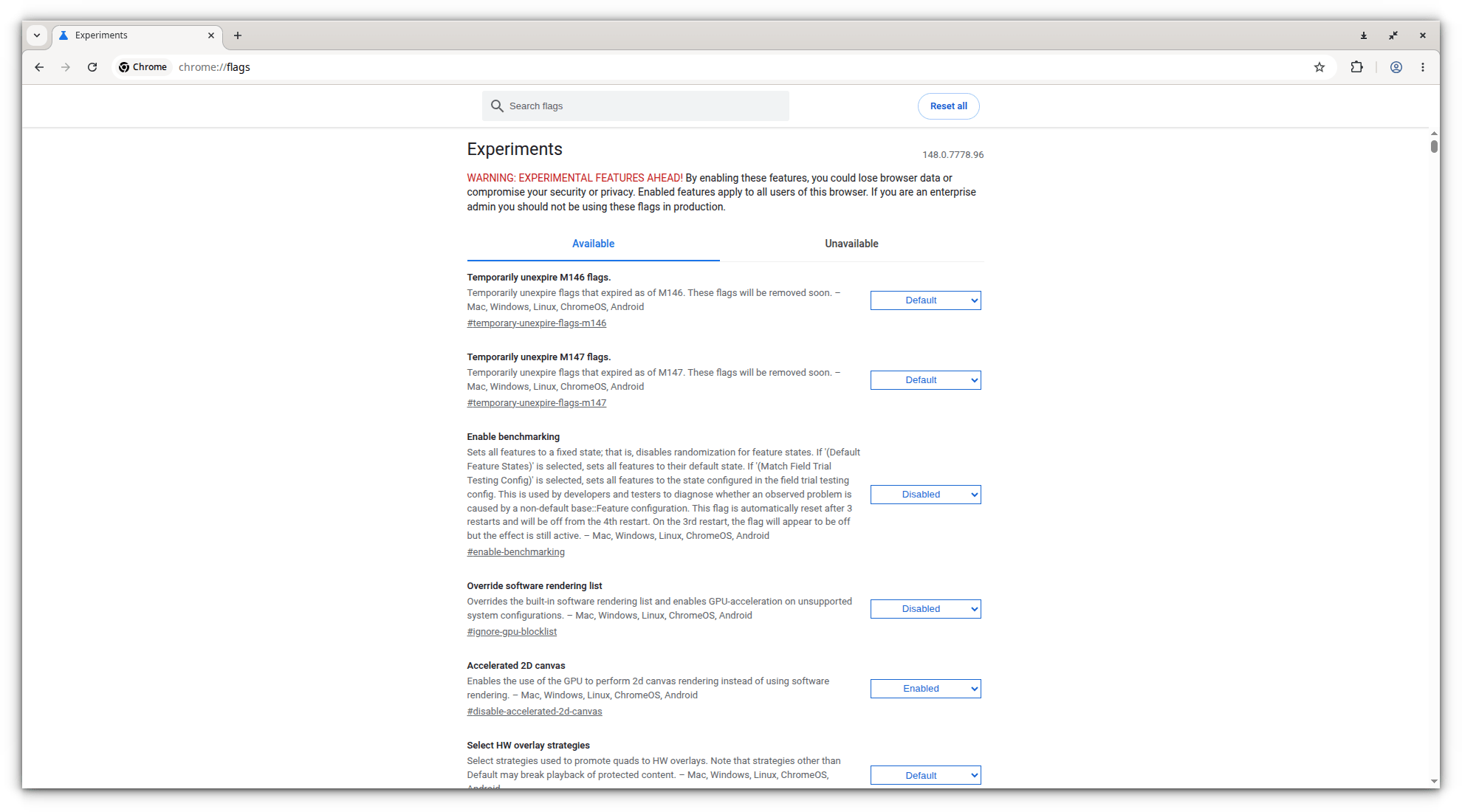
Search for and Disable these two flags:
#optimization-guide-on-device-model#prompt-api-for-gemini-nano.
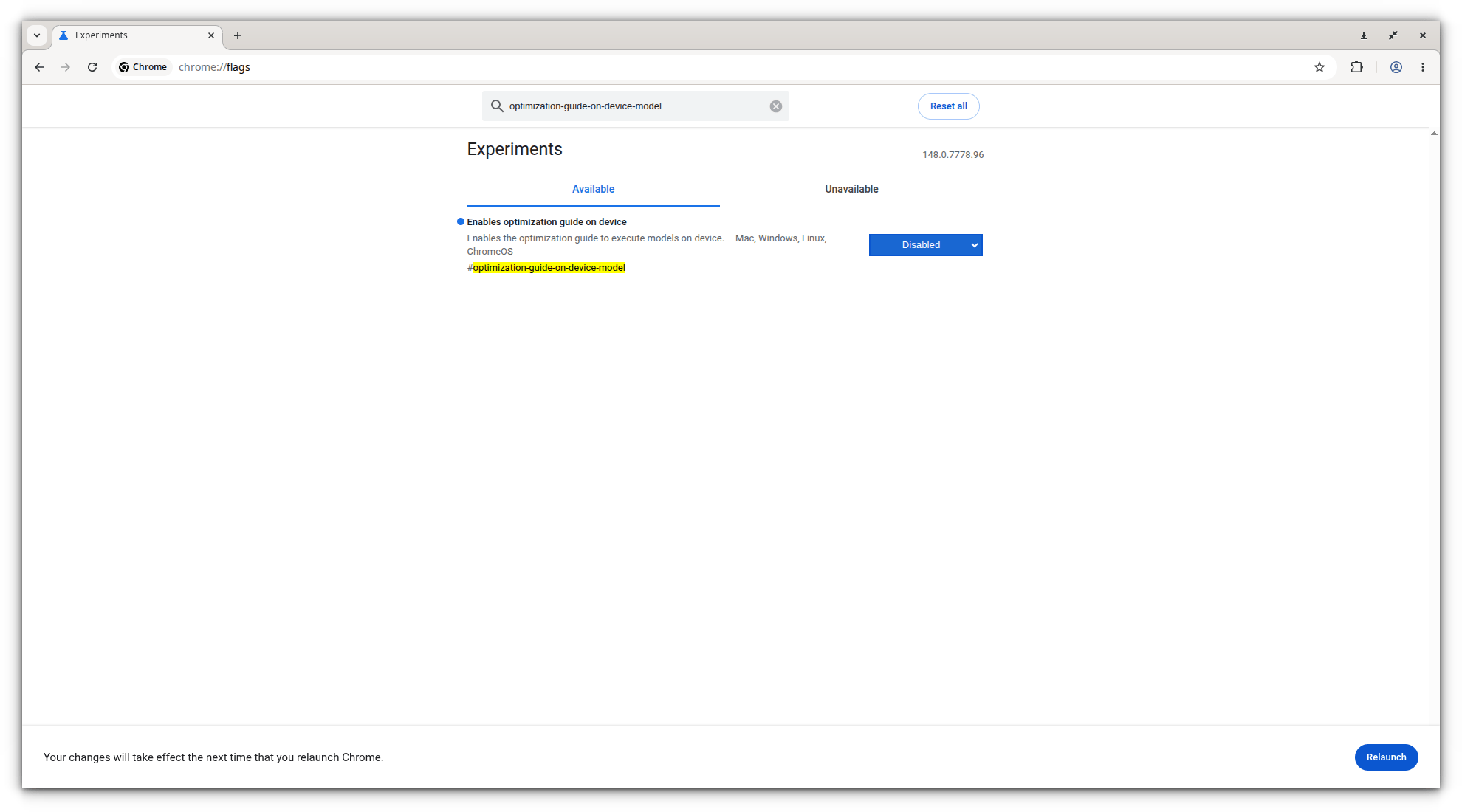
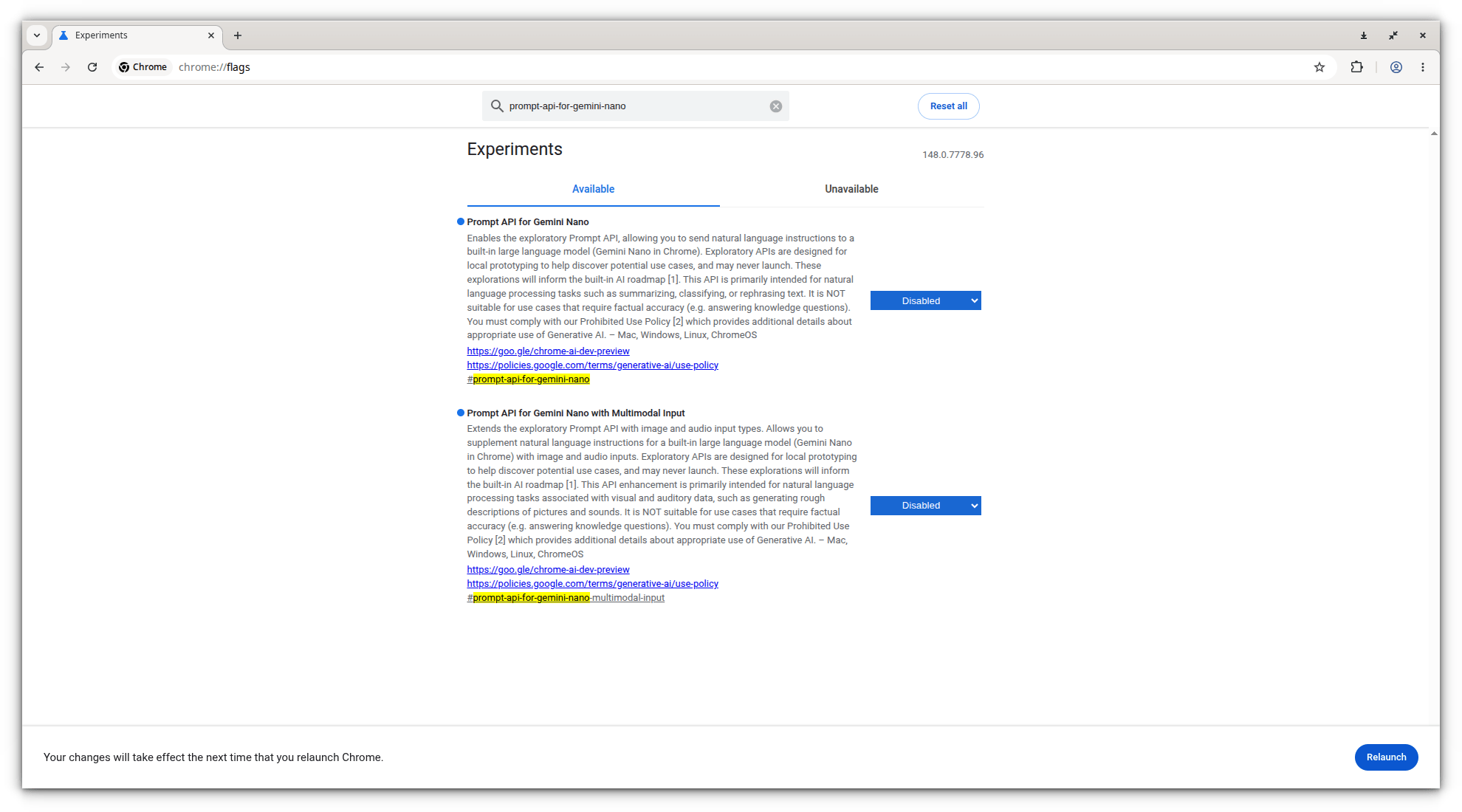
Once you disabled both flags, restart your browser.
If you're an advanced Linux user, you can change the owner of the OptGuideOnDeviceModel folder to the root user. This stops Chrome from having the permission to write the file back to your drive.
The Linux users can also use the chattr +i command to make the directory immutable. More details on chattr usage can be found in the following guide:
Final Thoughts
As AI becomes part of our daily tools, the line between a "helpful update" and "unwanted junk" is getting blurry. By taking these steps, you can stay in control of what actually belongs on your hard drive.
While some argue that this is just a routine update needed for modern browser features, others see it differently. They view it as a loss of user control, comparing it to bloatware or even spyware, because it offers little transparency or choice for the end user.
