
Even if you use a screen lock, review app permissions, and maybe even run a VPN, these are just the first steps of privacy. But there is another layer of privacy settings that often goes overlooked, despite being directly in your phone’s menus. These settings can significantly improve phone privacy, and should be configured. In this guide, we will cover some hidden phone privacy settings and explain why, for security-conscious users, they deserve a closer look.
Table of Contents
Advertising Identifiers: The Tracking Layer Built Into Your OS
A phone's advertising identifier is one of the most overlooked privacy settings on mobile devices.
Android uses the Google Advertising ID, while Apple uses the Identifier for Advertisers. These identifiers allow apps and advertising networks to recognize your device across sessions and build advertising profiles. Many users don’t know they exist and have never changed these settings.
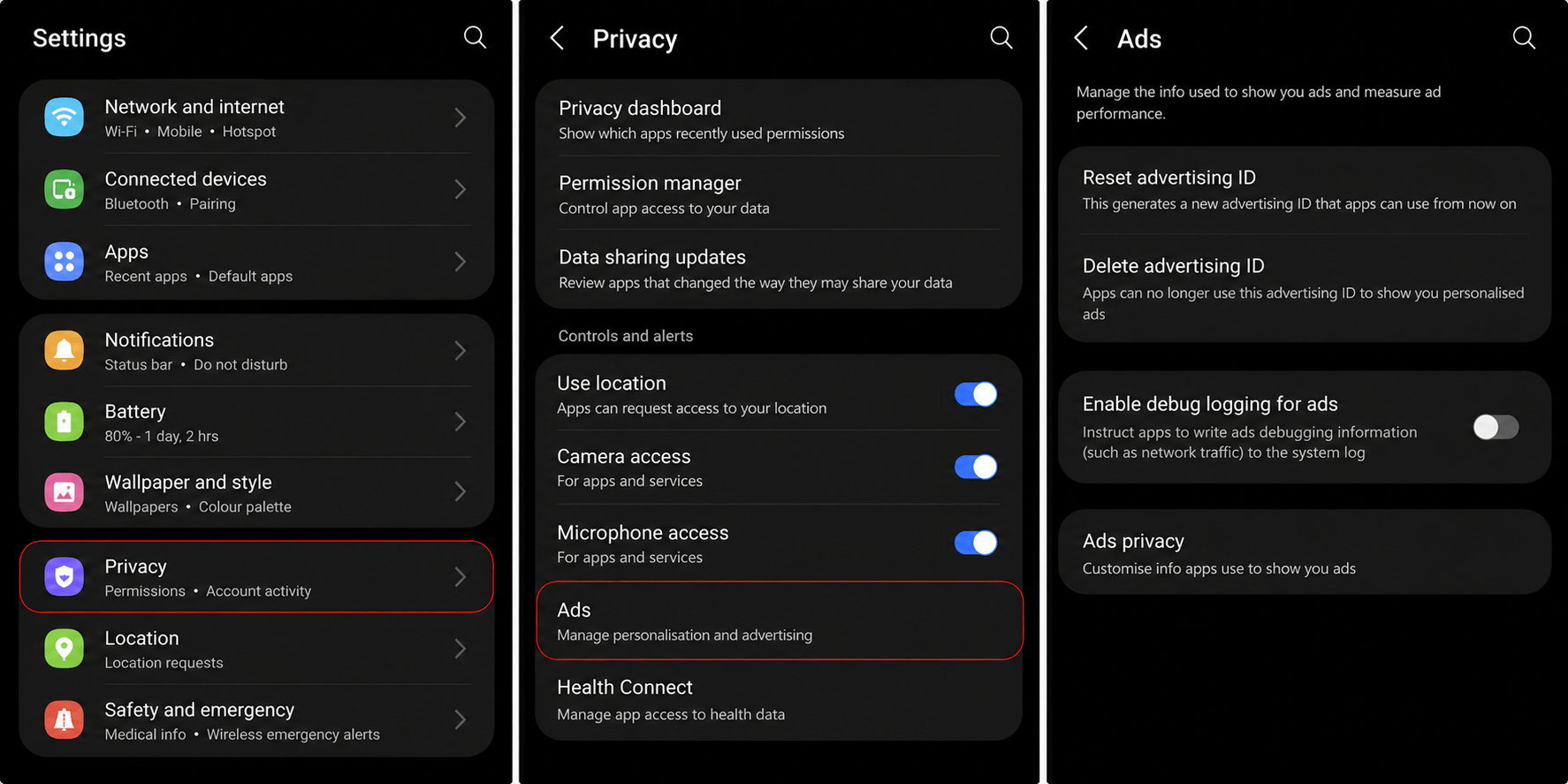
On Android, Google currently allows you to reset and delete the advertising ID by going to Settings → Privacy → Ads. Deleting the Advertising ID causes apps to receive a string of zeros instead of a usable identifier. This reduces cross-app tracking, with some older Android versions allowing opt-out options.
On iPhone, Apple no longer lets apps access the Identifier for Advertisers unless you allow it. This is the pop-up you might have seen when launching apps for the first time.
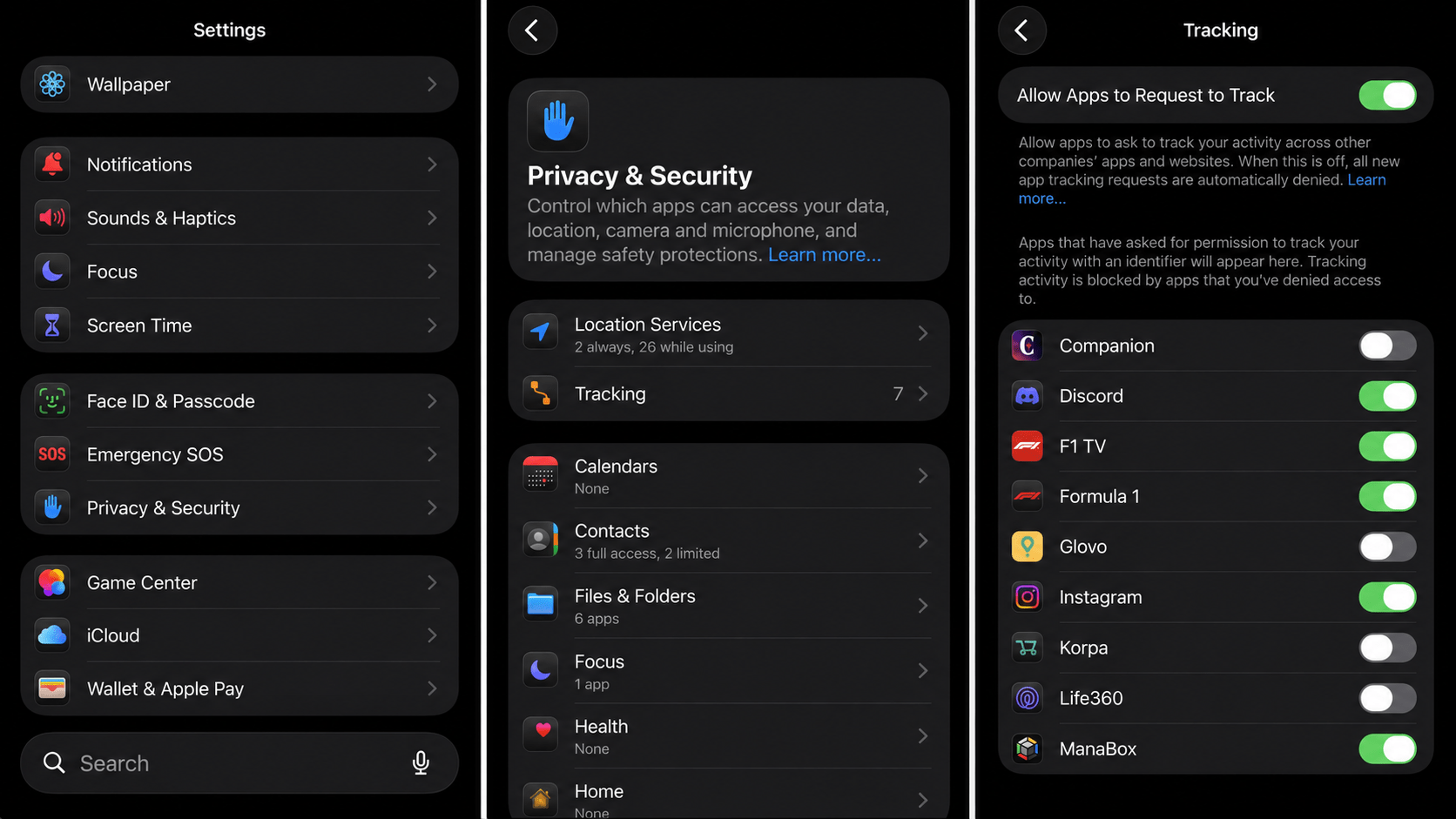
To change app tracking permissions in iPhone, you can go to Settings → Privacy & Security → Tracking. If Allow Apps to Request to Track is disabled, apps cannot ask for permission to use your ID.
This matters because advertising IDs aren’t just about showing relevant ads. Data collected through these identifiers quickly becomes part of larger data broker ecosystems. Disabling these identifiers will reduce persistent cross-app tracking, although it does not eliminate every form of data collection.
Diagnostic and Usage Data: What Your Phone Sends Without Asking
Phones regularly collect diagnostic information to help Apple and Google improve their software. This information ranges from:
- Crash reports
- Performance information
- App usage statistics
- Device configuration details
- Voice assistant interactions
These reports are crucial for software improvement, but not everyone wants to share that data. To stop or limit sharing on iPhone review:
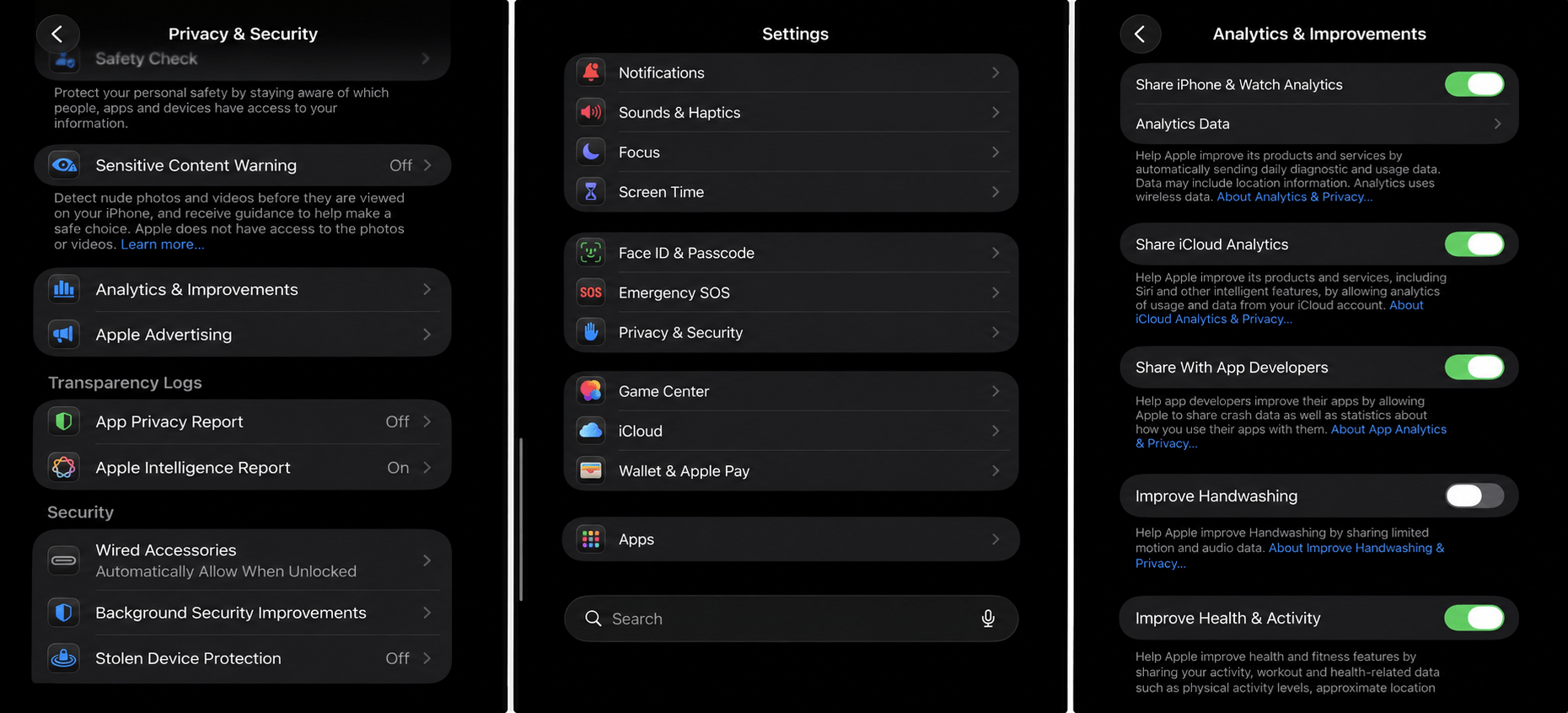
- Settings -> Privacy & Security -> Analytics & Improvements
- Disable fields you don't want to share
- Also, under Share iCloud Analytics, you can check managed data separately
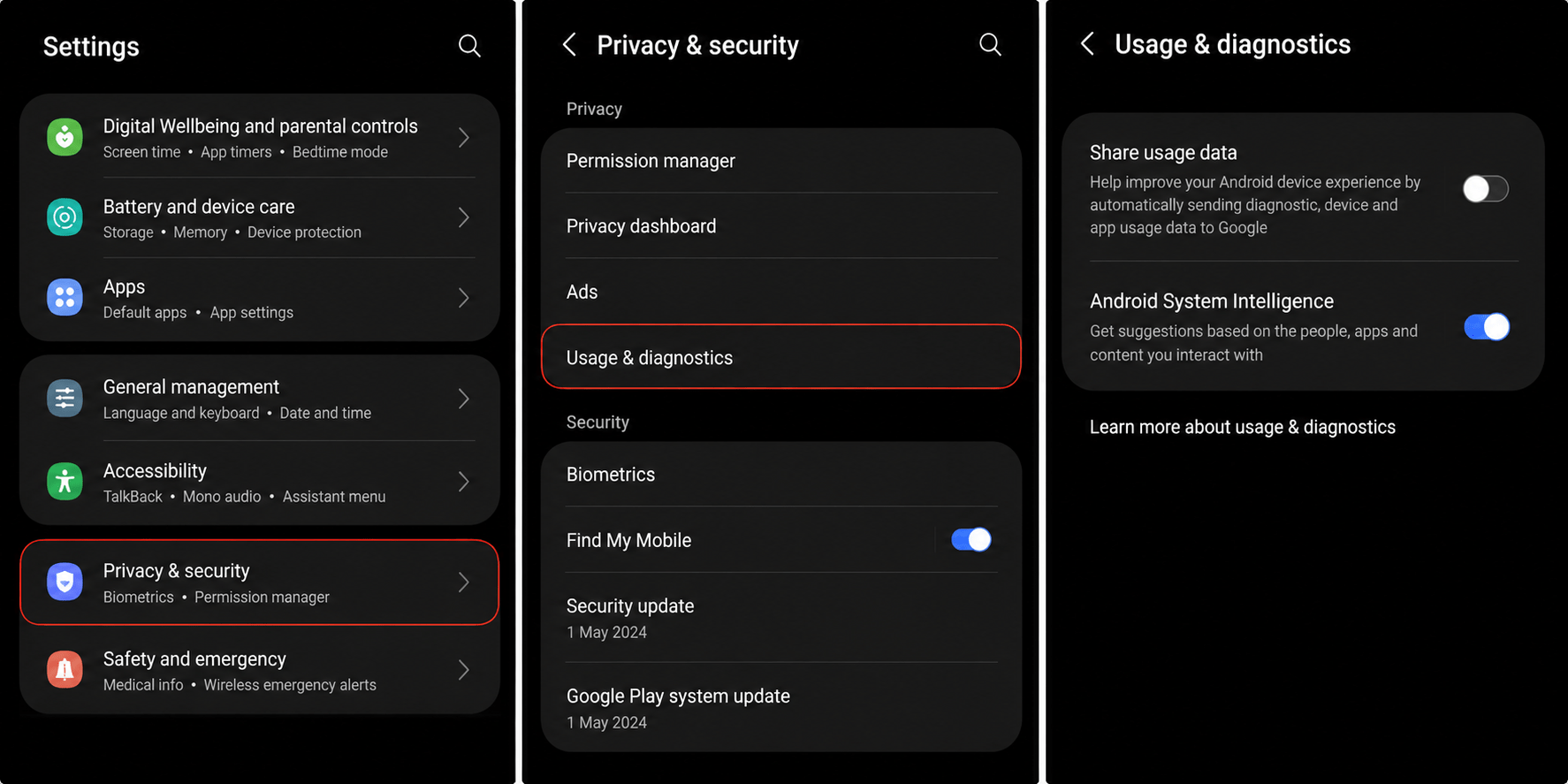
On Android, the exact location will vary by manufacturer, but can generally be found under:
- Settings → Privacy & Security → Usage & diagnostics
- Alternatively, you can search for Diagnostics
- Just like on iPhone, disable fields you don’t want to share
It takes just five minutes to review every option and opt out of diagnostic sharing programs.
This kind of privacy hygiene is simple, but it only solves part of the problem: your phone number is likely still floating around dozens of data broker sites, ready for anyone to find. That's why it's worth taking the time to learn how to make your number private before exposure turns into a real problem.
It matters because numbers are tied directly to two-factor authentication and account recovery. A leaked number doesn't just mean spam calls, it's a foothold hackers can use to get past your security altogether. Data brokers move fast, so the sooner you lock this down, the smaller your exposure window.
Phone Number Exposure: The Setting Most Users Have Never Checked
Phone number exposure is common as numbers appear in searchable databases that collect data from:
- Account registrations
- Contact uploads
- Social media
- Public records
- Data brokers
This exposure creates opportunities for phishing, spam calls, SIM swap attempts, and even identity profiling.
You can check who can discover your phone number through your Phone privacy settings. It is also beneficial to contact your carrier and check for directory listings or caller directory services. If available, opt out to keep your number more private and much harder to discover.
SIM PIN and Carrier Security: The Underused Protection Layer
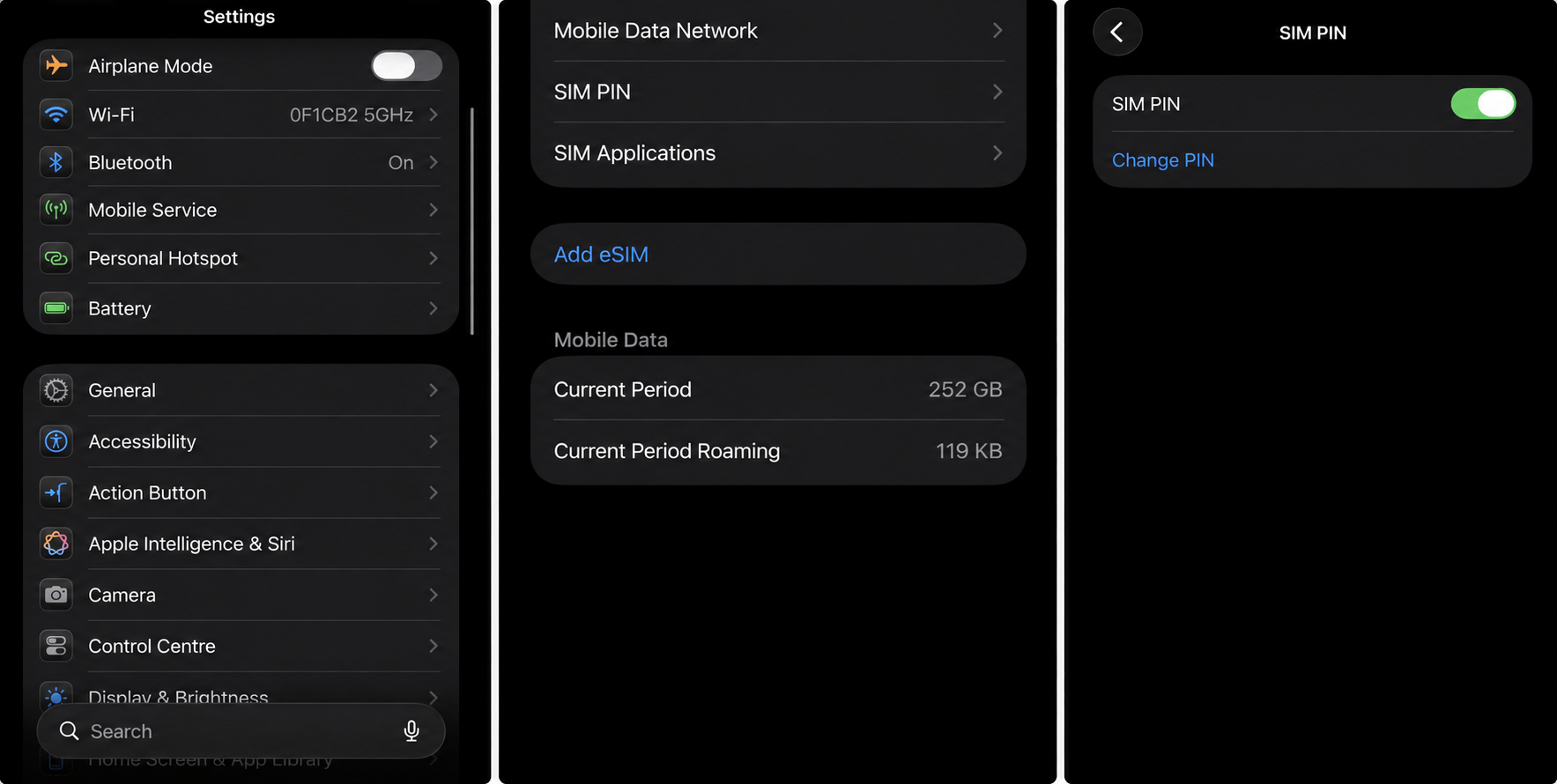
SIM cards are susceptible to SIM-swapping, which makes SIM PINs very important. These PINs are required whenever the phone restarts or a SIM is inserted into another device.
A strong PIN rather than the default 1234 or 0000 that carriers put on SIMs. Unique numbers make it difficult for stolen SIMs to be accessed and are easy to enable:
On iPhone:
Go to Settings → Mobile Service→ SIM PIN.
On Android:
Go to Settings → Security & privacy → Sim card lock.
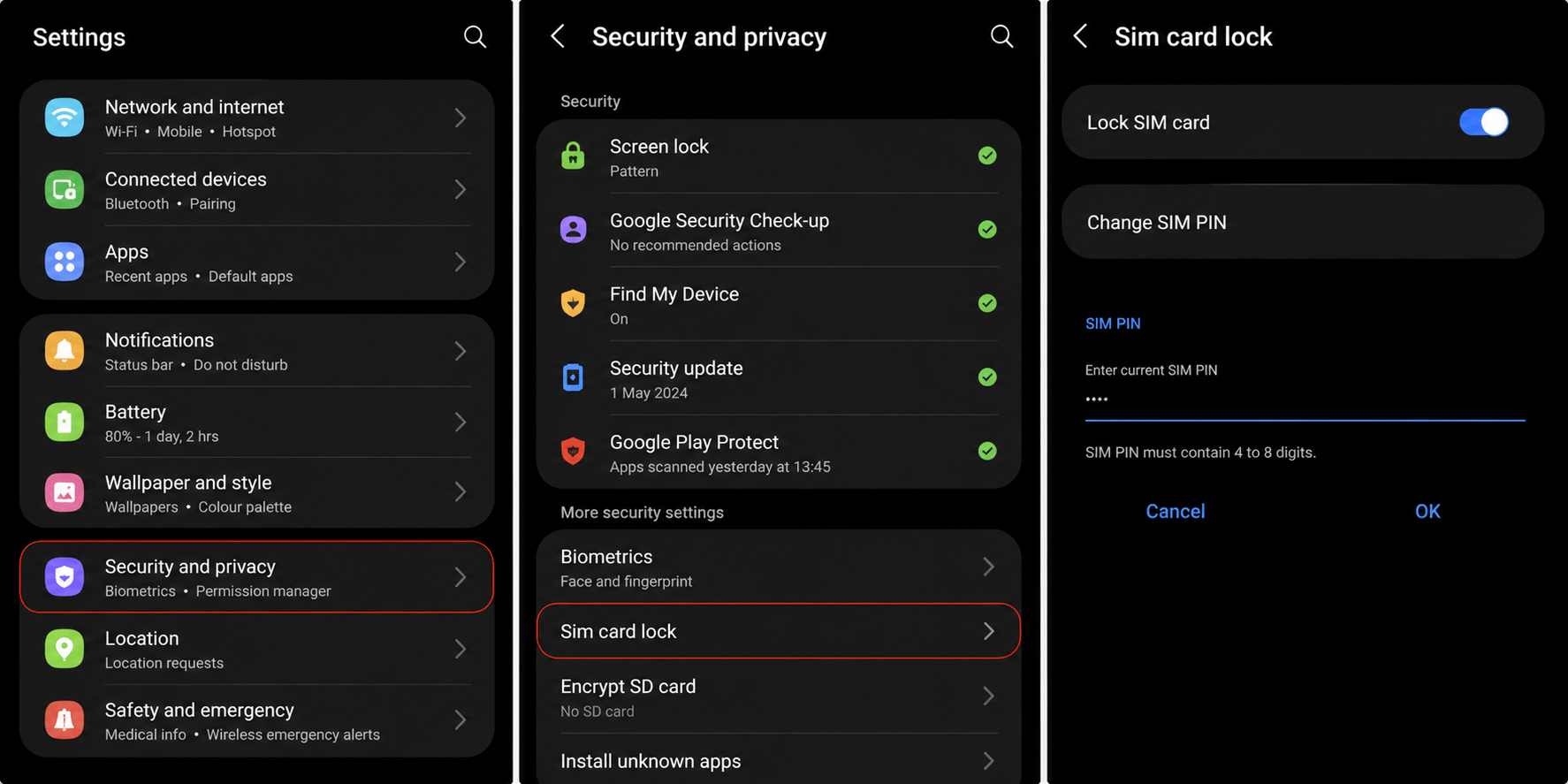
Be warned: entering the wrong PIN too many times can lock the SIM until you enter the carrier's PUK code. Also, you should set a carrier account PIN, which is a separate PIN that protects your carrier account from unauthorized changes.
App Permissions: Beyond the Install-Time Screen
Permissions should never be a one-time decision. Apps change. Features change. Your habits change too. Review permissions every month.
On Android, open Settings → Privacy → Permission Manager. Here you can quickly see which apps can access the camera, microphone, contacts, calendar, files, and location. Pay special attention to location.
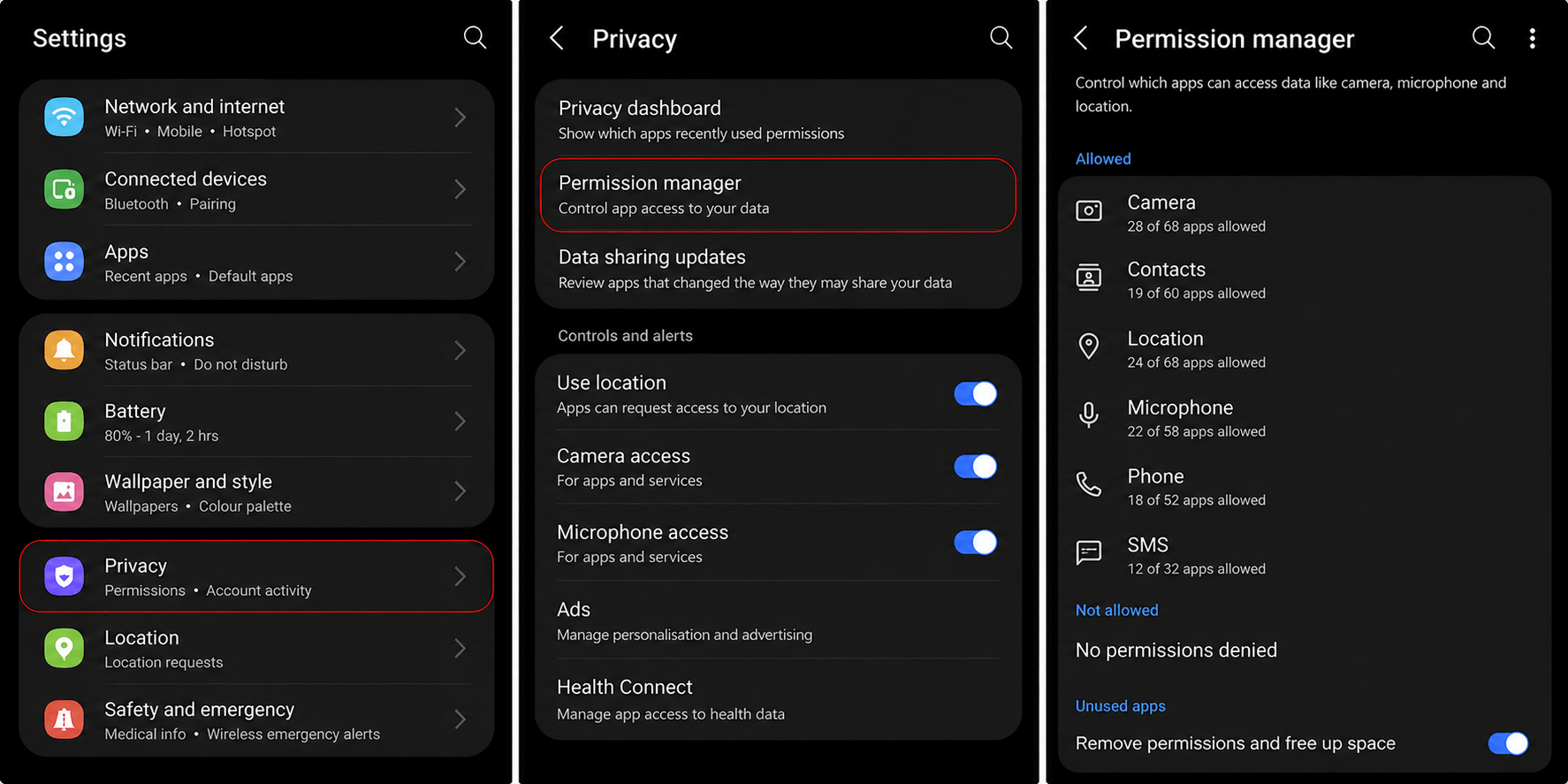
Most phones offer options like Always, Allow only while using the app, or Don't allow. If a weather app only needs your location while it's open, why allow constant access?
On iPhone, also review Background App Refresh, since many apps hold onto access they no longer need.
Private DNS, Emergency SOS, and the Settings That Cut Both Ways
Some of the most powerful privacy settings receive almost no attention, and they often involve a trade-off.
Android's Private DNS lets you route lookups through an encrypted provider like Cloudflare or Quad9, shielding domain requests from casual network snooping. Emergency SOS can automatically contact services, share your location, and notify contacts during a crisis-genuinely lifesaving, but worth knowing exactly what it shares.
There is value in keeping data off servers you don't control. Tools like Localsend, an open-source alternative to proprietary file-sharing tools, let you transfer files directly between devices without routing them through the cloud. This is a good instinct to develop and apply elsewhere as well.
Find My and Find My Device trade constant location access for a much better shot at recovering a lost phone. None of these settings has a universally right answer. What matters is choosing deliberately, setting by setting, instead of leaving every default untouched.
Privacy, in the end, isn't a single switch; it's a habit of paying attention.
Related Read:
