
XLibre is a community-run project that builds a display server, which is the core software responsible for drawing windows and handling your mouse and keyboard on your screen. It is an implementation of the X11 protocol, a standard that has powered Linux desktops for decades.
This project forked from X.Org with a clear mission: to fix old bugs and bring back features that had stalled for years.
If you use Fedora or a Red Hat-based system, you can now switch to XLibre safely. This guide will show you how to install XLibre X11 Server on Fedora and Enterprise Linux, such as RHEL, AlmaLinux and Rocky Linux.
Table of Contents
What is XLibre?
XLibre is an independent, community-driven fork of the X.Org Server that launched to modernise the aging X11 protocol.
Its mission is to cleanup legacy code, backport critical security fixes, and integrate features, such as TearFree by default and atomic modesetting, that were previously unreleased or limited to Xwayland.
Why XLibre Was Created
The project began on June 5, 2025, when it "forked" from the original X.Org Server. The contributors felt that the original X.Org code was becoming neglected as the industry shifted toward a newer display system called Wayland.
XLibre's mission is to:
- Clean up and strengthen the old code to make it more stable for the future.
- Bring back features and security fixes that had been stuck in development or only available for Wayland users.
- Maintain backward compatibility, so your older Linux apps still run perfectly.
Key Features
XLibre includes several technical improvements that you might notice during daily use:
- Smooth Video: It enables "TearFree" by default, which prevents your screen from looking like it’s "splitting" during fast-moving videos or games.
- Better Security: It introduces a feature called Xnamespace, which helps keep different apps separated from each other for better privacy.
- Modern Support: It supports atomic modesetting, a modern way for your graphics card to talk to your monitor more efficiently.
Compatibility and Support
XLibre is designed to work with many popular Desktop Environments like Cinnamon, XFCE, MATE, and LXQt. But, some newer versions of environments like GNOME 50+ and KDE Plasma 7+ are planning to drop support for X11 systems entirely, which would include XLibre.
Many Linux distributions have already embraced XLibre:
- Official Support: Distros like Artix Linux, Devuan, and GhostBSD have officially added it to their systems.
- Third-Party Support: For Fedora, Debian, and Ubuntu users, volunteers maintain special repositories (like Copr for Fedora) so you can easily install it.
Install XLibre X11 Server on Fedora and Enterprise Linux
Install XLibre Xserver on Fedora and EL 9
Setting up XLibre on Fedora Workstation, CentOS Stream, or Enterprise Linux 9 is very simple. You just need to use the XLibre official Copr repository.
1. Enable the XLibre Copr Repository
Open your terminal and type:
sudo dnf copr enable @xlibre/xlibre-xserver
2. Install the XLibre Packages
Once the repo is active, run:
sudo dnf install xlibre-xserver xlibre-xf86-input-libinput
Special Steps for Enterprise Linux 10
If you use Enterprise Linux 10 or AlmaLinux 10, you must follow a slightly different path. The developers warn that using the standard dnf copr enable command might cause version conflicts with other software.
Instead, you should download the repository file directly using the wget tool.
Red Hat Enterprise Linux 10:
sudo wget https://copr.fedorainfracloud.org/coprs/g/xlibre/xlibre-xserver/repo/rhel+epel-10/group_xlibre-xlibre-xserver-rhel+epel-10.repo -O /etc/yum.repos.d/xlibre-xserver-rhel+epel-10.repo
AlmaLinux 10:
sudo wget https://copr.fedorainfracloud.org/coprs/g/xlibre/xlibre-xserver/repo/alma+epel-10/group_xlibre-xlibre-xserver-alma+epel-10.repo -O /etc/yum.repos.d/xlibre-xserver-alma+epel-10.repo
After you download the correct file for your version, you can install the packages using command:
sudo dnf install xlibre-xserver xlibre-xf86-input-libinput
This extra step keeps your system stable and avoids "broken" dependencies.
Setting Up Your Nvidia Graphics Card
XLibre works well with many graphics drivers, including AMD and Intel. It also supports the newest Nvidia drivers. But, Nvidia users need to change one setting to make everything work perfectly.
Because XLibre uses a newer internal structure than old Xorg, the Nvidia driver might think it is incompatible. You can fix this by adding a small bit of text to your configuration file at /etc/X11/xorg.conf.
Edit the xorg.conf file:
sudo nano /etc/X11/xorg.conf
Add these lines to tell the system to ignore version checks:
Section "ServerFlags"
    Option         "IgnoreABI" "True"
EndSection
Recent updates to XLibre (version 25.1.5) have improved this further by helping the server act more like the original Xorg for better driver support.
Switch to XLibre Xserver
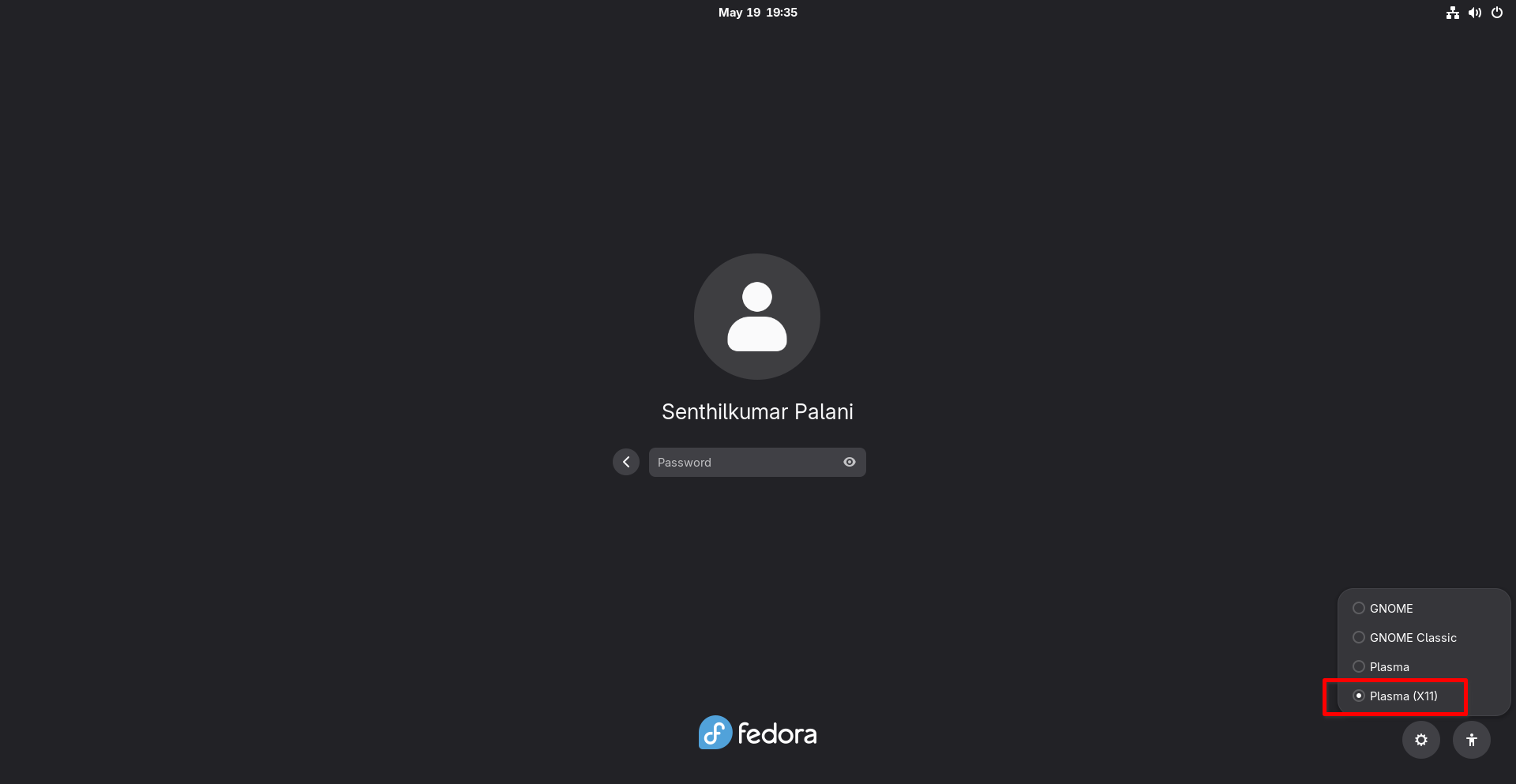
You can usually switch to XLibre the same way you switch from Wayland to X11 through the login/session manager.
Log out from the current session. At the login screen, click your username.
Click the gear icon in the bottom-right corner.
Choose your X11 session, for example Plasma (X11) or another X11 session.
Enter the password to log in again.
Check XLibre Xserver Version
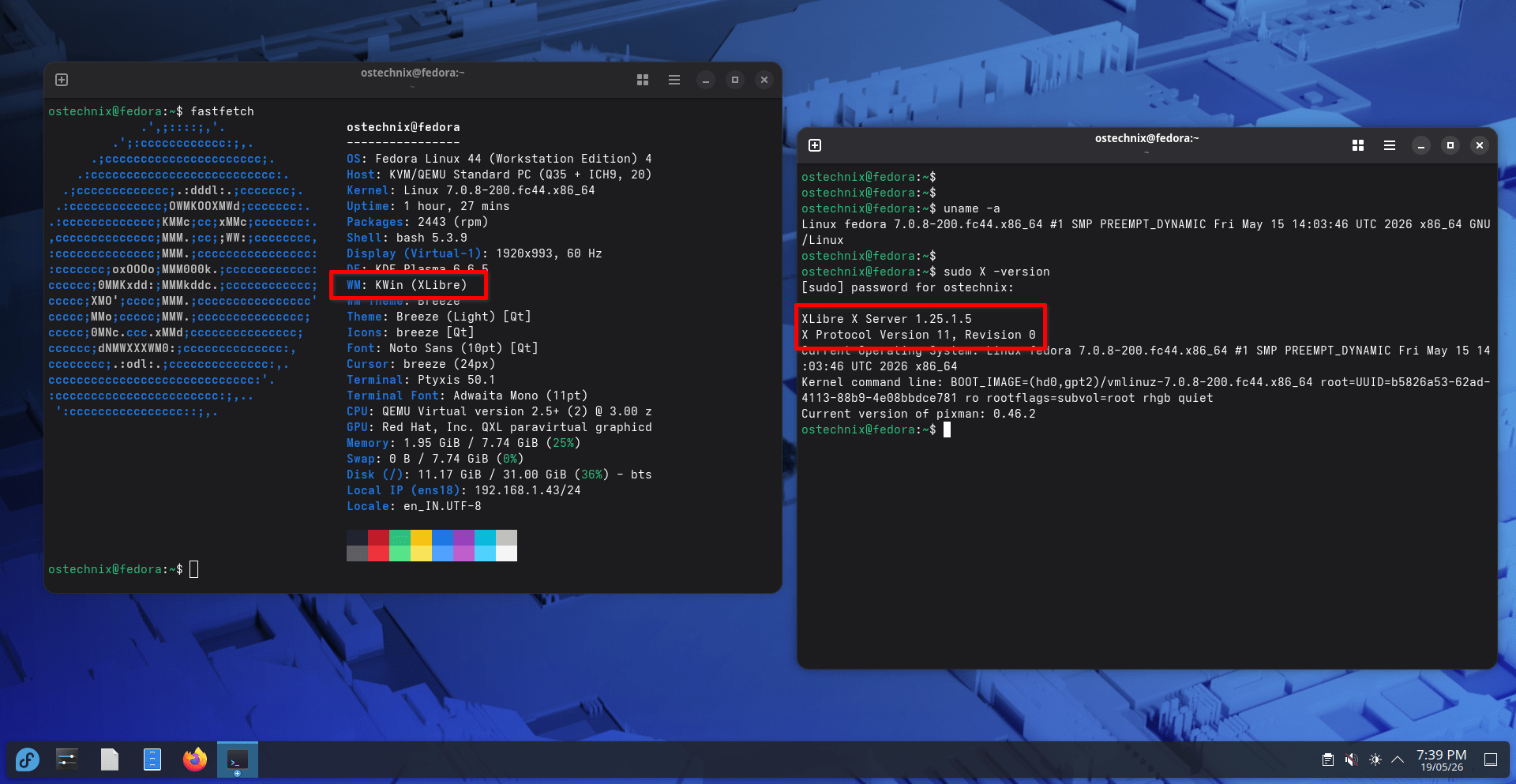
Check whether XLibre actually replaced your current X server packages or if it was just installed alongside them.
Run:
sudo X -version
or
Xorg -version
You should see an output like below:
XLibre X Server 1.25.1.5
X Protocol Version 11, Revision 0
Current Operating System: Linux fedora 7.0.8-200.fc44.x86_64 #1 SMP PREEMPT_DYNAMIC Fri May 15 14:03:46 UTC 2026 x86_64
Kernel command line: BOOT_IMAGE=(hd0,gpt2)/vmlinuz-7.0.8-200.fc44.x86_64 root=UUID=b5826a53-62ad-4113-88b9-4e08bbdce781 ro rootflags=subvol=root rhgb quiet
Current version of pixman: 0.46.2
If you see "XLibre" in the output, then it is installed correctly.
Here's XLibre Xserver running in the latest Fedora 44 version:
Use Xlibre on Fedora 44 with GNOME 50
On Fedora 44, GNOME no longer installs the X11 session by default. So you will only see the following options at the login session:
- GNOME
- GNOME Classic
Even if XLibre/Xorg is installed.
If you want to use XLibre on Fedora, you need to install the GNOME X11 session package first.
To do so, run:
sudo dnf install gnome-session-xsession
Also make sure XLibre provides the X server binaries correctly:
sudo dnf install xorg-x11-server-Xorg
Then reboot or restart GDM:
sudo systemctl restart gdm
After that, at the login screen:
- Click your username
- Click the gear icon
- You should now see "GNOME on Xorg" at the session selector.
Select it and log in.
Then verify:
echo $XDG_SESSION_TYPE
It should print:
x11
And confirm the actual server:
Xorg -version
or:
ps aux | grep -E 'Xorg|XLibre'
If XLibre replaced Fedora’s Xorg packages properly, the GNOME on Xorg session will actually run on XLibre underneath.
This change in newer Fedora versions comes from Fedora moving hard toward Wayland-first GNOME sessions.
Use XLibre through Another Desktop Environment
This is currently the cleanest approach. For example, KDE Plasma X11 still works in Fedora 44.
Install X11 session support if missing:
sudo dnf install plasma-workspace-x11
Then choose "Plasma (X11)" from the login screen.
This will run on your XLibre/Xorg stack underneath.
Make X11/XLibre the Default Permanently
GNOME
Edit:
sudo nano /etc/gdm/custom.conf
Set:
[daemon]
WaylandEnable=false
DefaultSession=gnome-xorg.desktop
Then reboot.
KDE / SDDM
Create:
sudo nano /etc/sddm.conf.d/10-display.conf
Add:
[General]
DisplayServer=x11
Then reboot.
Verify you are really using XLibre
After login:
ps aux | grep -E 'X|Xorg'
and:
glxinfo | grep "OpenGL renderer"
Also:
loginctl show-session $(loginctl | grep $(whoami) | awk '{print $1}') -p TypeThis command should show:
Type=x11
Recommended Read: How To Check If You’re Running Wayland Or X11 Display Server In Linux
Troubleshooting Common Issues
Sometimes, you might see errors about "conflicting requests" when you try to install XLibre. This usually happens because old Xorg files are still on your system.
To fix this, the developers suggest adding the --allowerasing flag to your install command. This tells your computer that it is okay to remove the old Xorg files and replace them with the new XLibre versions. Also, remember to use the --refresh flag to ensure you have the very latest updates from the repository.
sudo dnf install xlibre-xserver xlibre-xf86-input-libinput --allowerasing --refresh
Conclusion
The XLibre project brings a fresh start to the X11 ecosystem. By following these steps, you can install and use XLibre Xserver on your Fedora or Enterprise Linux systems.
Related Read:
