
Moving your Python packages from one virtual environment to another is super easy. This guide will show you exactly how to migrate Python packages between virtual environments in Linux.
In this guide, we will explain:
- How to export packages from your old virtual environment,
- Step-by-step instructions to create a new environment,
- How to install all packages in the new environment,
- Common problems and how to fix them,
- Best practices for managing Python environments,
- and a few commonly asked questions with answers.
Let's get started!
Table of Contents
What Are Virtual Environments?
Think of a virtual environment as a separate workspace for each Python project. It keeps your projects clean and organized. Each environment has its own set of packages.
Virtual environments are important when working with multiple projects. For example, imagine you have two projects. One uses Python 3.11, and the other needs Python 3.12.
Without virtual environments, you can't use both versions at the same time. If you install two different versions of the same package into your global Python environment, the second installation overwrites the first one.
Virtual environments solve this problem by keeping everything separate. This means you can work on multiple projects without any conflicts.
When Should You Migrate Packages?
You might need to move packages when:
- Starting fresh: You want a clean environment without old clutter
- Environment corruption: Your current environment got damaged or messy
- Python upgrade: You're moving to a newer Python version
- New computer setup: You need to replicate your setup on another machine
- Switching tools: You're changing from one package manager to another
Virtual environments should be considered temporary. If they get corrupted or too cluttered, it's often easier to delete and recreate them than to fix them.
Step-by-Step Guide to Migrate Python Packages from One Virtual Environment to Another
Virtual environments keep Python dependencies isolated per project. You can copy all your installed packages from one environment to another with only two simple steps:
- Export the package list using
pip freeze - Install them in the new environment using
pip install -r requirements.txt
For the demonstration purpose of this guide, I will be using two virtual environments namely Mypyenv (Current) and Pyenv (new). Let us see how to migrate everything from Mypyenv to Pyenv in just 9 simple steps.
First, you'll save a list of what's installed. Then, you'll use that list to install everything in the new environment.
Step 1: Activate Your Current Virtual Environment
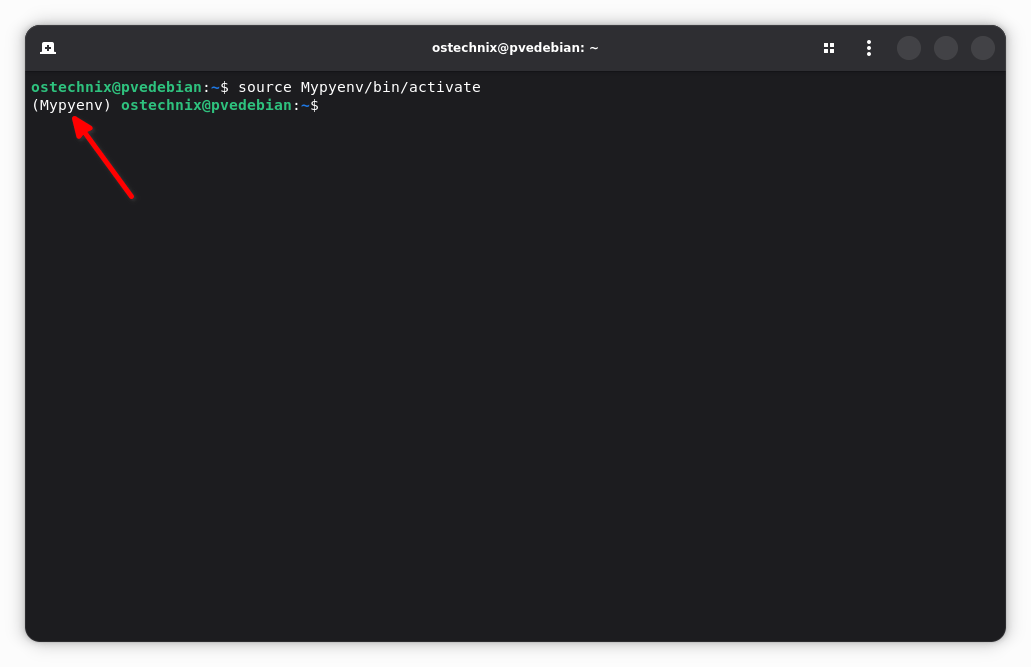
Open your terminal and activate the current (old) environment you want to copy from. In my case, it is Mypyenv.
To activate a virtual environment, run:
source Mypyenv/bin/activate
Replace ~/Mypyenv with your actual environment path.
You'll see "(Mypyenv)" in your prompt. This shows it's active.
(Mypyenv) ostechnix@pvedebian:~$
Step 2: Create a Requirements File
Now, save all your installed packages to a file. This file will list every package and its version number.
To do so, run this command:
python -m pip freeze > requirements.txt
Or just:
pip freeze > requirements.txt
This creates a file called requirements.txt. It contains all your packages. The pip freeze command generates output suitable for a requirements file.
Want to see what's inside? Just open the file.
cat requirements.txt
You'll see something like this:
anyio==4.4.0
argon2-cffi==23.1.0
argon2-cffi-bindings==21.2.0
arrow==1.3.0
asttokens==3.0.0
async-lru==2.0.4
attrs==24.3.0
[...]
Step 3: Review Your Requirements File (Optional)
The requirements file includes every package, even the ones you didn't install directly. These are called dependencies.
For a cleaner file, you can remove the sub-dependencies. Just keep the main packages you actually use. When doing a pip freeze, not only packages specified by yourself show up, but also dependencies installed by these packages.
However, if you're not sure which ones to remove, it's safer to keep everything. It will work just fine.
Step 4: Deactivate Your Current Environment
Before moving forward, deactivate your current environment i.e. Mypyenv:
deactivate
Your prompt will return to normal. This means you're back in your global Python environment.
Step 5: Create Your New Virtual Environment
Now, let's make a new virtual environment called Pyenv. Choose a location for it first.
Using venv (built into Python 3.3+):
python3 -m venv Pyenv
This creates a folder called Pyenv. It contains a clean Python installation ready to use.
Step 6: Activate Your New Environment
Switch to your newly created Pyenv environment using command:
source Pyenv/bin/activate
Again, you'll see "(Pyenv)" appear in your prompt.
(Pyenv) ostechnix@pvedebian:~$
Step 7: Install All Packages from Requirements File
Now, Install everything with one command:
pip install -r requirements.txt
You can generate a requirements file and then install from it in another environment. This command reads your requirements.txt file and installs every package listed there.
It might take a few minutes depending on how many packages you have. Just wait for it to finish.
Step 8: Verify Everything Installed Correctly
Check that all packages are there in your Pyenv environment:
pip list
pip check
This shows everything installed in Pyenv. Compare it with your requirements.txt file to make sure nothing is missing.
You can also test your project. Run your main script to see if it works without errors.
Step 9: Delete Old Environment (Optional)
Once you verify that new Pyenv environment works perfectly, you can delete the old Mypyenv folder. First, make sure you've deactivated it:
deactivate
Then, simply delete the Mypyenv folder:
rm -rf Mypyenv
Or just delete it through your file manager. Virtual environments are meant to be disposable, so don't worry about removing them.
Important Tips to Remember
Always Use Specific Versions
When you migrate packages, you want the exact same versions. Otherwise, your code might break. That's why pip freeze command includes version numbers like terminado==0.18.1.
Keep Your Requirements File Updated
Every time you add a new package to your project, update your requirements file. This keeps it current:
pip freeze > requirements.txt
Make this a habit. It saves you trouble later.
Use Virtual Environments for Every Project
Virtual environments should always be used unless Python is being utilized for server management or running simple scripts. They prevent conflicts and keep your projects organized.
Create a new environment whenever you start a new project. It only takes a few seconds.
Don't Commit Virtual Environments to Git
Your virtual environment folder can be huge. Sometimes it's over 100MB. Add venv/ to your .gitignore so you don't accidentally commit it.
Instead, commit your requirements.txt file. Other developers can use it to create their own environments.
Troubleshooting Common Problems
1. No module named pip
This happens when your old environment doesn't have pip installed or pip is missing.
Solution:
You can fix it by reinstalling pip inside the old environment:
source ~/Mypyenv/bin/activate
python -m ensurepip --upgrade
Replace ~/Mypyenv with your actual environment path.
If that doesn't work, use:
curl -sS https://bootstrap.pypa.io/get-pip.py | python
Then try exporting again:
python -m pip freeze > requirements.txt
If the environment is too broken, you can still check its site-packages folder:
ls ~/Mypyenv/lib/python*/site-packages/
From there, write down the main package names and reinstall them manually in your new environment.
2. No matching distribution found for apt-offline
I get this specific error on my Debian system. apt-offline is a system tool, not a PyPI package.
Solution:
Remove it from requirements.txt, or filter system-level packages automatically:
grep -vE '^(apt-offline|python-apt|apturl|pygobject|dbus|systemd)' requirements.txt > clean-requirements.txt
pip install -r clean-requirements.txt
If you actually need it:
sudo apt install apt-offline
3. Pip Freeze Shows Too Many Packages
Sometimes pip freeze lists packages from your global Python installation. This happens if your virtual environment wasn't created correctly.
Solution:
Create a fresh environment. Make sure you activate it before running pip freeze. Then install only the packages you need.
4. Some Packages Won't Install
Occasionally, a package might fail to install. This could happen for several reasons:
- The package version is too old
- Your Python version is incompatible
- The package needs system-level dependencies
Solution:
Try installing packages one by one. When one fails, look at the error message. It usually tells you what's wrong. You might need to update the version number or install system dependencies first.
5. Your Code Works in the Old Environment but Not the New One
Usually, it means a package version changed and broke something.
Solution:
Check your Python version in both environments. Make sure they match:
python --version
If they're different, that could be the issue. Also, look at your requirements.txt file carefully. Make sure all versions are pinned correctly.
6. No such file or directory: /usr/src/packages/BUILD/crit
This error means your old environment included a local build (like crit) that doesn’t exist on the new system.
Solution:
You can remove it safely:
grep -v "crit" requirements.txt > clean-requirements.txt
pip install -r clean-requirements.txt
Or reinstall it from source:
git clone https://github.com/<user>/crit.git
cd crit
pip install .
7. Clean all invalid entries automatically
Solution:
To avoid most installation problems, filter your requirements.txt like this:
grep -vE '(@ file:|file:///|^apt-|^python-apt|^apturl|^pygobject|^dbus|^systemd)' requirements.txt > clean-requirements.txt
pip install -r clean-requirements.txt
This removes all broken local paths and system packages.
8. pip freeze captures too much
pip freeze lists every dependency, including nested ones.
Solution:
To create a minimal list of only top-level imports:
pip install pipreqs
pipreqs /path/to/your/project
Moving Packages Between Different Computers
What if you need to set up your project on a different machine? The process is almost identical.
First, copy your requirements.txt file to the new computer. You can use Git, email, or a USB drive. Then, on the new machine:
- Install Python if it's not already there
- Create a new virtual environment using the commands above
- Activate it with the activation command for your OS
- Run
pip install -r requirements.txt
That's it! Virtual environments, pip freeze and requirements.txt all provide a neat way to manage Python packages across different systems.
Alternative Methods for Package Migration
Using pip-tools for Better Dependency Management
Some developers prefer pip-tools. It separates your main packages from their dependencies. This makes requirements files cleaner and easier to manage.
Using Poetry or Pipenv
These are modern package managers that handle virtual environments automatically. They're more advanced than pip and venv.
Poetry is a feature-rich Python tool for project dependency management. It's faster than most virtual environment tools and comes with a powerful CLI for managing Python projects.
Pipenv is yet another virtualenv management tool. It will automatically create virtualenv for your projects.
However, for most projects, the standard pip and venv approach works perfectly fine.
Quick Reference: Cheat Sheet
Here's a handy list of all the commands you'll need for migrating packages:
Activate Mypyenv:
source Mypyenv/bin/activate
Export packages:
pip freeze > requirements.txt
Deactivate environment:
deactivate
Create Pyenv:
python3 -m venv Pyenv
Activate Pyenv:
source Pyenv/bin/activate
Install packages:
pip install -r requirements.txt
Verify installation:
pip list
Save this reference for quick access whenever you need to migrate environments!
Best Practices Summary
To wrap everything up, here are the key points to remember:
- Create separate environments: Make a virtual environment for every project.
- Always activate first: Activate your environment before installing packages.
- Save regularly: Use
pip freezeto save your package list after adding new packages. - Store requirements.txt: Keep it in your project folder and commit it to version control (E.g. Git).
- Exclude venv folders: Don't commit virtual environment folders to version control.
- Test after migration: Run your code after migrating to ensure everything works.
- Use version pinning: Always include version numbers in
requirements.txt. - Document dependencies: Add comments to requirements.txt explaining why specific versions are needed.
- Use
python -m pipinstead ofpipto avoid interpreter mismatches. - Keep system packages out of virtual environments.
- Run
pip checkafter reinstalling to confirm dependency health.
Frequently Asked Questions (FAQ)
A: Yes, but be careful. Some packages might not work with newer or older Python versions. If you're upgrading from Python 3.8 to 3.11, for example, test your code thoroughly after migration.
A: Both show installed packages, but pip freeze formats output for requirements files. Use pip freeze > requirements.txt for migration and pip list just to view packages.
A: It depends. Pip freeze includes all dependencies. For cleaner requirements, you can manually list only your direct dependencies. However, including everything ensures exact replication.
A: First, activate new environment. Then run pip install --upgrade package-name for specific packages or pip install --upgrade -r requirements.txt to update everything.
A: Only if the projects have identical dependencies. Otherwise, each project should have its own requirements.txt file with project-specific packages.
Conclusion
Moving Python packages from between different virtual environments is straightforward once you understand the process. You just need to save your package list with pip freeze from the current environment, create a new environment, and install from the saved list.
This method works great whether you're cleaning up an old environment, upgrading Python, or setting up a new system. It takes just a few minutes and ensures your project works exactly the same way in new environment as it did in old environment.
Virtual environments and requirements files make Python development much smoother and more professional.
Remember, every time you start a new project, create a new virtual environment first. Install your packages, freeze them to a requirements file, and you're all set!
Resources:
