
If you’re using Ubuntu 24.04 LTS and want to remove Snap completely, you’re not alone. The latest Ubuntu versions ship with Snap by default, and apps like Firefox come only as Snap packages. But Snap isn’t for everyone.
I prefer using APT and .deb packages because they load faster, use less disk space, and give me full control. In this guide, I'll show you two simple methods to uninstall Snap and snapd completely from Ubuntu.
Both methods are safe, easy, and work perfectly on the latest Ubuntu 24.04.3 LTS version. I have tested this guide on Ubuntu 24.04.3 LTS desktop, but I believe the steps are same to remove snap in any Ubuntu version.
Table of Contents
Why Remove Snap from Ubuntu
Snap makes installing apps simple, but it has trade-offs:
- Slow startup times for many Snap apps
- Higher disk usage due to bundled dependencies
- Limited control over package versions
- Some apps are Snap-only unless you add external repositories
If you want a Snap-free Ubuntu system, follow either method below.
Recommended Read: AppImage vs Snap vs Flatpak: Linux Package Formats Compared
Method 1 - Quick Way to Remove Snap
This is the easiest method and works if you don’t want to deal with leftover files manually.
Step 1: Uninstall Snap and snapd
Just run this single command:
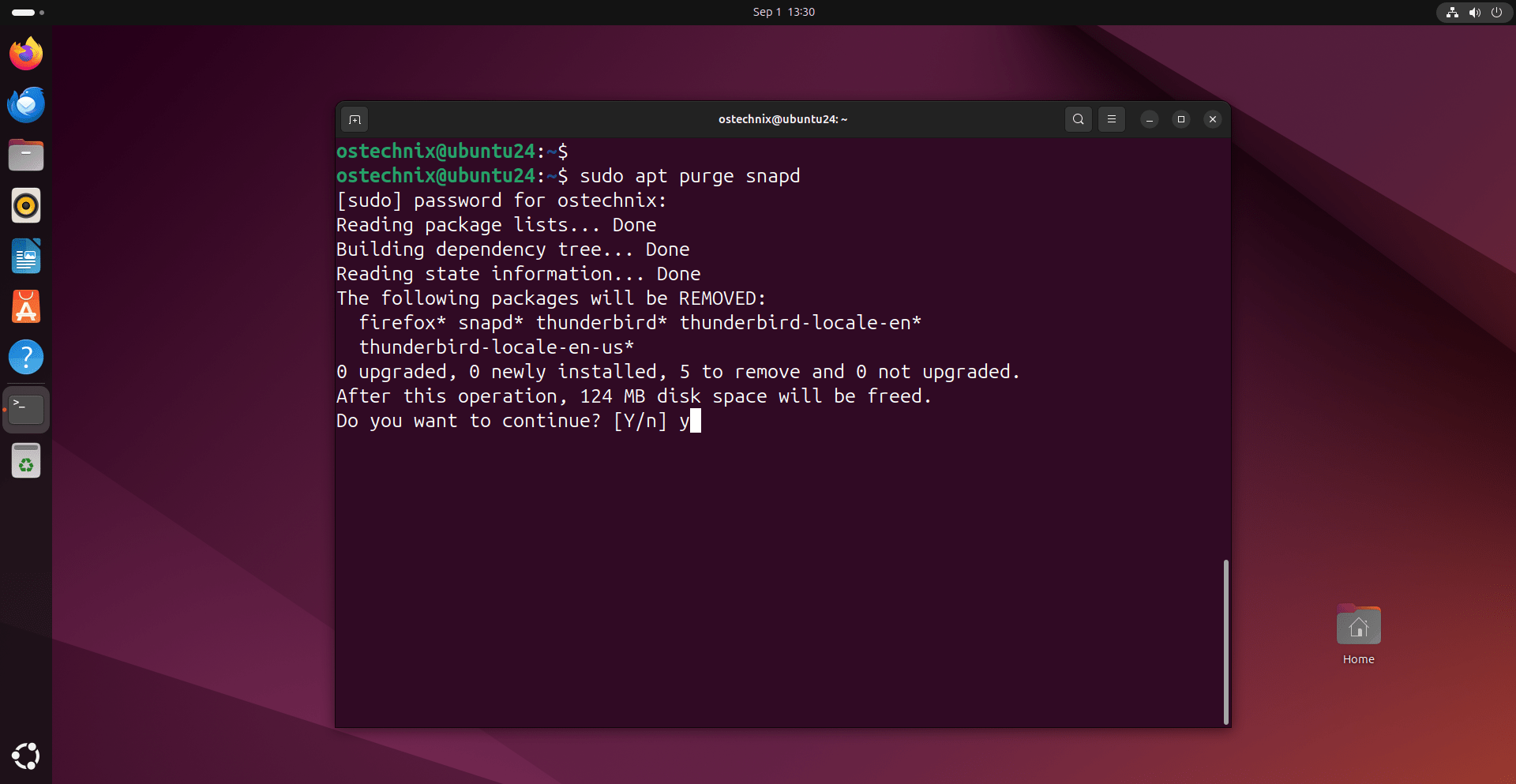
sudo apt purge snapd
This removes snapd and all installed Snap apps.
Step 2: Block Snap From Reinstalling
Prevent apps like Firefox from reinstalling Snap automatically:
sudo apt-mark hold snapd
Step 3: Update APT
Refresh your package lists:
sudo apt update
Reboot your Ubuntu system.
That’s it. Snap is gone!
Method 2 - Complete Cleanup Method
If you want to remove Snap completely and clean every leftover file, this method is better.
Step 1: Check All Installed Snaps
First, list your Snap apps:
snap list
In my Ubuntu 24.04.3 system I have the following snaps installed:
Name                       Version          Rev    Tracking         Publisher    Notes
bare                       1.0              5      latest/stable    canonical**  base
core20                     20250526         2599   latest/stable    canonical**  base
core22                     20250708         2082   latest/stable    canonical**  base
firefox                    142.0-1          6700   latest/stable/\u2026  mozilla**    -
firmware-updater           0+git.22198be    167    latest/stable/\u2026  canonical**  -
gnome-3-38-2004            0+git.efb213a    143    latest/stable    canonical**  -
gnome-42-2204              0+git.38ea591    202    latest/stable/\u2026  canonical**  -
gtk-common-themes          0.1-81-g442e511  1535   latest/stable/\u2026  canonical**  -
snap-store                 0+git.90575829   1270   latest/stable/\u2026  canonical**  -
snapd                      2.71             25202  latest/stable    canonical**  snapd
snapd-desktop-integration  0.9              253    latest/stable/\u2026  canonical**  -
thunderbird                128.1.0esr-1     507    latest/stable    canonical**  -
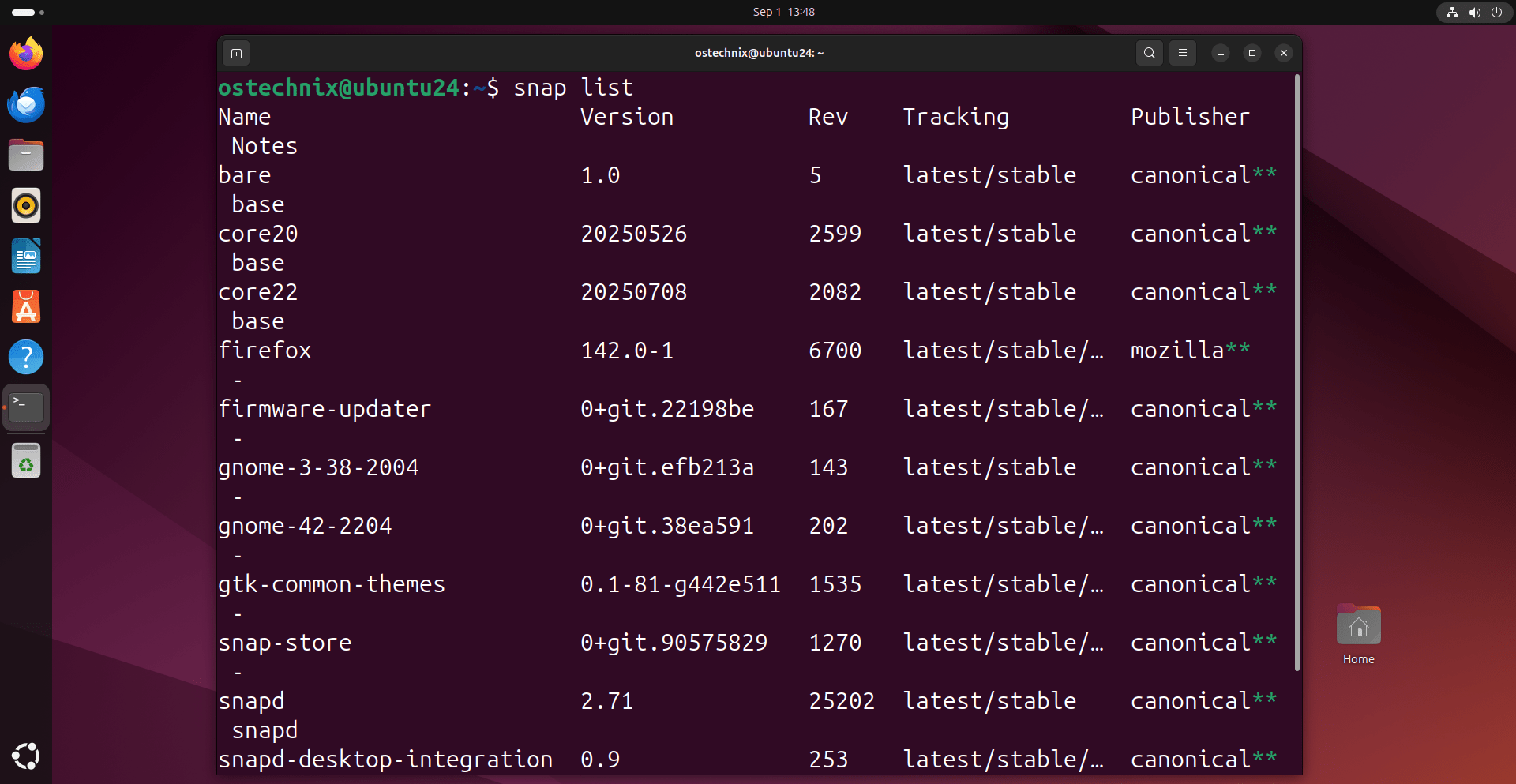
You can't remove all these snaps in one go like below:
sudo snap remove --purge firefox thunderbird firmware-updater \
snap-store gtk-common-themes gnome-3-38-2004 gnome-42-2204 \
snapd-desktop-integration bare core20 core22
Because Snap packages have dependencies. Some snaps, like bare, core20, core22, and gtk-common-themes, are used by other snaps.
You need to remove apps first, then framework snaps, and finally snapd itself.
Step 2: Remove App Snaps First
As you can see in the output above, my main app snaps are:
firefoxthunderbirdfirmware-updatersnap-store
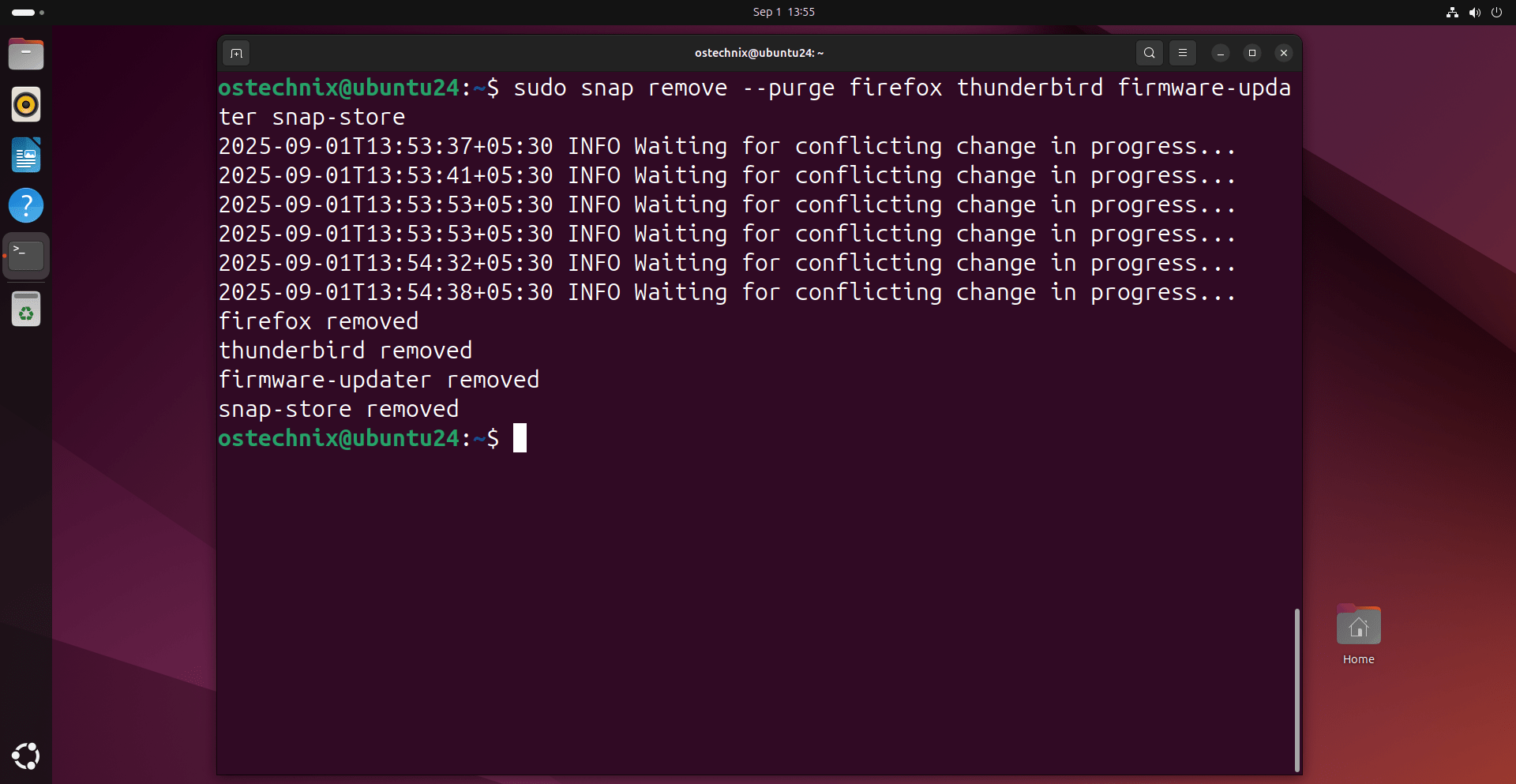
Let us remove them first using command:
sudo snap remove --purge firefox thunderbird firmware-updater snap-store
Step 3: Remove Dependent Snaps
Now remove the desktop integration and theme snaps:
sudo snap remove --purge gtk-common-themes gnome-3-38-2004 gnome-42-2204 snapd-desktop-integration
Step 4: Remove Core Snaps
Finally, remove the base snaps:
sudo snap remove --purge bare core20 core22
Step 5: Remove Snap Daemon
Once all snaps are gone, remove Snap itself:
sudo apt purge --autoremove snapd
Step 6: Delete Leftover Snap Folders
rm -rf ~/snap
sudo rm -rf /snap /var/snap /var/lib/snapd /var/cache/snapd /usr/lib/snapd
Step 7: Block Future Snap Installations
There are two methods to prevent Snap from being installed again in Ubuntu.
7.1. Using sudo apt-mark hold snapd
This is a simple and safe method.
sudo apt-mark hold snapd
How it works:
- Marks the
snapdpackage as “on hold” in APT. - APT will not upgrade, install, or reinstall
snapd. - If a package (like firefox or chromium) depends on
snapd, APT will refuse to install it and show a conflict message.
Pros
- Very simple and beginner-friendly.
- Easy to reverse later:
sudo apt-mark unhold snapd - Works well for most users who just want Snap gone.
Cons
- Doesn’t completely block
snapdfrom repositories. - If a future package hard-depends on Snap, APT might refuse to install it unless you unhold.
7.2. Using an APT Pinning Rule (nosnap.pref)
This is more strict and slightly advanced method.
sudo tee /etc/apt/preferences.d/nosnap.pref <<EOF
Package: snapd
Pin: release a=*
Pin-Priority: -10
EOF
How it works
- Creates an APT preferences file.
- Assigns
snapda negative priority (-10), which tells APT "Never install this package, even if something depends on it".
Pros
- Much stricter than
apt-mark hold. - APT will completely block any installation or upgrade of Snap.
- Safer if you want to permanently ban Snap.
Cons
- Slightly more complex to set up.
- If you later want Snap back, you must delete the preference file:
sudo rm /etc/apt/preferences.d/nosnap.pref && sudo apt update
My Recommendation
| Use Case | Best Method |
|---|---|
| You just don’t want Snap now, but may use it later | apt-mark hold snapd |
| You want to permanently ban Snap on your system | nosnap.pref pinning |
| You manage multiple systems & want full control | Use both for extra safety |
For most users, apt-mark hold snapd is enough.
Step 8: Update APT
sudo apt update
Reboot your Ubuntu system.
Step 9: Verify That Snap is Gone
Run:
which snap
If nothing shows up, your Ubuntu system is 100% Snap-free.
Step 10: Install Firefox Without Snap
There are two recommended ways to install non-snap firefox versions in Ubuntu.
Method 1: Using PPA
Ubuntu 24.04 installs Firefox as a Snap by default. If you want the .deb version, add Mozilla’s official repository:
sudo add-apt-repository ppa:mozillateam/ppa
sudo apt update
sudo apt install firefox
Method 2: Using Flatpak
Flatpak is another popular option to install non-snap apps on any Linux distributions
Install Flatpak using command:
sudo apt install flatpak
If you are using GNOME DE on your Ubuntu, install the Flatpak plugin for GNOME Software:
sudo apt install gnome-software-plugin-flatpak
Enable Flathub repository:
sudo flatpak remote-add --if-not-exists flathub https://dl.flathub.org/repo/flathub.flatpakrepo
Now install firefox from flathub using command:
flatpak install flathub org.mozilla.firefox
Frequently Asked Questions (FAQs)
A: Yes. However, some apps are only available as Snaps, so you may need to install .deb packages manually.
A: Absolutely. Flatpak works well on Ubuntu and offers thousands of apps without Snap.
A: No, the default Snap Store app will be removed. You can install GNOME Software instead: sudo apt install gnome-software gnome-software-plugin-flatpak
Conclusion
In this guide, I have explained two methods to successfully remove Snap and snapd from Ubuntu 24.04.3 LTS.
- Method 1 is faster and easier.
- Method 2 gives you a cleaner, Snap-free system.
Now my Ubuntu is completely snap-free, and I have full control over my software using APT and .deb packages.
