
Every Linux user has killed a frozen SSH session the hard way. But there is a built-in escape menu — quietly sitting inside OpenSSH — that fixes this in under a second. In this tutorial, we will learn everything you need to know about SSH Escape Sequences (Or Characters) and how and when to use them.
Table of Contents
Quick Summary
- The OpenSSH client includes Escape Sequences (Characters). These are special key combinations that control the local SSH client.
- For example, when SSH freezes, press
Enterthen type~.to close your session instantly. No terminal-killing required. - SSH escape sequences run entirely on your local machine, not the remote server. That's why they work even when the server is crashed or the network is dead. It's a parallel control channel built into the client itself.
- You can use the tilde multiplier for nested sessions. If you're three hops deep (E.g. local → bastion → prod) typing
~~~.closes only the innermost session while leaving the middle one intact. Each tilde peels off exactly one layer. Most people don't realize SSH tracks the entire hop chain and routes escape commands accordingly. - Escape sequences only work when typed immediately after pressing Enter. This ensures the SSH client can distinguish them from normal commands.
Introduction
Picture this. You are three levels deep in a production server. Your SSH session freezes. The cursor blinks. Nothing moves. So you do what everyone does i.e you force-close the terminal window, open a new one, and reconnect. The whole thing takes two minutes and breaks your focus entirely.
But you never had to do that. OpenSSH has shipped with a built-in control menu or escape menu since the early 2000s. It works even when the remote server is fully dead. It takes one second to use. And almost nobody knows it exists.
Today, we fix that. By the time you finish this article, you will never kill a terminal window over a frozen SSH session again.
Key Note: OpenSSH has shipped with a built-in escape menu since the early 2000s. It works even when the remote server is fully dead. And almost nobody knows it exists.
What Is the SSH Escape Menu or Secret Menu?
The SSH client includes Escape Sequences (Characters). These are special key combinations that control the local SSH client, not the remote server.
This built-in menu lets you:
- Kill a frozen SSH session instantly
- Create port forwarding while already connected
- Background an SSH session
- View active SSH tunnels
- Control SSH debugging output
In short, it gives you direct control over the SSH client, even when the remote system stops responding.
Normally, everything you type inside an SSH session goes to the remote machine. However, escape sequences interrupt this flow. The SSH client captures them locally before sending anything to the server.
This design matters because it allows you to control SSH even when the connection hangs.
How Escape Characters (Sequences) Work in SSH
Before we jump into the commands, let us understand what makes these sequences special.
As I stated earlier, when you SSH into a server, your keyboard input normally goes straight through to the remote machine. You type, the remote system responds. Simple.
Keyboard → SSH client → Remote server
But SSH also has a second, parallel listening mode. Your local SSH client quietly monitors every keystroke for a specific trigger: a tilde character (~) typed right after a newline. When it spots that pattern, it intercepts the input and treats the next character as a command — one that never leaves your machine.
Because of this design, escape sequences are completely independent of the remote server. The remote system can be crashed, frozen, or unreachable — and these commands still work perfectly, because your local SSH client handles them entirely on its own.
The Important Rule: Escape sequences only trigger at the start of a new line. Meaning: Escape sequences work only immediately after pressing Enter key. So you should always press
Enterkey first, then type your sequence. If you type it mid-line, SSH treats it as plain text and sends it through to the remote system.
How to Open the SSH Escape Menu
To access the escape menu, follow these three steps every single time:
- Press
Enterto move your cursor to a fresh new line. - Type
~?(tilde then question mark). You will not see the characters appear as you type them. - The full list of supported escape sequences appears on your screen immediately.
Here's how the SSH Secret Menu looks like:
ostechnix@fedora:~$ ~?
Supported escape sequences:
 ~.   - terminate connection (and any multiplexed sessions)
 ~B   - send a BREAK to the remote system
 ~R   - request rekey
 ~V/v - decrease/increase verbosity (LogLevel)
 ~^Z  - suspend ssh
 ~#   - list forwarded connections
 ~&   - background ssh (when waiting for connections to terminate)
 ~?   - this message
 ~~   - send the escape character by typing it twice
(Note that escapes are only recognized immediately after newline.)
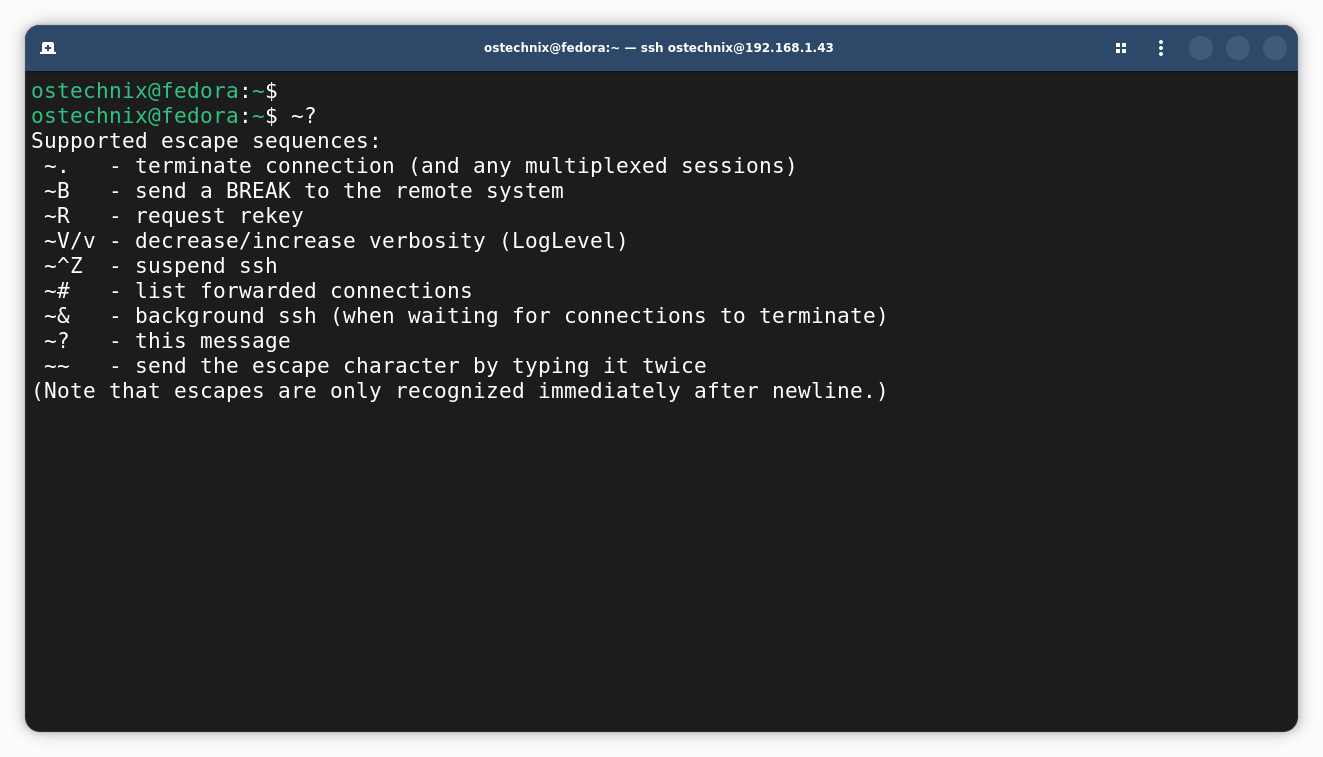
This list is the SSH Control (or Escape) menu.
You may notice that the characters do not appear as you type them. This is intentional. The SSH client intercepts escape sequences locally and handles them itself instead of sending them to the remote shell.
Explaining Escape Sequences
The menu lists ten escape sequences. Most developers only ever need two or three of them. But understanding all of them turns you into the person at work who always has the answer.
| Keys | Name | What It Does |
|---|---|---|
~. | Force Exit | Terminates the connection instantly. Works even when the server is completely unresponsive. This is the one you will use most often. |
~C | SSH Command Line | Opens an interactive SSH prompt mid-session. From here you can add or remove port forwarding rules without disconnecting. Type help inside it. |
~# | List Port Forwards | Prints a list of all active port-forwarded connections in the current session. |
~B | Send BREAK | Sends a hardware BREAK signal to the remote system. Useful for serial consoles, routers, or embedded devices. |
~R | Request Rekey | Initiates a fresh cryptographic key exchange mid-session. Good for long-running sessions in security-sensitive environments. |
~V / ~v | Adjust Verbosity | Increases or decreases SSH's log verbosity in real-time. Useful for debugging a live connection without reconnecting. |
~^Z | Suspend | Suspends the SSH process locally. Run fg to bring the session back to the foreground. |
~& | Background | Moves SSH to the background while it waits for active forwarded connections to close. The connection stays alive. |
~~ | Literal Tilde | Sends an actual tilde character to the remote system. Type it twice to pass one through. |
~? | Show Help | Displays the escape menu again. A helpful reminder when you forget which key does what. |
How to Use SSH Escape Sequences
1. Instantly Kill a Frozen SSH Session with ~. (Force Exit Stuck SSH)
Let's give ~. the attention it deserves, because this one command alone is worth reading this entire article.
When an SSH session hangs, the usual options are miserable. You can wait for a few minutes or more, hoping TCP timeout eventually cleans things up. You can close the whole terminal window. Or you can hunt down the SSH process ID from a second terminal and kill it by hand. All of these options waste time.
With ~., none of that is necessary. You press Enter, type ~., and the session closes in under a second.
Enter
~.
This command immediately terminates the SSH connection and your local prompt returns immediately. No waiting. No second terminal. No mouse required.
Note: The exact steps when your session hangs: Press
Enter→ type~→ type.
You will seeConnection to [host] closed.appear on screen, and your local shell prompt returns.
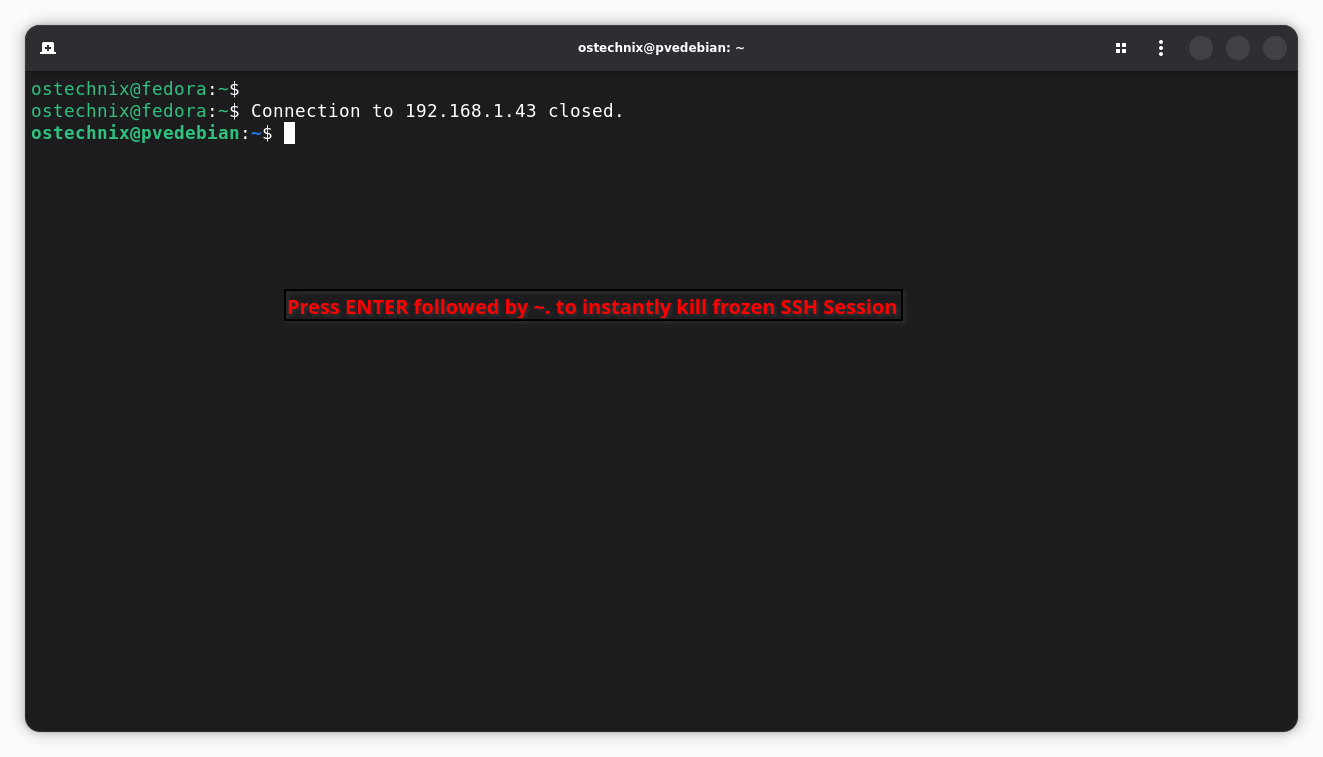
This works because your local SSH client handles the ~. command entirely on its own. It does not need the remote server's cooperation. It simply drops the TCP connection and returns control to you.
Why this matters:
- The remote server may stop responding.
- The network connection may break.
- The shell may hang.
In these cases, Ctrl+C does nothing, because that signal goes to the remote shell. However, ~. talks directly to the SSH client. The client closes the connection instantly.
Many experienced Linux admins treat this as a must-know SSH trick.
2. Port Forwarding On the Fly With ~C
The second most useful command is ~C, and it solves a problem that catches many developers off guard. Imagine you are already inside an SSH session and you realize you forgot to set up a port forward when you connected. Normally, the only fix is to disconnect and reconnect with the right -L flags.
But with ~C, you do not need to reconnect. Pressing Enter then ~C opens an interactive ssh> prompt right inside your current session. From there, you can add local or remote port forwarding rules, cancel existing ones, and check what is active — all without dropping your connection.
Quick Example
Press Enter, type ~C.
You will see something like this:
ssh>
At the ssh> prompt, type:
-L 8080:localhost:80
This forwards your local port 8080 to port 80 on the remote server. Then press Enter and your session continues exactly as before, with the new tunnel active.
Type help at the ssh> prompt to see all available sub-commands.
Normally, you must reconnect to create a tunnel. This feature avoids that step.
3. Nested Sessions and the Tilde Multiplier
Here is where things get interesting. Many developers work through jump hosts or bastion servers — you SSH into machine A, then SSH from there into machine B, and possibly further. When you need to send an escape command to a specific layer in that chain, you add one extra tilde per hop.
The outer SSH client consumes the first tilde and passes the rest to the inner session. So:
- To exit the first inner session:
Enter→~~. - To exit the second inner session:
Enter→~~~. - Each tilde peels off one layer of the chain.
Example: Three-Hop Session
ostechnix@local:~$ ssh bastion                  # hop 1
ostechnix@bastion:~$ ssh prod-server            # hop 1 → 2
ostechnix@prod:~$                               # hop 1 → 2 → 3

# To close prod-server only (innermost):
ostechnix@prod:~$ [Enter ~~.]  →  Connection to prod-server closed.
ostechnix@bastion:~$            # still on hop 2

# To close bastion:
ostechnix@bastion:~$ [Enter ~.]  →  Connection to bastion closed.
ostechnix@local:~$              # back home
This tilde-multiplier pattern applies to every escape command. So to open a command line inside the innermost session, type ~~C. To list port forwards on the inner session, type ~~#. The logic stays consistent throughout.
Here's another example:
ssh server1
ssh server2
ssh server3
Now you sit three SSH sessions deep.
If you run:
Enter
~.
SSH exits the current session only.
You return step-by-step:
server3 → server2 → server1 → local machine
However, sometimes you want to send the escape character to an inner SSH session. In that case, type:
~~
This sends a literal ~ instead of triggering the escape sequence.
4. Suspend the SSH Session
You can suspend the SSH session like a normal Linux process.
Enter
~^Z
Here, ^Z is CTRL+Z.
The SSH process moves to the background.
Later, bring it back with:
fg
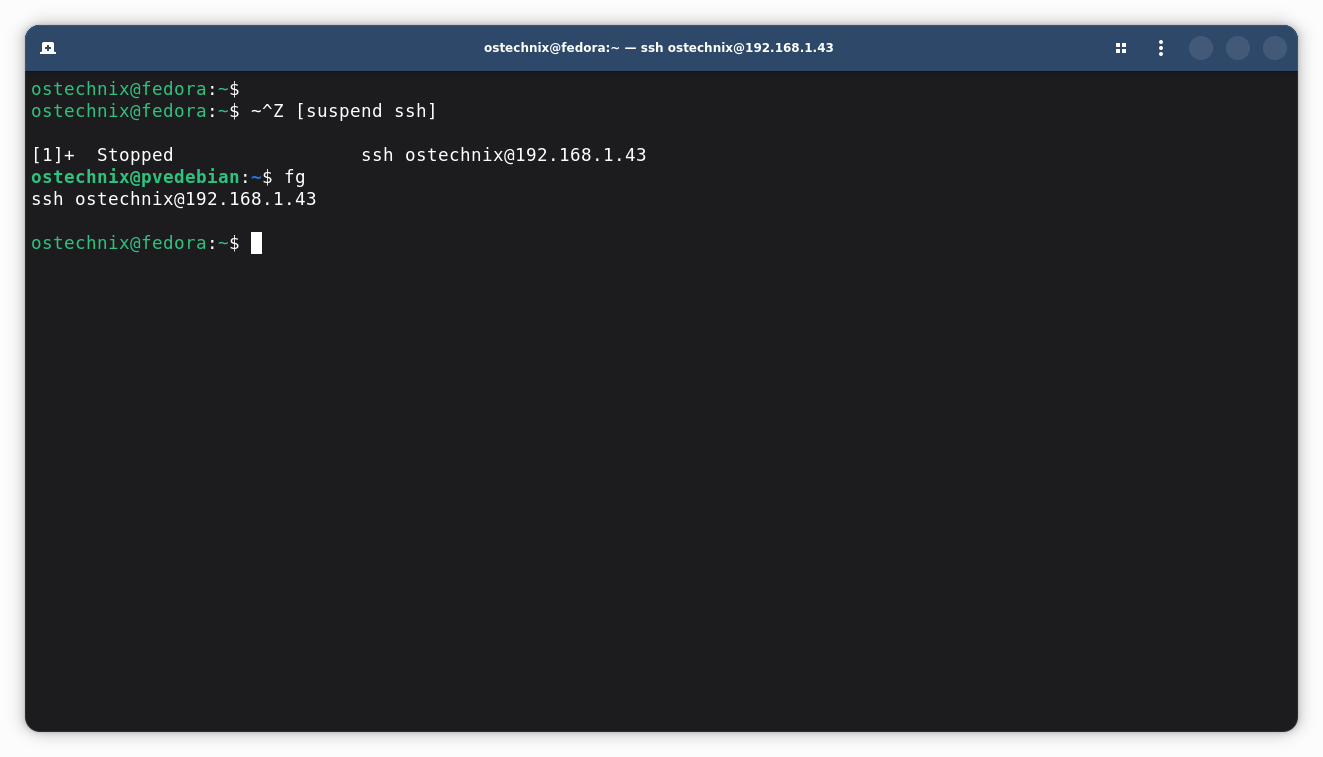
This trick works well if you want to run a quick command locally without closing your SSH session.
5. List Active Port Forwarding
If you use SSH tunnels often, this command helps.
Enter
~#
SSH will display all active forwarded connections.
Sample Output:
The following connections are open:
  #0 client-session (t4 [session] r0 i0/0 o0/0 e[write]/4 fd 4/5/6 sock -1 cc -1 io 0x01/0x01)
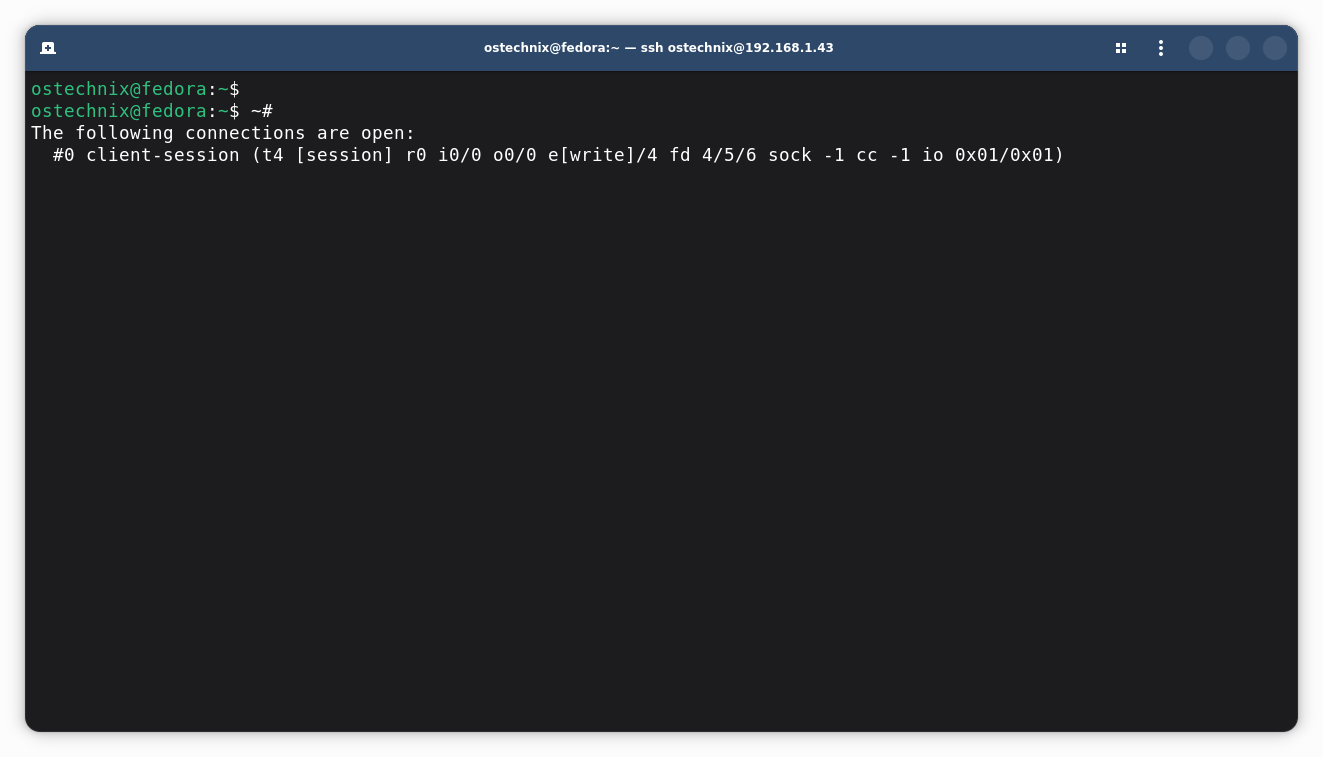
This helps you confirm which tunnels are active.
6. Change SSH Debug Verbosity
You can increase or decrease SSH logging.
Enter
~V
Or,
Enter
~v
This feature helps when you troubleshoot connection problems.
SSH Escape Characters Cheat Sheet
Here is every practical command condensed into one list. Bookmark this or paste it into your notes app.
- Show the menu:
Enter→~? - Kill a frozen session:
Enter→~. - Add port forwarding live:
Enter→~C→ type your rule - List active port forwards:
Enter→~# - Suspend to local background:
Enter→~^Z(resume withfg) - Debug with more logging:
Enter→~v(or~Vto reduce) - Exit innermost nested session:
Enter→~~. - Exit second nested session:
Enter→~~~. - Send a literal tilde character:
Enter→~~
Where Has This Been Hiding?
These escape sequences are fully documented in the official OpenSSH man pages. Run man ssh in your terminal and search for the section titled ESCAPE CHARACTERS. Everything above is there, written in precise technical language.
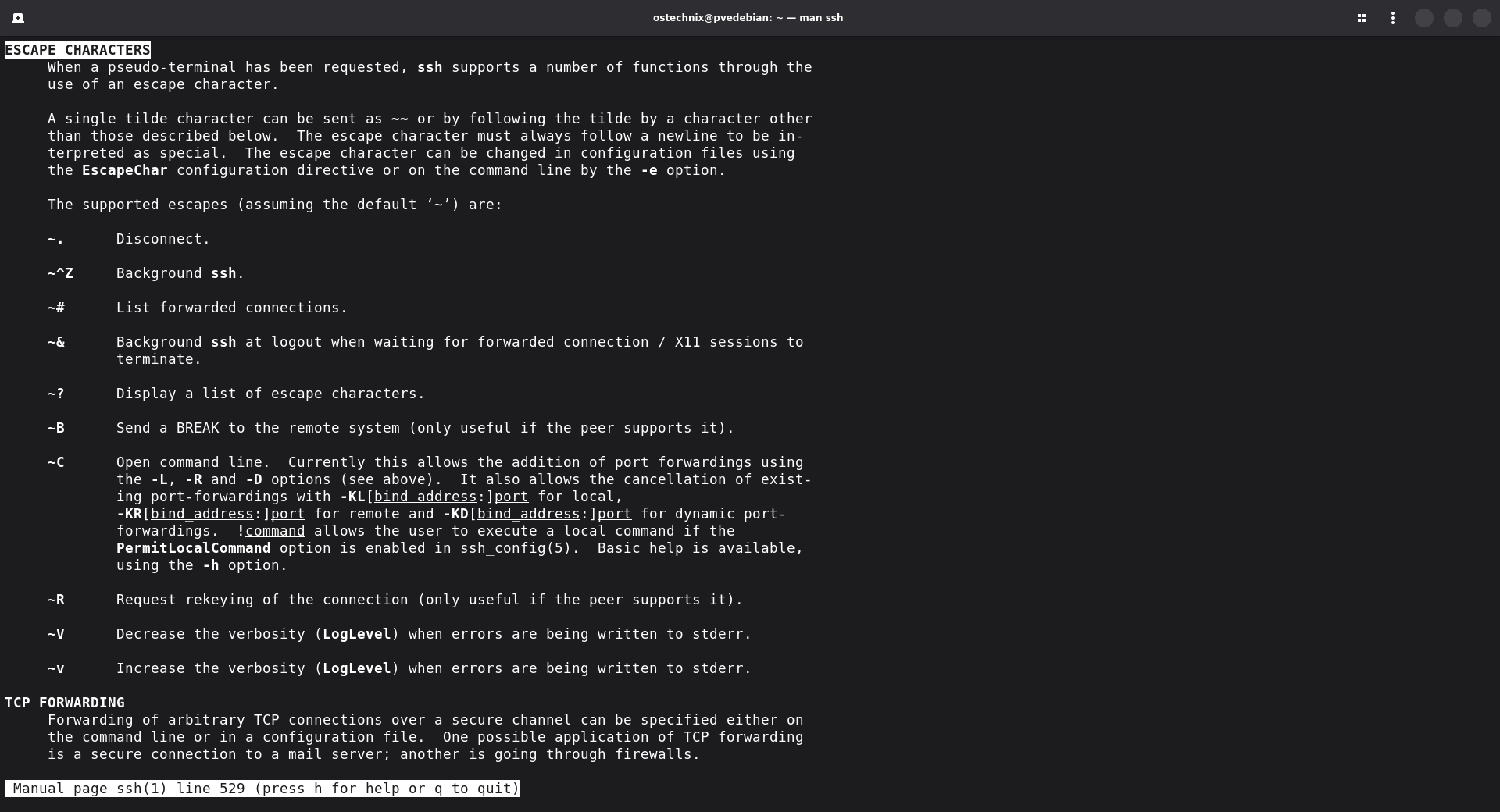
So why does almost nobody know about it? Because man pages are long, dense, and few developers read them all the way through. The information was always public — it just never got the spotlight it deserved.
Next time a colleague complains about killing terminal windows over a frozen SSH session, you know exactly what to tell them. And the time after that. And every time after that.
A Tip Worth Remembering
If you remember only one command, remember this one:
Enter
~.
This simple sequence can instantly terminate a frozen SSH session.
It works even when the remote server stops responding. That alone makes it a valuable trick for anyone who works with Linux servers.
Common Misconceptions About the SSH Escape Sequences
Here are the most common misconceptions about SSH escape menu.
1. "This Is a New Hack Someone Recently Discovered"
It's neither new nor hidden. SSH escape sequences have been in the OpenSSH documentation since the project launched in 1999.
They're in the man page under ESCAPE CHARACTERS. This is a fully documented, first-party feature — not a trick, exploit, or workaround. The only thing surprising is how rarely it gets talked about.
2. "It Only Works on Linux"
Wrong on every platform assumption. The escape sequences live in the SSH client, not the operating system. So they work on macOS Terminal, Windows Terminal running OpenSSH, and WSL — any environment running a proper OpenSSH client. The remote server's OS is completely irrelevant.
If you use PuTTY, these specific escape sequences are not supported. PuTTY does not implement the OpenSSH tilde escape system, so you will need to switch to an OpenSSH-based client to use them.
3. "Closing the Terminal Window Does the Same Thing as ~."
These are very different actions. Closing the terminal kills the entire terminal emulator process — which can orphan background processes, break multiplexed sessions, and leave port forwards dangling.
~. sends a clean termination signal through the SSH protocol, properly closing the connection and cleaning up resources.
4. "If the Server Is Frozen, Nothing Can Work"
This is the biggest misconception and the most worth correcting. Some newbies assume a frozen session means they are powerless. But ~. never touches the server. It runs locally, on your machine, and simply drops the TCP connection. The server's state is completely irrelevant to whether ~. works.
5. "You Need Root or Special Permissions to Use It"
No permissions required at all. These are client-side keyboard shortcuts available to any user running any SSH session. No sudo, no config changes, no admin access needed — just an active SSH connection and the knowledge that the menu exists.
6. "~. and Ctrl+C Do the Same Job"
Ctrl+C sends an interrupt signal to the remote process — which requires the connection to be alive and responsive to work. If the session is frozen, Ctrl+C does nothing. ~. bypasses the connection entirely and always works, regardless of what the remote side is doing.
7. "It Works in Every SSH Command You Run"
This one catches even experienced users off guard. Escape sequences only work when your SSH session has allocated a pseudo-terminal (PTY), which happens automatically in normal interactive sessions where you type commands and get a shell prompt. But, they silently fail in non-interactive SSH calls like ssh user@host "some-command", because no PTY is requested in those cases.
So if you are running a one-off remote command via SSH rather than opening a full shell, escape sequences will not respond. For all everyday interactive use, you will never hit this limitation.
Conclusion
The SSH escape menu is one of those features that once you know about, you cannot imagine working without. It is a useful built-in feature that works even when nothing else does.
Next time your SSH session freezes: press Enter, type ~., and be back at your local prompt in under a second. No mouse. No new terminal. No waiting.
Once you know about the SSH escape menu, you gain several useful capabilities:
- Instantly exit stuck sessions
- Create tunnels without reconnecting
- Suspend SSH processes
- Inspect active port forwards
These small tricks often save time during real troubleshooting.
If you use SSH daily, this feature deserves a place in your toolbox.
Further Reading:
Run man ssh and search for ESCAPE CHARACTERS to read the official documentation. The OpenSSH project also maintains docs at openssh.com.
