
Table of Contents
Quick Summary
To set up SSH on Debian 13, run the following commands as sudo:
sudo apt update && sudo apt install openssh-server -y
Enable ssh service at system boot with command:
sudo systemctl enable ssh && sudo systemctl start ssh
Finally, connect to Debian 13 via SSH using:
ssh username@server_ip
For production servers, you must also disable root login, set up SSH keys, and configure your firewall.
Introduction
SSH (Secure Shell) is the standard protocol for secure remote access to Linux servers. It encrypts all data transmitted between your computer and the server, protecting passwords, commands, and files from interception.
In this complete SSH configuration guide, I will explain everything you need to know to set up, configure, and secure SSH on Debian 13 "Trixie" — from basic installation to advanced security hardening that stops 99% of attacks.
I have structured this guide in two parts: Part 1 gets SSH working so you can connect and verify everything functions. Part 2 hardens your SSH setup with essential security configurations that stop 99% of attacks.
What You'll Learn
Part 1: Basic SSH Setup (Get It Working)
- How to install and enable OpenSSH Server on Debian 13
- Finding your server's IP address
- Testing your SSH connection
- Basic firewall configuration
Part 2: SSH Hardening (Make It Secure)
- SSH key authentication setup
- Essential security configurations
- Advanced hardening options
- Monitoring and attack prevention with fail2ban
Part 1: Basic SSH Setup
This section gets SSH installed and working. You'll be able to connect to your server before applying any security hardening.
What is SSH and Why It Matters
SSH (Secure Shell) creates an encrypted connection between your computer and a remote server. Every command, password, and file transfer goes through this encrypted tunnel.
Why SSH replaced older protocols:
- Telnet sent everything in plain text - anyone on your network could read your passwords
- Rlogin had no encryption - completely vulnerable to eavesdropping
- SSH encrypts everything - even if someone intercepts your traffic, they see only encrypted data
SSH runs on port 22 by default and supports two authentication methods: passwords (convenient but less secure) and cryptographic keys (more secure, industry standard).
What SSH does:
- Secure remote command-line access
- Encrypted file transfers (SCP, SFTP)
- Secure tunneling for other protocols
- Port forwarding for accessing internal services
What SSH doesn't do:
- SSH is not a VPN (doesn't encrypt all network traffic)
- It doesn't protect against malware on the server itself
- It can't secure other services running on your server
Prerequisites and System Requirements
Before starting, ensure you have:
System Requirements:
- Debian 13 "Trixie"
- Active Internet connection
Access Requirements:
- Root access or sudo privileges
- Physical or console access to the server (important for initial setup)
- Basic familiarity with the Linux command line
Optional but Recommended:
- A second terminal window for testing connections safely
- Your server's static IP address or hostname
- A client machine to connect from (Linux, Mac, or Windows)
This guide works on:
- Physical Debian servers
- Virtual machines (VirtualBox, VMware, KVM)
- Cloud instances (AWS, DigitalOcean, Linode, etc.)
- Raspberry Pi running Debian
- WSL2 with Debian
About Debian 13 "Trixie": Released August 9, 2025, Debian 13 includes OpenSSH 10.0p1 or later with modern security defaults. It receives full support until August 2028, with Long Term Support (LTS) extending to June 2030.
Step 1: Check if SSH is Already Installed
Many Debian installations come with SSH client tools but not the SSH server. Check first before installing.
Run this command to see if SSH server is already installed and running:
sudo systemctl status ssh
If you see "active (running)" in green: SSH is already installed and running. Skip to Step 3 to test your connection.
If you see "Unit ssh.service could not be found": SSH server is not installed. Continue to Step 2.
You can also check if SSH is listening on port 22:
sudo ss -tlnp | grep :22
If this command returns nothing, the SSH server is not running.
Alternatively, try connecting to localhost:
ssh localhost
If you get "connection refused," you need to install the SSH server.
Step 2: Install OpenSSH Server
Now let's install the OpenSSH server package.
First, update your package repository list:
sudo apt update
This ensures you get the latest version and that packages download from available mirrors.
Install the OpenSSH server:
sudo apt install openssh-server -y
The -y flag automatically confirms the installation. If prompted, enter your sudo password.
During installation:
- The
openssh-serverpackage installs - Required dependency packages install automatically
- SSH service starts immediately
- SSH is configured to start on boot automatically
The entire installation takes 10-30 seconds depending on your connection speed.
Verify the SSH service started successfully:
sudo systemctl status ssh
You should see output like this:
● ssh.service - OpenBSD Secure Shell server
     Loaded: loaded (/usr/lib/systemd/system/ssh.service; enabled; preset: enabled)
     Active: active (running) since Fri 2026-01-16 14:28:13 IST; 1h 45min ago
 Invocation: 837ace1c8cb5446aa5a67ef0c7181038
       Docs: man:sshd(8)
             man:sshd_config(5)
   Main PID: 640 (sshd)
      Tasks: 1 (limit: 9470)
     Memory: 9M (peak: 27.4M)
        CPU: 123ms
     CGroup: /system.slice/ssh.service
             └─640 "sshd: /usr/sbin/sshd -D [listener] 0 of 10-100 startups"

Jan 16 14:28:13 debian13minimal systemd[1]: Starting ssh.service - OpenBSD Secure Shell server...
Jan 16 14:28:13 debian13minimal sshd[640]: Server listening on 0.0.0.0 port 22.
Jan 16 14:28:13 debian13minimal sshd[640]: Server listening on :: port 22.
Jan 16 14:28:13 debian13minimal systemd[1]: Started ssh.service - OpenBSD Secure Shell server.
Jan 16 16:12:39 debian13minimal sshd-session[1384]: Connection closed by ::1 port 54232 [preauth]
Jan 16 16:13:19 debian13minimal sshd-session[1393]: Accepted password for ostechnix from 192.168.1.101 port 49020 ssh2
Jan 16 16:13:19 debian13minimal sshd-session[1393]: pam_unix(sshd:session): session opened for user ostechnix(uid=1000) by ostechnix(uid=0)
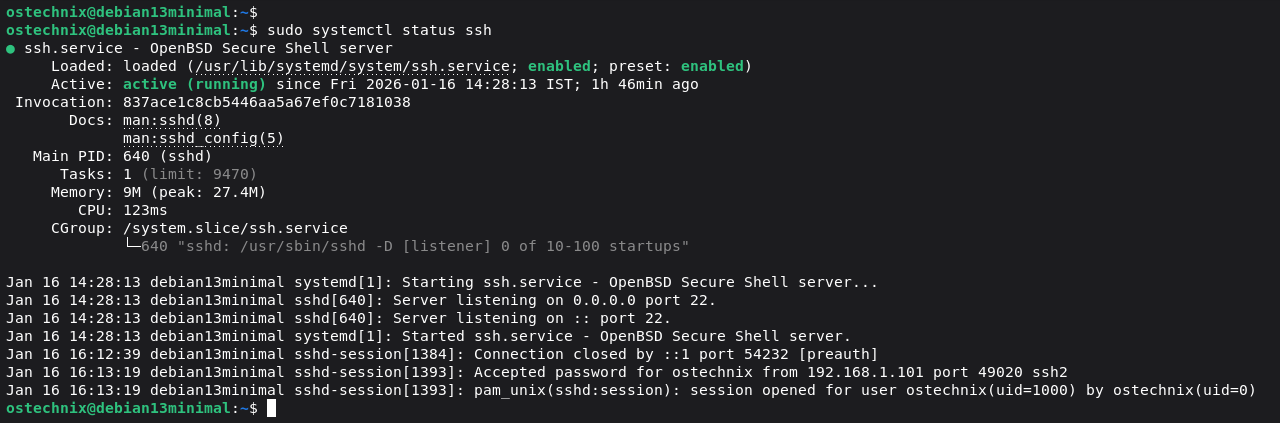
As you can see in the output above, the green "active (running)" status confirms SSH is working.
If SSH isn't set to start on boot (it should be by default), enable it:
sudo systemctl enable ssh
Step 3: Find Your Server's IP Address
You need your server's IP address to connect via SSH.
Find your IP address with this command:
ip addr show
Or use the shorter version:
ip a
How to read the output:
Look for your primary network interface (usually eth0, enp0s3, or wlan0 for wireless). Find the line starting with inet (not inet6 unless you need IPv6).
Example Output:
2: ens18: <BROADCAST,MULTICAST,UP,LOWER_UP> mtu 1500 qdisc fq_codel state UP group default qlen 1000
    link/ether bc:24:11:5f:7f:01 brd ff:ff:ff:ff:ff:ff
    altname enp6s18
    altname enxbc24115f7f01
    inet 192.168.1.13/24 brd 192.168.1.255 scope global ens18
       valid_lft forever preferred_lft forever
    inet6 fe80::be24:11ff:fe5f:7f01/64 scope link proto kernel_ll
       valid_lft forever preferred_lft forever
In this example, the IP address is 192.168.1.13.
Alternative method using hostname:
hostname -I
This displays just the IP addresses without extra information.
Find your username:
If you don't remember your username, run:
whoami
This displays your current username.
Write down both your IP address and username — you'll need them to connect.
Step 4: Test Your SSH Connection
Now test that SSH works with the default configuration before making any changes.
From the same server (localhost test):
ssh localhost
Type yes when asked about the fingerprint, then enter your password. If you can log in, SSH works.
Exit the test connection:
exit
From another computer (remote test):
Open a terminal on your client machine and connect:
ssh username@server_ip
Replace username with your actual username and server_ip with your server's IP address.
Example:
ssh ostechnix@192.168.1.13
First-time connection warning:
The first time you connect to a new server, you'll see:
hostkeys_find_by_key_hostfile: hostkeys_foreach failed for /etc/ssh/ssh_known_hosts: Permission denied
The authenticity of host '192.168.1.13 (192.168.1.13)' can't be established.
ED25519 key fingerprint is SHA256:xmmilIRQ0oY3cSBkf746gngxPhzv22Fl/Q5mflJ2kt0.
This key is not known by any other names.
Are you sure you want to continue connecting (yes/no/[fingerprint])? yes
Type yes and press Enter. This saves the server's fingerprint to your known_hosts file.
Enter your password when prompted. If you successfully log in, SSH is working correctly.
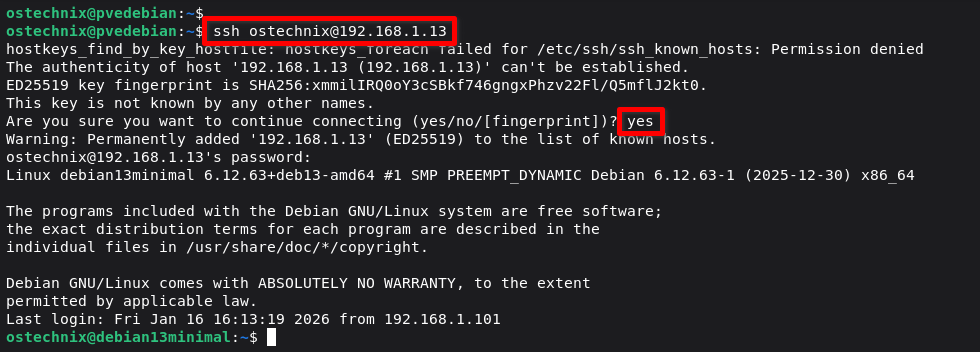
Congratulations! You now have a working SSH server.
Step 5: Basic Firewall Setup (Optional but Recommended)
If you plan to access this server from the internet or untrusted networks, set up a basic firewall now.
Install UFW (Uncomplicated Firewall):
sudo apt install ufw -y
Important: Allow SSH BEFORE enabling the firewall:
sudo ufw allow 22/tcp
Set default policies:
sudo ufw default deny incoming
sudo ufw default allow outgoing
Enable the firewall:
sudo ufw enable
Press y to confirm.
Verify firewall status:
sudo ufw status verbose
You should see SSH (port 22) allowed.
Status: active
Logging: on (low)
Default: deny (incoming), allow (outgoing), disabled (routed)
New profiles: skip

To                         Action      From
--                         ------      ----
22/tcp                     ALLOW IN    Anywhere
22/tcp (v6)                ALLOW IN    Anywhere (v6)
If you skip the allow rule and enable UFW, you'll lock yourself out. The firewall will block your SSH connection immediately.
You can stop here if you only need basic functionality, but we strongly recommend continuing to Part 2 to secure your SSH setup properly.
Part 2: SSH Hardening on Debian Linux (Make It Secure)
Now that SSH works, it's time to secure it properly. The default configuration is NOT secure for internet-facing servers.
In the following sections, I will explain the best practices to secure SSH on Linux. While this guide is exclusively written for Debian, the steps given below are applicable for other Linux distributions as well. You only need to make these changes in your distribution's appropriate SSH configuration file.
Why SSH Hardening Matters
IMPORTANT SECURITY WARNING
The default SSH configuration is NOT secure for internet-facing servers. Attackers continuously scan port 22 looking for weak passwords and default settings. According to security research, SSH brute-force attacks can exceed thousands of attempts per day on exposed servers.
What happens without hardening:
- Bots find your server within hours of going online
- Automated password guessing attacks (brute force)
- Root account is the primary target
- Your logs fill with thousands of failed login attempts
- Eventually, weak passwords get cracked
What proper hardening achieves:
- Stops 90-95% of automated attacks immediately
- Eliminates password-based vulnerabilities entirely
- Reduces attack surface dramatically
- Makes your server nearly invisible to automated scanners
The hardening steps below are not optional for production servers or any server accessible from the internet.
Step 6: Create a Backup of SSH Configuration
Before making any changes, back up the original configuration:
sudo cp /etc/ssh/sshd_config /etc/ssh/sshd_config.backup
If something goes wrong, you can restore it:
sudo cp /etc/ssh/sshd_config.backup /etc/ssh/sshd_config
sudo systemctl restart ssh
Step 7: Essential SSH Security Configuration
Open the SSH configuration file in your preferred text editor:
sudo nano /etc/ssh/sshd_config
We'll make several critical changes to secure your SSH server.
Security Setting 1: Disable Root Login (Critical)
Find this line:
#PermitRootLogin prohibit-password
Change it to:
PermitRootLogin no
Remove the # symbol and change the value to no. Do not save yet. We need to configure a few more settings.
Why this matters: Root has unlimited system privileges. Attackers ALWAYS try root first because one successful root login gives complete control. Disabling root login via SSH forces attackers to guess both a valid username AND password.
How to maintain root access: Use your regular user account with sudo instead. This provides better logging and accountability.
Security Setting 2: Change the Default Port (Highly Recommended)
Find this line:
#Port 22
Change it to a non-standard port:
Port 2222
Remove the # and choose any port between 1024 and 65535. Common alternatives: 2222, 2200, 2244, or 22222.
Why change the default port?
Port 22 is THE most scanned port on the internet. Research shows changing from port 22 stops 90-99% of automated bot attacks because most scanning scripts only check standard ports.
Security logs on port 22 servers show hundreds to thousands of brute-force attempts daily. Servers on non-standard ports see dramatically fewer attack attempts.
Important notes:
- Write down your new port number, you WILL need it to connect
- Update your firewall rules (covered in Step 11):
sudo ufw allow 2222/tcp - Tell users they must specify the port:
ssh -p 2222 user@server
Limitation: Changing ports is "security through obscurity." It stops casual scans but won't stop a determined attacker who scans all ports. Still, it's effective against 90%+ of automated attacks.
Security Setting 3: Prepare for Key-Only Authentication
Find this line:
#PubkeyAuthentication yes
Change it to:
PubkeyAuthentication yes
Why SSH keys are better:
Passwords can be guessed through brute-force attacks. Even strong passwords are vulnerable given enough time and attempts. SSH keys use cryptographic algorithms that are mathematically impossible to brute-force with current technology.
Additional Security Settings (Recommended)
Add or modify these lines in /etc/ssh/sshd_config:
Limit authentication attempts:
MaxAuthTries 3
MaxSessions 2
This allows 3 password/key attempts and 2 simultaneous SSH sessions per connection. Limits brute-force attempts. The default values are 6 and 10 in Debian 13 ssh config file.
Set login timeout:
LoginGraceTime 60
Disconnects unauthenticated connections after 60 seconds. Prevents hanging connections from consuming resources. The default value is 2m.
Set idle timeout:
ClientAliveInterval 300
ClientAliveCountMax 2
Automatically disconnects idle sessions after 10 minutes (300 seconds × 2 checks). Prevents forgotten sessions from staying open. The default values for these two settings are 0 and 3 respectively.
Force SSH Protocol 2 (already default in Debian 13):
Protocol 2
SSH Protocol 1 is ancient and broken. Modern Debian versions already disable it, but explicitly setting this doesn't hurt.
Save the file: Press Ctrl+O, then Ctrl+X.
DO NOT restart SSH yet. This is important. We need to set up SSH keys first (next step), test them, THEN restart SSH with the new configuration.
Step 8: Set Up SSH Key Authentication
SSH keys provide cryptographic authentication that's virtually impossible to brute-force. This is THE most important security improvement you can make.
How SSH keys work:
You generate two files: a private key (stays on your computer, never share) and a public key (placed on the server). The server uses the public key to verify you have the matching private key without ever transmitting the private key.
Generate Your SSH Key Pair
On your local client machine (NOT the server), open a terminal and run:
ssh-keygen -t ed25519 -C "your_email@example.com"
Replace your_email@example.com with your actual email (used as a label).
Why Ed25519?
It's the most modern and secure key type available. Ed25519 provides equivalent security to 4096-bit RSA keys but with better performance, shorter keys, and stronger cryptographic properties. It's the 2025 recommended standard.
Key generation process:
- Save location: Press Enter to use the default (
~/.ssh/id_ed25519) - Passphrase: Enter a strong passphrase when prompted
- This protects your private key if someone steals your computer
- You'll be asked for this passphrase when using the key
- Leaving it blank is less secure but more convenient
- Completion: You'll see the key fingerprint and a randomart image
Generating public/private ed25519 key pair.
Enter file in which to save the key (/home/ostechnix/.ssh/id_ed25519):
/home/ostechnix/.ssh/id_ed25519 already exists.
Overwrite (y/n)? y
Enter passphrase (empty for no passphrase):
Enter same passphrase again:
Your identification has been saved in /home/ostechnix/.ssh/id_ed25519
Your public key has been saved in /home/ostechnix/.ssh/id_ed25519.pub
The key fingerprint is:
SHA256:dKyZ99/7d5o1sXJM3WE9HpBb1jwjxG64zmRBew4LP7w sk@ostechnix.lan
The key's randomart image is:
+--[ED25519 256]--+
|            oo...|
|         . . +.=+|
|        . + + ==+|
|       . * = =o *|
|        S = O  +o|
|         . X .o o|
|          = +. =.|
|           E .o++|
|              +oB|
+----[SHA256]-----+
Files created:
~/.ssh/id_ed25519— Your private key (NEVER share this)~/.ssh/id_ed25519.pub— Your public key (safe to share)
Alternative: RSA keys (if Ed25519 isn't supported):
ssh-keygen -t rsa -b 4096 -C "your_email@example.com"
Use RSA only if connecting to very old systems that don't support Ed25519.
Copy Your Public Key to the Server
Now transfer your public key to the server's authorized_keys file.
Method 1: Using ssh-copy-id (easiest):
ssh-copy-id -p 22 username@server_ip
Replace:
22with your SSH port (if you changed it in Step 7, use that port)usernamewith your server usernameserver_ipwith your server's IP address
Example:
ssh-copy-id -p 22 ostechnix@192.168.1.13
Note: If you may noticed, I have changed the port number in the Step 7 (Security setting 2). But I haven't restarted the ssh service yet, so port 22 is still the default ssh port in my case. This is why I mentioned 22 (not 2222) in the above command. If you've already restarted the ssh service, you should use the new port in the above command.
Enter your password one final time. The command automatically copies your public key to the server.
Method 2: Manual copy (if ssh-copy-id isn't available):
Display your public key:
cat ~/.ssh/id_ed25519.pub
Copy the entire output (starts with ssh-ed25519 and ends with your email).
Log into your server, then:
mkdir -p ~/.ssh
chmod 700 ~/.ssh
nano ~/.ssh/authorized_keys
Paste your public key on a new line. Save and exit (Ctrl+X, Y, Enter).
Set correct permissions:
chmod 600 ~/.ssh/authorized_keys
Why permissions matter: SSH refuses to use keys with incorrect permissions for security reasons. These exact permissions are required.
Step 9: Test SSH Key Authentication
This is critical: Test SSH key authentication works BEFORE you disable password authentication. Otherwise you'll lock yourself out.
Keep your existing SSH session open and open a NEW terminal window to test.
Try connecting with your key:
ssh -p 22 username@server_ip
Use your new port number if you changed it in Step 7.
Note: I have changed the port number, but didn't restart the ssh service yet, so the 22 is still the default ssh port.
What should happen:
- If you set a passphrase: You're asked for the passphrase (NOT your password)
- If no passphrase: You're logged in immediately without any password prompt
$ ssh -p 22 ostechnix@192.168.1.13
Linux debian13minimal 6.12.63+deb13-amd64 #1 SMP PREEMPT_DYNAMIC Debian 6.12.63-1 (2025-12-30) x86_64

The programs included with the Debian GNU/Linux system are free software;
the exact distribution terms for each program are described in the
individual files in /usr/share/doc/*/copyright.

Debian GNU/Linux comes with ABSOLUTELY NO WARRANTY, to the extent
permitted by applicable law.
Last login: Fri Jan 16 16:52:25 2026 from 192.168.1.101
If it works: Excellent! Key authentication is set up. You can now disable password authentication.
If it doesn't work:
- Check file permissions on the server:
ls -la ~/.ssh/ - Verify your public key is in
~/.ssh/authorized_keyson the server - Check SSH server logs:
sudo tail -f /var/log/auth.log - Do NOT disable password authentication until this works
Step 10: Disable Password Authentication
Now that SSH keys work, disable password authentication completely.
Go back to your Debian 13 server, and open the SSH configuration file again in your preferred text editor:
sudo nano /etc/ssh/sshd_config
Find this line:
#PasswordAuthentication yes
Change it to:
PasswordAuthentication no
Remove the # and set it to no.
Save and exit (Ctrl+X, Y, Enter).
Test your configuration file for syntax errors:
sudo sshd -t
If this returns nothing, your configuration is valid. If you see errors, fix them before restarting.
Restart the SSH service:
sudo systemctl restart ssh
Verify SSH is running on the new port:
sudo ss -tlnp | grep sshd
You should see output showing SSH listening on your new port (e.g., :2222).
LISTEN 0      128          0.0.0.0:2222      0.0.0.0:*    users:(("sshd",pid=2149,fd=6))
LISTEN 0      128             [::]:2222         [::]:*    users:(("sshd",pid=2149,fd=7))
Step 11: Update Firewall for New SSH Port
If you changed the SSH port in Step 7, update your firewall rules.
Remove the old port 22 rule:
sudo ufw delete allow 22/tcp
Allow your new SSH port:
sudo ufw allow 2222/tcp
Replace 2222 with your actual SSH port.
Verify firewall status using command:
sudo ufw status numbered
You should see your new SSH port allowed, and port 22 should be removed.
Status: active

     To                         Action      From
     --                         ------      ----
[ 1] 2222/tcp                   ALLOW IN    Anywhere
[ 2] 2222/tcp (v6)              ALLOW IN    Anywhere (v6)
Optional: Rate limit SSH connections:
sudo ufw limit 2222/tcp
This rate-limits connections to the SSH port, slowing down brute-force attacks.
Step 12: Testing SSH Connection with New Port, No Password
Go back to your local client system, and test SSH connection in a NEW terminal (keep the old one open):
ssh -p 2222 ostechnix@192.168.1.13
Replace the port number, username and IP address with your own.
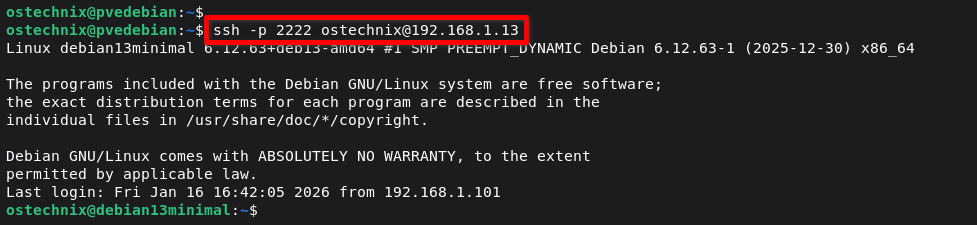
If the new connection works: Success! Your SSH configuration is applied correctly. You can close the old session.
If it doesn't work: Good thing you kept the original session open. Check the configuration file for typos, fix them, and restart SSH again.
Step 13: Verify Your Complete SSH Security Configuration
Run these verification commands to confirm everything is configured correctly.
Check SSH is Listening on the Correct Port
sudo ss -tlnp | grep sshd
You should see your SSH port (2222 in our example) in the output.
LISTEN 0      128          0.0.0.0:2222      0.0.0.0:*    users:(("sshd",pid=2149,fd=6))
LISTEN 0      128             [::]:2222         [::]:*    users:(("sshd",pid=2149,fd=7))
Verify Password Authentication is Disabled
sudo sshd -T | grep passwordauthentication
Should output:
passwordauthentication no
Verify Root Login is Disabled
sudo sshd -T | grep permitrootlogin
Should output:
permitrootlogin no
Verify SSH Key Authentication is Enabled
sudo sshd -T | grep pubkeyauthentication
Should output:
pubkeyauthentication yes
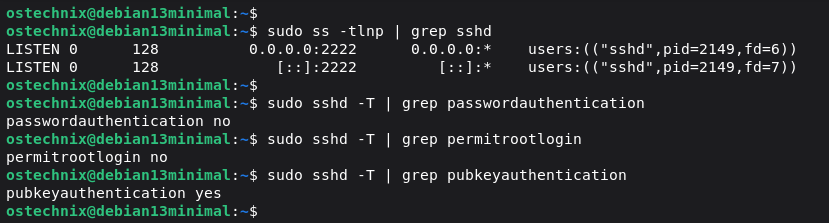
Test SSH Connection from Another Machine
Open a terminal on a different computer:
ssh -p 2222 username@server_ip
Expected results:
- Connection succeeds with your SSH key
- No password prompt (only passphrase if you set one)
- Connection fails if you try with wrong username
Test what should NOT work:
Try connecting with a password (should fail):
ssh -o PreferredAuthentications=password -p 2222 username@server_ip
Should fail with "Permission denied."
Try connecting as root (should fail):
ssh -p 2222 root@server_ip
Should fail immediately.
If all these tests pass, your SSH server is properly secured.
Step 14: Set Up Fail2Ban (Automated Attack Protection)
Fail2ban automatically blocks IPs that show malicious behavior like repeated failed login attempts.
Install Fail2Ban
sudo apt install fail2ban -y
Configure Fail2Ban for SSH
Create a local configuration file (never edit the default jail.conf):
sudo cp /etc/fail2ban/jail.conf /etc/fail2ban/jail.local
Edit the local configuration:
sudo nano /etc/fail2ban/jail.local
Find the [sshd] section and modify it:
[sshd]
enabled = true
port = 2222
filter = sshd
logpath = /var/log/auth.log
maxretry = 3
bantime = 3600
findtime = 600
Configuration explained:
enabled = true- Activates SSH protectionport = 2222- Your SSH port (change to match yours)maxretry = 3- Bans after 3 failed attemptsbantime = 3600- Bans for 1 hour (3600 seconds)findtime = 600- Failed attempts counted over 10 minutes
Save and exit (Ctrl+X, Y, Enter).
Restart Fail2Ban
sudo systemctl restart fail2ban
sudo systemctl enable fail2ban
Monitor Fail2Ban Activity
Check ban status:
sudo fail2ban-client status sshd
Shows total bans and currently banned IPs.
View banned IPs:
sudo fail2ban-client get sshd banip
Manually unban an IP:
sudo fail2ban-client set sshd unbanip IP_ADDRESS
Monitor fail2ban logs:
sudo tail -f /var/log/fail2ban.log
Why Fail2Ban is must:
Even with key-only authentication and non-standard ports, automated scanners will eventually find your SSH service. Fail2ban automatically blocks persistent attackers, reducing server load and log spam.
On a typical public server, fail2ban blocks 10-50 IPs daily from brute-force attempts.
For more details, check our Fail2ban detailed guide in the link below:
Monitoring SSH Logs and Activity
Regular log monitoring helps you detect attacks and troubleshoot connection issues.
View recent SSH logs
sudo journalctl -u ssh --no-pager -n 30
This shows the last 30 SSH-related log entries.
Watch Logs in Real-Time
To follow SSH logs live (like tail -f), run:
sudo journalctl -u ssh -f
Press Ctrl+C to stop watching.
Filter for authentication attempts
sudo journalctl -u ssh | grep -i auth
View logs since last boot
sudo journalctl -u ssh -b
View failed SSH logins
sudo journalctl -u ssh | grep -i fail
Or more focused:
sudo journalctl _COMM=sshd | grep -i fail
What to Look For in Logs
Successful logins:
Accepted publickey for username from IP_ADDRESS port XXXXX ssh2
Failed login attempts:
Failed password for invalid user admin from IP_ADDRESS port XXXXX ssh2
Multiple failures from same IP = brute-force attack:
Failed password for root from 192.168.1.100
Failed password for admin from 192.168.1.101
Failed password for user from 192.168.1.102
Check Who's Currently Logged In
who
Or more detailed:
w
Shows all current SSH sessions with connection times and IP addresses.
View SSH Connection History
last -a | grep pts
Shows all recent SSH logins with timestamps and IPs.
Red flag: Hundreds of failures from the same IP = automated attack.
With fail2ban installed: These IPs get banned automatically after 3 attempts.
Advanced SSH Configuration (Optional)
Once your basic setup works securely, consider these advanced options.
Restrict SSH to Specific Users
Add this line to limit SSH access to specific user accounts:
AllowUsers username1 username2
Only listed users can log in via SSH. Everyone else is denied regardless of their credentials.
Alternative: Use DenyUsers to block specific accounts while allowing all others.
You can also restrict SSH access to a group. For more details, check this guide:
Bind SSH to Specific IP Addresses
If your server has multiple network interfaces, restrict SSH to one:
ListenAddress 192.168.1.13
This prevents SSH from listening on all interfaces, reducing attack surface.
Set a Custom Login Banner
Create a banner file:
sudo nano /etc/ssh/banner.txt
Add your warning message:
AUTHORIZED ACCESS ONLY
All activity is monitored and logged.
Unauthorized access is prohibited.
Reference it in /etc/ssh/sshd_config:
Banner /etc/ssh/banner.txt
SSH displays this banner before authentication. Many security policies and compliance frameworks recommend or require a legal warning banner, depending on scope.
Sample Output:
AUTHORIZED ACCESS ONLY
All activity is monitored and logged.
Unauthorized access is prohibited.
Linux debian13minimal 6.12.63+deb13-amd64 #1 SMP PREEMPT_DYNAMIC Debian 6.12.63-1 (2025-12-30) x86_64

The programs included with the Debian GNU/Linux system are free software;
the exact distribution terms for each program are described in the
individual files in /usr/share/doc/*/copyright.

Debian GNU/Linux comes with ABSOLUTELY NO WARRANTY, to the extent
permitted by applicable law.
Last login: Fri Jan 16 18:16:27 2026 from 192.168.1.101
Disable X11 Forwarding
Unless you specifically need graphical applications over SSH:
X11Forwarding no
This disables X11 forwarding, which most servers do not need. As a result, SSH exposes fewer features and becomes simpler to secure.
Disable TCP Forwarding (Very Restrictive)
If you do not use SSH for tunneling or port forwarding, you can disable these features:
AllowTcpForwarding no
AllowStreamLocalForwarding no
GatewayPorts no
PermitTunnel no
This removes SSH tunneling and forwarding capabilities, which many servers do not need.
Warning: This breaks legitimate use cases such as database tunneling, port forwarding, and SOCKS proxies. Enable these options only if you understand the impact and want a strict lockdown.
Chroot Users to Their Home Directory
For users who only need file transfers and no shell access, you can restrict them to SFTP in a chroot jail.
Important: ChrootDirectory must be owned by root and must not be writable by the user. This often requires a dedicated directory layout.
Example configuration:
Match User sftpuser
ChrootDirectory /home/sftpuser
ForceCommand internal-sftp
AllowTcpForwarding no
X11Forwarding no
Before enabling this:
- Ensure
/home/sftpuseris owned byroot:root - Create a writable subdirectory (for example
/home/sftpuser/upload) owned by the user
This setup confines the user to SFTP-only access within the chroot environment.
Warning: Misconfigured ownership or permissions will prevent login. Test carefully before applying on production systems.
For details, check the following guide:
Use SSH Certificates (For Teams)
Instead of managing individual keys for each user on each server, use SSH certificates with a certificate authority (CA). This is enterprise-grade SSH management but requires significant setup.
⚠️ Warning: Do Not Copy-Paste SSH Hardening Snippets Blindly
Many SSH hardening guides on the internet might be written for older Linux releases. Modern systems such as Debian 13 already ship with strong cryptographic defaults, including authenticated encryption and post-quantum key exchange.
Blindly copying cipher, MAC, or key-exchange lists can:
- remove stronger default algorithms
- break compatibility with legitimate clients
- increase long-term maintenance effort
- reduce security instead of improving it
Before changing SSH cryptography, always inspect the effective configuration with command:
sudo sshd -T | grep -E 'ciphers|macs|kexalgorithms'Only override defaults when you have a clear compatibility, compliance, or policy requirement.
Understanding SSH Security Limitations
SSH is highly secure when configured properly, but no security measure is perfect. Understand what SSH protects against and what it doesn't.
What SSH Security Actually Provides
Strong protection against:
- ✅ Password interception (everything is encrypted)
- ✅ Eavesdropping on network traffic (end-to-end encryption)
- ✅ Man-in-the-middle attacks (with proper fingerprint verification)
- ✅ Brute-force password attacks (with key-based auth)
- ✅ Session hijacking (cryptographic session tokens)
What SSH Doesn't Protect Against
No protection from:
- ❌ Compromised private keys (if someone steals your key file)
- ❌ Malware on the server or client
- ❌ Social engineering attacks
- ❌ Physical access to your computer with unencrypted keys
- ❌ Vulnerabilities in other services running on the server
- ❌ Backdoors in the operating system itself
Troubleshooting Common SSH Issues
1. Connection Refused
Error: ssh: connect to host server_ip port 22: Connection refused
Causes & fixes:
- SSH service not running:
sudo systemctl start ssh - Wrong port specified: Use
-pflag with correct port - Firewall blocking connection: Check
sudo ufw status
2. Permission Denied (publickey)
Error: Permission denied (publickey)
Causes & fixes:
- SSH keys not set up: Follow Step 8 again
- Wrong key file: Specify key with
ssh -i ~/.ssh/id_ed25519 - Wrong permissions: Fix with
chmod 600 ~/.ssh/authorized_keyson server - Password auth disabled without working keys: Edit
/etc/ssh/sshd_configvia console
3. Connection Timeout
Error: Connection hangs, eventually times out
Causes & fixes:
- Wrong IP address: Verify server IP with
ip a - Server is down: Check if server is running
- Firewall blocking: Temporarily disable to test:
sudo ufw disable - Network issues: Test with
ping server_ip
4. Too Many Authentication Failures
Error: Received disconnect from server: Too many authentication failures
Causes & fixes:
- Too many keys in
~/.ssh/: SSH tries all keys automatically - Solution: Specify key explicitly:
ssh -i ~/.ssh/id_ed25519 user@server - Or: Increase
MaxAuthTriesin/etc/ssh/sshd_config
5. Host Key Verification Failed
Error: Host key verification failed
Causes:
- Server reinstalled with new SSH keys
- Man-in-the-middle attack (rare but possible)
Fix (if you trust the new key):
ssh-keygen -R server_ip
This removes the old fingerprint. Reconnect to add the new one.
6. Bad Permissions Error
Error: Bad permissions. Ignore key
Fix:
chmod 700 ~/.ssh
chmod 600 ~/.ssh/id_ed25519
chmod 644 ~/.ssh/id_ed25519.pub
SSH requires exact permissions for security.
7. Check SSH Server Logs for Detailed Errors
sudo tail -f /var/log/auth.log
Attempt connection, watch logs for specific error messages.
Common Mistakes That Lock You Out (And How to Avoid Them)
These are the most frequent SSH configuration errors. Learn from others' mistakes.
Mistake 1: Disabling Password Auth Before Testing SSH Keys
The error: Changing PasswordAuthentication no before verifying SSH keys work.
What happens: You can't log in with passwords OR keys. You're locked out.
How to avoid: Always test SSH key authentication in a NEW terminal while keeping an existing session open. Only disable password auth after keys work perfectly.
If you're already locked out: Use the server's physical console or your hosting provider's web console to access the server and fix the configuration.
Mistake 2: Enabling Firewall Without Allowing SSH Port
The error: Running sudo ufw enable before allowing your SSH port.
What happens: Firewall blocks all SSH connections instantly. You're locked out.
How to avoid: ALWAYS configure firewall rules (allow SSH port) BEFORE enabling the firewall. Keep an active SSH session open when testing.
Mistake 3: Not Keeping a Session Open While Making Changes
The error: Making SSH configuration changes and immediately closing your session to test.
What happens: If something breaks, you can't fix it remotely.
How to avoid: Keep your original SSH session open. Open a SECOND terminal to test new connections. Only close the original after confirming the new connection works.
Mistake 4: Typos in sshd_config File
The error: Misspelling configuration directives like PermitRootLogin or PasswordAuthentification (wrong spelling).
What happens: SSH might fail to start, or the directive is ignored.
How to avoid: Always test configuration syntax: sudo sshd -t before restarting SSH. This catches syntax errors before they break your SSH service.
Mistake 5: Wrong File Permissions on SSH Keys
The error: .ssh directory is world-readable or authorized_keys has wrong permissions.
What happens: SSH refuses to use the keys for security reasons.
How to avoid: Set correct permissions:
chmod 700 ~/.ssh
chmod 600 ~/.ssh/authorized_keys
Mistake 6: Changing Port But Forgetting to Update Firewall
The error: Changing SSH to port 2222 in sshd_config but firewall still only allows port 22.
What happens: SSH runs on the new port, but firewall blocks all connections to it.
How to avoid: After changing ports, update firewall rules immediately: sudo ufw allow 2222/tcp
Mistake 7: Using Weak or Outdated Key Types
The error: Generating RSA keys shorter than 2048 bits or using DSA keys.
What happens: Weak keys can be compromised. OpenSSH 10.0+ in Debian 13 doesn't support DSA keys at all.
How to avoid: Always use Ed25519 keys: ssh-keygen -t ed25519 or RSA 4096-bit minimum: ssh-keygen -t rsa -b 4096
Mistake 8: Setting SSH Port Below 1024 as Non-Root
The error: Trying to use port 22, 80, or any port below 1024 without root privileges.
What happens: SSH fails to bind to the port.
How to avoid: Use ports above 1024 (like 2222) or ensure SSH runs with appropriate privileges.
When to Use This SSH Setup (And When Not To)
Use this SSH configuration when:
- Managing production servers - Security hardening is essential for internet-facing servers
- Remote server administration - SSH is the standard tool for command-line management
- Automating deployments - SSH keys enable passwordless automation securely
- Secure file transfers - SCP and SFTP over SSH encrypt file transfers
- Accessing cloud servers - AWS, DigitalOcean, Linode, etc. all rely on SSH
- Home lab management - Good practice to learn proper security configurations
- Managing multiple servers - SSH keys scale better than remembering many passwords
Don't use SSH when:
- You need a graphical desktop - Use VNC or RDP (tunnel them through SSH for security)
- You need full VPN capabilities - SSH tunneling has limits; use WireGuard or OpenVPN for site-to-site connectivity
- Users are non-technical - SSH keys confuse most non-technical users; consider web-based management panels
- Server has no network access- Physical access only, SSH won't help
- You need to share access widely - SSH keys don't scale well for teams of 50+ people; consider bastion hosts or centralized authentication
Consider alternatives:
- Tailscale SSH: Simplified SSH management without port forwarding or key management
- mosh: Mobile shell for unstable connections (roaming, high latency)
- Web-based terminals: For users who need basic access without SSH clients
- Configuration management: Ansible, Salt, Puppet for managing many servers
Recommended Read: How Tmux Saved My Work and Why You Should Use It for Unstable SSH Connections in Linux
Frequently Asked Questions (FAQ)
A: Use the -p flag to specify your custom port:ssh -p 2222 username@server_ip
Replace 2222 with your actual SSH port.
A: Yes. With SSH key authentication properly configured and password authentication disabled, you'll only need your key passphrase (if you set one) or nothing at all (if you didn't set a passphrase).
A: You'll need console access to the server to add a new public key to ~/.ssh/authorized_keys. If you don't have console access, you might be locked out permanently. This is why backups of your private key (stored securely) are important.
A: Security best practices recommend rotating SSH keys every 1-2 years. For high-security environments, rotate every 6 months or when personnel with key access leave the organization.
A: Yes, for modern systems. Ed25519 provides equivalent security to RSA 4096-bit keys with better performance, shorter keys, and stronger cryptographic properties. Use Ed25519 unless you need compatibility with very old systems (pre-2014).
A: Technically yes, but security best practice says no. Each user should have their own SSH key pair. This provides better audit trails and allows you to revoke individual access without affecting others.
A: SSH is for remote command-line access and file transfers. SSL/TLS is for securing web traffic (HTTPS). Both provide encryption but serve different purposes. SSH predates TLS and uses different protocols.
A: Not unless you have a specific reason. Debian 13's SSH listens on both IPv4 and IPv6 by default. Disabling IPv6 unnecessarily limits your connectivity options.
A: Add each public key on a separate line in ~/.ssh/authorized_keys. Each line should contain one complete public key.
A: Disabling password authentication and using SSH keys only. This single setting eliminates the most common attack vector: password guessing.
Complete SSH Security Checklist
Use this checklist to verify you've implemented all essential security measures.
Installation & Basic Setup
- ✅ OpenSSH Server installed and running
- ✅ SSH service enabled to start on boot
- ✅ Successfully tested SSH connection works
- ✅ Know your server's IP address and SSH port
Critical Security Settings
- ✅ Root login disabled (
PermitRootLogin no) - ✅ SSH port changed from default 22
- ✅ SSH keys generated (Ed25519 or RSA 4096+)
- ✅ Public key copied to server's
authorized_keys - ✅ SSH key authentication tested and working
- ✅ Password authentication disabled (
PasswordAuthentication no)
SSH Configuration Hardening
- ✅ Login grace time set (
LoginGraceTime 60) - ✅ Max authentication tries limited (
MaxAuthTries 3) - ✅ Idle timeout configured (
ClientAliveInterval 300) - ✅ Protocol 2 only (default in Debian 13)
- ✅ Configuration syntax tested (
sudo sshd -t)
Firewall & Network Security
- ✅ UFW firewall installed
- ✅ SSH port allowed in firewall before enabling
- ✅ Firewall enabled and confirmed active
- ✅ Default deny policy set for incoming connections
- ✅ Only necessary ports open
Monitoring & Attack Prevention
- ✅ The Fail2ban tool is installed and configured
- ✅ Fail2ban enabled for SSH protection
- ✅ Fail2ban service set to start on boot
- ✅ Know how to check banned IPs
- ✅ Regularly review
/var/log/auth.log
Key Management
- ✅ Private keys protected with passphrases
- ✅ Private keys have correct permissions (600)
- ✅
.sshdirectory has correct permissions (700) - ✅ Private keys backed up securely
- ✅ Different keys used for different servers (recommended)
- ✅ Plan for key rotation established
Operational Security
- ✅ All users who need SSH access have their keys added
- ✅ Old/unused keys removed from
authorized_keys - ✅ SSH connection works from all necessary locations
- ✅ Recovery plan if locked out (console access available)
- ✅ Team members informed of new SSH port and key requirements
Ongoing Maintenance
- ✅ Schedule regular security updates (
apt update && apt upgrade) - ✅ Monitor SSH logs for suspicious activity
- ✅ Review fail2ban bans periodically
- ✅ Audit
authorized_keysquarterly - ✅ Rotate SSH keys annually or when required
Print this checklist and check off items as you complete them. A properly secured SSH setup includes ALL of these items, not just some of them.
Conclusion
SSH is one of the most secure protocols ever designed. It's trusted by banks, governments, and cloud providers worldwide.
SSH is the gateway to your Debian Linux server. So configuring SSH properly should be your top priority to secure the Debian server.
First, get SSH working. Verify connectivity. Then harden it systematically.
Next do the critical security steps, such as disabling root login, using SSH keys, changing the default port and a few more as described under the SSH hardening section above. This will stop 99% of automated attacks. It may take 20 minutes to implement properly.
These aren't suggestions. They're requirements for any Linux server facing the internet.
Always keep SSH updated. OpenSSH has an excellent security record, but vulnerabilities get discovered. Apply updates within days of release.
Monitor your logs. If you're not watching /var/log/auth.log, you don't know if you're under attack. If possible, setup a centralized logging server.
Test before you commit. Always keep a session open when making changes. Always test in a new terminal before closing the last working connection.
Related Read:
