
Table of Contents
Quick Summary
Use column -t -s, file.csv | less -S to view CSV files in Linux terminal with properly aligned columns. This guide shows you 8 practical commands to inspect, filter, and analyze CSV data without opening a spreadsheet.
Introduction
Opening LibreOffice Calc or Excel to check if a CSV has 500 rows or 5,000? To verify low stock items? To spot pricing errors? There's a faster way that works on any Linux server or terminal.
This guide shows you how to inspect CSV files directly in the Linux terminal using built-in commands. You'll learn to read, filter, sort, and analyze structured data quickly—without GUI applications, without installing special tools, and without editing the original files.
What you'll learn:
- View CSV files with proper column alignment
- Filter rows by specific criteria (status, price, date)
- Sort data numerically or alphabetically
- Select and display only the columns you need
- Count records and validate data quickly
- Handle large files safely without freezing your terminal
Example: inventory.csv
We'll use this example CSV file named inventory.csv throughout this guide:
id,name,category,price,quantity,status
101,Keyboard,Input,1200,15,ok
102,Mouse,Input,600,3,low_stock
103,Monitor,Display,8500,7,ok
104,USB Cable,Accessory,250,50,ok
105,Webcam,Camera,3200,2,low_stock
This represents typical structured data: header row, comma-separated values, mixed text and numbers.
1. Display CSV with Aligned Columns
Problem: Raw CSV files are hard to read visually.
Solution: Use the column command to align data into clean columns:
column -t -s, inventory.csv
What it does:
-tcreates a table format-s,specifies comma as the separator
Sample Output:
id   name       category    price  quantity  status
101  Keyboard   Input       1200   15        ok
102  Mouse      Input       600    3         low_stock
103  Monitor    Display     8500   7         ok
104  USB Cable  Accessory   250    50        ok
105  Webcam     Camera      3200   2         low_stock
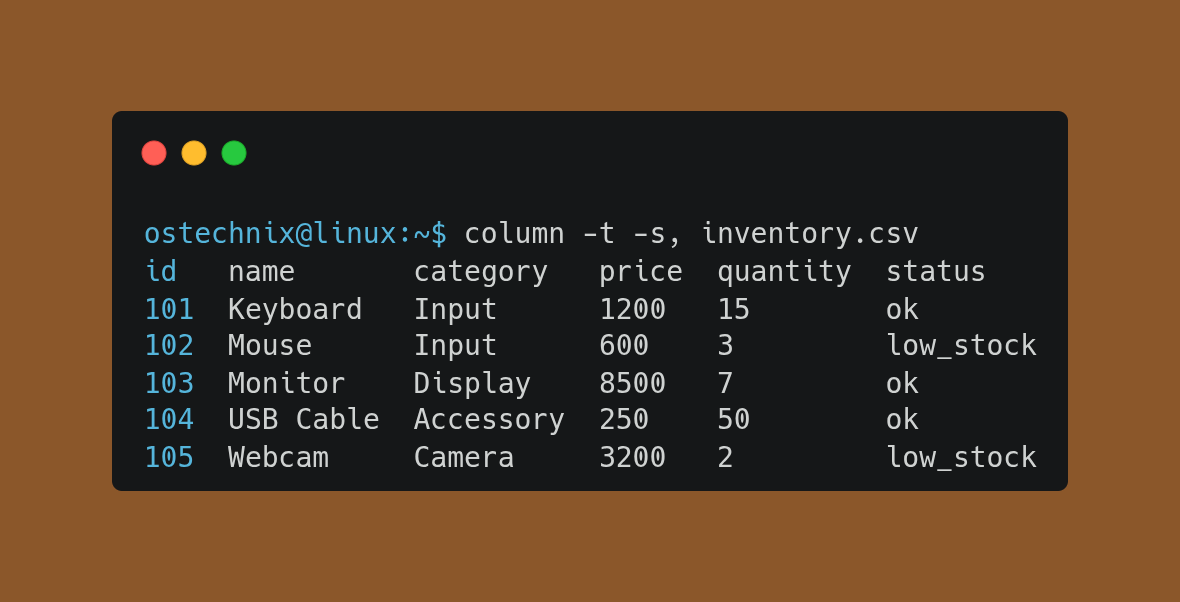
Your original file remains unchanged—this only affects the display.
2. View Large CSV Files Safely
Problem: Large files flood your terminal with thousands of lines.
Solution: Pipe the output to less for scrollable viewing:
column -t -s, inventory.csv | less -S
Benefits:
-Sprevents line wrapping (use arrow keys to scroll horizontally)- Search with
/key - Quit with
qkey - Works on files with millions of rows
- No memory issues or terminal freezing
This is essential when inspecting production data or server logs over SSH.
3. Keep Headers Visible While Scrolling
Problem: Headers disappear when scrolling through data.
Solution: Pin the header to the top:
(head -n 1 inventory.csv && tail -n +2 inventory.csv | column -t -s,) | less -S
How it works:
head -n 1displays the header oncetail -n +2shows all rows except the headercolumn -t -s,formats the data rows- Header stays at the top while you scroll through thousands of records
Perfect for auditing large datasets or reviewing database exports.
4. Display Specific Columns Only
Problem: Too many columns create visual clutter.
Solution: Select only the columns you need with cut:
cut -d, -f2,4,5 inventory.csv | column -t -s,
Explanation:
-d,sets delimiter to comma-f2,4,5selects columns 2 (name), 4 (price), 5 (quantity)
Sample Output:
name       price  quantity
Keyboard   1200   15
Mouse      600    3
Monitor    8500   7
USB Cable  250    50
Webcam     3200   2
Use this to focus on relevant fields during data validation or quick reviews.
5. Sort CSV by Numeric Values
Problem: Need to find highest prices, oldest dates, or largest quantities.
Solution: Use sort with numeric mode:
sort -t, -k4,4n inventory.csv | column -t -s,
Flags explained:
-t,sets comma as delimiter-k4,4sorts by column 4 (price)nenables numeric sorting (100 < 1000, not alphabetic "1000" < "100")
Result: Items sorted from cheapest to most expensive.
id   name       category   price  quantity  status
104  USB Cable  Accessory  250    50        ok
102  Mouse      Input      600    3         low_stock
101  Keyboard   Input      1200   15        ok
105  Webcam     Camera     3200   2         low_stock
103  Monitor    Display    8500   7         ok
Common use cases:
- Find outliers in pricing
- Identify top/bottom performers
- Spot data entry mistakes (negative numbers, zeros where they shouldn't be)
6. Filter Rows by Pattern or Status
Problem: Need to find specific items quickly (error status, low inventory, specific dates).
Solution: Combine column with grep command:
column -t -s, inventory.csv | grep --color=always low_stock
Why this works:
grepfilters rows containing "low_stock"--color=alwayshighlights matches- Table formatting preserved
- Works with any pattern (dates, error codes, status values)
Other examples:
# Find items priced over 1000
column -t -s, inventory.csv | grep -E "(^id|[0-9]{4,})"

# Find all accessories
column -t -s, inventory.csv | grep Accessory

# Case-insensitive search
column -t -s, inventory.csv | grep -i "mouse"
7. Count Rows (Excluding Header)
Problem: Need to verify record counts for data validation.
Solution: Skip the header and count data rows:
tail -n +2 inventory.csv | wc -l
Returns: 6 (the number of data rows)
When to use:
- Verify data import/export (before: 1000 rows, after: 1000 rows?)
- Check filter results (
grep pattern file.csv | wc -l) - Validate batch processing
- Compare file versions
8. Work with JSON Data the Same Way
Problem: Many APIs return JSON, not CSV.
Solution: Convert JSON to CSV format using jq:
jq -r '.[] | [.id, .name, .price] | @csv' inventory.json | column -t -s,
Example JSON:
[
  {"id":101,"name":"Keyboard","price":1200},
  {"id":102,"name":"Mouse","price":600}
]
Output: Same formatted table as CSV.
This lets you use the same workflow for REST API responses, NoSQL exports, and configuration files.
Terminal vs Spreadsheet: When to Use Each
Use the Linux terminal when you need:
- Quick inspection
- Working on remote servers via SSH
- Automating data validation in scripts
- Processing files too large for spreadsheets
- Read-only operations (zero risk of accidental edits)
- Scripting and automation
Use a spreadsheet when you need:
- Charts and visualizations
- Complex formulas and calculations
- Manual data entry or editing
- Pivoting and cross-tabulation
- Collaboration with non-technical users
Pro tip: Use terminal for inspection, spreadsheet for analysis.
Frequently Asked Questions (FAQ)
A: No. Every command here is read-only, which is intentional. For editing, use sed, awk, or a text editor. These commands are designed for safe inspection and validation.
A: Replace -s, with -s';' in all commands. Example:column -t -s';' file.csv
A: Yes. Use -s$'\t' for tabs:column -t -s$'\t' file.tsv
A: Yes, on 99% of Linux distributions. It's part of util-linux (RHEL, CentOS, Fedora) or bsdmainutils (Debian, Ubuntu).
A: The column command treats ALL commas as delimiters, even inside quotes. For complex CSV parsing with quoted fields, use csvkit or python csv module. However, most real-world CSV files work fine with column.
Cheat Sheet: View CSV Files in Linux Terminal
# View CSV with aligned columns
column -t -s, file.csv

# Scroll large files safely
column -t -s, file.csv | less -S

# Keep header visible
(head -n 1 file.csv && tail -n +2 file.csv | column -t -s,) | less -S

# Select specific columns (2, 4, 5)
cut -d, -f2,4,5 file.csv | column -t -s,

# Sort by column 4 numerically
sort -t, -k4,4n file.csv | column -t -s,

# Filter rows by pattern
column -t -s, file.csv | grep pattern

# Count data rows (skip header)
tail -n +2 file.csv | wc -l

# Convert JSON to CSV format
jq -r '.[] | [.field1, .field2] | @csv' data.json | column -t -s,

# Handle semicolon-separated files
column -t -s';' file.csv

# Handle tab-separated files (TSV)
column -t -s$'\t' file.tsv
Next Steps
In this tutorial, you learned how to inspect CSV files efficiently in the Linux terminal. Now, you can:
- Automate data validation in deployment scripts
- Create bash functions for repeated tasks (add to
.bashrc) - Combine commands for complex queries (
sort | grep | cut) - Process multiple files with loops:
for f in *.csv; do ... done - Monitor log files in CSV format in real-time
The real power comes from combining these commands into workflows tailored to your specific needs. Each tool does one thing well. When chained together, they replace entire data inspection applications.
Want to go deeper? Learn about awk for complex CSV transformations, sed for text replacement, and join for merging CSV files based on common fields.
Recommended Read:
