
You might have set up cron jobs that runs at a specific time to backup important files or perform any system related tasks. Or, you might have configured a log server to rotate the logs out of your system at regular interval time. If your clock is out-of-sync, those jobs will not execute at the right time. This is why setting up a correct time zone on the Linux systems and keep the clock synchronized with Internet is important. This guide describes how to set up time synchronization on Ubuntu Linux.
The steps given below are tested on Ubuntu 26.04, 24.04, 22.04, 20.04 and 18.04 LTS editions. However they are same for other Ubuntu-based systems that uses systemd's timesyncd service.
Table of Contents
Set Up Time Synchronization On Ubuntu
Usually, we set time zone during installation. You can however change it or set different time zone if you want to.
First, let us see the current time zone in our Ubuntu system using "date" command:
date
Sample output:
Mon Jun 8 06:45:28 PM IST 2026
As you see in the above output, the "date" command shows the actual date as well as the current time. Here, my current time zone is UTC which stands for Coordinated Universal Time.
Alternatively, you can look up the /etc/timezone file to find the current time zone.
$ cat /etc/timezone
UTC
Now, let us see if the clock is synchronized with Internet. To do so, simply run:
timedatectl
Sample output:
               Local time: Mon 2026-06-08 13:10:08 UTC
           Universal time: Mon 2026-06-08 13:10:08 UTC
                 RTC time: Mon 2026-06-08 13:10:08
                Time zone: Etc/UTC (UTC, +0000)
System clock synchronized: yes
              NTP service: active
          RTC in local TZ: no
As you can see, the "timedatectl" command displays the local time, universal time, time zone and whether the system clock is synchronized with Internet servers and if the systemd-timesyncd.service is active or inactive. In my case, the system clock is synchronizing with Internet time servers.
If the clock is out-of-sync, you would see "System clock synchronized: no" as shown in the below screenshot.

Note: The above screenshot is old one. That's why you see the different date.
If you see "System clock synchronized: value set as no, the timesyncd service might be inactive. So, simply restart the service and see if it helps.
sudo systemctl restart systemd-timesyncd.service
Now check the timesyncd service status:
$ sudo systemctl status systemd-timesyncd.service
● systemd-timesyncd.service - Network Time Synchronization
     Loaded: loaded (/usr/lib/systemd/system/systemd-timesyncd.service; enabled; preset: enabled)
     Active: active (running) since Mon 2026-06-08 18:41:08 IST; 5min ago
       Docs: man:systemd-timesyncd.service(8)
   Main PID: 16952 (systemd-timesyn)
     Status: "Contacted time server [2620:2d:4000:1::41]:123 (ntp.ubuntu.com)."
      Tasks: 2 (limit: 38418)
     Memory: 1.3M (peak: 1.8M)
        CPU: 69ms
     CGroup: /system.slice/systemd-timesyncd.service
             └─16952 /usr/lib/systemd/systemd-timesyncd

Jun 08 18:41:08 ubuntu2604 systemd[1]: Stopping systemd-timesyncd.service - Network Time Synchronization...
Jun 08 18:41:08 ubuntu2604 systemd[1]: systemd-timesyncd.service: Deactivated successfully.
Jun 08 18:41:08 ubuntu2604 systemd[1]: Stopped systemd-timesyncd.service - Network Time Synchronization.
Jun 08 18:41:08 ubuntu2604 systemd[1]: Starting systemd-timesyncd.service - Network Time Synchronization...
Jun 08 18:41:08 ubuntu2604 systemd[1]: Started systemd-timesyncd.service - Network Time Synchronization.
Jun 08 18:41:08 ubuntu2604 systemd-timesyncd[16952]: Contacted time server [2620:2d:4000:1::41]:123 (ntp.ubuntu.com).
Jun 08 18:41:08 ubuntu2604 systemd-timesyncd[16952]: Initial clock synchronization to Mon 2026-06-08 13:11:08.940336 UTC.
If this service is enabled and active, your system clock should sync with Internet time servers.
You can verify if the time synchronization is enabled or not using command:
timedatectl
If it still not works, run the following command to enable the time synchronization:
sudo timedatectl set-ntp true
Now your system clock will synchronize with Internet time servers.
Change time zone using Timedatectl command
What if I want to use different time zone other than UTC? It is easy!
First, list of available time zones using command:
timedatectl list-timezones
You will see an output similar to below image.
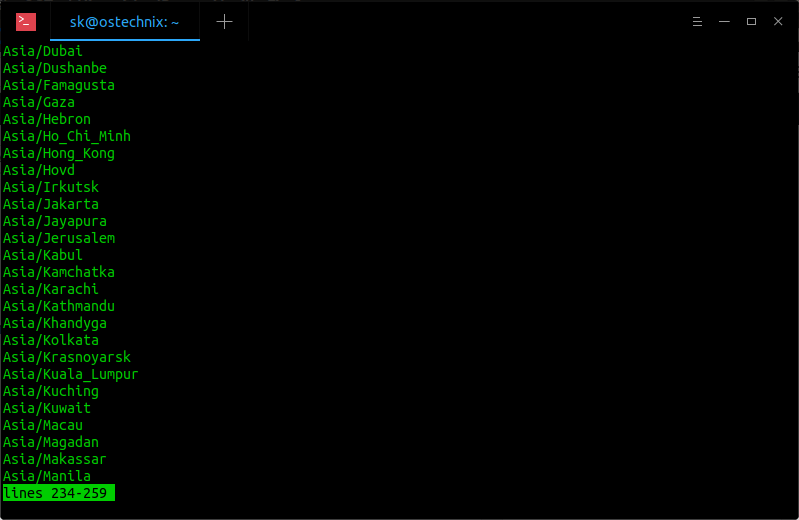
You can set the desired time zone(E.g. Asia/Kolkata) using command:
sudo timedatectl set-timezone Asia/Kolkata
Check again if the time zone has been really changed using "date" command:
$ date
Mon Jun  8 06:49:01 PM IST 2026
Or, use timedatectl command if you want the detailed output:
$ timedatectl
               Local time: Mon 2026-06-08 18:49:16 IST
           Universal time: Mon 2026-06-08 13:19:16 UTC
                 RTC time: Mon 2026-06-08 13:19:16
                Time zone: Asia/Kolkata (IST, +0530)
System clock synchronized: yes
              NTP service: active
          RTC in local TZ: no
As you noticed, I have changed the time zone from UTC to IST (Indian standard time).
To switch back to UTC time zone, simply run:
sudo timedatectl set-timezone UTC
Change time zone using Tzdata
In older Ubuntu versions, the Timedatectl command is not available. In such cases, you can use Tzdata(Time zone data) to set up time synchronization.
sudo dpkg-reconfigure tzdata
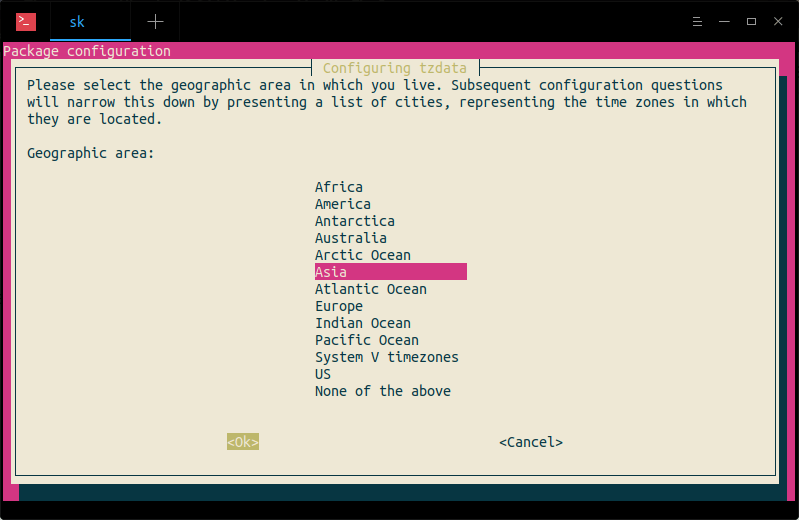
Choose the geographic area in which you live. In my case, I chose Asia. Select OK and hit ENTER key.
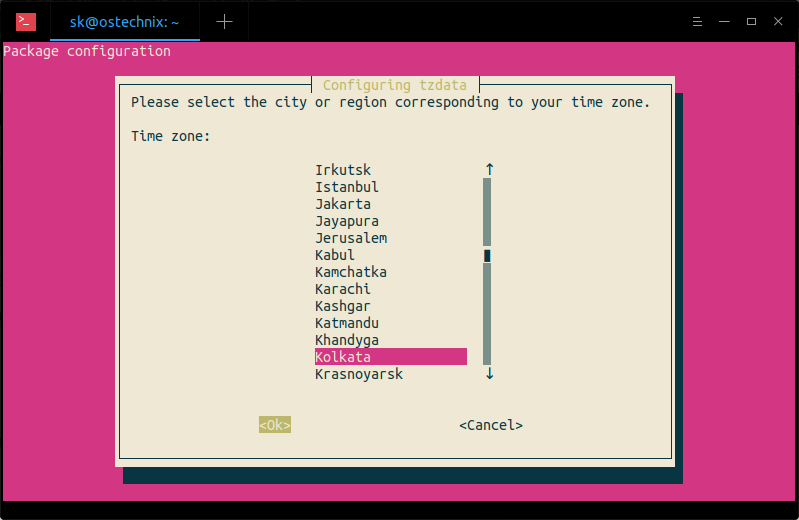
Next, select the city or region corresponding to your time zone. Here I've chosen Kolkata.
Finally, you will see an output something like below in the Terminal.
Current default time zone: 'Asia/Kolkata'
Local time is now:      Mon Jun  8 18:41:45 IST 2026.
Universal Time is now:  Mon Jun  8 13:11:45 UTC 2026.
Configure time zone in graphical mode
Some users may not be comfortable with CLI way. If you're one of them, you can easily change do all this from system settings panel in graphical mode.
Hit the Super key (Windows key), type settings in the Ubuntu dash and click on Settings icon.
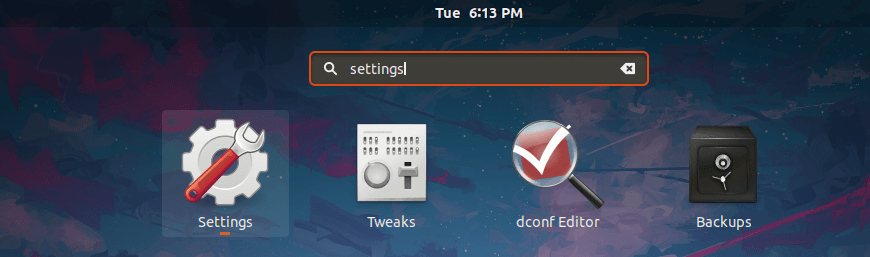
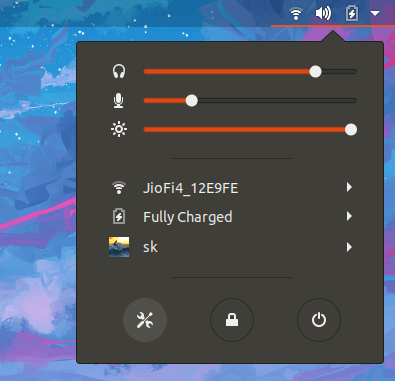
Alternatively, click on the down arrow located at the top right corner of your Ubuntu desktop and click the Settings icon in the left corner.
In the next window, choose Details and then Click Date & Time option. Turn on both Automatic Date & Time and Automatic Time Zone options.
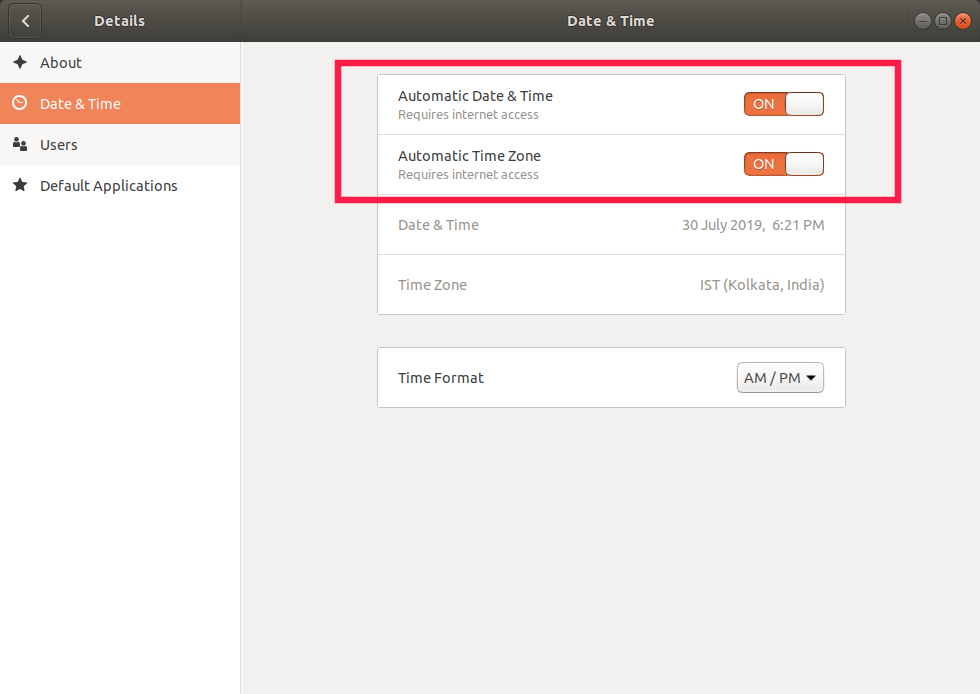
Close the Settings window an you're done! Your system clock should now sync with Internet time servers.

2 comments
Hello,
can you please confirm me the output is set right?
timedatectl
Local time: Sat 2019-10-19 16:15:10 IST
Universal time: Sat 2019-10-19 10:45:10 UTC
RTC time: Sat 2019-10-19 10:45:10
Time zone: Asia/Kolkata (IST, +0530)
System clock synchronized: yes
systemd-timesyncd.service active: yes
RTC in local TZ: no
WordPress Timezone: Universal time (UTC) is 2019-10-19 16:15:10. Local time is 2019-10-19 21:45:10.
I am asking this because a plugin developer is denying support by saying . my LOCAL TIME AND UNIVERSAL TIME is not correct
Minutes must be the same in both realtime and universal time.
Is he right?
I don’t know if the developer is correct or wrong. I am not a developer. The local and UTC will not exactly be same. When I typing this comment, the local time in India (ITC) is 4.30 pm and the UTC is 11.30 am.
If you want same time in LOCAL TIME and UTC, just switch back to UTC time by running the following command:
sudo timedatectl set-timezone UTC
Now you will see same time (hours, minutes, seconds etc) in local time and UTC.
Regards.