
This brief guide will walk you through the steps to configure and enable SSH on FreeBSD. All steps provided below are tested on a freshly installed FreeBSD 15 and older versions.
OpenSSH Server is installed by default on FreeBSD. But on a fresh FreeBSD system, remote SSH logins are not allowed. You must enable SSH access yourself to access your FreeBSD server via SSH from other systems on the network.
Table of Contents
Enable SSH on FreeBSD
If you don't have created any normal users on your system yet, create one first.
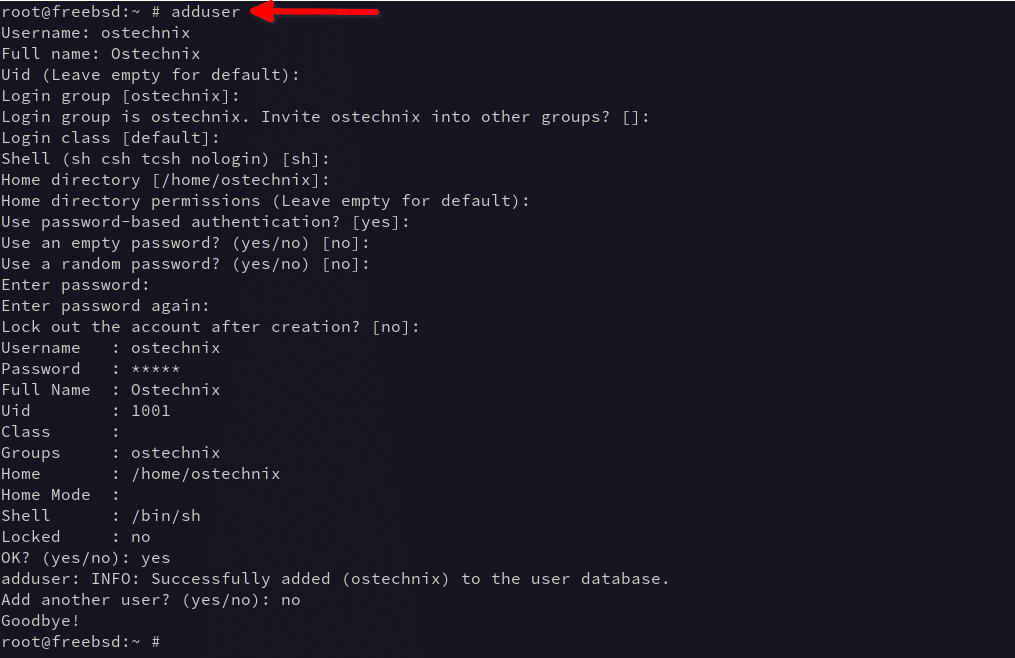
For example, I am going to create an user named ostechnix using command:
# adduser
You will be prompted to answer a couple questions, such user name, full name, login group name, login class, default shell etc. Mostly the default values are just fine. Press ENTER key to accept the defaults values and type your password twice.
Username: ostechnix
Full name: Ostechnix
Uid (Leave empty for default):
Login group [ostechnix]:
Login group is ostechnix. Invite ostechnix into other groups? []:
Login class [default]:
Shell (sh csh tcsh nologin) [sh]:
Home directory [/home/ostechnix]:
Home directory permissions (Leave empty for default):
Use password-based authentication? [yes]:
Use an empty password? (yes/no) [no]:
Use a random password? (yes/no) [no]:
Enter password:
Enter password again:
Lock out the account after creation? [no]:
Username : ostechnix
Password : *****
Full Name : Ostechnix
Uid : 1001
Class :
Groups : ostechnix
Home : /home/ostechnix
Home Mode :
Shell : /bin/sh
Locked : no
OK? (yes/no): yes
adduser: INFO: Successfully added (ostechnix) to the user database.
Add another user? (yes/no): no
Goodbye!
Next, edit /etc/rc.conf file:
# vi /etc/rc.conf
Add the following line at the end:
sshd_enable="YES"
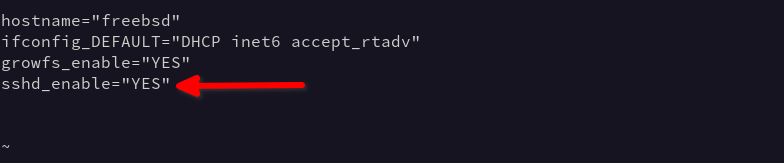
Hit ESC and type :wq to save and quit the file.
Finally, start SSH service:
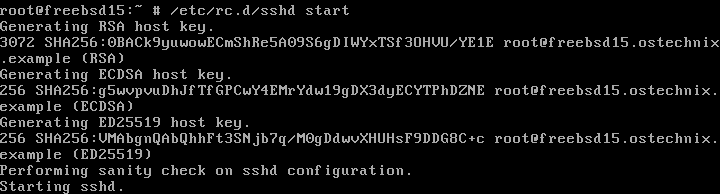
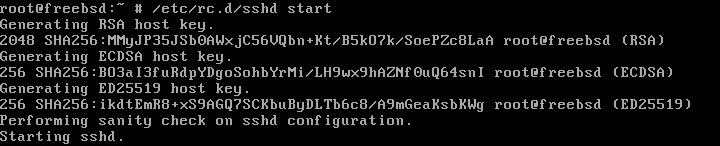
# /etc/rc.d/sshd start
Sample Output from my FreeBSD 15 system:
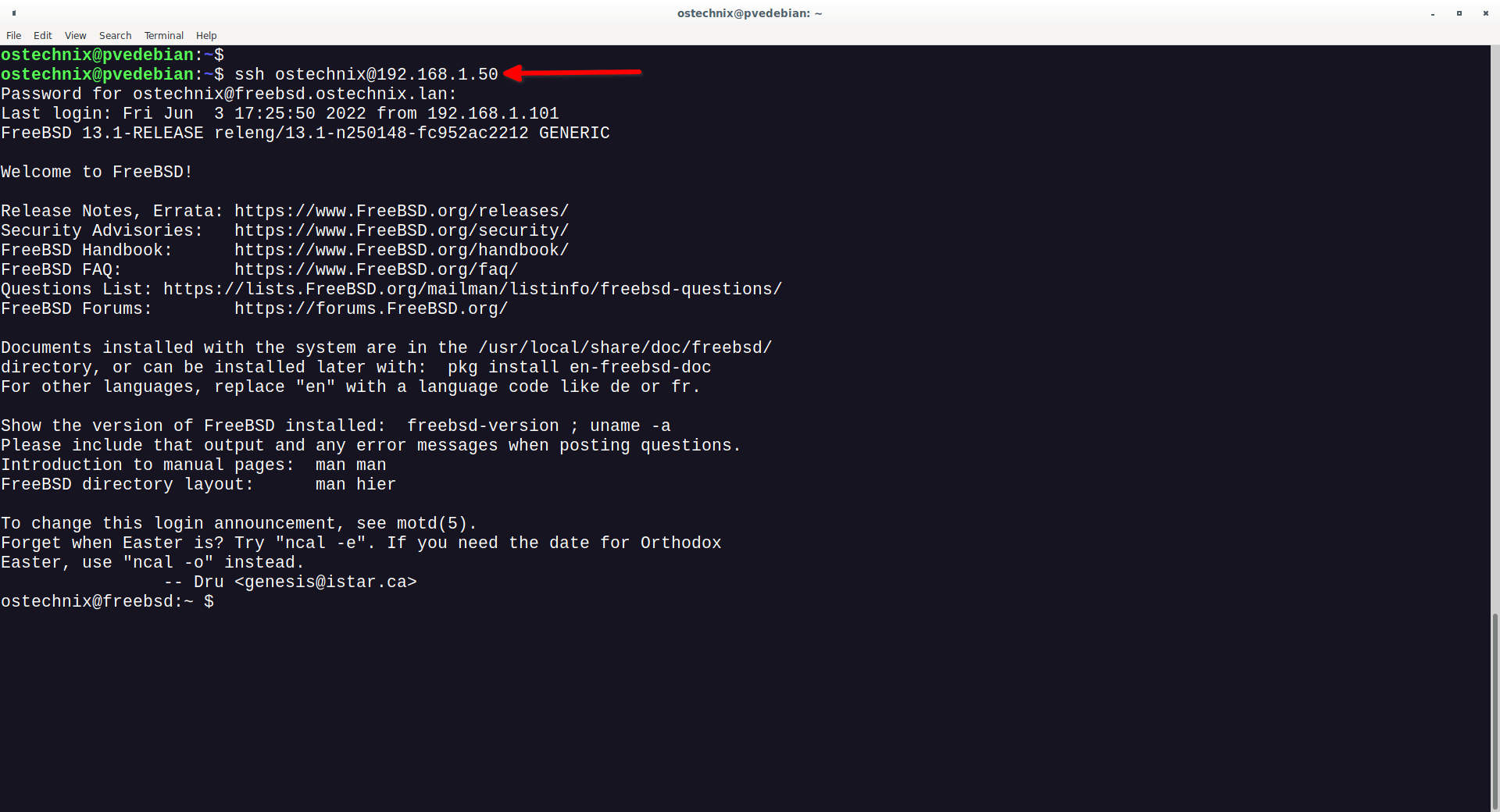
Sample output in FreeBSD 13:
You can also use this command to start sshd service:
# service sshd start
Alternatively, you can use the following one-liner command to enable and start sshd service in one go:
# sysrc sshd_enable=YES; service sshd start
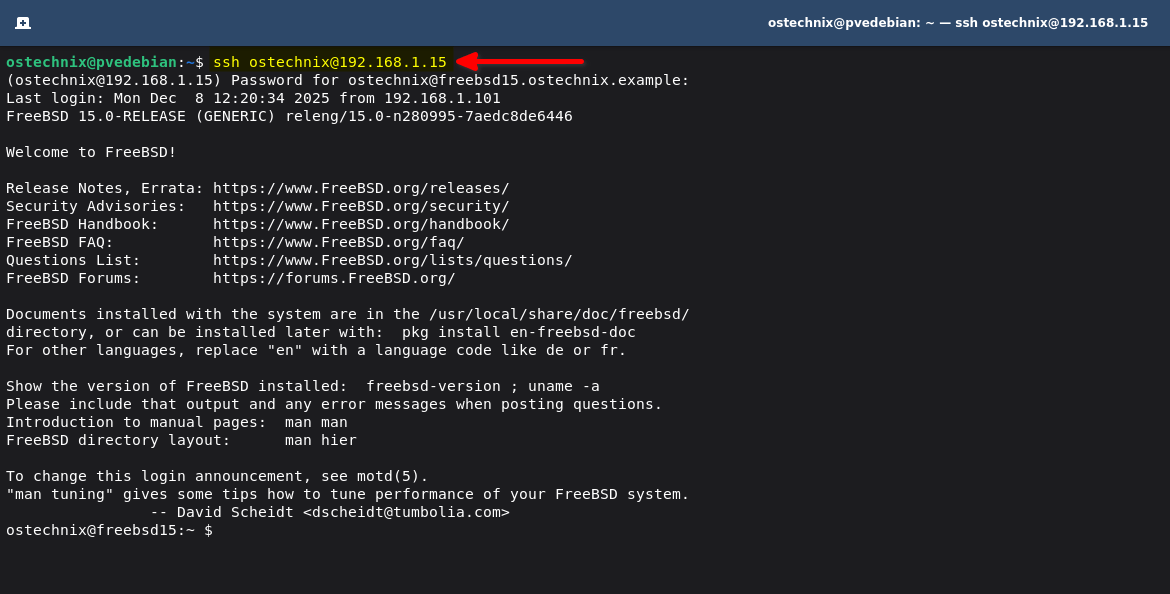
Done! Now you can access your FreeBSD server via SSH from any system on the network like below.
$ ssh ostechnix@192.168.1.15
Replace ostechnix@192.168.1.15 in the above command with your user name and IP address.
As you may already know, when you SSH into a FreeBSD server for the first time, you will be prompted to verify the server's fingerprint. Simply type Yes to continue and type the password of the user.
Sample output on FreeBSD 15:
(ostechnix@192.168.1.15) Password for ostechnix@freebsd15.ostechnix.example:
Last login: Mon Dec  8 12:20:34 2025 from 192.168.1.101
FreeBSD 15.0-RELEASE (GENERIC) releng/15.0-n280995-7aedc8de6446

Welcome to FreeBSD!

Release Notes, Errata: https://www.FreeBSD.org/releases/
Security Advisories:   https://www.FreeBSD.org/security/
FreeBSD Handbook:      https://www.FreeBSD.org/handbook/
FreeBSD FAQ:           https://www.FreeBSD.org/faq/
Questions List:        https://www.FreeBSD.org/lists/questions/
FreeBSD Forums:        https://forums.FreeBSD.org/

Documents installed with the system are in the /usr/local/share/doc/freebsd/
directory, or can be installed later with:  pkg install en-freebsd-doc
For other languages, replace "en" with a language code like de or fr.

Show the version of FreeBSD installed:  freebsd-version ; uname -a
Please include that output and any error messages when posting questions.
Introduction to manual pages:  man man
FreeBSD directory layout:      man hier

To change this login announcement, see motd(5).
"man tuning" gives some tips how to tune performance of your FreeBSD system.
		-- David Scheidt <dscheidt@tumbolia.com>
Sample output on FreeBSD 13:
Enable SSH Root access in FreeBSD (Not Recommended)
By default, SSH root login is disabled for security purposes on FreeBSD. So, you can't access your FreeBSD server via SSH as root user. It is strongly recommended to leave SSH root login disabled and use a non-privileged user and allow SSH access to that user as described above.
If you still want to allow SSH access to the root user for any reason, do the following.
Edit /etc/ssh/sshd_config file:
# vi /etc/ssh/sshd_config
Find the following line:
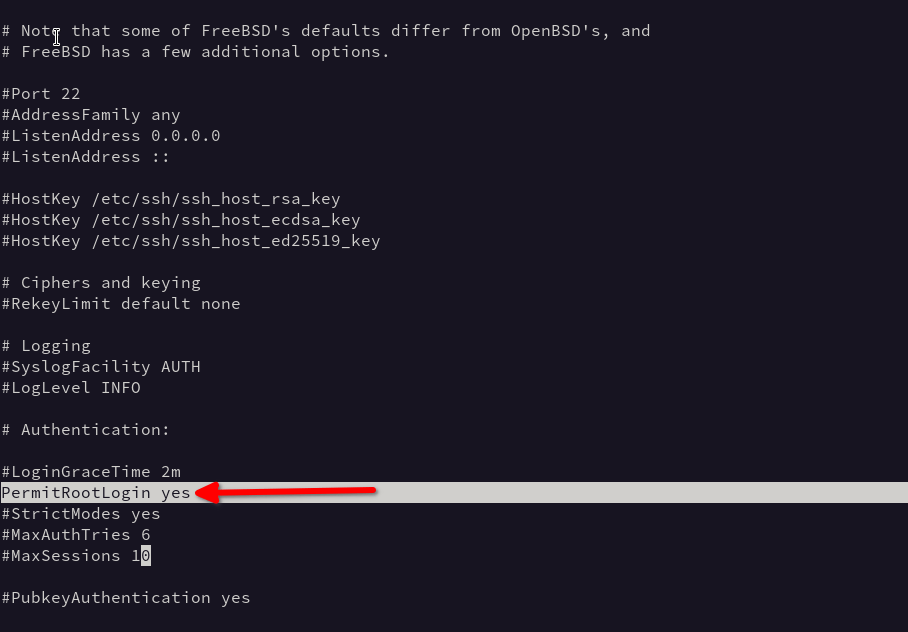
#PermitRootLogin no
Uncomment it by removing the hash (#) symbol and change its value to yes like below:
PermitRootLogin yes
Save and quit the file. Restart SSH service using command:
# /etc/rc.d/sshd restart
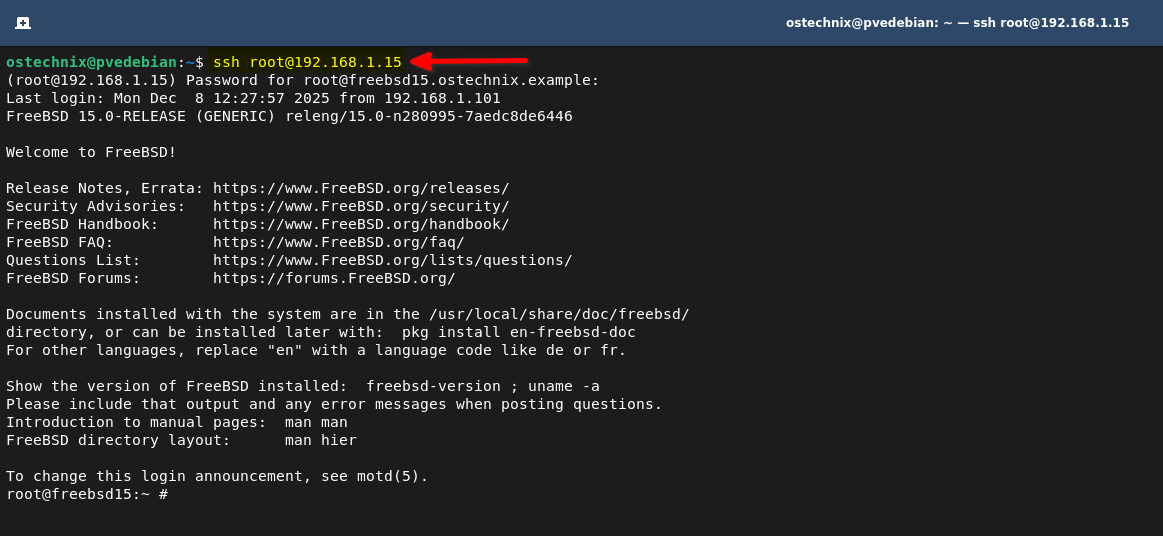
Now you can be able to login via SSH as root user from any system on the network using command.
# ssh root@192.168.1.15
Sample output in FreeBSD 15:
(root@192.168.1.15) Password for root@freebsd15.ostechnix.example:
Last login: Mon Dec  8 12:27:57 2025 from 192.168.1.101
FreeBSD 15.0-RELEASE (GENERIC) releng/15.0-n280995-7aedc8de6446

Welcome to FreeBSD!

Release Notes, Errata: https://www.FreeBSD.org/releases/
Security Advisories:   https://www.FreeBSD.org/security/
FreeBSD Handbook:      https://www.FreeBSD.org/handbook/
FreeBSD FAQ:           https://www.FreeBSD.org/faq/
Questions List:        https://www.FreeBSD.org/lists/questions/
FreeBSD Forums:        https://forums.FreeBSD.org/

Documents installed with the system are in the /usr/local/share/doc/freebsd/
directory, or can be installed later with:  pkg install en-freebsd-doc
For other languages, replace "en" with a language code like de or fr.

Show the version of FreeBSD installed:  freebsd-version ; uname -a
Please include that output and any error messages when posting questions.
Introduction to manual pages:  man man
FreeBSD directory layout:      man hier

To change this login announcement, see motd(5).
root@freebsd15:~ #
Sample output in FreeBSD 13:
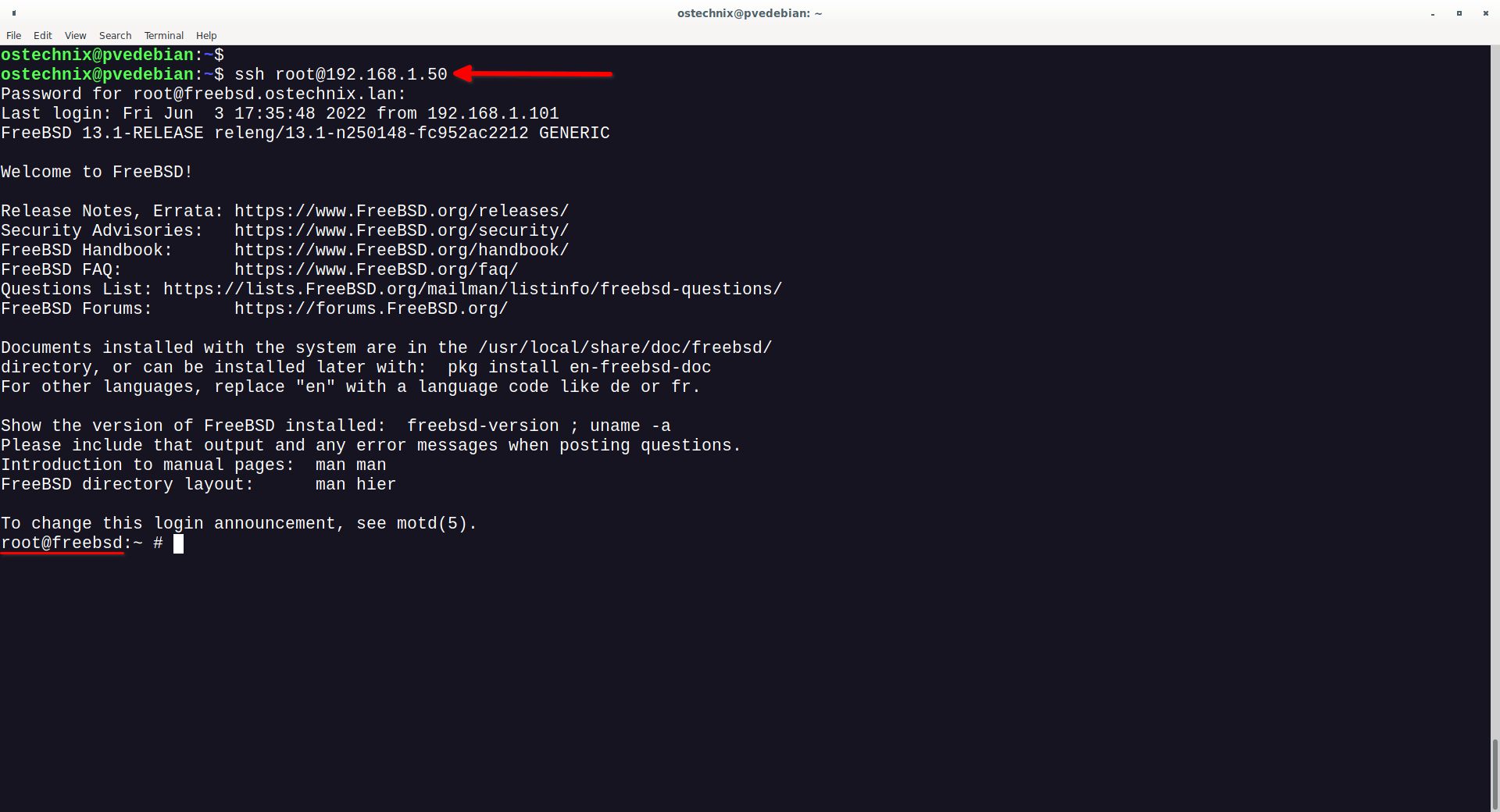
Again, enabling SSH access for root account is not recommended. I strongly suggest you to use a non-privileged user and leave SSH root login disabled.
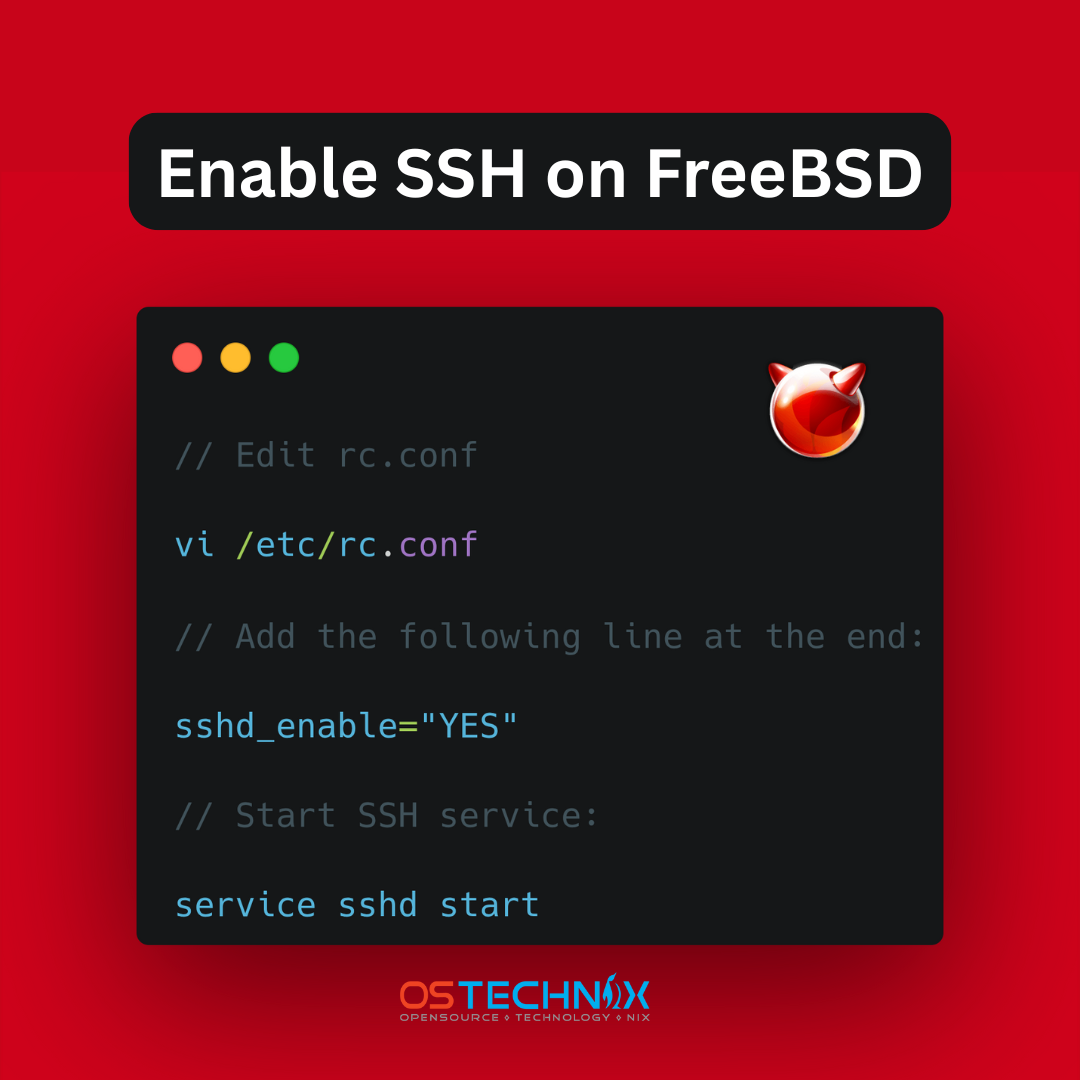
Cheat sheet: Enable SSH on FreeBSD
Here's a concise cheatsheet for enabling SSH on FreeBSD operating systems. Download it, print it and keep it near your desk for quick reference.
Related Read:

8 comments
Thank you for thorough explanation! But this did not help me with my new GhostBSD 12.1 installation. Whatever I tried, including the ‘sshd_enable=”YES”‘ in /etc/rc.conf, the sshd was not starting on boot. I was almost pulling my hair over this anomaly. Running ‘service sshd start’ started the service for sure, but I’d expect it to survive rebooting the workstation. I found the answer by lucky chance from … Google. The sshd did behave after I run the following: ‘rc-update add sshd default’. This created soft link for sshd to directory /etc/runlevels/default . Maybe someone can enlighten shed a light on why the above guide was not sufficient. It might be that the default runlevel link for sshd is essential and it was omitted from GhostBSD 12.1 by unlucky chance.
Very good guide, if it were otherwise Linux as a server, how to proceed from FreeBSD ?
Could you please you elaborate the question? Are you asking to setup SSH on Linux?
Pretty Cool!!!. Thanks
@Robert Tiismus
GhostBSD uses OpenRC as init system which starts system services such as sshd via command “rc-update add sshd default”
FreeBSD uses SysV-style init as init system which uses a line in /etc/rc.conf to start system service as in “sshd_enable=”YES””
GhostBSD has reverted back to using rc init same as freebsd as of 2022, so works same as FreeBSD.
Instead of manually updated /etc/rc.conf, services can be disabled/enabled like this:
service sshd enable
It’s easier, and far less prone to a typo which stops your host from booting.
You’re totally right. I have added a one-liner command i.e.
sysrc sshd_enable=YES; service sshd start. This will enable and start sshd service in one go.