
Knowing your FreeBSD version helps you keep your system healthy. It also lets you follow the right guides, apply updates, and fix problems with clarity. The good news is that FreeBSD offers a few quick ways to check this information. Each method uses a built-in command, so you never need extra tools.
In this brief guide, you will learn all reliable commands to check FreeBSD version. You will also see when to use each one.
The steps work in every FreeBSD system, from servers to desktops. For demonstration purpose, we will be using FreeBSD 15.
Table of Contents
Why You Should Check the FreeBSD Version
Your FreeBSD version tells you three things:
- The release you installed
- The patch level
- The kernel version you run
You need this information when you update the system or install software. Any mismatch can cause errors, so you should check the version first. These commands make the process quick and safe.
Method 1: Check FreeBSD Version Using the freebsd-version Command
The freebsd-version command gives you the most accurate version details. It reads information from the userland and the kernel. It also shows the patch level, so you know if your system is up to date.
Run this to see the full version:
freebsd-version
You can also try these:
freebsd-version -k    # Kernel version
freebsd-version -u    # Userland version
Sample Output from my FreeBSD 15.0 system:
15.0-RELEASE
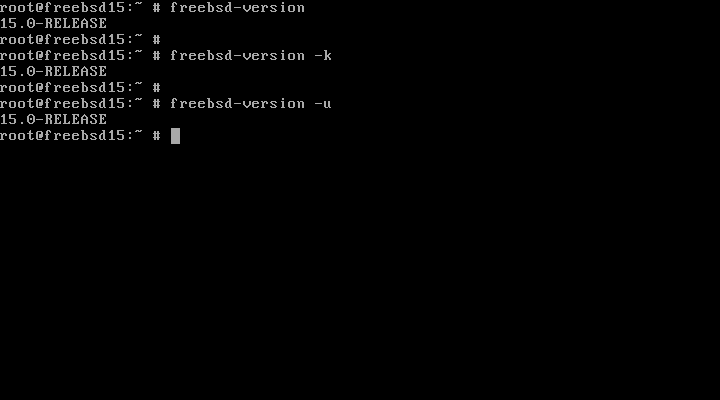
You should use this command when you want the exact version or when you plan to upgrade the system.
In the above screenshot, you see same output for all three commands. Why? For a freshly installed, unpatched 15.0-RELEASE system, all three commands will show the same output i.e. 15.0-RELEASE in this case.
This is because no patches have been applied yet, so all version markers point to the original release version.
Method 2: Find Version Details in FreeBSD Using the uname Command
The uname command prints kernel information. It helps you confirm what kernel you are running right now. Many users run this command during troubleshooting because it gives a quick overview.
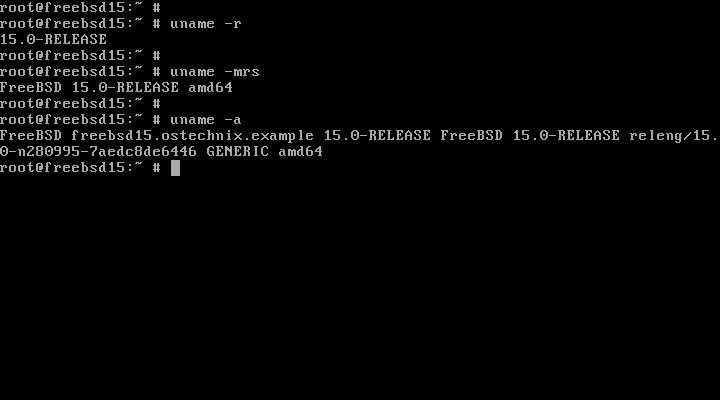
Check the kernel version:
uname -r
If you want to print the system name, Kernel release and machine architecture, you can run:
uname -mrs
Or print everything at once:
uname -a
This method works well when you only need kernel details or when you work on scripts.
Method 3: Check System Files
FreeBSD also stores version information in a few system files. You can read these files with cat. This method works even if some commands fail, so it gives you a safe fallback.
Try this:
cat /etc/os-release
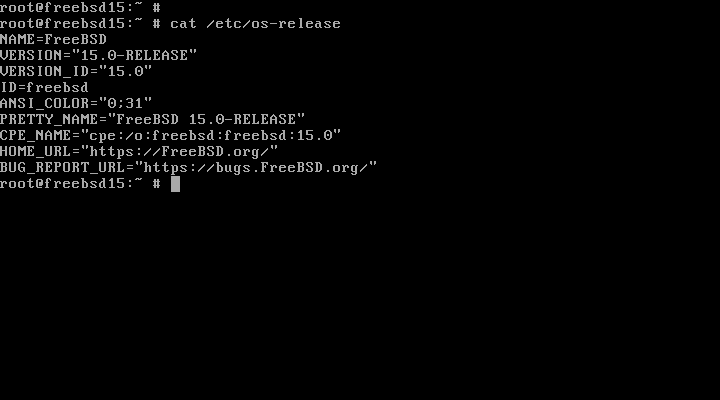
This file holds basic version data. It helps you confirm details during recovery or minimal-shell sessions.
Which Method Should You Use?
Each method solves a different need:
- Use
freebsd-versionwhen you want the most exact and complete version. - Use
unamewhen you need fast kernel details. - Use system files when tools are missing or when you work on a damaged system.
You can run all of them in a few seconds. The results together give you a clear picture of your FreeBSD system.
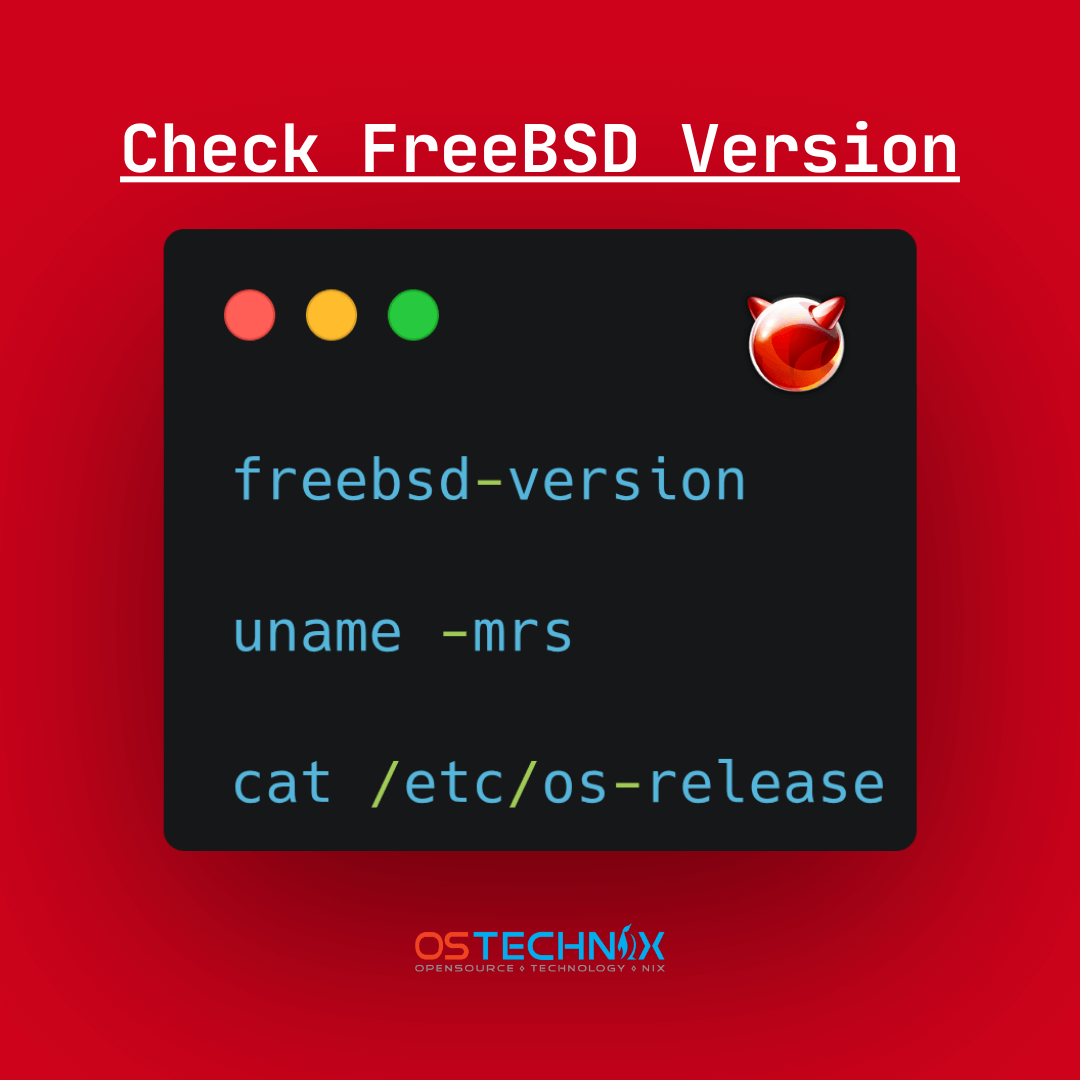
Download the Cheatsheet to check the FreeBSD version and keep it near your desk for quick reference:
Frequently Asked Questions (FAQ)
A: Run uname -r to view the running kernel version. It prints the release number and patch level.
freebsd-version and uname?A: freebsd-version shows both userland and kernel version details, while uname only shows kernel information.
A: Use freebsd-version -u for userland and freebsd-version -k for kernel. The patch level appears at the end of the version string.
freebsd-version show a different value than uname?A: This happens when the userland and kernel come from different patch levels or updates. It is normal after kernel-only upgrades.
A: Yes. You can read system files like /etc/os-release or /etc/version to see version information.
Conclusion
As you can see, checking your FreeBSD version is simple and quick. A few short commands show everything you need.
Since updates and patches change often, you should check your version before you follow any guide. This habit helps you avoid errors and keeps your system stable.
