
Installing portable application packages like AppImages on Linux can be convenient, but integrating them into your desktop environment makes them even easier to use. The desktop-file-install utility allows you to create desktop entries (shortcuts, menu items, launchers) for AppImages and other application bundles in Linux.
This utility puts icons on your desktop and adds the AppImages to your Linux start menu for quick access, just like regularly installed programs.
By creating these desktop integration files, you can seamlessly run portable apps alongside your standard installed software for a smooth desktop usage experience.
In this brief tutorial, I will show you how to install and use the desktop-file-install utility on Linux. I will also provide an example to help you clearly understand how to use this tool to integrate portable applications into your desktop environment's application menu.
Table of Contents
What is desktop-file-install?
The desktop-file-install command is used to install or update a desktop entry file (commonly known as a .desktop file) in the appropriate location on your Linux system.
Usually, a desktop entry file contains information about the application, such as its name, icon, description, and the command to launch it.
These .desktop files describe how an application is to be launched, how it appears in menus, and what categories it belongs to.
Desktop entry files are used to create shortcuts or menu entries for applications in various Linux desktop environments (like GNOME, KDE, Xfce, etc.).
Syntax
The basic syntax of the desktop-file-install command is:
desktop-file-install [options] file.desktop
Where [options] are the command options (like specifying the directory to install to, or setting key values within the .desktop file), and file.desktop is the path to the .desktop file you want to install.
Common Options
--dir=directory: Specifies the directory where the .desktop file will be installed. If not specified, it defaults to/usr/share/applicationsor the directory specified by the environment variableXDG_DATA_DIRS.--delete-original: Deletes the original desktop file after installation.--add-category=Category: Adds a category to the desktop file's categories.--remove-category=Category: Removes a category from the desktop file's categories.--vendor=vendor: Adds a vendor prefix to the .desktop file name.
How to Use desktop-file-install Command
As stated already, the desktop-file-install1 command takes a desktop entry file (.desktop file), processes it, and installs it to the appropriate location on the system.
Here's an example of how to use the desktop-file-install command:
1. First, make sure you have the desktop-file-utils package installed.
The desktop-file-install command is provided by the desktop-file-utils package on many Linux distributions.
On Ubuntu or Debian-based distributions, you can install it with the following command:
$ sudo apt install desktop-file-utils
On Fedora or RedHat-based distributions, use:
$ sudo dnf install desktop-file-utils
Note: If you want to verify which package provides the desktop-file-install command in Linux, refer the following guide and follow the methods provided there depending upon the distribution you use.
2. Create a new .desktop file or use an existing one. Let's assume you have a file named myapp.desktop with the following contents:
[Desktop Entry]
Name=My Application
Comment=This is my awesome application
Exec=/path/to/myapp
Icon=/path/to/myapp-icon.png
Terminal=false
Type=Application
Categories=Utility;
Replace /path/to/myapp with the actual path to your application's executable, and /path/to/myapp-icon.png with the path to your application's icon file.
3. Install the .desktop file using the desktop-file-install command:
$ sudo desktop-file-install --dir=/usr/share/applications myapp.desktop
This command will install the myapp.desktop file in the /usr/share/applications directory, which is where most desktop environments look for application shortcuts.
The --dir option specifies the directory where you want to install the .desktop file. You can use different directories for different desktop environments. For example, on Ubuntu, you can use --dir=/usr/share/applications for GNOME or --dir=/usr/share/applications/kde for KDE.
4. After installing the .desktop file, you may need to update the desktop environment's application menu or launcher. This process varies depending on your desktop environment. For example, in GNOME, you can simply log out and log back in, or use the sudo update-desktop-database command.
That's it! Your application should now appear in the application menu or launcher of your desktop environment.
In the following section, I will share a practical example on how to integrate an AppImage file to Application launcher using the desktop-file-install command.
Create Desktop Entries for AppImage Files
The other day I accidentally discovered that it is possible to create desktop entries for AppImage files with the desktop-file-install command.
The desktop-file-install command is a handy way to create a desktop entry (menu item and icon) for an AppImage file on Linux desktops.
For instance, let us see how to integrate an AppImage (E.g. MarkText) to Application menu using desktop-file-install command.
I have already downloaded the AppImage file and placed it in the /opt/ location. Additionally, I have created a symbolic link to the AppImage in /usr/local/bin/ to make it accessible from anywhere in the system.
Now I will show how I integrated the AppImage to the application launcher.
1. Create a .desktop entry file for MarkText AppImage:
$ nano marktext.desktop
2. Add the following contents in it:
[Desktop Entry]
Name=MarkText
Comment=A Simple And Elegant Markdown Editor
Exec=/usr/local/bin/marktext
Icon=/opt/marktext.png
Terminal=false
Type=Application
Categories=Utility;
Please update the following attributes to match your actual application's details: 'name', 'comment', 'exec path', 'icon path', 'type', and 'category'. And then, save the file and close it.
3. Now, run the following command to create desktop menu entry for the MarkText AppImage:
$ sudo desktop-file-install --dir=/usr/share/applications marktext.desktop
This command will install the marktext.desktop file in the /usr/share/applications directory. Typically, desktop environments on Linux look for application shortcuts and menu entries in the /usr/share/applications directory.
This location is the standard convention followed by most desktop environments when searching for desktop entries that integrate applications into the system menus and launchers.
4. Once you've installed the .desktop file, log out and log back in to make the new entry visible in the application launcher or menu.
Alternatively, you can run the following command to update the application database and reflect the changes immediately.
$ sudo update-desktop-database
That's it. You should now see your application's menu entry in the Application launcher.
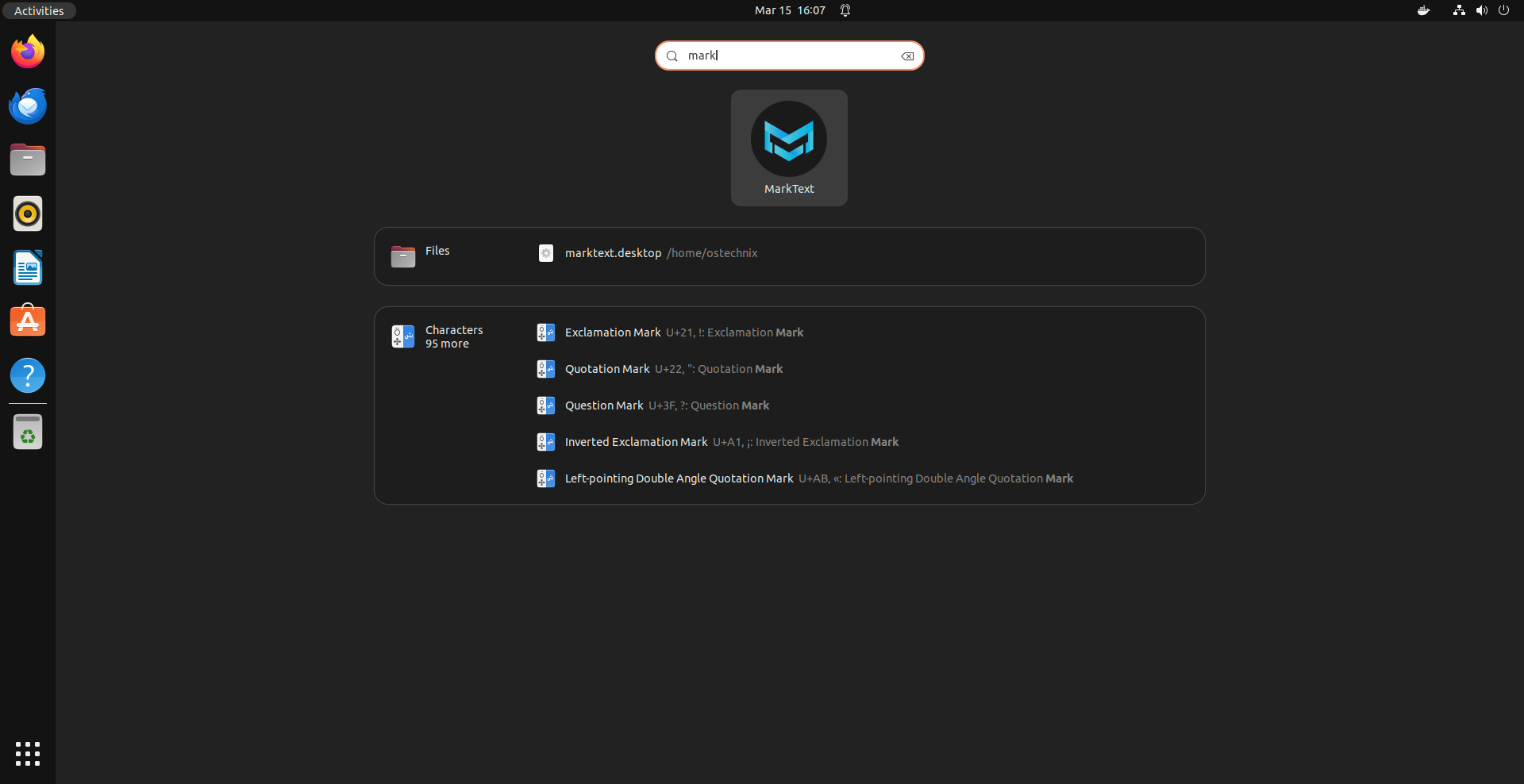
As you see in the above screenshot, the MarkText AppImage desktop entry is added in my Ubuntu application launcher menu.
Prior to knowing about this command, I would use third-party applications such as AppImageLauncher and Gear Lever or just run the AppImage directly without any desktop integration.
Using desktop-file-install command provides a much better user experience by:
- Adding the application to your desktop environment's applications menu, making it easier to find and launch.
- Creating a desktop icon, allowing you to quickly start the AppImage from your desktop or dock.
- Integrating the AppImage with file type associations, so files of supported types open in that application.
- Setting the correct app name, icon, categories etc. in the desktop entry metadata.
Without desktop-file-install, running an AppImage can feel disjointed from the rest of the desktop. So being able to create those desktop entries easily really improves the AppImage experience on Linux.
Remove AppImage Menu Entry
To remove the menu entry, simply delete the marktext.desktop file from /usr/share/applications directory and update the application database using command:
$ sudo update-desktop-database
For more details about desktop-file-install command, refer the manual page by typing the following command:
$ man desktop-file-install
Conclusion
The desktop-file-install command is a useful tool for integrating portable application files (like AppImages) into your Linux desktop environment.
This command puts an icon on your desktop and adds the application to your start menu, making it easy to find and open the AppImage just like any other installed program.
Overall, desktop-file-install provides a smooth way to add portable apps to your Linux desktop for a seamless user experience.
Related Read:

1 comment
Thanks. Never knew there is a command for this.