
Table of Contents
Brief
- Add two lines to
~/.inputrc, runbind -f ~/.inputrc, and Alt+Up/Down will instantly cycle through only the history entries that start with what you have typed. Ctrl+R(Reverse search) and the Up arrow are not competing tools. They solve different recall problems.- Use Prefix search (Alt+Up) when you remember how a command starts. Use
Ctrl+Rwhen you only remember a word somewhere in the middle.
Introduction
If you already know how a command starts, there is no reason to search your entire history and yet that is exactly what both the Up arrow and Ctrl+R make you do.
With two lines in ~/.inputrc, you can bind Alt+Up / Alt+Down to jump through only the history entries that start with what you have already typed. No plugins. No scripts. No restart required.
This binding solves a specific frustration i.e. running long xrandr commands across multiple monitors and spending 10+ keypresses to find the last one. After this setup, that becomes one.
What Is Prefix-Based History Search?
Prefix-based history search means Bash uses whatever you have typed on the command line as a filter, surfacing only the history entries that begin with that exact string.
Type docker → press Alt+Up → see only your previous docker commands, in reverse order. Nothing else.
How It Differs from Ctrl+R
Ctrl+R triggers incremental reverse search, which scans the full text of every history entry. It is powerful for vague recall ("I remember the word volume was in there somewhere"), but it returns any match — regardless of where in the command that word appears.
| Feature | Ctrl+R | Alt+Up / Alt+Down |
|---|---|---|
| Search scope | Anywhere in the command | Start of the command only |
| Best for | Partial or fuzzy recall | Known command prefix |
| Navigation style | Interactive, incremental | Step-by-step cycling |
| Risk of false matches | Higher | None — prefix is exact |
| Requires extra config | No | Yes (2 lines in ~/.inputrc) |
| Works forward too | Ctrl+S (often broken) | Alt+Down (clean) |
When to Use Each Method
- Alt+Up/Down: You remember how the command starts (
git,ssh user@,xrandr,kubectl) - Ctrl+R: You remember a word or flag somewhere in the middle (
--no-cache,--force, a hostname)
Used together, they cover nearly every history-recall situation.
How to Setup: Configure ~/.inputrc in 2 Steps
~/.inputrc is the readline configuration file. It controls keyboard behaviour for any readline-aware program, including Bash. Editing it is safe and fully reversible. If anything goes wrong, deleting the file returns readline to its defaults.
Before you start, back up the inputrc file first using this command:
cp ~/.inputrc ~/.inputrc.bak
Step 1: Confirm Your Terminal's Escape Sequence
The key bindings below use \e[1;3A and \e[1;3B, which are standard for most modern terminal emulators. However, some terminals send different sequences.
You can find your Terminal's Escape Sequence by doing the following steps:
- Press
Ctrl+Vat the Bash prompt - Press Alt+Up
- The raw sequence prints — use that value in your
~/.inputrcif it differs
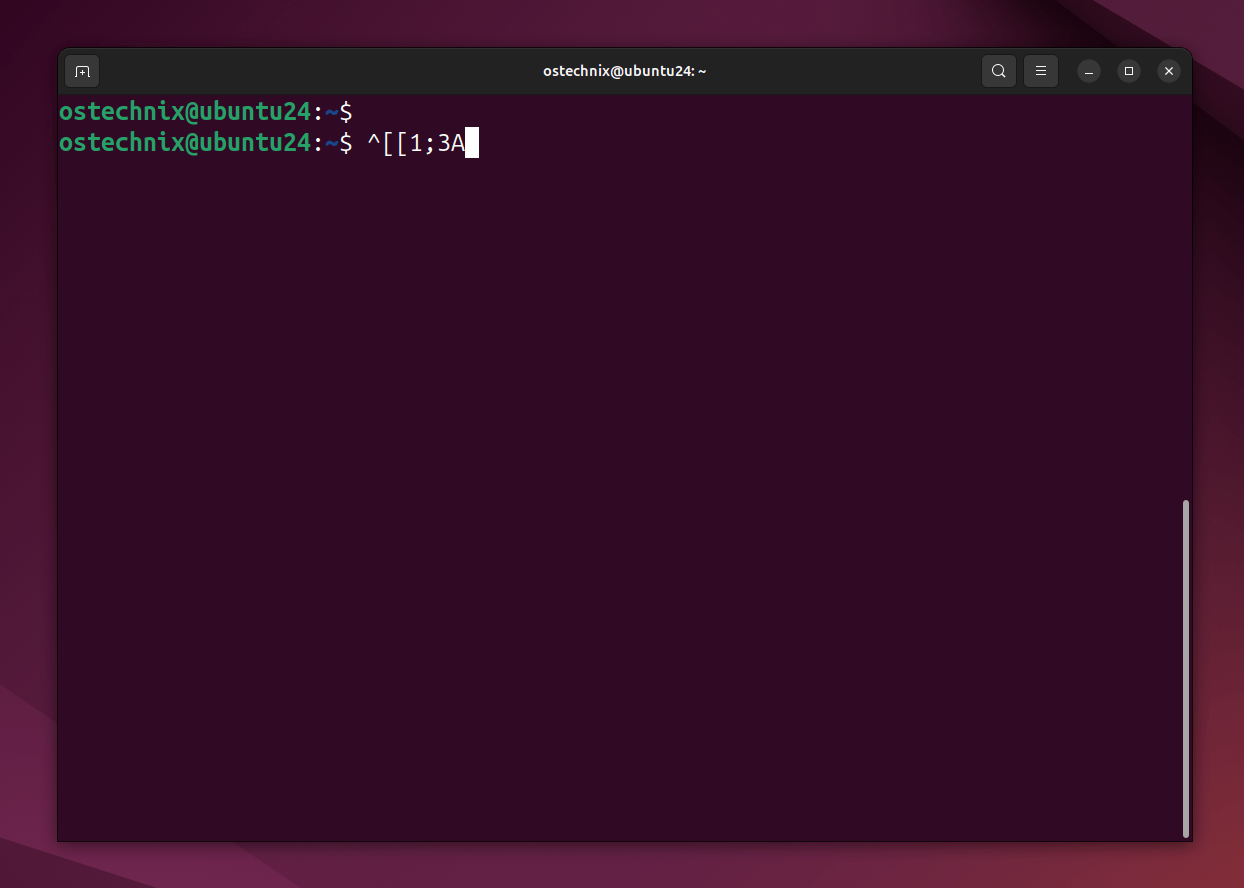
The following table shows the escape sequence of popular Linux Terminals:
| Terminal | Alt+Up sequence |
|---|---|
| xterm | \e[1;3A |
| GNOME Terminal | \e[1;3A |
| Kitty | \e[1;3A |
| Alacritty | \e[1;3A |
| macOS Terminal.app | Requires configuration — see macOS note below |
| tmux (any terminal) | May intercept Alt sequences — see FAQ |
| Older/minimal terminals | May send \e\e[A — confirm with Ctrl+V |
Other Ways to Find Escape Sequences (Optional but Useful)
Ctrl+V is the quickest method, but it is not the only one. If you want to be precise or debug issues, these methods help:
Method 1: Use cat -v
cat -v
Press Alt+Up, and you will see something like:
^[[1;3A
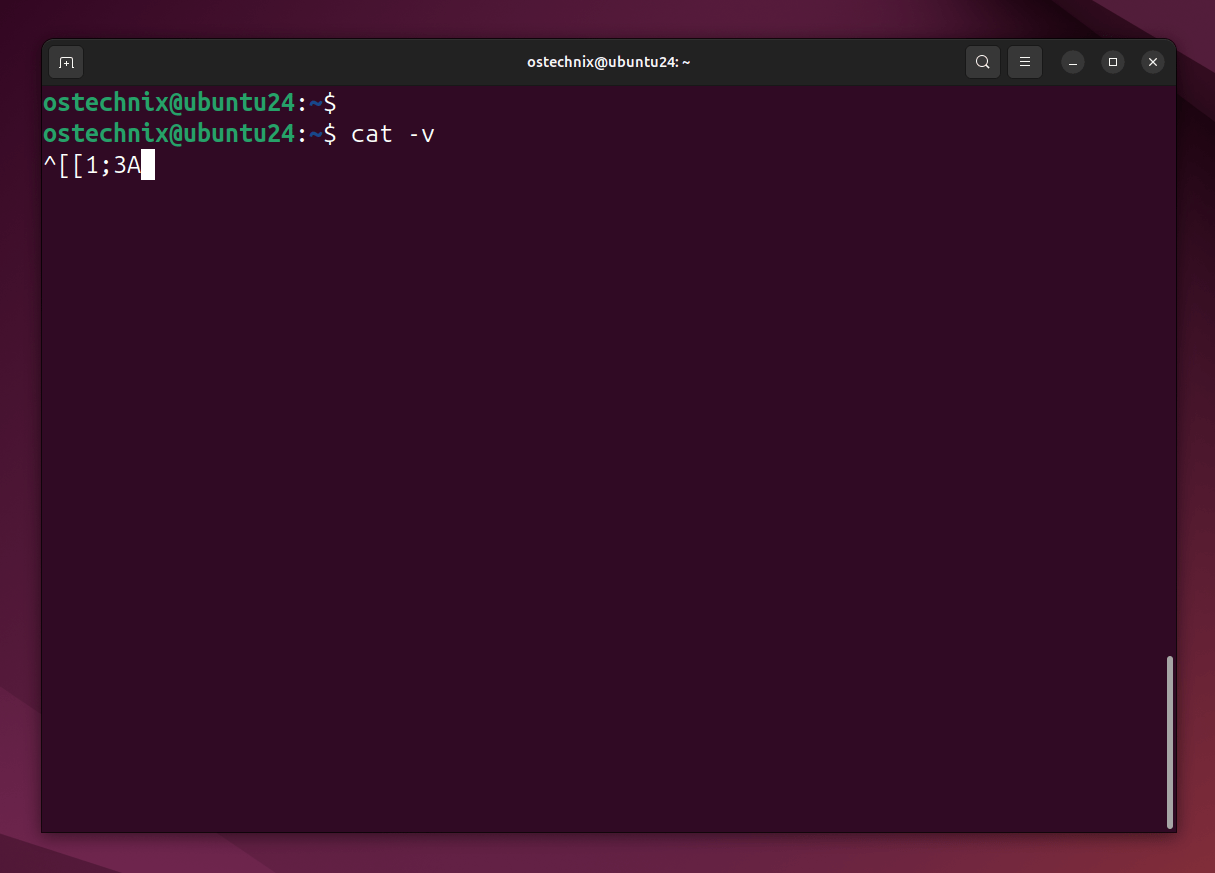
Exit with Ctrl+C.
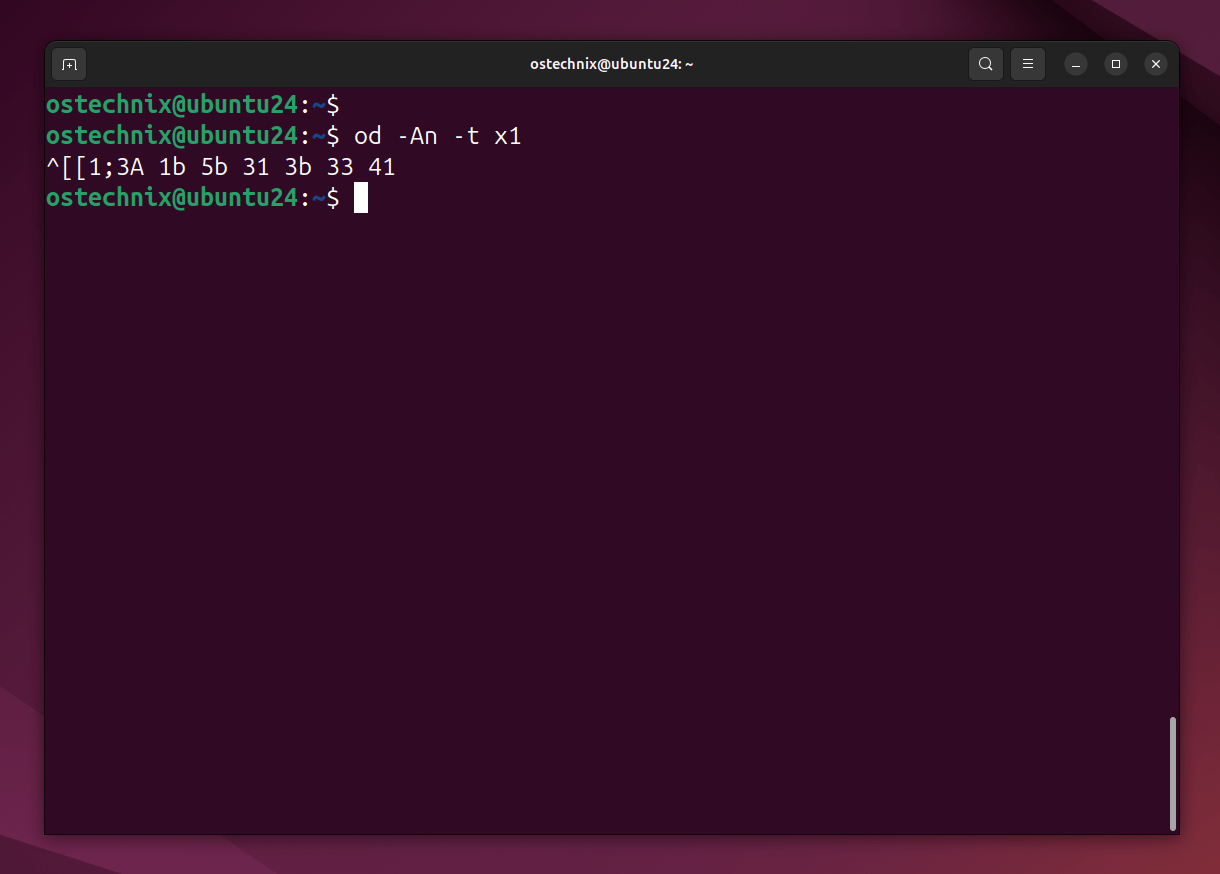
Method 2: Use od for raw bytes
od -An -t x1
Press Alt+Up, then Ctrl+D.
Example output:
1b 5b 31 3b 33 41
Here,
1b= ESC- rest =
[1;3A
This is the exact byte-level sequence.
Method 3: Use showkey (TTY only)
Switch to a virtual console (Ctrl+Alt+F3) and run:
showkey -a
Then press Alt+Up to see decimal, octal, and hex values.
Why ^[[1;3A and \e[1;3A Look Different (But Are the Same)
When you check your key using Ctrl+V or cat -v, you might see something like:
^[[1;3A
But in ~/.inputrc, the binding uses:
"\e[1;3A": history-search-backward
These are two ways of writing the same thing.
^[is how tools display the Escape (ESC) character\eis how you write the Escape character in configuration files
So this:
^[[1;3A
and this:
\e[1;3A
both represent the exact same byte sequence:
ESC [ 1 ; 3 A
How to Think About It
- Use
Ctrl+Vorcat -vto discover what your terminal sends - Use
\ewhen writing bindings in~/.inputrc
Quick sanity check
If your terminal prints:
^[[1;3A
then your binding should be:
"\e[1;3A": history-search-backward
Note for macOS users: Terminal.app does not treat the Option key as a Meta/Alt key by default. Go to Terminal → Preferences → Profiles → Keyboard and enable "Use Option as Meta key" before proceeding. In iTerm2, go to Preferences → Profiles → Keys and set the left/right Option key to "Esc+".
Step 2: Add the Key Bindings
Open ~/.inputrc in your favorite editor:
nano ~/.inputrc
Add the following two lines:
# Alt+Up: search backward through history matching the current line prefix
"\e[1;3A": history-search-backward

# Alt+Down: search forward through history matching the current line prefix
"\e[1;3B": history-search-forward
What these mean:
\e[1;3Ais the escape sequence for Alt+Up in most terminals\e[1;3Bis the escape sequence for Alt+Downhistory-search-backwardandhistory-search-forwardare native GNU Readline functions. No third-party dependency
Save and exit (Ctrl+O, Enter, Ctrl+X in nano).
Step 3: Reload Without Restarting
Apply the change to your current shell session immediately:
bind -f ~/.inputrc
This command reloads ~/.inputrc into the current session. No restart needed.
The binding is active right now. The ~/.inputrc file is also read automatically at the start of every new Bash session, so this change is already permanent.
Tested on GNU Readline 8.1+ and Bash 5.1+. Behaviour on Readline 6.x (some older LTS systems) may vary.
Verifying It Works
- Type start of any command (E.g.
ls) at the prompt (do not press Enter) - Press Alt+Up
- Bash should cycle to your most recent command beginning with
ls
If nothing happens, see the FAQ below for terminal-specific fixes.
How to Search Bash History by Prefix with Alt+Up and Alt+Down (With Real Examples)
Typing a Prefix and Navigating
- Type the start of the command you want to find
- Press Alt+Up to step backward through matching history entries
- Press Alt+Down to step forward if you overshoot
Note: The search prefix is the text from the beginning of the line to your cursor position — not necessarily the full line. If Alt+Up returns unexpected results, check where your cursor is before pressing the key.
Practical Use Cases
| Prefix you type | What you're cycling through |
|---|---|
docker | docker run, docker compose up -d, docker ps -a |
git | git rebase -i HEAD~3, git stash pop, git push origin |
ssh | Previous SSH sessions by host |
xrandr | Monitor configuration commands |
kubectl | Kubernetes commands by cluster context |
sudo systemctl | Service start/stop/restart sequences |
Because the match is prefix-only, you get zero noise from unrelated commands.
Related Read:
- Display Bash History Without Line Numbers
- 38 Bash Tips: Essential Shell Features and Shortcuts
- Clear A Specific Command From Bash History In Linux
- Enable Timestamp In Bash History In Linux
Why Not Ctrl+S for Forward Search?
Ctrl+R searches backward. Its natural complement is Ctrl+S for forward search — readline supports this, but most terminals intercept it first.
XON/XOFF Flow Control Explained
Most terminals intercept Ctrl+S at the OS level to implement XON/XOFF flow control, a legacy mechanism that pauses terminal output. When you press Ctrl+S, your terminal appears to freeze. Press Ctrl+Q to unfreeze.
You can disable this:
stty -ixon
Add it to ~/.bashrc to persist across sessions.
Note:
stty -ixonapplies to the entire terminal session. It also enablesCtrl+Sforward search inpsql,python3, and other readline-aware tools.
macOS note: If adding
stty -ixonto~/.bashrc, ensure that file is sourced from~/.bash_profile, as macOS login shells do not load~/.bashrcautomatically.
Why use Alt+Down
Mapping forward search to Alt+Down sidesteps the issue entirely — reliable forward navigation with no terminal behaviour changes and no risk of freezing your screen.
Optional .inputrc Tweaks to Supercharge Your Terminal
While you have ~/.inputrc open, these two additions make tab completion significantly more pleasant:
1. Case-Insensitive Completion
set completion-ignore-case on
Typing cd dow now matches Downloads, downloads, or DOWNLOADS.
2. Show All Matches Immediately
set show-all-if-ambiguous on
By default, Bash requires two Tab presses to list completion options. This setting shows all matches on the first Tab press.
My Recommended ~/.inputrc Configuration
# Prefix-based history navigation
"\e[1;3A": history-search-backward
"\e[1;3B": history-search-forward

# Completion improvements
set completion-ignore-case on
set show-all-if-ambiguous on
Frequently Asked Questions (FAQ)
A: Not directly — Zsh does not use ~/.inputrc. Add the following to ~/.zshrc instead:autoload -U up-line-or-beginning-search
autoload -U down-line-or-beginning-search
zle -N up-line-or-beginning-search
zle -N down-line-or-beginning-search
bindkey "^[[A" up-line-or-beginning-search
bindkey "^[[B" down-line-or-beginning-search
This binds the regular Up/Down arrows to prefix search via Zsh's native zle system. The up-line-or-beginning-search widget is designed to do both: prefix search when text is present, and normal history navigation when the prompt is empty. So you lose nothing from default behaviour.
A: The most common causes are:
1. Wrong escape sequence - press Ctrl+V then Alt+Up to print what your terminal actually sends, and update ~/.inputrc to match
2. macOS Option key not set as Meta - see the macOS setup note in Step 1 above
3. Running inside tmux - see the tmux question below
A: No. The bindings use Alt+Up and Alt+Down, a different key combination from plain Up (\e[A) and Down (\e[B). Your normal history navigation is completely unchanged.
A: It already is. ~/.inputrc is read every time a new Bash session starts. The bind -f command you ran was only needed to activate the change in your current session without restarting.
~/.inputrc and is it safe to edit?A: ~/.inputrc is your personal readline configuration file. Readline is the library that handles line editing in Bash and many other CLI tools (python3, psql, mysql, and more). It is safe to edit — if something breaks, delete the file and readline falls back to its defaults. Always back up first:cp ~/.inputrc ~/.inputrc.bak
You likely pressed Ctrl+S instead of Ctrl+V. Press Ctrl+Q to unfreeze. Then try again: press Ctrl+V first, then Alt+Up.
A: tmux can intercept or delay escape sequences. Add the following to ~/.tmux.conf:set -g escape-time 50
set -g xterm-keys on
Reload with tmux source ~/.tmux.conf. Then verify the escape sequence inside tmux is identical to outside it by pressing Ctrl+V + Alt+Up — it may differ, requiring a separate entry in ~/.inputrc.
A: macOS Terminal.app requires the Option key to be configured as a Meta key manually. Go to Terminal → Preferences → Profiles → Keyboard and enable "Use Option as Meta key." In iTerm2, go to Preferences → Profiles → Keys and set Option to "Esc+".
Quick Reference Cheat Sheet
Key Bindings
| Action | Shortcut |
|---|---|
| Search history backward by prefix | Alt + Up |
| Search history forward by prefix | Alt + Down |
| Incremental reverse search (full text) | Ctrl + R |
| Cancel search / restore original line | Ctrl + G |
| Unfreeze terminal (if Ctrl+S triggered) | Ctrl + Q |
| Print raw escape sequence for any key | Ctrl + V then key |
Apply Changes
bind -f ~/.inputrc # Reload in current session — no restart needed
For the full ~/.inputrc configuration block, see the Setup section above.
Resources:
Recommended Read:
- Fundamental Linux Commands For Newbies
- The Best Modern Linux Commands For Beginners And Experts
- 15 Essential Linux Commands Every Beginner Should Know
- Linux Command Line Tricks For Efficient And Faster Workflow
- How To Effortlessly Retrieve Commands From Linux Command History Like a Pro
- Turn Your Terminal Into A Playground: 20+ Funny Linux Command Line Tools
