
In this detailed tutorial, we will explain what Nmap is, why it's used, how to install it, and walk through the most important Nmap commands every network admin and security professional should know.
From basic host discovery and port scanning to service detection, OS fingerprinting, timing controls, and the powerful Nmap Scripting Engine (NSE), this practical guide to Nmap covers each command with examples and real-world use cases.
At the end, you will start scanning networks confidently and responsibly with Nmap.
Table of Contents
1. What Is Nmap?
Nmap (short for Network Mapper) is a free, open-source network scanning tool. Gordon Lyon, widely known by his online alias Fyodor, created it in 1997. Today, it is one of the most widely used tools in network security, system administration, and cybersecurity education worldwide.
In plain terms, Nmap sends network packets to a target and listens to the replies. From those replies, it figures out:
- Which devices are online (host discovery)
- Which ports are open or filtered
- What services are running and which versions they use
- What operating system the target runs
- Whether a firewall is filtering traffic
Furthermore, Nmap's built-in scripting engine (NSE) lets you run hundreds of pre-built Lua scripts to automate tasks like vulnerability detection, banner grabbing, and service enumeration.
Nmap runs on Linux, macOS, and Windows and is free to download at nmap.org.
Related tools: Nmap is often used alongside Wireshark (packet analysis), Metasploit (exploitation framework), and Netcat (network utility).
What Are Nmap Commands?
Nmap commands are command-line instructions for the Nmap network scanning tool. They let you discover live hosts, find open ports, detect service versions, identify operating systems, and run security scripts against a network.
Common Nmap commands include nmap -sn (host discovery), nmap -sS (TCP SYN scan), nmap -sV (version detection), nmap -O (OS detection), and nmap -A (aggressive scan).
2. Why Use Nmap?
Nmap works across a wide range of real-world tasks. Here are the most common reasons professionals and students turn to it:
| Use Case | Who Uses It | What Nmap Does |
|---|---|---|
| Network inventory | Sysadmins | Maps all devices on a network automatically |
| Security auditing | Pen testers | Finds exposed services before attackers do |
| Firewall rule testing | Security engineers | Verifies which ports a firewall actually blocks |
| Vulnerability scanning | Security analysts | Runs NSE scripts to spot known weaknesses |
| Troubleshooting | IT support | Checks if a service's port is open or down |
| Learning TCP/IP | Students | Shows how real network protocols behave |
| Compliance checks | Auditors | Confirms only approved ports and services are open |
3. How to Install Nmap
Before you run any Nmap commands, you need to install it. The process takes less than a minute on any platform.
Install nmap in Arch Linux and its variants like EndeavourOS and Manjaro Linux:
sudo pacman -S nmap
Install nmap on Debian, Ubuntu Linux:
sudo apt update && sudo apt install nmap -y
Install on Fedora / RHEL / CentOS / AlmaLinux / Rocky Linux:
sudo dnf install nmap -y
Once installed, verify the nmap Installation using command:
nmap --version
Sample output:
Nmap version 7.99 ( https://nmap.org )
Platform: x86_64-pc-linux-gnu
Compiled with: liblua-5.4.8 openssl-3.6.3 libssh2-1.11.1 libz-1.3.2 libpcre2-10.47 libpcap-1.10.6 nmap-libdnet-1.18.0 ipv6
Compiled without:
Available nsock engines: epoll poll select
Now, its' time to get started with Nmap. Let's begin with basics and gradually move to advanced topics.
4. How to Run Your First Nmap Scan
Step 1: Open Your Terminal
On Linux or macOS, open a terminal. On Windows, open Command Prompt or PowerShell as Administrator.
Step 2: Find Your Network Range
ip a          # Linux -- find your IP and subnet
ifconfig      # macOS
ipconfig      # Windows
Your local network is typically something like 192.168.1.0/24.
Step 3: Discover Live Hosts
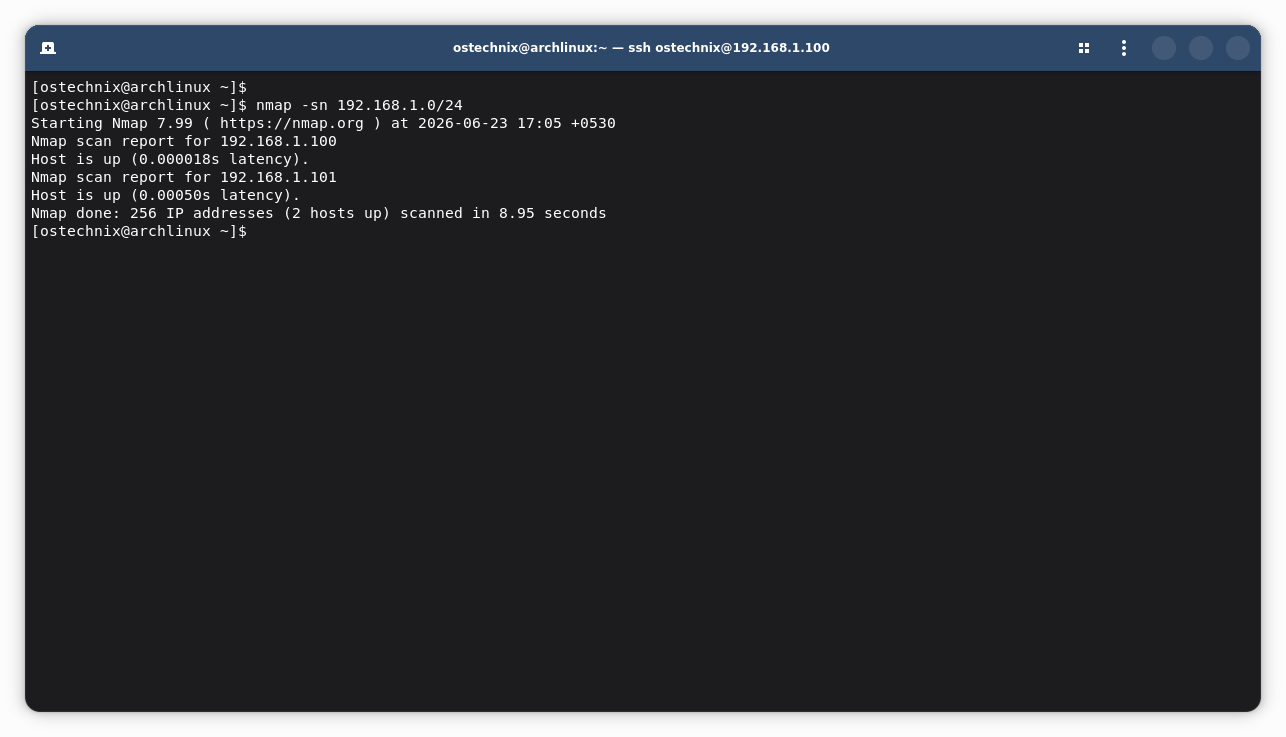
nmap -sn 192.168.1.0/24
This command finds all devices on your network without scanning ports.
Sample Output:
Starting Nmap 7.99 ( https://nmap.org ) at 2026-06-23 17:05 +0530
Nmap scan report for 192.168.1.100
Host is up (0.000099s latency).
Nmap scan report for 192.168.1.101
Host is up (0.00075s latency).
Nmap done: 256 IP addresses (2 hosts up) scanned in 8.94 seconds
Step 4: Scan a Specific Host
nmap -sV 192.168.1.100
This command scans the target and identifies running services and their versions.
Sample Output:
Starting Nmap 7.99 ( https://nmap.org ) at 2026-06-23 17:10 +0530
Nmap scan report for 192.168.1.100
Host is up (0.000069s latency).
Not shown: 999 closed tcp ports (conn-refused)
PORT   STATE SERVICE VERSION
22/tcp open  ssh     OpenSSH 10.3 (protocol 2.0)

Service detection performed. Please report any incorrect results at https://nmap.org/submit/ .
Nmap done: 1 IP address (1 host up) scanned in 0.69 seconds
That is your first Nmap scan. From here, you can layer in more flags for deeper results, which the rest of this guide covers in full detail.
5. Host Discovery: Finding Live Devices on a Network
Note: Some nmap commands below require root or sudo provilleges. If you run them as normal user, you would see an output like below:
You requested a scan type which requires root privileges.
QUITTING!
Before you scan ports, you usually want to know which devices are actually online. Nmap's host discovery step handles this quickly without running a full port scan.
Important Note: -sP Is Deprecated. Always Use -sn Instead.
Some older cheat sheets and outdated guides still list nmap -sP as the correct ping scan command. This is no longer accurate. The -sP flag was deprecated when Nmap introduced its replacement, -sn.
While -sP still runs on current Nmap versions as a legacy alias, it produces a deprecation warning and will eventually be removed entirely.
The correct, current flag is nmap -sn. Both flags do the same thing, but -sn is the one you should always use going forward.
nmap -sn: Ping Scan (Host Discovery Without Port Scanning)
The -sn flag discovers which hosts are online and then stops. No port scanning happens. By default, it uses four probes: ICMP echo request, TCP SYN to port 443, TCP ACK to port 80, and ICMP timestamp request.
Root required: Running as root gives the most accurate results. Without root, -sn falls back to a simple TCP connect probe to ports 80 and 443 only.
# Basic host discovery on a /24 subnet
nmap -sn 192.168.1.0/24

# Save live hosts to a file for follow-up scanning
nmap -sn 192.168.1.0/24 -oG - | grep "Up" | awk '{print $2}' > live_hosts.txt
6. Common Nmap Scan Types Explained
Once you know which hosts are live, the next step is checking their ports. Each scan type uses a different TCP/IP technique, so each one works better in different situations. Here is a clear breakdown of the most common ones.
nmap -sS: TCP SYN Scan (Stealth Scan)
The TCP SYN scan is the default scan type when running Nmap as root and the most widely used scan overall. Nmap sends a SYN packet and waits for a response:
- SYN-ACK reply - port is open
- RST reply - port is closed
- No reply / ICMP unreachable - port is filtered
Because Nmap sends a RST after receiving a SYN-ACK, never completing the full handshake, this scan leaves fewer log traces than a full connect scan. That is why it is often called a "stealth scan" or "half-open scan."
nmap -sS 192.168.1.100                  # Requires root
nmap -sS -p 22,80,443 192.168.1.10        # SYN scan on specific ports only
nmap -sT: TCP Connect Scan (Full Handshake)
The TCP Connect scan is the default when running without root. It completes the full three-way TCP handshake using the OS's standard connect() system call. It is more reliable than -sS but slower and more likely to appear in server logs.
nmap -sT 192.168.1.100 # Works without root privileges
nmap -sU: UDP Scan
Many critical services run on UDP rather than TCP, including DNS (port 53), DHCP (ports 67-68), SNMP (port 161), and NTP (port 123). The -sU flag scans for these. Because UDP is connectionless, scanning it is much slower than TCP. Combining -sU with --top-ports speeds things up considerably.
nmap -sU 192.168.1.100                     # Full UDP scan (slow). Requires root
nmap -sU --top-ports 20 192.168.1.100      # Faster: scans top 20 UDP ports only
7. Nmap Version Detection and OS Fingerprinting
Knowing that a port is open is useful. However, knowing exactly what runs on that port, and which version, is far more powerful. These flags give you that extra layer of detail.
nmap -sV: Service and Version Detection
With -sV, Nmap probes each open port and identifies the service name and its exact version number. For instance, instead of "port 22 is open," you get "OpenSSH 8.9p1 Ubuntu." This is valuable for:
- Security auditing - spotting outdated or end-of-life software
- Vulnerability correlation - matching service versions against CVE databases
- Inventory management - verifying services run the expected versions
- Non-standard port detection -
-sVidentifies a service even when it runs on an unexpected port
nmap -sV 192.168.1.100
nmap -sV --version-intensity 5 192.168.1.100   # More thorough probing (scale: 0-9)
nmap -O: OS Detection (OS Fingerprinting)
Nmap analyzes subtle differences in how a host's TCP/IP stack responds and matches those patterns against a large database of known OS fingerprints. The result is a best-guess at the target's operating system and version.
Having at least one open port and one closed port on the target helps Nmap produce the most accurate OS guess. Without both, results may be less reliable, but OS detection will still attempt a match. Root or administrator privileges are required.
nmap -O 192.168.1.100
nmap -O --osscan-guess 192.168.1.100   # Shows best guess even with low confidence
nmap -A: Aggressive Scan (All-in-One Detection)
The -A flag runs four operations at once:
- OS detection (
-O) - Service and version detection (
-sV) - Default NSE script scan (
-sC) - Traceroute
This is the "give me everything" option. It produces the most detail but also takes longer and generates more network traffic. Because of this, only use it when you want a full picture and have explicit authorization to scan the target.
nmap -A 192.168.1.100
nmap -A -T4 192.168.1.100   # Aggressive scan at fast timing
Tip: For targeted work, combine -sV -O instead of -A when you want version and OS info without the full script overhead.
8. Nmap Timing Templates (-T0 to -T5)
Scan speed affects both accuracy and detectability. Nmap gives you direct control through six timing templates, ranging from paranoid-slow to dangerously fast.
Timing Template Comparison
| Flag | Name | Delay Between Probes | Best Used For |
|---|---|---|---|
-T0 | Paranoid | ~5 minutes | Maximum stealth; IDS evasion |
-T1 | Sneaky | ~15 seconds | Slow, careful scanning |
-T2 | Polite | ~0.4 seconds | Reduces bandwidth and load |
-T3 | Normal | Default | Balanced speed and accuracy |
-T4 | Aggressive | ~10ms max TCP delay | Fast, trusted networks; lab work |
-T5 | Insane | ~5ms max TCP delay | Very fast; risks inaccurate results |
Recommendation: Use -T4 for most lab and professional work on reliable networks. Use -T1 or -T2 when scanning production systems to avoid disrupting live services.
nmap -iL: Input Targets from a File
Instead of typing each target manually, -iL reads a list of hosts or ranges from a text file, one per line. This is essential for admins scanning large environments.
Example:
Create text file named targets.txt with following content:
192.168.1.100
192.168.1.101
10.0.0.0/24
webserver.example.com
And run:
nmap -T4 -sV -iL targets.txt -oA batch_results
9. Advanced TCP Scan Techniques
These specialized TCP techniques go beyond standard scanning. They work by exploiting a rule in RFC 793 (the TCP specification): a closed port must respond to any unexpected packet with a RST, while an open port simply drops the packet silently. That difference reveals port status without completing a full handshake.
Important: These scans require root privileges and work best against Linux and Unix targets. Windows and some Cisco devices respond to these packets differently, they send RST regardless of whether the port is open or closed, which makes results unreliable on those systems.
nmap -sX: XMAS Scan
Sends packets with the FIN, PSH, and URG flags set simultaneously - "lit up like a Christmas tree," hence the name. Open ports drop the packet silently; closed ports reply with RST. XMAS scans can sometimes bypass simple stateless firewalls that only filter on SYN flags.
nmap -sX 192.168.1.100
nmap -sF: FIN Scan
Sends packets with only the FIN flag set - normally used to close an active connection, but here sent to ports with no existing session. The open/closed response pattern works the same way as the XMAS scan.
nmap -sF 192.168.1.100
nmap -sN: Null Scan
Sends packets with no TCP flags set at all. This is the most minimal possible TCP packet. Open or filtered ports drop it silently; closed ports respond with RST. Null scans can evade some basic stateless firewalls and simple packet-filtering rules.
nmap -sN 192.168.1.100
nmap -sA: ACK Scan (Firewall Rule Mapping)
The ACK scan works differently from the three above. It does not tell you whether a port is open. Instead, it tells you whether a port is filtered or unfiltered by a firewall. Nmap sends ACK packets; if RST comes back, the port is unfiltered (reachable). If nothing comes back, or an ICMP unreachable message arrives, the port is filtered (blocked). Security engineers use this specifically to map and understand firewall rule sets.
nmap -sA 192.168.1.100
nmap -sA -p 80,443,8080 192.168.1.100   # Check firewall filtering on specific ports
10. Nmap Scripting Engine (NSE) and Port Options
The Nmap Scripting Engine (NSE) is where Nmap transforms from a simple port scanner into a full security auditing platform. It lets you run Lua-based scripts against targets to automate hundreds of specific checks. Nmap ships with 612 NSE scripts as of the current release.
All 15 Official NSE Script Categories
| Category | Risk Level | What These Scripts Do |
|---|---|---|
auth | Safe | Test authentication and detect weak or default credentials |
broadcast | Safe | Discover hosts and services by sending broadcast packets |
brute | Intrusive | Brute-force login attempts against services |
default | Safe | Safe, general-purpose scripts -- run automatically with -sC |
discovery | Safe | Gather extra information about services and networks |
dos | Dangerous | Test denial-of-service vulnerabilities -- use with extreme care |
exploit | Intrusive | Attempt to exploit known vulnerabilities |
external | Variable | Query external databases and services (e.g., Whois, DNS lookups) |
fuzzer | Intrusive | Send unexpected or malformed data to find bugs |
info | Safe | Gather additional information about targets beyond basic scanning |
intrusive | Intrusive | Scripts likely to crash services or trigger alerts |
malware | Safe | Detect signs of malware infection or backdoors |
safe | Safe | Low-risk scripts that are unlikely to crash or harm targets |
version | Safe | Enhance version detection beyond what -sV does alone |
vuln | Intrusive | Detect known CVEs and common security misconfigurations |
You can view the list of available scripts in each category by clicking the respective category name in the NSE Categories page.
Caution: Scripts in the dos, exploit, brute, and intrusive categories can disrupt or damage systems. Only run them against targets you own or have explicit written permission to test.
nmap -sC: Default Script Scan
Runs all scripts in the default category. These are safe, fast, and designed for routine information gathering, HTTP title detection, FTP anonymous login check, SSH host key retrieval, and service banner grabbing, among others.
nmap -sC 192.168.1.100
nmap -sC -sV 192.168.1.100   # Combine with version detection for richer results
nmap --script <name>: Run a Specific Script
nmap --script http-title 192.168.1.100          # Grab web page title
nmap --script vuln 192.168.1.100                # Run all vulnerability scripts
nmap --script "http-*" 192.168.1.100            # Run all HTTP-related scripts
nmap --script smb-vuln-ms17-010 192.168.1.100   # Check for EternalBlue (MS17-010)
Full script library: All NSE scripts are documented at nmap.org/nsedoc.
nmap --top-ports <n>: Scan the Most Common Ports
Instead of scanning all 65,535 ports, --top-ports scans only the most frequently seen ports in real-world deployments. Nmap ranks these by occurrence frequency from a large dataset of real network scans.
nmap --top-ports 100 192.168.1.100    # 100 most common ports - fast and practical
nmap --top-ports 1000 192.168.1.100   # Broader coverage; still faster than a full scan
nmap -p: Specify Exact Ports or Ranges
nmap -p 22,80,443 192.168.1.100       # Three specific ports
nmap -p 1-1000 192.168.1.100          # Port range
nmap -p- 192.168.1.100                # All 65,535 ports (comprehensive but slow)
nmap -p U:53,T:80 192.168.1.100       # UDP port 53 and TCP port 80 in one scan
11. Pro Tips: How to Use Nmap Like an Expert
These recommendations go beyond the basic flags. They reflect how experienced security professionals and network admins use Nmap every day in real environments.
Tip 1: Always Save Your Output
Never lose scan results. Use the -oA flag to save in all three formats simultaneously: readable text (.nmap), XML (.xml), and grepable format (.gnmap). The XML format is especially useful because many other security tools can import it directly.
nmap -sV -T4 -oA scan_$(date +%F) 192.168.1.0/24
# Creates: scan_2026-06-23.nmap  /  scan_2026-06-23.xml  /  scan_2026-06-23.gnmap
Tip 2: Combine Flags for One Efficient Scan
You do not need to run separate scans for version detection, scripts, and timing. This all-purpose command covers everything in one go and saves results automatically:
nmap -sV -sC -O -T4 --top-ports 1000 -oA results TARGET_IP
Tip 3: Discover Hosts First, Then Deep Scan
On large networks, always run -sn first to find live hosts, then feed those results into a deeper scan. This skips offline hosts entirely and saves significant time.
# Step 1: Find and record live hosts
nmap -sn 192.168.1.0/24 -oG - | grep "Up" | awk '{print $2}' > live.txt

# Step 2: Deep scan only the live ones
nmap -sV -sC -T4 -iL live.txt -oA deep_scan
Tip 4: Use --reason to Understand Every Result
Add --reason to any scan and Nmap explains exactly why it classified each port the way it did. This is invaluable while learning and when unexpected results appear.
nmap -sS --reason 192.168.1.100
Sample Output:
Starting Nmap 7.99 ( https://nmap.org ) at 2026-06-23 18:03 +0530
Nmap scan report for 192.168.1.100
Host is up, received localhost-response (0.000029s latency).
Not shown: 999 filtered tcp ports (no-response)
PORT   STATE SERVICE REASON
22/tcp open  ssh     syn-ack ttl 64

Nmap done: 1 IP address (1 host up) scanned in 4.75 seconds
Tip 5: Visualize Results with Zenmap
If the terminal is not your preference, Zenmap is Nmap's official GUI front-end. It renders a network topology map, keeps scan history, and helps you build commands interactively. It is a great bridge tool while you get comfortable with the CLI. Download it free at nmap.org/zenmap.
Tip 6: Automate Scans with python-nmap
For scheduled audits, the python-nmap library lets you run scans programmatically, parse XML output, and trigger alerts when new services appear on a network.
pip install python-nmap
import nmap
nm = nmap.PortScanner()
nm.scan('192.168.1.0/24', arguments='-sV -T4 --top-ports 100')
for host in nm.all_hosts():
    print(f"{host}: {nm[host].state()}")
Tip 7: Use Verbose Mode for Live Feedback
On slow scans like UDP, add -v or -vv to see results stream in real time rather than waiting for the full scan to finish.
nmap -sU -vv --top-ports 50 192.168.1.100
Tip 8: Run Nmap in Docker for a Clean Environment
For isolated testing, run Nmap inside a Kali Linux Docker container. This keeps your scanning activities separate from your host machine and gives you a clean, repeatable environment every time.
docker run -it --rm kalilinux/kali-rolling nmap -sV TARGET_IP
Related Read: How to Install and Configure ProxyChains on Linux
12. Key Takeaways
nmap -snis the correct ping scan command. The old-sPflag is deprecated. Stop using it.nmap -sS(TCP SYN scan) is the fastest and most popular scan. It requires root.nmap -Aruns OS detection, version detection, scripts, and traceroute in one go.nmap -T4is the best timing template for fast, reliable lab networks.- Always save output with
-oAso you never lose scan results. - Never scan systems you do not own or have written permission to scan. It is illegal.
13. Nmap Commands Cheat Sheet
All commands below are verified against official Nmap reference guide. Last tested with Nmap 7.99.
Host Discovery
| Command | What It Does |
|---|---|
nmap -sn 192.168.1.0/24 | Ping scan -- finds live hosts, no port scan |
nmap -sn -iL targets.txt | Host discovery from a target file |
Core Scan Types
| Command | What It Does |
|---|---|
nmap -sS TARGET | TCP SYN scan (stealth; default as root) |
nmap -sT TARGET | TCP Connect scan (default without root) |
nmap -sU TARGET | UDP scan |
nmap -sV TARGET | Service and version detection |
nmap -O TARGET | OS detection |
nmap -A TARGET | Aggressive: OS + version + scripts + traceroute |
Port Specification
| Command | What It Does |
|---|---|
nmap -p 22,80,443 TARGET | Scan specific ports |
nmap -p 1-1000 TARGET | Scan a port range |
nmap -p- TARGET | Scan all 65,535 ports |
nmap --top-ports 100 TARGET | Scan the 100 most common ports |
Timing and Performance
| Command | What It Does |
|---|---|
nmap -T4 TARGET | Fast timing -- recommended for labs |
nmap -T1 TARGET | Slow, stealthy timing |
nmap -iL targets.txt | Read targets from a file |
Advanced TCP Techniques
| Command | What It Does |
|---|---|
nmap -sX TARGET | XMAS scan |
nmap -sF TARGET | FIN scan |
nmap -sN TARGET | Null scan |
nmap -sA TARGET | ACK scan -- firewall rule mapping |
NSE Scripts
| Command | What It Does |
|---|---|
nmap -sC TARGET | Run default NSE scripts |
nmap --script vuln TARGET | Run vulnerability-detection scripts |
nmap --script "http-*" TARGET | Run all HTTP-related scripts |
nmap --script smb-vuln-ms17-010 TARGET | Check for EternalBlue |
Output and Extras
| Command | What It Does |
|---|---|
nmap -oA results TARGET | Save output in all three formats at once |
nmap -oN results.txt TARGET | Save readable text output |
nmap -oX results.xml TARGET | Save XML output |
nmap --reason TARGET | Show why each port was classified |
nmap -v TARGET | Verbose output |
nmap -vv TARGET | Extra verbose output |
nmap --version | Check your installed Nmap version |
14. Is Nmap Legal? Ethical and Legal Use
Yes, Nmap is legal when you use it on systems you own or on systems where you have explicit, written permission from the owner. Scanning systems without permission is illegal in most countries and can result in criminal charges.
The Laws You Need to Know
Unauthorized network scanning violates computer fraud laws in most jurisdictions:
- India - Information Technology Act 2000, Sections 43 and 66
- USA - Computer Fraud and Abuse Act (CFAA), 18 U.S.C. § 1030
- EU - Directive on Attacks Against Information Systems (2013/40/EU)
- UK - Computer Misuse Act 1990
- Australia - Criminal Code Act 1995, Part 10.7
Penalties include fines and prison time. Scanning a system without permission is not a grey area. It is illegal in each of these jurisdictions.
How to Use Nmap Legally
- Only scan systems you own - your own computers, routers, and lab machines.
- Get written permission before scanning any network you do not own.
- Use legal practice platforms - TryHackMe, Hack The Box, and VulnHub all provide legal, purpose-built targets for exactly this kind of learning.
- Document authorized scans - during any professional engagement, keep a written record of scope, authorization, and results. This protects you legally.
- Avoid scanning production systems without approval - even authorized scans can disrupt live services if run carelessly.
Best practice for learners:
Build a home lab with two or three VirtualBox VMs and practice every command in this guide there. You will learn faster, cause no harm, and build real skills that transfer directly into professional work.
15. Frequently Asked Questions (FAQ)
A: Nmap (Network Mapper) is a free, open-source network scanning tool that discovers hosts, open ports, running services, service versions, and operating systems on a network.
System administrators use it for network inventory and troubleshooting. Security professionals use it for penetration testing and security auditing. Students use it to learn how TCP/IP and network protocols work in practice.
A: Yes. Nmap is completely free and open-source under the Nmap Public Source License (NPSL), based on GPLv2. Download it at nmap.org/download. It runs on Linux, macOS, and Windows. There is no paid version. It is completely free.
nmap -sn and nmap -sP?A: They do the same thing: discover live hosts on a network without scanning ports. However, -sP is deprecated and has been replaced by -sn in all current versions of Nmap. It will be removed in a future release. Always use -sn.
A: The fastest practical scan for common ports is:nmap -T4 --top-ports 100 TARGET
For a full scan covering all 65,535 ports:nmap -T4 -p- TARGET
Note that -T5 is technically faster but often produces inaccurate results on anything but the most reliable networks. -T4 gives the best balance of speed and reliability for everyday use.
nmap -A do?A: The -A flag runs four operations in one command: OS detection (-O), service and version detection (-sV), the default NSE script scan (-sC), and traceroute. It is the most thorough all-in-one Nmap scan, but also the slowest and most detectable. Only use it when you want full detail and have explicit authorization to scan the target.
A: Not always. nmap -sT (TCP Connect scan) and nmap -sn (host discovery) work without root. However, -sS (SYN scan), -sU (UDP scan), -O (OS detection), and the advanced TCP scans (-sX, -sF, -sN) all require root or administrator privileges because they need to construct raw network packets directly.
A: NSE is Nmap's built-in scripting framework. It runs Lua scripts that automate tasks beyond basic port scanning, including service banner grabbing, vulnerability detection, brute-force login testing, SSL certificate inspection, and malware detection. Nmap ships with 612 NSE scripts organized into 15 categories. The full list is at nmap.org/nsedoc.
A: Use -oA filename to save results in all three formats at once:nmap -sV -T4 -oA my_scan 192.168.1.100
# Creates: my_scan.nmap / my_scan.xml / my_scan.gnmap
nmap -sS and nmap -sT?A: Both scan TCP ports. -sS (SYN scan) sends a SYN packet and never completes the full handshake. It is faster, leaves fewer log traces, and requires root. -sT (Connect scan) completes the full three-way handshake using the OS's network stack - no root needed, but it is slower and more easily logged by the target.
nmap -sA do?A: The ACK scan (-sA) does not detect open ports. Instead, it determines whether a port is filtered or unfiltered by a firewall. Nmap sends ACK packets; a RST response means the port is unfiltered (reachable), while no response or an ICMP unreachable message means the port is filtered (blocked). Security engineers use this to map firewall rule sets.
A: Yes, through NSE. The vuln category of scripts checks for known CVEs and common security misconfigurations. For example, --script smb-vuln-ms17-010 checks for the EternalBlue vulnerability. However, Nmap is primarily a scanner, not an exploitation tool. For full vulnerability management workflows, it is typically paired with tools like OpenVAS, Nessus, or Metasploit.
A: Zenmap is Nmap's official graphical user interface. It provides a visual network topology map, scan history, a profile-based command builder, and an easy way to compare results across scans. It is ideal for users who are new to Nmap or prefer a visual workflow. Download it at nmap.org/zenmap.
15. Conclusion and Next Steps
Nmap is one of those tools that rewards every hour you invest in learning it. The flags can look overwhelming at first, but the logic behind them is consistent.
Once you understand why each scan type works the way it does, rather than just memorizing the commands, the whole tool clicks into place.
To recap the most important points from this guide:
- Use
-snfor host discovery. The old-sPflag is deprecated. - Use
-sSas your go-to port scan when running as root. - Combine
-sV -sC -T4 -oAfor an efficient, well-documented all-purpose scan. - Add
--reasonto any scan while you are learning to understand why each port got its classification. - Never scan without permission. It is illegal.
Where to go Next
| Resource | What You Will Learn |
|---|---|
| nmap.org/book | The official Nmap guide by its creator. It is freely available online |
| nmap.org/nsedoc | Full NSE script documentation and usage examples |
| TryHackMe -- Nmap Room | Guided, hands-on Nmap practice in a legal lab |
| Hack The Box | Real-world penetration testing challenges |
| VulnHub | Downloadable vulnerable VMs for local practice |
nmap --help (in your terminal) | The full official man page. Always up to date and recommended. |
The single best next step: Set up two VirtualBox VMs, one running Kali Linux as your scanning machine, one running Metasploitable 2 or DVWA as your target. Then work through every command in this guide hands-on. That combination of reading and doing is how real skills form.
Sources and Further Reading:
