
Installing Arch Linux isn't a one-time setup. It's a routine task. To maintain an Arch Linux system long-term, I do the following tasks regularly:
- Check the Arch news feed before every upgrade,
- Update the system and AUR packages regularly,
- Remove orphaned packages no longer required by anything,
- Trim the pacman package cache periodically,
- Review
.pacnewand.pacsaveconfiguration files after upgrades, - and check failed services.
None of these are urgent individually, but skipping all of them for months is commonly cited as the leading cause of "my Arch system feels broken" reports.
At the end, I have added a suggested cadence so you're not guessing how often to run any of this.
Scope: This guide assumes the standard pacman plus AUR-helper setup from our Arch Linux post-install guide.
Table of Contents
1. Check the News Feed Before Every Upgrade
Before running an upgrade, open archlinux.org/news in a browser.
Arch Linux is a rolling release distribution with no scheduled "version" to test changes against first.
Most of the time pacman -Syu just works. Occasionally, a change requires manual intervention (a partition layout change, a config migration, a package split), and those are always announced on the news feed before the packages land in the repos.
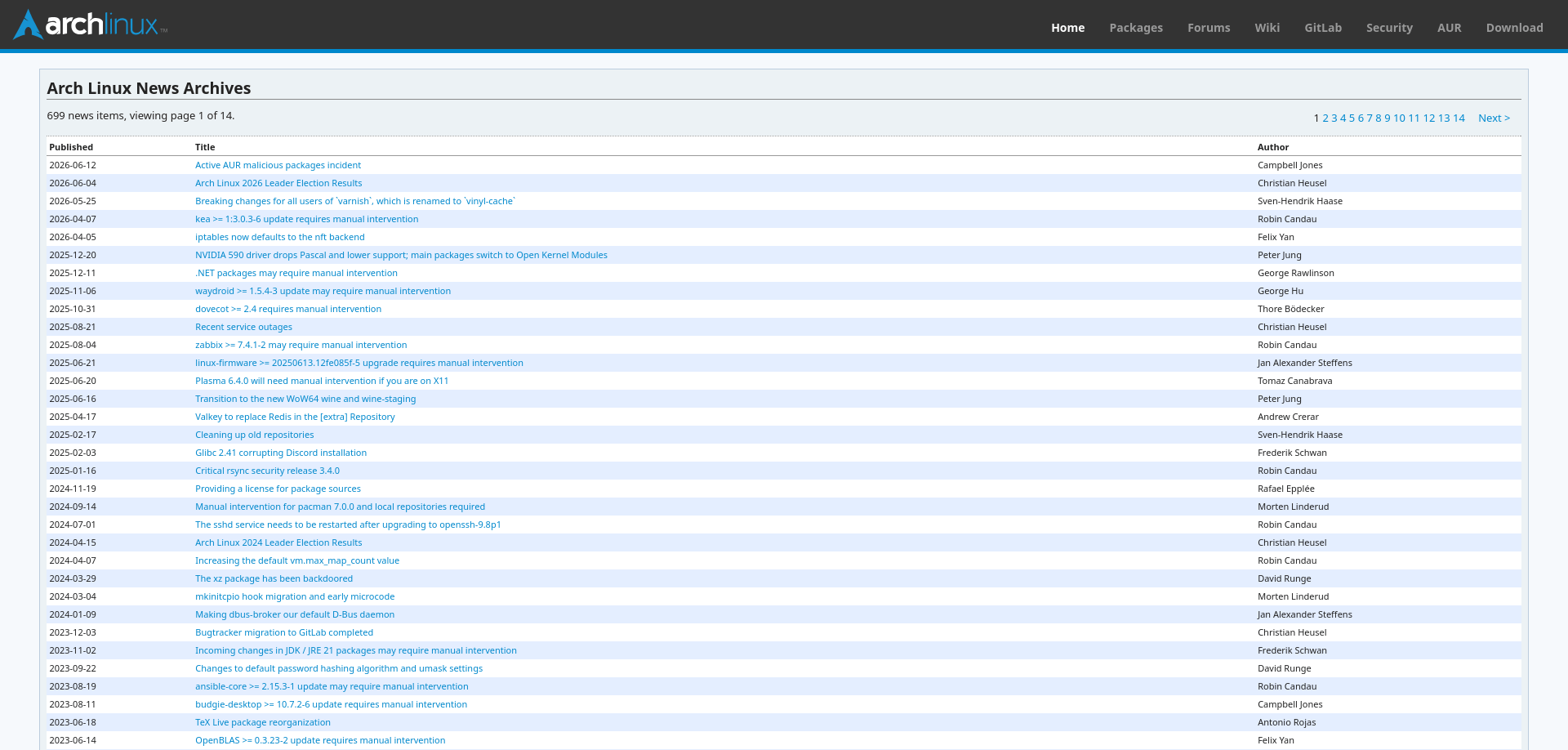
Skipping this check is a frequent cause of updates that feel like they "broke" something.
2. Update the System and AUR Packages
2.1. Full system upgrade
sudo pacman -Syu
Always run -Syu together. Never sync (-Sy) without also upgrading (-u) in the same command. Arch doesn't support partial upgrades, and syncing without upgrading is one of the most common ways to break package dependencies.
2.2. Updating AUR packages
The AUR helpers (paru or yay) handle both official and AUR packages in one command:
paru -Syu
AUR packages aren't pre-built. Updating one means rebuilding it from source on your machine, so an AUR-heavy system update can take noticeably longer than a pure official-repo update.
3. Remove Orphaned Packages
An orphaned package is one that was originally installed as a dependency of something else, but that something else has since been removed or replaced, leaving the dependency behind with nothing using it.
3.1. Finding orphans
pacman -Qdt
3.2. Removing them
sudo pacman -Rns $(pacman -Qdtq)
The -Rns flag removes the packages, their now-unneeded dependencies, and any configuration files associated with them.
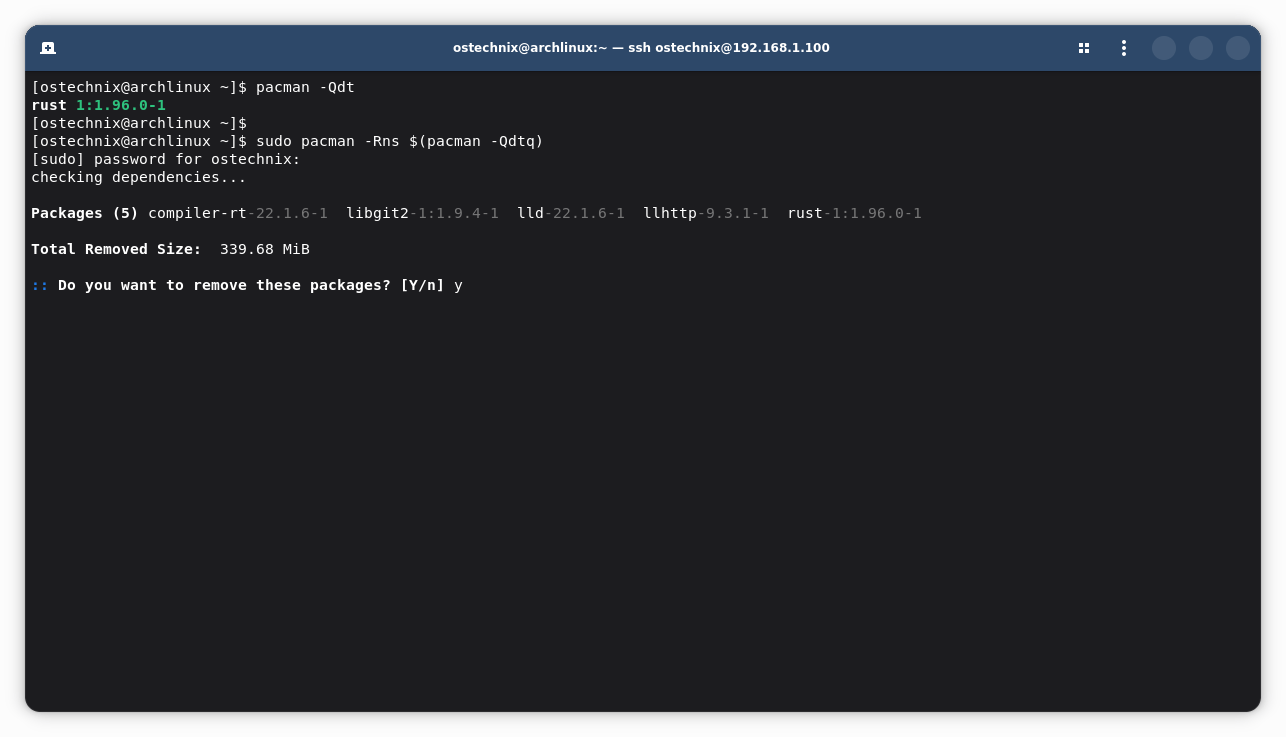
If you have no orphans, this command will print error: argument '-' specified with empty stdin instead of doing nothing silently. That's expected and harmless. It just means there was nothing to pass to the removal command, not that anything is broken.
Worth a periodic check too:
pacman -Qm lists "foreign" packages i.e anything installed from the AUR or by hand rather than an official repo. Occasionally an AUR package gets deleted upstream entirely, meaning your AUR helper can no longer update it and you'd otherwise never know. This list is worth a glance every few months.
4. Clean the Pacman Package Cache
Every time you install or update a package, pacman keeps a copy of the downloaded file in /var/cache/pacman/pkg/.
$ ls /var/cache/pacman/pkg/
abseil-cpp-20260526.0-2-x86_64.pkg.tar.zst
abseil-cpp-20260526.0-2-x86_64.pkg.tar.zst.sig
accountsservice-26.13.3-1-x86_64.pkg.tar.zst
accountsservice-26.13.3-1-x86_64.pkg.tar.zst.sig
[...]
This is intentional. It lets you downgrade a package if an update breaks something. If they left unmanaged, it grows indefinitely.
4.1. Trimming with paccache
sudo pacman -S pacman-contrib
sudo paccache -rk2
The -rk2 flag keeps the 2 most recent versions of each package and removes the rest. This preserves the downgrade safety net without letting the cache grow forever.
4.2. Automate it
sudo systemctl enable --now paccache.timer
For more details, read our Pacache guide in the link below:
5. Review and Merge .pacnew (and .pacsave) Files
When an update changes a configuration file you've customized, pacman doesn't overwrite your version. It installs the new default alongside yours as filename.pacnew, leaving you to decide what to do with it.
The companion file type, .pacsave, appears when you remove a package that owned a config you'd modified. It's your old version, kept in case you reinstall later.
5.1. Finding and merging them
sudo pacman -S pacman-contrib
pacdiff
pacdiff scans your system for both .pacnew and .pacsave files and walks you through merging each one against your existing config, showing a diff so you can see exactly what changed.
Why this matters:
Ignoring these files indefinitely means your configs slowly drift out of sync with what the package actually expects. It is usually harmless for months, until one specific update assumes a default that your old config doesn't have, and something breaks in a way that's hard to trace back to a config file you forgot existed.
For more details about these two files, read the following guides:
- What Are .pacnew Files in Arch Linux and How to Handle Them Safely
- What Are .pacsave Files in Arch Linux and How to Use Them Safely
6. Check for Failed Services and Errors
6.1. Failed systemd services
systemctl --failed
An empty result is good. It means every enabled service started successfully at last boot. Anything listed here is worth investigating with journalctl -u service-name.
6.2. Reviewing the pacman log
less /var/log/pacman.log
Worth a periodic skim, especially after a problematic update. It's a complete record of every package installed, removed, or upgraded, with timestamps.
6.3. Don't forget already-running processes
An update to a library doesn't take effect in programs that are already running. A browser you've had open for days, for instance, is still using the old version in memory until it's restarted.
Rebooting periodically, not just after kernel updates, is the simplest way to guarantee every running process is actually on the versions you just installed.
7. Suggested Cadence
A system left unupdated for six months or more commonly ends up with dozens of accumulated .pacnew files and a multi-gigabyte cache all at once. Making that eventual catch-up update far riskier than any single weekly update would have been. Little and often beats rare and large.
| Task | Frequency | Why |
|---|---|---|
| Check news feed | Every time, before upgrading | Costs seconds; prevents the worst outcomes |
pacman -Syu + AUR update | Weekly | Frequent small updates are easier to troubleshoot than rare large ones |
| Remove orphaned packages | Monthly | Orphans accumulate slowly; no urgency to chase them daily |
| Clean pacman cache | Monthly (or automate with the timer) | Disk space concern, not a stability concern |
Review .pacnew/.pacsave files | After any update that mentions config changes | Most updates don't generate any; check when one does |
| Check failed services | Monthly, or any time something feels off | Low effort, catches problems before they compound |
Frequently Asked Questions (FAQ)
A: Generally, Yes. The pacman -Qdt command only lists packages nothing currently depends on. The rare exception is a package you installed manually for a reason pacman can't see (a kernel module you build against, for instance) but never explicitly marked as "explicitly installed."
If you're unsure about a specific package, check what it is before removing it rather than blindly piping the whole list.
A: Nothing immediately. Your old config keeps working exactly as before. The risk is cumulative: each ignored .pacnew file is one more place where your system's actual config has quietly diverged from what current package versions expect, and that gap eventually causes a confusing failure during some unrelated future update.
A: Run sudo paccache -rk2 immediately to reclaim space, then set up the paccache.timer from Step 4 so it doesn't happen again. If you need space back right now and don't care about downgrade safety, sudo pacman -Scc clears the cache entirely, but you lose the ability to roll back any currently installed package.
A: Weekly is the commonly recommended cadence. Frequent enough that any single update is small and easy to troubleshoot if something goes wrong, infrequent enough to not be a daily chore.
Going months between updates is what tends to produce the dramatic "everything broke at once" update experience, since dozens of changes land all at once instead of one or two at a time.
Conclusion
In this guide, we've covered six important Arch Linux maintenance tasks that every user should perform regularly. Following these best practices will help keep your Arch Linux clean, stable, and running smoothly over the long term.
Resources:
