
Installing Tor Browser on Linux is simple. Download the archive, extract it, open the directory, and launch it. The first surprise often comes when you launch it with sudo instead of as your regular user.
sudo ./start-tor-browser.desktop
Instead of opening, Tor Browser greets you with an unexpected message.
The Tor Browser Bundle should not be run as root.
Exiting.
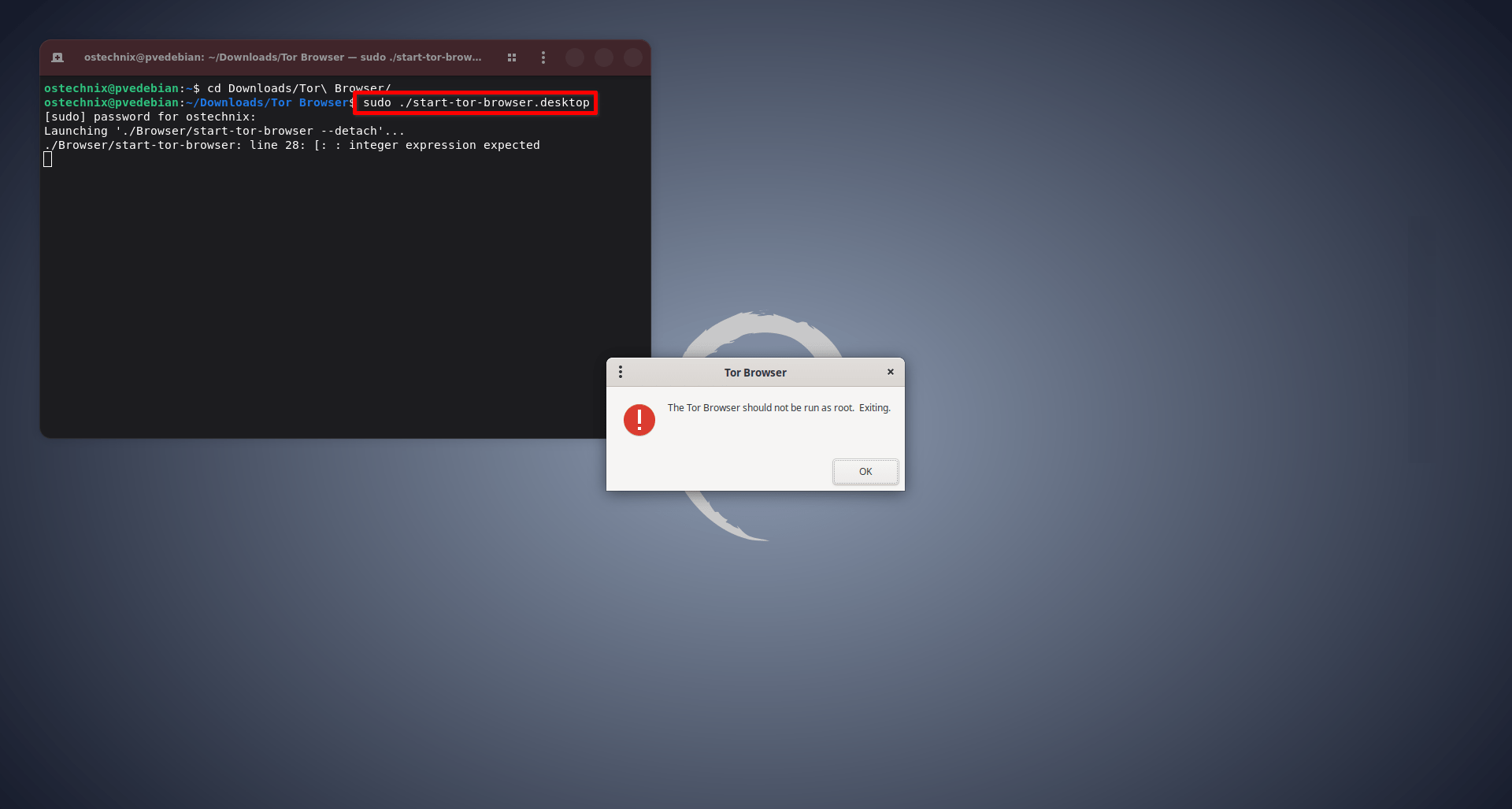
Tor Browser refuses to start because you used sudo. It's a deliberate security decision made by the Tor Project.
At first, that decision can seem strange. Plenty of Linux programs run with administrator privileges, so why does Tor Browser actively refuse them?
The answer has very little to do with Tor itself and almost everything to do with protecting your system. Once you understand why, you will realize the error message is not an obstacle, but one of Tor Browser's most important security features.
Table of Contents
Why sudo Feels Like the Right Choice
Using sudo isn't the mistake. Using it when it isn't needed is.
On Linux, sudo is the tool for tasks that change the system. That's why experienced users reach for it without thinking twice.
Tor Browser isn't one of those tasks.
The official way to launch Tor Browser on Linux is as your regular user. It doesn't require administrator privileges to start or browse the web.
When you add sudo, you're not helping Tor Browser. You're changing who runs it. Instead of running under your user account, the browser now runs as root.
That single change is enough for Tor Browser to refuse to continue.
But what difference does running as root actually make? Read on to find out.
What sudo Actually Changes
When you run a command with sudo, you're usually running it as root instead of your user account. You're not making the program work better. You've simply changed the user that's running it
Normally, Tor Browser runs under your user account. It can access the files and folders you own, but it still operates within the permissions granted to your account.
When you add sudo, the browser runs as root instead. As you already know, root is the administrative account with permission to read, modify, or delete almost any file on the Linux system. That's why sudo is meant for system administration tasks, not everyday applications.
By itself, running as root isn't a problem. Package managers, backup tools, and other system utilities often need those privileges to do their jobs.
A web browser is different.
Every page you visit asks the browser to process untrusted content from the internet, such as HTML, JavaScript, images, fonts, videos, and more. Modern browsers are among the most complex applications we use, and like any large software project, security vulnerabilities are occasionally discovered and fixed.
If a browser is ever compromised while running as root, the attacker gains the same privileges as the browser itself. That's the situation Tor Browser is designed to prevent.
Understanding that makes Tor Browser's refusal feel much less surprising.
A Browser Isn't Like Other Applications
Running a package manager as root makes sense because it's designed to install, update, or remove software. Those tasks require administrative privileges.
A web browser has a different job.
Every website you visit sends data to your browser. It processes HTML, CSS, JavaScript, images, fonts, videos, and other content from systems you don't control. That's one of the reason browsers receive frequent security updates. They're constantly exposed to untrusted content.
Now consider the privileges of the browser itself.
If an attacker exploits a browser vulnerability and manages to execute code, that code runs with the same permissions as the browser process. A browser running under your user account is limited to the permissions of that account. A browser running as root inherits the much broader privileges of the root user.
This isn't unique to Tor Browser. As a general security practice, web browsers should not be run with unnecessary administrator privileges. If a browser is compromised, giving it more privileges than it needs only increases the potential impact.
Tor Browser enforces this security practice. When it detects that it's being started as root, it refuses to launch. Rather than relying on the user to follow this security practice, it enforces it.
The Right Way to Launch Tor Browser
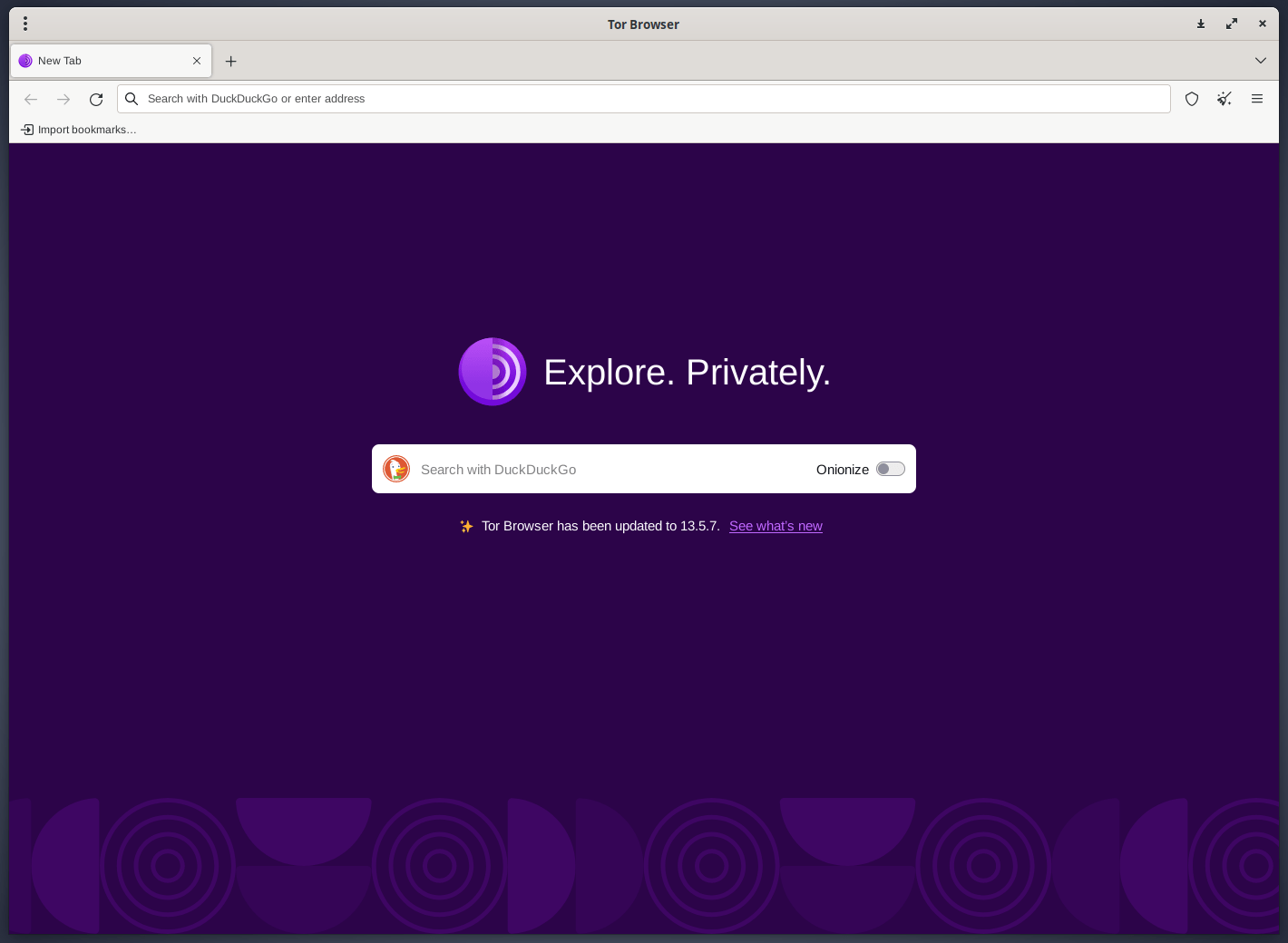
If you're using the official Tor Browser download from the Tor Project, launch it as your regular user.
./start-tor-browser.desktop
That's all you need. There's no benefit to running Tor Browser with sudo, and Tor Browser won't run if you do.
If you run into a permission-related error, don't assume sudo is the answer. The error is usually pointing to an underlying problem that needs to be fixed, such as incorrect file permissions or an issue with how Tor Browser was extracted or launched.
In other words, solve the actual problem instead of giving the browser administrator privileges it doesn't need.
Conclusion
At first, Tor Browser's refusal to run with sudo can feel like an unnecessary restriction. In reality, it's doing exactly what security-focused software should do: preventing an avoidable mistake before it becomes a security risk.
The broader lesson extends beyond Tor Browser. Give applications only the privileges they actually need. If a program doesn't require administrator privileges, running it with sudo only increases the potential impact of a mistake or vulnerability.
The next time you see:
The Tor Browser Bundle should not be run as root.
Exiting.
You'll know it isn't an error to work around. It's a reminder that good security starts with running software with only the privileges it actually needs.
Resource:
Recommended Read:
