
If your web browser, terminal, and music player all try to access the Internet at the same time, should they all be treated the same way?
A traditional firewall usually focuses on the network connection itself. An application-level firewall asks a different question: Which application is making this connection, and should it be allowed?
That small shift in perspective changes how you think about firewall rules and gives you much finer control over your system.
By the end of this guide, you'll understand:
- What an application-level firewall is and how it differs from a network firewall.
- The difference between inbound and outbound application firewalls.
- How default actions and rule granularity shape firewall behavior.
- Why tools such as FireWally, Little Snitch, and OpenSnitch take different approaches.
- Which type of application firewall is likely to suit your needs.
Table of Contents
What Is an Application-Level Firewall?
An application-level firewall is a tool that controls internet access for each application separately. Instead of managing traffic by port or IP address, it manages traffic by the app that generated it.
This is often called outbound filtering, since it deals with traffic leaving your device. Outbound means traffic leaving your computer, as opposed to inbound traffic, which arrives from outside. Application-level firewalls focus mainly on outbound traffic, since that is where individual apps become visible.
Here is how it works in practice. When an app tries to connect to the internet, the firewall identifies the app by name. You can then choose to allow or block that specific app. Other apps are not affected by this choice. Your browser can stay connected while your music player is blocked, or the other way around.
This also gives you visibility. Many application-level firewalls show you which apps are connecting, how often, and how much data they send. You can spot unexpected activity, like an app contacting a server you don't recognize, or sending more data than you expect.
Note:
The term application-level firewall can be confusing. It is used for different technologies.
In this guide, it refers to a host-based application firewall. This is a tool that monitors and controls network connections made by individual applications on your device.
It does not refer to a Web Application Firewall (WAF), which protects servers from attacks like SQL injection. It also does not refer to application-layer inspection, which examines protocols such as HTTP in network traffic. Those are different tools, built for different purposes.
A network firewall evaluates the connection itself: the IP address, the port, the protocol. A host-based application firewall also considers which application made that connection, and applies its rules based on that.
Inbound vs. Outbound Firewalls
Every network connection has a direction. Inbound means traffic arriving at your device from outside. Outbound means traffic leaving your device toward the internet.
Most built-in firewalls focus on inbound traffic. They decide what is allowed to reach your device. This stops many unwanted connections before they arrive.
Outbound traffic works differently. This is data your own applications send out, such as update checks, background syncing, or analytics. A firewall that filters outbound traffic asks a different question: should this application be allowed to send data out at all?
Here is a simple comparison:
| Inbound Firewall | Outbound Firewall | |
|---|---|---|
| Direction | Traffic coming into your device | Traffic leaving your device |
| Main question | Should this connection be allowed in? | Should this application be allowed out? |
| Awareness | Usually network-level (IP, port, protocol) | Usually application-level (which app is connecting) |
| Common examples | macOS Firewall, ufw, firewalld | FireWally, Little Snitch, OpenSnitch |
| What it protects against | Unwanted access from outside | Unwanted data leaving from inside |
Most computers already have inbound protection. Far fewer have outbound protection configured or even enabled. This is the part of your system that application-level firewalls are built to handle.
Two Ways to Compare Any Firewall Tool
Every application-level firewall can be understood using two simple questions.
The first question is about default behavior. When a new application tries to connect, does the firewall block it until you approve, or does it allow it automatically? Some tools ask you every time. Others stay silent unless you change a setting.
The second question is about granularity. Can you control access at the level of the whole application only, or can you go further, blocking specific domains, ports, or processes within that application?
These two questions matter because they explain why tools that solve the same problem can feel completely different to use. A tool that blocks by default and asks before every new connection feels more like a checkpoint. A tool that allows by default and stays quiet feels more like a dashboard you check when you want to.
Neither approach is better on its own. A checkpoint gives you more control but more interruptions. A dashboard gives you convenience but requires you to check in yourself.
Once you know where a tool sits on these two questions, you already understand most of what it does.
Application-Level Firewalls for macOS and Linux
FireWally (macOS)
FireWally is a free application firewall for macOS. It shows you which apps are connecting to the internet and blocks any of them with one click.
You need to enable its Network Extension once, in System Settings, before it can monitor anything. New apps are allowed to connect by default, so you must change a setting if you want it to ask first.
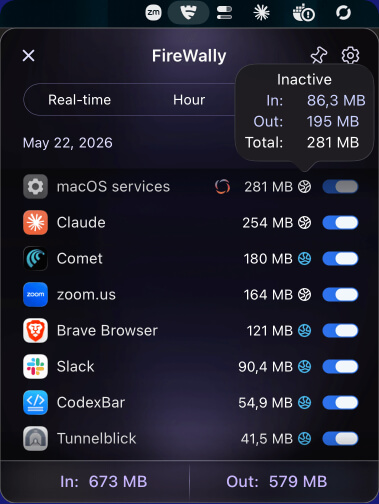
It also uses Apple Intelligence to explain, in plain language, why an app might be connecting. This only works on macOS Tahoe with an M1 chip or newer.
Little Snitch (macOS)
Little Snitch has protected Mac users for over twenty years. Unlike FireWally, it blocks new connections by default and asks before allowing them. It also supports rules by domain, port, and network profile, so you can set different rules for home, work, or public networks.
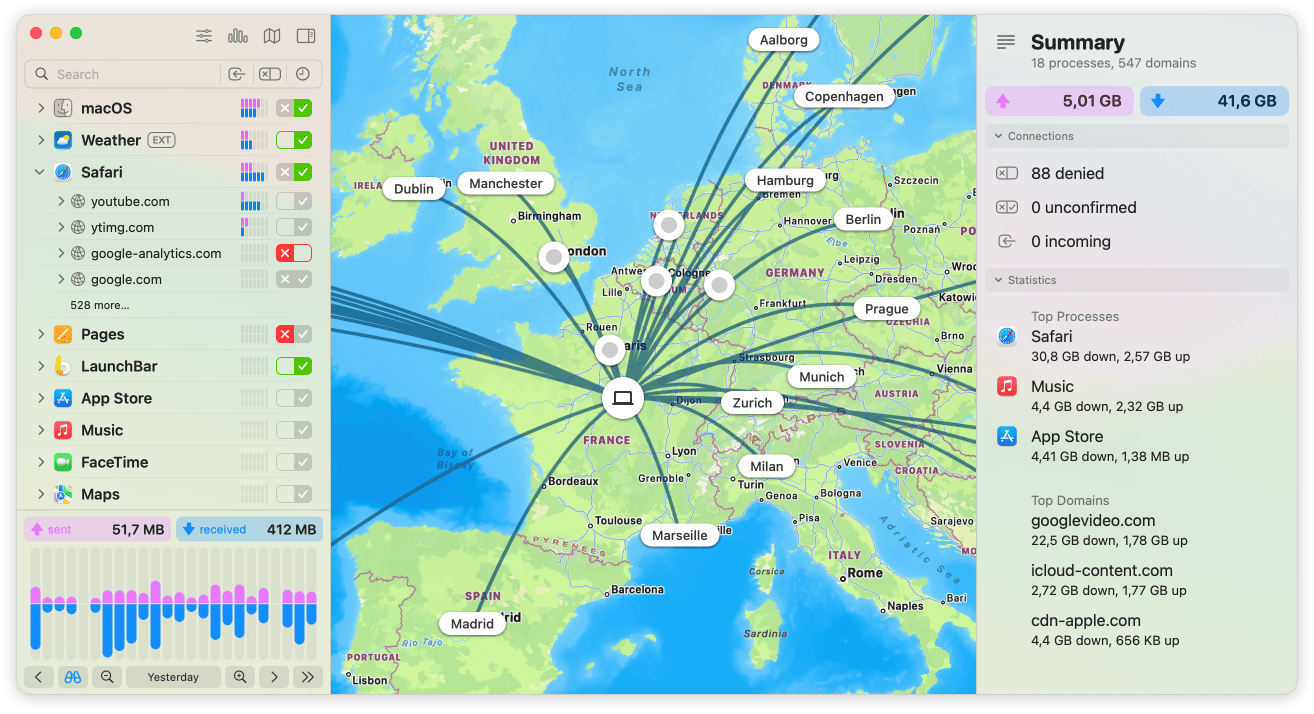
It is a paid tool, and its depth makes it harder to learn than simpler alternatives.
OpenSnitch (Linux)
OpenSnitch brings the same idea to Linux, fully open source. Like Little Snitch, it prompts you the first time an app tries to connect.
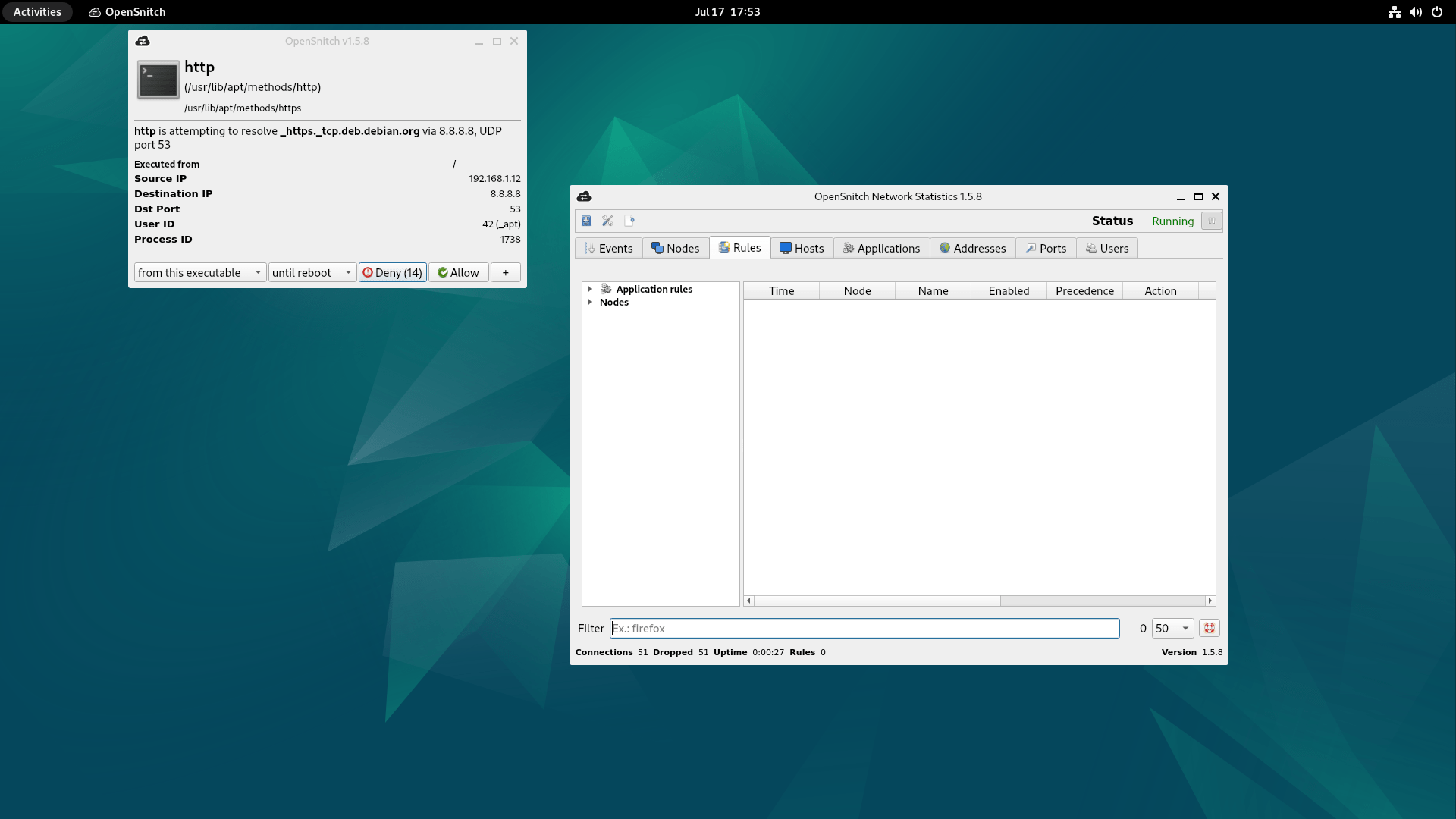
Rules can go deep: you can restrict a connection to a specific port, match domains using patterns, or limit access by user account. Every rule is stored as a JSON file, so you can edit your firewall configuration directly, without opening the app.
Little Snitch (Linux)
The Little Snitch also runs on Linux, released in 2026 after twenty years on macOS only.
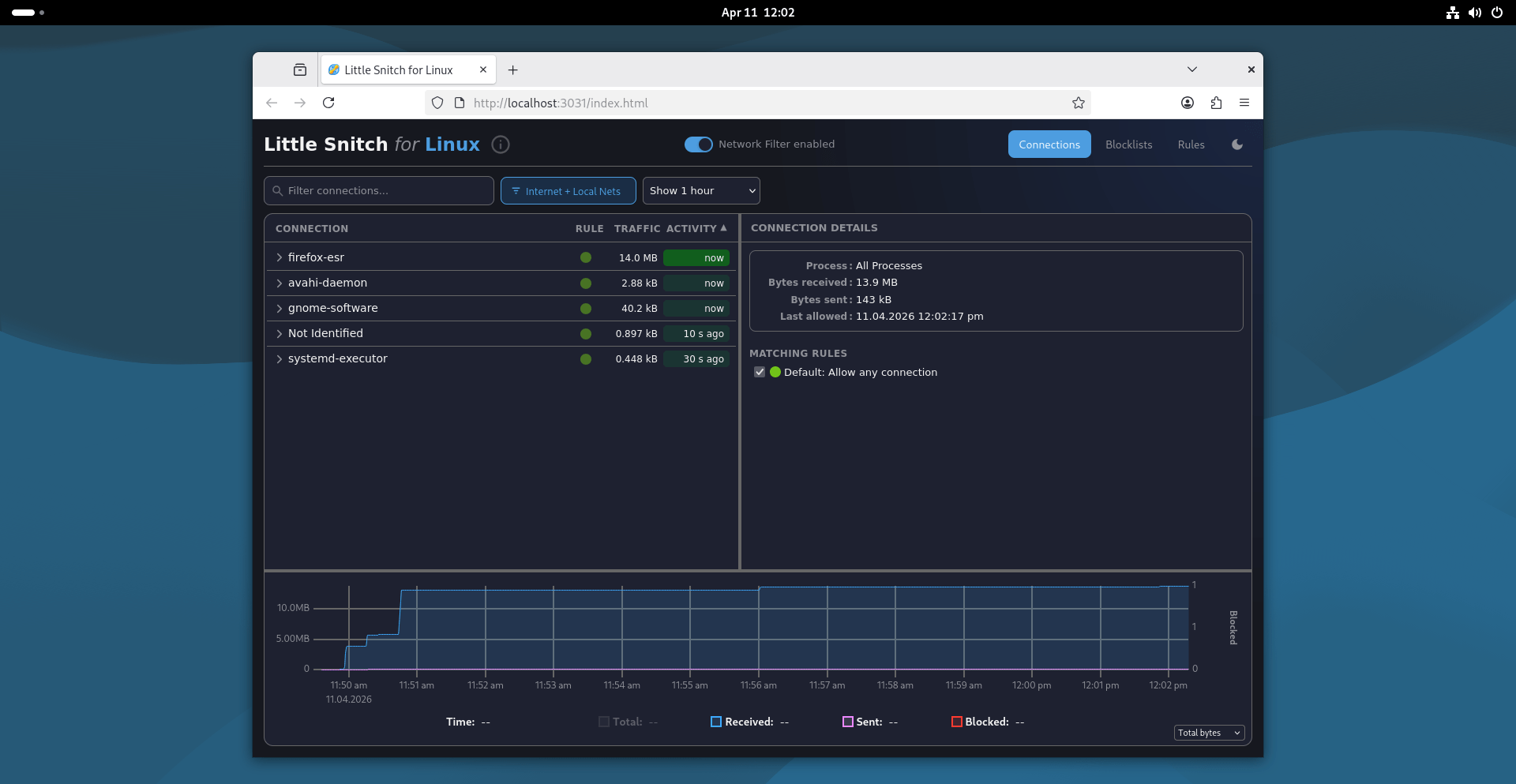
It works differently here: instead of a desktop app, it runs as a background service with a dashboard in your web browser.
This lets you monitor a different computer on your network, not just the one in front of you. The developers describe it as a privacy tool rather than a security tool, since it cannot fully guarantee that a determined app never bypasses it.
Please note that no single application firewall is best for every user. Some prioritize ease of use. Others prioritize visibility and fine-grained control. The previous section can help you compare them by asking two questions: What is the default action, and how specific can the rules be?
Common Beginner Misconceptions
Misconception 1: "It's protecting me by default."
Not always true. Some tools, like FireWally, allow new apps to connect automatically until you change that setting. Always check the default behavior before assuming you're covered.
Misconception 2: "It replaces my built-in firewall."
It doesn't. Application-level firewalls handle outbound traffic. Your built-in firewall still handles inbound traffic. You need both, not one instead of the other.
Misconception 3: "Blocking an app stops it from running."
Blocking only removes network access. The app keeps running normally on your device. It just can't send or receive data anymore.
Misconception 4: "More rules always mean better protection."
Not necessarily. A tool with deep, granular rules is only useful if you understand what each rule does. A simpler tool you actually configure correctly can protect you better than a complex one left on default settings.
Misconception 5: "Every application needs Internet access."
Many applications work perfectly without a network connection. An application firewall lets you decide which applications should communicate over the network.
Misconception 6: "An application firewall can stop every cyberattack."
An application firewall controls network access. It cannot prevent every attack or replace other security measures such as software updates, antivirus software, or safe browsing habits.
Frequently Asked Questions (FAQ)
A: An application-level firewall monitors and controls network connections made by individual applications on a device. It can allow or block connections based on the application making the request, rather than only the network connection itself. In this guide, the term refers to a host-based application firewall, not a Web Application Firewall (WAF).
A: When an application attempts to communicate over the network, the firewall identifies the application and compares the request against its configured rules. Based on those rules, it allows or blocks the connection.
A: A network firewall evaluates network traffic using information such as IP addresses, ports, and protocols. A host-based application firewall also considers which application is making the connection and can apply different rules to different applications.
A: An inbound application firewall controls incoming connections to applications running on your device. An outbound application firewall controls whether applications on your device can initiate outgoing network connections. Some products support both.
A: It depends on your needs. If you want to control which applications can access the network, monitor application network activity, or reduce unnecessary outbound connections, an application-level firewall can provide more control than a traditional network firewall alone.
A: No. An application-level firewall controls network access. It does not detect or remove malware, replace antivirus software, or prevent every type of cyberattack. It is one layer of a broader security strategy.
Try It Yourself
Reading about these tools only gets you so far. The fastest way to understand them is to install one and watch.
Pick the tool that matches your platform, from the section above. Install it, but don't block anything yet. For the next 24 hours, just observe. Watch which apps connect, how often, and where.
You will likely notice something unexpected. An app you rarely open might still be sending data in the background. Once you see this for yourself, the earlier sections of this guide will make more practical sense.
After that, start slowly. Block one app you don't recognize or don't trust. See what changes. Add rules only as you understand what they do.
An application-level firewall is not something you set up once and forget. It is a tool you learn by using.
Related Read:
