
This guide explains what is Go Programming language and how to install Go language in Linux and finally how to create a test program in Golang with a simple example.
Table of Contents
1. What is Go Language?
Go, also known as GoLang, is an open source programming language developed at Google by Robert Griesemer, Rob Pike, and Ken Thompson in 2007.
The Go language became a public open source project on November 10, 2009. Golang is being actively used in some Google's production servers, as well as by other companies such as Dropbox, CoreOS, CloudFlare, Docker, Soundcloud, Uber and many.
Now let us go ahead and see two ways to install Golang and configure Go programming language in Linux.
2. Install Go Language in Linux
As stated above, we can install Golang either using your distribution's default package manager or compile and install Golang from source. We will see both.
2.1. Install Golang using Package Managers
Go language is available in the default repositories of most modern Linux distributions.
To install Golang in Alpine Linux, run:
sudo apk add go
On Arch Linux and variants like EndeavourOS and Manjaro Linux:
sudo pacman -S go
On RPM based systems like Fedora, RHEL, and its clones like CentOS, AlmaLinux and Rocky Linux, run:
sudo dnf install golang
On older RHEL systems, use yum instead of dnf:
sudo yum install golang
On DEB based systems such as Debian, Ubuntu, Linux Mint and Pop OS, you can install Go language using command:
sudo apt install golang
On SUSE/openSUSE:
sudo zypper install golang
Once installed, Check the Golang version using command:
go version
Sample output:
go version go1.25.4 X:nodwarf5 linux/amd64
2.1.1. Test Installation
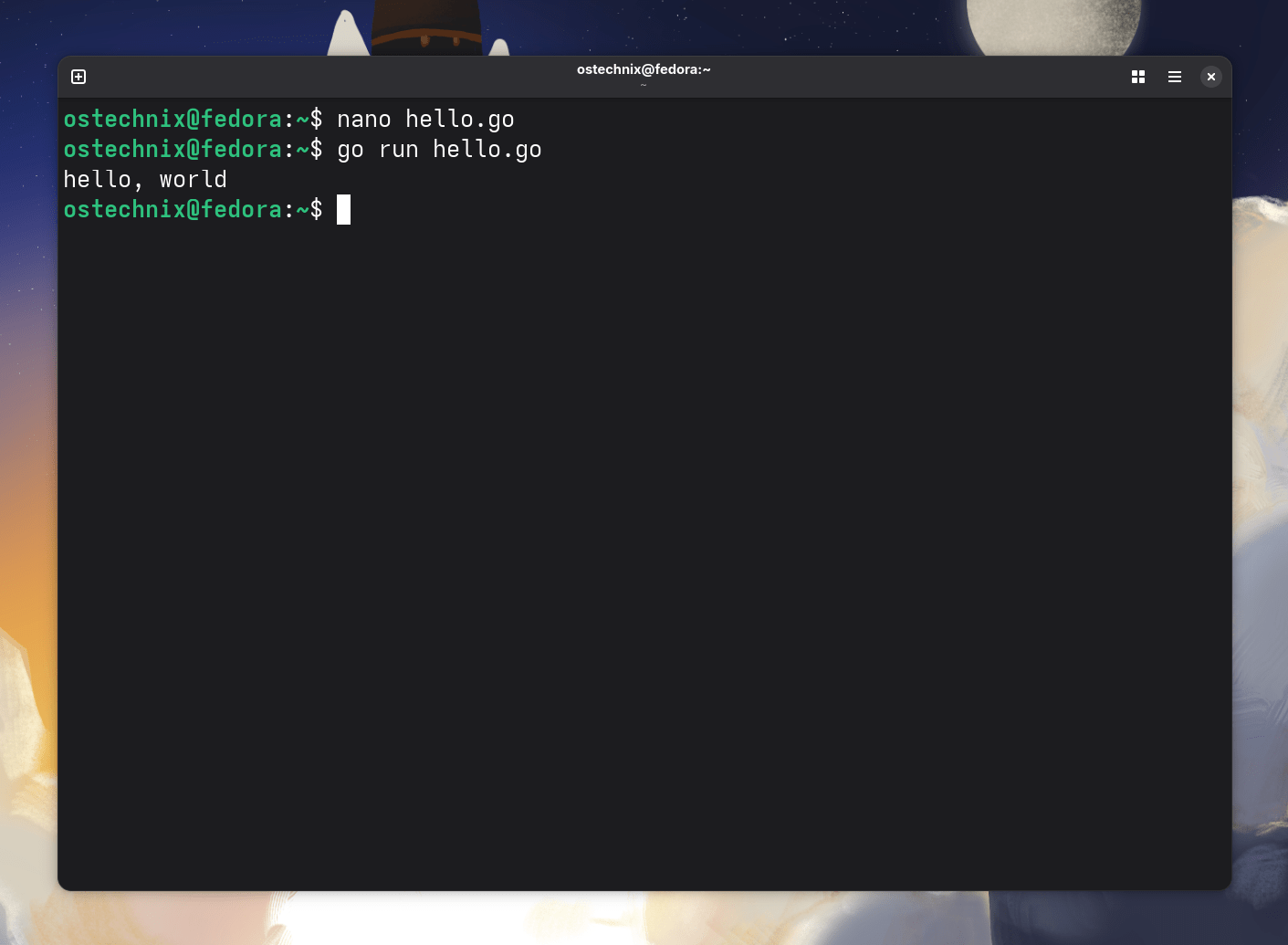
Create a file named hello.go :
nano hello.go
Add the following code in it:
package main

import "fmt"

func main() {
        fmt.Printf("hello, world\n")
}
Save the file and close it.
Now, run the code using command:
go run hello.go
Sample output:
hello, world
2.2. Install Golang from Source
Go is available in the default repositories of some Linux distributions. However, the Go language version in the default repositories might be bit outdated. If you want to use latest Go version for your projects, you can download the tarball from the official website and manually install it as described below.
The following steps are tested in Debian, Fedora and Ubuntu Linux systems. However, these steps are same for other Linux distributions.
Download the latest Golang version from here.
wget https://go.dev/dl/go1.25.4.linux-amd64.tar.gz
Next, check the integrity of the downloaded file as shown below.
sha256sum go1.25.4.linux-amd64.tar.gz
Sample output:
9fa5ffeda4170de60f67f3aa0f824e426421ba724c21e133c1e35d6159ca1bec go1.25.4.linux-amd64.tar.gz
Please note that the SHA256 Checksum value displayed above should match with the one provided with the download link. If it doesn't match, download new tarball and proceed.
Extract the downloaded tarball using command:
sudo tar -C /usr/local -xvzf go1.25.4.linux-amd64.tar.gz
This command extracts the tarball to /usr/local directory. Here, -c flag indicates the target directory.
2.2.1. Configure Go Language
Now, we need to set the executable path of Go language in your User's profile file.
To do so, edit your user profile file:
vi ~/.profile
Add the following line:
export PATH=$PATH:/usr/local/go/bin
For a system-wide installation, add the above line in /etc/profile file.
Type :wq to save and close the file.
Next, setup workspace for Go language where we are going to save the Go language builds.
2.2.2. Create Workspace Directory
A workspace is a directory hierarchy with three directories at its root:
- src contains Go source files,
- pkg contains package objects,
- and bin contains executable commands.
Create the above directory hierarchy for Go language workspace using command:
mkdir -p $HOME/go_projects/{src,pkg,bin}Here, $HOME/go_projects is the directory which is where Go will build its files.
Next, we need to point Go to the new workspace.
To do so, edit ~/.profile file:
vi ~/.profile
Append the following lines to point Go to the new workspace directory.
export GOPATH="$HOME/go_projects"
export GOBIN="$GOPATH/bin"
If Go language is installed on another location other than the default location (i.e. /usr/local/), you need to specify the installation path (GOROOT) in the ~/.profile file. Say for example, let us assume that you installed go lang in your HOME directory, then you will have to add the following lines in the user's profile file.
export GOROOT=$HOME/go
export PATH=$PATH:$GOROOT/bin
Please note that if you have installed Golang using package managers, the installation path will be either /usr/lib/go or /usr/lib/golang. You need to update the correct path value in GOROOT.
Once you have specified the appropriate values, run the following command to update Go lang environment values.
source ~/.profile
If you have done system-wide installation, run this command instead:
sudo source /etc/profile
2.2.3. Check Golang Version
Now, run the following commands to verify if you have properly installed and configured Go language.
Let us check the installed version:
go version
Sample output:
go version go1.25.4 linux/amd64
To view the Go lang environment information, run:
go env
Sample output:
AR='ar'
CC='gcc'
CGO_CFLAGS='-O2 -g'
CGO_CPPFLAGS=''
CGO_CXXFLAGS='-O2 -g'
CGO_ENABLED='0'
CGO_FFLAGS='-O2 -g'
CGO_LDFLAGS='-O2 -g'
CXX='g++'
GCCGO='gccgo'
GO111MODULE=''
GOAMD64='v1'
GOARCH='amd64'
GOAUTH='netrc'
GOBIN='/home/ostechnix/go_projects/bin'
GOCACHE='/home/ostechnix/.cache/go-build'
GOCACHEPROG=''
GODEBUG=''
GOENV='/home/ostechnix/.config/go/env'
GOEXE=''
GOEXPERIMENT=''
GOFIPS140='off'
GOFLAGS=''
GOGCCFLAGS='-fPIC -m64 -fno-caret-diagnostics -Qunused-arguments -Wl,--no-gc-sections -fmessage-length=0 -ffile-prefix-map=/tmp/go-build3150733791=/tmp/go-build -gno-record-gcc-switches'
GOHOSTARCH='amd64'
GOHOSTOS='linux'
GOINSECURE=''
GOMOD='/dev/null'
GOMODCACHE='/home/ostechnix/go_projects/pkg/mod'
GONOPROXY=''
GONOSUMDB=''
GOOS='linux'
GOPATH='/home/ostechnix/go_projects'
GOPRIVATE=''
GOPROXY='https://proxy.golang.org,direct'
GOROOT='/usr/local/go'
GOSUMDB='sum.golang.org'
GOTELEMETRY='local'
GOTELEMETRYDIR='/home/ostechnix/.config/go/telemetry'
GOTMPDIR=''
GOTOOLCHAIN='auto'
GOTOOLDIR='/usr/local/go/pkg/tool/linux_amd64'
GOVCS=''
GOVERSION='go1.25.4'
GOWORK=''
PKG_CONFIG='pkg-config'
If you see output something like above, congratulations! Go language is ready to use. You can start coding your go programs.
2.2.4. Create a Simple 'hello world' Program using Go
We know now how to install, configure and update Go language. Let us go ahead and create a simple 'hello world' program.
Create a separate directory to store the source code of your program. The following command creates a directory to store the 'hello world' program source code.
mkdir $HOME/go_projects/src
mkdir $HOME/go_projects/src/hello
Create a file called hello.go inside the hello directory:
vi $HOME/go_projects/src/hello/hello.go
Append the following lines:
package main

import "fmt"

func main() {
 fmt.Println("Hello, World")
}
Save and close the file. Then, run the following command to compile the 'hello world' program:
go install $GOPATH/src/hello/hello.go
Finally, run the 'hello world' program using command:
$GOBIN/hello
Sample output:
Hello, World

Congratulations! You have just created a sample program using Go language.
3. Update Golang
If you have installed Go using the package manager, simply update your system. If the latest version is available in the repositories, Golang will be updated automatically.
If you have installed Golang from source, follow the instructions.
First, remove the existing version.
To uninstall Golang, delete the /usr/local/go directory using command:
sudo rm -rf /usr/local/go
Download and install the new version as mentioned in the "Install Golang from Source" section above.
wget https://go.dev/dl/go1.25.4.linux-amd64.tar.gz
Go to the location where you downloaded the tar file and extract the archive file to your $PATH:
sudo tar -C /usr/local -xvzf go1.25.4.linux-amd64.tar.gz
Make sure that your PATH contains /usr/local/go/bin.
echo $PATH | grep "/usr/local/go/bin"
4. Getting Help
For more details, refer the help section by running the following command:
go help
Also, check the Go language documentation link provided at the end of this guide for more details.
5. Remove Go Language
In case you don't want Go language anymore, you can uninstall Golang by simply removing the go directory i.e /usr/local/go.
sudo rm -rf /usr/local/go
Double the path before hitting the ENTER key.
if you have installed Golang using the package managers, you can use the respective uninstall command to remove Golang. For instance, run the following command to uninstall Go programming language on Debian-based systems:
sudo apt remove golang
Also, delete the workspace directories as well.
Conclusion
In this guide, you have learned how to install Go language in Linux and how to configure and code a simple program.
Resource:
Related Read:
