
This step-by-step guide explains how to install Arch Linux using the latest Archinstall 4.0 textual UI. It covers every step - from flashing the USB and booting, through disk encryption, desktop environment setup, firewall selection, and scripted deployments, to your first login and getting the AUR working.
Early Adopter Note:
Archinstall 4.0 is Arch Linux's official guided installer, released March 30, 2026. The new Textual UI is stable, but if you encounter unexpected behaviour, check the issue tracker before assuming user error.
Table of Contents
Prerequisites
Hardware and Firmware Requirements
| Requirement | Minimum |
|---|---|
| Boot mode | UEFI (recommended) or BIOS/Legacy |
| RAM | 512 MB (2 GB+ recommended for desktop profiles) |
| Storage | 20 GB free disk space |
| Internet | Required during install (packages pulled live) |
Preparing Arch Linux Bootable USB
Architecture: The standard Arch Linux ISO is for x86_64 (Intel/AMD 64-bit) only. If you are on ARM (e.g., Raspberry Pi, Apple Silicon Mac), you need a different image. See archlinuxarm.org or asahi.dev respectively.
1. Download the latest ISO from archlinux.org/download.
2. Verify the download before flashing it to USB. On the download page, copy the provided SHA256 checksum, then verify:
# Linux/macOS
sha256sum archlinux-*.iso
3. Compare output against the checksum on the download page. They must match exactly.
On Windows, open PowerShell:
Get-FileHash .\archlinux-*.iso -Algorithm SHA256
4. Flash the Arch Linux ISO to a USB drive (8 GB or larger):
If you're on Linux/macOS, you can flash the ISO to your USB drive using dd command:
dd bs=4M if=archlinux-*.iso of=/dev/sdX conv=fsync oflag=direct status=progress
Replace /dev/sdX with your actual USB device path.
If you don't like the command line way, there are so many GUI tools exist to create bootable USB in Linux.
- Create Bootable USB Drive With Ventoy WebUI In Linux
- Create Bootable USB Drives And SD Cards With Etcher In Linux
- Popsicle – Create Multiple Bootable USB Drives At Once
- Create Bootable USB Drive With USBImager In Linux
- Kindd – A Graphical Frontend To dd Command
I personally use Ventoy.
On Windows, you can use Rufus or Balena Etcher.
5. Once bootable USB is created, plug the USB drive in and restart your computer.
Press the boot menu key during startup (before your OS loads) to select the USB. The key varies by manufacturer:
| Manufacturer | Common Boot Menu Key |
|---|---|
| ASUS | F8 or Esc |
| Dell | F12 |
| HP | F9 or Esc |
| Lenovo | F12 or Fn+F12 |
| MSI | F11 |
| Gigabyte | F12 |
| If unsure | Try F12, F10, F8, and Esc in sequence at startup |
Secure Boot must be disabled in your firmware (BIOS/UEFI) settings before the USB will boot. Look for "Secure Boot" under the Security or Boot tab and set it to Disabled.
6. Select the Arch Linux USB entry.
You will be greeted with the Arch Linux boot menu:
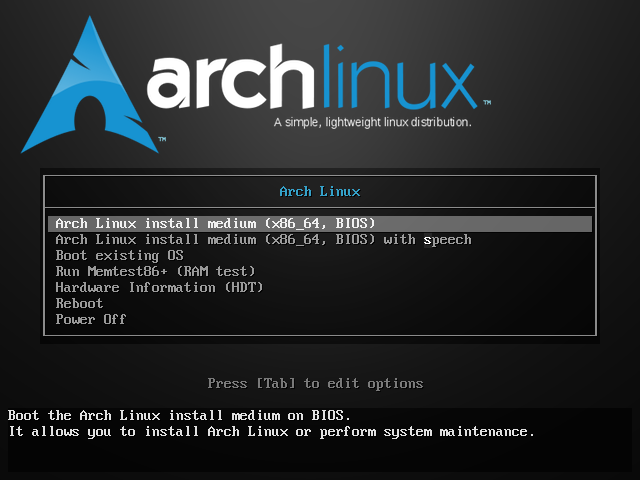
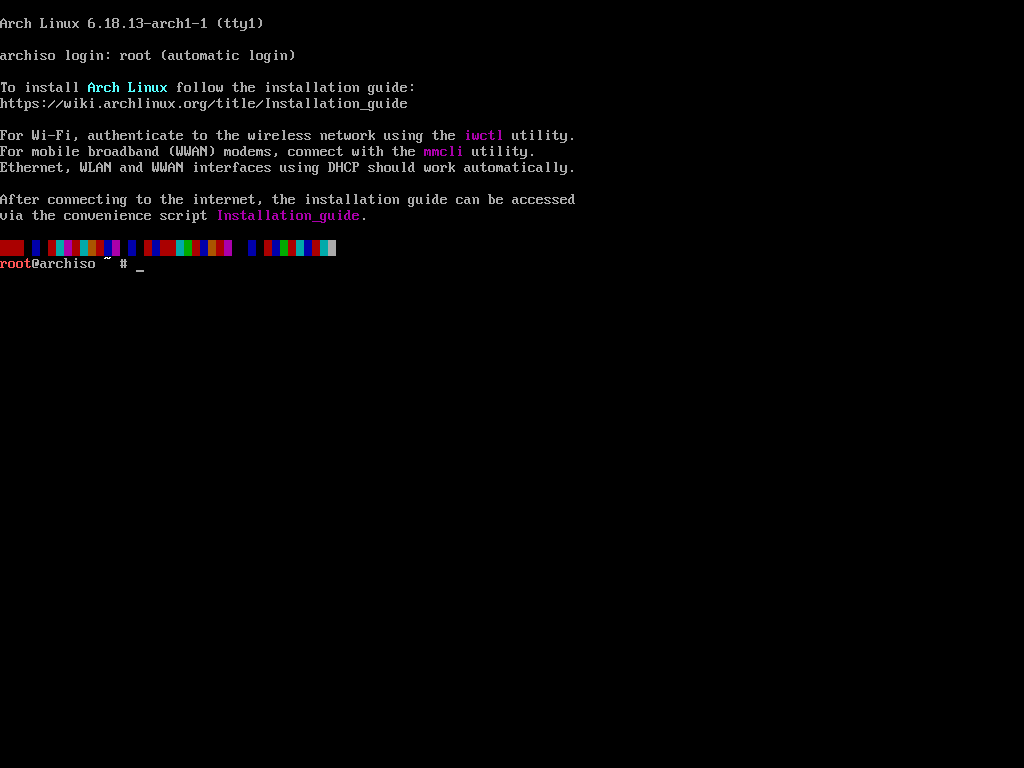
Press ENTER to continue. After a few seconds, you will land in a root shell.
Step 1: Live Environment Setup
Before connecting to the internet, do these two things in the live shell.
HiDPI / Small Font Fix
On high-resolution screens (1440p, 4K, laptop HiDPI panels) the default console font is unreadably small. Fix it immediately:
setfont ter-132b
This sets a large Terminus font for the rest of the live session. Skip this on standard 1080p monitors — it's not needed.
Sync the System Clock
An incorrect system clock causes pacman signature verification failures mid-install. Sync it now before doing anything else:
timedatectl set-ntp true
timedatectl status
Confirm "NTP service: active" and the time looks correct.
Step 2: Connect to the Internet
Wi-Fi (iwctl)
iwctl is the interactive Wi-Fi client on the live ISO:
iwctl
device list                    # find your device name, e.g. wlan0
station wlan0 scan
station wlan0 get-networks
station wlan0 connect "YourNetworkName"
exit
Note: If you configure Wi-Fi with
iwctlnow and later choose iwd as your network manager, the connection profile (including your password) is automatically copied to the installed system. No need to reconnect after reboot.
Verify connectivity:
ping -c 3 archlinux.org
Ethernet
Ethernet is managed automatically by systemd-networkd on the live ISO. If your interface is not up, identify it first and bring it up manually:
ip link                  # list interfaces — name will be e.g. enp3s0, not eth0
ip link set enp3s0 up
Static IP for Wired Ethernet
If your network requires a fixed IP address (no DHCP), follow the steps below.
Run ip link first to confirm your interface name. It will be something like enp3s0, eno1, or eth0. Substitute it everywhere you see enp3s0 below.
Live Environment (current install session only)
The quickest method uses ip commands directly. These changes are temporary. They do not survive a reboot.
# 1. Assign a static address and prefix length
ip addr add 192.168.1.100/24 dev enp3s0

# 2. Set the default gateway
ip route add default via 192.168.1.1

# 3. Set a DNS resolver
echo "nameserver 1.1.1.1" > /etc/resolv.conf
Replace the IP address and default gateway with your own.
Verify the configuration:
ip addr show enp3s0
ip route
ping -c 3 archlinux.org
Note: If you need the static config to survive a live-session service restart (unusual), create a
systemd-networkddrop-in file instead. See the post-install method below; the file format is identical.
Post-Install: systemd-networkd
Use this method if you chose no NetworkManager (e.g., a minimal or server install). Create a .network file. The filename prefix determines priority; 20- is conventional for a primary wired interface.
# Create the network configuration file
nano /etc/systemd/network/20-wired.network
Paste the following, substituting your values:
[Match]
Name=enp3s0

[Network]
Address=192.168.1.100/24
Gateway=192.168.1.1
DNS=1.1.1.1
DNS=8.8.8.8
Save the file, then enable and restart the service:
systemctl enable --now systemd-networkd
systemctl restart systemd-networkd
Verify:
ip addr show enp3s0
ip route
systemd-resolvedhandles DNS when usingsystemd-networkd. If name resolution fails, ensure it is running:systemctl enable --now systemd-resolved
Post-Install: NetworkManager (nmcli)
Use this method if you selected NetworkManager in the archinstall Network Configuration menu (recommended for desktops and laptops).
First, identify the existing connection name:
nmcli con show
Then modify it to use a static address. Replace "Wired connection 1" with whatever name appeared in the output above:
nmcli con mod "Wired connection 1" \
  ipv4.method manual \
  ipv4.addresses "192.168.1.100/24" \
  ipv4.gateway "192.168.1.1" \
  ipv4.dns "1.1.1.1,8.8.8.8"

# Apply the changes
nmcli con up "Wired connection 1"
To revert back to DHCP at any point:
nmcli con mod "Wired connection 1" ipv4.method auto ipv4.addresses "" \
  ipv4.gateway "" ipv4.dns ""
nmcli con up "Wired connection 1"
| Method | Persists after reboot? | Best for |
|---|---|---|
ip commands | No | Live install session |
systemd-networkd .network file | Yes | Minimal / server installs |
NetworkManager (nmcli) | Yes | Desktop / laptop installs |
Step 3: Update Archinstall Script to Latest Version
The Arch Linux ISO may ship with Archinstall 3.x version. Before running the installer, update it on the live system to get 4.0 or newer:
pacman -Sy archinstall
You only need to do this once per live session. The update persists until you reboot back into the USB.
Step 4: Launch Archinstall 4.0
archinstall
The Arch Install Textual UI launches now. It is a modern terminal interface built on the Textual framework, replacing the previous curses-based menus.
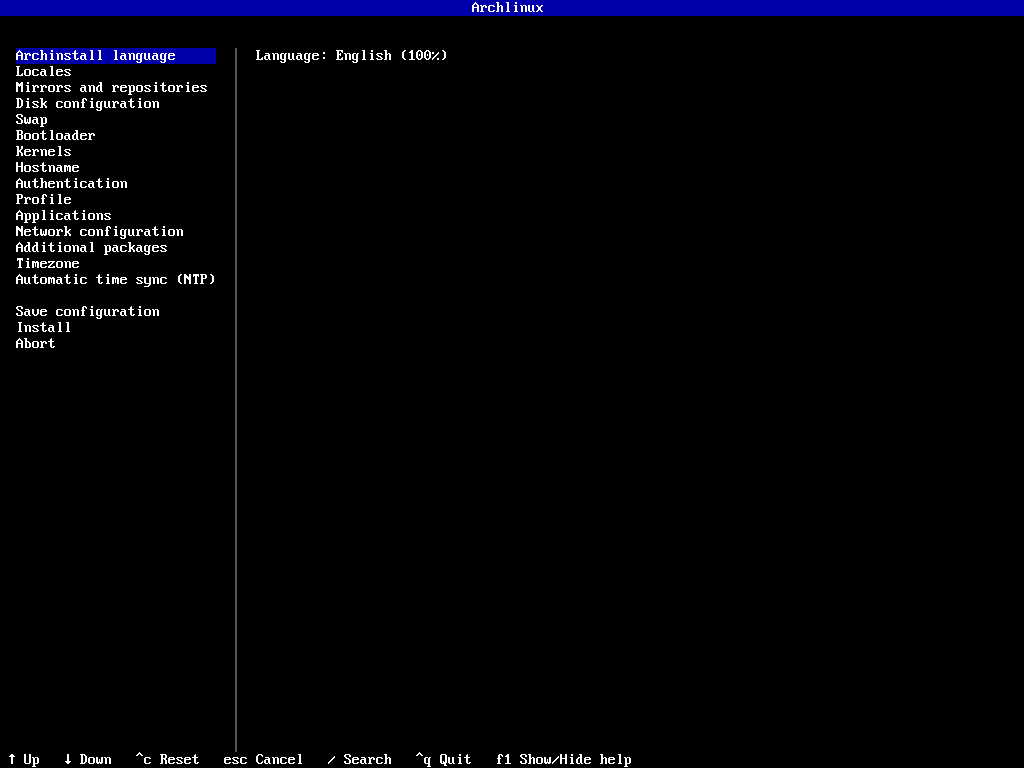
It renders cleanly across terminal emulators and is mouse-aware.
As you can see, Archinstall 4.x comes with the following menus:
- Archinstall language
- Locales
- Mirrors and repositories
- Disk configuration
- Swap
- Bootloader
- Kernels
- Hostname
- Authentication
- Profile
- Applications
- Network configuration
- Additional packages
- Timezone
- Automatic tile sync (NTP)
- Save configuration
- Install
- Abort
You can use the following keys to navigate through the menus.
| Key | Action |
|---|---|
↑ ↓ / Tab | Navigate options |
Enter | Select / confirm |
Esc | Go back |
Space | Toggle a checkbox option |
Step 5: Configure Your Installation
Go to each menu and configure the options. You can revisit any section before hitting Install.
Language
Choose your preferred language for the installer.
Keyboard Layout and Locale
In this section, you can set your keyboard layout, and locale (e.g., en_IN.UTF-8).
Choose Mirror Region
Pick your region (e.g., India). This sets /etc/pacman.d/mirrorlist and directly affects download speed.
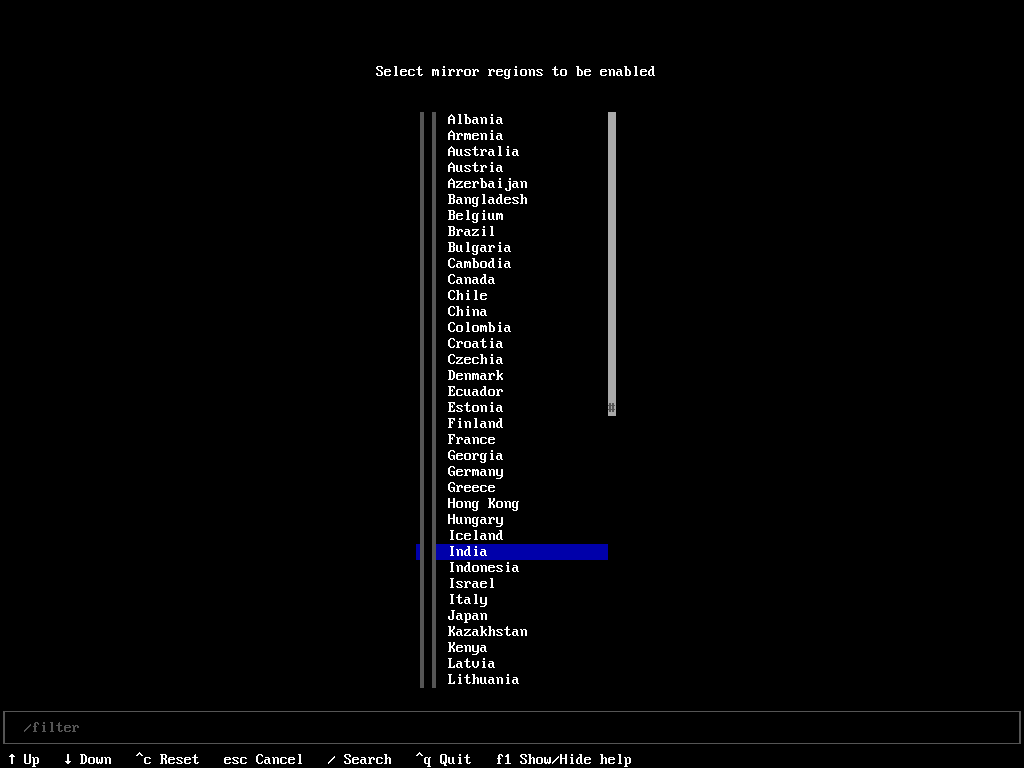
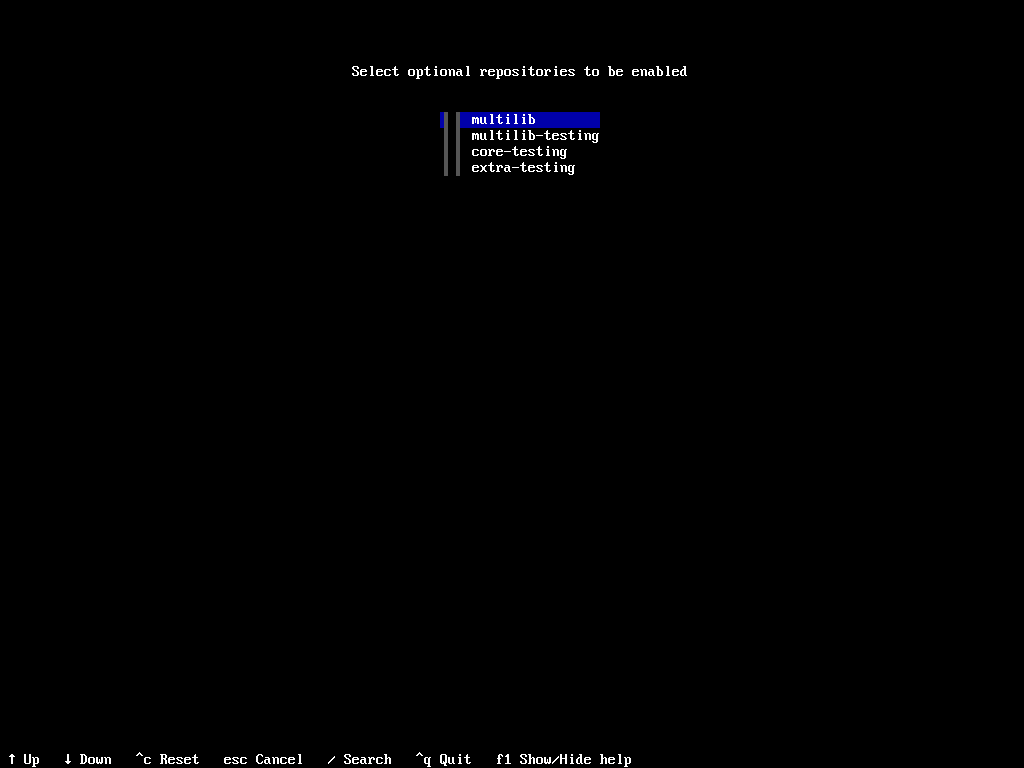
You can also select optional repositories (e.g. multilib):
Disk Configuration & Partitioning
Select your target drive, then choose a layout strategy:
| Strategy | Best For |
|---|---|
| Best-effort default layout | Most users; automatic EFI + root partitions |
| Manual partitioning | Custom layouts (separate /home, swap, etc.) |
| Btrfs with subvolumes | Snapshotting / rollback workflows |
Important: All data on the selected drive will be erased. Double-check the device name (e.g.
/dev/nvme0n1vs/dev/sda) before proceeding. If you have multiple disks, exit the installer and uselsblkin the root shell to confirm the correct device before selecting it.
Option A: Best-Effort Default Partition Layout (Automatic)
Select Best-effort default partition layout and confirm your target drive.
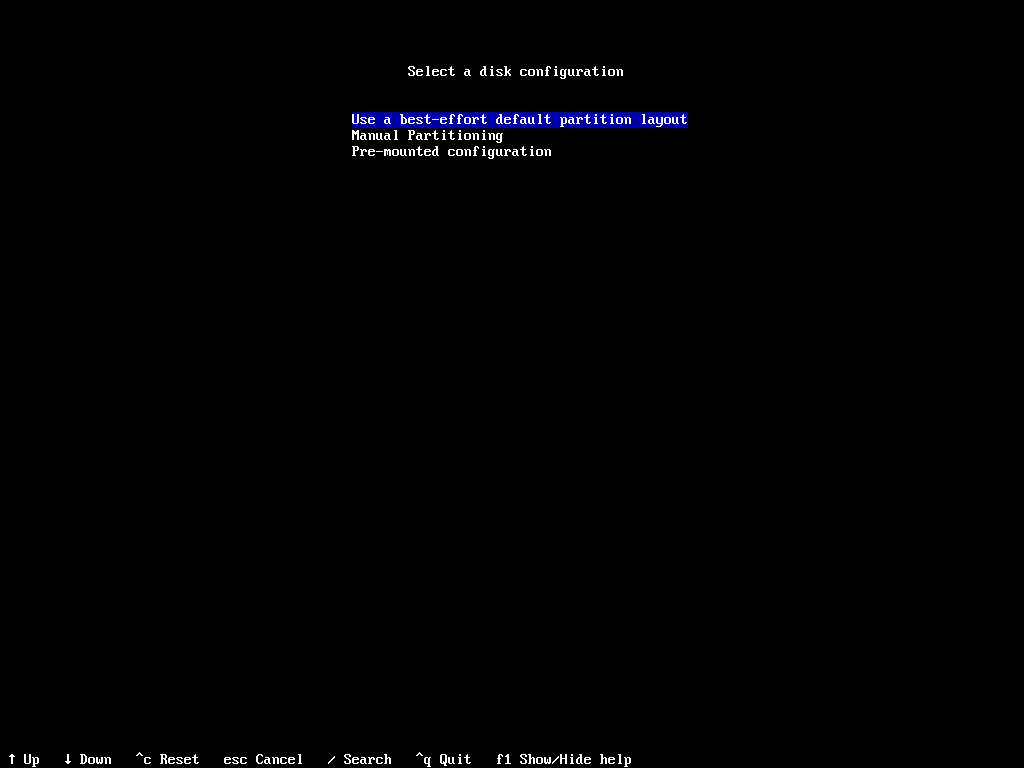
Choose your preferred filesystems (E.g. btrfs, ext4):
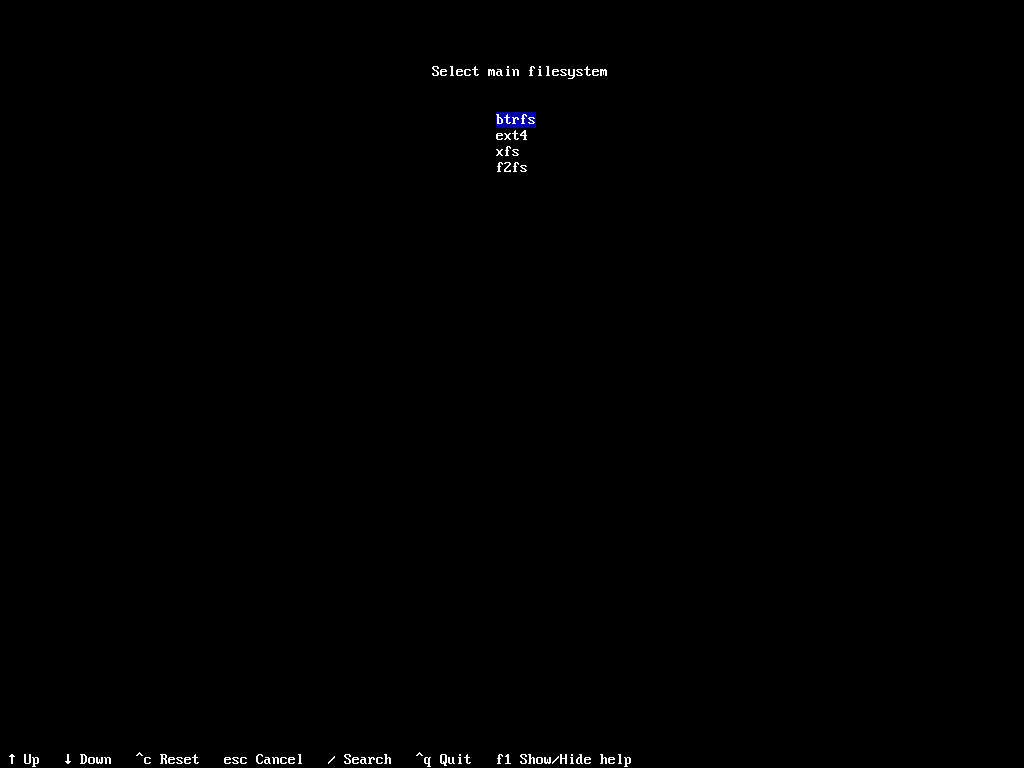
Depending upon the filesystem you chose, you will be prompted to answer a couple of questions. Read the on-screen instructions and choose your options.
For the purpose of this guide, I chose btrfs as main filesystem.
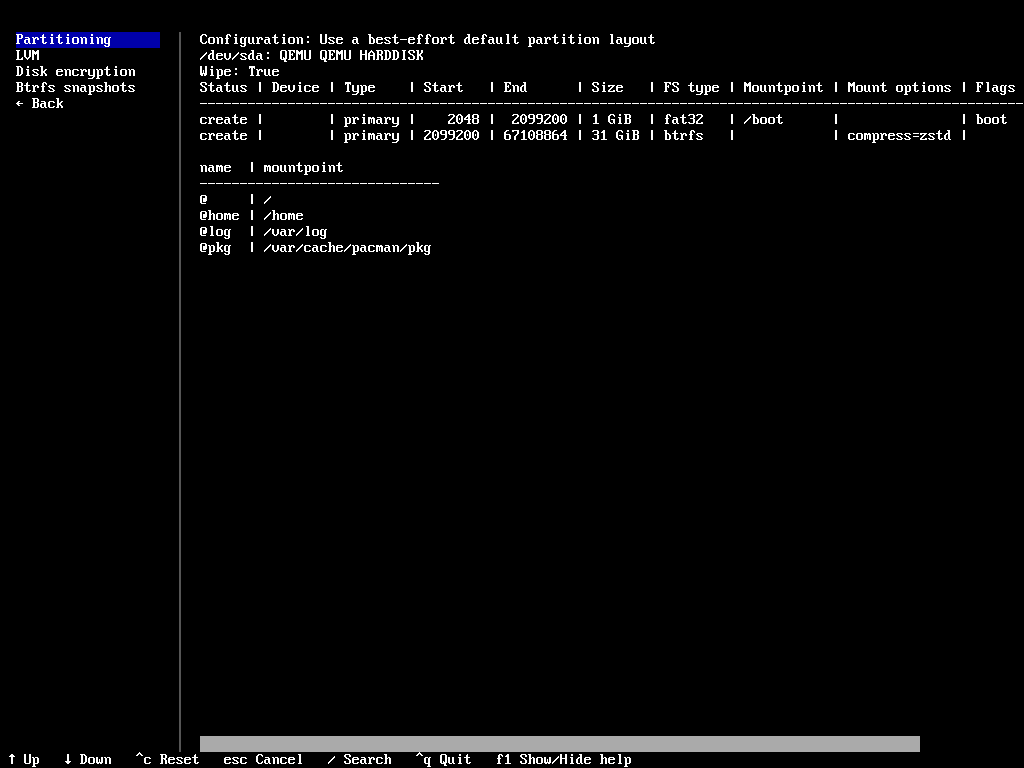
Under the Btrfs snapshots sub-menu, you can either choose Snapper or Timeshift to manage the snapshots.
If you choose ext4, Arch installer creates a two-partition GPT layout automatically.
Here's what gets created if you choose Ext4:
| Partition | Size | Filesystem | Mount Point |
|---|---|---|---|
| EFI System Partition | 1 GiB | FAT32 | /boot |
| Root | Remainder of disk | ext4 (or your chosen FS) | / |
A few things to know about this layout:
- The filesystem for the root partition reflects whatever you chose under the Filesystem option earlier in the menu.
- If you enabled LUKS2 encryption, the root partition is wrapped in an encrypted container. The EFI partition remains unencrypted.
- No separate
/homepartition is created. Home directories live on the root partition. If you want a dedicated/home, use Manual Partitioning instead. - No swap partition is created in this step. You can add a swapfile post-install if needed.
Once you confirm, archinstall marks the disk for wiping and moves on. No further action is needed from you for this option.
Option B: Manual Partitioning
Dual-boot users - do this in Windows FIRST before booting the USB:
- Disable Fast Startup: Control Panel → Power Options → "Choose what the power buttons do" → uncheck "Turn on fast startup". Fast Startup leaves the Windows partition in a hibernated state; writing to a shared disk in this state can corrupt both operating systems.
- Suspend or disable BitLocker on any drive you plan to partition. Open the Start menu, search "Manage BitLocker", and suspend protection on the target drive. Repartitioning a BitLocker-protected drive without suspending it first will trigger a recovery key prompt on next Windows boot.
Manual partitioning gives you full control over partition count, sizes, filesystems, and mount points. It uses pyparted under the hood.
Step 1: Select your drive
Choose the target block device from the list (e.g., /dev/nvme0n1). You will see a table of any existing partitions on that device.
Step 2: Clear the disk (recommended for a fresh install)
Wipe all partitions to start with a clean GPT partition table. If you are dual-booting and already have an EFI partition from another OS (e.g., Windows), do not wipe — instead assign the existing EFI partition to /boot without formatting it (see Step 4).
To delete a partition, select it, press ENTER and choose "Delete partition". Clear all partitions in the same way.
If there are no partitions, you will see the total free space as shown in the screenshot below.
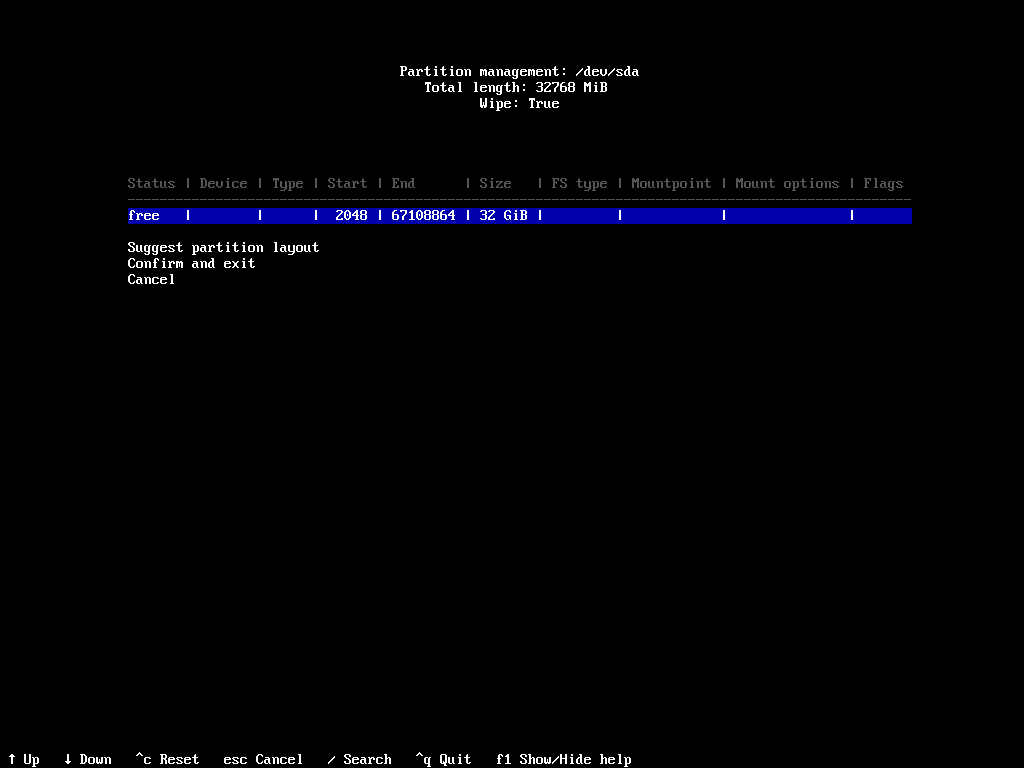
Here, you have given three options:
- Suggest partition layout
- Confirm and exit
- Cancel
If you don't know how to create partitions manually, choose "Suggest partition layout" option, select your main filesystem and the installer will automatically partition the disk.
If you want to do it manually, simply choose the free space and press ENTER.
Step 3: Create Boot Partition
Choose the free space and hit ENTER key.
First, you will be asked to enter the size for the boot partition.
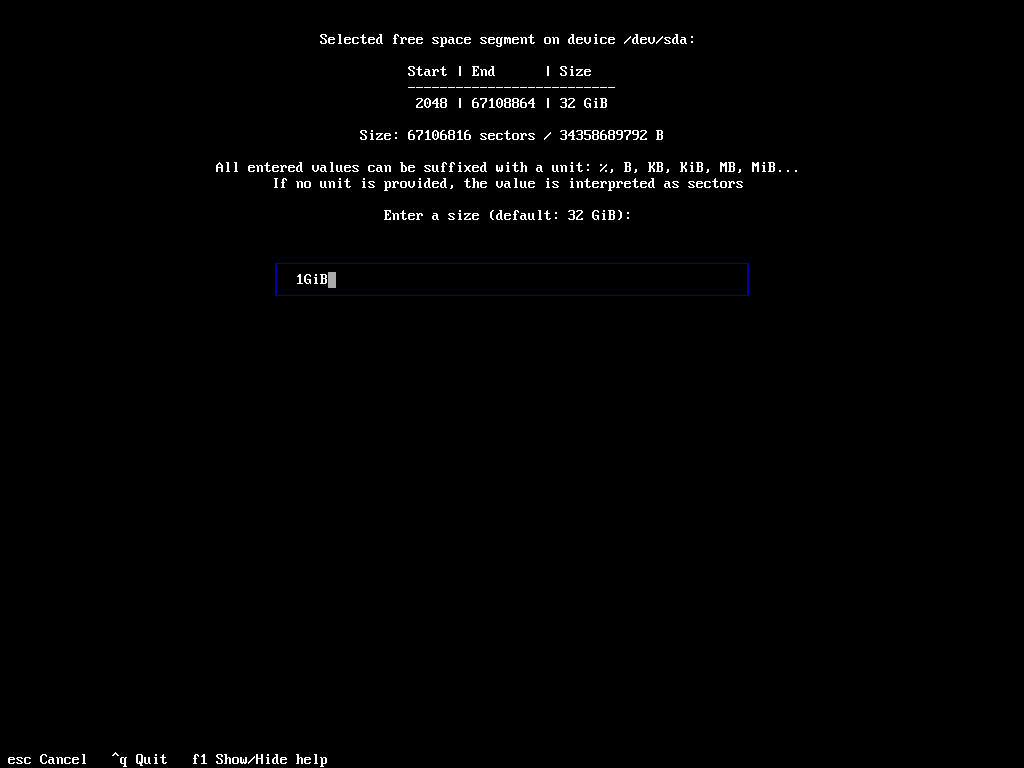
Complete the boot partition creation with the following details:
| Field | Value |
|---|---|
| Filesystem | fat32 |
| Mount point | /boot |
| Size | 512MB (single OS) or 1GB (multiple kernels / dual-boot) |
| Flags | boot (archinstall sets the ESP GUID automatically when this flag is set) |
Note: The Arch Wiki recommends 1 GiB for
/bootif you plan to house multiple kernels or a fallback initramfs alongside a regular one.
Step 4: Assign an existing EFI partition (dual-boot only)
If you are keeping an existing EFI partition (e.g., from Windows), select it from the partition list, set the mount point to /boot, and set Format to No.
Never reformat a shared EFI partition — doing so removes other operating systems' boot entries.
Step 5: Create the root partition
Select the free space again and hit ENTER. Create the root partition with the following details:
| Field | Value |
|---|---|
| Filesystem | btrfs, ext4 (recommended), xfs, or f2fs |
| Mount point | / |
| Size | Remainder of disk (leave the end field at maximum) |
| Flags | (none) |
Step 6: Optional partitions
Common additions before confirming:
| Partition | Mount Point | Filesystem | Suggested Size | When to Use |
|---|---|---|---|---|
| Home | /home | ext4 | 50 GB+ | Keeps user data separate from OS; easier to reinstall |
| Swap | [swap] | swap | Equal to RAM (up to 8 GB) | Required for hibernate; otherwise a swapfile post-install is simpler |
Note: If you skip a swap partition, you can create a swapfile after install with
ddandmkswap. This is simpler to resize later.
Step 7: Confirm and proceed
Review the partition table. Archinstall shows a summary of every partition, its size, filesystem, and mount point before writing anything to disk.
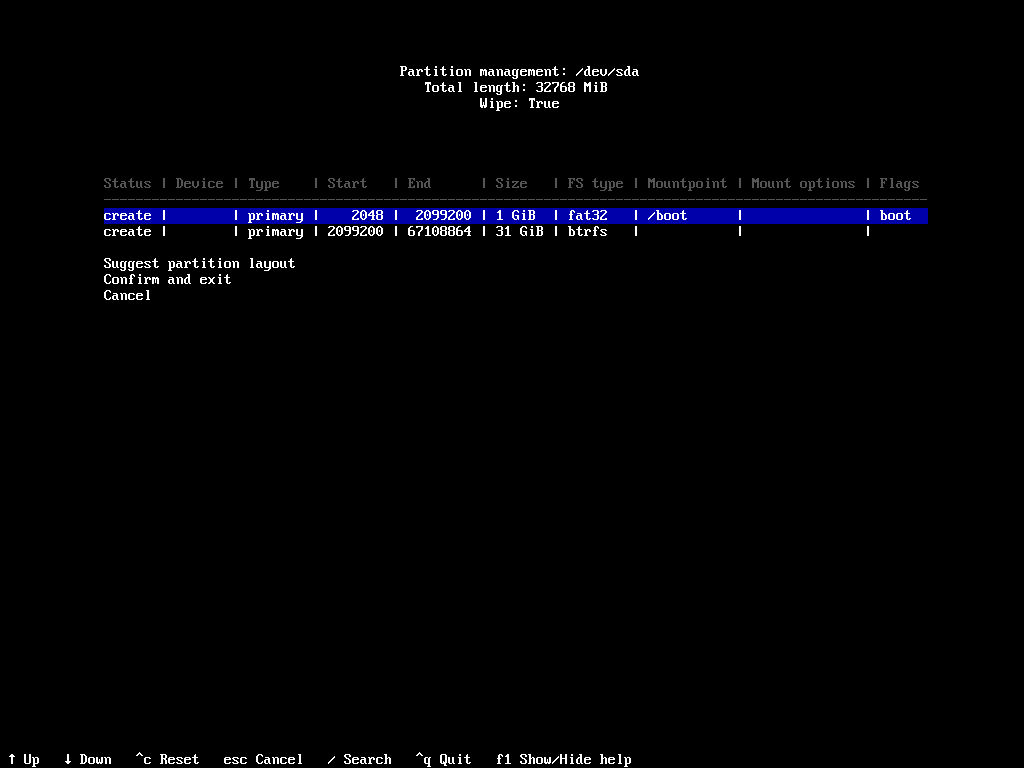
Select Confirm and exit when satisfied.
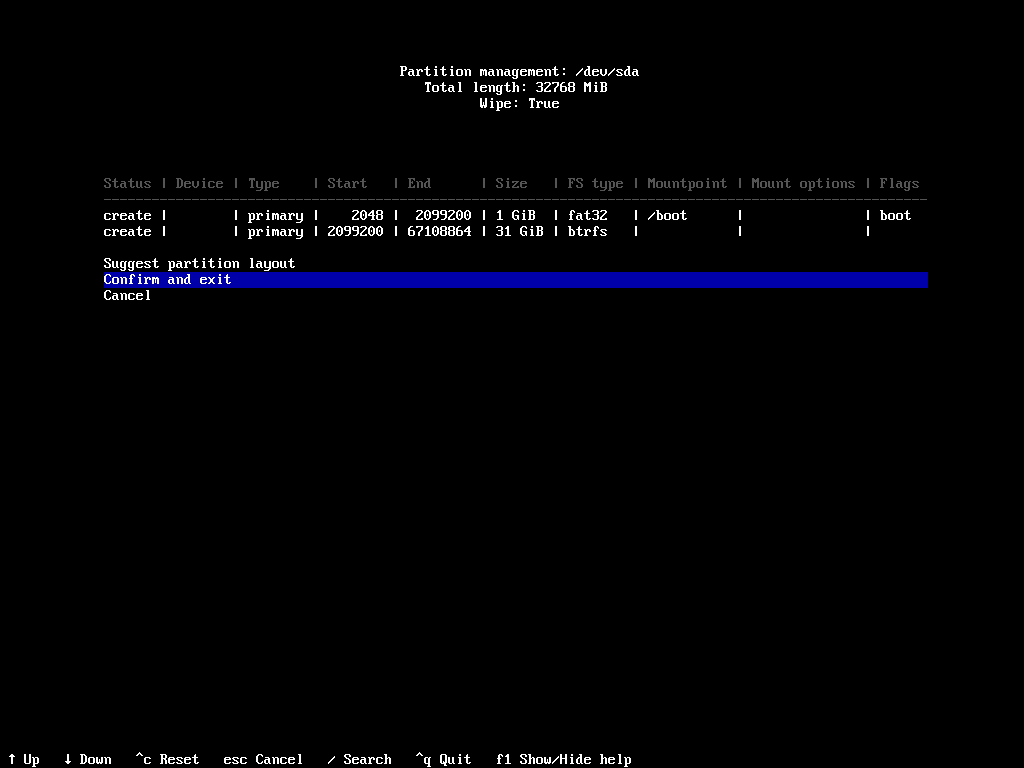
A typical single-OS manual layout looks like this:
/dev/nvme0n1
├── nvme0n1p1   512MB   fat32    /boot     [boot, ESP]
├── nvme0n1p2   16GB    swap     [swap]
└── nvme0n1p3   <rest>  ext4     /
Or with a separate home partition:
/dev/nvme0n1
├── nvme0n1p1   1GB   fat32    /boot     [boot, ESP]
├── nvme0n1p2   <rest>  ext4     /
└── nvme0n1p3   100GB   ext4     /home
Encryption (LUKS2)
Go to Disk configuration -> Disk Encryption.
Enable full-disk LUKS2 encryption here if desired. You will be prompted to set a passphrase. The EFI partition remains unencrypted; everything else is wrapped.
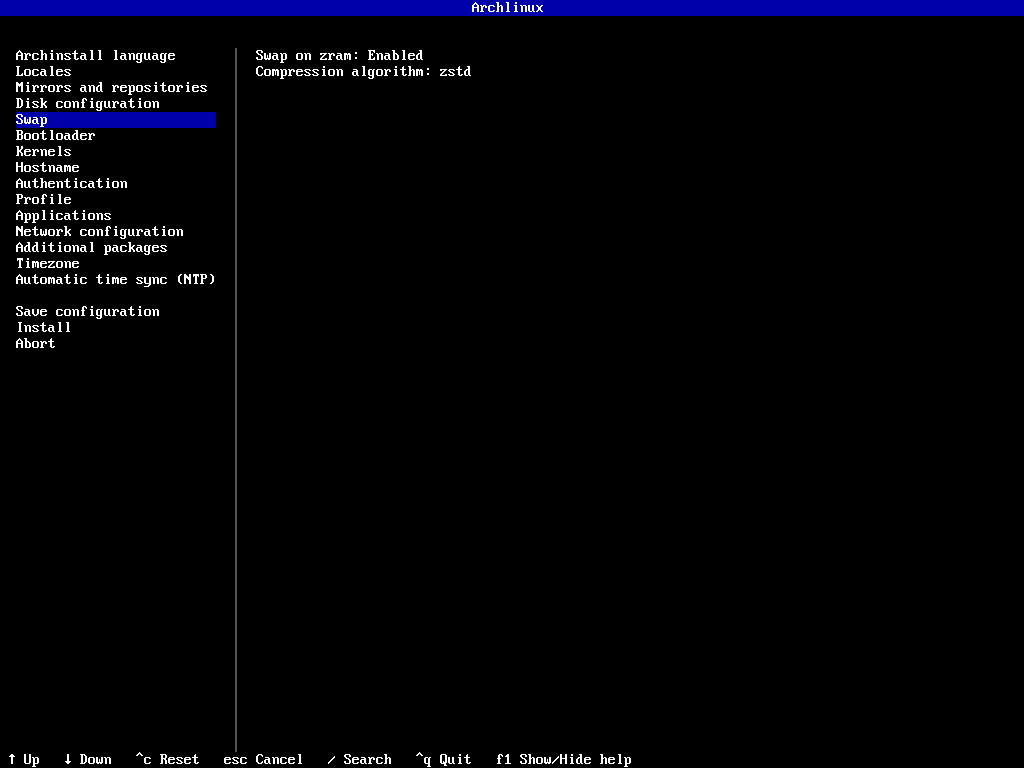
Swap on zram
Here you can enable/disable swap on zram. Click the Swap menu, enable it, and choose the compression type (E.g. zstd).
Bootloader
In this section, you can select your Bootloader. There are two choices:
- Grub
- Limine
| Bootloader | Notes |
|---|---|
| GRUB | Best choice for dual-boot setups; broadest hardware support |
| Limine | Modern, advanced, portable, multiprotocol boot loader |
Note: GRUB support in 4.0 saw late-cycle changes. If you encounter GRUB issues post-install, check the issue tracker for known fixes.
Kernels
Here, you can choose the type Kernel you want to install. There are four choices:
- Latest Linux Kernel
- Hardened Kernel
- LTS Kernel
- Zen Kernel
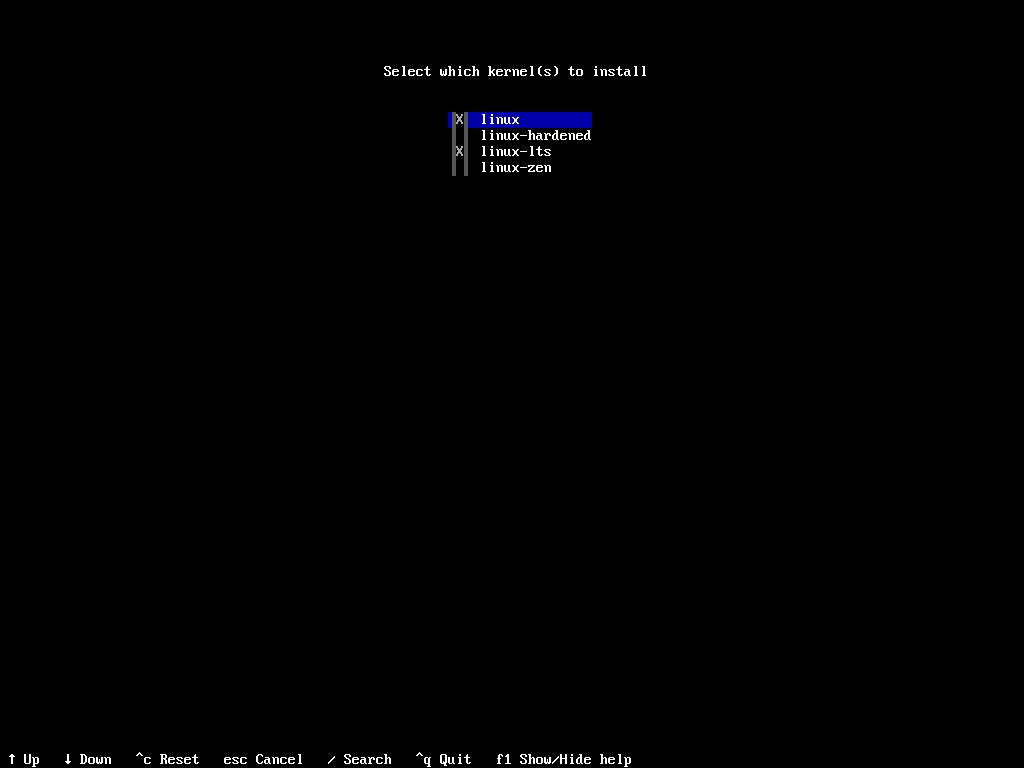
You can more than one Kernel to install.
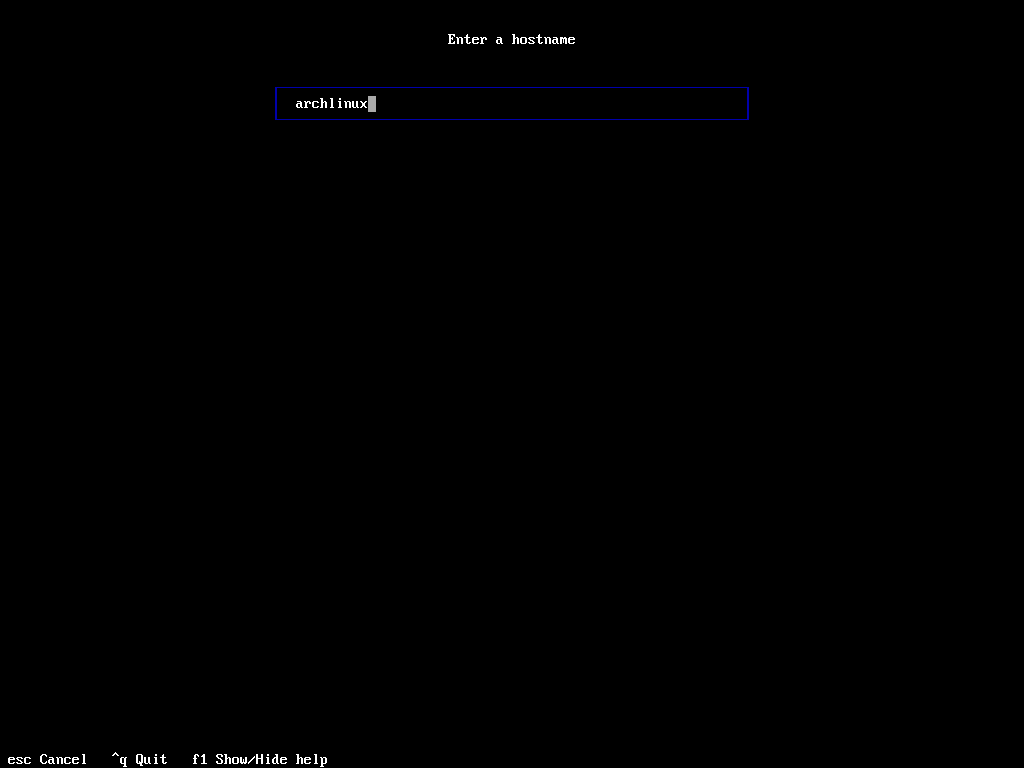
Hostname
Set your Hostname here.
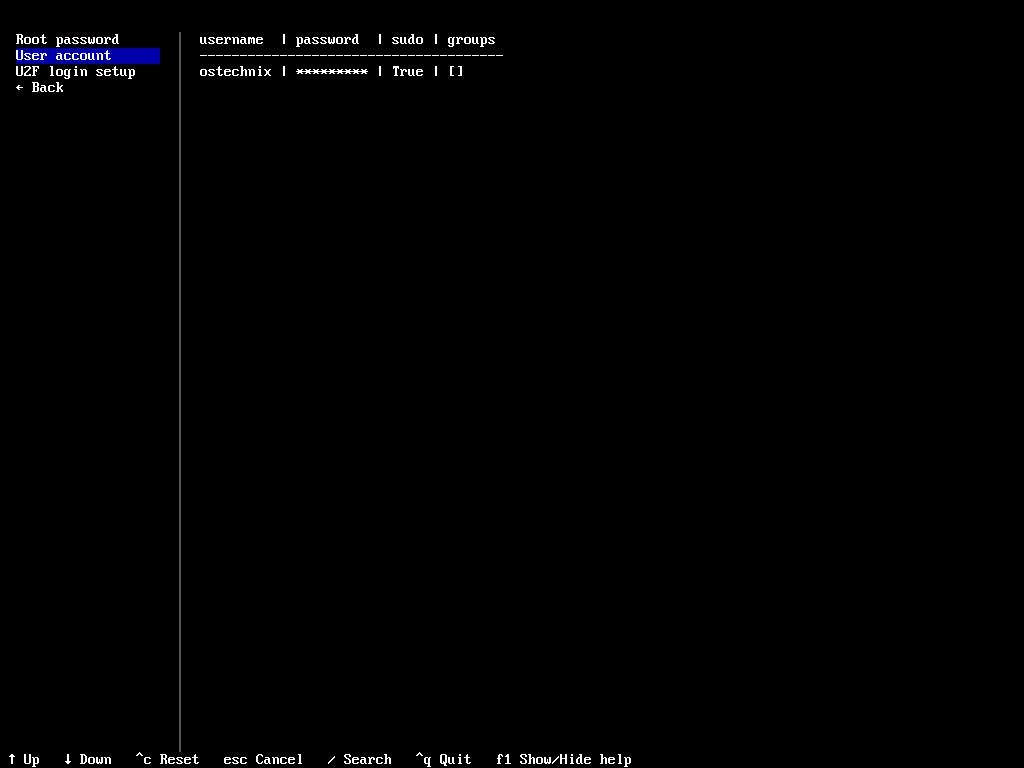
Authentication (User Accounts)
In this section, you can set password for root user, create new users, add the user to sudo group etc.
Desktop Environment Profile
Choose your environment i.e Desktop or Server.
| Profile | Options Available |
|---|---|
| Desktop | Awesome, Bspwm, Budgie, Cinnamon, Cosmic, Cutefish, Deepin, Enlightenment, GNOME, Hyprland, i3-wm, KDE Plasma, Labwc, Lxqt, Mate, Niri, Qtile, River, Sway, XFCE, and Xmonad |
| Minimal | Base system only, no GUI |
| Server | Headless, server-oriented packages |
| Xorg | Xorg related packages |
KDE Plasma note: The default package changed from
plasma-metatoplasma-desktopin 4.0. The default login manager is nowplasma-login-manager(theplasmaloginservice).
Applications
Here, you can enable or disable Bluetooth, Audio (Pipewire or Pulseaudio), printer and Firewall.
The Firewall option is newly added in Archinstall 4.0. It has two choices:
| Option | Notes |
|---|---|
| firewalld | Zone-based; easiest for desktops and laptops |
| ufw | Command line front-end to manage iptables. |
Network Configuration
| Option | Use When |
|---|---|
| Installer default | Copy ISO network configuration to installation |
| Manual | Manual network configuration |
| NetworkManager | Desktop / laptop with mixed wired + Wi-Fi |
| iwd | Wi-Fi-only setups; lightweight; iwd setup bug fixed in 4.0 |
Additional Packages
Choose the extra packages to install from the list.
Timezone
Select your timezone. E.g. Asia/Kolkata.
NTP
Enable or disable automatic time sync (NTP).
Step 6: Run the Installer and Reboot
We have selected all packages to install and configured necessary settings.
Now select Install from the main menu. Archinstall will:
- Partition and format the disk
- Run
pacstrapto install the base system and selected packages - Configure locale, hostname, users, and the bootloader
- Execute post-install hooks
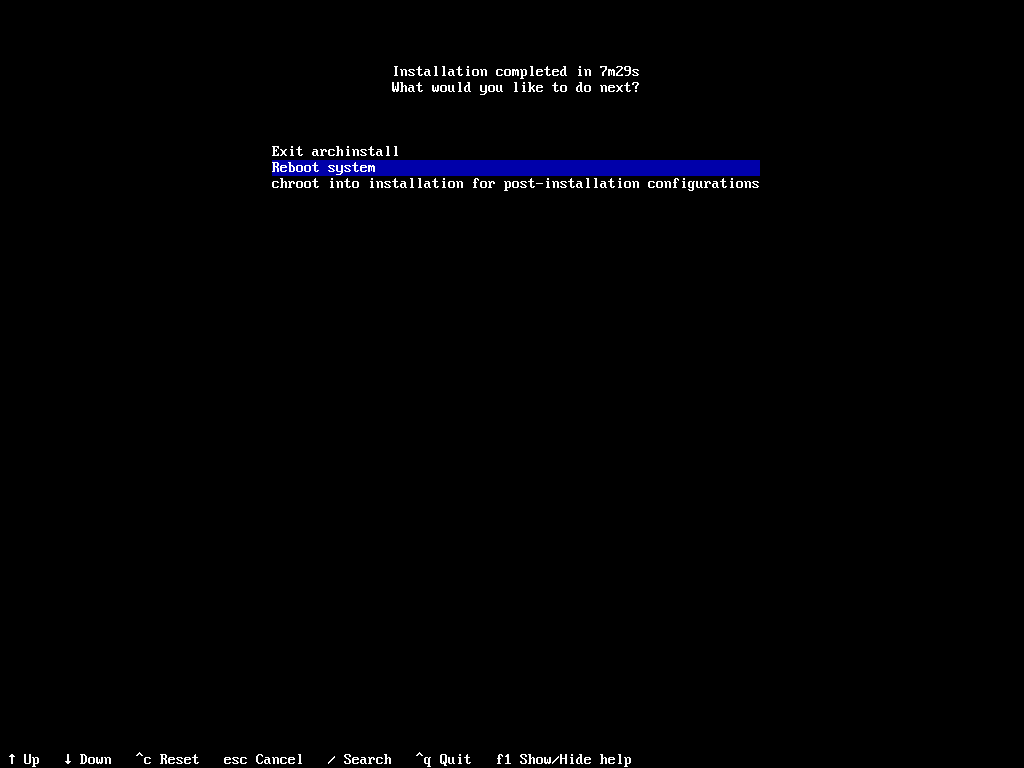
When it finishes, remove the USB drive and reboot:
Step 7: First Boot
You've rebooted into your new Arch Linux system. Here's what to do next.
Log In
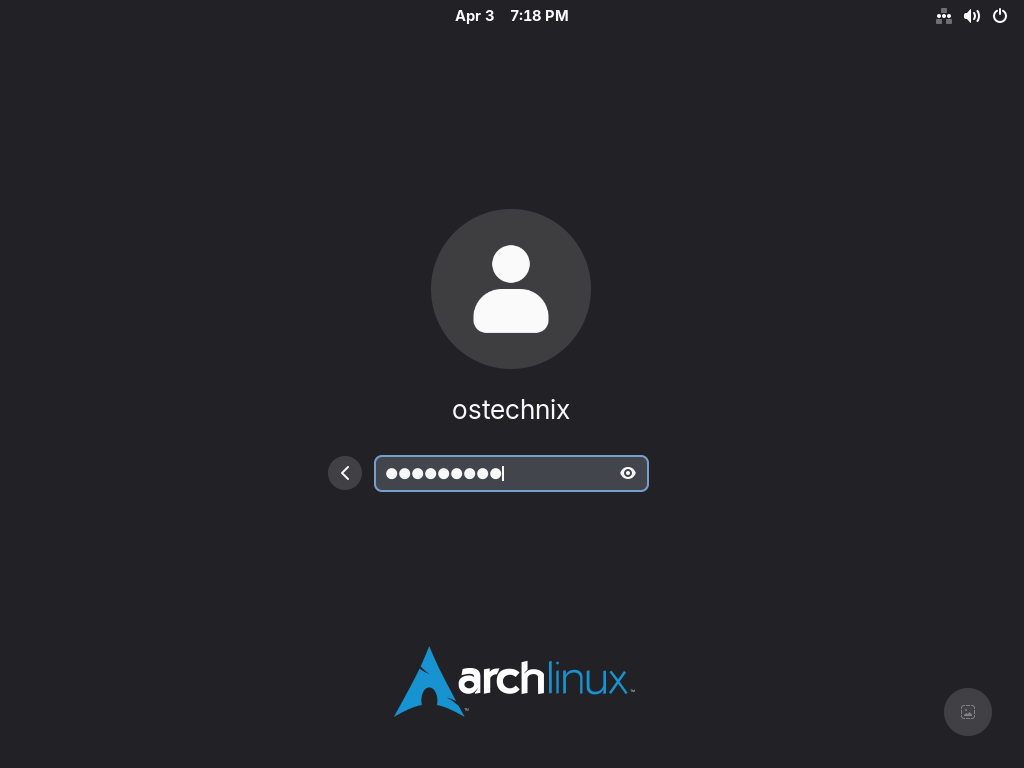
At the login prompt, enter the username and password you created in the User Accounts step.
If you installed a desktop environment (GNOME, KDE, etc.), you will see a graphical login screen instead — enter the same credentials.
Note: If you installed a Minimal profile (no desktop), you land at a text console. This is normal. Everything from here can be done from the terminal.
Connect to the Internet (NetworkManager)
If you chose NetworkManager during install, the easiest way to connect is nmtui, a simple text-based network UI:
nmtui
Select "Activate a connection", choose your Wi-Fi network or wired connection, enter your password, and confirm. Your connection is saved permanently.
For a quick wired check without the UI:
nmcli device status          # shows all interfaces and their state
ping -c 3 archlinux.org      # confirm internet is working
Run Your First System Update
Arch Linux is a rolling release, so your first update after install brings everything up to date:
sudo pacman -Syu
Enter your user password when prompted. Accept the upgrade when asked. Reboot if the linux kernel or firmware packages were updated:
reboot
Note: Run
sudo pacman -Syuregularly (weekly is typical for Arch users) to keep your system current.
Access the AUR (Arch User Repository)
The AUR is Arch's community package repository. It hosts thousands of packages not in the official repos (e.g., Google Chrome, VS Code, Spotify).
To use it, you need git and an AUR helper. You can use Paru or Yay AUR helper tools. The most popular is yay:
# Install git first if you didn't add it during install
sudo pacman -S git base-devel

# Clone and build yay
git clone https://aur.archlinux.org/yay.git
cd yay
makepkg -si
Once installed, yay works exactly like pacman but also searches the AUR:
yay -S google-chrome       # example: install Chrome from the AUR
yay -Syu                   # update everything, including AUR packages
Note: Only install AUR packages from sources you trust. Unlike official packages, AUR packages are community-maintained and not audited by Arch.
Scripted / Unattended Installs
Archinstall splits its configuration across two JSON files:
| File | Contains |
|---|---|
user_configuration.json | All installation options (disk, locale, DE, etc.) |
user_credentials.json | Passwords, encryption passphrase (kept separate for security) |
To generate these files: complete the interactive menu and choose Save configuration before hitting Install. Then reuse them for future deploys:
archinstall \
  --config /path/to/user_configuration.json \
  --creds  /path/to/user_credentials.json
Omitting --creds is valid. archinstall will prompt interactively for any missing credentials.
Troubleshooting & FAQ
The TUI crashes or shows a blank screen on launch
You are likely running Archinstall 3.x from the ISO. Update it before launching:
pacman -Sy archinstall
archinstall
No Wi-Fi after reboot (iwd)
If you chose iwd as your network manager and Wi-Fi is absent after rebooting into your new install, check that the service is running:
systemctl enable --now iwd
Then reconnect using iwctl as shown in Step 2.
If you connected with
iwctlduring the live session, your network profile was already copied to the installed system. You may not need to reconnect at all.
My disk does not appear in the drive selection menu
Archinstall lists block devices. If your drive is missing, verify the kernel sees it:
lsblk
If the drive is absent, check whether it is set to RAID/RST mode in firmware — switch it to AHCI and reboot into the ISO.
KDE Plasma boots to a blank TTY instead of a login screen
The plasmalogin service may not have been enabled. Enable it manually:
systemctl enable --now plasmalogin
pacstrap fails or stops mid-install
This is almost always a mirror or network issue. The error usually looks like error: failed to retrieve file or unexpected end of file.
1. Press Ctrl+C to abort.
2. Test connectivity: ping -c 3 archlinux.org
3. If the network is fine, the selected mirror may be slow or broken. Force a mirror refresh:
reflector --country India --latest 5 --sort rate --save /etc/pacman.d/mirrorlist
Replace India with your country. Then relaunch:
archinstall
4. If the error mentions signature/key issues, your system clock may have drifted.
Re-sync: timedatectl set-ntp true, wait a few seconds, then retry.
How do I re-run archinstall after a failed attempt?
Reboot back into the live ISO, update archinstall (pacman -Sy archinstall), then unmount any partial install before relaunching:
umount -R /mnt
archinstall
archinstall vs. manual install - which should I choose?
Use archinstall if you want a working system quickly or are new to Arch. Use the manual installation guide if you need a non-standard setup: unusual partition schemes, full-disk encryption with detached LUKS headers, or custom initramfs configurations that archinstall does not expose.
Arch Linux Post-Install Setup
If you chose the minimal installation type when installing Arch Linux, there is no desktop, no sound server, and no AUR access. You are left at a login prompt.
So the next step is to complete a few essential tasks that turn it into a fully functional workstation.
Follow our Arch Linux post-install setup guide to configure your user account, drivers, audio, and desktop environment in the right order.
Essential Arch Linux Maintenance Tasks
Installing Arch Linux isn't a one-time setup. It's a routine task. To maintain an Arch Linux system long-term, I do a set of tasks regularly.
These six simple maintenance tasks help you to keep your Arch Linux installation clean, stable, and running smoothly for years.
Conclusion
If you've followed this guide from top to bottom, you now have a fully installed, up-to-date Arch Linux system with a working network connection, a desktop environment or server profile of your choice, and access to both the official repositories and the AUR.
What makes Arch different from here on is that your system is entirely yours. Nothing runs in the background that you didn't put there.
Packages update only when you run pacman -Syu. Services run only when you enable them. There is no automatic configuration drift. That's both the responsibility and the reward of running Arch.
You can now proudly say - "I use arch, btw".
Resources:
- Arch Wiki - General Recommendations: The official post-install roadmap. Covers users and groups, sound, printing, power management, and more. Read it top to bottom at least once.
- Arch Wiki - List of Applications: A curated catalogue of software by category. The fastest way to find the right tool for any task on Arch.
- Arch Linux Forums: The primary support community. Search before posting. Most problems have been solved and documented here already.
- r/archlinux: A large, active community for discussion, tips, and help.
