
You've just installed Ubuntu. You set http_proxy in your terminal, curl google.com works, but sudo apt update fails. Welcome to Linux proxy configuration.
Ubuntu (and Linux in general) does not have a single, system-wide proxy setting that all applications respect. Unlike Windows or macOS, where you can set a proxy in system preferences and most apps will use it, Ubuntu relies on a fragmented approach with no central proxy switch.
Each tool either:
- Ignores environment variables entirely, or
- Uses them only under specific conditions, or
- Requires its own separate configuration.
Setting up a proxy on Ubuntu genuinely means configuring multiple tools independently.
In this detailed guide, we'll cover apt, curl, wget, git, pip, npm, Docker, Snap, and systemd with working configuration examples.
You'll learn about different proxy types and exactly where to configure each tool, so you can finally set it once and have everything work.
Tested on: Ubuntu 26.04 LTS (Resolute Raccoon)
Level: Beginner to Advanced
Reading time: ~30 minutes
Table of Contents
Why Proxy Configuration on Ubuntu Linux Is Tricky
Here is something that surprises most new Ubuntu users: there is no single proxy setting that works everywhere.
Unlike Windows, Ubuntu does not have one central proxy switch. Instead, each tool, such as apt, curl, wget, git, pip, npm, Docker, Snap, your browser, and your terminal, manages its own proxy config independently. So when you set a proxy in GNOME Settings, your terminal ignores it completely. When you set an environment variable, APT ignores it entirely. On top of that, sudo strips your environment variables before running commands, and systemd services never see them at all.
This disconnect frustrates a lot of people because they set the proxy in one place and then wonder why it still does not work somewhere else.
In this comprehensive article, we will explain exactly where to set your proxy for every major tool on Ubuntu, and why each one behaves the way it does.
Let's start from the beginning.
Understanding Proxy Types
Before you configure anything, you need to know what kind of proxy you are working with. Different proxy types behave differently, and choosing the wrong type can cause connection failures.
Datacenter Proxies
Datacenter proxies come from servers hosted in data centers. They are fast and cheap, but websites can often detect and block them because their IP addresses do not look like real home internet connections.
Because of this, they work best for high-volume, low-risk tasks (like scraping public datasets, monitoring your own infrastructure, or load testing) where speed matters more than going undetected.
Residential Proxies
Residential proxies use IP addresses that real internet service providers (ISPs) assign to real home devices. Because of this, websites treat traffic from residential proxies like traffic from a regular user.
This makes them very useful for web scraping, geo-testing, and tasks where datacenter IPs get blocked.
HTTP vs HTTPS Proxies
An HTTP proxy handles standard web traffic. An HTTPS proxy adds encryption to the connection between your device and the proxy server, which means your credentials and request metadata stay protected from anyone watching your local network. Most modern proxy setups use HTTPS, so always check what protocol your provider supports.
For a deeper technical explanation of how HTTP and HTTPS proxies work at the protocol level, including how the CONNECT method creates tunnels and what PAC files do, MDN Web Docs covers it thoroughly.
SOCKS5 Proxies
SOCKS5 proxies work at a lower level than HTTP/HTTPS proxies. Unlike HTTP proxies that only handle web traffic, SOCKS5 routes all network traffic, including UDP, FTP, and non-HTTP protocols, which makes it the more flexible and privacy-friendly choice. Many tools on Ubuntu support SOCKS5 natively, including curl, ssh, and most torrent clients.
Now that you understand the types, let's get into the actual configuration.
Method 1: Environment Variables
Environment variables are the closest thing Ubuntu has to a universal proxy setting. Many command-line tools check these variables automatically, so setting them is always the best place to start.
The Key Variables
Ubuntu recognizes these standard proxy environment variables:
http_proxy      # Proxy for HTTP traffic
https_proxy     # Proxy for HTTPS traffic
ftp_proxy       # Proxy for FTP traffic
no_proxy        # Comma-separated list of hosts to bypass
ALL_PROXY       # Fallback proxy for tools that ignore the others
Always use lowercase variable names. The uppercase versions (HTTP_PROXY, HTTPS_PROXY) have a known security vulnerability in CGI environments called httpoxy (VU#797896).
An attacker can send a crafted HTTP Proxy: request header that a CGI web server promotes to the HTTP_PROXY environment variable, which then redirects your application's outbound traffic to the attacker's server.
Lowercase variables are not affected by this attack because the CGI specification (RFC 3875) only promotes HTTP request headers to uppercase environment variables. So while both cases work in most situations, lowercase is the safer standard and the one you should always use.
Also note the ALL_PROXY variable, many tools including curl, git, and various Python libraries fall back to ALL_PROXY when they cannot find a protocol-specific variable. Including it makes your configuration more robust with very little extra effort.
Set Variables for Your Current Session Only
If you want to test your proxy quickly without making permanent changes, run these commands in your terminal:
export http_proxy="http://proxyhost:port"
export https_proxy="http://proxyhost:port"
export ftp_proxy="http://proxyhost:port"
export ALL_PROXY="http://proxyhost:port"
export no_proxy="localhost,127.0.0.1,::1"
Replace proxyhost with your proxy server's actual IP address or hostname and port with the port number. These settings disappear as soon as you close the terminal window, so they are perfect for quick tests.
Make Variables Permanent for Your User Account
To keep the proxy settings every time you open a terminal, add the export lines to your ~/.bashrc file:
nano ~/.bashrc
Scroll to the bottom and add:
# Proxy settings
export http_proxy="http://proxyhost:port"
export https_proxy="http://proxyhost:port"
export ftp_proxy="http://proxyhost:port"
export ALL_PROXY="http://proxyhost:port"
export no_proxy="localhost,127.0.0.1,::1"
Save with Ctrl+O, press Enter, then exit with Ctrl+X. Reload immediately:
source ~/.bashrc
Make Variables System-Wide for All Users
If you need every user on the machine to use the same proxy, you have two good options.
Option 1: /etc/environment
This is the simplest approach. It is a static key-value file that PAM reads at login and applies to every user and every session:
sudo nano /etc/environment
Add these lines at the bottom. Note that /etc/environment does not use the export keyword, and it does not support variable expansion. You cannot reference $HOME or other variables inside it:
http_proxy="http://proxyhost:port"
https_proxy="http://proxyhost:port"
ftp_proxy="http://proxyhost:port"
ALL_PROXY="http://proxyhost:port"
no_proxy="localhost,127.0.0.1,::1"
Save and reboot for changes to apply to all users.
Option 2: /etc/profile.d/proxy.sh
This is the better choice when you need dynamic logic - for example, if your proxy address depends on an environment variable, a hostname lookup, or a condition. Unlike /etc/environment, shell scripts in /etc/profile.d/ support full bash syntax:
sudo nano /etc/profile.d/proxy.sh
Add:
#!/bin/bash
# System-wide proxy settings

PROXY_HOST="proxyhost"
PROXY_PORT="port"

export http_proxy="http://${PROXY_HOST}:${PROXY_PORT}"
export https_proxy="http://${PROXY_HOST}:${PROXY_PORT}"
export ftp_proxy="http://${PROXY_HOST}:${PROXY_PORT}"
export ALL_PROXY="http://${PROXY_HOST}:${PROXY_PORT}"
export no_proxy="localhost,127.0.0.1,::1"
Make it executable:
sudo chmod +x /etc/profile.d/proxy.sh
This script runs for every interactive login shell on the system. It is the preferred approach for admins managing multi-user servers.
Important note: Even though environment variables work for many CLI tools, apt, sudo, systemd services, and Snap packages all ignore them. Each of those needs its own dedicated config, which the sections below cover in detail.
Method 2: APT Proxy Configuration
APT has its own proxy system. It does not read your environment variables at all. Therefore, even if you set http_proxy correctly, APT will still bypass the proxy unless you configure it directly.
The Right Way to Configure APT Proxy
Create a dedicated proxy config file for APT:
sudo nano /etc/apt/apt.conf.d/proxy.conf
This file does not exist by default, so you are creating a new one. Add these lines:
Acquire::http::Proxy "http://proxyhost:port";
Acquire::https::Proxy "http://proxyhost:port";
Acquire::ftp::Proxy "ftp://proxyhost:port";
Save the file and exit. From this point forward, every apt command will automatically route through your proxy. You do not need to restart anything.
Test That APT Uses the Proxy
Run a simple update to confirm the proxy is working:
sudo apt update
If APT connects and downloads package lists without errors, your proxy configuration is correct.
Disable APT Proxy for Specific Hosts
Sometimes you want APT to bypass the proxy for certain internal servers:
Acquire::http::Proxy {
    "internal.server.local" DIRECT;
};
This tells APT to connect directly to internal.server.local while still routing everything else through the proxy.
Remove the APT Proxy
To stop APT from using the proxy, delete the config file:
sudo rm /etc/apt/apt.conf.d/proxy.conf
Method 3: curl
curl is one of the most widely used command-line tools on Ubuntu. Configuring it to use a proxy is straightforward, but understanding how it finds config files saves a lot of debugging time.
Use a Proxy for a Single curl Command
Add the -x flag:
curl -x http://proxyhost:port https://example.com
Make the Proxy Permanent for Your User
Save your proxy settings in curl's user configuration file:
nano ~/.curlrc
Add:
proxy = http://proxyhost:port
From now on, every curl command you run will automatically use this proxy. curl looks for this file in $CURL_HOME/.curlrc, then $XDG_CONFIG_HOME/.curlrc, then ~/.curlrc.
Make curl Use the Proxy System-Wide
curl does not have a standard system-wide config file path on Linux. The most reliable way to make curl use a proxy for all users on the system is to set the environment variables in /etc/profile.d/proxy.sh (covered in Method 1). curl reads http_proxy and https_proxy automatically at the lowest precedence level, so system-wide environment variables are the correct approach here.
If you need to override the proxy for a specific user or script, you can point curl at any config file with the -K flag:
curl -K /path/to/curlconfig https://example.com
Override the Proxy for a Single Command
curl --noproxy "*" https://internal.server.local
SSL Certificate Considerations
If your organization uses an intercepting proxy that inspects HTTPS traffic, curl will throw SSL certificate errors. Never use -k (insecure mode) in production. It disables all certificate verification. Instead, install your organization's root CA certificate into Ubuntu's trust store. It will be covered in the Corporate CA Certificates section in detail.
Method 4: wget
wget has its own configuration file and does not inherit APT's proxy settings.
Use a Proxy for a Single wget Command
wget -e use_proxy=yes -e http_proxy=http://proxyhost:port https://example.com
Make the Proxy Permanent for Your User
nano ~/.wgetrc
Add:
http_proxy = http://proxyhost:port
https_proxy = http://proxyhost:port
ftp_proxy = ftp://proxyhost:port
use_proxy = on
Make the Proxy System-Wide for All Users
sudo nano /etc/wgetrc
Find the proxy-related lines (they are commented out by default). Remove the # from each and fill in your proxy details:
http_proxy = http://proxyhost:port
https_proxy = http://proxyhost:port
ftp_proxy = ftp://proxyhost:port
use_proxy = on
Bypass the Proxy for Specific Domains
Add a no_proxy line to ~/.wgetrc:
no_proxy = localhost,127.0.0.1,.internal.company.com
Method 5: GNOME Desktop Settings
Ubuntu 26.04 ships with GNOME 50 as its default desktop environment. GNOME includes a built-in proxy panel that is easy to use, but it comes with a critical limitation.
How to Access GNOME Proxy Settings
- Open Settings from the app menu or the top-right system tray
- Click Network in the left sidebar
- Scroll down to Proxy and click the gear icon
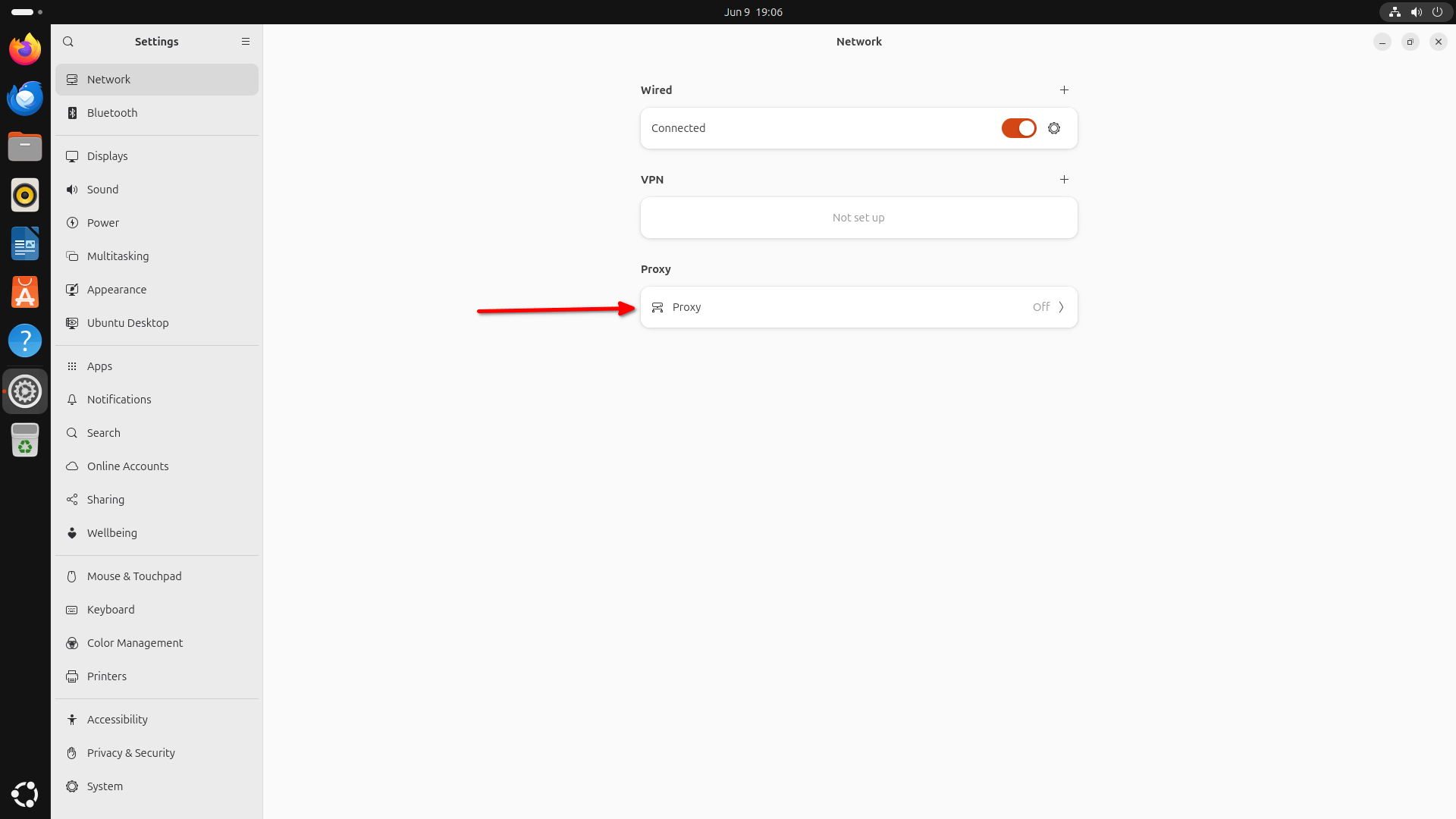
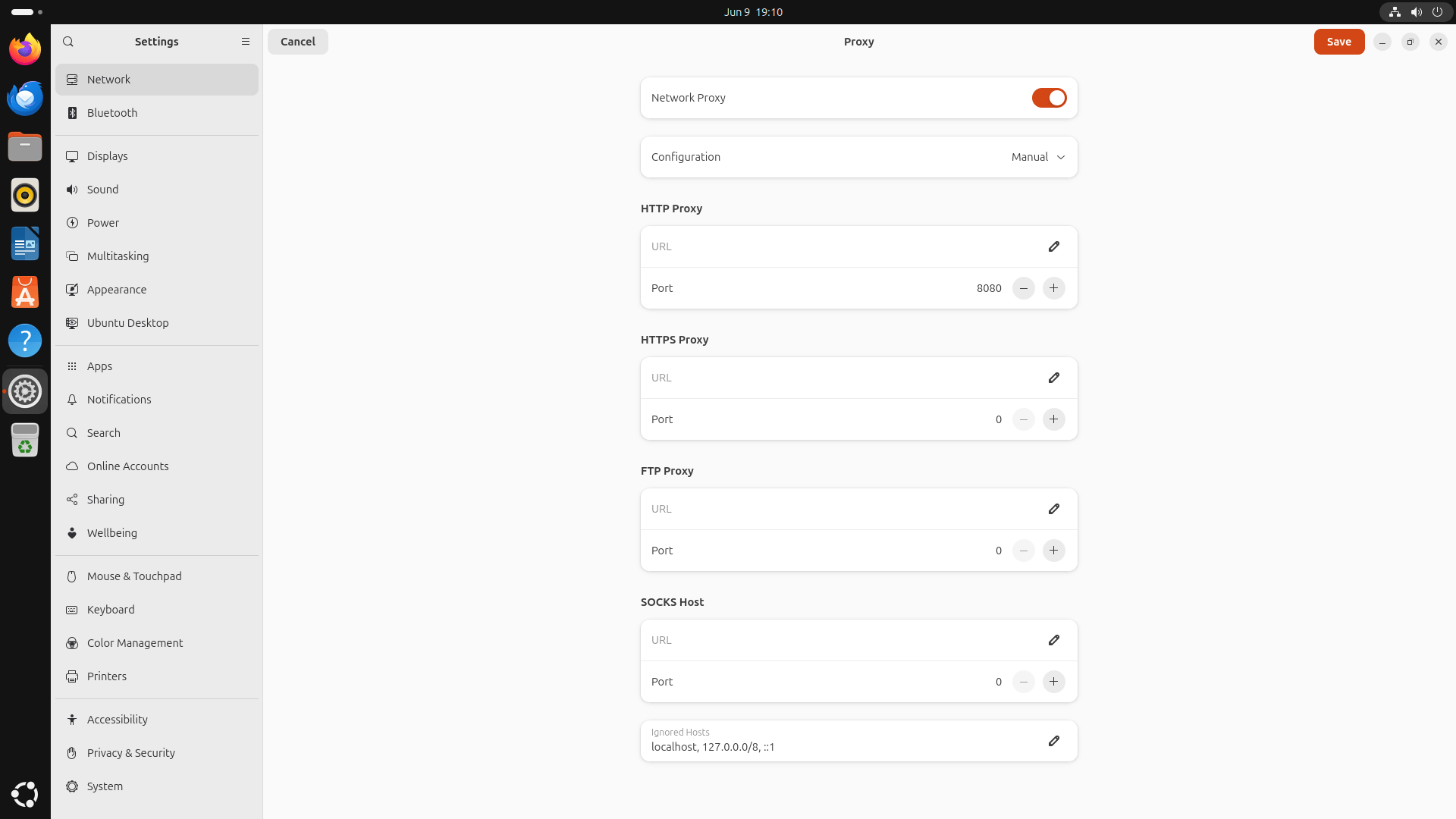
In the next window, toggle the switch "Network proxy" to ON position. And then, choose "Manual" from the Configuration section.
Set proxy addresses for HTTP, HTTPS, FTP, and SOCKS individually.
The Critical Limitation of GNOME Proxy Settings
GNOME proxy settings only apply to GNOME applications. Your browser, Files app, and other GUI apps will respect these settings. But your terminal, apt, curl, wget, git, and all other command-line tools completely ignore them.
This is a very common source of confusion. Many people set the proxy in GNOME Settings, open a terminal, and then find that curl still connects directly. The solution is to always combine GNOME Settings with environment variables for full coverage.
When GNOME Settings Are Enough
If you only need proxy support for your web browser and desktop apps, GNOME Settings alone is sufficient. Otherwise, use it alongside the methods in this guide.
Method 6: Git
Almost every developer and admin uses Git. Git uses libcurl internally to handle all network connections (both HTTP and HTTPS) which means it has its own proxy configuration separate from system environment variables.
Set a Global Git Proxy
Git's http.proxy configuration key covers both HTTP and HTTPS connections. You only need to set one key:
git config --global http.proxy http://proxyhost:port
Verify the setting was saved:
git config --global --list | grep proxy
Set a Proxy for a Single Repository
If you only need the proxy for one specific repo, run this inside that repository's directory:
git config http.proxy http://proxyhost:port
Bypass the Proxy for Internal Git Servers
If you have an internal GitLab or Gitea server that should connect directly, tell Git to skip the proxy for that specific URL:
git config --global http.https://gitlab.internal.company.com.proxy ""
Remove the Git Proxy
git config --global --unset http.proxy
Where Git Stores These Settings
Git writes proxy settings to ~/.gitconfig. You can also edit this file directly:
nano ~/.gitconfig
It will look like this:
[http]
    proxy = http://proxyhost:port
Note: Git's http.proxy covers both HTTP and HTTPS repository URLs because Git uses libcurl internally for all transport. You do not need (and should not set) a separate https.proxy key, as it is not a documented git configuration option.
Method 7: pip (Python)
Python's package manager pip has its own proxy configuration. While pip does read http_proxy and https_proxy environment variables, a permanent pip.conf file is more reliable and works regardless of how the shell environment is set up.
Set a Proxy for a Single pip Command
pip install requests --proxy http://proxyhost:port
Make the Proxy Permanent for Your User
Create the pip config directory and file:
mkdir -p ~/.config/pip
nano ~/.config/pip/pip.conf
Add:
[global]
proxy = http://proxyhost:port
Make the Proxy System-Wide for All Users
pip checks /etc/pip.conf for global settings on Linux:
sudo nano /etc/pip.conf
Add the same content:
[global]
proxy = http://proxyhost:port
pip Inside a Virtual Environment
If you use Python virtual environments, the proxy from your global or user pip.conf still applies. However, if you need a different proxy per project, create a pip.conf inside the virtual environment:
nano /path/to/venv/pip.conf
Add the same [global] block with the project-specific proxy.
Method 8: npm (Node.js)
npm stores its proxy configuration separately from system environment variables. You set it with the npm config command, which writes to ~/.npmrc.
Set the npm Proxy
npm config set proxy http://proxyhost:port
npm config set https-proxy http://proxyhost:port
Verify the npm Proxy Settings
npm config get proxy
npm config get https-proxy
Remove the npm Proxy
npm config delete proxy
npm config delete https-proxy
System-Wide npm Proxy
To apply the proxy to all users on the machine, edit the global npmrc file:
sudo npm config set proxy http://proxyhost:port --global
sudo npm config set https-proxy http://proxyhost:port --global
SSL Certificate Issues with npm
If npm throws SSL errors behind an intercepting proxy, point npm to Ubuntu's system CA bundle after installing your corporate certificate (see the CA Certificates section for details):
npm config set cafile /etc/ssl/certs/ca-certificates.crt
Method 9: Docker
Docker needs proxy configuration in two separate places, and confusing them is one of the most common mistakes. One config controls the Docker daemon itself (for pulling images). The other controls Docker client operations including builds.
Part 1: Proxy for the Docker Daemon (Pulling Images)
The Docker daemon runs as a systemd service, so it needs a systemd drop-in file. The official Docker documentation recommends creating a specifically named file:
sudo mkdir -p /etc/systemd/system/docker.service.d
sudo nano /etc/systemd/system/docker.service.d/http-proxy.conf
Add:
[Service]
Environment="HTTP_PROXY=http://proxyhost:port"
Environment="HTTPS_PROXY=http://proxyhost:port"
Environment="NO_PROXY=localhost,127.0.0.1,.internal.company.com"
Alternatively, sudo systemctl edit docker creates the same directory structure with a file named override.conf. Both approaches work identically because systemd reads all .conf files in the directory.
Save and exit, then reload and restart Docker:
sudo systemctl daemon-reload
sudo systemctl restart docker
Confirm the environment variables are live:
sudo systemctl show --property=Environment docker
Part 2: Proxy for the Docker Client (Builds, Pulls, and More)
The Docker client proxy configuration in ~/.docker/config.json controls how proxy settings are passed during Docker CLI operations — including docker build, docker pull, and containers that need proxy access at runtime. Configure it here:
nano ~/.docker/config.json
Add or merge this block:
{
  "proxies": {
    "default": {
      "httpProxy": "http://proxyhost:port",
      "httpsProxy": "http://proxyhost:port",
      "noProxy": "localhost,127.0.0.1,.internal.company.com"
    }
  }
}
Docker automatically passes these values as build arguments to every docker build command. You do not need to add --build-arg manually.
Note: The proxy settings in ~/.docker/config.json apply to Docker CLI client operations. They are injected as build-time ARGs during docker build, and they set environment variables for operations that respect them. However, they do not automatically set environment variables inside long-running containers started with docker run. Those containers need their own explicit -e flags or their own application-level proxy configuration.
Method 10: Snap Packages
Ubuntu 26.04 ships many applications as Snap packages. Snap completely ignores system environment variables, /etc/environment, and everything else covered so far. It has its own proxy system managed through snapd.
Set the Snap Proxy
sudo snap set system proxy.http="http://proxyhost:port"
sudo snap set system proxy.https="http://proxyhost:port"
Verify the Snap Proxy
sudo snap get system proxy
You should see output like:
Key           Value
proxy.http    http://proxyhost:port
proxy.https   http://proxyhost:port
Remove the Snap Proxy
sudo snap unset system proxy.http
sudo snap unset system proxy.https
Restart snapd After Changes
After setting the proxy, restart the snapd service for the changes to take effect immediately:
sudo systemctl restart snapd
Method 11: Systemd Services
Any application running as a systemd service (a web server, a scraper daemon, a scheduled task) will not inherit proxy settings from /etc/environment, ~/.bashrc, or any user-level config.
Systemd services run in their own isolated environment. This surprises many admins the first time they encounter it.
The correct approach is a systemd drop-in override file, which keeps your changes separate from the original unit file so that package updates do not overwrite them.
Create a Drop-In Override for Any Service
Replace servicename with the actual name of the service (for example, nginx, myapp, or scraper):
sudo systemctl edit servicename
This creates an override file at /etc/systemd/system/servicename.service.d/override.conf. Add:
[Service]
Environment="http_proxy=http://proxyhost:port"
Environment="https_proxy=http://proxyhost:port"
Environment="no_proxy=localhost,127.0.0.1,.internal.company.com"
Save and exit, then reload systemd and restart the service:
sudo systemctl daemon-reload
sudo systemctl restart servicename
Verify the Service Has the Right Environment
sudo systemctl show servicename --property=Environment
Apply Proxy to All Services at Once
If you want every systemd service on the machine to use the same proxy, create a global environment file that systemd reads:
sudo nano /etc/systemd/system.conf
Find the [Manager] section and add or uncomment:
DefaultEnvironment="http_proxy=http://proxyhost:port" "https_proxy=http://proxyhost:port"
Then reload systemd:
sudo systemctl daemon-reload
Use this approach carefully. It applies the proxy to every single service on the machine, which is rarely what you want.
Handling Proxy Authentication
Many proxy servers, especially residential and corporate proxies, require a username and password. Adding credentials to your proxy URL is simple, but there are a few edge cases to handle carefully.
Basic Authentication Format
http://username:password@proxyhost:port
For example:
export http_proxy="http://john:mypassword@proxy.example.com:8080"
For temporary use in scripts without storing credentials permanently:
read -sp "Proxy password: " PROXY_PASS
export http_proxy="http://username:${PROXY_PASS}@proxyhost:port"
unset PROXY_PASS  # Clear after use
Special Characters in Passwords
If your password contains special characters like @, :, /, or #, you must URL-encode them. Otherwise the proxy URL breaks because those characters have special meaning inside a URL.
| Character | URL-Encoded |
|---|---|
@ | %40 |
: | %3A |
/ | %2F |
# | %23 |
! | %21 |
$ | %24 |
| (space) | %20 |
For example, if your password is p@ss:word, write it as p%40ss%3Aword in the proxy URL.
Protect Your Credentials
Storing a password in plaintext inside .bashrc or /etc/environment is a security risk. Here are two better approaches:
Option 1: Restrict file permissions
Create a separate file that holds only your proxy credentials:
nano ~/.proxy_credentials
Add:
export http_proxy="http://username:password@proxyhost:port"
export https_proxy="http://username:password@proxyhost:port"
export ALL_PROXY="http://username:password@proxyhost:port"
Lock the file down so only your user can read it:
chmod 600 ~/.proxy_credentials
Then source it from your .bashrc:
source ~/.proxy_credentials
Option 2: Use a secrets manager
For production servers, consider tools like pass (the standard Unix password manager) or HashiCorp Vault to store and inject proxy credentials at runtime. This approach keeps credentials out of config files entirely and is the right choice for any server with multiple users or automated deployments.
Installing Corporate CA Certificates
In corporate and enterprise environments, proxy servers often use TLS inspection. They intercept your HTTPS connections and re-sign them with their own root certificate. Every CLI tool will throw SSL errors until you install that root certificate into Ubuntu's system trust store.
This is the proper, permanent fix. Never use -k in curl or --no-check-certificate in wget as a workaround. Those flags disable all certificate verification and expose you to man-in-the-middle attacks from any source, not just your proxy.
Step 1: Get the Corporate CA Certificate
Ask your IT or network team for the root CA certificate file. It will typically be in .crt or .pem format. If you cannot get the file directly, you can export it from a browser that already trusts the proxy.
Step 2: Copy the Certificate to the Right Location
sudo cp your-corporate-ca.crt /usr/local/share/ca-certificates/
The file must have a .crt extension. If your certificate is in .pem format, rename it first:
sudo cp your-corporate-ca.pem /usr/local/share/ca-certificates/your-corporate-ca.crt
Step 3: Rebuild the System CA Bundle
sudo update-ca-certificates
You should see output confirming the certificate was added:
Updating certificates in /etc/ssl/certs...
1 added, 0 removed; done.
After this, curl, wget, apt, git, pip, npm, and most other tools will automatically trust your corporate proxy's certificate. You do not need to configure each tool individually.
Step 4: Verify the Certificate Is Trusted
Test with a simple curl request through your proxy:
curl -x http://proxyhost:port https://example.com
If you no longer see SSL errors, the certificate installation worked correctly.
Java and Python SSL Stores
Note that Java and some Python libraries maintain their own separate certificate stores and do not read Ubuntu's system bundle automatically.
For Java, the cacerts file location depends on which JVM version you have installed. Find it first, then import:
# Step 1 — Find your Java cacerts file
find /usr/lib/jvm -name "cacerts" 2>/dev/null

# Step 2 — Import your corporate CA (replace the path with the one found above)
sudo keytool -import -alias corporate-ca \
  -file /usr/local/share/ca-certificates/your-corporate-ca.crt \
  -keystore /usr/lib/jvm/java-21-openjdk-amd64/lib/security/cacerts \
  -storepass changeit -noprompt
The find command is essential because the path changes with every JVM version and installation method. Using a hardcoded path will fail silently if your JVM is installed differently.
The sudo Problem Every Admin Hits
This is the single most common proxy failure on Ubuntu, and it affects even experienced admins.
When you run any command with sudo, sudo strips your environment variables by default as a security measure. This means http_proxy, https_proxy, and every other proxy variable you set will simply disappear for that command, even if they are perfectly configured in your shell.
So when you set up environment variables and then run sudo apt update, APT is not ignoring your proxy because APT ignores environment variables (which it does). The deeper issue is that sudo already stripped them before APT even started.
Quick Fix: Use sudo -E for a Single Command
The -E flag tells sudo to preserve your environment variables:
sudo -E curl https://example.com
sudo -E pip install requests
However, this only works for that one command, and it does not fix apt since APT has its own proxy config anyway.
Permanent Fix: Configure sudoers to Keep Proxy Variables
The proper permanent solution is to tell sudo which variables to preserve for all commands. Edit the sudoers file safely using visudo:
sudo visudo
Find the Defaults section and add this line:
Defaults env_keep += "http_proxy https_proxy ftp_proxy no_proxy ALL_PROXY HTTP_PROXY HTTPS_PROXY NO_PROXY"
Save and exit. From this point forward, sudo will preserve your proxy environment variables for every command.
Verify sudo Preserves the Variables
Test that it works:
export http_proxy="http://proxyhost:port"
sudo printenv http_proxy
If you see the proxy address printed, sudo is now preserving the variable correctly.
Security note: Preserving proxy environment variables in sudoers is safe in most environments. However, be aware that on highly sensitive systems, proxy variables could theoretically be manipulated to redirect privileged traffic. In those cases, configure each privileged tool (APT, system-level pip, etc.) with its own dedicated config file instead of relying on inherited environment variables.
Verifying Your Proxy Actually Works
There is an important difference between checking that a variable is set and confirming that the proxy is actually routing your traffic.
Running echo $http_proxy only confirms the variable exists in your shell. It tells you nothing about whether the proxy is reachable or working.
Use these commands to confirm real proxy connectivity.
Check What IP the World Sees
This is the most reliable test. It sends a request through your proxy and returns the IP address the destination server sees:
curl -x http://proxyhost:port https://httpbin.org/ip
If the proxy is working, the IP address in the response should match your proxy server's IP, not your local machine's IP. If it shows your real IP, the proxy is being bypassed.
Watch the Proxy Handshake in Verbose Mode
The -v flag shows exactly what curl is doing step by step:
curl -v -x http://proxyhost:port https://example.com
Look for a line like Connected to proxyhost near the top. If you see Connected to example.com instead, curl is bypassing the proxy.
Test That sudo Preserves the Proxy
export http_proxy="http://proxyhost:port"
sudo -E curl -x $http_proxy https://httpbin.org/ip
Test APT Separately
APT does not use environment variables, so test it independently:
sudo apt update -o Acquire::http::proxy="http://proxyhost:port"
If this works but your normal sudo apt update does not, your APT config file has a problem.
Test a systemd Service's Network Path
To confirm a service is routing through the proxy, check what environment it actually sees:
sudo systemctl show myservice --property=Environment
For Docker daemon proxy verification
sudo systemctl show docker --property=Environment
Shell Compatibility: bash, zsh, and fish
This guide uses bash syntax throughout, because Ubuntu 26.04 defaults to bash. However, many developers use zsh or fish, and the syntax for setting environment variables differs between them.
bash
Add to ~/.bashrc (interactive shells) or ~/.bash_profile (login shells):
export http_proxy="http://proxyhost:port"
export https_proxy="http://proxyhost:port"
export no_proxy="localhost,127.0.0.1"
zsh
The syntax is identical to bash. Add to ~/.zshrc:
export http_proxy="http://proxyhost:port"
export https_proxy="http://proxyhost:port"
export no_proxy="localhost,127.0.0.1"
fish
Fish uses a completely different syntax. Add to ~/.config/fish/config.fish:
set -x http_proxy "http://proxyhost:port"
set -x https_proxy "http://proxyhost:port"
set -x no_proxy "localhost,127.0.0.1"
Fish does not use export. Instead, the -x flag on set marks a variable as exported to child processes — which is the fish equivalent of export.
Note: Regardless of which shell you use, system-level configs (/etc/environment, /etc/profile.d/proxy.sh, APT, curl, wget, Git, pip, npm, Docker, Snap, and systemd) remain the same. Shell syntax only affects the user-level ~/.*rc files.
Understanding Variable Precedence
When multiple proxy settings exist at the same time (an environment variable, a tool config file, and a command-line flag), which one wins? Understanding the order prevents hours of debugging when a setting does not seem to take effect.
curl Precedence (Highest to Lowest)
| Priority | Source |
|---|---|
| 1 (highest) | -x / --proxy command-line flag |
| 2 | ~/.curlrc user config file |
| 3 (lowest) | http_proxy / https_proxy environment variables |
A command-line flag always wins. If you set a proxy in ~/.curlrc but then run curl --noproxy "*", the flag overrides the config file completely. Note that curl has no system-wide config file on Linux — environment variables are the system-wide mechanism.
wget Precedence (Highest to Lowest)
| Priority | Source |
|---|---|
| 1 (highest) | -e command-line option |
| 2 | ~/.wgetrc user config file |
| 3 | /etc/wgetrc system config file |
| 4 (lowest) | http_proxy / https_proxy environment variables |
git Precedence (Highest to Lowest)
| Priority | Source |
|---|---|
| 1 (highest) | --config command-line flag |
| 2 | .git/config repository-level config |
| 3 | ~/.gitconfig user-level config |
| 4 (lowest) | /etc/gitconfig system-level config |
pip Precedence (Highest to Lowest)
| Priority | Source |
|---|---|
| 1 (highest) | --proxy command-line flag |
| 2 | pip.conf in the active virtual environment |
| 3 | ~/.config/pip/pip.conf user config |
| 4 | /etc/pip.conf system config |
| 5 (lowest) | http_proxy / https_proxy environment variables |
The practical takeaway is this: command-line flags always win, environment variables always lose. If a tool is not picking up your proxy, check whether a config file somewhere is overriding your environment variable with a different setting.
The no_proxy Format Guide
The no_proxy variable tells tools which hosts to reach directly, bypassing the proxy. However, different tools interpret it differently. And if you get the format wrong, you will either route internal traffic through the proxy or bypass the proxy for hosts that should use it.
The Most Compatible Format
This format works correctly across the widest range of tools:
export no_proxy="localhost,127.0.0.1,::1,.company.internal,10.0.0.0/8,192.168.0.0/16"
Key rules:
- Use commas to separate entries - no spaces after commas in most tools
- Use a leading dot (
.company.internal) to match a domain and all its subdomains. Without the dot, most tools only match the exact hostname - You can include CIDR notation for IP ranges, but not all tools support it -
curlandwgetdo; older tools may not - Always include
localhostand127.0.0.1explicitly
Tool-Specific Differences
| Tool | Subdomain matching | CIDR support | Wildcard support |
|---|---|---|---|
| curl | Leading dot .example.com | Yes | * for all |
| wget | Leading dot .example.com | Partial | No |
| git | Leading dot .example.com | No | No |
| pip | Leading dot .example.com | No | No |
| npm | Leading dot .example.com | No | No |
| Docker daemon | Leading dot .example.com | Yes | No |
Common Mistake: Missing the Leading Dot
Without the leading dot, company.internal only bypasses the proxy for the exact hostname company.internal. Subdomains like gitlab.company.internal will still go through the proxy. Always use .company.internal to cover the domain and all its subdomains.
Troubleshooting Common Problems
Even after careful configuration, things sometimes go wrong. Here are the most common problems and their solutions.
1. My proxy works in the browser but not in the terminal.
GNOME proxy settings only apply to GUI apps. Open ~/.bashrc and add the proxy environment variables as shown in Method 1. Then run source ~/.bashrc.
2. I set the environment variables but APT still fails.
APT ignores environment variables by design. Create /etc/apt/apt.conf.d/proxy.conf as described in Method 2.
3. I set environment variables but sudo commands still bypass the proxy.
sudo strips environment variables by default. Either use sudo -E for individual commands, or add the proxy variables to the env_keep list in /etc/sudoers using sudo visudo. See the sudo Problem section above.
4. curl works but wget does not.
They use separate config files. Add your proxy to ~/.wgetrc as described in Method 4.
5. I set everything but HTTPS connections still fail with SSL errors.
You are behind an intercepting proxy that re-signs certificates. Install your organization's root CA certificate using the steps in the CA Certificates section. Never use -k or --no-check-certificate as a permanent fix.
6. My systemd service still bypasses the proxy.
Services do not inherit environment variables. Use sudo systemctl edit servicename to create a drop-in override with explicit Environment= lines. See Method 11.
7. Snap apps ignore my proxy settings.
Snap has its own proxy system. Run sudo snap set system proxy.http="http://proxyhost:port" and sudo snap set system proxy.https="...", then restart snapd. See Method 10.
8. Git clone fails even though curl works fine.
Git does not inherit system environment variables reliably for proxy use. Set the proxy explicitly with git config --global http.proxy http://proxyhost:port. Note that this single key covers both HTTP and HTTPS connections. See Method 6.
9. pip install fails behind the proxy.
Create ~/.config/pip/pip.conf and add a [global] proxy = ... line. See Method 7.
10. Docker cannot pull images.
The Docker daemon is a systemd service, so it needs its own drop-in file. See Method 9, Part 1. This is separate from the Docker client config in ~/.docker/config.json.
11. My environment variables disappear after I log out.
Variables set with export in the terminal only last for that session. Add them to ~/.bashrc for your user, or /etc/environment or /etc/profile.d/proxy.sh for all users.
12. My proxy settings work but some internal servers are unreachable.
Check your no_proxy variable. Make sure internal hostnames have a leading dot (.company.internal) and that you have included the relevant IP ranges. See the no_proxy Format Guide above.
13. I am getting authentication errors even though my credentials are correct.
Check for special characters in your password. URL-encode any @, :, /, or # characters. See the Authentication section above.
Quick Reference Table
Here is a complete summary of every tool covered in this guide.
| Tool | Config File / Method | Scope | Reads Env Vars? |
|---|---|---|---|
| Most CLI tools | ~/.bashrc or /etc/environment | User / System | — |
| APT | /etc/apt/apt.conf.d/proxy.conf | System | ❌ No |
| curl | ~/.curlrc (user only; no system-wide file) | User | ✅ Yes (lowest priority) |
| wget | ~/.wgetrc or /etc/wgetrc | User / System | ✅ Yes (lowest priority) |
| Git | ~/.gitconfig via http.proxy | User | ⚠️ Unreliable |
| pip | ~/.config/pip/pip.conf or /etc/pip.conf | User / System | ✅ Yes (lowest priority) |
| npm | ~/.npmrc via npm config set | User | ⚠️ Partial |
| Docker daemon | /etc/systemd/system/docker.service.d/http-proxy.conf | System | ❌ No (systemd service) |
| Docker client | ~/.docker/config.json | User | ❌ No |
| Snap | snap set system proxy.* | System | ❌ No |
| systemd services | systemctl edit servicename | Per service | ❌ No |
| GNOME apps | Settings → Network → Proxy | GUI only | ❌ No |
| sudo commands | visudo env_keep | Per command | ❌ Stripped by default |
Final Summary
Configuring a proxy on Ubuntu 26.04 takes more work than most people expect, but the pattern is consistent once you understand it: each tool manages its own proxy, and environment variables are just a starting point, not a complete solution.
The most important things to take away from this guide are:
- Start with environment variables in
~/.bashrcand/etc/environment. They cover the widest range of tools with the least effort. - Always configure APT separately. It never reads environment variables.
- Remember that
sudostrips your environment. Either usesudo -Eor configureenv_keepin sudoers. - Systemd services and Snap packages have completely separate proxy systems that ignore everything else.
- Install your organization's CA certificate into Ubuntu's trust store once, and most HTTPS problems disappear across all tools at once.
- Always use lowercase proxy variable names. They are widely supported and avoid the httpoxy security vulnerability.
- Git's
http.proxycovers both HTTP and HTTPS connections. You only need to set it once. - curl has no system-wide config file on Linux; use environment variables via
/etc/profile.d/proxy.shfor system-wide curl proxy.
With the right configuration across every layer of the stack, your Ubuntu machine will route traffic exactly where you want it, every single time.
Did this guide help you? Share it with a fellow Linux admin who is dealing with the same proxy headaches.
Related Read:
