
Fedora Operations Architect Aoife Moloney announced the official release of the Fedora Linux 45 Beta on 15 September 2026. This pre-release gives you early access to the upcoming main release planned for October 2026. So, you can test the Fedora 45 now and help report bugs to the community team.
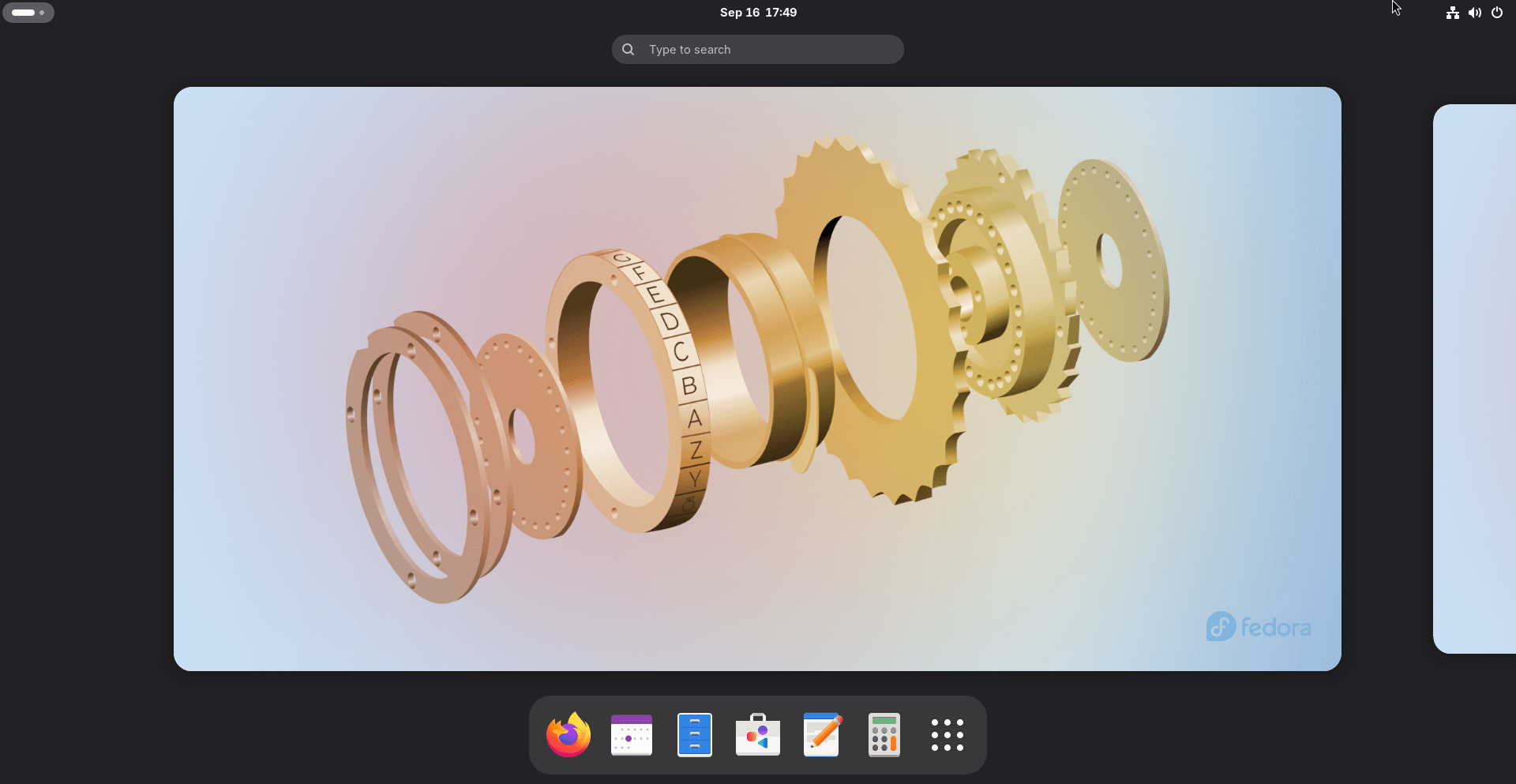
You can download the new Fedora 45 beta across several official editions, including Workstation, KDE Plasma, Server, Cloud, IoT, and CoreOS. Plus, you can try desktop Spins like Xfce, LXDE, COSMIC, and i3.
However, the team left out three live images from this beta build. Specifically, you cannot get MiracleWM, Budgie-Atomic, or Sway-Atomic images yet.
Table of Contents
Key Upgrades and New System Features in Fedora 45
Fedora 45 brings major fixes to system tools and desktop security.
Powered by latest Linux Kernel 7.2, Fedora 45 beta ships with GNOME 51 under the hood.
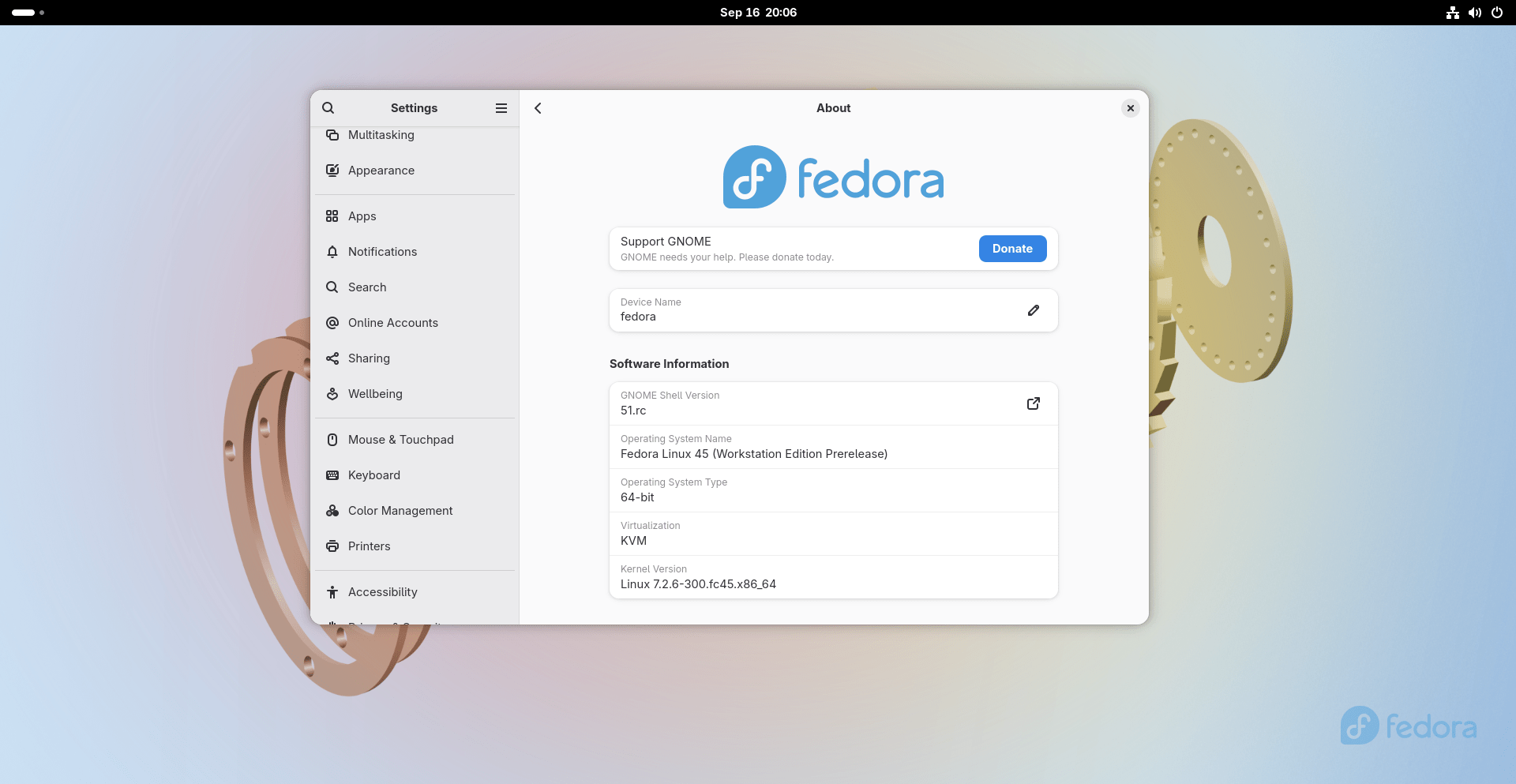
As per the Fedora 45 changeset, the new build replaces the old kernel text console with kmscon. As a result, you get smoother screen drawing, better font support, and higher system stability.
The system enforces valid RPM package signatures by default. Because of this rule, your computer stops unsigned software before it installs. Also, Fedora 45 standardizes desktop password storage with oo7. This tool replaces older backends like GNOME Keyring and KWallet.
In addition, developers get updated language runtimes and core packages. For instance, the update includes:
- Python 3.15,
- Go 1.27,
- GCC 16.2,
- and glibc 2.44.
You also get new versions of Podman 6, Pandas 3, MySQL 9.7, and MariaDB 12.3.
Furthermore, the Anaconda installer adds web interface installation flows for Atomic Desktops. It also gives you native options to format Stratis filesystems. Finally, Fedora CoreOS now enables systemd-oomd and zram swap out of the box.
Fedora Asahi Remix for Apple Silicon Macs

For Apple Mac users, Fedora Linux Asahi Remix 45 Beta is also available for testing.
The Fedora Asahi team worked with the Asahi Linux project to bring this update to Apple hardware. Most importantly, this release adds initial support for Apple M3, M3 Pro, and M3 Max chips.
In addition, all Apple Silicon Macs gain hardware video decoding for H.264 and VP9 videos. Plus, M3 Mac systems gain hardware decoding for AV1 video streams.
Please note that full 3D graphics acceleration for M3 chips is not ready yet. Instead, the team will ship performant 3D GPU drivers later in a Mesa package update.
How to Upgrade Your System Safely
You can upgrade your existing Fedora system straight from the terminal. Before you start, you must back up your files to stay safe.
First, update your current software and restart your computer:
sudo dnf upgrade --refresh
Second, download the new beta packages:
sudo dnf system-upgrade download --releasever=45
If third-party packages block the update, you can add --allowerasing to clear conflicting files.
Third, reboot your computer into the offline installer:
sudo dnf offline reboot
(Note that older DNF4 setups use sudo dnf system-upgrade reboot instead).
Also, if you upgrade a Raspberry Pi, enable systemd-timesyncd before you download the files. This clock fix prevents package signature checks from failing during the reboot.
If you run Fedora Asahi Remix on a Mac, you must use the command line to upgrade. Graphical apps like GNOME Software cannot process the Asahi upgrade.
Download Fedora 45 Beta
You can download the Fedora 45 Beta directly from official Fedora Project portals across several edition-specific download pages:
Main Editions and Variants
- Fedora Workstation 45 Beta: fedoraproject.org/workstation/download/beta
- Fedora KDE Plasma Desktop 45 Beta: fedoraproject.org/kde/download/beta
- Fedora Server 45 Beta: fedoraproject.org/server/download/beta
- Fedora Cloud 45 Beta: fedoraproject.org/cloud/download/beta
- Fedora IoT 45 Beta: fedoraproject.org/iot/download/beta
- Fedora CoreOS 45 Beta: fedoraproject.org/coreos/download?stream=stable
- Desktop Spins (Xfce, LXDE, COSMIC, i3, etc.): fedoraproject.org/spins/beta
- Atomic Desktops: fedoraproject.org/atomic-desktops/beta
- Fedora Labs: fedoraproject.org/labs/beta
(Note: The MiracleWM, Budgie-Atomic, and Sway-Atomic ISOs are explicitly excluded from this Beta build).
Alternative Download Options
- BitTorrent Downloads: If HTTP mirrors run slowly or experience synchronization delays, you can download ISOs via torrent at fedoraproject.org/torrents/45_beta/.
- Apple Silicon Macs: You can install Fedora Linux Asahi Remix 45 Beta by following the official Fedora Asahi Remix installation guide.
CoreOS 45 Test Week
Community testing helps ensure a smooth final release in October 2026. For instance, the CoreOS and QA teams host a Test Week starting on 21 September 2026. You can download test images, run test cases, and log your results on the Fedora Wiki. If you find any bugs, you can report them on Fedora CoreOS issue tracker.
Verify Fedora ISO
To verify your downloaded Fedora ISO, you need to perform a two-step process: first, confirm the CHECKSUM file is authentic (so it hasn't been tampered with), and second, use that file to check the integrity of the ISO. This ensures the file you downloaded is exactly what the Fedora Project published.
On Linux (or WSL on Windows)
Linux is the most straightforward environment for this, as the required tools are usually pre-installed.
1. Verify the CHECKSUM file's GPG signature
First, download the Fedora GPG keys and the *-CHECKSUM file for your specific ISO into the same directory. Then, run these commands:
# Import the Fedora GPG keys
curl -O https://fedoraproject.org/fedora.gpg

# Verify the CHECKSUM file's signature
gpgv --keyring ./fedora.gpg *-CHECKSUM
You should see output stating Good signature from "Fedora ...".
Sample Output (tested against Fedora 45 Beta ISO):
gpgv: Signature made Friday 11 September 2026 07:13:24 PM IST
gpgv:                using RSA key 4F50A6114CD5C6976A7F1179655A4B02F577861E
gpgv: Good signature from "Fedora (45) <fedora-45-primary@fedoraproject.org>"
2. Verify the ISO's checksum
Once the CHECKSUM file is verified, use it to check the ISO:
sha256sum -c *-CHECKSUM --ignore-missing
If the ISO is valid, you will see a line ending in OK.
Fedora-Workstation-Live-45_Beta-1.3.x86_64.iso: OK
sha256sum: WARNING: 17 lines are improperly formatted
On Windows
Windows doesn't have sha256sum natively, but you can use PowerShell.
1. Verify the CHECKSUM file (GPG)
You will need a GPG tool like Gpg4win. After installing it, you can use the same commands as in the Linux section within a terminal (like PowerShell or Git Bash) to verify the *-CHECKSUM file's signature.
2. Verify the ISO's checksum (PowerShell)
Open PowerShell and run the following command, replacing the path with the actual location of your ISO file:
Get-FileHash C:\Downloads\Fedora-Workstation-Live-x86_64-41-1.4.iso -Algorithm SHA256 | Format-List
This will output a hash value. You then need to manually compare this output with the corresponding SHA256 hash listed inside the *-CHECKSUM file you downloaded.
On macOS
macOS is Unix-based, so it has similar tools, though the command names differ slightly.
1. Verify the CHECKSUM file (GPG)
You can use a tool like GPG Suite or install gnupg via Homebrew. Use the same gpgv command as shown in the Linux section to verify the *-CHECKSUM file.
2. Verify the ISO's checksum
macOS does not have sha256sum; the equivalent is shasum. To verify the file, run:
shasum -a 256 -c *-CHECKSUM
This should verify the ISO and report OK if it is valid. If you encounter formatting issues, you can also run shasum -a 256 your-downloaded-file.iso and manually compare the output to the hash in the CHECKSUM file.
A Simpler Alternative: Fedora Media Writer
If you use Fedora Media Writer to download your ISO, it handles the verification process automatically for you. It checks the SHA256 and MD5 hashes during the download, saving you from running manual commands.
Important Note: Always verify the CHECKSUM file's signature before using it to check the ISO. Skipping this step means you could be comparing the ISO against a checksum that an attacker has also tampered with, defeating the purpose of the verification.
