
Paint.NET, a popular image editor for Windows, can now run on Linux in a very early experimental setup.
Paint.NET has been a Windows application since 2004. For many years, running it on Linux through Wine was difficult because Paint.NET depends heavily on Windows graphics technologies, especially Direct2D.
Wine does have some Direct2D support, but it was not complete enough for Paint.NET to work properly.
To solve this problem, Paint.NET creator Rick Brewster took an unusual approach. Instead of spending years building the missing technology by hand, he used Claude AI coding assistant to help create a new implementation of Direct2D specifically for Paint.NET.
According to Brewster, Claude helped produce about 180,000 lines of code in roughly three weeks.
The result is not a native Linux version of Paint.NET. It is still the Windows application running through Wine, but with a new graphics implementation designed to work around Wine's limitations.
Table of Contents
Using Claude AI to Develop Software
Brewster describes much of this development process as "vibe coding."
In simple terms, this means he did not manually inspect every line of the large amount of AI-generated code. Instead, he relied heavily on compiling the software, running tests, checking the results, finding problems, and asking the AI to fix or improve the code.
However, this does not mean that the developer simply told the AI to write the program and did nothing else.
Brewster tested the implementation, investigated problems, compared results, and corrected important mistakes. The AI-generated code also went through many rounds of testing and improvement.
The unusual part is the scale: a very large graphics component was produced in a short time with substantial help from an AI coding agent.
Community Reaction
There are three important reasons this experiment has attracted attention.
1. Paint.NET on Linux fills a useful middle ground
Linux already has powerful image editors such as GIMP and Krita. However, some users find these applications more complicated than they need.
At the other end, there are very simple paint programs.
Paint.NET sits somewhere between these two groups. It provides familiar tools such as layers, transparency, selections, effects, and simple drawing features without trying to be a complete professional graphics suite.
For some Linux users, that makes Paint.NET an attractive alternative.
2. AI may change what one developer can build
The experiment shows how an AI coding assistant can help a single developer tackle a technically difficult problem.
Implementing a large graphics API is normally a major engineering project. Here, an AI assistant was used to generate a large amount of code and to help with testing and debugging.
This does not prove that AI can replace an engineering team. It does show that AI-assisted development can potentially allow a small team—or even one developer—to attempt projects that would previously have required much more engineering time.
3. It raises an unusual legal and technical question
The project has also led to discussion about clean-room development and AI-generated code.
Wine has traditionally followed strict rules about how Windows compatibility code is developed. Code derived from Microsoft's proprietary implementations or from reverse engineering can create problems for the project.
AI introduces a new question: Can code generated by an AI model be considered clean-room code if nobody can completely verify what material the model was trained on?
Some Wine developers have discussed this issue.
However, it is important not to overstate the situation. There is currently no evidence that Claude copied Microsoft's source code for this project. The concern is about the unknown provenance of AI-generated code and whether such code meets Wine's development requirements.
So this is a genuine technical and legal question, not proof that the Paint.NET project has violated Microsoft's copyrights.
Four Things to Know Before Trying Paint.NET on Linux
If you want to experiment with Paint.NET on Linux, there are several important limitations.
1. Expect it to be slow and unstable
This is an extremely early experiment.
It is not intended for normal daily use and is not officially supported as a stable Linux release.
Brewster has described the current situation with the humorous phrase:
"It doesn't not work."
In other words, Paint.NET can run, but many things can still go wrong.
Wine also still has missing or incomplete Windows features that Paint.NET expects. The new graphics implementation itself has not yet had the long-term testing that a mature production graphics engine would normally receive.
2. Use the portable version
The normal Paint.NET Windows installer does not work correctly in this experimental Wine setup.
You should use the portable version of Paint.NET 5.2 Alpha instead.
The official experimental instructions also require Wine 11.14 or newer.
3. You need additional graphics configuration
The experiment uses DXVK, which translates Direct3D graphics commands into Vulkan commands.
You also need a native d3dcompiler_47 library rather than Wine's built-in version.
The setup instructions use:
winetricks d3dcompiler_47 dxvk
Your graphics driver must also support the version of Vulkan required by your chosen DXVK version.
In particular, DXVK 3.x requires Vulkan 1.4, while older DXVK 2.7.x releases work with Vulkan 1.3.
Therefore, if your system only supports Vulkan 1.3, you may need to use an older DXVK release such as 2.7.1.
4. You must start Paint.NET with /wine
You cannot simply start the program normally.
The experimental build needs to be launched with the /wine command-line option:
wine PaintDotNet.exe /wine
This tells Paint.NET that it is running under Wine and activates special compatibility behavior.
Among other things, this allows the program to avoid Windows desktop features that do not work correctly under Wine and to use the new graphics implementation.
Installing Paint.NET 5.2 Alpha on Ubuntu 26.04
The experimental setup has been successfully tested on Ubuntu 26.04 LTS Desktop using:
- Ubuntu 26.04 LTS desktop 64-bit version
- Wine 11.16 Staging
- A dedicated Wine prefix
- Winetricks
- DXVK
- Native
d3dcompiler_47 - Paint.NET 5.200.9739.41506 Alpha
- Portable x64 build
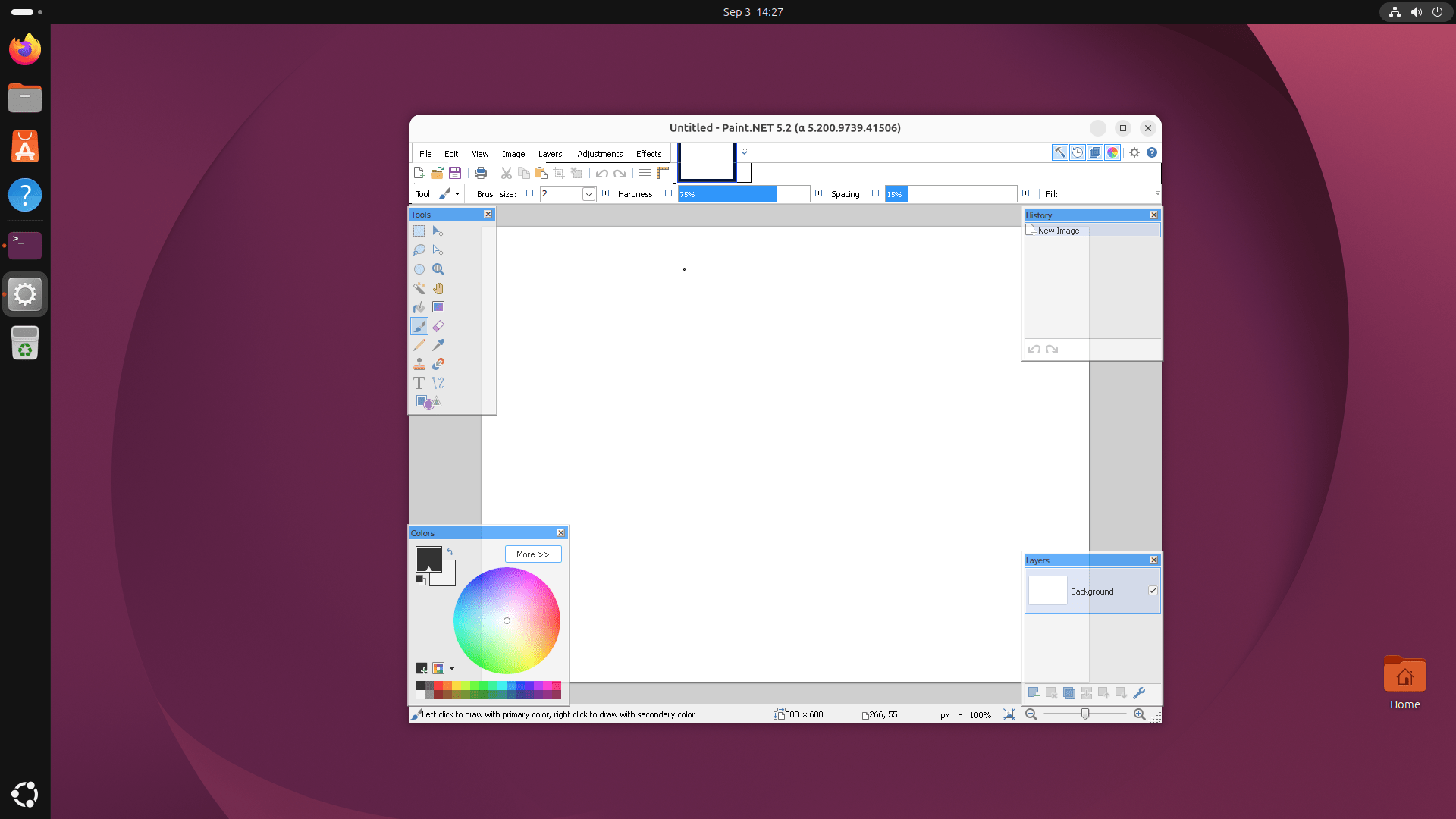
The application successfully launched and displayed the Paint.NET graphical interface.
This confirms that the experimental Paint.NET/Wine implementation can run on a current Ubuntu LTS release.
If you want to test Paint.NET yourself in Ubuntu, follow the steps below.
Step 1: Enable 32-bit package support
Open a terminal and run:
sudo dpkg --add-architecture i386
sudo apt update
Step 2: Install WineHQ prerequisites
sudo apt install wget gnupg2 software-properties-common
Step 3: Add the WineHQ repository
Create the keyring directory:
sudo mkdir -pm755 /etc/apt/keyrings
Download and install the WineHQ signing key:
wget -qO- https://dl.winehq.org/wine-builds/winehq.key \
  | gpg --dearmor \
  | sudo tee /etc/apt/keyrings/winehq-archive.key > /dev/null
Add the Ubuntu 26.04 resolute WineHQ repository:
sudo wget -NP /etc/apt/sources.list.d/ \
  https://dl.winehq.org/wine-builds/ubuntu/dists/resolute/winehq-resolute.sources
Update the package lists:
sudo apt update
Step 4: Install Wine Staging
Ubuntu's default Wine package is too old for Paint.NET's experimental Linux support. Ubuntu 26.04 currently provides Wine 10.0 in its standard repositories, while Paint.NET 5.2 Alpha requires Wine 11.14 or newer. Therefore, we use WineHQ Staging version, which provides a sufficiently recent Wine build.
Install Wine Staging:
sudo apt install --install-recommends winehq-staging
Check the installed version:
wine --version
The tested installation reported:
wine-11.16 (Staging)
The important requirement for this Paint.NET experiment is Wine 11.14 or newer.
Step 5: Create a dedicated Wine prefix
It is recommended to keep Paint.NET in its own Wine environment rather than mixing it with other Windows applications.
Run:
export WINEPREFIX="$HOME/.wine-paintnet"
export WINEARCH=win64
wineboot -u
Then initialize the Wine configuration:
winecfg
If the Wine configuration window opens successfully, you're good to go. Close the configuration window and continue the steps below.
Important:
When opening a new terminal later, remember to set the prefix again:
export WINEPREFIX="$HOME/.wine-paintnet"
WINEARCH=win64 is needed when creating the prefix; it does not normally need to be specified again afterward.
Step 6: Install Winetricks
Check whether Winetricks is already installed:
winetricks --version
If it is not installed:
sudo apt install winetricks
The tested system used Winetricks version:
20250102
Step 7: Install DXVK and d3dcompiler_47
Make sure the dedicated Paint.NET prefix is selected:
export WINEPREFIX="$HOME/.wine-paintnet"
Then run:
winetricks d3dcompiler_47 dxvk
Allow Winetricks to complete the installation.
Step 8: Verify the DLL overrides
Run:
wine reg query "HKCU\Software\Wine\DllOverrides"
The relevant entries should show native.
The tested configuration contained:
*d3d10core          REG_SZ    native
*d3d11              REG_SZ    native
*d3d8               REG_SZ    native
*d3d9               REG_SZ    native
*d3dcompiler_47     REG_SZ    native
*dxgi               REG_SZ    native
In particular, make sure this is present:
*d3dcompiler_47 REG_SZ native
If these overrides are missing, do not proceed to troubleshooting Paint.NET yet. Fix the Wine/DXVK configuration first.
Step 9: Check Vulkan
Install the Vulkan diagnostic tools:
sudo apt install vulkan-tools
Then run:
vulkaninfo --summary
You need working Vulkan support for DXVK.
The exact Vulkan device will depend on your hardware and graphics configuration.
For example, a system may report a physical GPU such as an Intel, AMD, or NVIDIA device.
Software Vulkan implementations such as llvmpipe can also provide Vulkan, but performance may be substantially worse because rendering is performed by the CPU.
Step 10: Download Paint.NET 5.2 Alpha
Download the portable x64 version of Paint.NET 5.2 Alpha from the Paint.NET GitHub releases page.
Do not use the normal Windows installer.
The tested build was: paint.net.5.200.9739.41506.portable.x64.zip.
Create a directory for Paint.NET:
mkdir -p ~/PaintDotNet
Download the ZIP file there.
cd ~/PaintDotNet
wget https://github.com/paintdotnet/release/releases/download/v5.2-alpha.5.200.9739.41506/paint.net.5.200.9739.41506.portable.x64.zip
Then extract it:
unzip paint.net.5.200.9739.41506.portable.x64.zip
If unzip is not installed:
sudo apt install unzip
After extraction, the directory containing the application should contain:
paintdotnet.exe
along with the Paint.NET DLLs and other runtime files.
Step 11: Launch Paint.NET
Make sure the dedicated Wine prefix is selected:
export WINEPREFIX="$HOME/.wine-paintnet"
Make sure you're still in the Paint.NET directory. If not, cd into it:
cd ~/PaintDotNet
Launch the Paint.NET application using command:
wine paintdotnet.exe /wine
The /wine parameter is important. It activates Paint.NET's experimental Wine/Linux compatibility mode.
If everything is configured correctly, the Paint.NET GUI should open.
Here's Paint.NET running in Ubuntu 26.04 LTS desktop:
Step 12: Convenient launch command
Once everything is working, you don't need to change directories first.
You can launch Paint.NET from anywhere with:
WINEPREFIX="$HOME/.wine-paintnet" \
wine "$HOME/PaintDotNet/paintdotnet.exe" /wine
This is the recommended command to keep for future use.
Troubleshooting
If Paint.NET does not start, check the following in order.
Check Wine
wine --version
You should have 11.14 or newer for this experiment.
Check the Wine prefix
echo "$WINEPREFIX"
It should point to:
/home/YOUR_USERNAME/.wine-paintnet
If it is empty or incorrect:
export WINEPREFIX="$HOME/.wine-paintnet"
Check DXVK and DLL overrides
wine reg query "HKCU\Software\Wine\DllOverrides"
Make sure d3dcompiler_47 is set to native, along with the relevant DXVK overrides.
Check Vulkan
vulkaninfo --summary
If Vulkan is unavailable, DXVK cannot function correctly.
Check the Paint.NET executable
ls ~/PaintDotNet/paintdotnet.exe
Check the launch command
Use:
WINEPREFIX="$HOME/.wine-paintnet" \
wine "$HOME/PaintDotNet/paintdotnet.exe" /wine
Do not omit /wine.
What the /wine Mode Actually Does
The /wine option is more than a simple compatibility flag.
According to the Paint.NET developer, this mode disables several Windows-specific features that are not appropriate or functional under Wine, including:
- UIAnimation
- Composition
- Windows 11
DisplayInformation
It also activates Paint.NET's internal Direct2D implementation contained in:
PaintDotNet.Windows.Direct2D1.Managed.dll
This is the graphics technology that makes the experiment possible without requiring Wine to provide all of the Direct2D functionality Paint.NET normally expects.
Performance Expectations
Performance will depend heavily on the graphics configuration of the Linux system.
A system with proper GPU-accelerated Vulkan should provide a much better experience than one relying on software rendering.
If vulkaninfo --summary reports:
llvmpipe
then Vulkan rendering is being performed by the CPU.
Paint.NET may still start and function, but you can expect slower performance, particularly with:
- Large images
- Zooming
- Canvas operations
- GPU-intensive effects
- Complex selections or transformations
This should not be confused with a Paint.NET compatibility failure. The application can successfully run even when Vulkan acceleration is limited.
Conclusion
This experiment is interesting for a reason that goes beyond Paint.NET.
For many years, some Windows applications were difficult or impossible to run correctly on Linux because they depended on Windows components that Wine did not fully implement.
Usually, solving such a problem meant that Wine developers had to spend a great deal of time recreating the missing Windows technology.
The Paint.NET experiment takes a different approach.
Instead of waiting for Wine to implement everything that Paint.NET needs, the developer used an AI coding assistant to create a separate implementation specifically for Paint.NET.
It is still experimental, and there are many unanswered questions about performance, reliability, maintainability, and the use of AI-generated code.
But the experiment demonstrates something important:
AI coding tools are becoming capable of helping developers build surprisingly large and technically complex software components in a very short period of time.
Whether this approach will produce reliable software at scale is still an open question.
For now, Paint.NET on Linux should be viewed not as a finished Linux release, but as a fascinating experiment in AI-assisted software development, Windows compatibility, and the future of open-source engineering.
Paint.NET Installation on Ubuntu Linux: Quick Reference
For someone who has already installed Ubuntu 26.04 and simply wants the complete command sequence:
# Enable 32-bit packages
sudo dpkg --add-architecture i386
sudo apt update

# WineHQ prerequisites
sudo apt install wget gnupg2 software-properties-common

# WineHQ signing key
sudo mkdir -pm755 /etc/apt/keyrings

wget -qO- https://dl.winehq.org/wine-builds/winehq.key \
  | gpg --dearmor \
  | sudo tee /etc/apt/keyrings/winehq-archive.key > /dev/null

# WineHQ repository for Ubuntu 26.04
sudo wget -NP /etc/apt/sources.list.d/ \
  https://dl.winehq.org/wine-builds/ubuntu/dists/resolute/winehq-resolute.sources

sudo apt update

# Install Wine Staging
sudo apt install --install-recommends winehq-staging

# Verify Wine
wine --version

# Create dedicated 64-bit Wine prefix
export WINEPREFIX="$HOME/.wine-paintnet"
export WINEARCH=win64
wineboot -u

# Install Wine configuration
winecfg

# Install Winetricks
sudo apt install winetricks

# Install required graphics components
export WINEPREFIX="$HOME/.wine-paintnet"
winetricks d3dcompiler_47 dxvk

# Verify DLL overrides
wine reg query "HKCU\Software\Wine\DllOverrides"

# Optional Vulkan diagnostic
sudo apt install vulkan-tools
vulkaninfo --summary

# Create Paint.NET directory
mkdir -p ~/PaintDotNet

# Extract the downloaded Paint.NET 5.2 Alpha portable ZIP
cd ~/PaintDotNet
unzip paint.net.5.200.9739.41506.portable.x64.zip

# Launch Paint.NET
WINEPREFIX="$HOME/.wine-paintnet" \
wine "$HOME/PaintDotNet/paintdotnet.exe" /wine
Resource:
