
Table of Contents
Quick Summary
- Ubuntu reads a hardware "barcode" (a modalias string) from every device on your machine, and matches it against patterns baked into available packages. If there's a match, it installs a single tiny stub package that unlocks the right kernel and drivers for your hardware, all during installation, without you touching anything.
- The OEM metapackage does almost nothing by itself. Its entire job is to drop one APT source file and pull in a signing key. The actual drivers and kernel come from the repository that file enables. It is a key, not a payload.
- Ubuntu actually has three separate kernel tracks: GA (stable, ships with the LTS, 5 years of support), HWE (newer kernels backported from interim releases, rolling roughly every 6 months), and OEM (built for specific certified hardware). Being on one doesn't mean you're on another, you can check with
ubuntu-drivers list-oemandhwe-support-status. - The OEM kernel isn't locked to or owned by hardware vendors like Dell, Lenovo, or HP. It's published in the regular Ubuntu archive and built by Canonical's HWE team, with vendors contributing patches and requirements rather than controlling the kernel itself. Anyone can install and run it, even on uncertified hardware (though there's little benefit to doing so).
Introduction
You just installed Ubuntu on a certified laptop. Within seconds of the first boot, your fan controls work, your function keys respond, and the right kernel is already running. You did not install a single driver manually. So what just happened?
The Ubuntu installer figured out your hardware and silently took care of everything. This article explains exactly how, from the first hardware scan to the final reboot. Whether you are a desktop user who is simply curious, or a sysadmin who needs to control this behavior in an automated deployment, everything you need is here.
1. The Problem Ubuntu Is Solving for You
Not every machine runs perfectly on a generic Ubuntu install. Hardware makers like Dell, Lenovo, and HP often ship laptops and servers with components that need a little extra care: a custom kernel tweak, a firmware file, or a driver that is not part of the standard Ubuntu package set.
Without the right software, you might end up with broken suspend and resume, a fan that never spins up, or a GPU that runs at half speed. Canonical's answer is a detection system built into the Ubuntu installer, called Subiquity, that identifies your hardware during setup and automatically installs the best kernel and driver package for your machine.
1.1. What is Subiquity?
Subiquity, aka "ubiquity for servers", is the installer framework behind Ubuntu Server, and has been since Ubuntu 20.04. It also provides the first-boot configuration for Ubuntu Core. Starting with Ubuntu 23.04, Subiquity also became the backend for the Ubuntu Desktop installer, replacing the older Ubiquity (GTK/Qt) installer.
You can spot it by its clean text-based UI during server installs and its graphical interface on desktop. Both share the same backend logic for OEM and HWE detection.
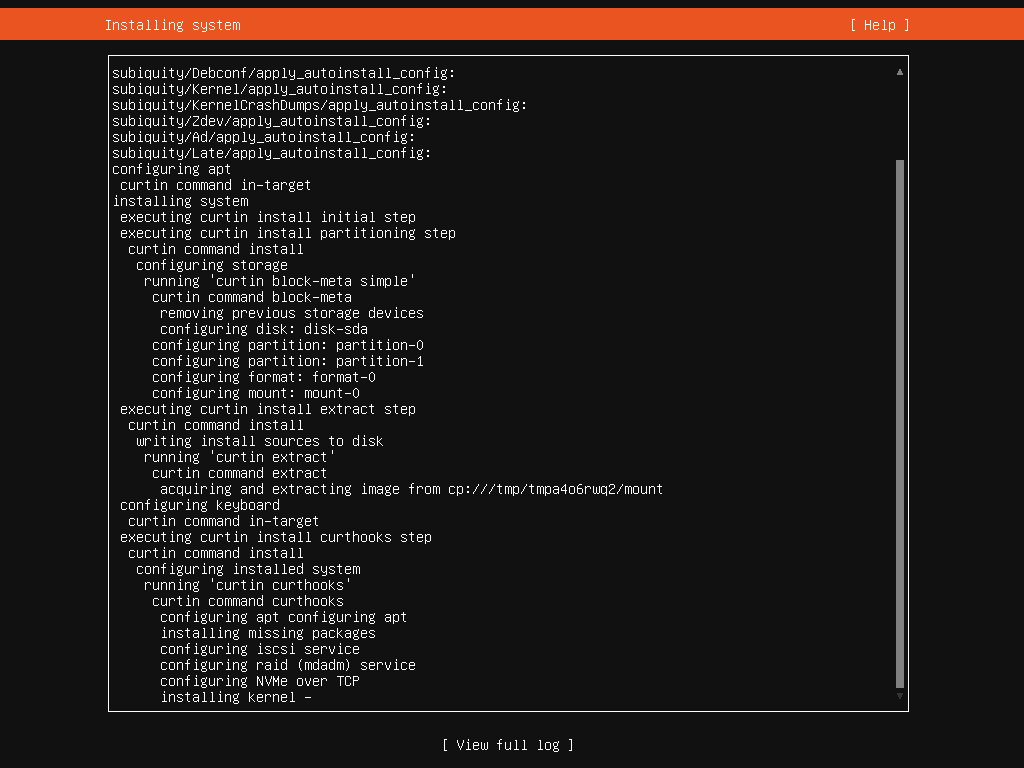
If you're wondering, here's how Subiquity (Ubuntu installer) looks like:
2. GA, HWE, and OEM: Three Kernels, Three Jobs
Before diving into how detection works, you need to understand the three kernel tracks Ubuntu offers. Many guides skip this explanation, and that makes the rest confusing.
2.1. GA kernel (General Availability)
This is the kernel that ships with an Ubuntu LTS release on day one. It is stable, well-tested, and receives security updates for the standard 5-year LTS support window. Ubuntu Server defaults to the GA kernel. For most production servers with older or common hardware, the GA kernel is exactly what you want.
You can, of course, extend the support up-to 15 years by enabling Ubuntu Pro. More details in the link below:
2.2. HWE kernel (Hardware Enablement)
Ubuntu releases a new interim version every six months (e.g., 26.10, 27.04). Each of these ships with a newer kernel.
The HWE stack backports those newer kernels onto the LTS release. So if you are on Ubuntu 26.04 LTS but need a kernel from Ubuntu 26.10 to support a brand-new Wi-Fi chip, the HWE stack delivers it.
Ubuntu Desktop tracks the HWE stack by default. Each non-final HWE kernel typically receives roughly 6 months of security updates before the system rolls forward to the next one.
The exception is the final HWE kernel in each LTS cycle: that kernel becomes the GA kernel of the next LTS release and receives the full 5-year LTS support window from that point on.
2.3. OEM kernel
This is the most specific of the three. Canonical's Hardware Enablement team builds and maintains OEM kernels in close collaboration with hardware vendors like Dell and Lenovo.
An OEM kernel often includes device drivers and patches that are not yet accepted into the upstream Linux kernel or the generic Ubuntu kernel, for example a new Intel graphics driver or a Realtek card reader fix.
Think of it as a staging area: patches that land in the OEM kernel today tend to graduate into the generic Ubuntu kernel in a future release.
| Kernel | Who gets it | Support window | Default on |
|---|---|---|---|
| GA | Everyone | 5 years | Ubuntu Server |
| HWE | Desktop users, opt-in on Server | ~6 months rolling per kernel; final HWE = full LTS lifetime | Ubuntu Desktop |
| OEM | Certified hardware only | Maintained by Canonical's HWE team (typically shorter than GA) | Certified laptops & servers |
Key point: If
ubuntu-drivers list-oemreturns a result on your machine, you are on the OEM track, not the HWE track. Both are separate. Running one does not mean you are running the other.
3. Hardware Fingerprints: What a Modalias Is
To match your hardware with the right driver package, the system needs a way to identify every device inside your machine. Linux solves this with something called a modalias.
Think of it as a barcode that each hardware device broadcasts. The Linux kernel reads these barcodes from the hardware and stores them in a special folder called /sys. You can read them yourself:
$ cat /sys/devices/pci0000:00/0000:00:1b.0/modalias
pci:v00008086d00003B56sv000017AAsd0000215Ebc04sc03i00
That long string follows a clear structure. It encodes the vendor ID, the device ID, the subsystem vendor, the subsystem device ID, and the device class. In plain terms, it tells the system something like: "This is an Intel audio chip inside a Lenovo laptop."
Now, driver packages that are not part of the default Ubuntu install carry a field in their debian/control file called XB-Modaliases, generated by the dh_modaliases tool. Once the package is built, this becomes a Modaliases header in the package's metadata, containing a list of glob patterns (think of them as wildcards) that match one or more modalias strings.
So the detection process is a fast pattern match: your hardware's fingerprints versus the fingerprints baked into available packages.
How OEM Packages Handle the Match Differently
Modalias matching works great for general drivers like Nvidia GPU packages. But OEM metapackages need to be even more precise. You want to match an entire laptop model, not just one chip inside it. So two approaches exist:
| Manufacturer | Detection Method | How It Works |
|---|---|---|
| Dell & HP | PCI / SMBus | Matches by PCI vendor and subsystem ID via the System Management Bus. This avoids false matches from add-on cards that happen to share a subsystem ID with the platform hardware. |
| Lenovo | DMI Strings | Matches against DMI strings embedded in the system firmware, specifically the BIOS vendor name, the BIOS version ID, and the product name reported by the motherboard. |
Both methods ultimately produce a modalias string. Dell and HP packages use a pattern like pci:...bc0Csc05... (targeting the SMBus class), while Lenovo packages use a pattern like dmi:*bvnLENOVO:bvr...:pvr...*. Either way, the matching engine works the same way underneath.
4. The Tool Behind the Magic: ubuntu-drivers
Subiquity does not build this detection logic itself. Instead, it calls a separate tool called ubuntu-drivers, which comes from the ubuntu-drivers-common package. This tool has one primary job: look at your hardware and find the right packages for it.
The core detection function lives in the UbuntuDrivers.detect Python module. Importantly, it only needs the python-apt library to work. It does not require root privileges or D-Bus calls, which makes it fast and safe to run during installation.
# Example: how ubuntu-drivers queries packages for a given modalias
import apt
from UbuntuDrivers import detect

apt_cache = apt.Cache()
packages = detect.packages_for_modalias(
    apt_cache,
    "pci:v000010DEd00002684sv000019DAsd00004675bc03sc00i00"
)
# Returns matching driver packages, e.g. nvidia-driver-550
What About Hardware That Does Not Use Modaliases?
Some drivers simply cannot use modalias matching. For example, a modem driver might need to check /proc/asound/cards to know whether it applies to your system.
For these special cases, ubuntu-drivers supports detection plugins: small Python scripts that live at /usr/share/ubuntu-drivers-common/detect/. Each plugin exports a single detect(apt_cache) function that can run any custom logic and then return a list of matching packages.
Note: Detection plugins also cannot rely on root privileges. Canonical designed the entire detection stack to run safely in a restricted environment, such as inside the Subiquity snap during installation.
5. What an OEM Metapackage Actually Does
The word "metapackage" might sound intimidating, but the idea is simple. An OEM metapackage is almost empty by itself. It does not ship kernel files, firmware blobs, or documentation. Instead, it does three specific things when you install it:
Step 1: Drops a new APT source file
It installs a .list file into /etc/apt/sources.list.d/ that points to Canonical's OEM archive. This unlocks access to packages that are not part of the standard Ubuntu repository.
Step 2: Installs the OEM signing key
It also depends on the ubuntu-oem-keyring package, so your system trusts packages from that OEM archive. Without the key, APT would reject those packages as untrusted.
Step 3: Pulls in real hardware support
From the newly enabled OEM archive, it pulls in the actual kernel, firmware, and driver packages your hardware needs. For example, a package named in the pattern oem-somerville-<codename>-meta (Canonical and Dell's internal naming scheme for their OEM project, where <codename> is an internal device codename rather than a retail model number) pulls in everything needed for a specific certified Dell platform.
Which Kernel an OEM Package Pulls In
OEM metapackages can also influence which kernel your system boots. In practice, an OEM metapackage's dependencies can point either at an OEM-specific kernel package or at the standard generic/HWE kernel, depending on how that particular platform's support was built. Most certified hardware ends up on the OEM-specific kernel, since that is where the platform-specific patches live.
Note: An OEM metapackage is not a driver, it is a key that unlocks a whole archive of hardware support, then hands the installation off to the packages inside that archive.
Is the OEM Kernel Locked to Specific Vendors?
No. Despite its name, the OEM kernel is not a private, vendor-only resource. Canonical publishes it in the Ubuntu archive, and anyone can install and use it on their device.
It simply gets its name from the fact that Canonical builds it in close collaboration with hardware partners. The patches inside it target specific hardware, but nothing prevents you from running it on any compatible machine.
6. What Changed in Ubuntu 26.04
Before Ubuntu 26.04, OEM and HWE metapackage auto-detection was, by default, a Desktop-focused feature.
If you installed Ubuntu Server on certified hardware, the installer's default behavior did not pull in the matching OEM or HWE metapackage. You had to add it yourself after the fact, an easy step to miss during a rushed deployment.
The Subiquity 26.04 release notes describe a change here: starting with the Ubuntu 26.04 Server ISO, if the installer finds a matching OEM or HWE metapackage for your hardware, it is installed automatically during the Server installation too, bringing Server closer in line with the long-standing Desktop behavior.
There is a subtlety worth knowing about if you write autoinstall configs. As of this writing, the Subiquity autoinstall reference documentation still describes the oem.install key's auto default as enabling OEM metapackage installation "on Ubuntu Desktop but not on Ubuntu Server."
In other words, the change described in the 26.04 release notes appears to live at the level of what the Server installation image does by default, rather than as a documented change to the oem.install: auto schema default itself.
If you are building automated Server deployments and want to be certain an OEM metapackage gets installed when one is available, the safest approach is still to set oem: install: true explicitly in your autoinstall configuration. Also, check the current documentation for your specific release before relying on the default behavior.
This matters especially for server hardware. Canonical certifies many rack servers, workstations, and dense compute nodes from major vendors. Without the OEM metapackage, you might miss out on firmware updates, power management tuning, or support for hardware management interfaces like IPMI or Redfish.
Under the hood:
The oem: install autoinstall option accepts three values: true, false, and auto. The documented default is auto.
Whatever the exact default behavior turns out to be on your installed release, the key name and the three accepted values (true / false / auto) are stable and documented, so explicitly setting oem: install: true or oem: install: false is a reliable way to get a predictable result.
7. The Full Flow, Step by Step
Now let's put it all together. Here is exactly what happens when you install Ubuntu on a supported machine, from the moment the installer starts to the moment you reboot.
Step 1 - Subiquity calls ubuntu-drivers
Early in the installation, the OEM controller inside Subiquity calls ubuntu-drivers list-oem. This command scans every device on your system and collects its modalias string from /sys.
Step 2 - ubuntu-drivers searches the APT cache
Next, it compares your hardware's modalias strings against the Modaliases headers in every package the installer can see. For OEM packages, it also checks DMI strings for Lenovo hardware and PCI subsystem IDs for Dell and HP.
Step 3 - A match returns a package name
If a matching OEM package exists, for example an oem-somerville-<codename>-meta package for a certified Dell laptop, then ubuntu-drivers returns it. Subiquity queues that package for installation alongside the base system.
Step 4 - The metapackage is installed
During the package installation phase, Subiquity installs the OEM metapackage. This drops the APT source file, pulls in the keyring dependency, and triggers a pull from the OEM archive.
Step 5 - You reboot into the right kernel Finally, the system reboots. Because the appropriate kernel package was installed during setup, you boot directly into the kernel suited to your hardware. No manual steps, no follow-up commands.
Watch out, kernel conflicts: If you also specify a kernel manually in your autoinstall config using the
kernel:key, you may run into a conflict. The OEM metapackage might require its own kernel package, and that can clash with your explicit kernel choice. The same kind of conflict can arise if you enable a FIPS or real-time kernel after installation, since the OEM kernel's GRUB configuration entry can take priority in the boot order. To avoid this, either remove thekernel:key or setoem: install: falsein your autoinstall config.
8. How to Check If Your Ubuntu Linux Machine Got an OEM Package
After installation, you can verify whether your machine is running an OEM kernel or tracking the HWE stack. Here is a practical two-step check:
# Step 1: List any OEM metapackages on your system
$ ubuntu-drivers list-oem

# If this returns output, you are on the OEM track.
# If it returns nothing, your machine is on the GA or HWE track instead.

# Step 2: Confirm which kernel flavour you are running
$ uname -r
# OEM kernel example:  7.0.0-22-oem    <- note the -oem suffix
# GA / HWE example:    7.0.0-22-generic  <- both show -generic

# Step 3: Distinguish GA from HWE (both report -generic in uname -r)
$ hwe-support-status --verbose
# Output tells you whether the running kernel is a GA or HWE kernel
# and whether it is still within its support window.

# Alternative: check which HWE metapackage is installed
$ dpkg -l 'linux-generic-hwe-*' | grep ^ii
# A result here confirms you are on the HWE stack.
# No result means you are on the GA kernel.
The OEM kernel shows -oem in its version string, which makes it easy to spot.
The HWE and GA kernels both show -generic in uname -r, which means you cannot tell them apart by the version string alone.
So, the reliable way to distinguish them is to run hwe-support-status --verbose, which reports which track the running kernel belongs to and whether it is still supported.
If ubuntu-drivers list-oem returns a non-empty result, the machine is on the OEM cadence rather than the HWE track.
Tip: Canonical advises against manually switching kernel flavours on certified hardware. Changing from an OEM kernel to the GA kernel can cause regressions in performance, hardware support, and certified features.
9. How to Control This Behavior
Most of the time, you want the installer to handle everything automatically. But sometimes, for example in a compliance-constrained enterprise environment where you pin a specific kernel, you need to turn this feature off. You can do that with a single key in your autoinstall configuration.
Disable OEM installation
# autoinstall.yaml
autoinstall:
  version: 1
  oem:
    install: false   # skip OEM metapackage installation entirely
Force OEM installation explicitly
If you want to be certain an OEM metapackage is installed when one matches your hardware, regardless of the platform's current default behavior, set install: true explicitly.
# autoinstall.yaml
autoinstall:
  version: 1
  oem:
    install: true   # explicitly request OEM metapackage installation if one is found
Leave it on automatic (the default)
If you do not include the oem: key at all, the installer uses auto. As documented, auto is intended to install an OEM metapackage when one is found on Ubuntu Desktop.
Server behavior under auto has been described differently by different Canonical sources around the Ubuntu 26.04 release, so if predictable Server behavior matters to you, set install: true or install: false explicitly rather than relying on auto.
# This is what "auto" looks like explicitly:
autoinstall:
  version: 1
  oem:
    install: auto   # default, documented as Desktop-focused
Remove the OEM setup after installation
Changed your mind after installing? You can remove the OEM metapackage and disable its APT repository at any time. The software-properties GUI and the ubuntu-drivers CLI both support this.
Removing the metapackage does not break your running system, it simply stops pulling updates from the OEM archive.
# List installed OEM packages
$ ubuntu-drivers list-oem

# Remove a specific OEM metapackage
$ sudo apt remove oem-somerville-tentacool-meta

# Disable the OEM repository via the GUI
$ software-properties-gtk
10. Key Things to Remember
- Ubuntu offers three kernel tracks: GA (stable, 5 years), HWE (newer, rolling roughly every 6 months per kernel, with the final one inheriting full LTS support), and OEM (certified hardware, maintained by Canonical's HWE team). They are separate; being on one does not mean you are on another.
- Every device on your machine exports a modalias string to
/sys. This string is the fingerprint that makes detection possible. ubuntu-driversdoes the actual matching. It compares your hardware fingerprints to theModaliasesheaders in available packages.- An OEM metapackage is a minimal stub. Its real job is to enable an APT repository and let the packages inside do the heavy lifting.
- Ubuntu 26.04 brought OEM and HWE auto-detection to Server installations in some form according to the Subiquity release notes, though the documented
oem.install: autodefault in the autoinstall reference still describes Desktop-focused behavior. If you need guaranteed behavior on Server, setoem: install: trueorfalseexplicitly. - Run
ubuntu-drivers list-oemat any time to check whether your machine is on the OEM track. - Control everything with
oem: install: true | false | autoin your autoinstall config.
11. Frequently Asked Questions (FAQ)
A: The HWE kernel backports a newer upstream Linux kernel from the latest Ubuntu interim release onto your LTS base. It targets a wide range of modern hardware, and each non-final HWE kernel is typically supported for around 6 months before the system rolls to the next one. The final HWE kernel in each LTS cycle is special: it becomes the GA kernel of the next LTS release and receives the full 5-year LTS support window.
The OEM kernel, on the other hand, targets a specific set of certified hardware platforms. Canonical builds it in partnership with vendors like Dell and Lenovo, and it often includes patches that have not yet reached the mainline kernel. If ubuntu-drivers list-oem returns a result on your machine, you are on the OEM track, not the HWE track. They are separate.
A: No. Auto-detection only fires when the installer finds a matching OEM or driver metapackage in the APT cache.
Machines that do not appear on Canonical's hardware certification list will not match any such package, and the installer will simply continue without installing one.
For those machines, standard Ubuntu drivers handle everything through the normal package system.
A: Yes, in general. OEM kernel packages are published in the Ubuntu archive and are not locked behind vendor restrictions or special installs.
The exact package name and flavour suffix vary by release and platform (the linux-oem-<release> family of packages is the general pattern), so check apt search linux-oem on your system to find the correct package name for your Ubuntu version.
That said, the OEM kernel is most useful on hardware that Canonical has certified. Running it on uncertified hardware gives you no added benefit and may introduce unexpected behavior.
A: No. The OEM kernel is a staging area. Canonical merges its patches back into the generic Ubuntu kernel in future releases. So features that your OEM kernel carries today will eventually land in the mainline generic or HWE kernel. At that point, your machine no longer needs the OEM flavour to get full hardware support.
A: Possibly. The OEM kernel's GRUB configuration entry can take priority in the boot order. If you later enable FIPS or a real-time kernel, the system may continue booting into the OEM kernel instead.
If you run a compliance-sensitive environment, set oem: install: false in your autoinstall config before installation rather than trying to untangle the conflict afterward.
A: Yes. Canonical maintains a public hardware certification database at ubuntu.com/certified.
You can search by vendor, model, and Ubuntu release to see whether a machine ships with an OEM metapackage and which Ubuntu version it is certified for.
12. Wrapping Up
The OEM and HWE detection system that Subiquity drives is a great example of Linux "just working."
Under the hood, the process is straightforward: a fast APT cache scan, a modalias pattern match, and a stub package that unlocks an entire hardware support archive. None of it is magic, it is just well-designed tooling working together.
Next time Ubuntu boots perfectly on your certified hardware right after installation, you will know exactly what went on behind the scenes: a barcode scan, a package lookup, and a very small stub package that set everything in motion.
Resources:
