
That uptime command shows 400 days. Or 800 days. Maybe even 1,200 days.
You feel proud. Your server looks like a rockstar.
But here is the truth that only production outages teach you: long uptime often hides more problems than it solves.
I have seen servers with two years of uptime fail completely after a simple reboot. The high number was not a sign of health. It was a sign that nobody had looked closely in a very long time.
So let me share a full Linux Server health checklist. Next time you see a high-uptime server, run through these 25 checks. Some are quick. Others take a minute. But together, they reveal you what's actually happening beneath the surface.
Table of Contents
Part 1: System Resources (The Basics That Lie)
These metrics look fine on the surface. But high uptime hides slow decay underneath.
1. Look at the 15-minute load average relative to your CPU count
Run the following commands:
uptime
nproc
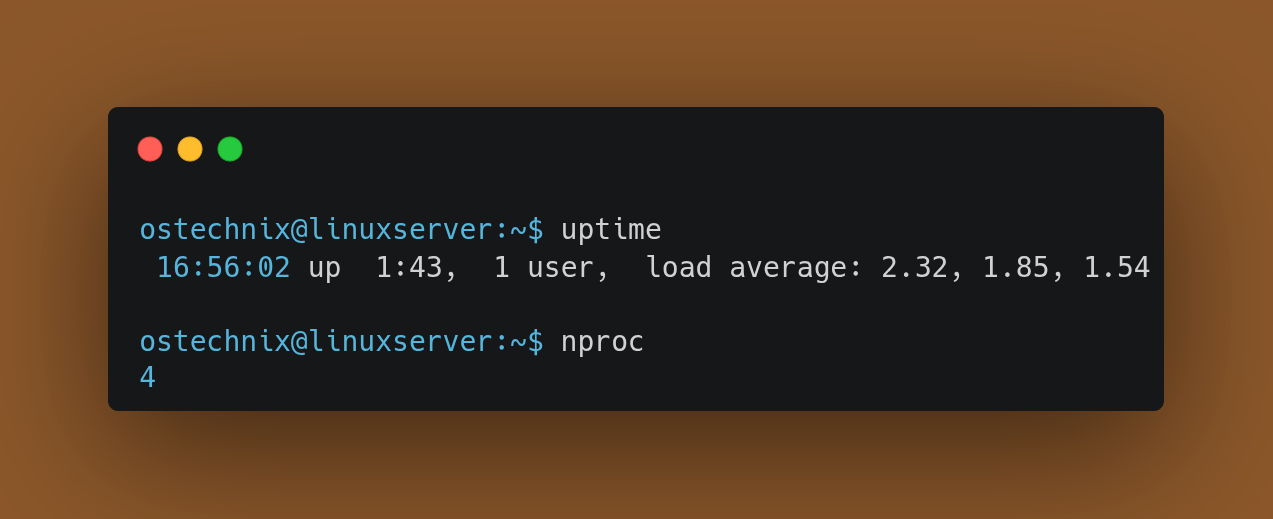
You will see three numbers: 1 minute, 5 minutes, and 15 minutes. A rising load trend is shown when the 1-minute number sits higher than the 15-minute number -- load is accumulating faster than it clears. The reverse (15-minute higher than 1-minute) actually means load is coming down from a past peak.
The real question, though, is not about comparing the three numbers to each other. It is about comparing any of those numbers to your CPU core count. If the 15-minute average consistently exceeds the number of CPUs returned by nproc, your system is saturated and work is queuing up faster than it can be processed.
What to check: If the 1-minute load is higher than the 15-minute load, load is trending upward. If any average consistently exceeds your CPU core count, you have a saturation problem. Compare all three numbers together for trend information, but always anchor them against your core count.
Related Read:
- tload Command in Linux: Monitor System Load in Real-Time
- How To Fix Slow Linux Boot Issues In Less Than 5 Minutes
2. Check available memory, not free memory
Run the following command:
free -h
Look at the available column. Ignore free.
               total        used        free      shared  buff/cache   available
Mem:            30Gi       8.7Gi        16Gi       1.2Gi       7.2Gi        22Gi
Swap:          975Mi          0B       975Mi
Available memory is what the system can actually give to new processes without swapping. If this number keeps dropping week after week, you have a slow memory leak.
What to check: Write down the available memory today. Check it again in one week. Is it lower?
3. Count the zombie processes
Run these commands:
top -bn1 | grep "zombie"
Or check the zombie count directly:
ps aux | awk '$8=="Z" {print $0}' | wc -lOr
ps -eo stat= | grep -c '^Z'
One zombie is annoying. A handful is fine. But more than ten zombies that stick around for days? That is a real problem. Each zombie holds a process table slot. Fill that table, and nothing new can run. No new SSH sessions. No new monitoring checks. Nothing.
What to check: The zombie count should be zero most of the time. A few here and there are okay. Persistent zombies are not.
Excessive zombies can eventually exhaust available process IDs or process table resources.
4. Verify inode usage, not just disk space
Run this:
df -i
Disk space gets all the attention. But inodes (the data structures that store file information) can run out even when you have plenty of space. When that happens, you cannot create new files. Logs stop writing. Services crash silently.
What to check: Look for any partition with IUse% over 85%. That is your warning sign.
udev            4041811     635  4041176    1% /dev
tmpfs           4060692    1209  4059483    1% /run
/dev/nvme0n1p2 30433280 2949390 27483890   10% /
tmpfs           4060692     434  4060258    1% /dev/shm
tmpfs           4060692      16  4060676    1% /run/lock
efivarfs              0       0        0     - /sys/firmware/efi/efivars
/dev/nvme0n1p1        0       0        0     - /boot/efi
tmpfs            812138     268   811870    1% /run/user/1000
/dev/sda1             0       0        0     - /media/ostechnix/SK_WD_SSD
/dev/fuse        262144      40   262104    1% /etc/pve
5. Check for processes stuck in uninterruptible sleep (D state)
Run this:
ps aux | awk '$8=="D" {print $0}'Processes in D state are waiting directly on hardware. They cannot be killed. Not even with -9. A few of these are normal during heavy disk I/O. But if they stick around for more than a few minutes, something is very wrong with your storage subsystem.
What to check: Zero stuck D-state processes is the goal. Persistent D-state processes often indicate storage, filesystem, or network-mounted filesystem problems.
6. Look for OOM Killer events in the logs
Run these:
sudo dmesg | grep -i -E "killed process|out of memory|oom"
journalctl -k | grep -iE "oom|out of memory|killed process"
The OOM Killer is Linux's last resort. When memory runs out completely, the kernel starts killing processes to stay alive. This is never a good sign. On a high-uptime server, you might find OOM events from months ago that you never noticed.
What to check: Any OOM Killer event means you had a memory problem. One event is a warning. Multiple events mean you have a pattern.
Part 2: Disk and Filesystem (Where Rotting Happens)
High uptime servers often rot from the filesystem outward. These checks catch that rot early.
7. Find the largest log files
Run these:
find /var/log -type f -size +100M -exec ls -lh {} \;du -sh /var/log/* | sort -hr | head -10
Log files grow forever if log rotation breaks. And log rotation breaks more often than you think. A single misconfigured cron job or a permissions change from six months ago can stop all log rotation silently.
What to check: Any single log file over 1GB needs investigation. Over 10GB is already an incident. In other words, unexpected growth, regardless of size, warrants investigation.
8. Verify logrotate is actually working
Run these:
logrotate --debug /etc/logrotate.conf 2>&1 | head -30
journalctl -u logrotate --since "30 days ago" 2>/dev/null | grep -i "error\|fail"
grep -i "logrotate" /var/log/syslog 2>/dev/null | grep -i "error\|fail" | tail -10
Log rotation can fail without anyone noticing. The cron job runs. The command exits. But permissions problems or missing directories cause silent failures. On a high-uptime server, log rotation might have been broken for years.
Note: logrotate does not write to a dedicated /var/log/logrotate.log file by default on any major distribution. Its state is tracked in /var/lib/logrotate/status and/or /var/lib/logrotate/logrotate.status. Any errors it encounters may appear in the system journal or syslog, which is where the second and third commands look.
What to check: The debug output should show each log file being processed without errors. Check /var/lib/logrotate/status and/or /var/lib/logrotate/logrotate.status, depending on the distribution to confirm recent rotation timestamps for critical log files.
Related Read:
- Understanding Linux System Logs: A Beginner’s Guide
- Why Every Linux Admin Should Monitor the /var Directory
9. Test every NFS or network mount
Run these:
mount | grep -E "nfs|nfs4|cifs"
for mount in $(mount | grep -E "nfs|nfs4|cifs" | awk '{print $3}'); do
    timeout 5 ls $mount > /dev/null 2>&1
    if [ $? -ne 0 ]; then
        echo "STALE: $mount"
    fi
done
Stale NFS mounts are insidious. The server stays up. The mount looks fine. But any process that touches that mount hangs for 60 seconds or more. High uptime servers accumulate these slowly, and each stale mount adds latency to everything that checks it.
What to check: Every network mount should respond to ls in under 2 seconds. Hangs mean stale mounts.
You can also use this command:
mount | grep -E "nfs|nfs4|cifs" | while read -r line; do
    mountpoint=$(echo "$line" | awk '{print $3}')
    timeout 5 ls "$mountpoint" >/dev/null 2>&1
done
10. Check disk I/O wait times
Run this:
iostat -x 1 5
Look at the %iowait column and the await column.
High iowait means your CPU is spending time waiting for disks. However, iowait alone can be misleading on multi-core systems -- a single I/O-bound process on a 32-core machine can saturate a disk while barely registering in iowait. Always correlate it with the per-device await value in iostat -x.
The await column shows the average time in milliseconds from when an I/O request was submitted to when it completed. Under production load, values above 20ms on SATA SSDs or above 5ms on NVMe drives are worth investigating. Keep in mind that under light load, modern NVMe drives typically operate well under 1ms and SATA SSDs under 2ms. Any sustained spike above these under-load thresholds points to device saturation or hardware degradation.
What to check: Do not rely on a single %iowait number. Use iostat -x to check per-device await values and look for devices approaching 100% %util. Correlate with application response times to judge whether the numbers reflect a real bottleneck for your workload.
Related Read:
11. Look for files with SUID/SGID bits set
Run this:
find / -perm /6000 -type f 2>/dev/null | grep -v "^/proc"
SUID and SGID bits let programs run with elevated privileges. A small set of these is expected on any system -- /bin/su, /usr/bin/passwd, /usr/bin/sudo, and /usr/bin/newgrp are common examples. But over time, new ones can appear. Old software can add them. Misconfigurations can create them. On a high-uptime server, these can accumulate without anyone noticing.
Note: on modern Linux distributions, some binaries that formerly required SUID (such as ping) have been migrated to use Linux capabilities instead. If you see a binary with SUID that you do not expect -- even a familiar one -- that is worth confirming against the distribution's default package.
What to check: Review the list. Anything unfamiliar needs investigation.
12. Find world-writable files and directories
Run this:
find / -type f -perm -0002 -ls 2>/dev/null | grep -v "^/proc"
World-writable files are a security risk. Any user on the system can modify them. On a busy server with many users, one world-writable configuration file can lead to privilege escalation.
World-writable directories are often more dangerous than files. Run this to check directories too:
find / -type d -perm -0002 -ls 2>/dev/null
What to check: The list should be very short. System log files are sometimes world-readable but rarely world-writable. Anything in /etc or /usr should never be world-writable.
Part 3: Processes and Services (The Running Chaos)
A high-uptime server can accumulate messy processes like a refrigerator accumulates old food.
13. Look for processes with very long runtimes
Run this:
ps -eo pid,etime,comm,args --sort=-etime | head -20
Processes that have been running for months might be fine. Or they might be hanging, leaking memory, or doing nothing useful. On a high-uptime server, you often find old scripts that were supposed to exit but never did.
What to check: For each old process, ask: Should this still be running? Does it need to be running? Can it be restarted cleanly?
14. Check for overlapping cron jobs
Run this:
# User-level crontabs
for user in $(cut -f1 -d: /etc/passwd); do
    crontab -u $user -l 2>/dev/null
done

# System-level cron locations (these are where most production jobs actually live)
cat /etc/crontab
ls -la /etc/cron.d/
ls -la /etc/cron.daily/ /etc/cron.weekly/ /etc/cron.monthly/ /etc/cron.hourly/
A cron job that takes 15 minutes to run but runs every 10 minutes creates overlapping processes. Over time, these pile up. The system stays up, but it runs worse every day. High uptime hides these schedule mistakes perfectly.
On production servers, most scheduled jobs live in /etc/cron.d/, /etc/crontab, and the cron.daily/weekly/monthly/hourly directories -- not in user crontabs. Checking only user crontabs misses the majority of scheduled work on a typical server.
What to check: Look for jobs that run more often than they take to complete. Add logging to see actual runtimes.
Related Read:
15. Verify systemd service status
Run these:
systemctl list-units --state=failed
systemctl list-units --state=inactive --all | grep -v "not-found"
Failed services are obvious. But services that have stopped "successfully" when they should be running are harder to spot. On a high-uptime server, a critical service might have stopped months ago without anyone noticing.
What to check: Every service that should be running should show active (running). Anything else needs a reason.
Note: Large systems may have hundreds of intentionally inactive units. Review only services expected to be active.
16. Look for services that keep restarting
Run this:
# Find services with automatic restart counts above zero
systemctl list-units --type=service --state=running --no-pager | awk '{print $1}' | \
  xargs -I{} sh -c 'count=$(systemctl show {} -p NRestarts 2>/dev/null | cut -d= -f2); \
  [ "$count" -gt 0 ] 2>/dev/null && echo "NRestarts=$count {}"'

# Confirm with journal history for any service you find
journalctl -u service-name --since "7 days ago" | grep -E "Started|Stopped|Failed" | tail -20
Some services crash and restart constantly. The system keeps them "running" in a sense. But constant restarts mean something is broken. On a high-uptime server, this can continue for months without anyone looking at the logs.
The key distinction: systemctl list-units --state=activating only shows services currently mid-start at the moment you run the command -- it will never show a service that crashes and recovers quickly. The NRestarts property is what actually records how many times systemd has had to restart a service automatically, and it persists across those quick recovery cycles.
What to check: Any service with NRestarts above zero deserves a look. Cross-reference with the journal to see how often it is actually crashing and what error it logs before each restart. Also, investigate services with unexpectedly high or steadily increasing restart counts.
17. Check for failed timers (systemd cron replacement)
Run this:
systemctl list-timers --all
Systemd timers can fail silently. The timer runs. The command exits with an error code. But no alert fires. Over months, a failed backup timer means no backups. A failed log rotation timer means disks fill up.
The --all flag without any state filter is the right approach here. It shows every timer alongside its LAST and NEXT run times in a single view. Filtering by --state=waiting or --state=running can hide timers that are in unexpected states, which is exactly what you are trying to find.
What to check: Every timer should show a populated LAST column. Any timer with an empty LAST column has never successfully run. Any timer with a LAST date that is far older than its configured interval has silently stopped firing.
Part 4: Security (The Silent Accumulation)
Security problems accumulate slowly on high-uptime servers. These checks find what attackers love.
18. Check for pending security updates
Run this (Debian/Ubuntu):
apt list --upgradable 2>/dev/null | grep -i security
On Ubuntu systems, there is also a dedicated command exists for this purpose:
ubuntu-security-status
Run this (RHEL/CentOS/Rocky):
dnf updateinfo list --security
A high-uptime server often means no reboots. And no reboots often means no kernel updates. And no kernel updates mean known vulnerabilities stay unpatched for months or years.
What to check: Pending security updates should be applied within days, not months. Kernel updates require reboots. That is the hard truth.
19. Review failed SSH login attempts
Run these:
sudo grep "Failed password" /var/log/auth.log 2>/dev/null || sudo grep "Failed password" /var/log/secure
sudo lastb | head -20
Many modern systems store SSH authentication logs only in journald. In that systems, you can use:
journalctl -u ssh
Or,
journalctl -u sshd
Failed SSH attempts show brute-force attacks. On a high-uptime server exposed to the internet, you might see thousands of attempts from all over the world. This is normal noise. But a sudden spike or successful logins from strange IPs is not.
What to check: Look for successful logins from unexpected IPs. Look for patterns of failed attempts from the same IP.
20. Check for unauthorized user accounts
Run these:
grep -E "sh$|bash$" /etc/passwd
lastlog | grep -v "Never logged in"
For shells other than bash, you can use this command:
getent passwd | awk -F: '$7 !~ /(nologin|false)$/'
User accounts accumulate over time. Contractors leave. Old admins move on. But their accounts sometimes stay. On a high-uptime server, you might find accounts that have been inactive for years.
What to check: Every user with login shell access should be authorized and active. Disable or remove the rest.
21. Verify SSH configuration security
Run this:
sshd -T | grep -E "permitrootlogin|passwordauthentication"
Root login with a password is dangerous. Password authentication over the internet is risky. On an old high-uptime server, you might find outdated SSH configurations that were never updated.
What to check: PermitRootLogin should be prohibit-password or no. PasswordAuthentication should be no if you use keys. Note: the old Protocol directive was removed in OpenSSH 7.6 (2017) because SSHv2 is now the only supported protocol -- you do not need to check for it. Modern systems enforce SSHv2 without any configuration directive.
22. Scan for open ports you didn't expect
Run these:
ss -tulpn | grep LISTEN
nmap -sT -p- localhost 2>/dev/null
High-uptime servers often accumulate services over the years. Someone installed a database for a test. Someone started a debugging web server. Then everyone forgot. These forgotten services are perfect attack targets.
What to check: Every open port should have a documented purpose. Unknown ports mean unknown services.
Learn how to check open ports and secure them in Linux using firewall rules and best practices in the link below:
23. Check for rootkits
Install if not already present (Debian/Ubuntu):
sudo apt install rkhunter chkrootkit
Install if not already present (RHEL/CentOS/Rocky):
sudo dnf install rkhunter chkrootkit
Note: The
chrootkitpackage availability depends on the distribution and enabled repositories. Check your distribution's official documentation.
Then run:
sudo rkhunter --check --skip-keypress
sudo chkrootkit
Rootkits are rare. But on a high-uptime server that hasn't been closely examined in years, they are worth checking for.
Understand what these tools can and cannot do before trusting their output. Both rkhunter and chkrootkit run using the system's own binaries -- binaries that a sophisticated rootkit may have already replaced. A clean result is a weak signal, not a guarantee. Both tools also generate significant false positives on modern systems, particularly rkhunter on distributions that update packages frequently. Every warning requires manual verification before drawing conclusions.
For stronger assurance, consider a proper file integrity monitor such as AIDE or Tripwire, which compares files against a cryptographic baseline taken when the system was known to be clean.
What to check: Any warning from rkhunter or chkrootkit needs investigation, but expect false positives. Verify each finding manually. Do not treat a clean scan as a clean bill of health.
Part 5: Monitoring and Validation (The Systems That Watch)
You cannot trust monitoring that has been silent for 400 days. These checks verify the watchers themselves.
24. Verify your monitoring alerts are actually working
Run these:
# Check when the last alert was sent
grep "ALERT" /var/log/monitoring.log | tail -5

# Simulate a test alert
/usr/local/bin/send_test_alert.sh
This check hurts. I have seen it too many times. A server shows 500 days of uptime. The monitoring dashboard looks green. Then you find out the alert script stopped running 400 days ago. The disk filled up. The CPU overheated. But nobody got a single alert.
Please note that these paths are just examples. Replace them with your actual paths.
What to check: When was the last real alert from this server? Can you trigger a test alert right now? Does anyone receive it?
25. Ask the reboot question (the most important one)
This is not a command. This is a conversation.
Ask out loud: If we reboot this server right now, does it come back exactly as it should?
Does every service start correctly? Are all mounts present? Is the network configuration right? Does the application come up without manual intervention?
If the answer is "probably" or "we are not sure" or "let me check the runbook," then the uptime is just a number. It is not reliability. It is not safety. It is just luck.
What to check: Test a reboot in a staging environment. Or schedule one during a maintenance window. Real confidence comes from practice, not from a counter.
Conclusion
Long uptime is not a badge of honor. It is a data point.
A server with 30 days of uptime and regular health checks is safer than a server with 800 days of uptime and no validation. The question is not "how long has this been running?" The question is "how do we know it is working correctly?"
Run through this checklist once a month. Not because you expect to find problems. But because the problems you do not find are the ones that eventually take you down.
What Next
You find the root cause, what's next? Before troubleshooting any Linux system, run a small set of read-only commands to capture the system's current state before any intervention disturbs the evidence. We have compiled a list of recommended Linux troubleshooting commands checklist in the link below.
That guide explains what to check in a Linux system before you touch anything.
Related Read:
