
Fedora Linux 43 has been released with up-to-date software stack and many feature improvements on October 28, 2025! If you already using Fedora 42, you can safely upgrade your Fedora 42 system to the Fedora 43 version using the DNF system upgrade plugin.
In this Step-by-Step guide, I will explain how you can perform the Fedora 43 upgrade, along with important considerations.
Table of Contents
Upgrade to Fedora 43 from Fedora 42
To upgrade your Fedora 42 system to the latest Fedora 43 release, simply follow the steps below.
Step 1: Backup Your Data
It is highly recommended to back up your data before performing any system-wide upgrade, as every system upgrade carries potential risks.
You might also consider downloading a Fedora Workstation Live image as a precaution.
Step 2: Update Your Current Fedora System
Before initiating the upgrade, ensure your Fedora 42 system is fully updated by running:
sudo dnf upgrade --refresh
After this, reboot your computer. This step is important for receiving signing keys for higher-versioned releases and often fixes problems related to the upgrade process.
Step 3: Download the Updated Packages for Fedora 43
To upgrade to Fedora 43 from Fedora 42, you would use the dnf system-upgrade download command with releasever=43:
sudo dnf system-upgrade download --releasever=43
Now your system will download and install all updated packages for Fedora 43.
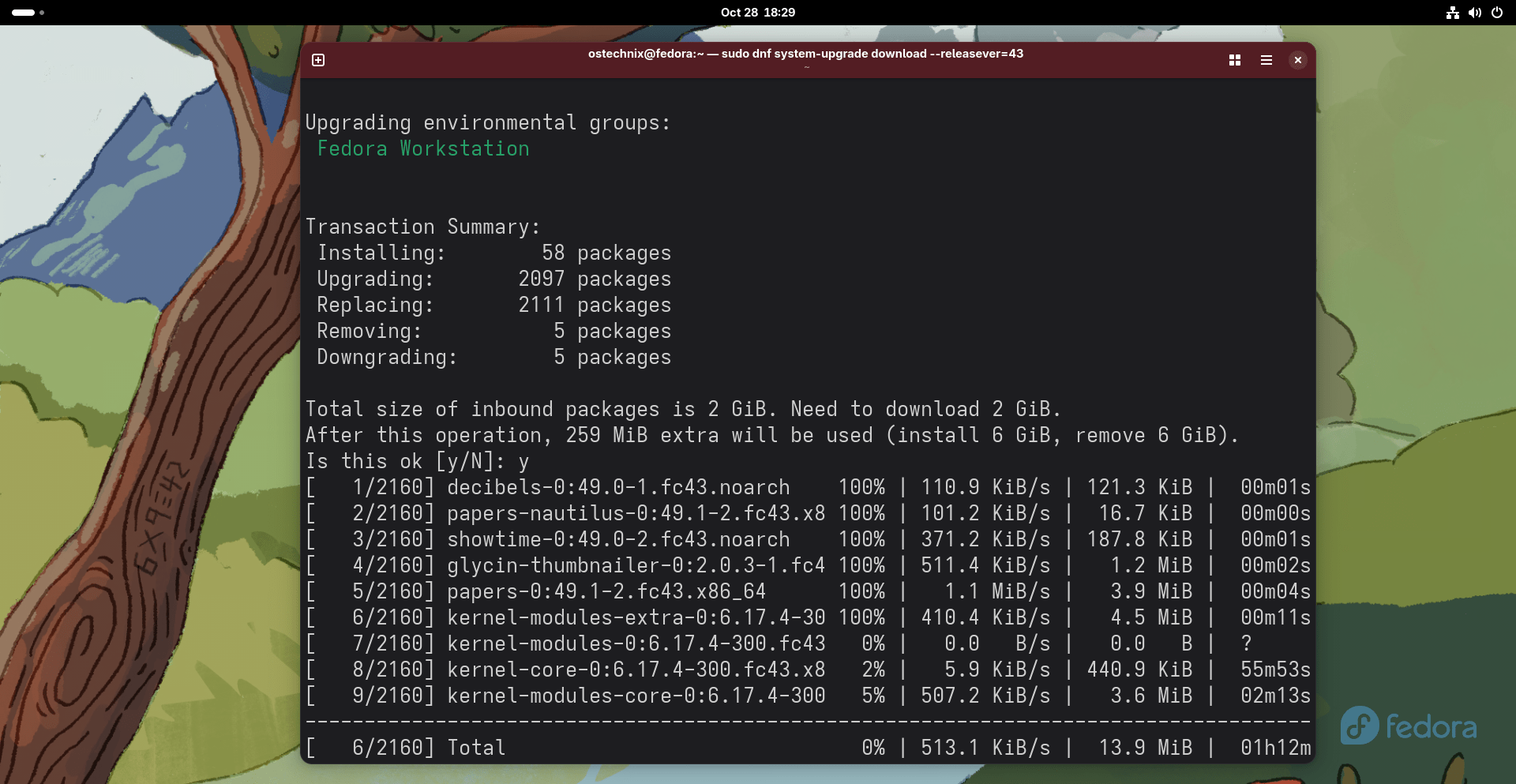
If some of your packages have unsatisfied dependencies, the upgrade might refuse to continue. In such cases, you may need to run the command again with the --allowerasing option.
sudo dnf system-upgrade download --releasever=43 --allowerasing
You should study the output carefully to see which packages will be removed, ensuring none are essential for your system or productivity.
Adding the --best option can sometimes provide more details about unsatisfied dependencies.
Step 4: Verify GPG Key
If a new GPG key is imported, you will be prompted to verify its fingerprint.
[...]
Testing offline transaction
Importing OpenPGP key 0x31645531:
 UserID     : "Fedora (43) <fedora-43-primary@fedoraproject.org>"
 Fingerprint: C6E7F081CF80E13146676E88829B606631645531
 From       : file:///etc/pki/rpm-gpg/RPM-GPG-KEY-fedora-43-x86_64
Is this ok [y/N]: y
Step 5: Trigger the Fedora 43 Upgrade Process
If you are using DNF 4 (default in older Fedora releases), run:
sudo dnf system-upgrade reboot
This will immediately reboot your machine into a special upgrade environment. Ensure all programs are closed and your work is saved beforehand.
If you are using DNF 5 (starting from Fedora 41+), run:
sudo dnf5 offline reboot
To confirm the F43 upgrade process, press y and hit ENTER key:
The system will now reboot to upgrade to release version 43.
Is this ok [y/N]: y
This performs the upgrade offline during the next boot.
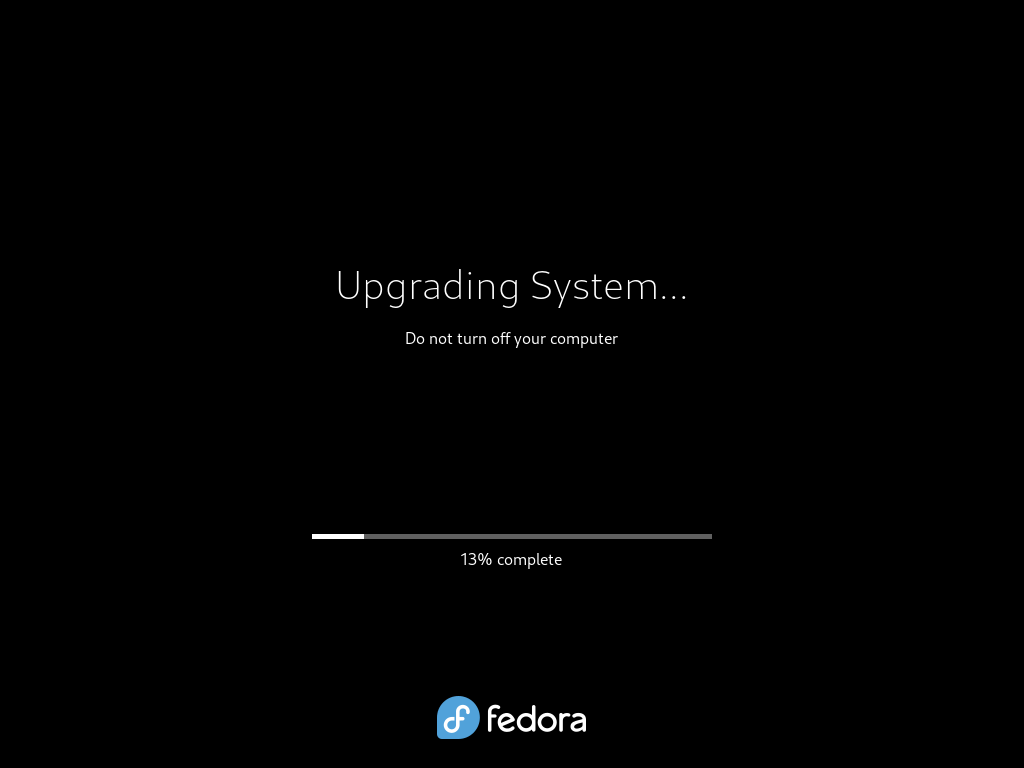
You can cancel the upgrade and delete downloaded files using command:
sudo dnf5 offline clean
If you encounter problems, you can try rebuilding the RPM database, using distro-sync, or relabeling files with the latest SELinux policy.
Step 6: Login to Fedora 43
After the successful F43 upgrade, your system will reboot into the updated Fedora Linux 43 release.
Log in and start using the newly upgraded Fedora 43 version:

You can verify by checking the installed Fedora version using command:
cat /etc/fedora-release
This will display the current Fedora version:
Fedora release 43 (Forty Three)
To show complete version details, use this command instead:
cat /etc/os-release
Sample Output:
NAME="Fedora Linux"
VERSION="43 (Workstation Edition)"
RELEASE_TYPE=stable
ID=fedora
VERSION_ID=43
VERSION_CODENAME=""
PRETTY_NAME="Fedora Linux 43 (Workstation Edition)"
ANSI_COLOR="0;38;2;60;110;180"
LOGO=fedora-logo-icon
CPE_NAME="cpe:/o:fedoraproject:fedora:43"
DEFAULT_HOSTNAME="fedora"
HOME_URL="https://fedoraproject.org/"
DOCUMENTATION_URL="https://docs.fedoraproject.org/en-US/fedora/f43/"
SUPPORT_URL="https://ask.fedoraproject.org/"
BUG_REPORT_URL="https://bugzilla.redhat.com/"
REDHAT_BUGZILLA_PRODUCT="Fedora"
REDHAT_BUGZILLA_PRODUCT_VERSION=43
REDHAT_SUPPORT_PRODUCT="Fedora"
REDHAT_SUPPORT_PRODUCT_VERSION=43
SUPPORT_END=2026-12-02
VARIANT="Workstation Edition"
VARIANT_ID=workstation
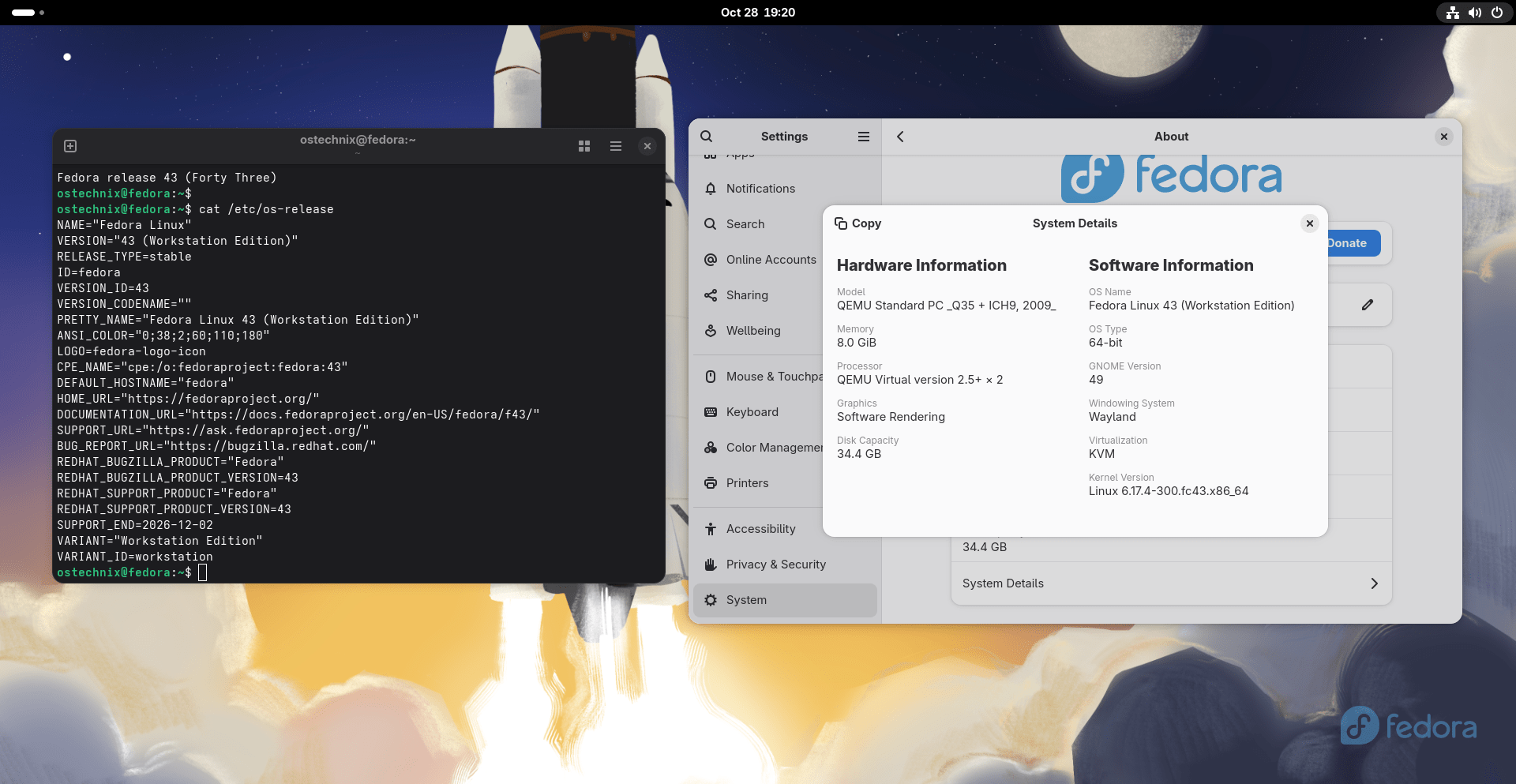
You can also check version details from Settings -> System -> System Details section:
Troubleshooting
If you encounter any issues after the F43 upgrade, please do the following steps one by one.
Rebuilding the RPM database:
First back up /usr/lib/sysimage/rpm and run:
sudo rpm --rebuilddb
Using distro-sync:
sudo dnf distro-sync
To resolve dependency issues, do:
sudo dnf distro-sync --allowerasing
Relabeling files with the latest SELinux policy:
sudo fixfiles -B onboot
And reboot, especially if SELinux was previously disabled.
Fedora Post-upgrade Tasks
After successfully upgrading your Fedora 42 system to Fedora 43, there are several optional post-upgrade tasks you might consider performing to ensure optimal system performance and maintenance.
These tasks include:
- updating system configuration files,
- updating the GRUB bootloader on BIOS systems,
- cleaning up retired or old packages,
- cleaning up old kernels, old GPG keys, and old symlinks,
- and updating the rescue kernel.
1. Update System Configuration Files
Configuration files are typically stored in the /etc folder. During an upgrade, if you've modified a package's configuration file, RPM might create new files with a .rpmnew extension (for the new default config) or back up your old config with a .rpmsave extension.
You can use the rpmconf tool to simplify the process of checking and merging these files.
Install rpmconf:
sudo dnf install rpmconf
Run the following command to review and manage configuration file changes:
rpmconf -a
It is important to carefully review changes in /etc/yum.repos.d/ as reverting these files to original versions might disable updates for third-party software.
Also, verify critical files like /etc/ssh/sshd_config, /etc/nsswitch.conf, and /etc/ntp.conf as OpenSSH upgrades, for example, might revert sshd_config to a default that doesn't enable public key authentication.
2. Update GRUB bootloader on BIOS systems
While GRUB RPM packages are updated, the installed or embedded bootloader on BIOS systems is not automatically updated. It's good practice to update it between Fedora Linux release versions.
Find the device node where /boot/ is located:
sudo mount | grep "/boot "
For example, if it's /dev/sda4, the device node is /dev/sda.
Reinstall the bootloader using command:
sudo grub2-install /dev/sda
Replace /dev/sda with your actual device node without the number.
The expected output will be "Installing for i386-pc platform. Installation finished. No error reported".
3. Clean-up Retired Packages
Fedora retires packages due to obsolescence, dead upstream, or maintainer stepping down. These packages remain on your system but will no longer receive upgrades. It's highly recommended to remove them.
For an upgrade across one release (e.g., Fedora 42 to 43), run:
sudo dnf install remove-retired-packages
sudo remove-retired-packages
Please note that upgrades across more than two releases are not supported for this cleanup method.
4. Clean-up Old Packages
To find duplicate packages (multiple versions installed):
sudo dnf repoquery --duplicates
To remove them, run:
sudo dnf remove --duplicates
Note that this command uses the default dnf binary (DNF5 on Fedora 39+). This list is only valid on a fully updated system.
To list packages installed on your system that are no longer in the repositories:
sudo dnf list --extras
To remove unnecessary "extra" packages, run:
sudo dnf remove $(sudo dnf repoquery --extras --exclude=kernel,kernel-\*,kmod-\*)
To remove packages DNF deems no longer needed (those not explicitly installed and not required by other packages):
sudo dnf autoremove
Exercise caution as this only removes packages DNF thinks are unneeded, which may not align with your actual usage.
5. Clean-up Old kernels
After booting into and testing the new kernel, you can remove older kernels. This helps free up space.
You can use the following script to retain only the latest kernel and clean up old kernels:
#!/usr/bin/env bash

old_kernels=($(dnf repoquery --installonly --latest-limit=-1 -q))
if [ "${#old_kernels[@]}" -eq 0 ]; then
    echo "No old kernels found"
    exit 0
fi

if ! dnf remove "${old_kernels[@]}"; then
    echo "Failed to remove old kernels"
    exit 1
fi

echo "Removed old kernels"
exit 0
Save the contents in a file, for example cleanfedorakernel.sh.
Make it executable:
chmod +x cleanfedorakernel.sh
And, the run it to remove old kernels:
sudo ./cleanfedorakernel.sh
6. Clean-up Old Keys Trusted for RPM Package Signing
Over time, GPG keys from older Fedora releases and third-party repositories accumulate in the RPM database. You can remove unreferenced keys with:
sudo dnf install clean-rpm-gpg-pubkey
sudo clean-rpm-gpg-pubkey
7. Clean-up Old Symlinks
Install symlinks:
sudo dnf install symlinks
Audit for broken symlinks (e.g., in /usr):
sudo symlinks -r /usr | grep dangling
Delete broken symlinks:
sudo symlinks -r -d /usr
8. Update Rescue Kernel
The rescue kernel and initramfs might not be automatically updated with kernel updates, depending on your system configuration. If it's outdated, you can regenerate it.
sudo rm /boot/*rescue*
sudo kernel-install add "$(uname -r)" "/lib/modules/$(uname -r)/vmlinuz"
To automate this process, install dracut-config-rescue:
sudo dnf install dracut-config-rescue
From now on, the rescue kernel will be regenerated as long as dracut is the initrd generator.
Conclusion
There you go! We have successfully upgraded Fedora 42 to Fedora 43. Do not forget to perform the Fedora 43 post-installation tasks to clean the unnecessary junk files.
Good luck!

4 comments
I’ve been using Linux for a couple of decades. I have already upgraded to Fedora-43 using the method described here, so it’s to late to try the new Anaconda WebUI. However, I am very pleased that the old Anaconda way has been replaced. I tried that on a couple of occasions and gave up. It was so awful, that had it been my first attempt at installing Linux I would have come to the conclusion that Fedora was trying to put newbies off.
Yes, the new Anaconda installer UI is very user-friendly.
can i upgrade from iso ? with out inet ?
Yes, but it’s bit technical and time consuming process. You need to download the Fedora 43 ISO from another Internet-enabled system, mount it in your offline system, create a local repository and initiate the upgrade process. Online upgrade is much easier and simpler than offline upgrade. We’re working on a offline upgrade guide. We will publish it once it is ready.