
Fedora Linux 43 is officially released! Powered by the latest Linux Kernel 6.17, Fedora 43 ships with GNOME 49 DE and Wayland as the default windowing system.
Furthermore, Fedora Linux 43 introduces several software updates and improvements, focusing heavily on a smooth desktop experience and robust core performance.
Table of Contents
GNOME 49 and Wayland-only Desktop
If you use Fedora Workstation, you will see the brand-new GNOME 49 release immediately. This major update brings several welcome refinements to your desktop experience.
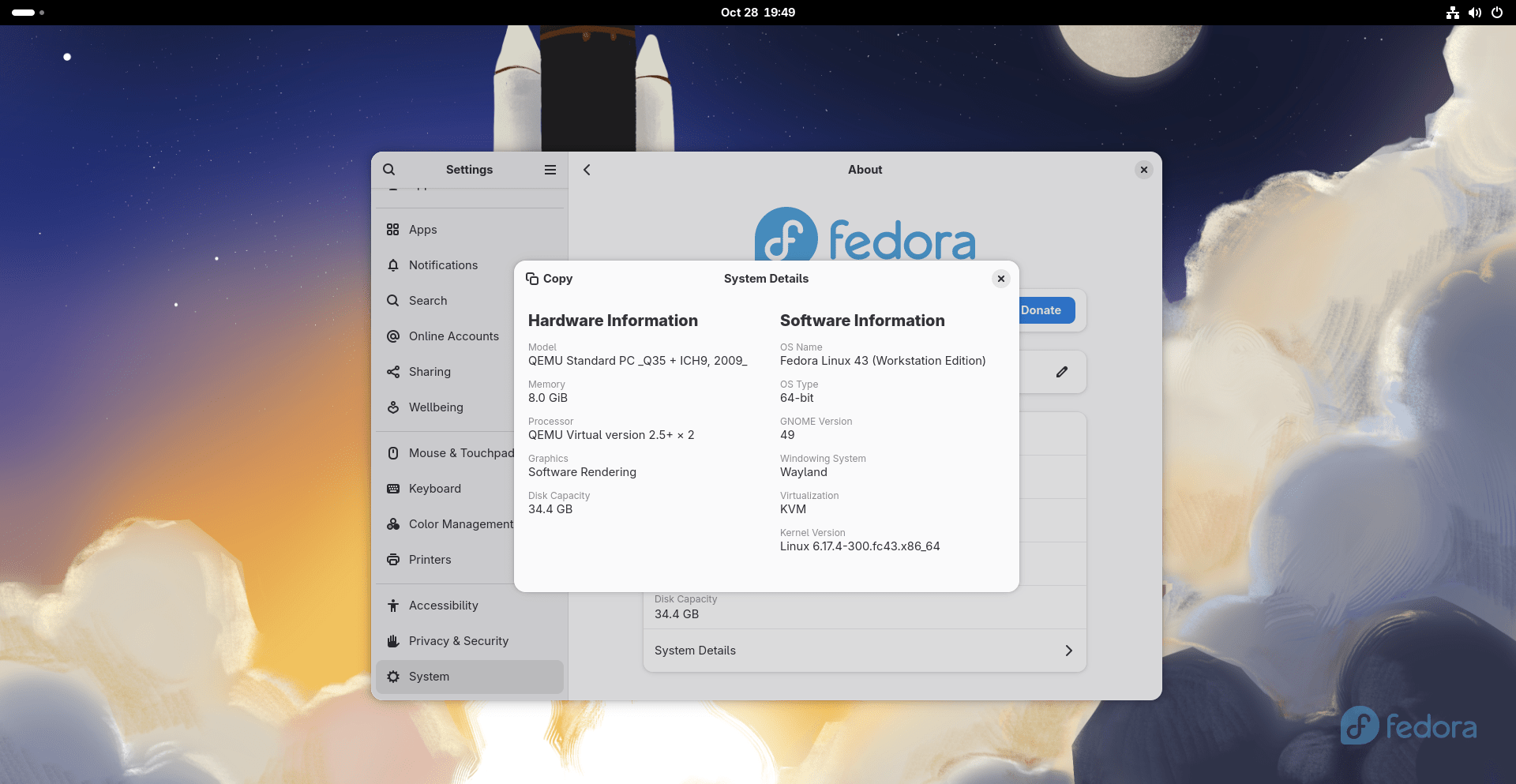
Wayland Takes Center Stage
Fedora Linux 43 makes a huge shift for GNOME users: it is now Wayland-only. Consequently, the Fedora repositories no longer contain the GNOME X11 packages.
All users who previously used the GNOME X11 session will automatically migrate to the GNOME Wayland session.
This transition, planned for almost a decade, is expected to provide better performance and hardware compatibility.
- Smoother Visuals: You should immediately notice cleaner visuals and less screen tearing because of triple buffering.
- Better Hardware Support: This change improves support for Intel Xe graphics, and systems using NVIDIA Optimus and Hybrid Mode receive enhancements.
Other Desktop Enhancements
- New Video Player: Fedora Workstation switched the default video player from Totem to Showtime. Showtime utilizes the newer GTK 4 and Libadwaita libraries.
- Smarter Emojis: The Noto Color Emoji fonts now use the COLRv1 format. This new format makes color emojis scalable, giving you better rendering results than the old color bitmap fonts.
- GNOME 49 Features: GNOME 49 introduces significant enhancements for setups using multiple displays. You also benefit from an improved workflow for taking screenshots and screen recordings. Plus, a new "Focus Mode" helps you minimize distractions.
Core System Updates and Installation Simplicity
Fedora 43 didn't just polish the surface; it upgraded the foundation, too.
Installation Gets Easier
The Anaconda WebUI installer is now the default interface for Fedora Spins and Editions. This provides a consistent and modern way to install Fedora across all desktop versions.
- DNF5 Integration: The Anaconda installer now uses DNF5 for installing packages. This marks a major step toward removing the older DNF4 package manager.
- Faster Boot: Initrds now use the Zstandard (zstd) algorithm for compression by default. This means a slightly smaller initrd and a faster boot time.
- Larger Boot Partition: New Fedora installations will create a 2 GiB
/bootpartition, doubling the previous size of 1 GiB. This helps handle the growing size of initrd files. - RPM 6.0: Fedora Linux 43 introduces RPM 6.0. While end-users probably won't notice this, RPM 6.0 brings important security enhancements, including support for multiple key signing of packages.
Atomic Desktops Shine
For users of Fedora Atomic Desktops (like Kinoite and Silverblue), you will find exciting changes.
- Kinoite Auto-Updates: Fedora Kinoite users now have automatic weekly updates enabled by default. Updates apply quietly in the background after a simple reboot. You can easily configure the frequency or disable this feature in the system settings.
- KDE Plasma 6.4: Fedora Kinoite ships with Plasma 6.4.5. Plasma 6.4 offers features like more flexible tiling, allowing different layouts for each virtual desktop. The Spectacle screenshot tool received a complete overhaul.
- CoreOS Changes: The Fedora CoreOS (FCOS) build process now uses a standard container image (Containerfile). This means anyone with Podman installed can easily build FCOS. Furthermore, FCOS updates are now delivered only as OCI images, stopping the publication of updates to the old OSTree repository.
Updates for Developers and Power Users
The new release keeps Fedora modern by updating many development tools.
- Toolchain: Fedora updated its core tools, including gcc 15.2, binutils 2.45, glibc 2.42, and gdb 17.1.
- Python: You get the latest Python version, Python 3.14. This helps the entire Python community by finding and reporting critical bugs early.
- Go: The Go language package updates to Golang 1.25.
- Databases: The default database stream for PostgreSQL moves to version 18. Similarly, the default MySQL version switches from 8.0 to 8.4.
- Web Frameworks: Developers receive the newest release of the popular web framework, Ruby on Rails 8.0.
Moreover, Fedora retired old or unmaintained components. The Gold Linker is deprecated, simplifying the developer experience. Also, Fedora removed the unmaintained test runner, python-nose, encouraging developers to switch to active frameworks like python3-pytest or python3-nose2.
For more details, please refer the Fedora 43 Complete ChangeSet.
Download Fedora Linux 43
If you are looking to install Fedora Linux 43 on a new machine, you can download the installation media from the Fedora official downloads page.
You can choose from several flagship Editions, Atomic Desktops, or alternate desktop options:
- Flagship Editions: Workstation, KDE Plasma Desktop, Cloud, Server, CoreOS, and IoT.
- Atomic Desktops: Silverblue, Kinoite, Cosmic, Budgie, and Sway.
- Alternate Desktops: Options such as Cinnamon, Xfce, and Sway are also available.
You can also visit the Fedora torrent downloads to download the latest Fedora 43 images.
Ready to Upgrade to Fedora 43? Follow these Steps Carefully
If you use Fedora 42 already, upgrading to Fedora 43 is straightforward using the DNF system upgrade plugin. Since this is a system-wide change, you must follow these steps carefully.
Step 1: Back Up Everything
First, always back up your important data before starting any system-wide upgrade. System upgrades carry potential risks.
Step 2: Update Your Current System
Next, ensure your existing Fedora 42 system is completely up-to-date. Run this command:
sudo dnf upgrade --refresh
After the upgrade finishes, reboot your computer. This step is important because you receive necessary signing keys and fixes for a smooth upgrade process.
Step 3: Download the Fedora 43 Packages
Now, download all the packages needed for the new release. To do so, use the dnf system-upgrade download command:
sudo dnf system-upgrade download --releasever=43
Troubleshooting Tip:
If you run into dependency issues, perhaps because of third-party software, try adding the --allowerasing option. However, you must carefully review the list of packages DNF suggests removing before continuing. You will also need to verify the new GPG key fingerprint when prompted.
Step 4: Reboot and Start the Upgrade
Finally, you can trigger the upgrade process. The command depends on the version of DNF you use:
For DNF 4 (found in older Fedora releases), run:
sudo dnf system-upgrade reboot
This command immediately reboots your machine, so make sure you save all your work first.
For DNF 5 (default from Fedora 41+), run this command:
sudo dnf5 offline reboot
This performs the upgrade offline during the very next boot.
Your system will reboot twice during this process. Afterward, you will launch into your shiny new Fedora Linux 43 release. Enjoy the new features in Fedora 43!
If you have any issues during or after the upgrade, please refer to our Step-by-Step Fedora 43 upgrade tutorial.
